
1. To start, open the Notebook where you want to search.
2. Now, navigate to the sources panel on the left.
3. Afterwards, select the sources only where you want to search. You can do this by unchecking the checkbox for all others.
4. Now, click here.
5. After that, enter a prompt to search for anything in the source.
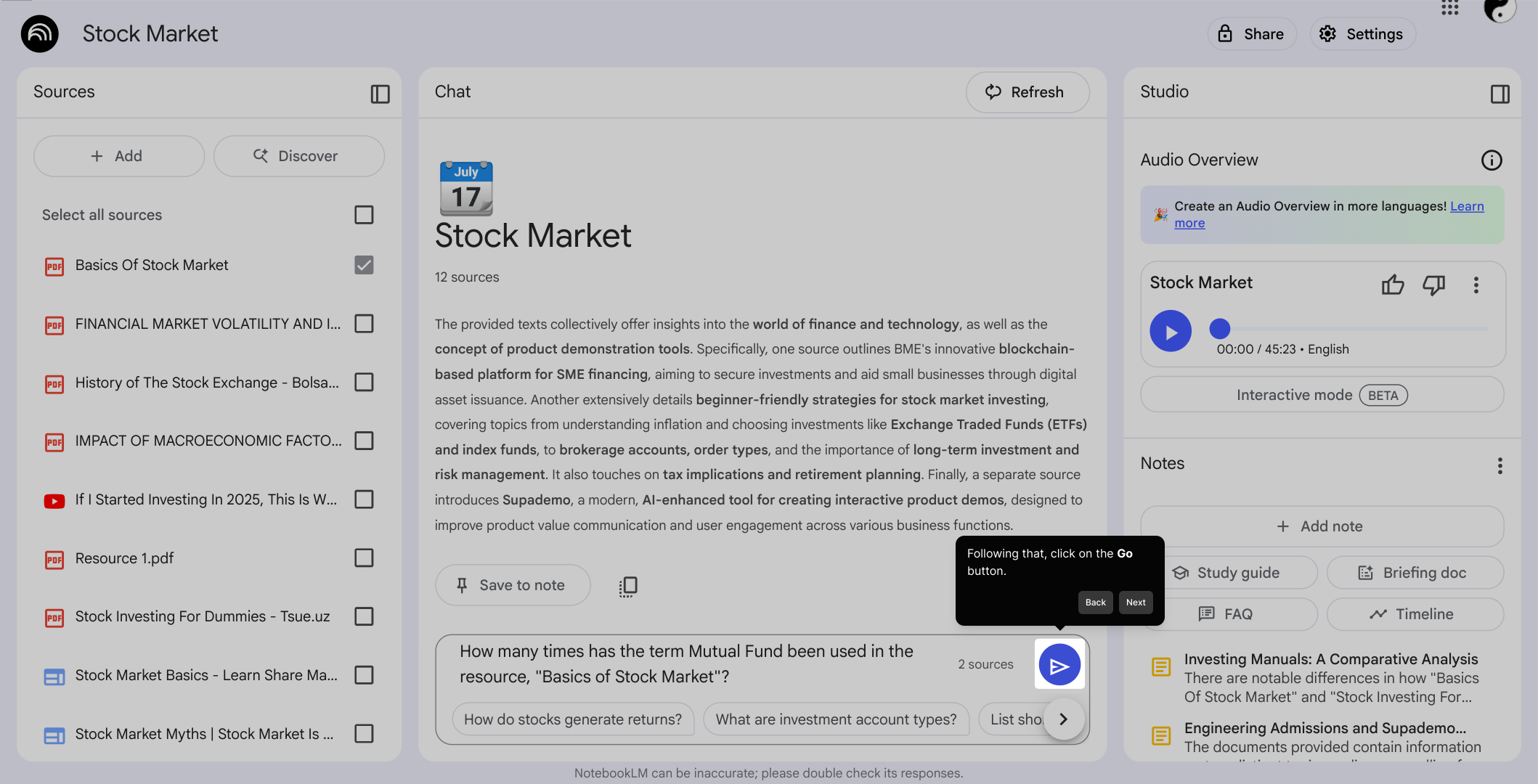
6. Following that, click on the Go button.
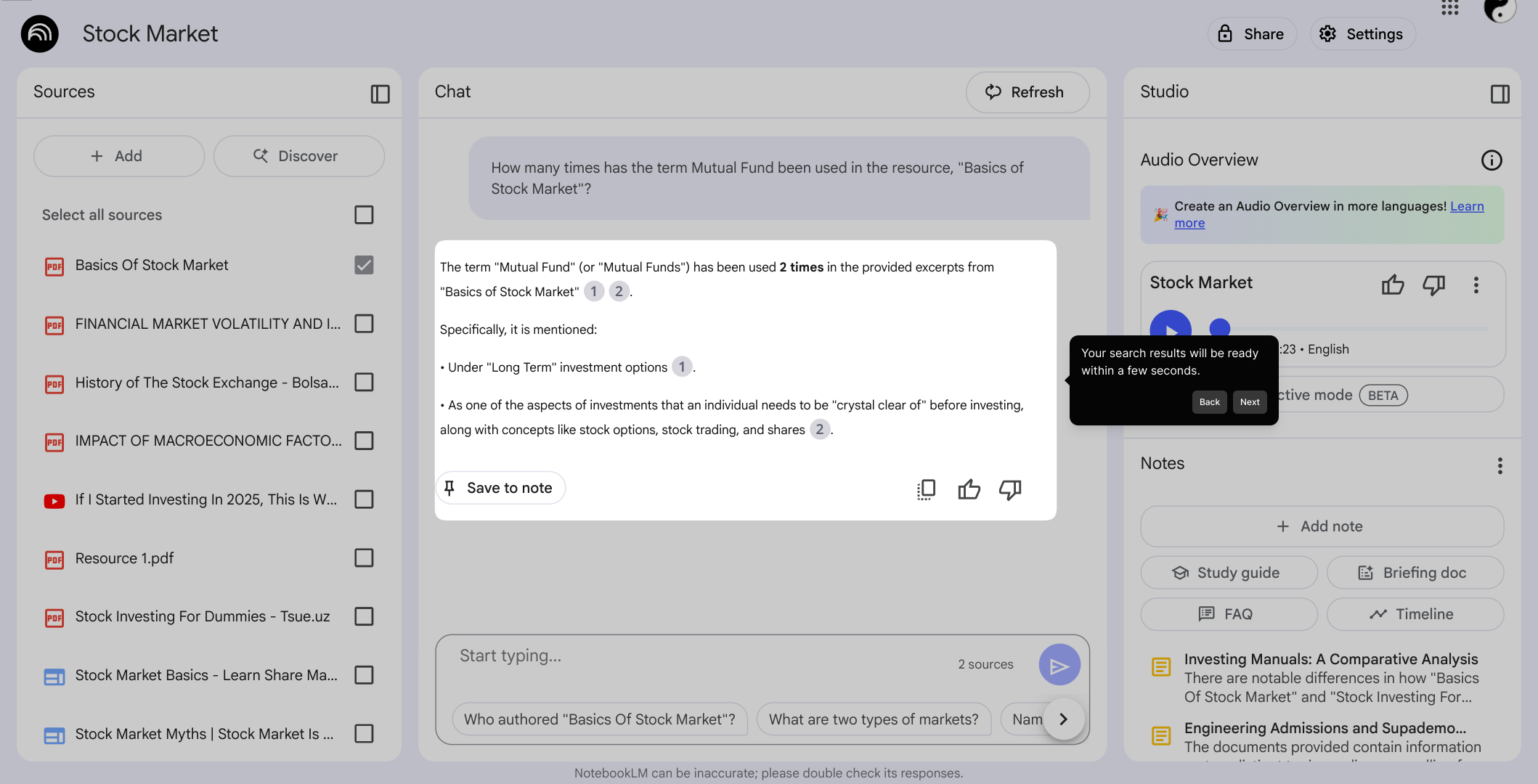
7. Your search results will be ready within a few seconds.
8. Create a Supademo in seconds
This interactive demo/guided walkthrough on How to Search Within Sources in NotebookLM was created using Supademo.
How to Search Within Sources in NotebookLM : Step-by-Step Guide
Begin by opening the Notebook where you'd like to perform your search. This sets the stage for targeting the right content in your workspace.
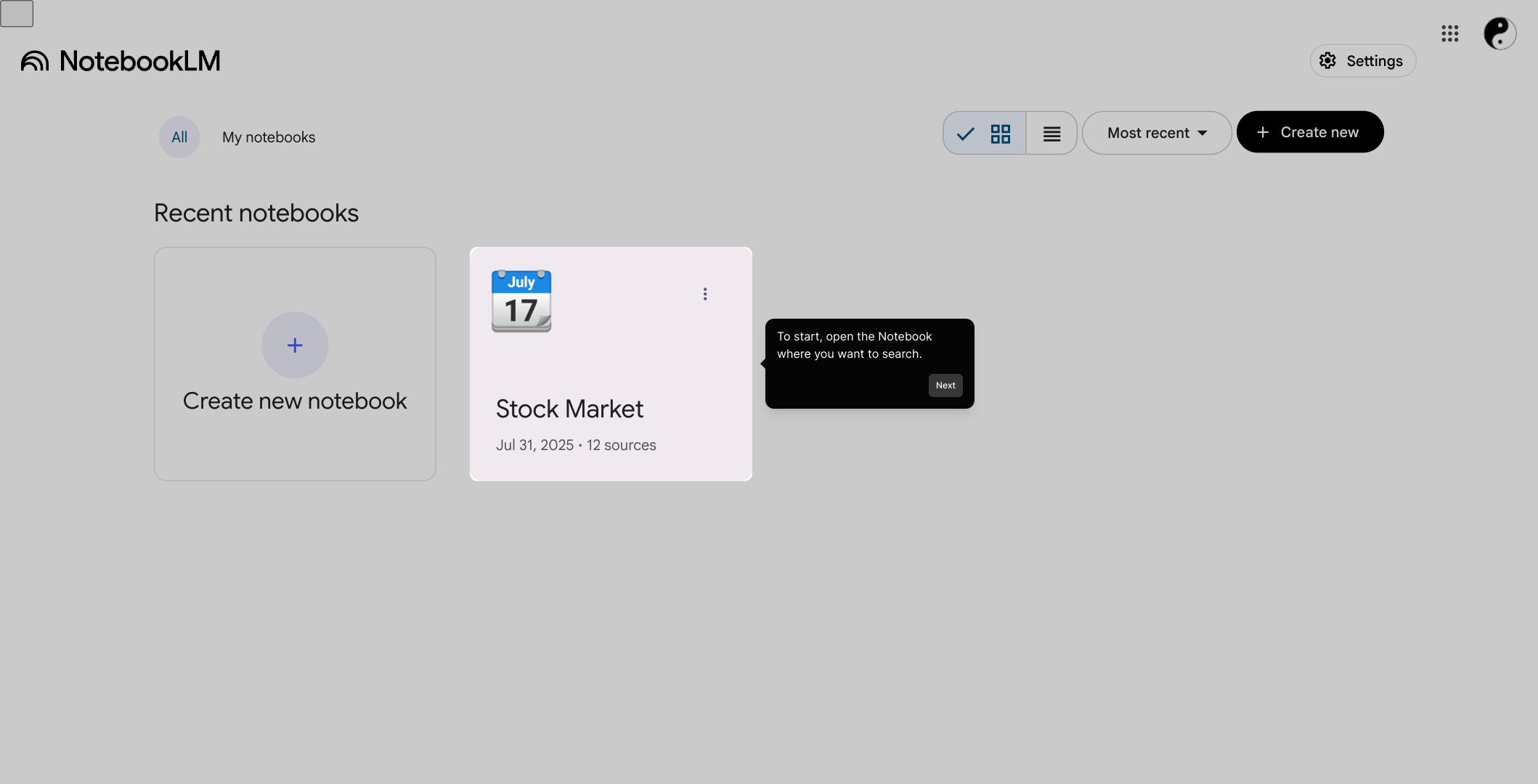
Next, look to the left side of your screen to find the sources panel. This is where you will control which content areas to include in your search, helping you narrow down the scope efficiently.
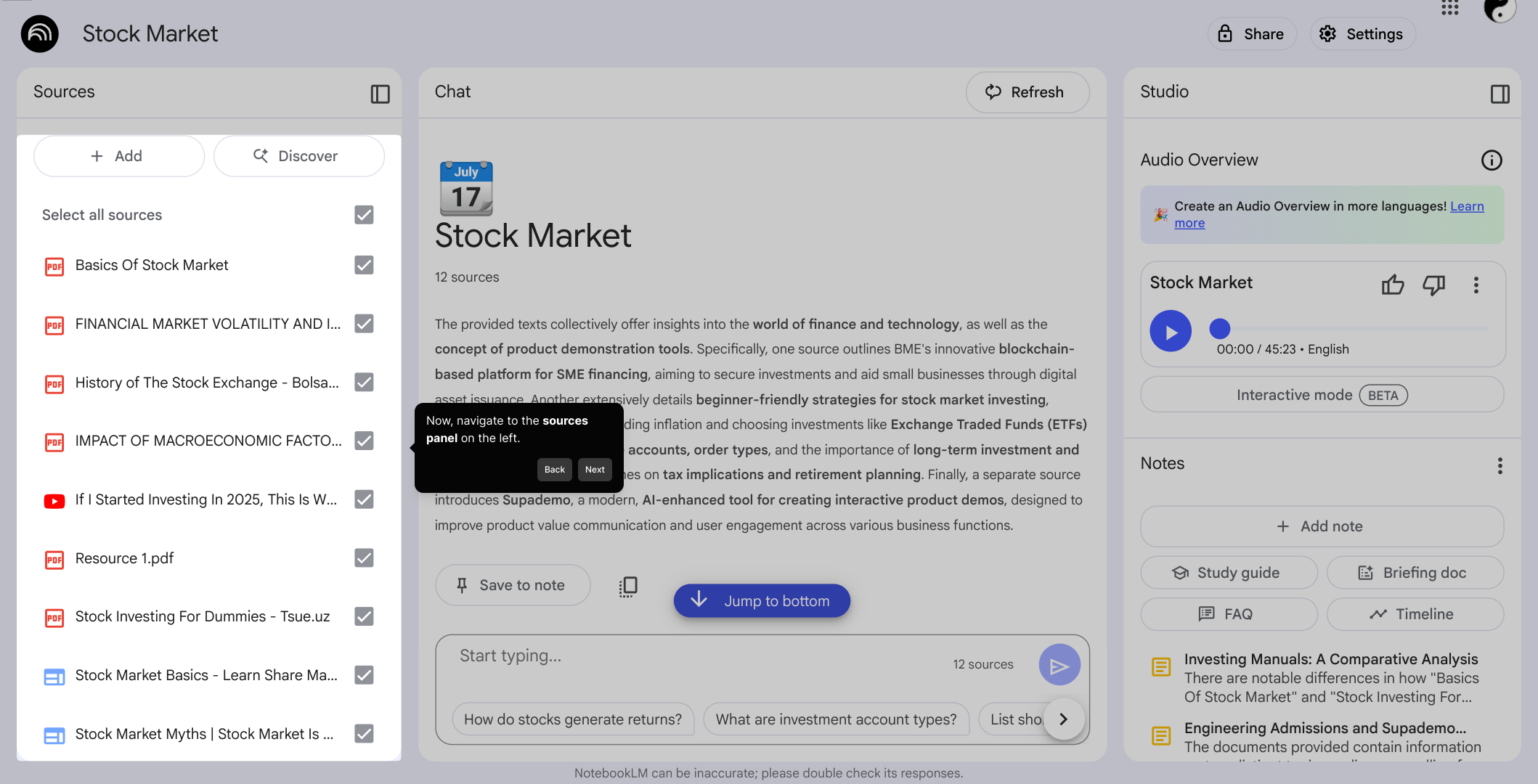
Take a moment to select only the sources you want to search within. You can customize your search by unchecking any sources that aren’t relevant, ensuring your results are focused and meaningful.
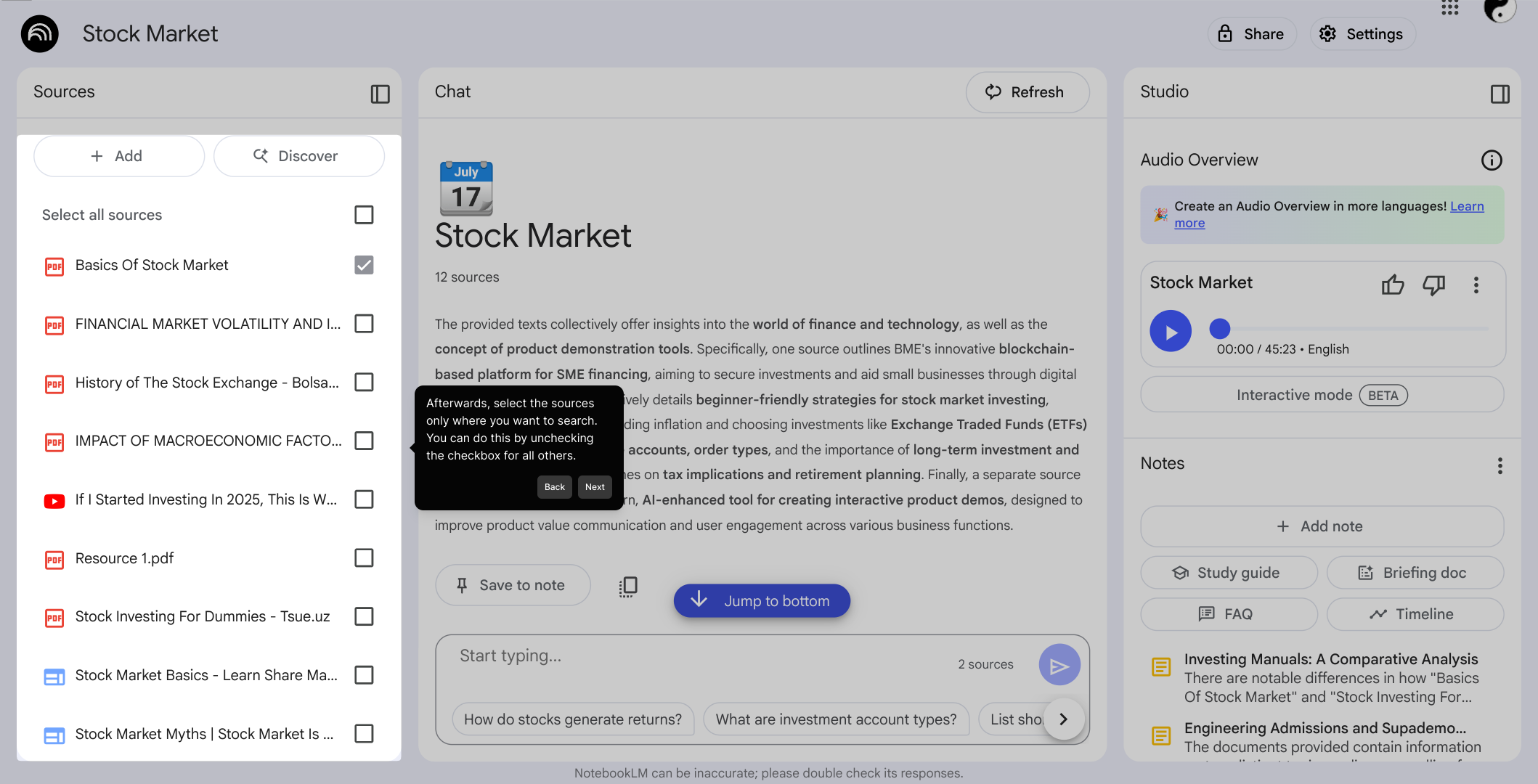
Once your sources are chosen, click on the indicated button to proceed. This action signals the system to prepare for your search input.
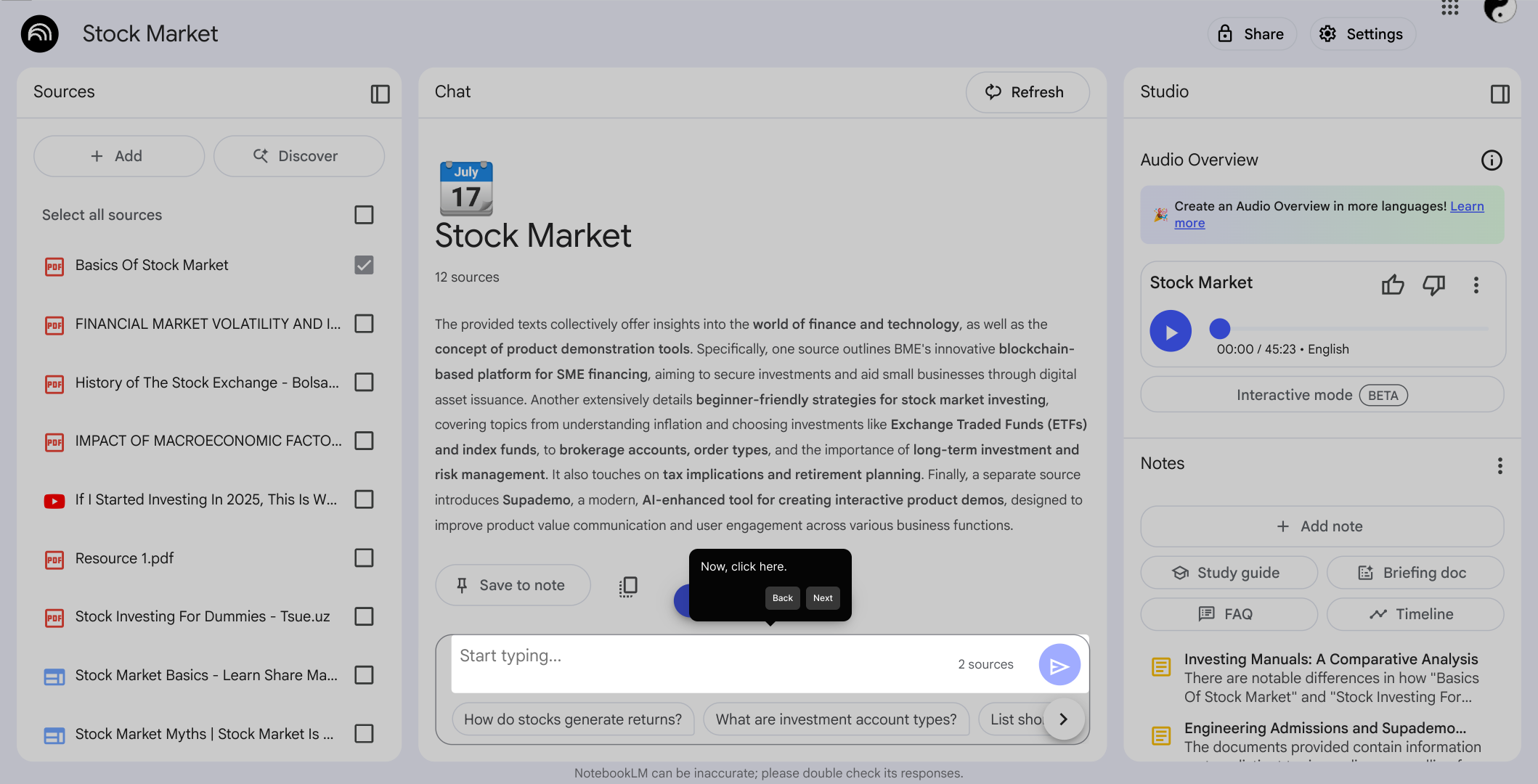
Now, enter a prompt or keyword related to what you're looking for in the provided search field. This step lets you specify exactly what content you want to find within the selected sources.
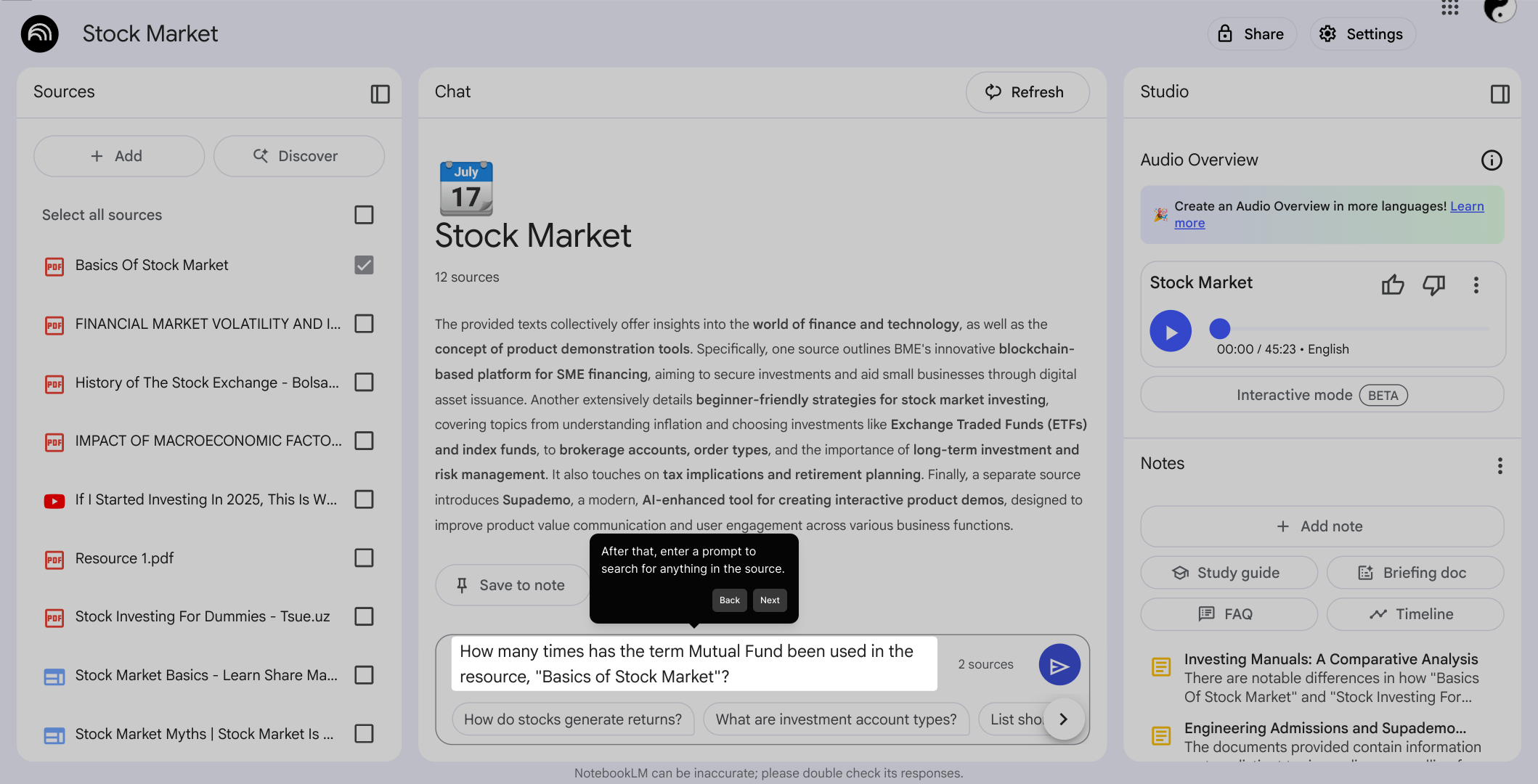
After entering your search terms, click the Go button to start the search process. This triggers the system to scan your chosen sources based on your input.
Within a few moments, your search results will appear, giving you quick access to the information you need without delay.
Finally, you can create a Supademo quickly and easily, bringing all your insights together in one convenient place to share or review later.
Create your own interactive demos in < 5 mins with Supademo
You can create your own interactive product demo in minutes using Supademo. Drive growth, scale enablement, and supercharge product-led onboarding with Supademo. Sign up for free here with no credit card required.
FAQs
Commonly asked questions about this topic.
What is NotebookLM and how does the source search feature help?
How do I select which sources to search within NotebookLM?
Can I search multiple sources at once in NotebookLM?
What types of queries can I use to search within sources?
How long does it take to get search results?
Is it possible to search across all sources by default?
What should I do if I can’t find the sources panel?
Can I save or export my search results in NotebookLM?
Does NotebookLM support searching within PDFs or other document types?
Can I create interactive demos to guide others on using NotebookLM’s search feature?

Product Operations Associate
Vimal Kumar helps build and grow Supademo’s team and GTM efforts, with a focus on figuring out growth levers and improving product traction.


