
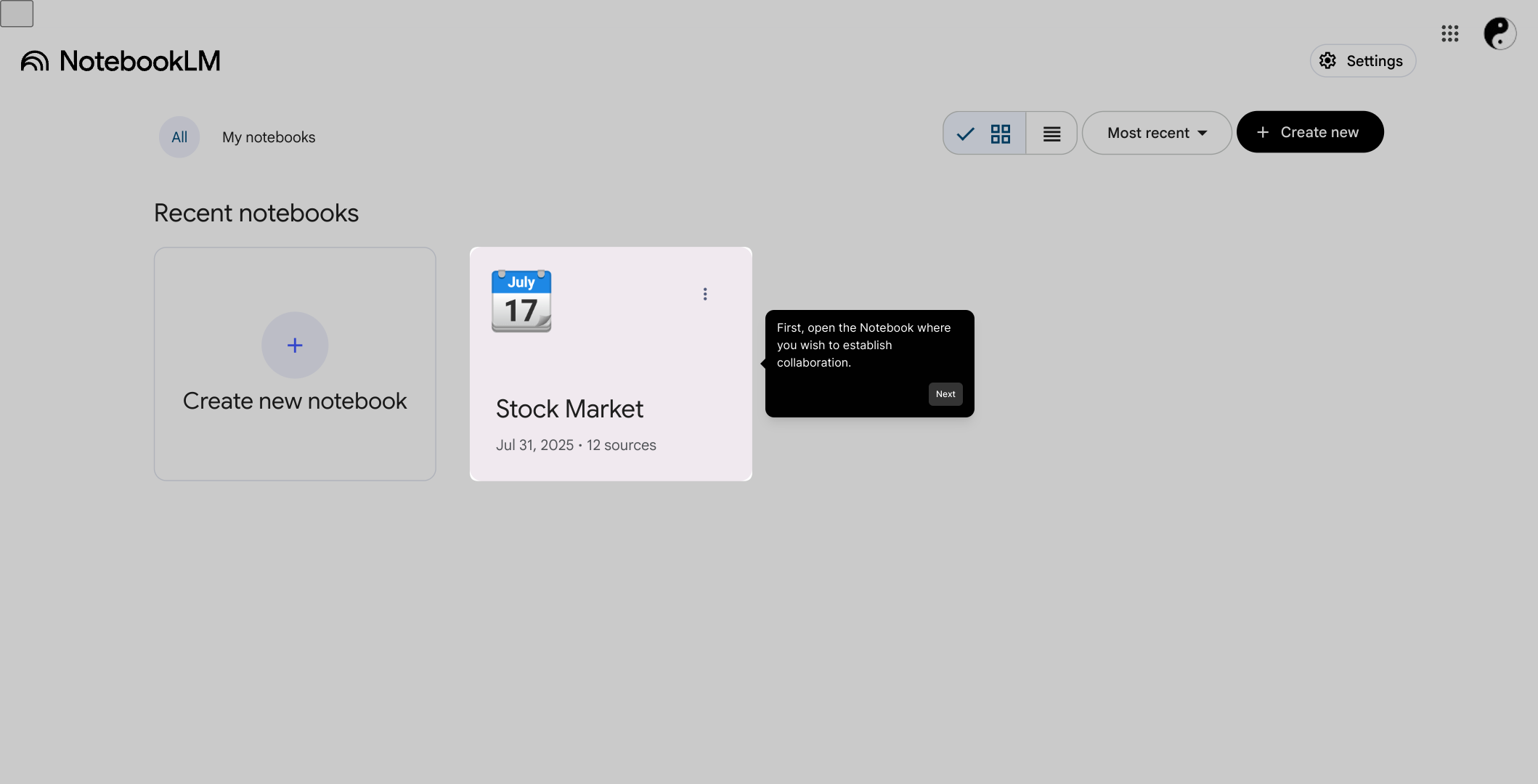
1. First, open the Notebook where you wish to establish collaboration.
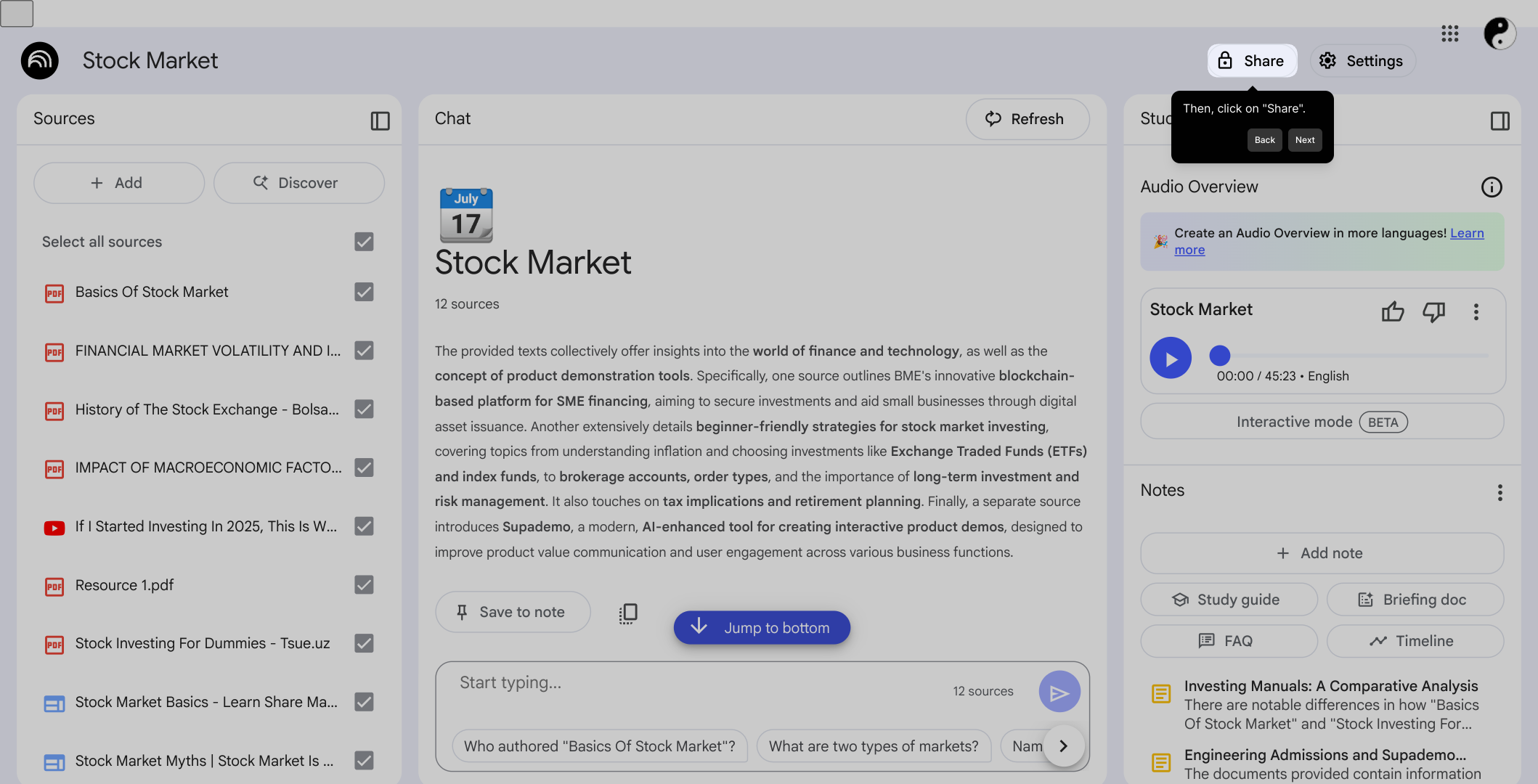
2. Then, click on "Share".
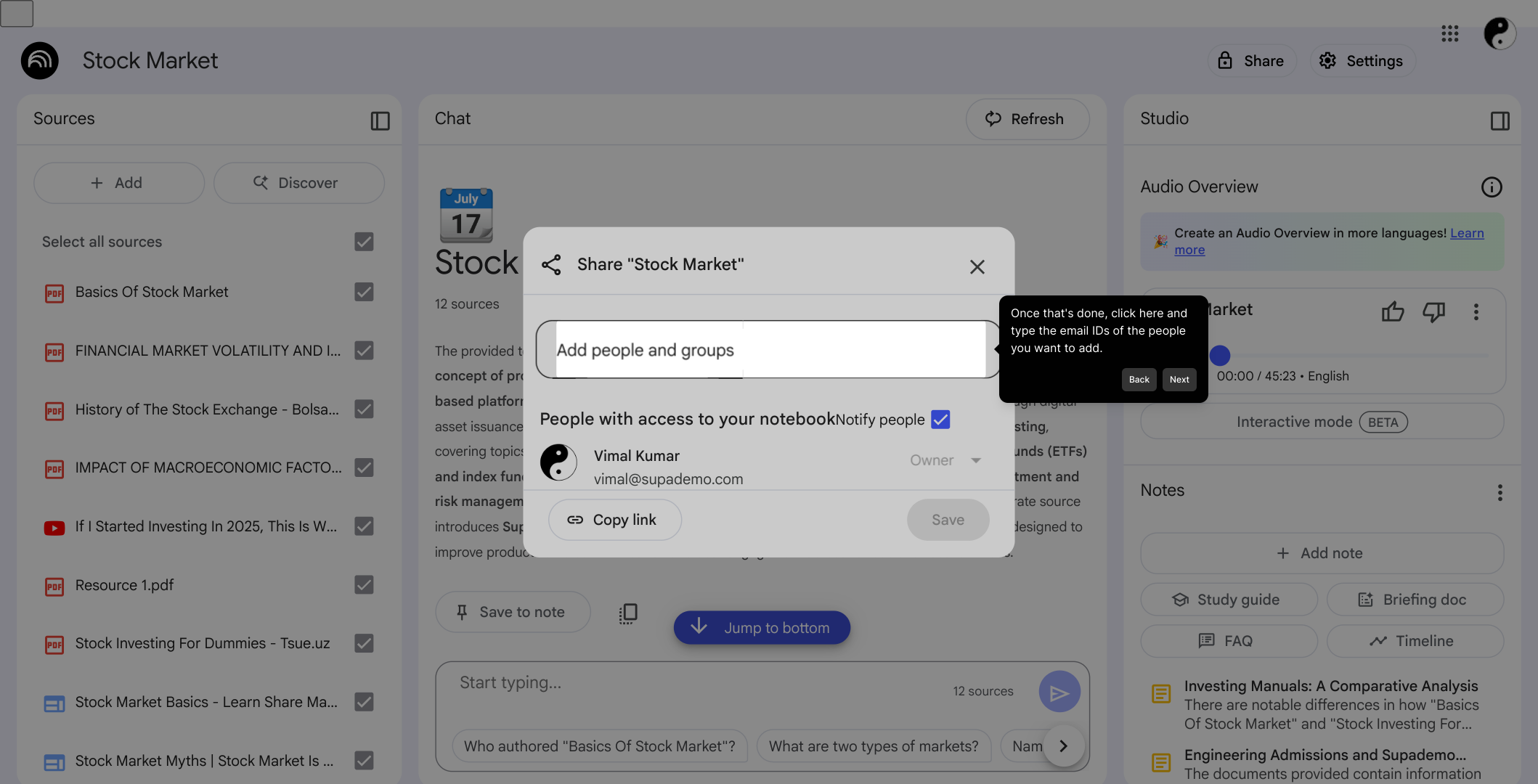
3. Once that's done, click here and type the email IDs of the people you want to add.
4. Now, to configure the access level, click here.
5. Once that's done, click on either "Viewer" or "Editor".
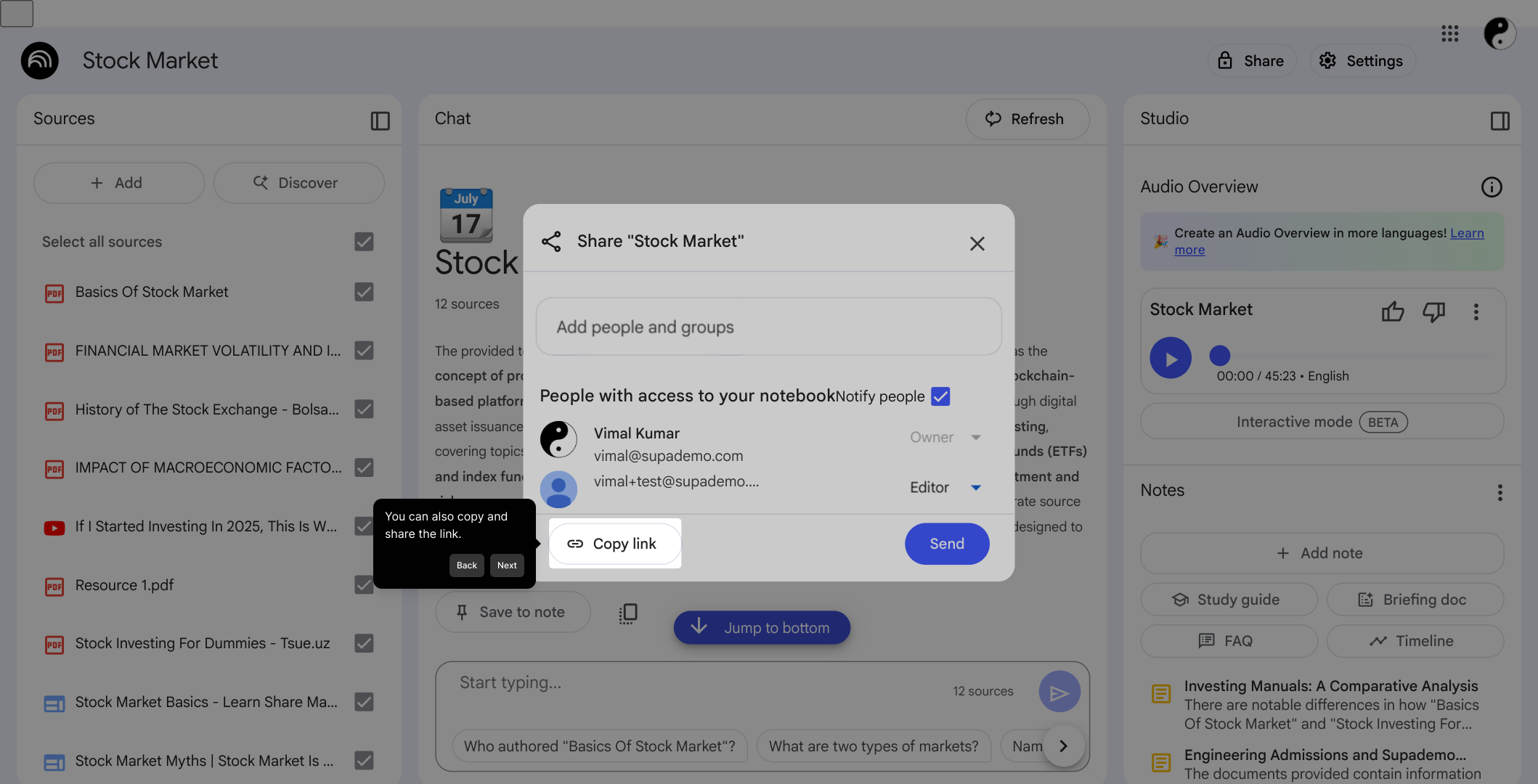
6. You can also copy and share the link.
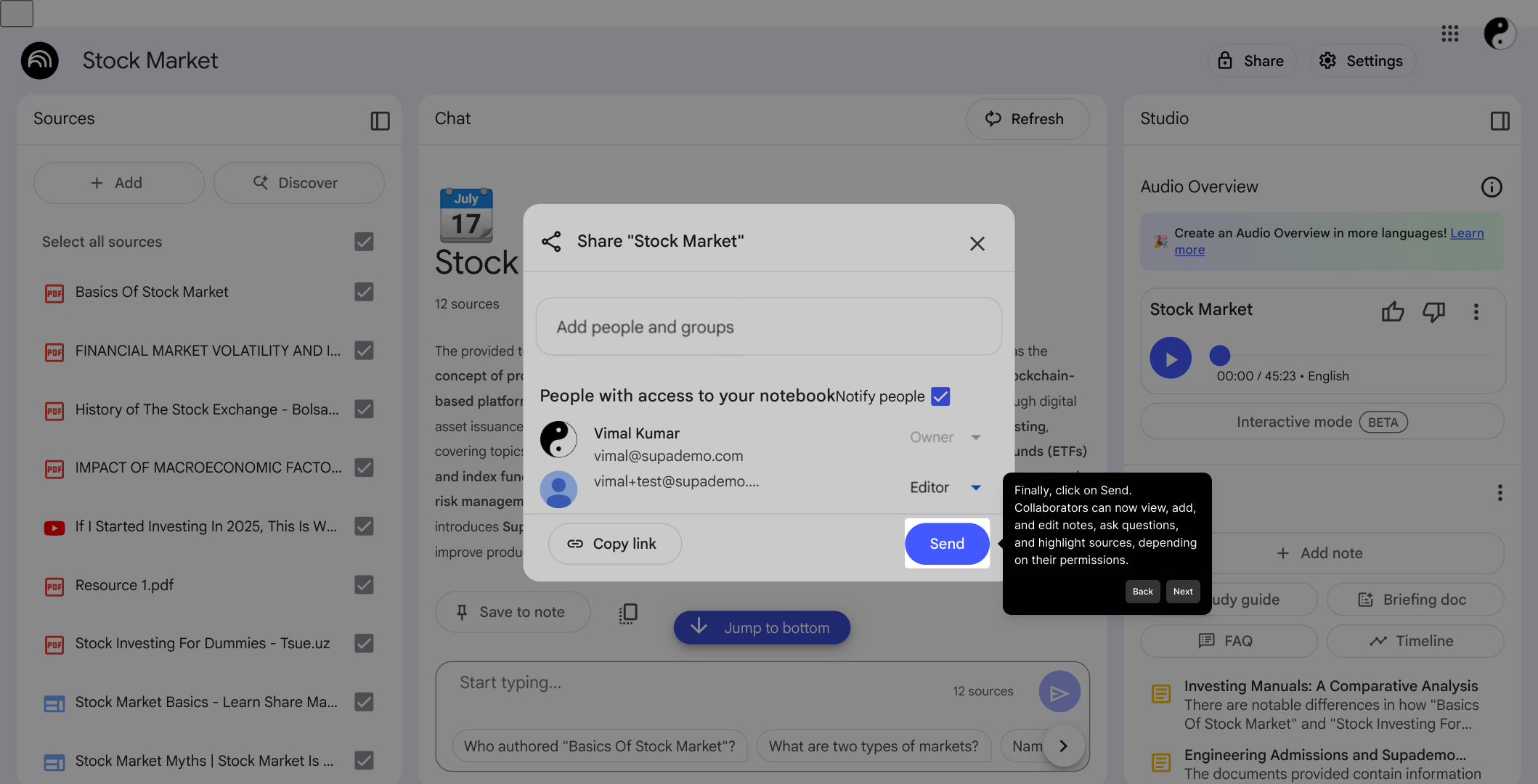
7. Finally, click on Send.
Collaborators can now view, add, and edit notes, ask questions, and highlight sources, depending on their permissions.
8. Create a Supademo in seconds
This interactive demo/guided walkthrough on How to Collaborate with Others in NotebookLM was created using Supademo.
How to Collaborate with Others in NotebookLM : Step-by-Step Guide
Begin by navigating to the Notebook you want to collaborate on. This is where all your shared work will take place, so make sure you’ve selected the correct one to get started.
Next, locate and click the "Share" button, which opens the panel where you can invite others to join your Notebook and contribute alongside you.
In the sharing panel, enter the email addresses of the individuals you want to invite. This ensures only the right people receive access to collaborate with you.
After inviting collaborators, you’ll want to set their permissions. Click on the access level option to choose whether they can simply view the Notebook or actively edit it.
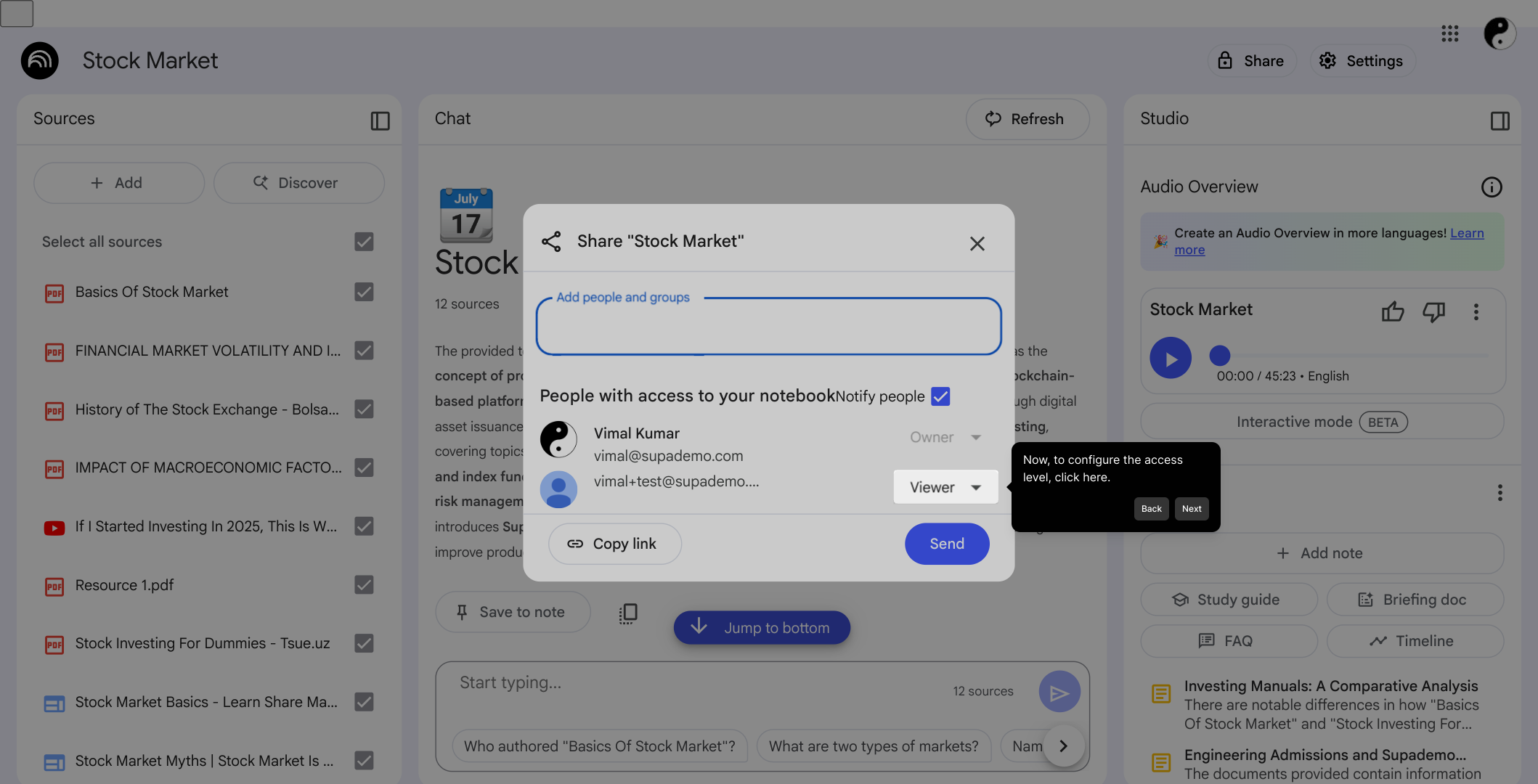
Choose between the “Viewer” role, which allows read-only access, or the “Editor” role, which permits changes and additions within the Notebook.
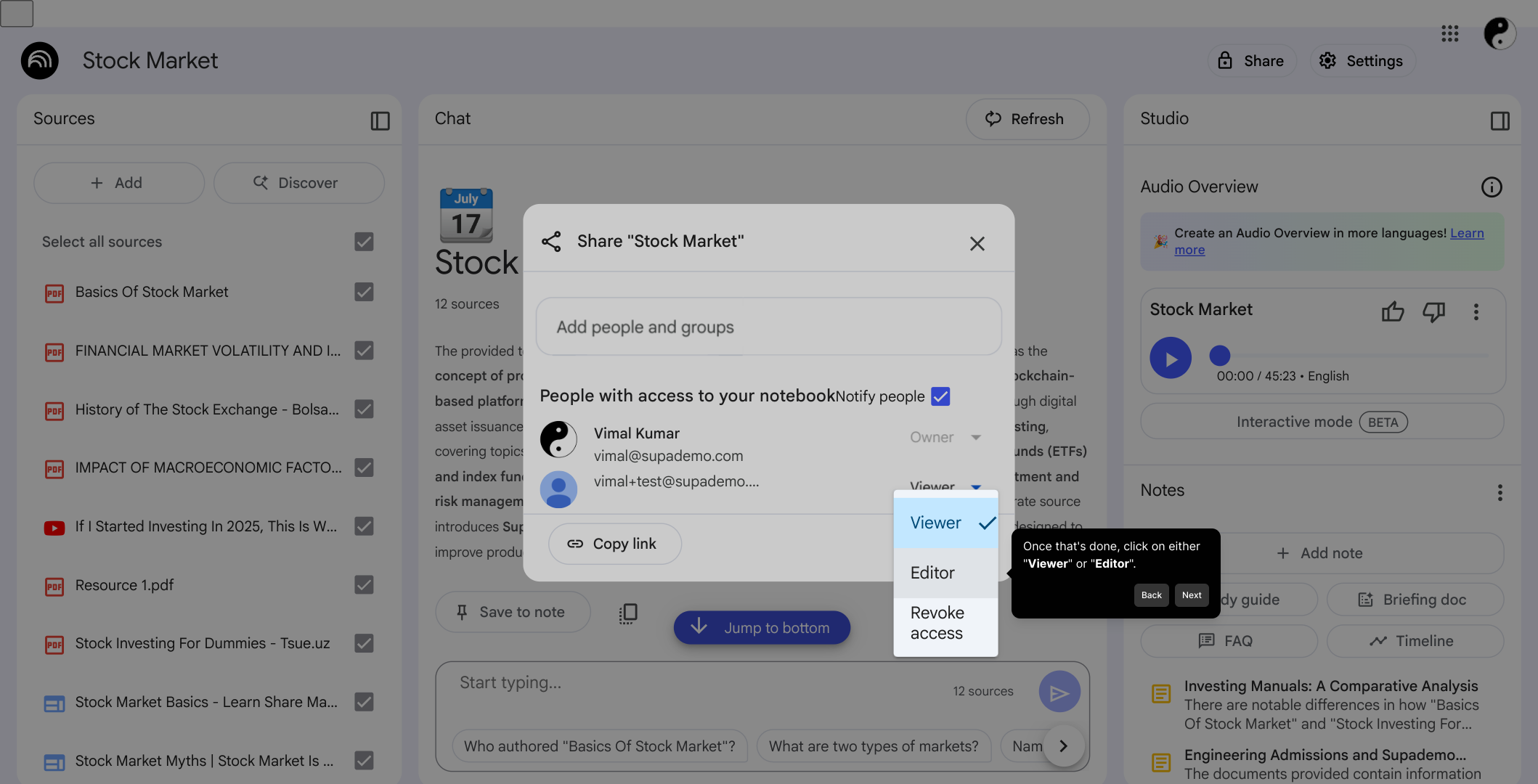
If you prefer, you can also generate a shareable link here. Copy this link to distribute it easily to your collaborators or team members.
When everything is set, hit the Send button to finalize the invitations. Your collaborators will now be able to view, contribute notes, ask questions, and highlight important sources based on the permissions you assigned.
With these simple steps, you’ve quickly set up your Supademo, enabling seamless teamwork in just moments.
Create your own interactive demos in < 5 mins with Supademo
You can create your own interactive product demo in minutes using Supademo. Drive growth, scale enablement, and supercharge product-led onboarding with Supademo. Sign up for free here with no credit card required.
FAQs
Commonly asked questions about this topic.
What is NotebookLM and how does collaboration work?
How do I invite others to collaborate in NotebookLM?
What permission levels are available for collaborators?
Can I share a Notebook with collaborators without adding their emails?
Can collaborators edit the Notebook simultaneously?
Is there a way to control who can see or edit certain parts of the Notebook?
What happens if I remove a collaborator from the Notebook?
Can I collaborate with users outside of my organization?
Are collaborators notified when they are invited?
Can I track changes or see who edited what in NotebookLM?

Product Operations Associate
Vimal Kumar helps build and grow Supademo’s team and GTM efforts, with a focus on figuring out growth levers and improving product traction.


