How to DocuSign a PDF

DocuSign is a leading e-signature platform that allows you to sign, send, and manage documents digitally. This guide walks you through the complete process of signing a PDF using DocuSign, from uploading your document to completing the signature workflow.
Quick summary
In this tutorial, you'll learn how to upload a PDF to DocuSign, add your signature, and finalize the signing process. By following these step-by-step instructions, you'll be able to securely sign documents from your desktop and complete the entire workflow in minutes.
Why this matters
Digital signatures save time, reduce paper waste, and provide a secure, legally binding way to authorize documents. Whether you're signing contracts, agreements, or forms, mastering DocuSign's signing process ensures you can quickly authenticate documents without printing or scanning.
Step-by-step guide
- 1
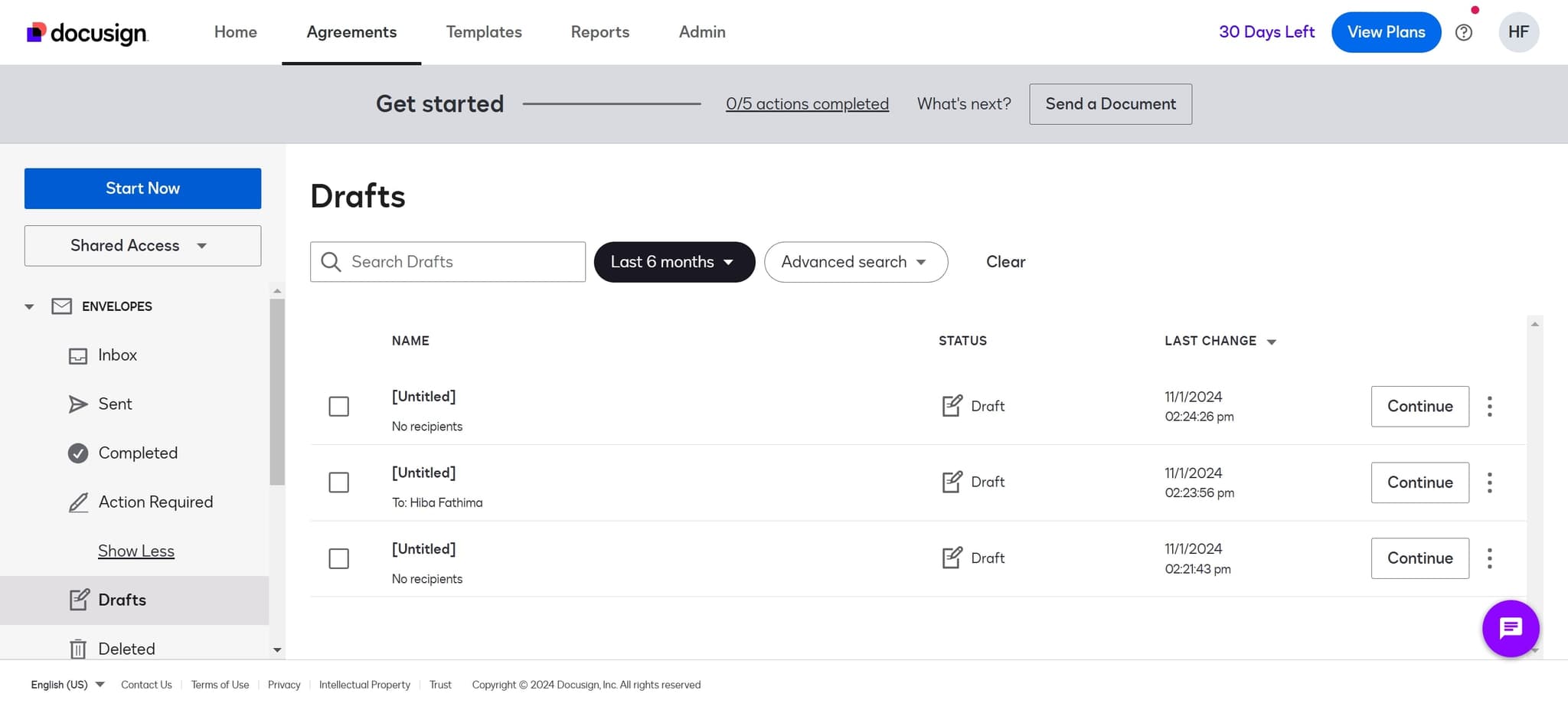
Click on Start Now
Open DocuSign and locate the 'Start Now' button on the homepage. Clicking this button initiates the document signing process and takes you to the upload interface.
- 2
Select Upload option
You'll be presented with options for how to proceed. Choose the upload option to add a document to DocuSign for signing.
- 3
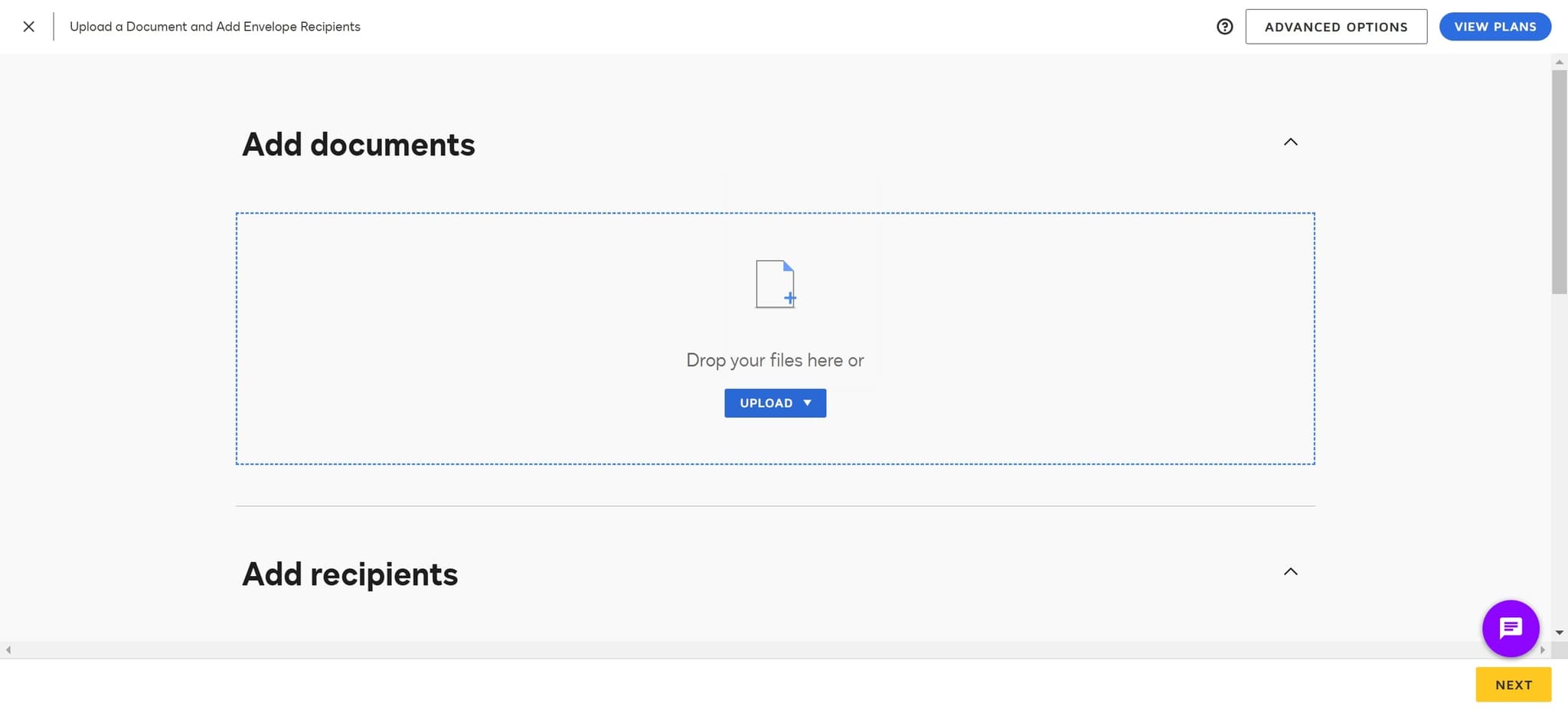
Click on Upload
Click the 'Upload' button to browse your computer and select the PDF file you want to sign. This opens a file picker dialog where you can locate your document.
- 4
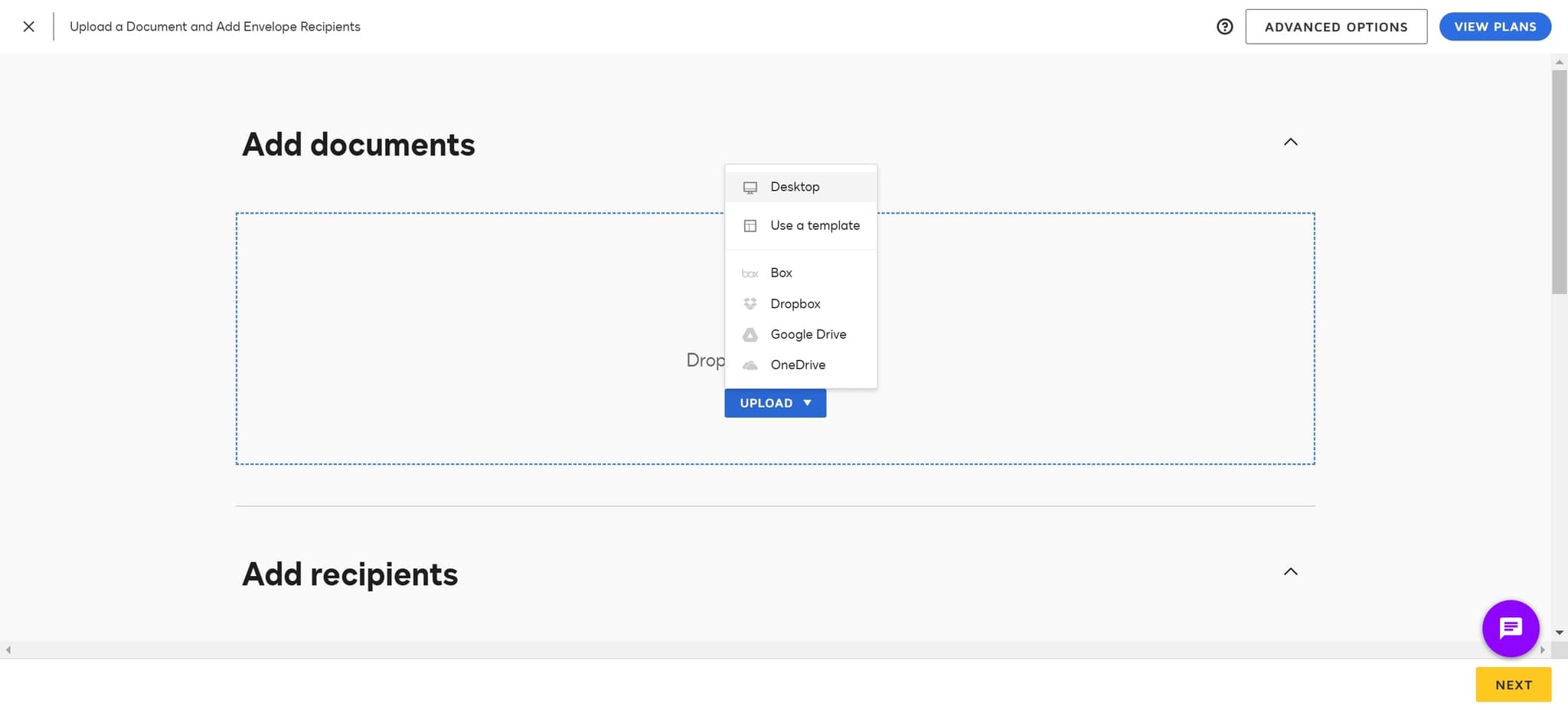
Select Desktop location
Choose 'Desktop' from the file browser to navigate to your desktop folder. This is where your PDF file is likely stored for easy access.
- 5
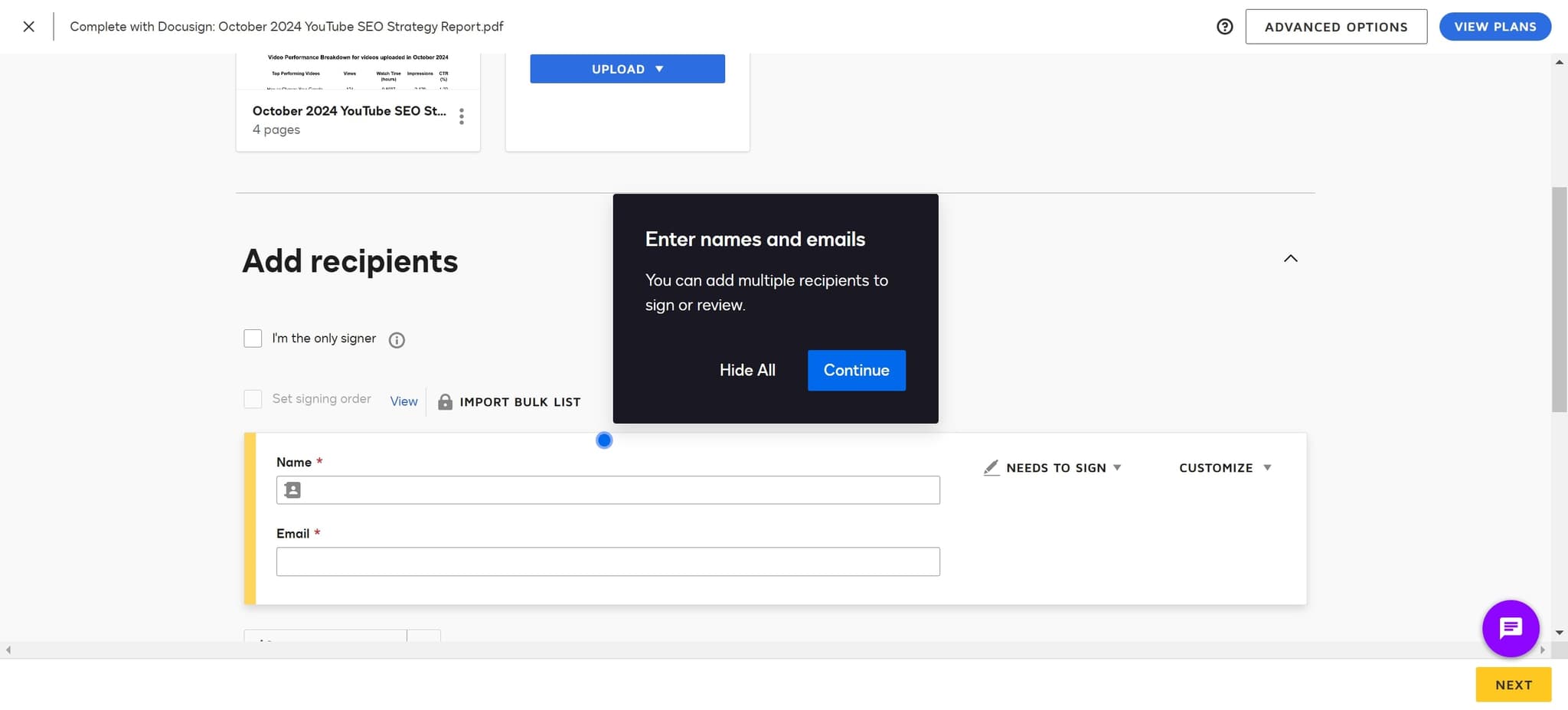
Click on your document name
Find and click on your PDF file in the file list to select it. The file name will be highlighted once selected.
- 6
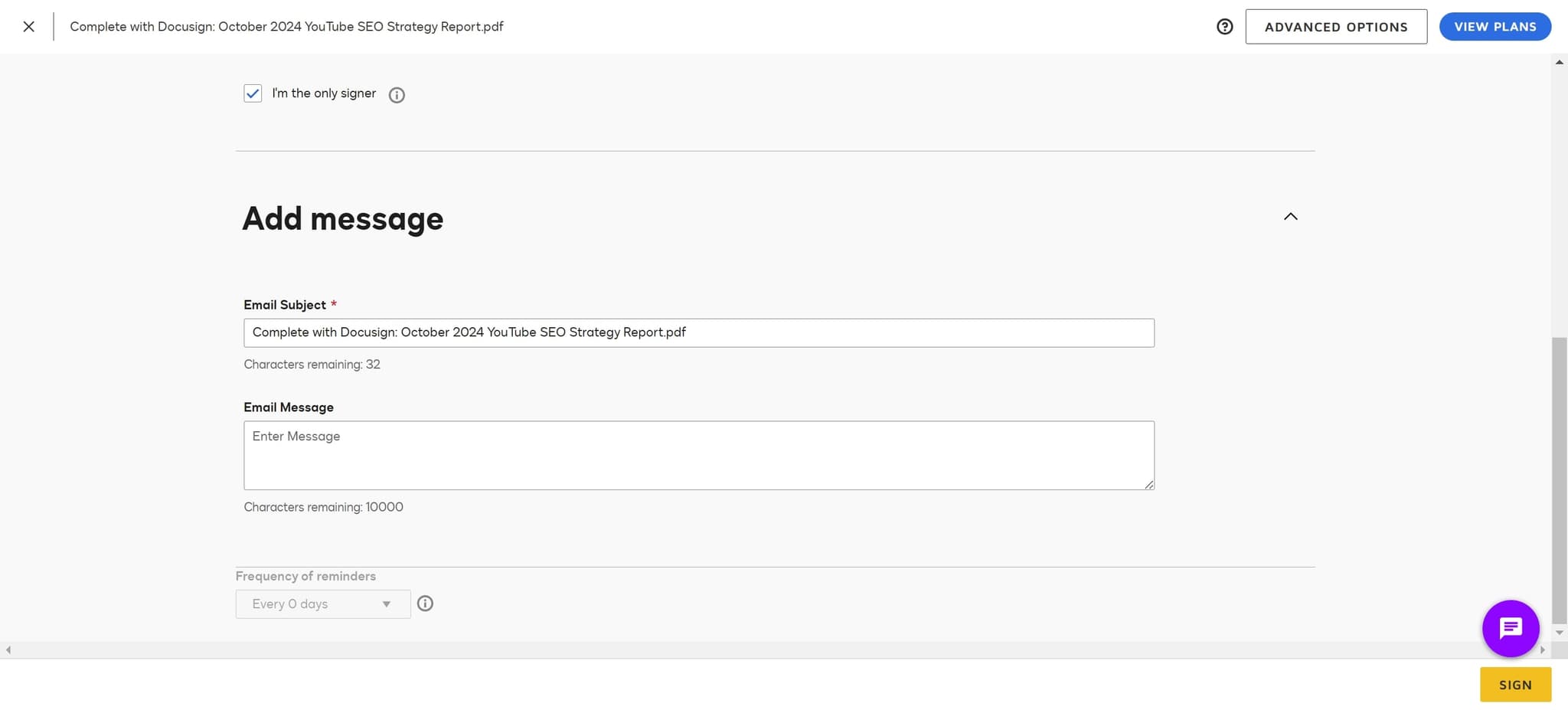
Click on Sign
After uploading, click the 'Sign' button to proceed to the signature step. This prepares the document for you to add your signature.
- 7
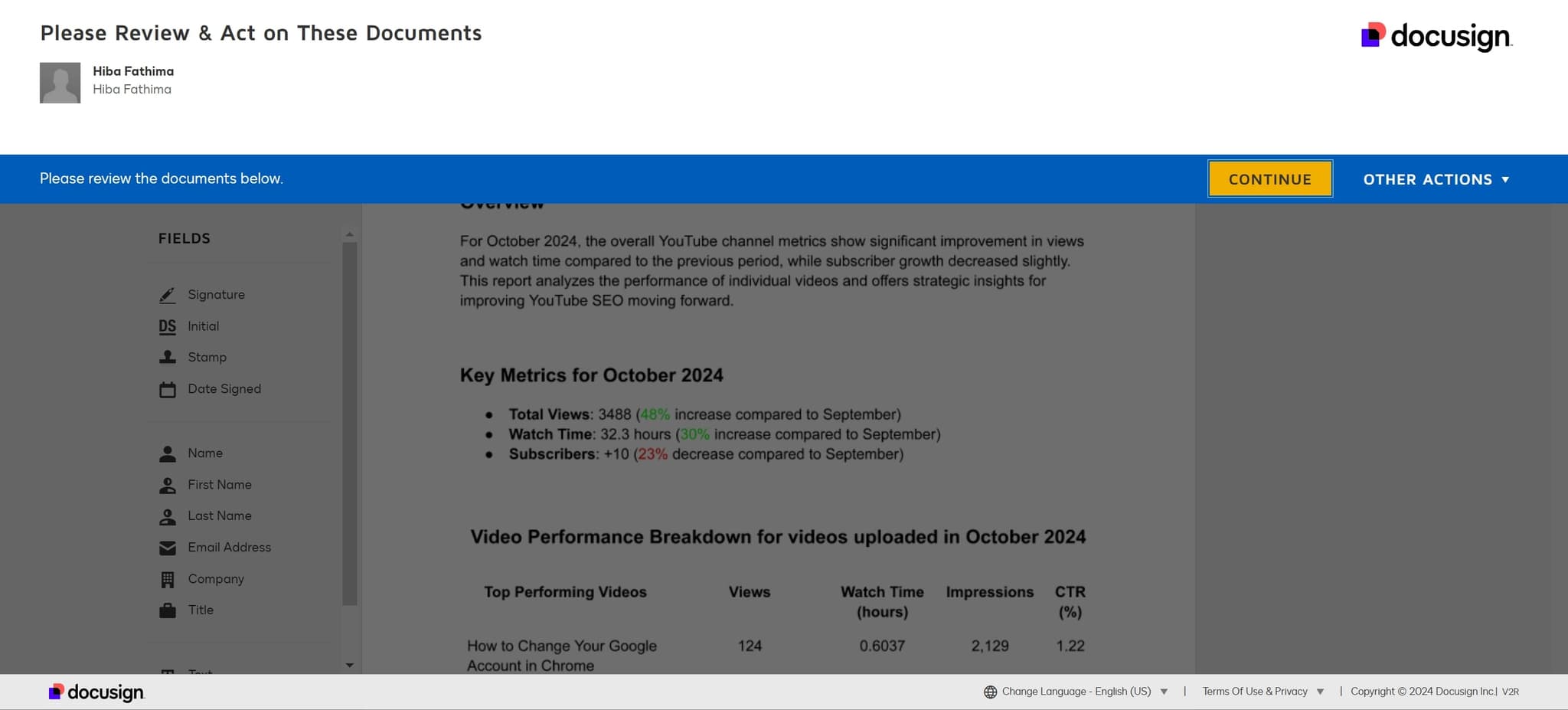
Click on Continue
Click the 'Continue' button to move forward in the signing workflow. You'll progress to the next stage of the process.
- 8
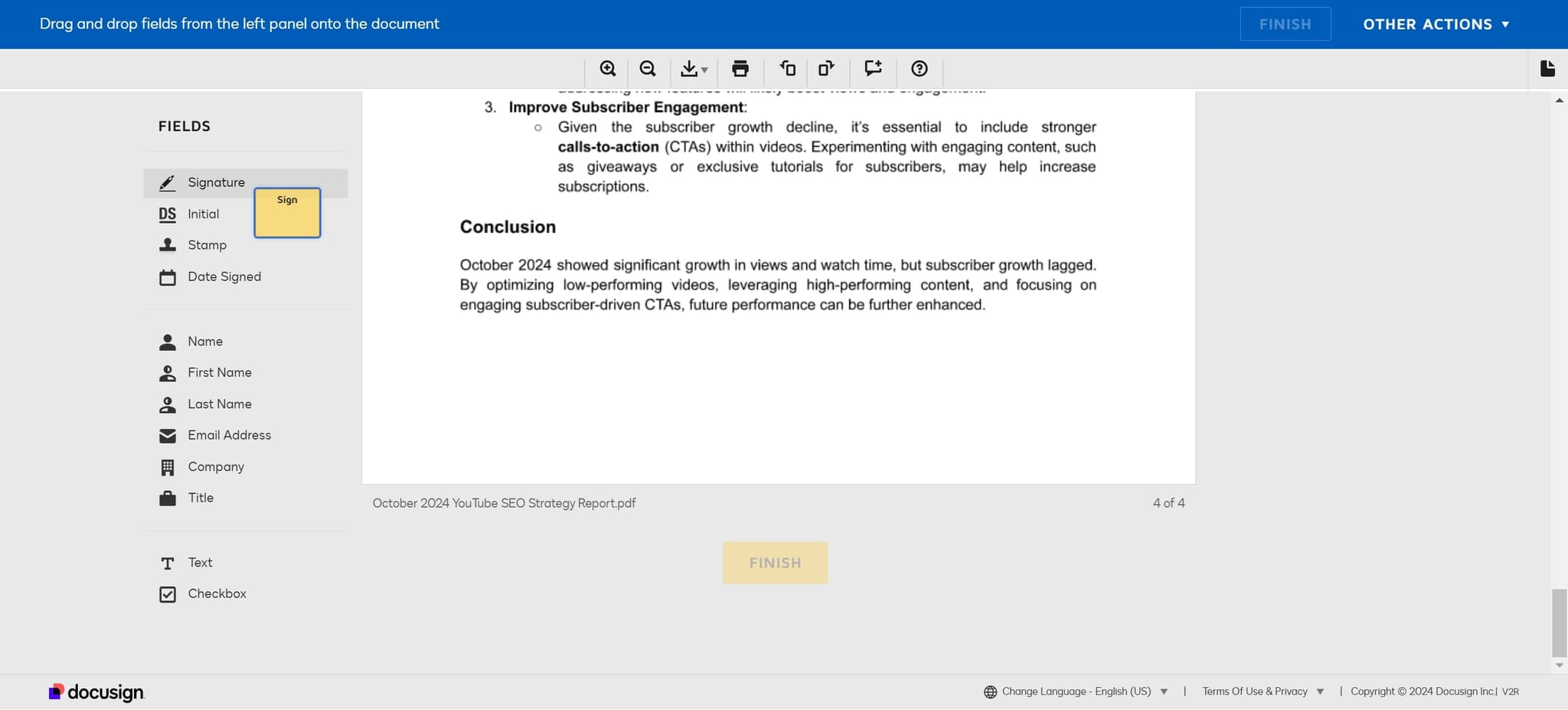
Click on the designated element
Click on the specific area of the document where you need to add your signature. DocuSign will highlight the location where your signature will be placed.
- 9
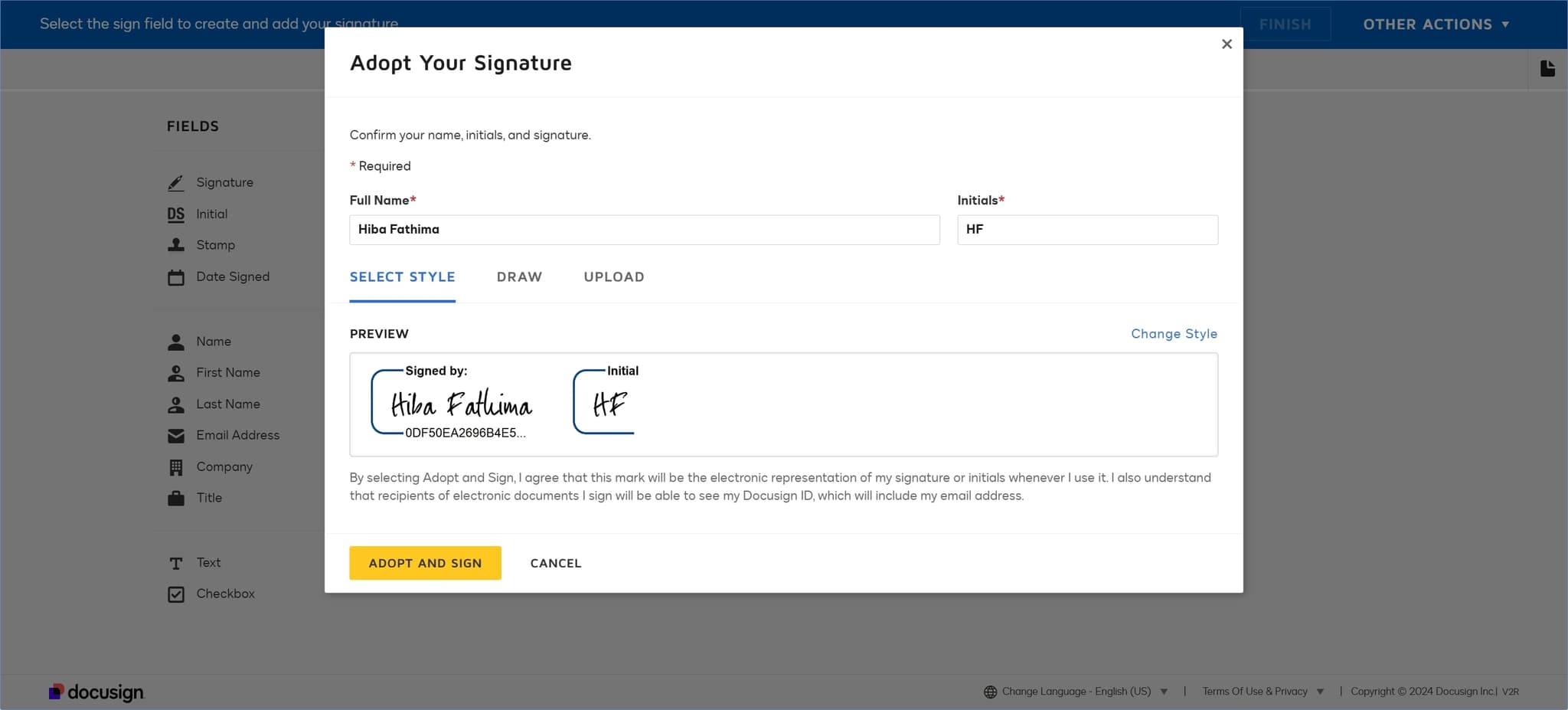
Complete your signature
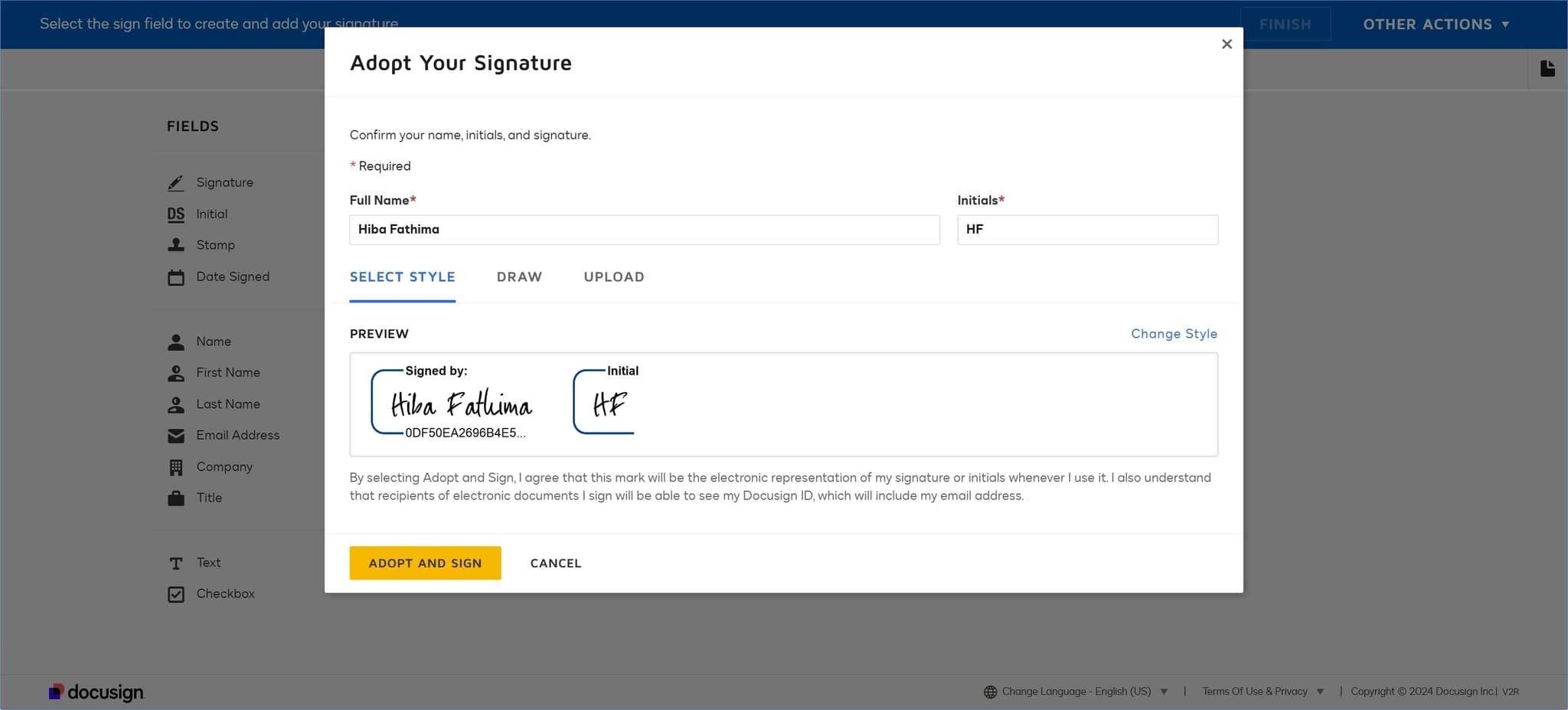
Follow the on-screen prompts to draw, upload, or type your signature. DocuSign will capture your signature in the designated field.
- 10
Click on Adopt and Sign
Click the 'Adopt and Sign' button to confirm and apply your signature to the document. This officially authorizes the document with your digital signature.
- 11
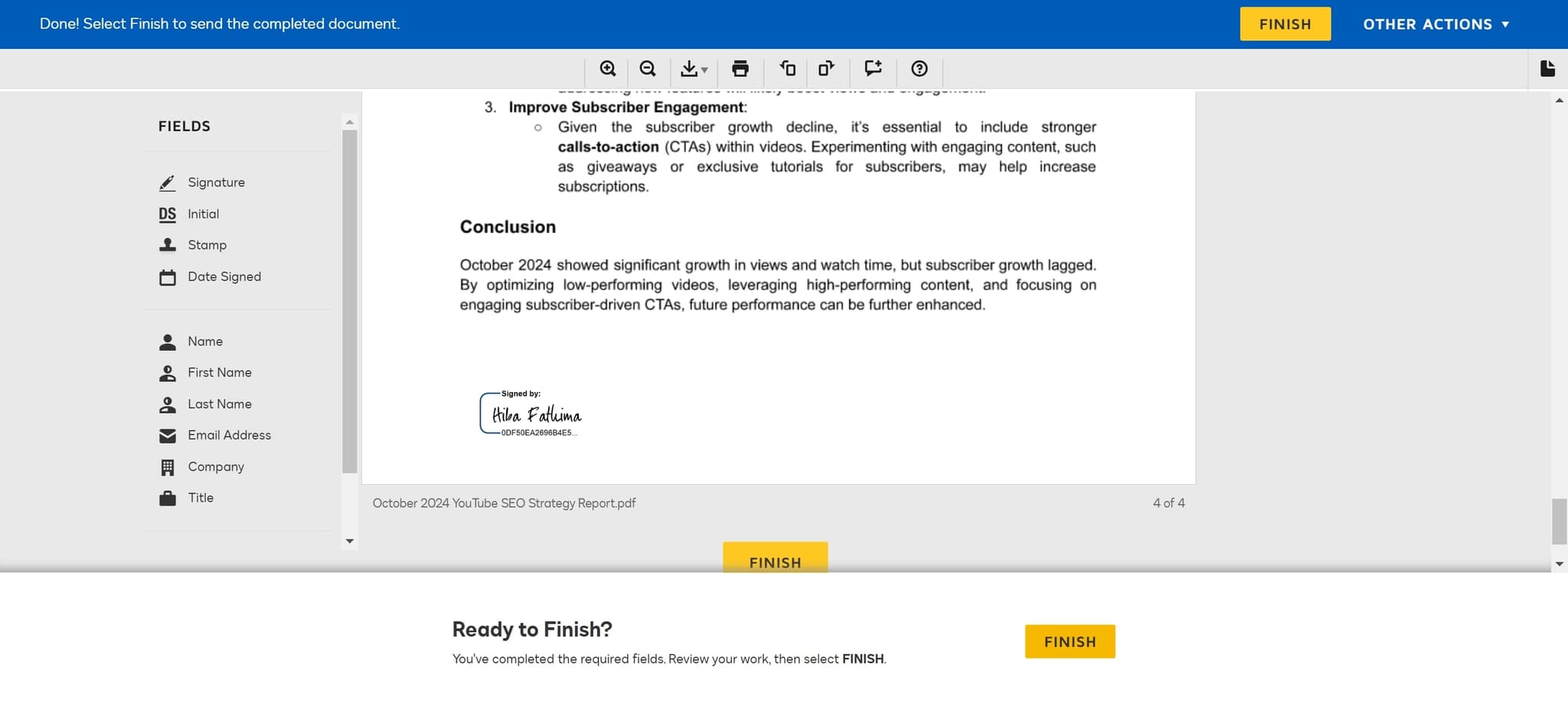
Click on Finish
Click the 'Finish' button to complete the signing process. Your document is now signed and the workflow is complete.
Frequently asked questions
Common questions about how to docusign a pdf.
What file formats does DocuSign accept for signing?
DocuSign accepts a wide variety of file formats including PDF, Word documents, Excel spreadsheets, PowerPoint presentations, and image files. PDF is the most commonly used format for signing contracts and agreements.
Is my signature legally binding in DocuSign?
Yes, DocuSign signatures are legally binding and compliant with laws like the ESIGN Act in the US and eIDAS in Europe. DocuSign provides audit trails and security features that make digital signatures legally enforceable for most business documents.
Can I sign a document on behalf of someone else?
DocuSign allows you to send documents for others to sign, but you cannot sign on someone's behalf unless you have delegated signing authority set up in your account. The person who needs to sign must use their own signature or authentication method.
What happens after I finish signing a document?
After clicking 'Finish,' your signed document is saved to your DocuSign account and a copy is typically sent to all parties involved. You can access your signed documents anytime from your DocuSign dashboard and download them for your records.
Can I sign multiple documents at once?
DocuSign allows you to send multiple documents in a single envelope for signing, which streamlines the process for handling several related documents. However, you sign them through the same workflow rather than uploading each one individually.