How to embed Supademo in ClickUp

Embedding interactive product demos directly into ClickUp enhances team collaboration and reduces context switching. This guide walks you through the process of integrating a Supademo into your ClickUp workspace so your team can access training materials right where they work.
Quick summary
In this tutorial, you'll learn how to share a demo, retrieve its embed code, and place it into a ClickUp document for seamless access. By the end, your team will be able to view and interact with product demos without leaving ClickUp.
Why this matters
Embedding demos in ClickUp keeps onboarding materials and process documentation centralized within your project management tool. This reduces friction in knowledge sharing and ensures team members can quickly reference how to perform key tasks without searching across multiple platforms.
Step-by-step guide
- 1
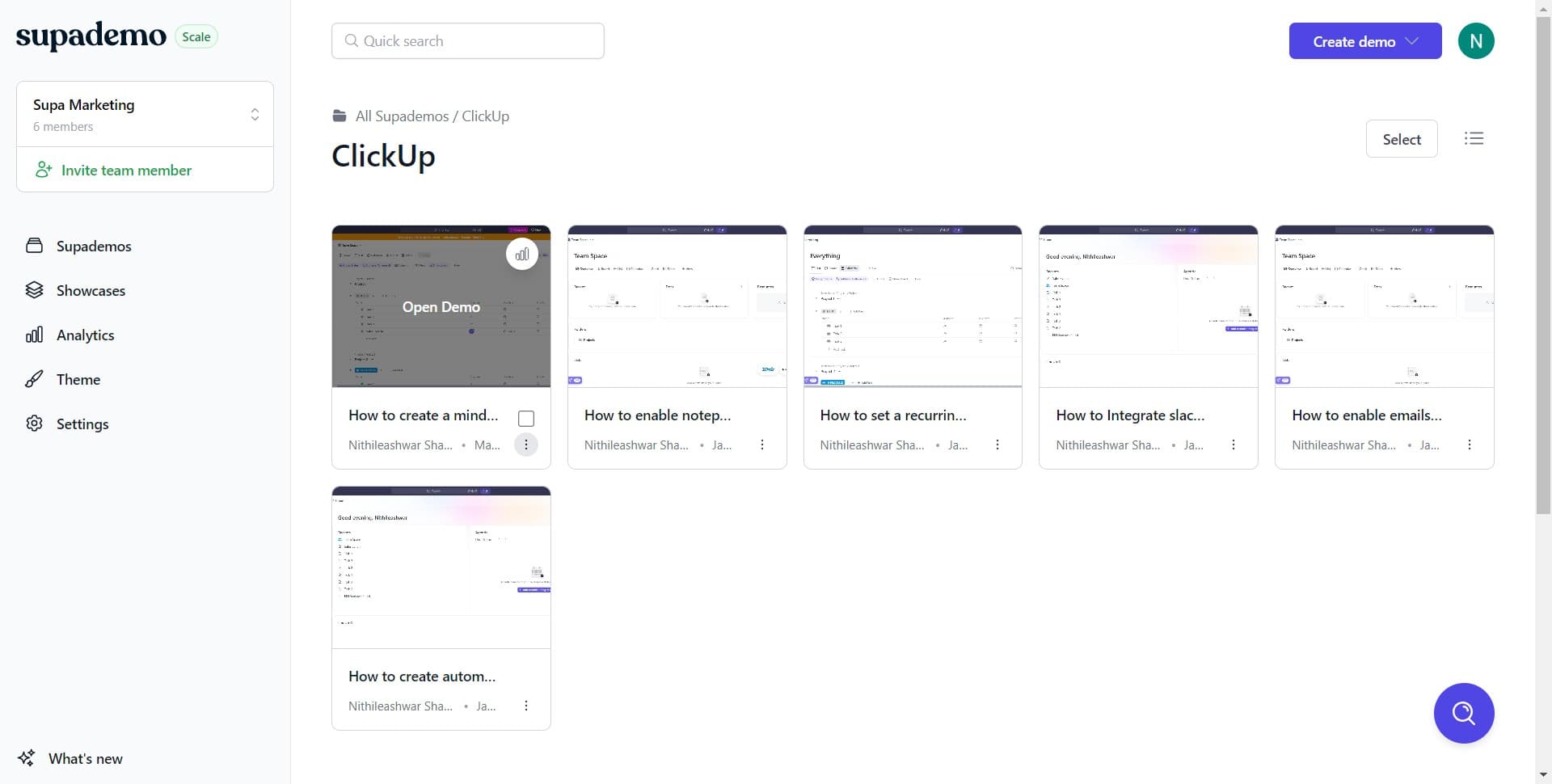
Open the demo sharing options
From your Supademo dashboard, locate and select the demo you want to embed. Click the primary action button to begin the sharing process.
- 2
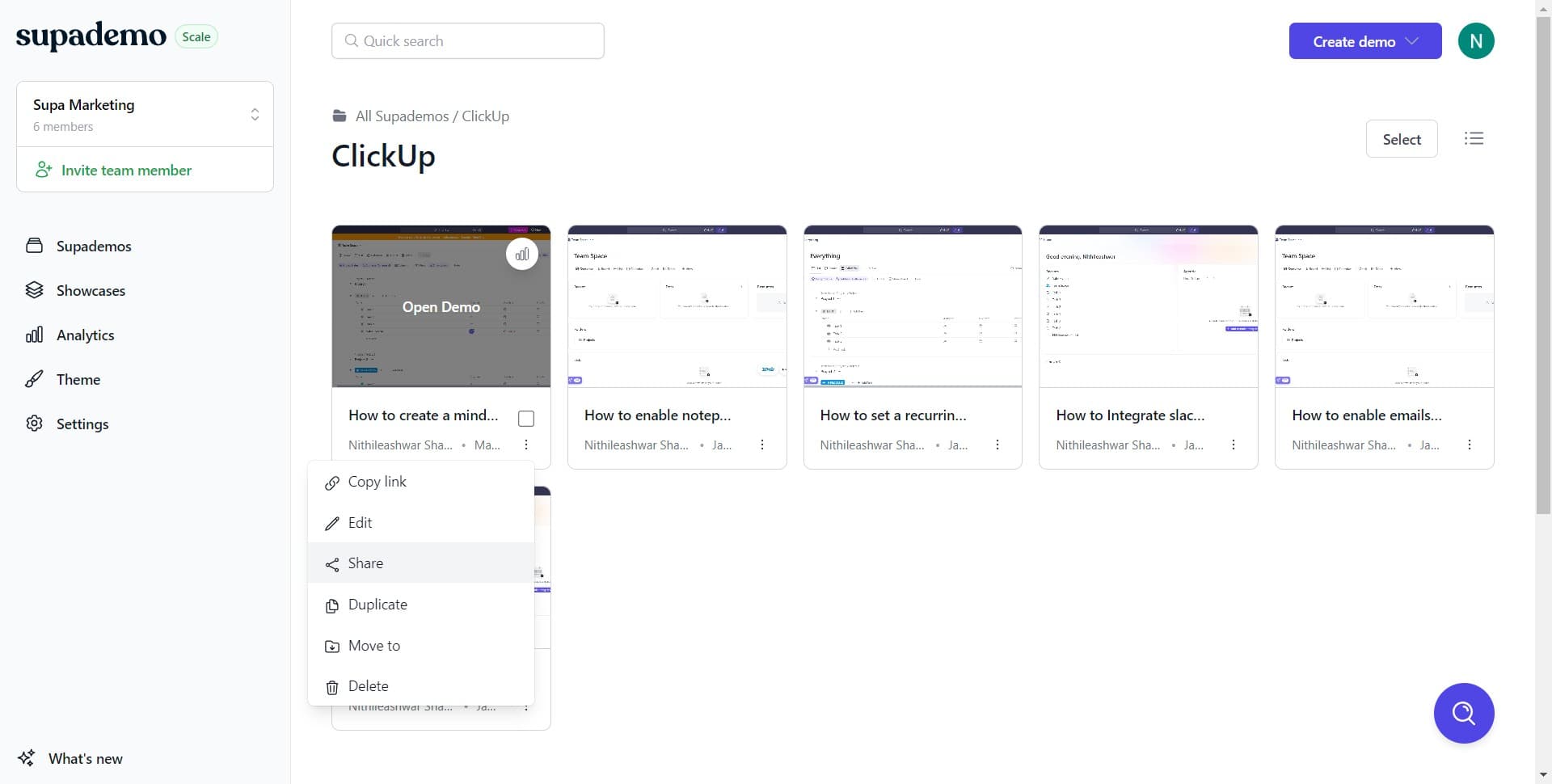
Click on Share
In the demo details view, click the 'Share' button to access sharing and embedding options for your demo.
- 3
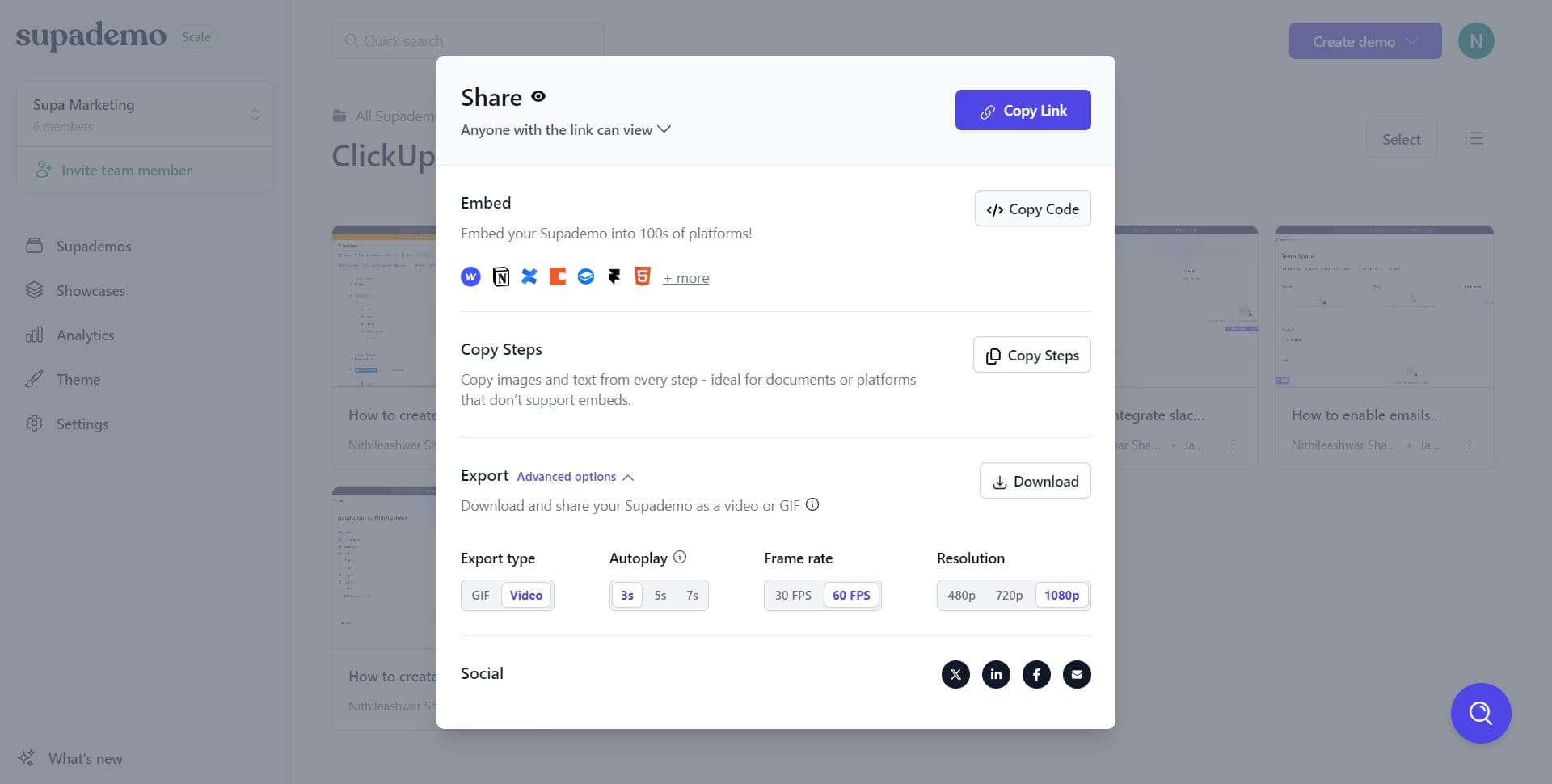
Click on Copy Code
Select 'Copy Code' to copy the embed code to your clipboard. This code will allow you to place the demo into other platforms like ClickUp.
- 4
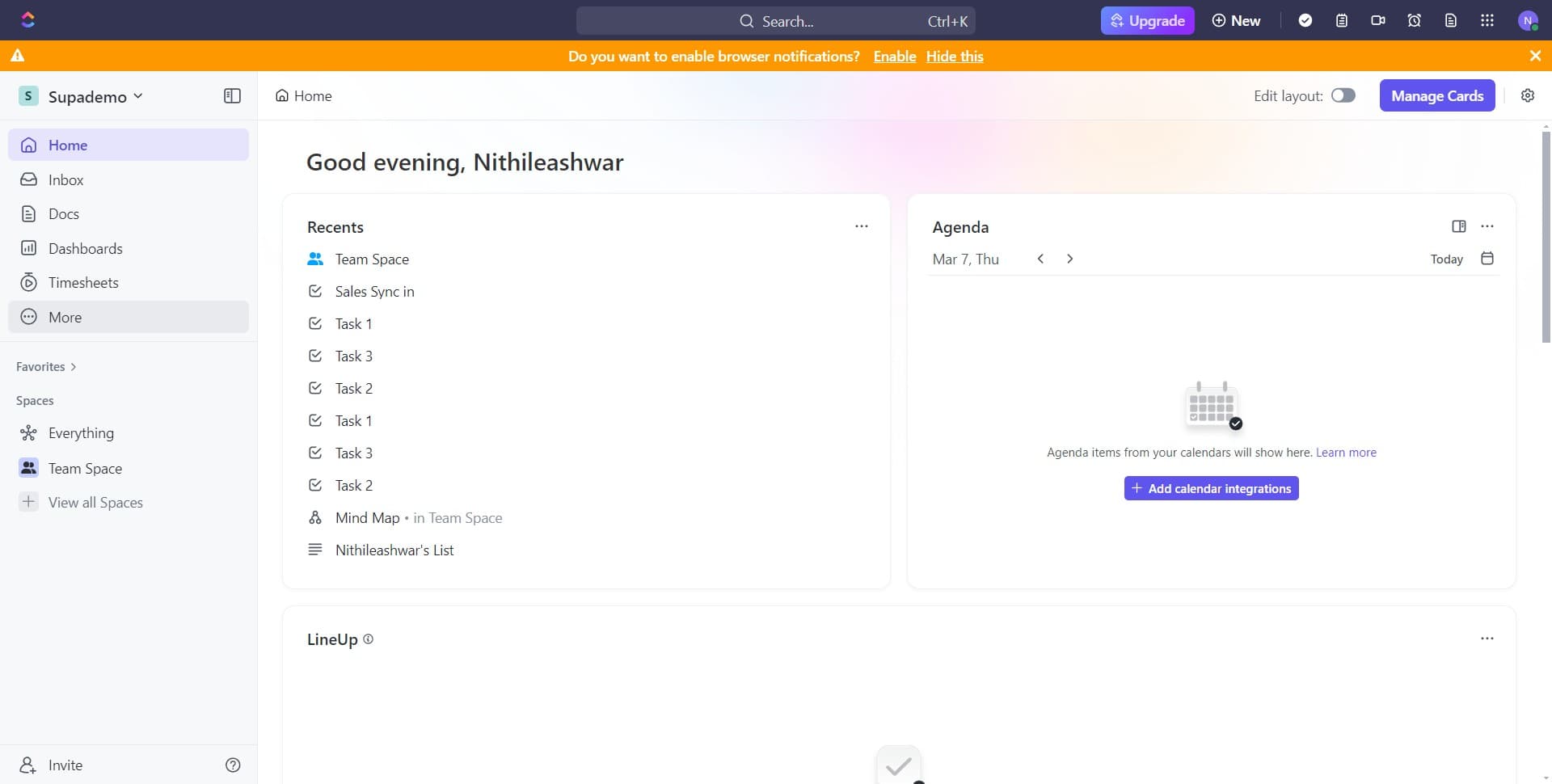
Access additional options
Click on 'More' to reveal additional embedding and customization settings for your demo.
- 5
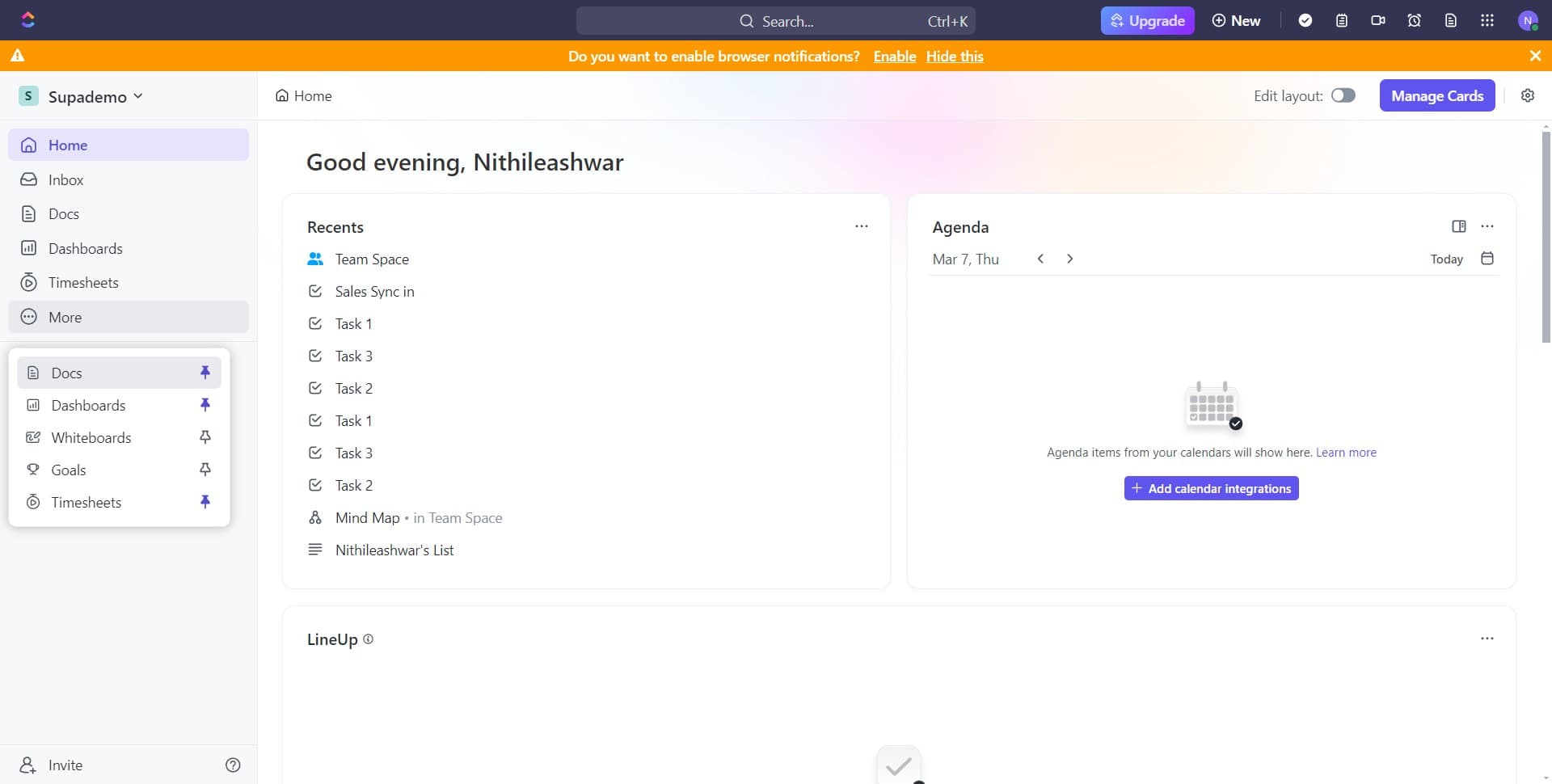
Navigate to Docs section
Click on 'Docs' to access your ClickUp documentation area where you'll embed the demo.
- 6
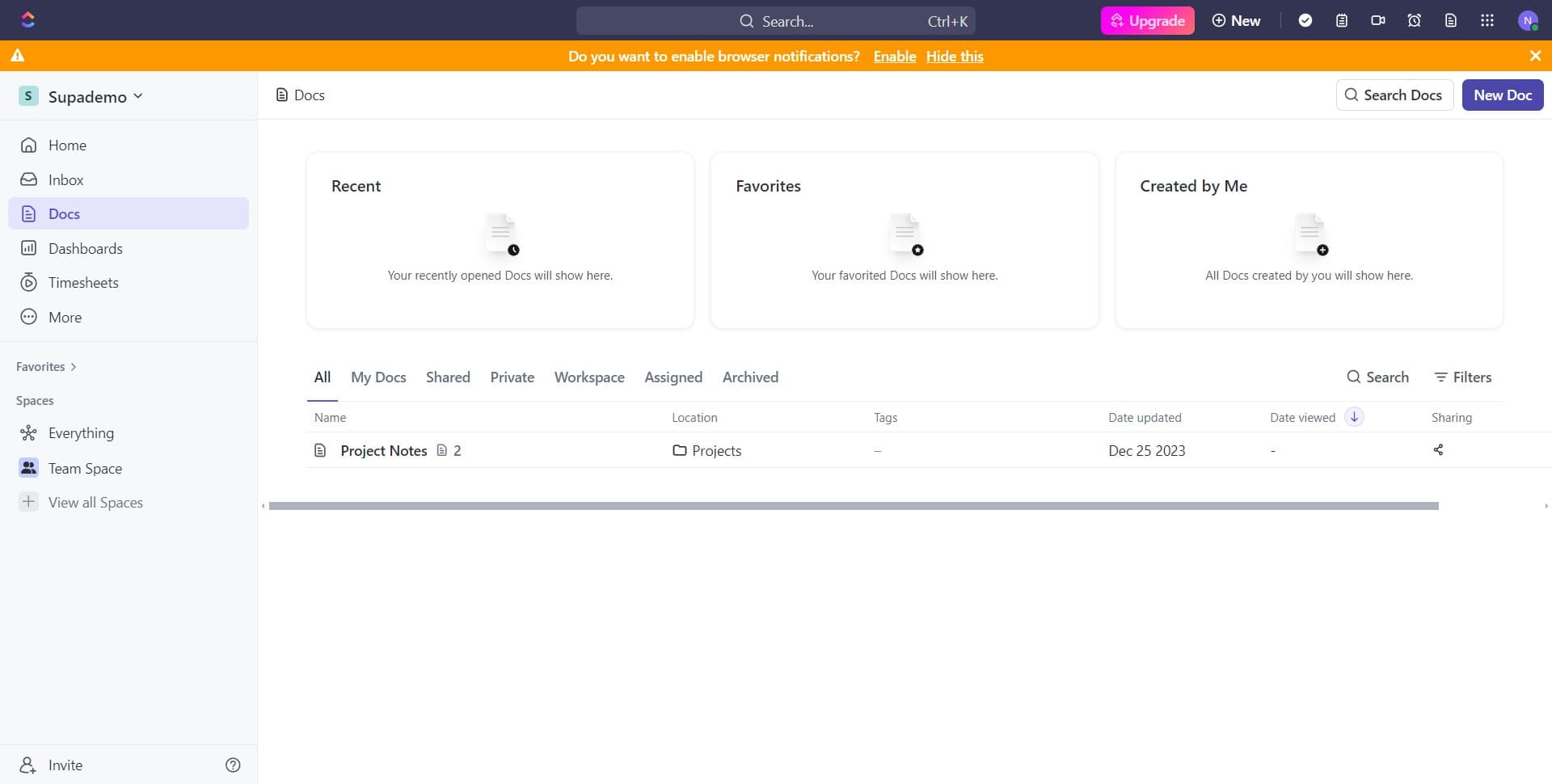
Create a new document
Click on 'New Doc' to create a fresh document in ClickUp where your demo will be embedded.
- 7
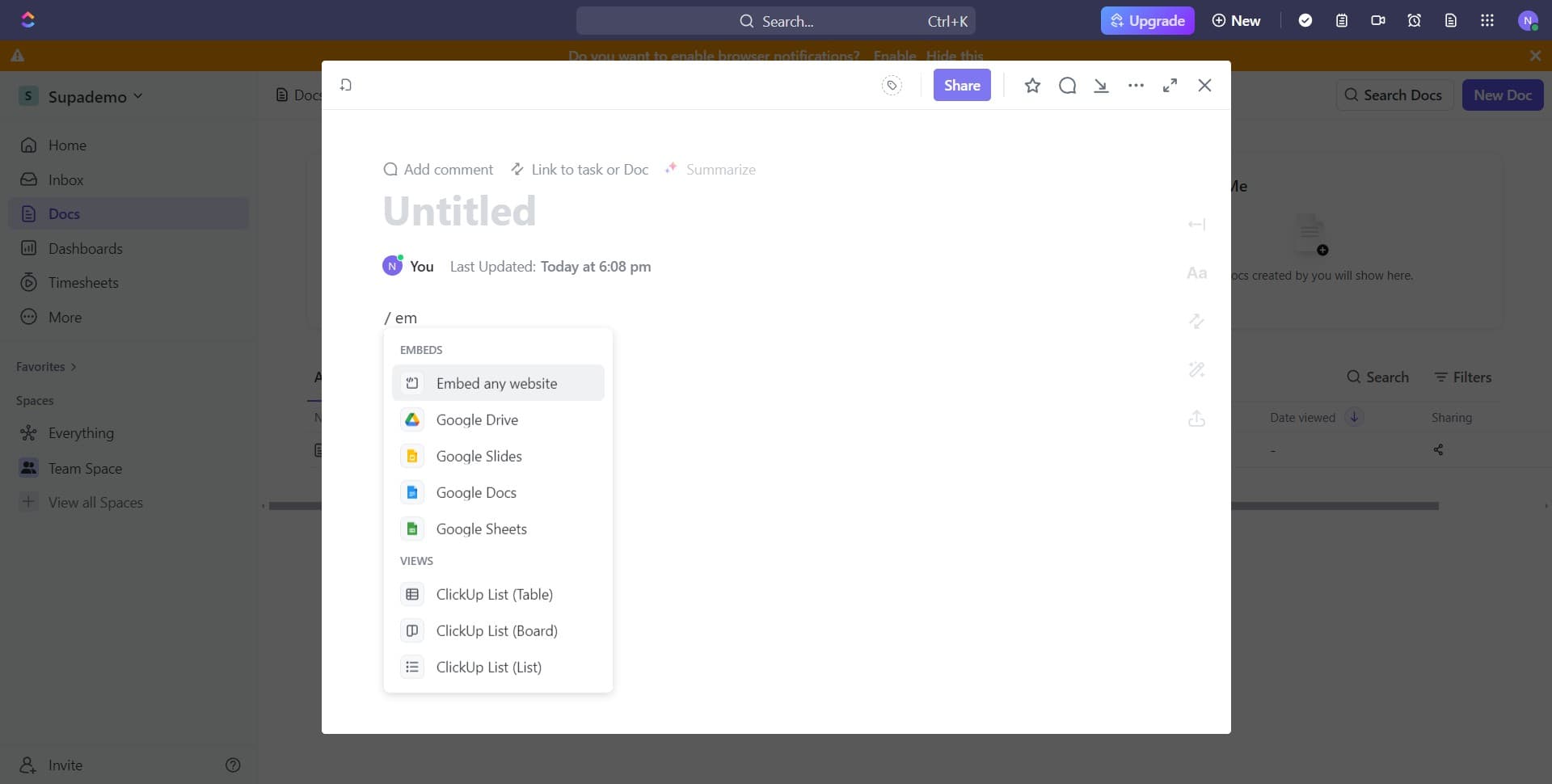
Select embed website option
Look for the 'Embed any website' option in ClickUp's content insertion menu and click it to begin the embedding process.
- 8
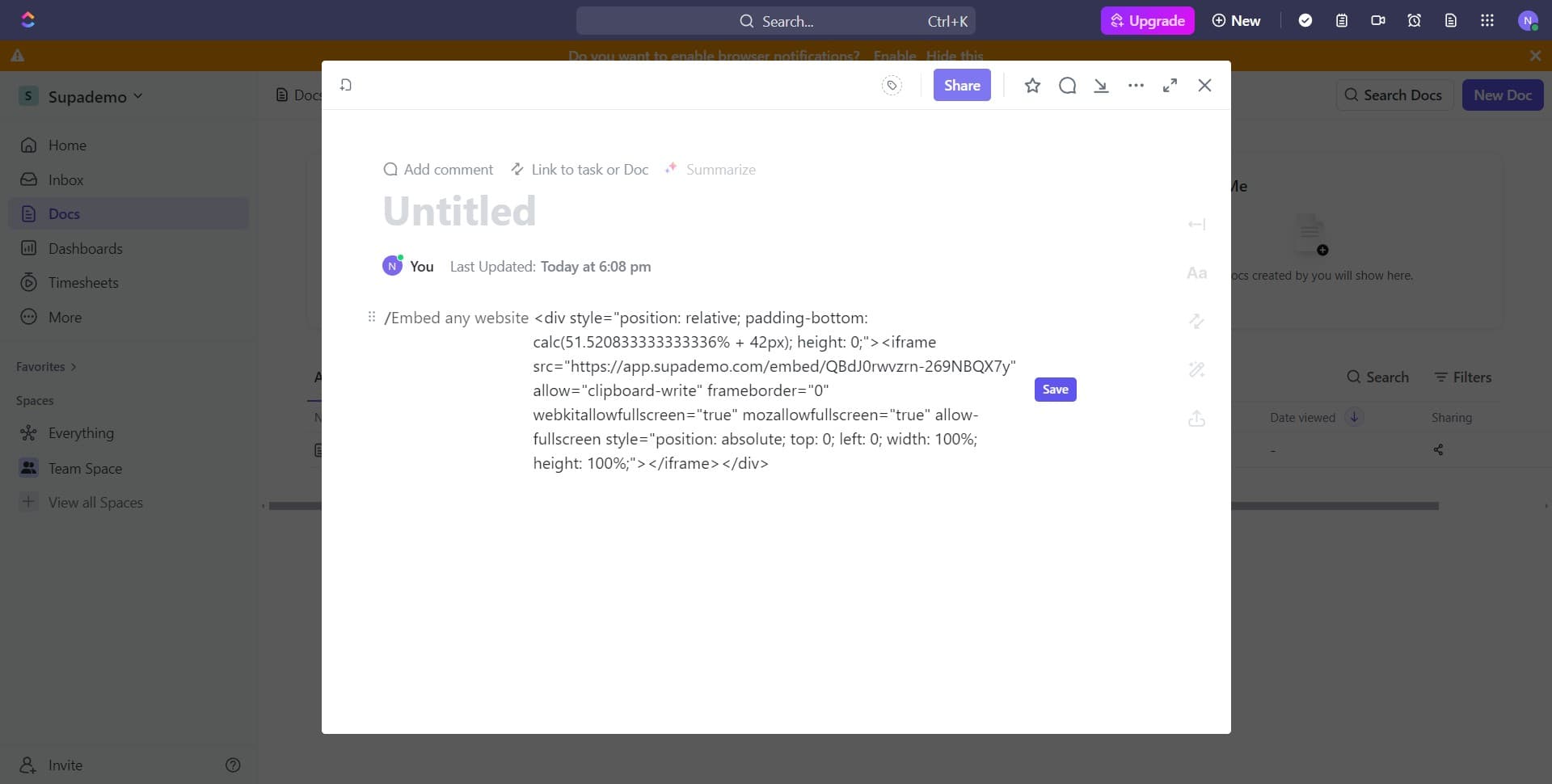
Confirm embed any website
Click on the 'Embed any website' option again to confirm your selection and proceed with pasting the embed code.
- 9
Paste the embed code
Paste the embed code you copied earlier into the designated field. ClickUp will process the code and prepare the embed.
- 10
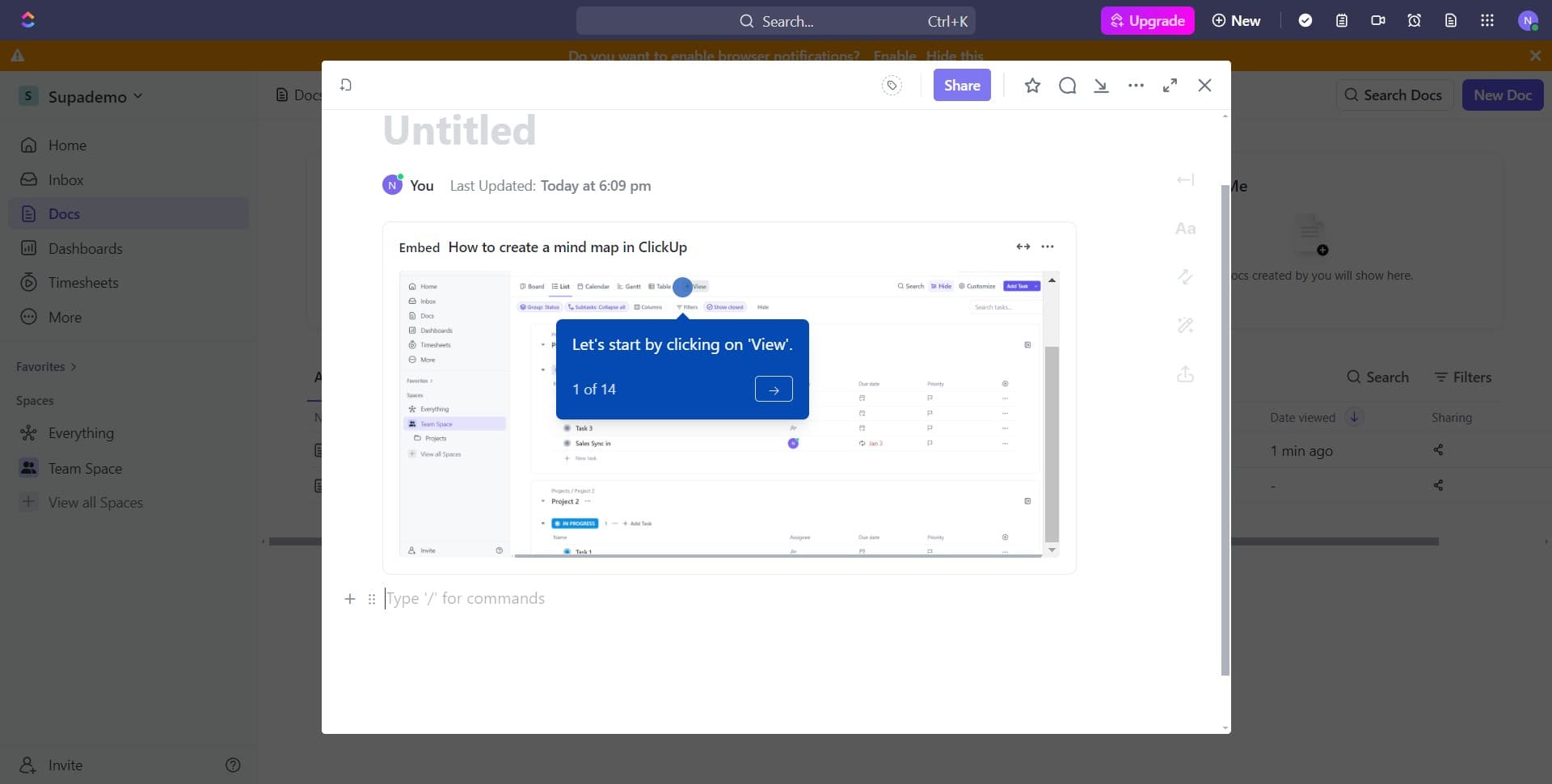
Finalize the embed
Click the confirmation button to complete the embedding process. Your demo will now be visible and interactive within the ClickUp document.
Frequently asked questions
Common questions about how to embed supademo in clickup.
Can I embed multiple demos in a single ClickUp document?
Yes, you can embed multiple demos in one document by repeating the embedding process for each demo. This is useful for creating comprehensive onboarding guides or process documentation with related demos grouped together.
Will the embedded demo update if I make changes to the original?
Yes, the embedded demo will reflect any updates you make to the original in Supademo. Changes are applied automatically, ensuring your ClickUp documentation always shows the current version.
Can ClickUp users interact with the embedded demo?
Absolutely. Team members viewing the embedded demo in ClickUp can fully interact with it, click through steps, and learn the workflow without leaving their workspace.
What if the embed code doesn't work in ClickUp?
Ensure you've copied the complete embed code and that ClickUp's embed feature is enabled in your workspace. If issues persist, verify that the demo is set to public or shared with your team, and try refreshing the ClickUp page.
Can I customize how the demo appears in ClickUp?
Some customization options may be available through Supademo's embed settings before copying the code. Check the 'More' options in the sharing menu for sizing, autoplay, and display preferences that suit your needs.