How to embed Supademo in Slab

Embedding interactive product demonstrations into Slab documentation enhances user onboarding and reduces support requests. This guide walks you through the process of configuring your workspace settings and embedding a demo into your Slab knowledge base.
Quick summary
In this tutorial, you'll learn how to enable iframe embedding in your workspace settings and seamlessly integrate a product demo into Slab. You'll configure security permissions, upload your demo, and publish it for your team to access.
Why this matters
Embedding demos directly in your documentation keeps users in their workflow without context switching. This approach improves knowledge retention and reduces the time spent answering repetitive onboarding questions.
Step-by-step guide
- 1
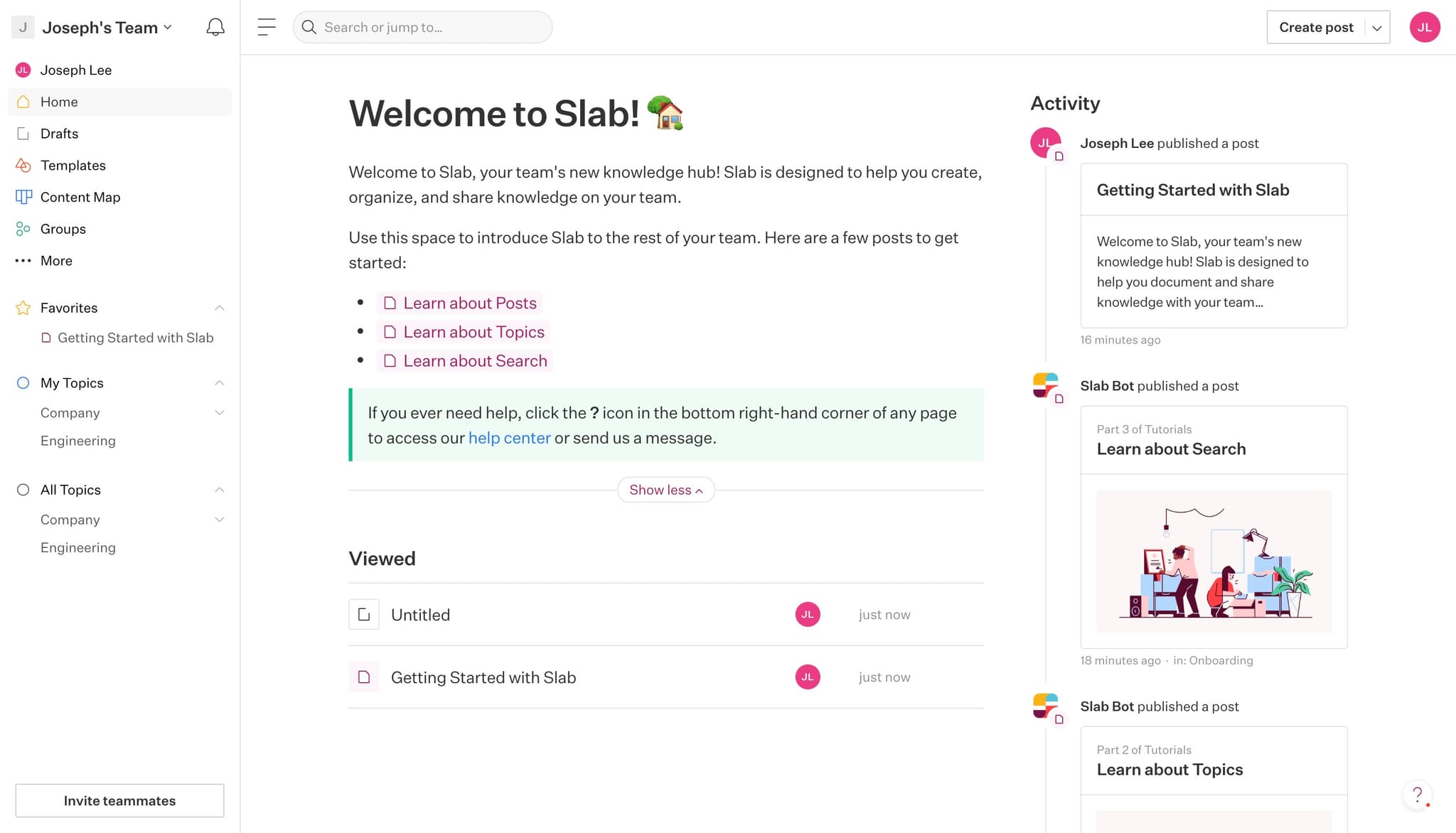
Access your workspace profile
Click on your profile initials or avatar (shown as 'JL') in the top corner to open your account menu. This gives you access to workspace-level settings and preferences.
- 2
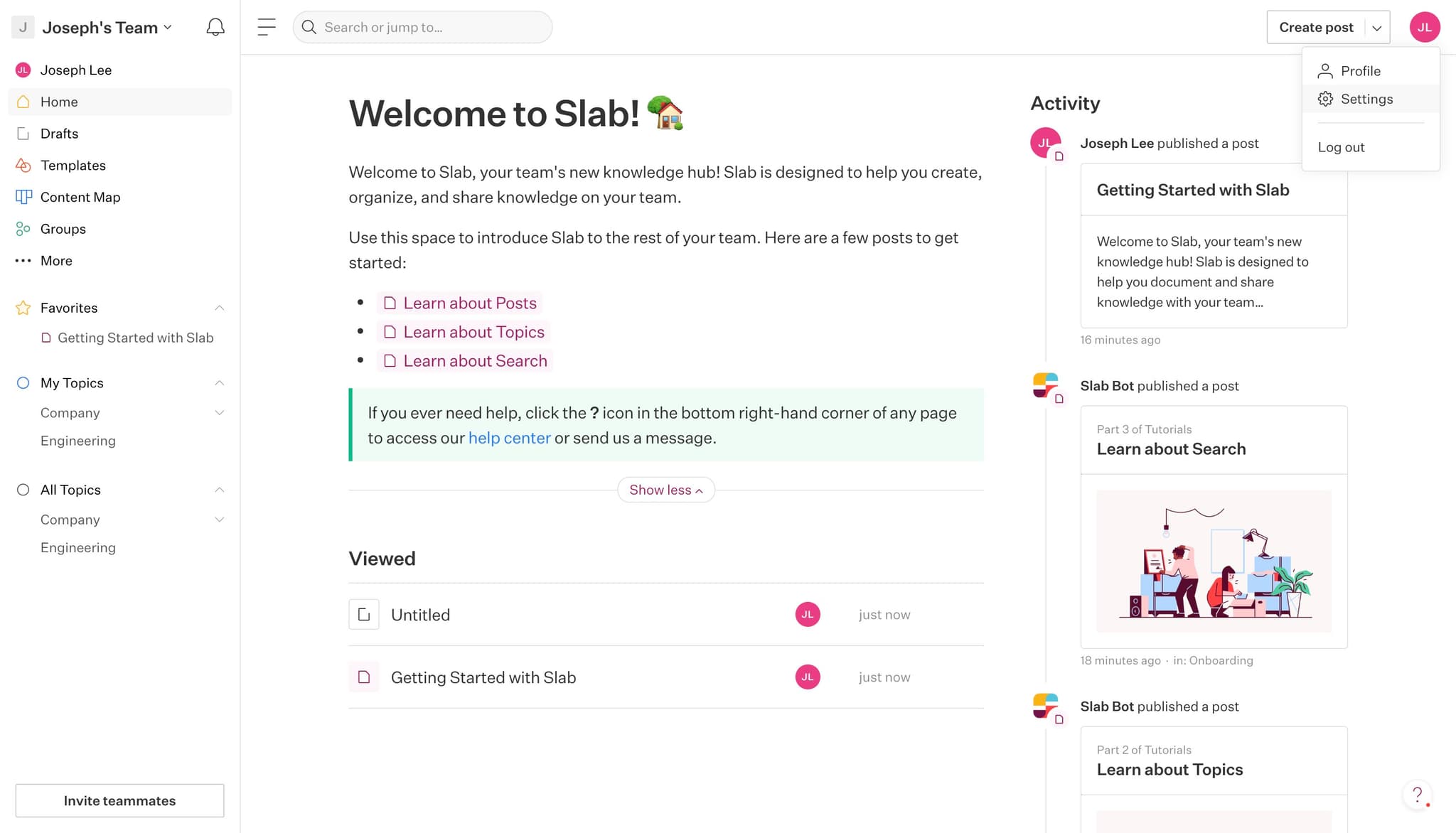
Open Settings
Select 'Settings' from the dropdown menu that appears after clicking your profile. This takes you to the main settings dashboard where you can manage workspace configurations.
- 3
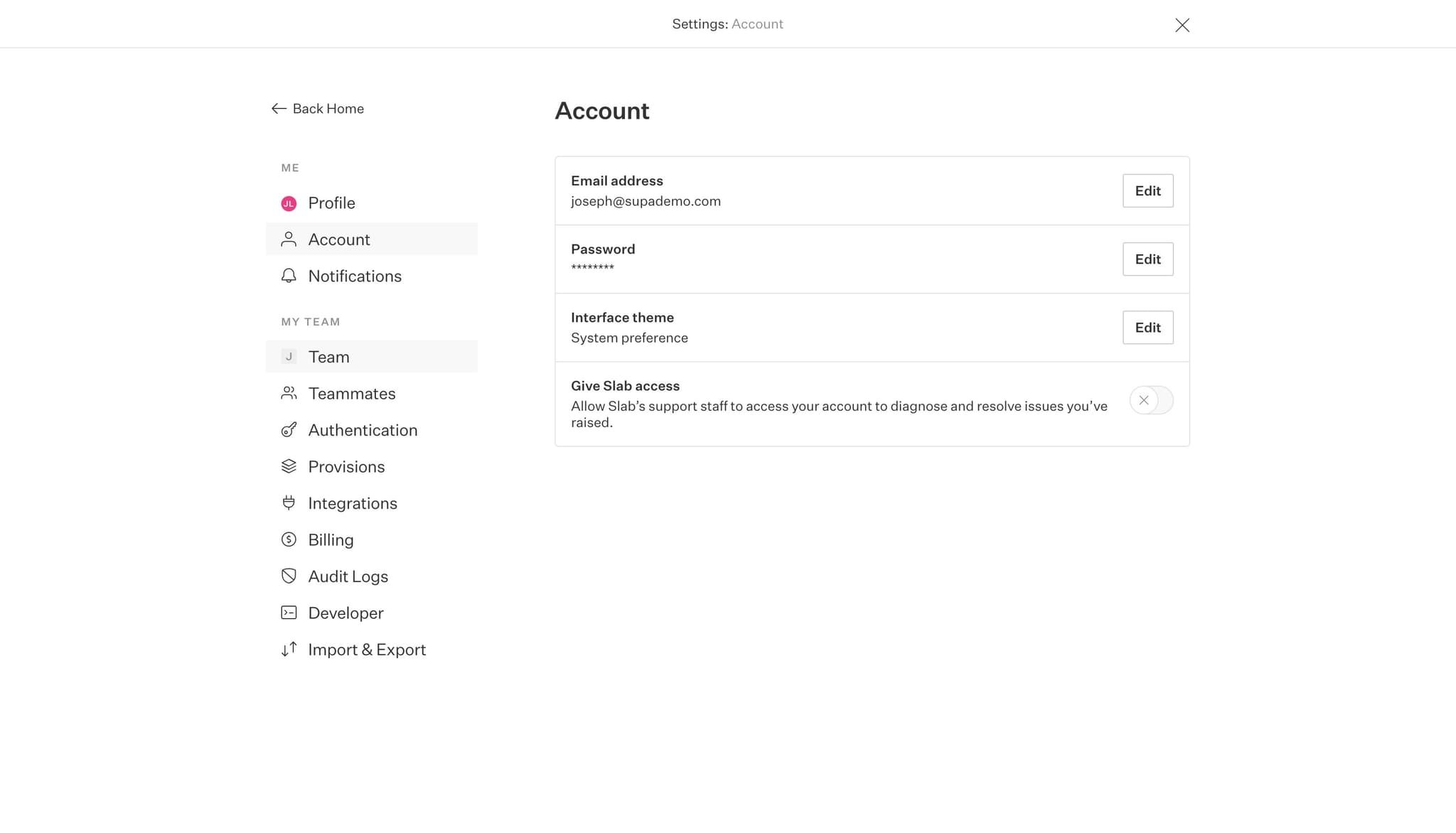
Navigate to Team settings
Click on the 'Team' option in the settings menu to access team-level configurations. This section controls security and embedding permissions for your entire workspace.
- 4
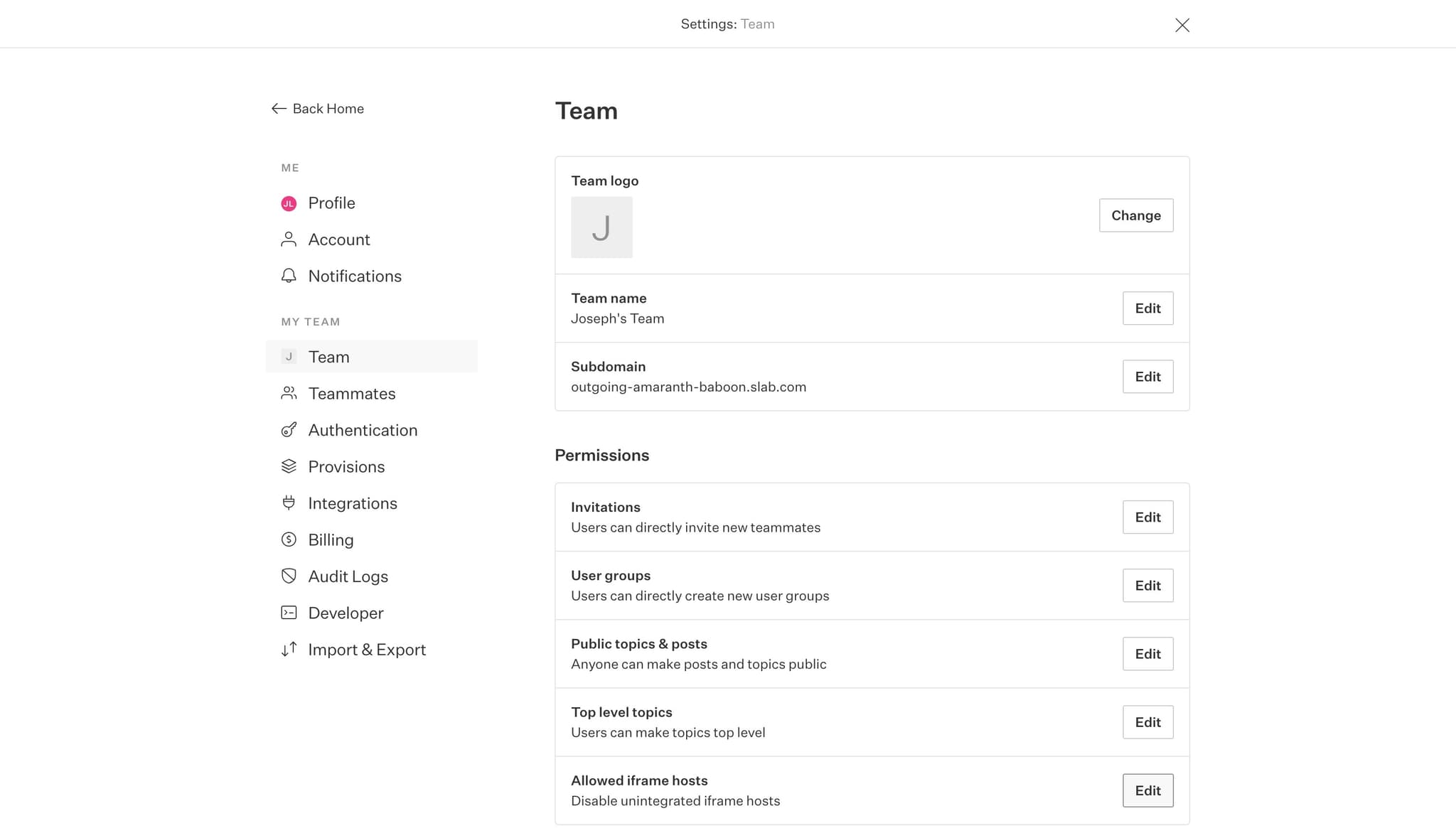
Click Edit to modify settings
Select the 'Edit' button next to your team settings. This enables you to make changes to your team's configuration options.
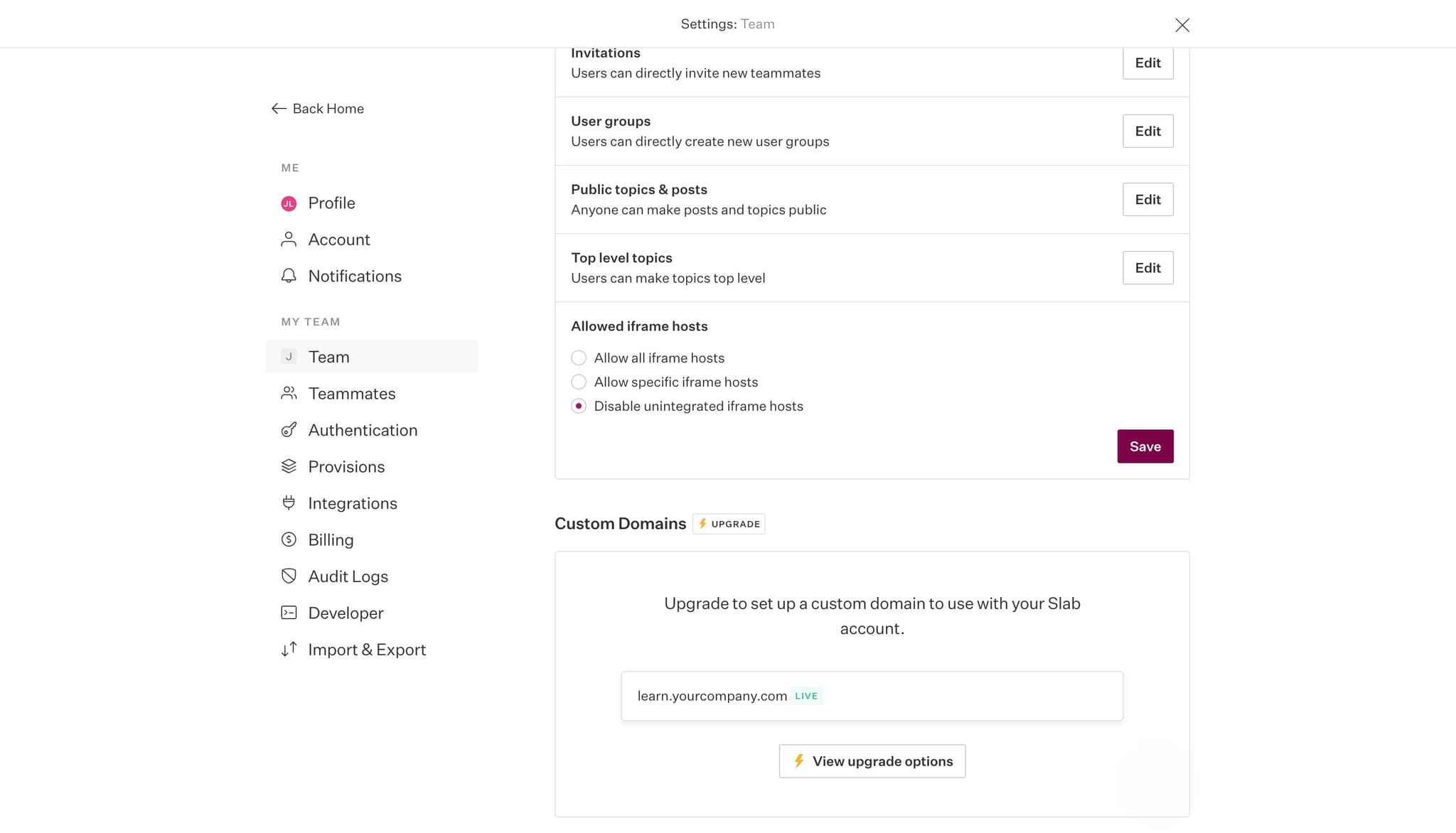
- 5
Enable iframe embedding
Check the 'Allow all iframe hosts' option to permit embedding across any domain. This security setting allows your demos to be embedded in external platforms like Slab without restrictions.
- 6
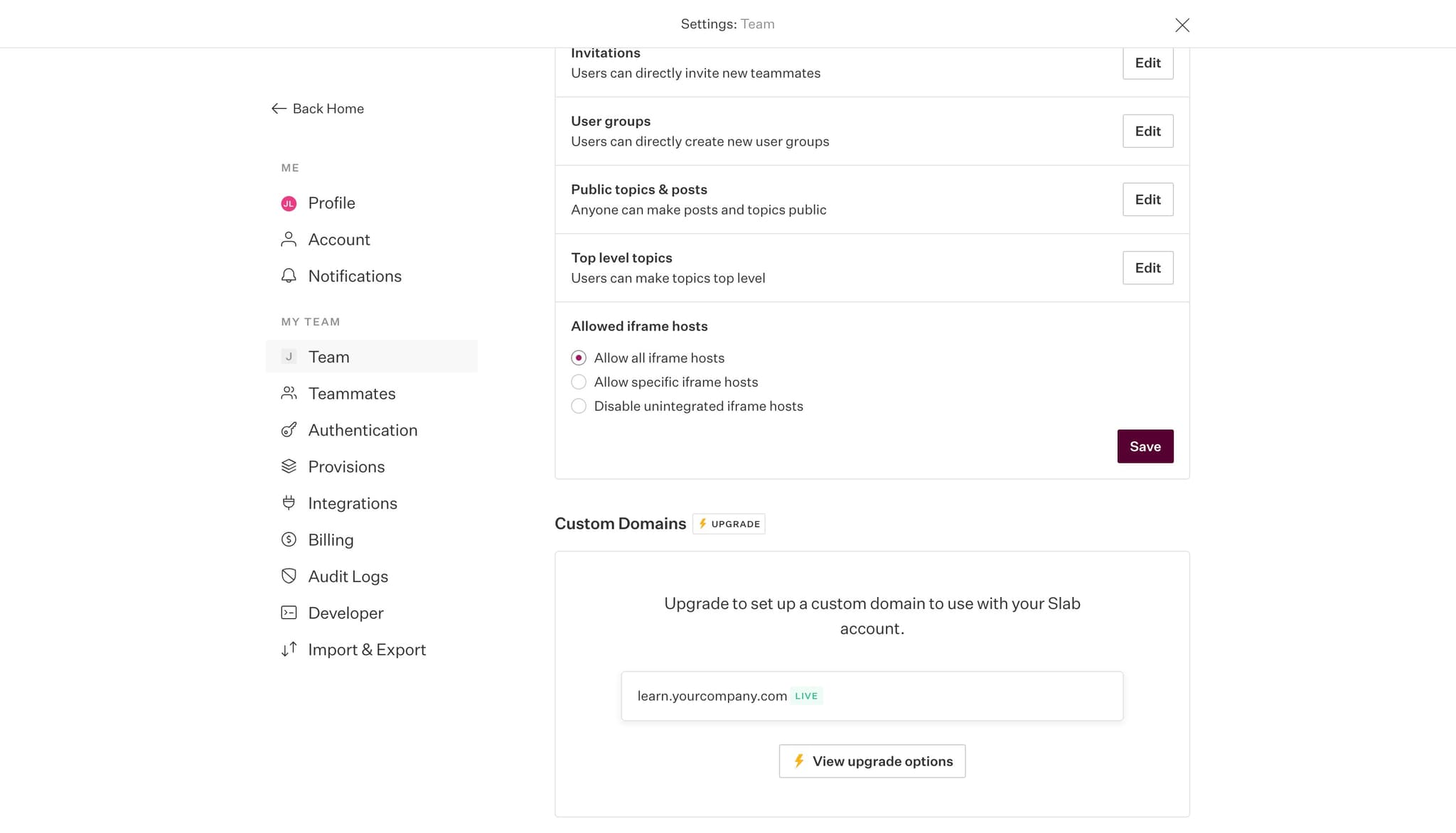
Save your configuration changes
Click the 'Save' button to apply your iframe hosting permissions. Your workspace is now configured to support embedded content.
- 7
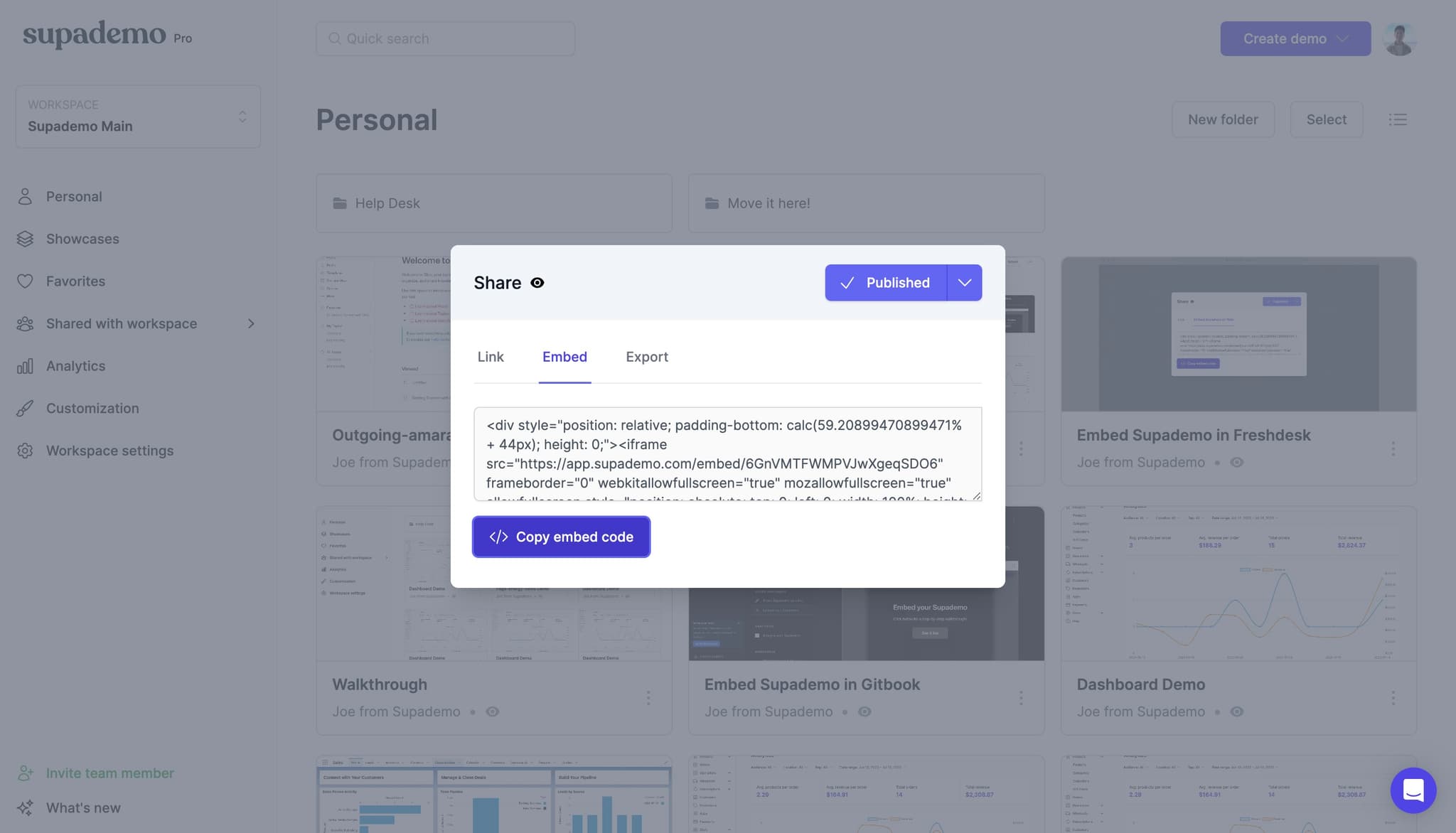
Upload your demo file
Navigate to the upload section and add your demo file to your workspace. Ensure the demo is properly formatted and ready for embedding.
- 8
Select embed option for Slab
Click on 'Embed Supademo in Slab' to access the embedding code and instructions. This generates the necessary embed code specific to Slab's requirements.
- 9
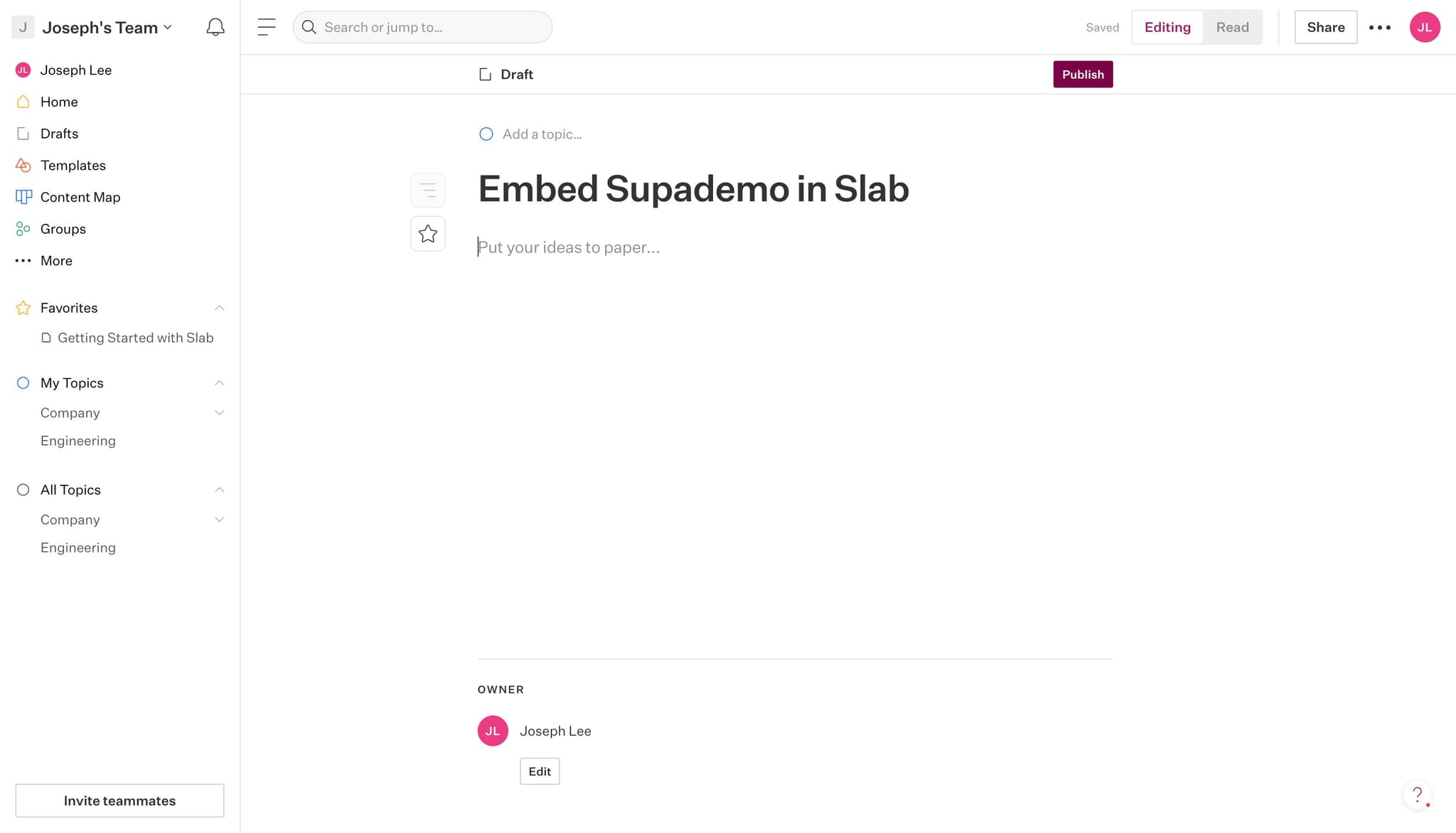
Publish your embedded demo
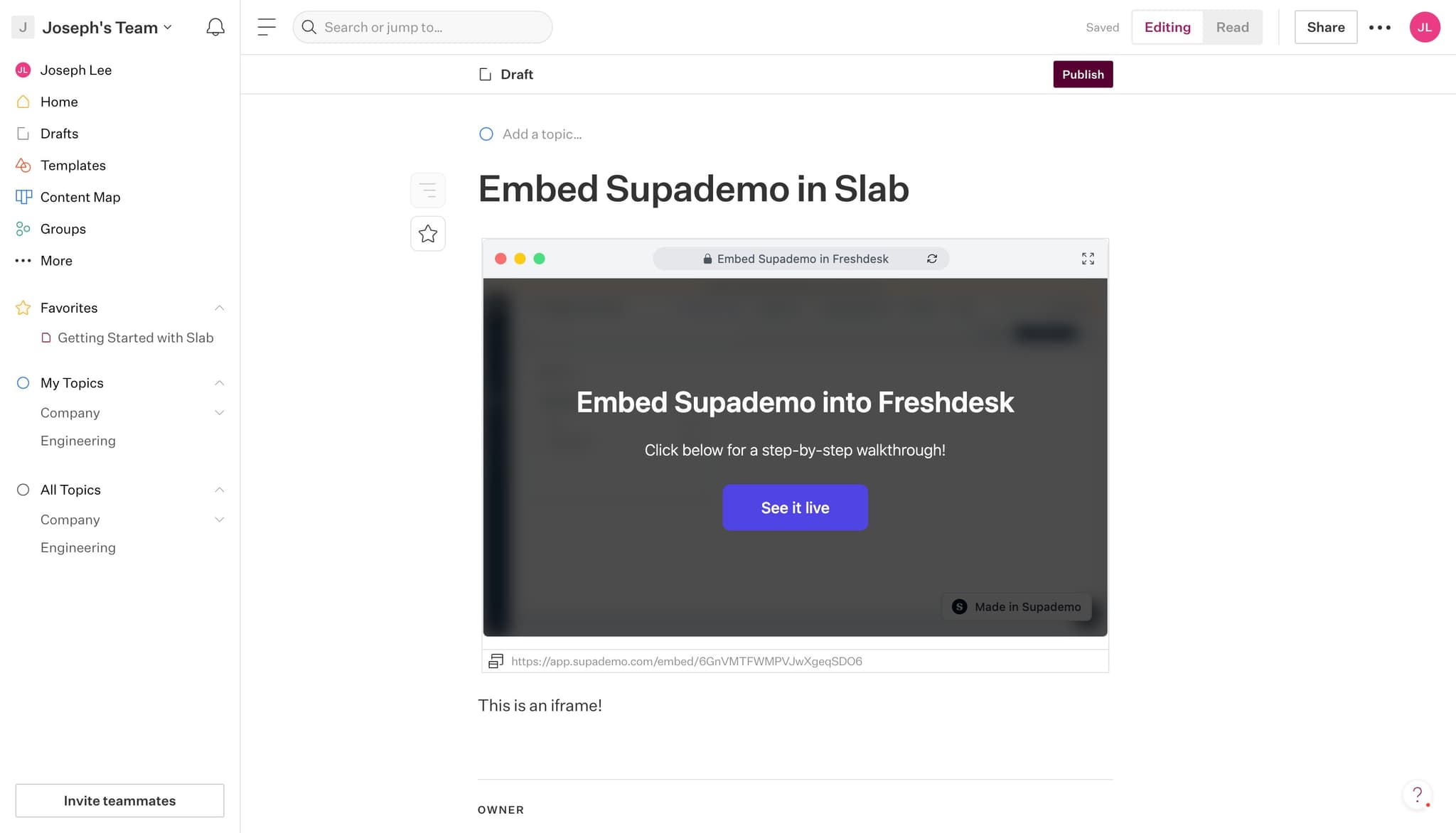
Click 'Publish' to make your demo live and accessible through the embed. Your demo is now active and ready to be viewed by your audience.
- 10
Verify the embedded iframe
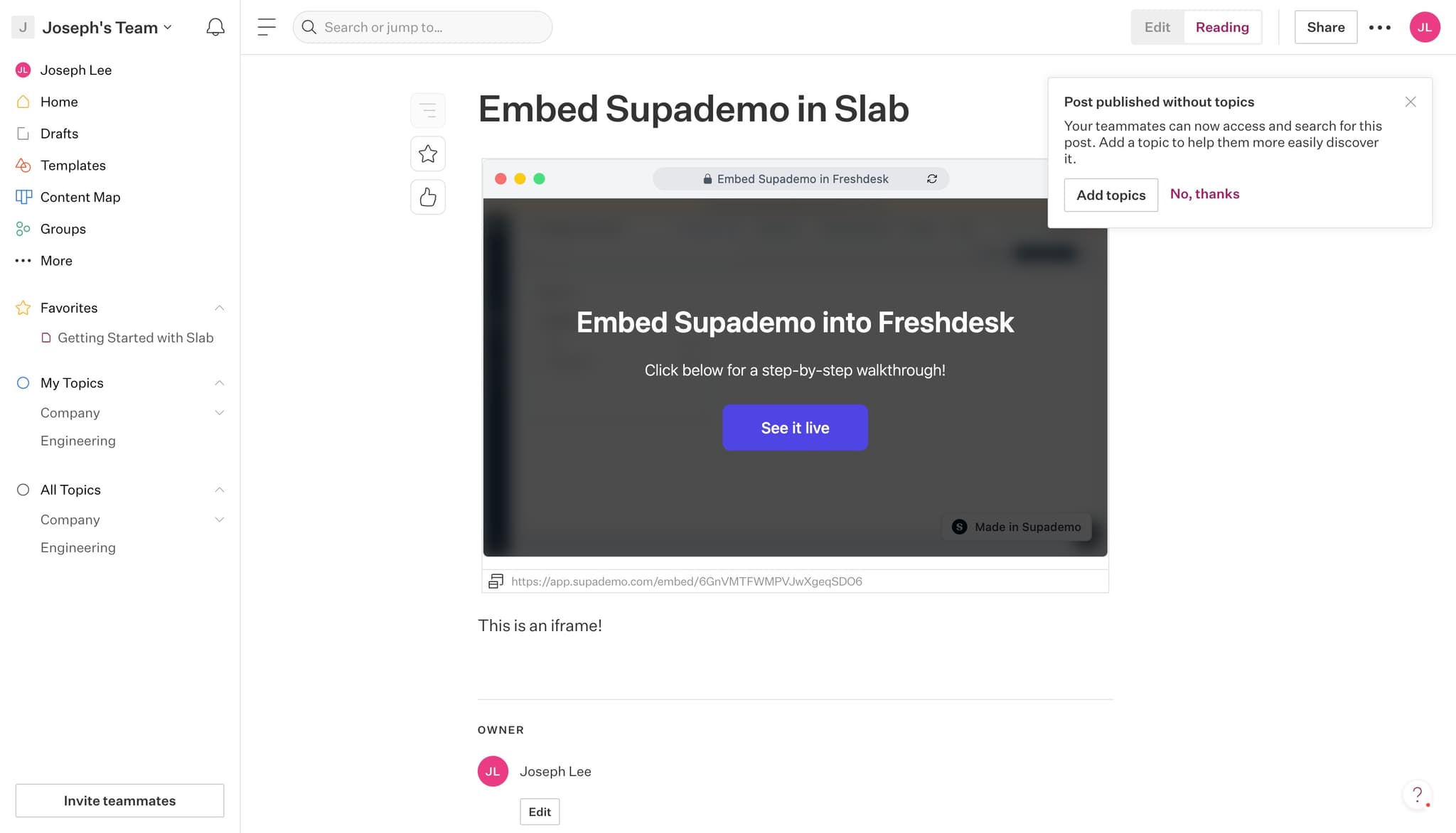
Click on 'This is an iframe!' to test and confirm the embedded demo is displaying correctly. This final check ensures your demo renders properly within Slab.
Frequently asked questions
Common questions about how to embed supademo in slab.
This setting allows your demos to be embedded in external platforms like Slab without domain restrictions. By enabling it, you're granting permission for your content to appear in iframes across different websites and applications while maintaining security through other controls.
The current setting allows all iframe hosts. If you need more granular domain control, you may need to contact support or check for advanced security settings that let you whitelist specific domains instead of allowing all hosts.
Without enabling iframe embedding, your demos cannot be embedded directly into Slab or other external platforms. Users would need to access the demo through a direct link instead of having it appear inline within your documentation.
The embed code generated is specifically formatted for Slab integration. You can typically copy and paste it directly into your Slab documentation, though Slab may provide additional formatting or sizing options within their platform.
After publishing, click on the 'This is an iframe!' verification link to test the embed. You should see your demo render properly within the iframe. If it doesn't display, verify that iframe embedding is enabled and check your Slab integration settings.