How To Create A Guided Product Tour for Customers in 2023

Creating a guided product tour helps customers understand your platform's key features quickly and reduces onboarding friction. This workflow shows you how to build a structured tour by organizing templates, uploading assets, and configuring tour endpoints. Learn the essential steps to deliver a professional customer experience.
Quick summary
In this tutorial, you'll learn how to construct a guided product tour by navigating to email templates, uploading necessary assets at each stage, and finalizing your tour configuration. You'll discover how to organize tour content systematically and ensure each step flows logically for end users.
Why this matters
Product tours are critical for customer adoption and reduce support burden by enabling self-service learning. A well-structured tour increases feature discovery, improves user confidence, and creates a memorable onboarding experience. This workflow ensures your tours are organized, scalable, and easy to maintain.
Step-by-step guide
- 1
Search for tour templates
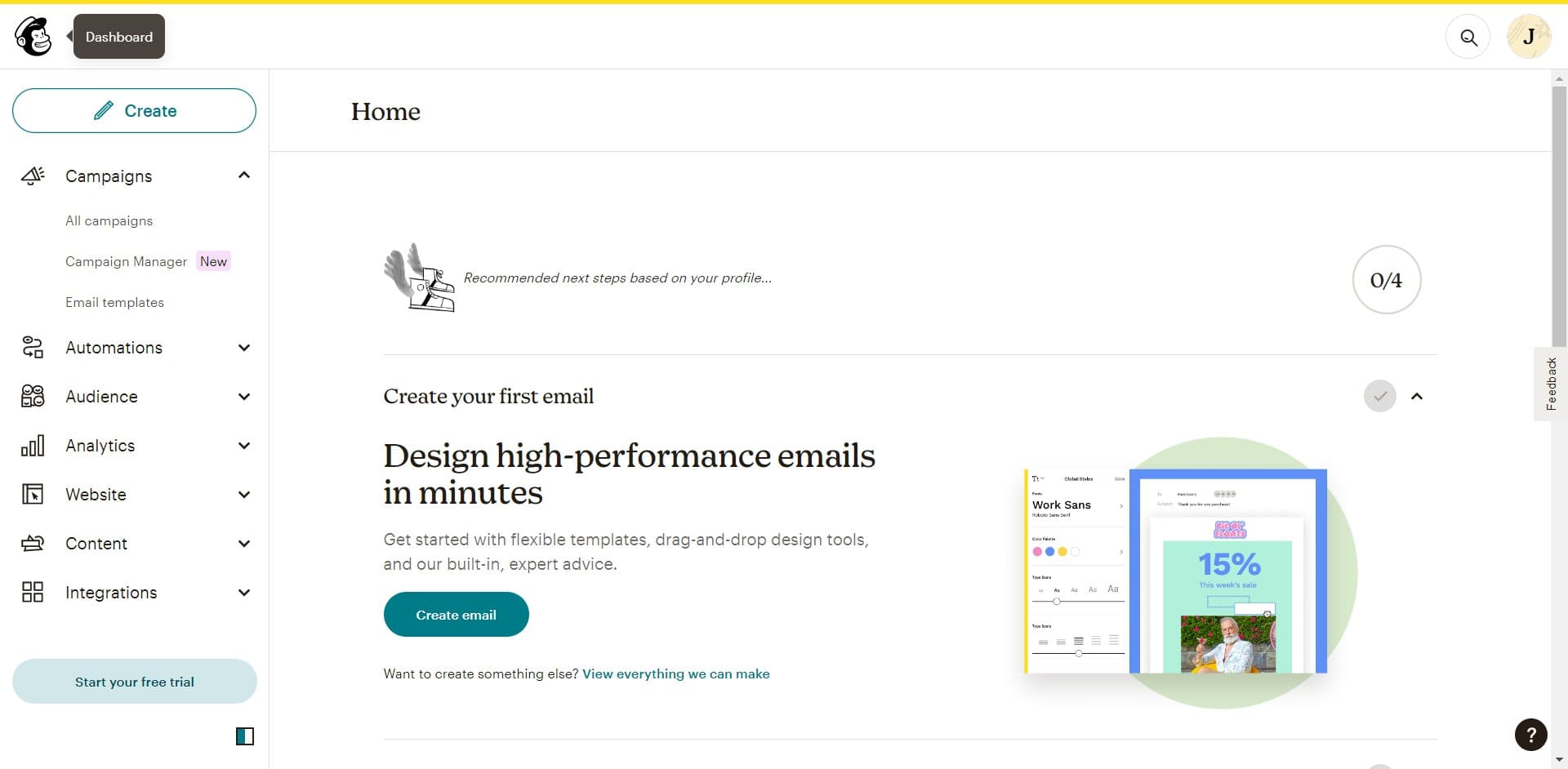
Begin by clicking on the search function to locate available templates for your tour. This enables you to find pre-built or existing tour configurations that match your use case.
- 2
Select email templates
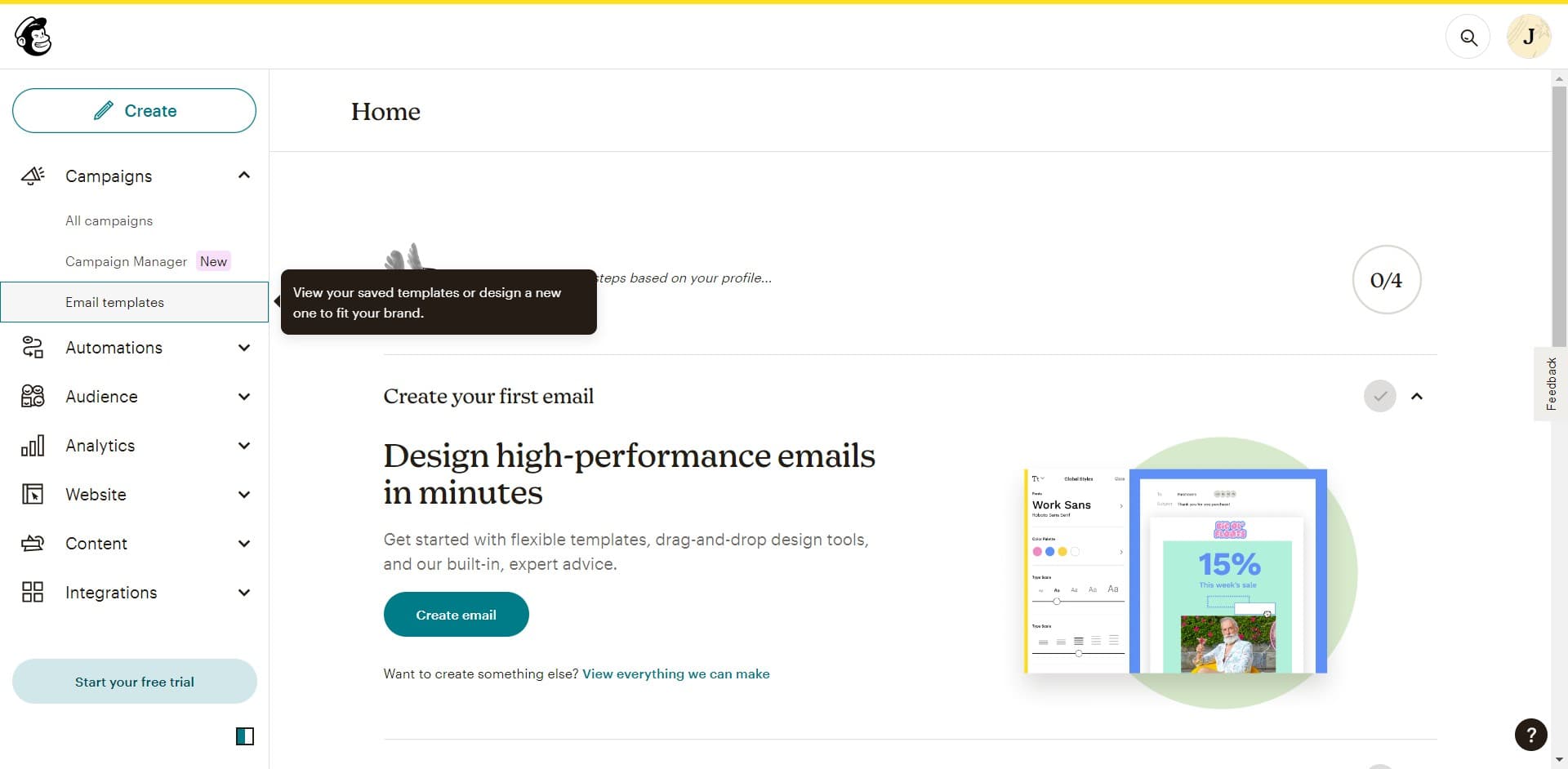
Click on Email templates from the search results to access template-specific resources. This filters your view to show email-related tour components and configurations.
- 3
Choose your template base
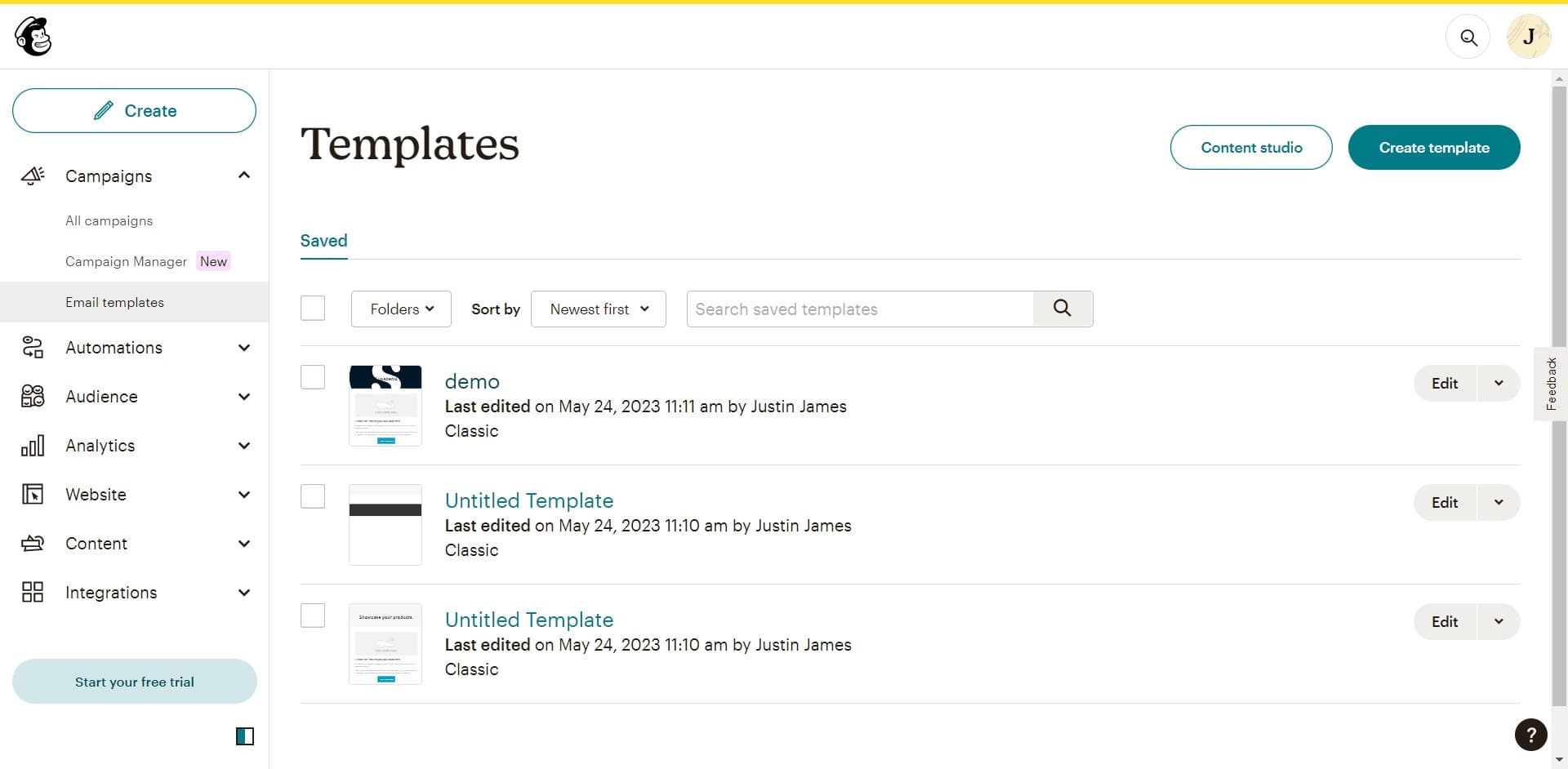
Click on the template you want to use as the foundation for your guided tour. This selection determines the structure and initial configuration of your tour.
- 4
Upload your first asset
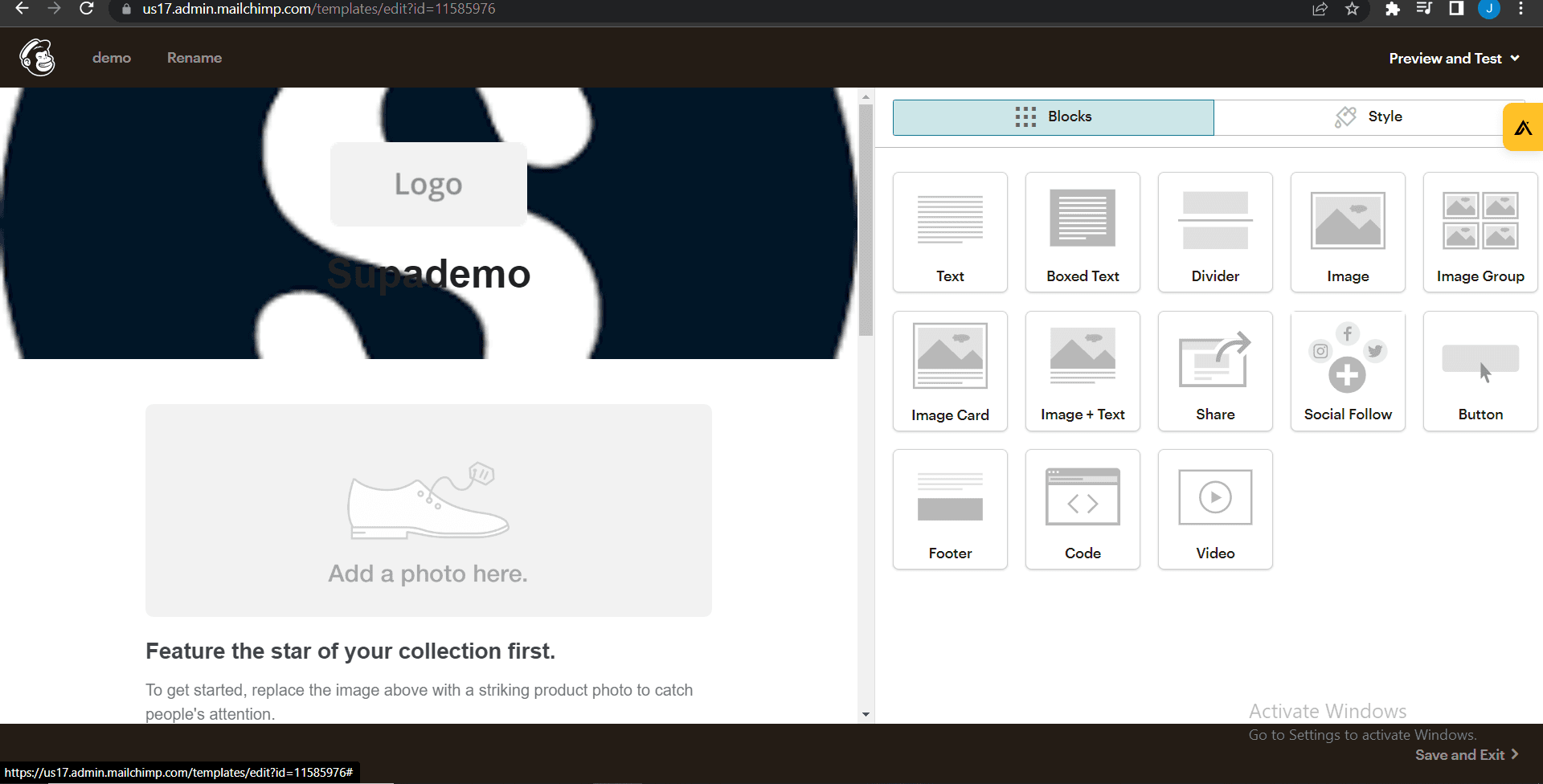
Click the Upload button to add your first image, video, or media file to the tour step. This content becomes the visual reference point for this stage of your tour.
- 5
Upload additional asset
Click Upload again to add supplementary assets to your tour content. Multiple assets per step provide richer context and clearer guidance for users.
- 6
Configure the next step
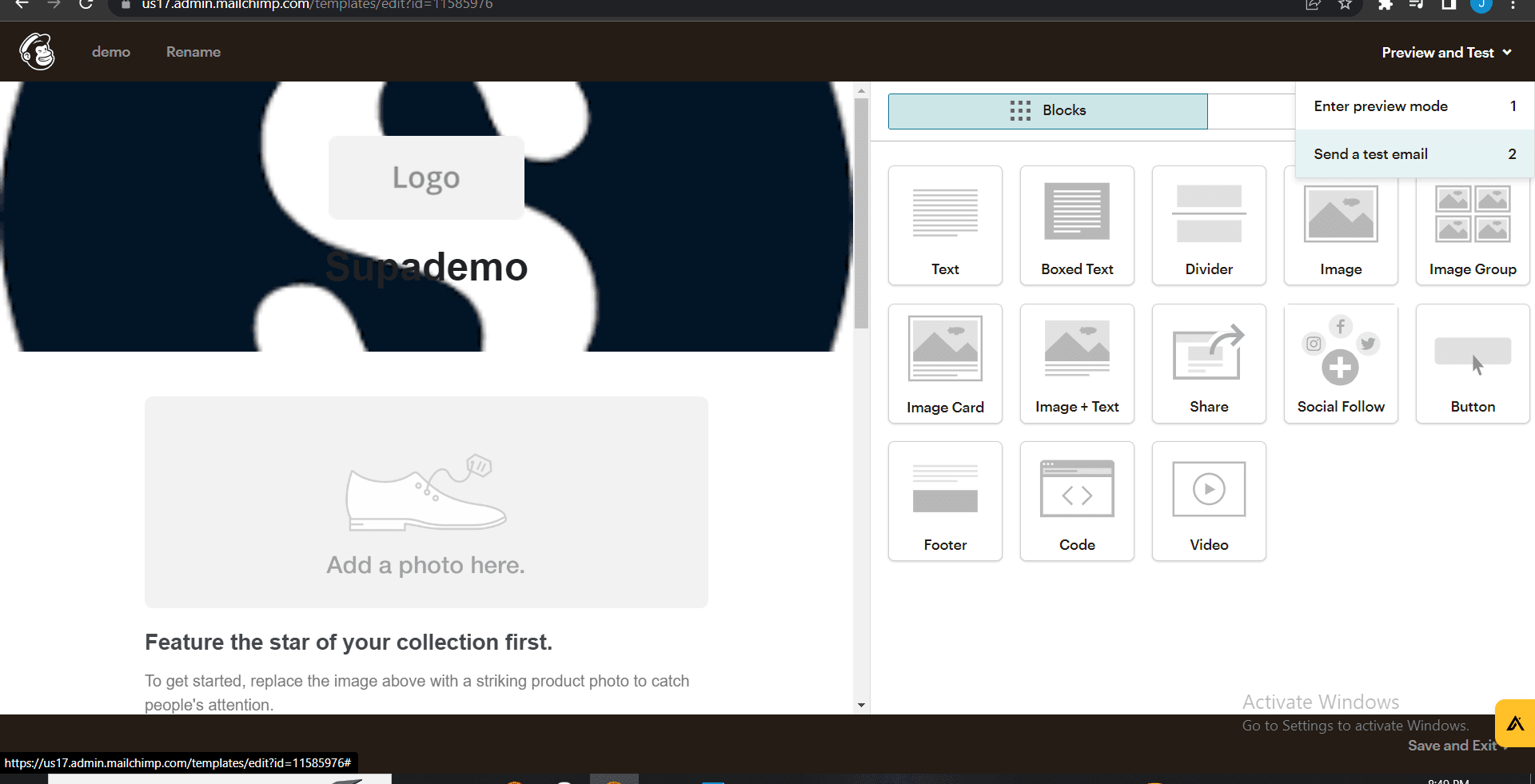
Click to proceed to the next tour step configuration point. This advances you through the tour builder to add subsequent stages and interactions.
- 7
Upload final step asset
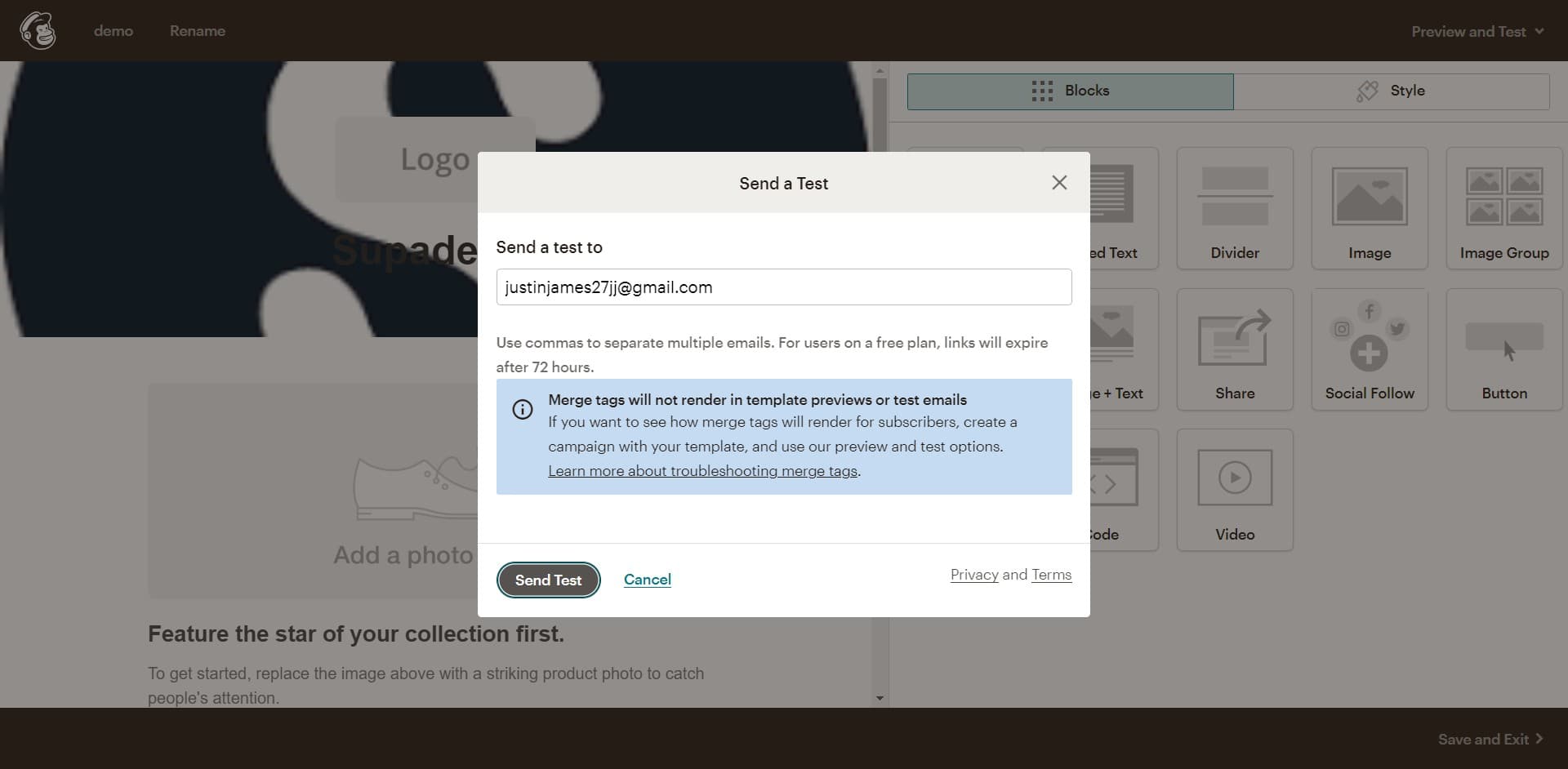
Click Upload once more to add the concluding asset to your tour. This completes the visual and instructional content for your guided experience.
- 8
Finalize tour completion
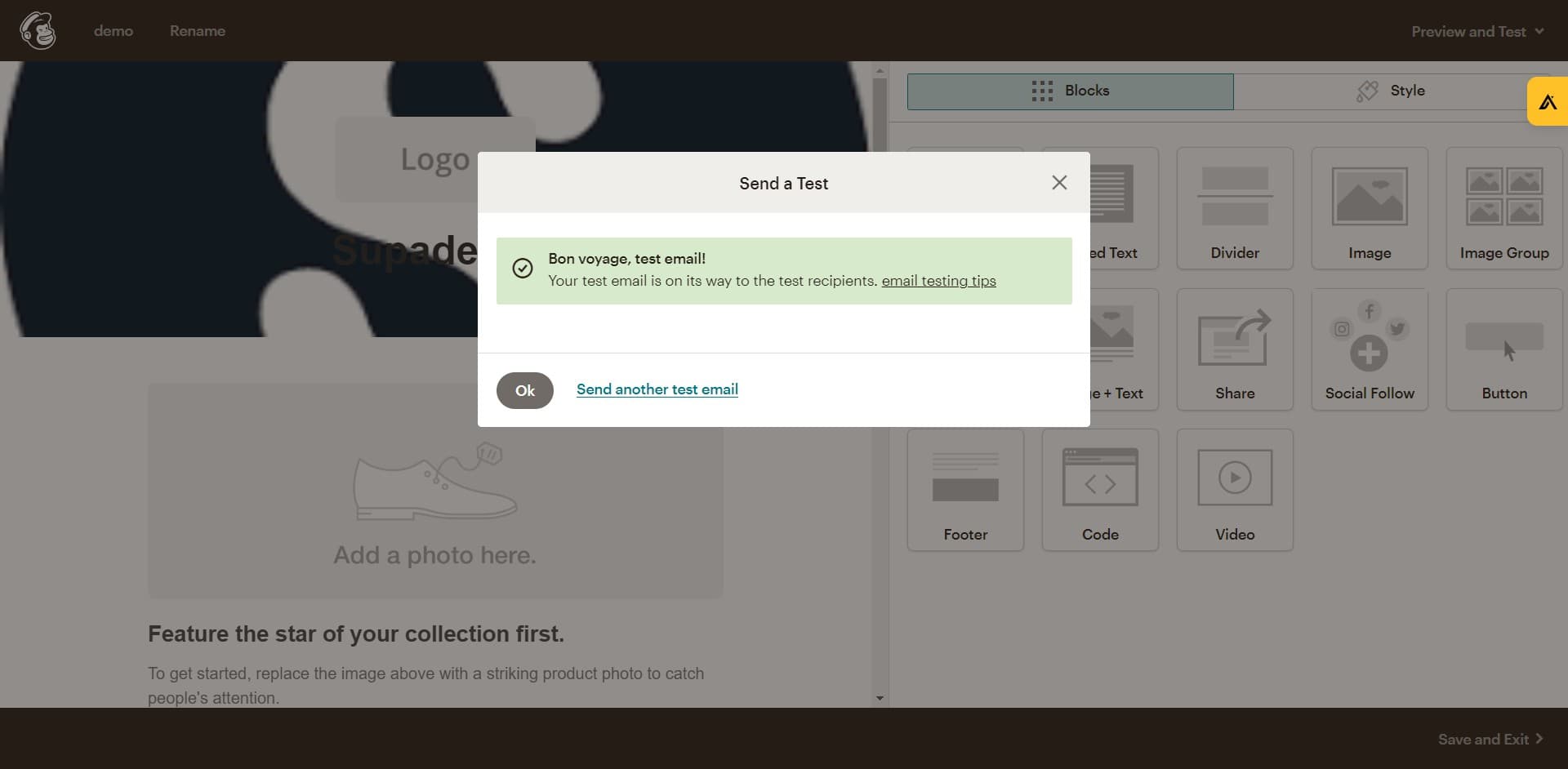
Click on the final tour endpoint labeled Bon voyage to activate and complete your tour setup. This action confirms your tour is ready for deployment to customers.
Frequently asked questions
Common questions about how to create a guided product tour for customers in 2023.
Most platforms support common formats including PNG, JPG, GIF for images and MP4, WebM for videos. Check your platform's documentation for the complete list of accepted file types and size limits. Optimizing file sizes ensures faster tour loading times for end users.
Yes, most tour builders allow you to rearrange steps by dragging them within the interface or using reorder controls. This flexibility lets you refine the logical flow of your tour based on testing feedback or changing product priorities.
Look for a preview or test mode button within the tour builder to see your tour from the end user's perspective. Preview mode helps you identify gaps, timing issues, or clarity problems before launching the tour to your customer base.
Most effective tours contain 5 to 10 steps, though this depends on feature complexity and target audience. Keep each step focused on a single action or concept to maintain user engagement and prevent information overload.
Yes, you can modify existing tours at any time by editing individual steps, replacing assets, or adjusting copy. Published changes typically take effect immediately, allowing you to improve tours based on user feedback or product updates.