How to embed Supademo on Framer

Embedding interactive product demos on your Framer site enhances user engagement and reduces support requests. This guide walks you through the process of integrating a demo directly into your Framer project using the embed code method.
Quick summary
In this tutorial, you'll learn how to add an embedded demo to your Framer website by accessing the Insert menu, navigating to Utility options, and copying the embed code into your project. By the end, your demo will be fully integrated and ready for your visitors.
Why this matters
Embedding demos on your website allows potential customers to interact with your product before committing to a purchase or trial. This hands-on experience builds confidence and can significantly increase conversion rates by demonstrating value directly within your site's context.
Step-by-step guide
- 1
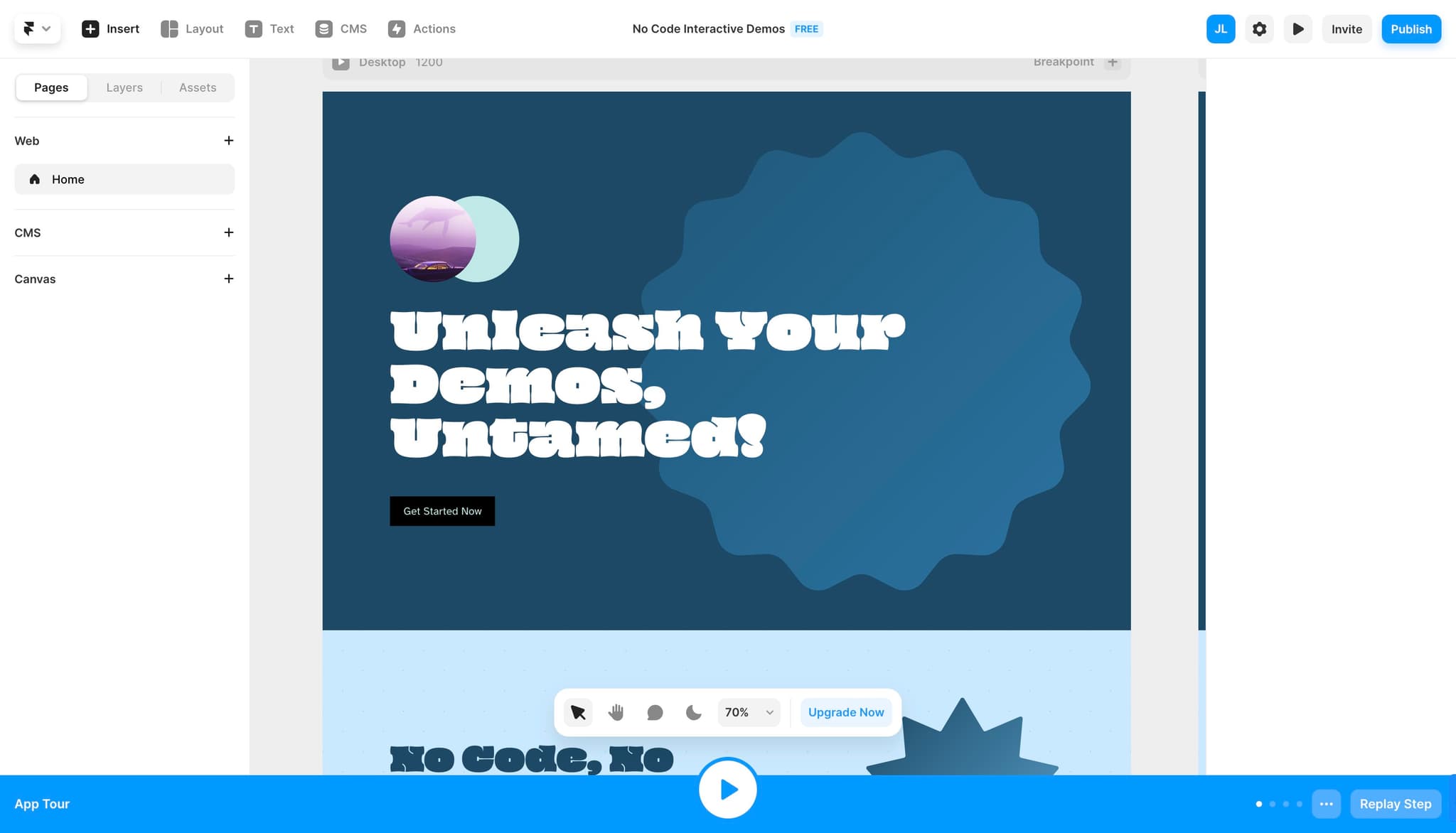
Click on Insert menu
Open your Framer project and locate the Insert menu at the top of the editor. This menu provides access to all available components and utilities you can add to your design.
- 2
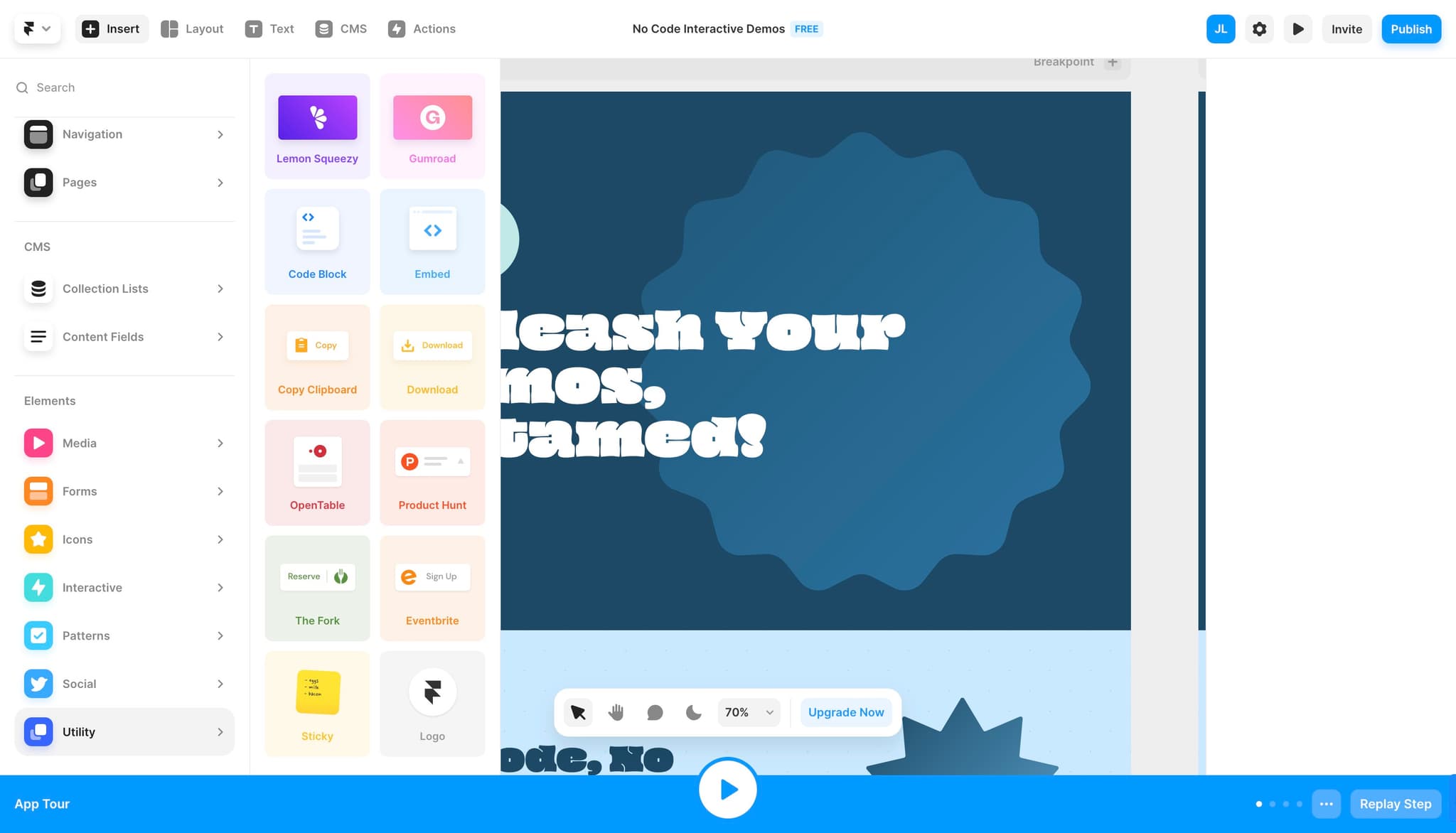
Select Utility option
From the Insert dropdown, find and click on Utility to view the available utility components. This category contains embed and integration tools needed for adding external content.
- 3
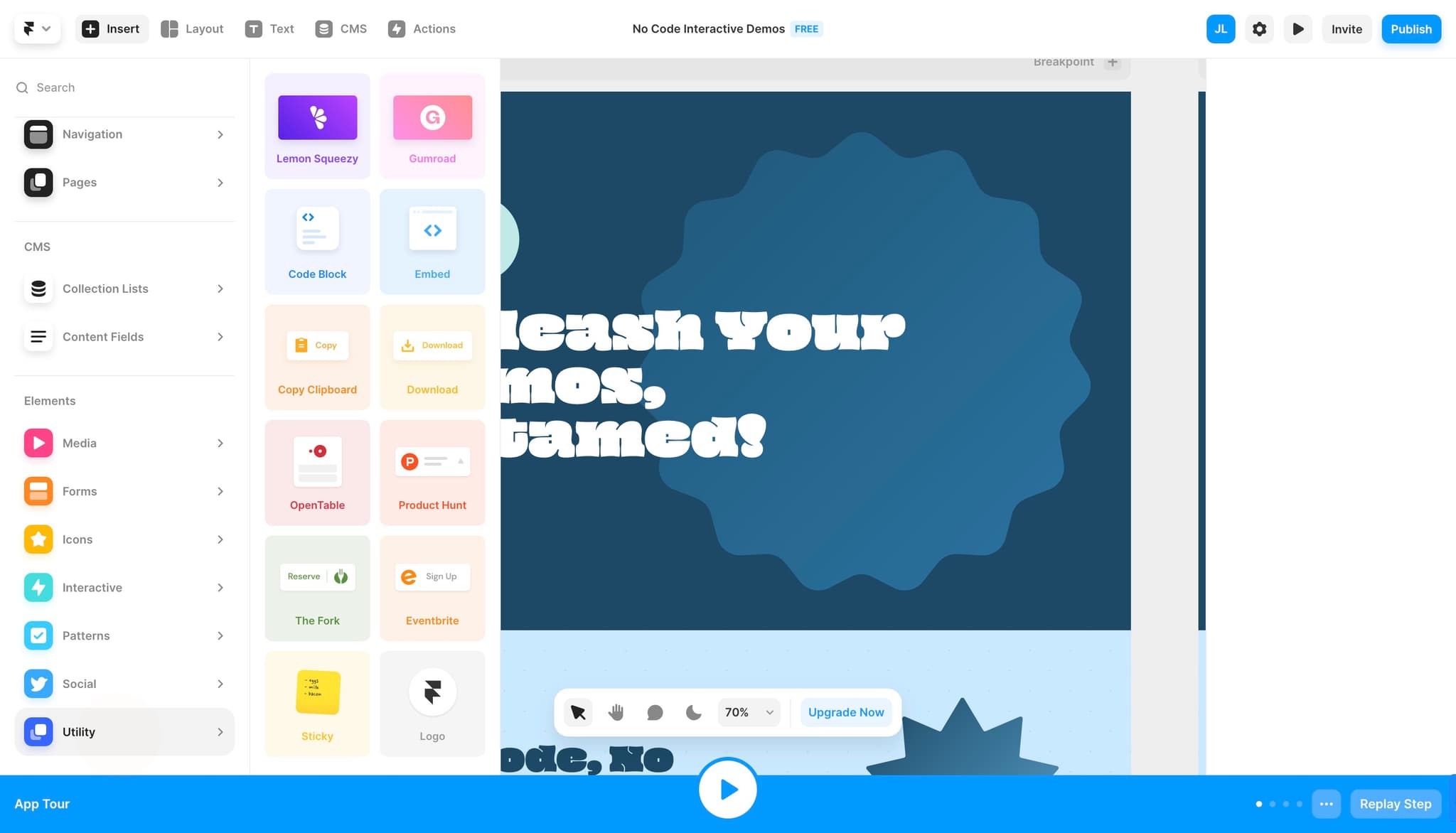
Access embed configuration
Click on the indicated option to open the embed configuration panel. This opens the interface where you can paste and customize your embed code.
- 4
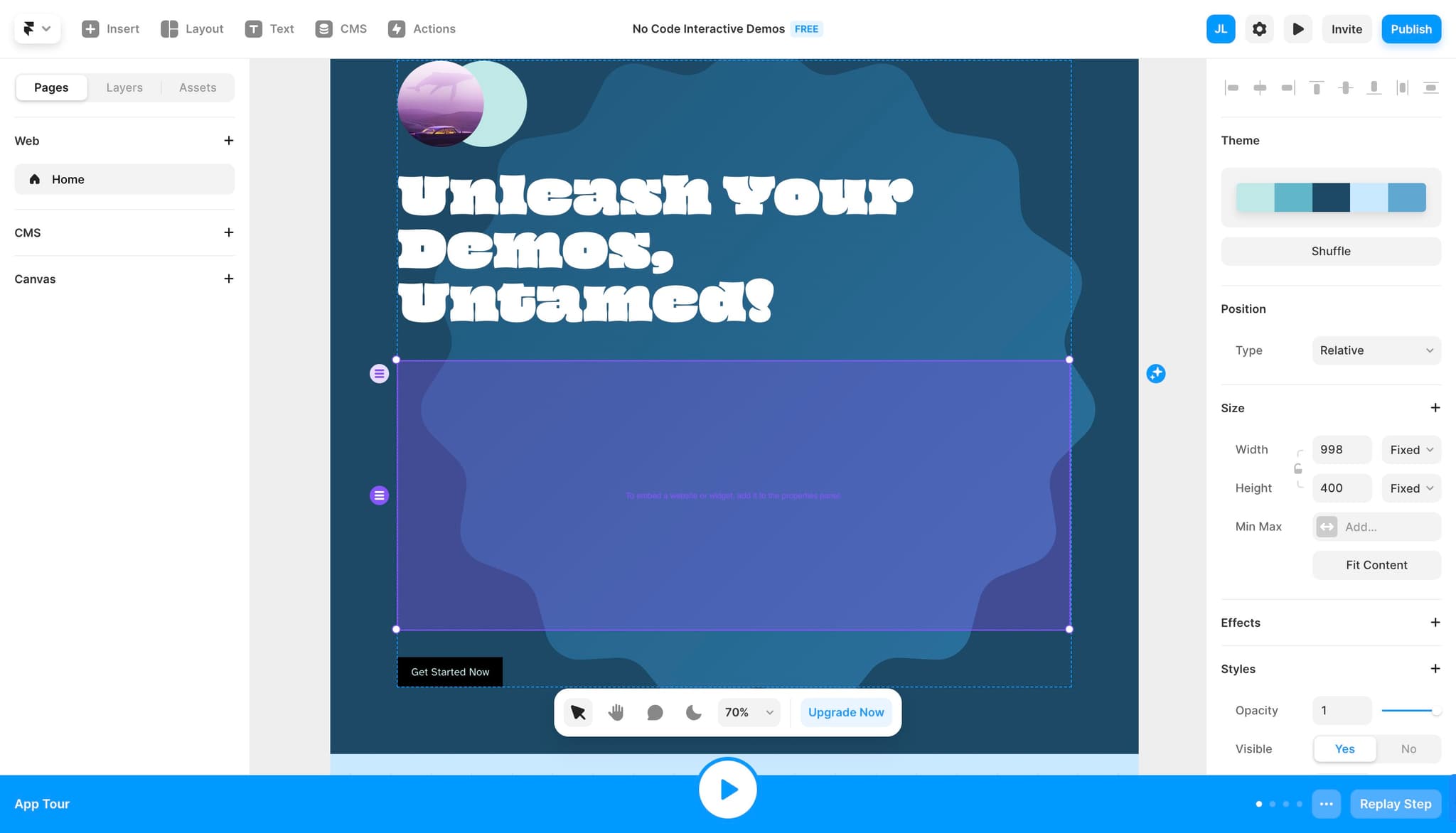
Configure embed settings
Set up any necessary parameters or settings for your embed. Adjust dimensions and positioning as needed to match your design layout.
- 5
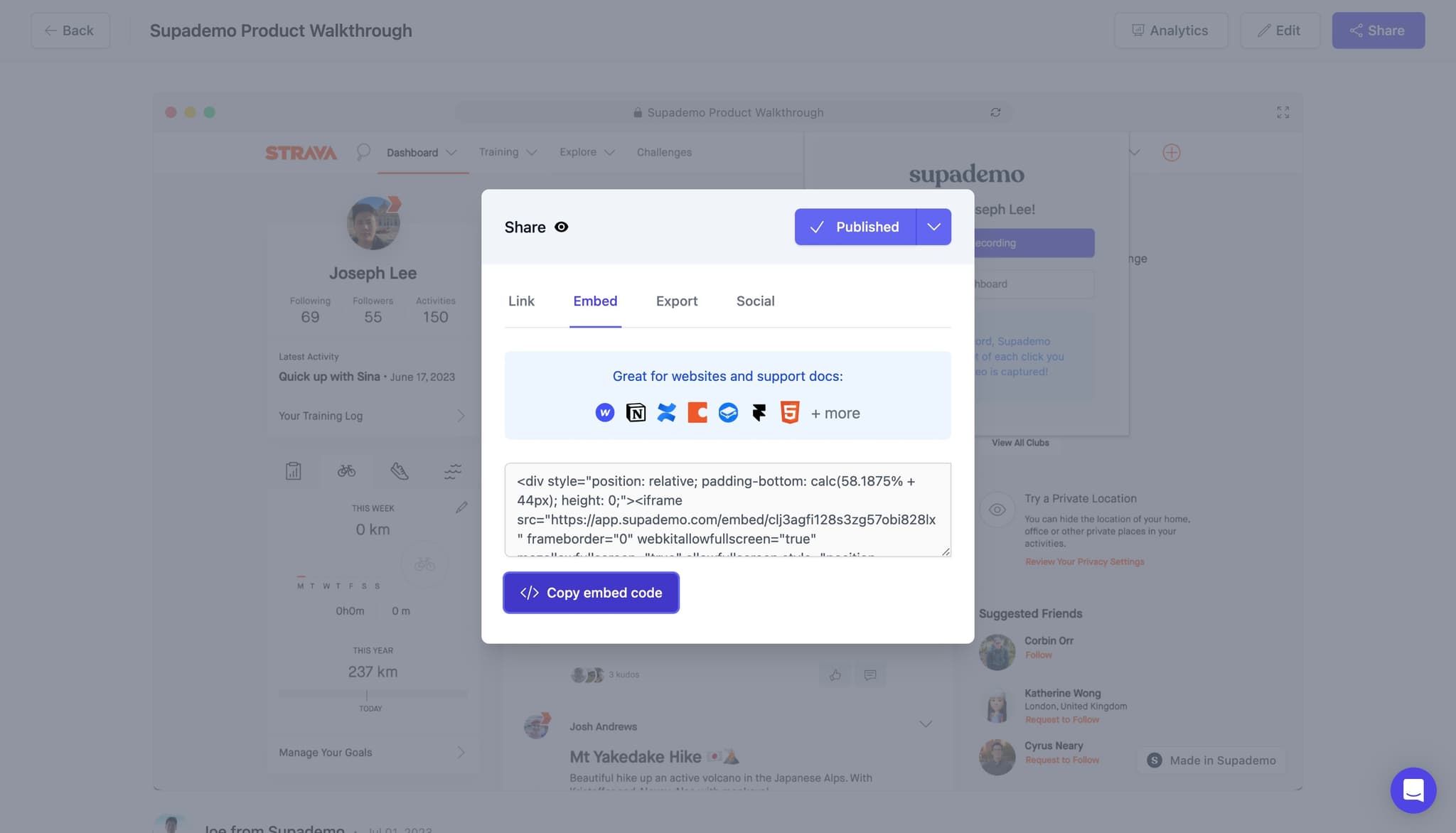
Copy embed code
Click on Copy embed code to copy the embed snippet to your clipboard. You'll paste this code into your Framer project's embed component.
- 6
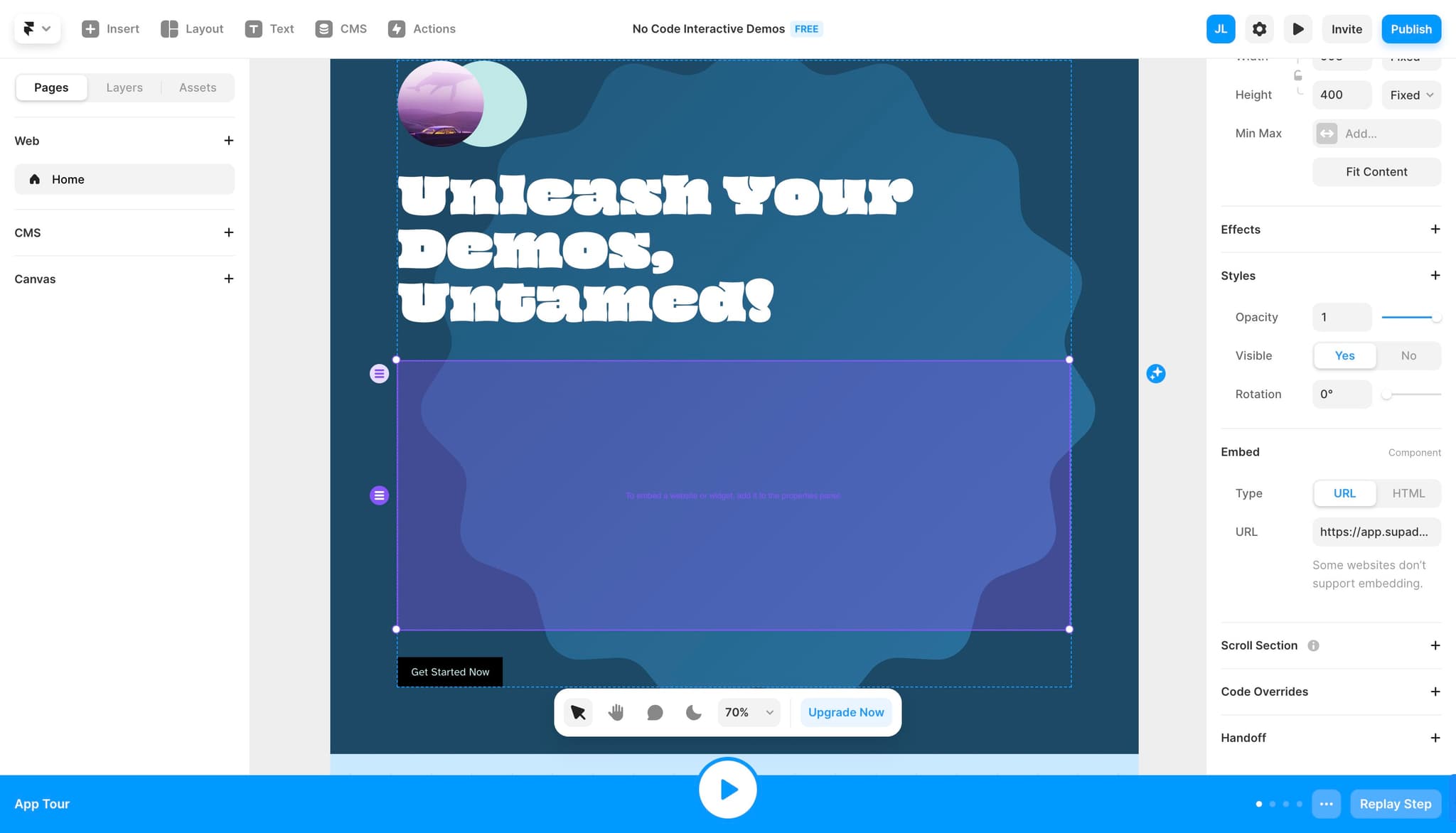
Paste code into embed component
Navigate to your embed component field and paste the copied code. Ensure the code is properly formatted within the designated text area.
- 7
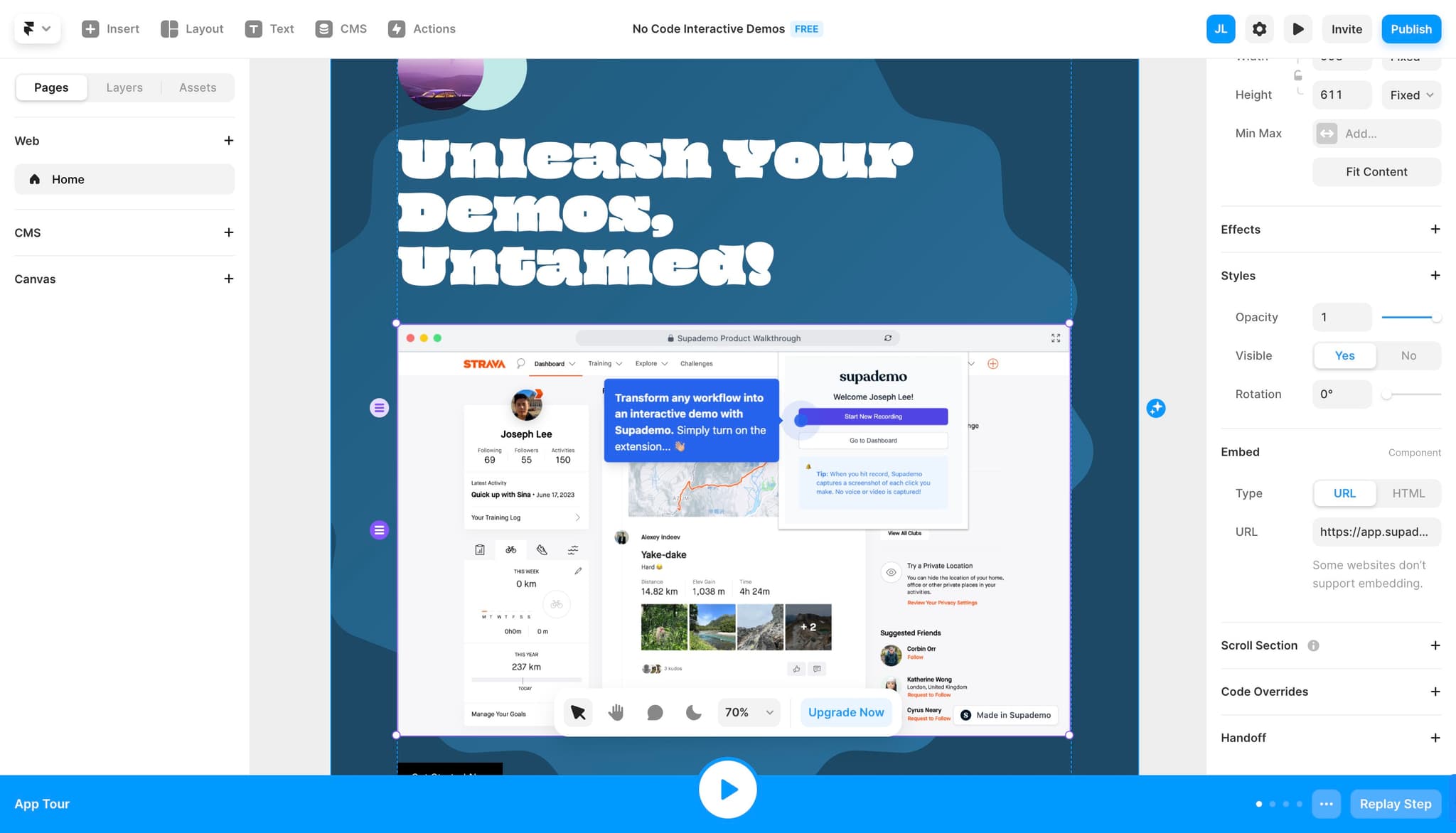
Publish and verify
Save your changes and publish your Framer site to make the embedded demo live. Test the demo on your published site to confirm it displays and functions correctly.
Frequently asked questions
Common questions about how to embed supademo on framer.
The ideal size depends on your page layout and design. Most demos work well at widths between 600-1200px and heights of 400-800px. Framer allows you to adjust the embed dimensions in the component settings, so you can customize it to fit your specific layout needs.
Yes, you can embed multiple demos on the same page. Simply repeat the process for each demo you want to add, creating separate embed components for each one. This is useful for showcasing different product features or workflows.
Framer's responsive design features allow embeds to scale appropriately for mobile, but you should test the demo on various devices to ensure optimal display. You may need to adjust the embed dimensions or use Framer's breakpoint settings for the best mobile experience.
Changes to your original demo are typically reflected automatically in the embed due to the live link connection. However, if updates don't appear, try clearing your browser cache or republishing your Framer site to ensure the latest version loads.
The demo itself maintains its original styling, but you can control how it displays within Framer by adjusting the embed component's frame, borders, shadows, and positioning. Some embed code may include customization parameters you can modify before pasting into Framer.