How to embed Supademo on Slite

Embedding interactive product demos directly into Slite documentation enhances your team's onboarding experience and reduces support tickets. This guide walks you through the process of integrating Supademo demos into your Slite workspace, enabling seamless access to step-by-step product walkthroughs without leaving your knowledge base.
Quick summary
In this tutorial, you'll learn how to embed Supademo demos into Slite by uploading your demo files and configuring the embed settings. By following these steps, you'll create a more interactive and engaging documentation experience for your team members.
Why this matters
Embedding demos directly in your documentation ensures that team members can quickly learn new features without switching between tools. This integrated approach streamlines onboarding, reduces context-switching, and keeps your knowledge base as the single source of truth for product education.
Step-by-step guide
- 1
Prepare your demo file
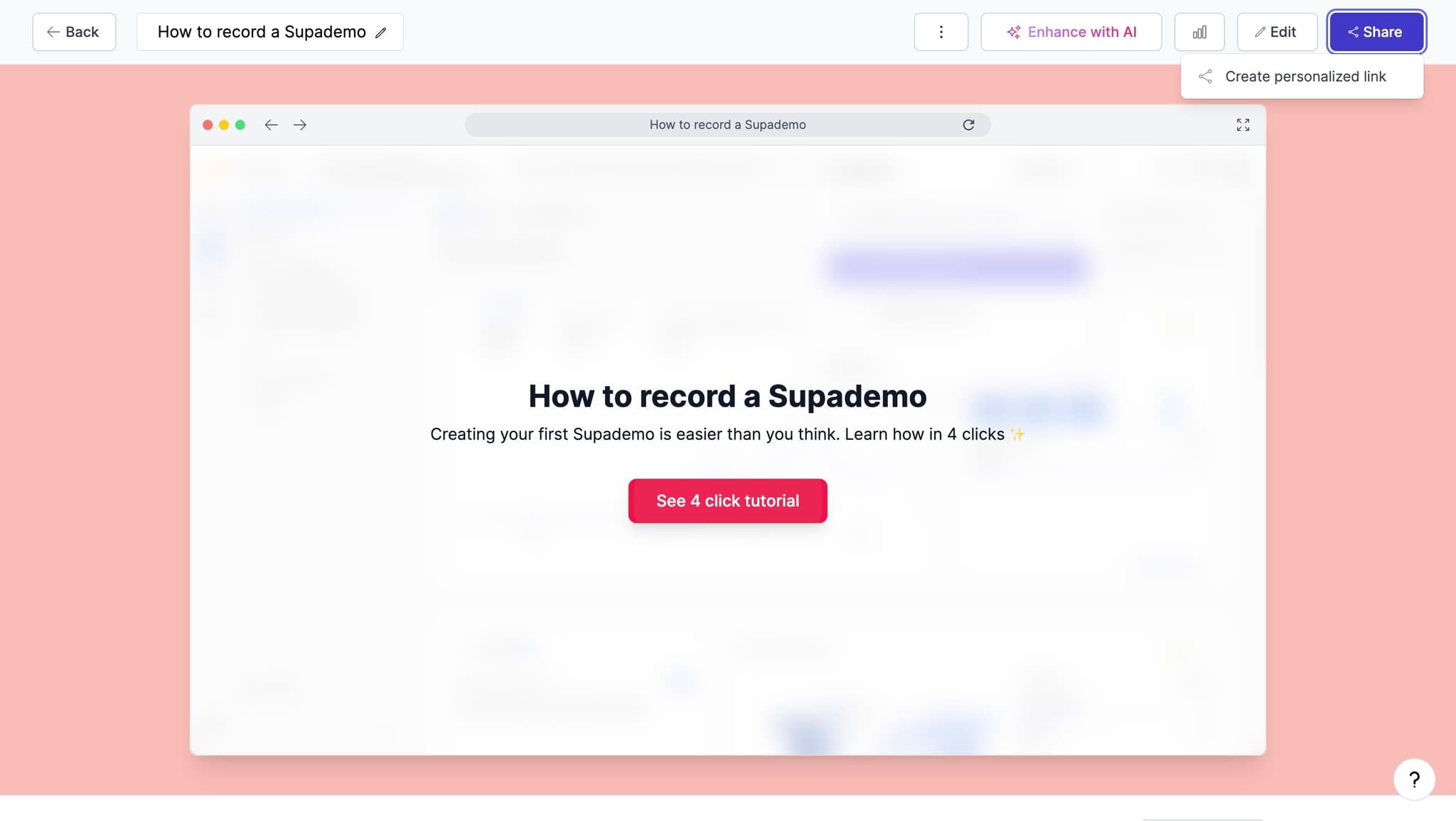
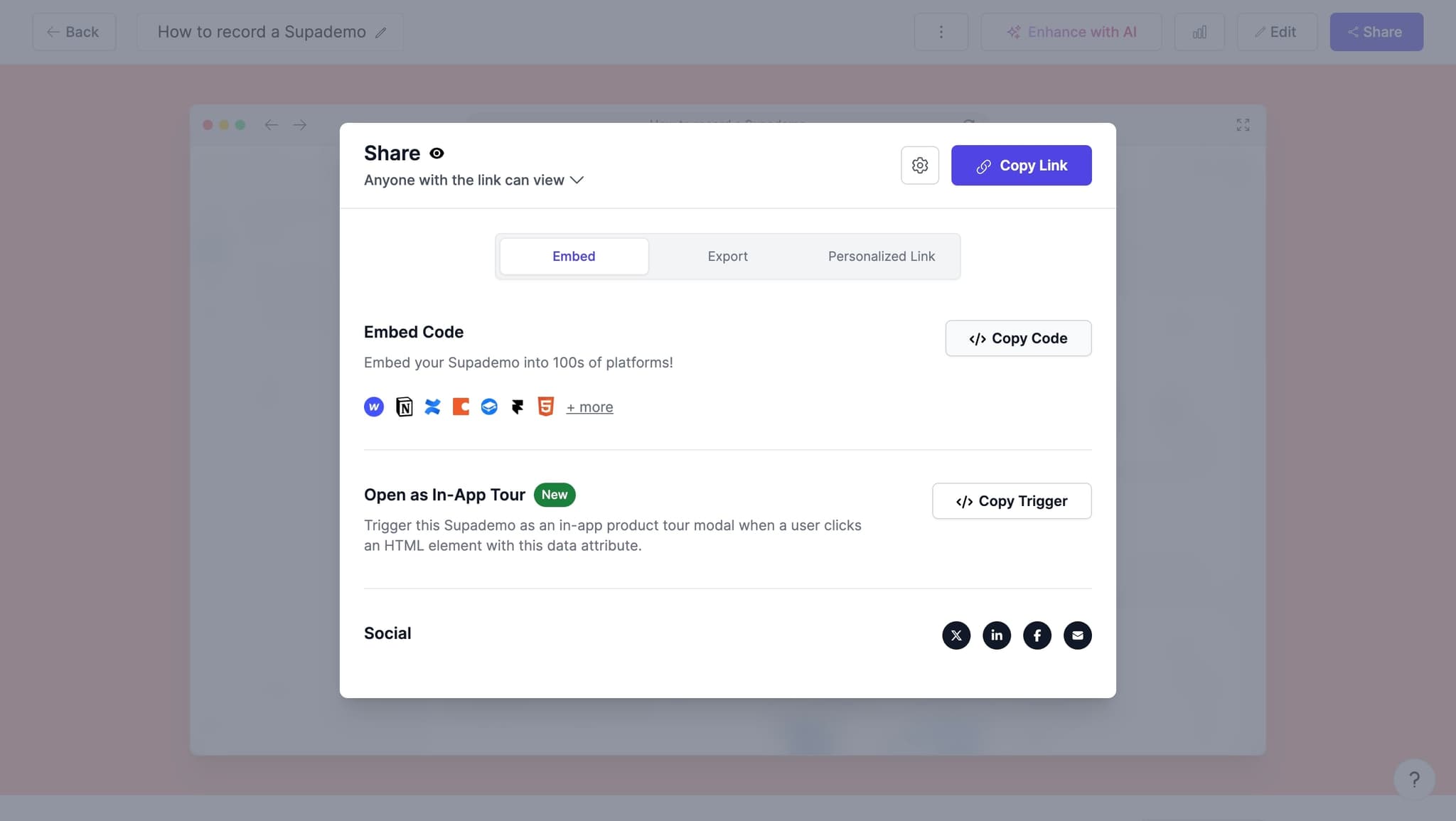
Before embedding, ensure your Supademo demo is finalized and ready for sharing. Export or copy the embed code from your Supademo project to use in the next steps.
- 2
Navigate to your Slite workspace
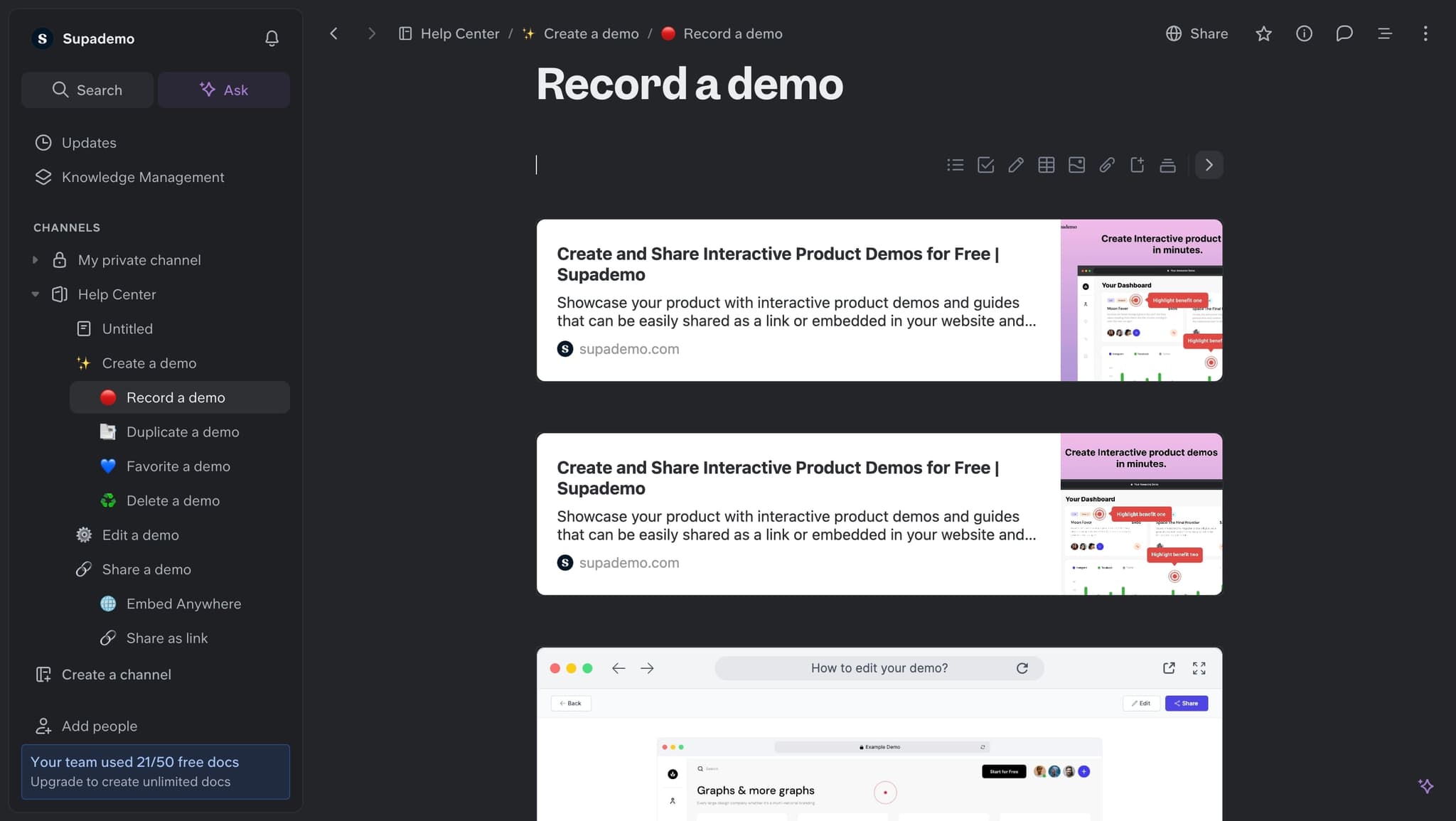
Open Slite and go to the document or page where you want to embed the demo. This should be a location where your team will benefit from the interactive walkthrough.
- 3
Access the embed insertion menu
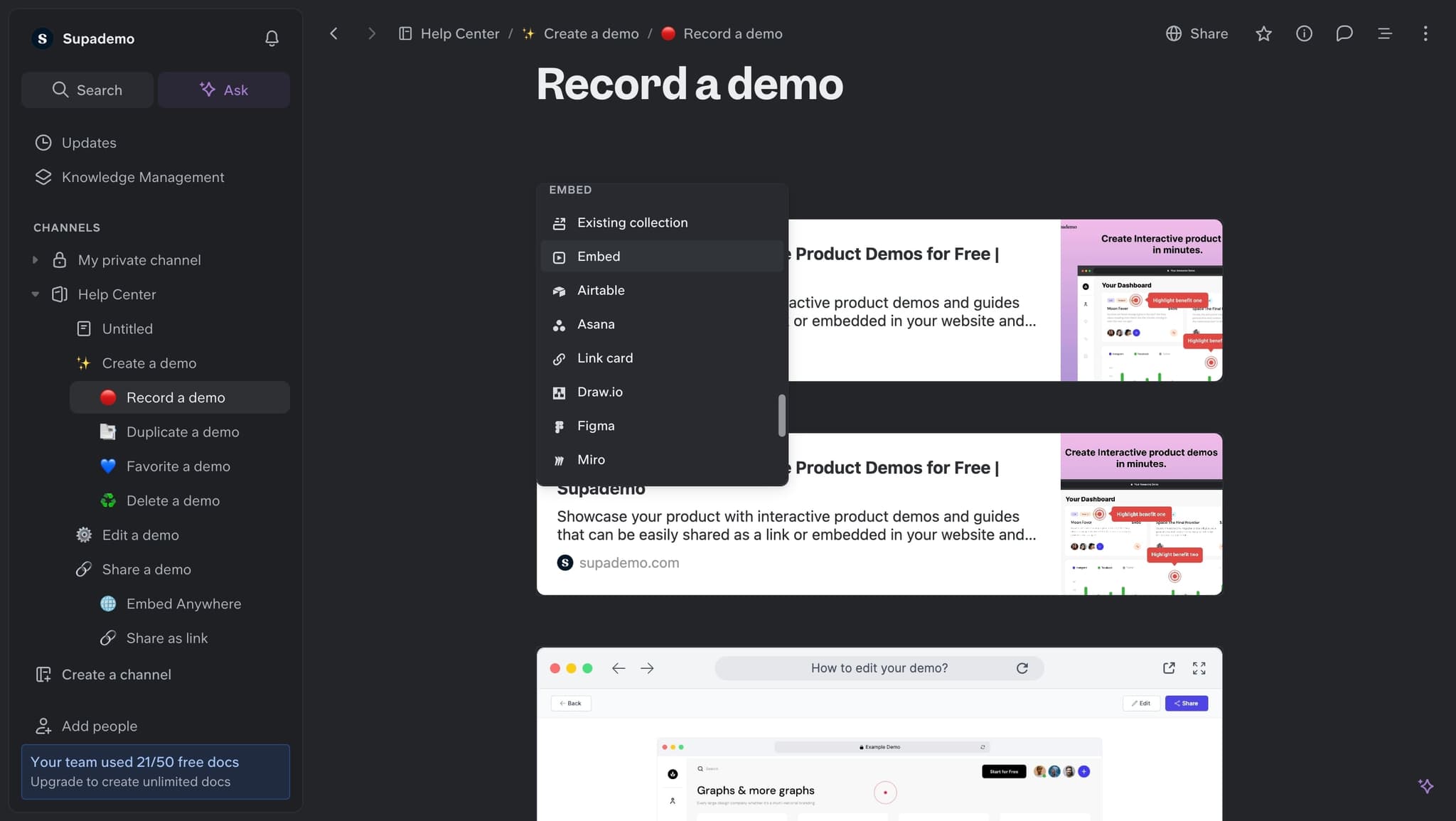
Within your Slite document, look for the embed or insert menu option. This is typically found in the formatting toolbar or by using a slash command to access available integrations.
- 4
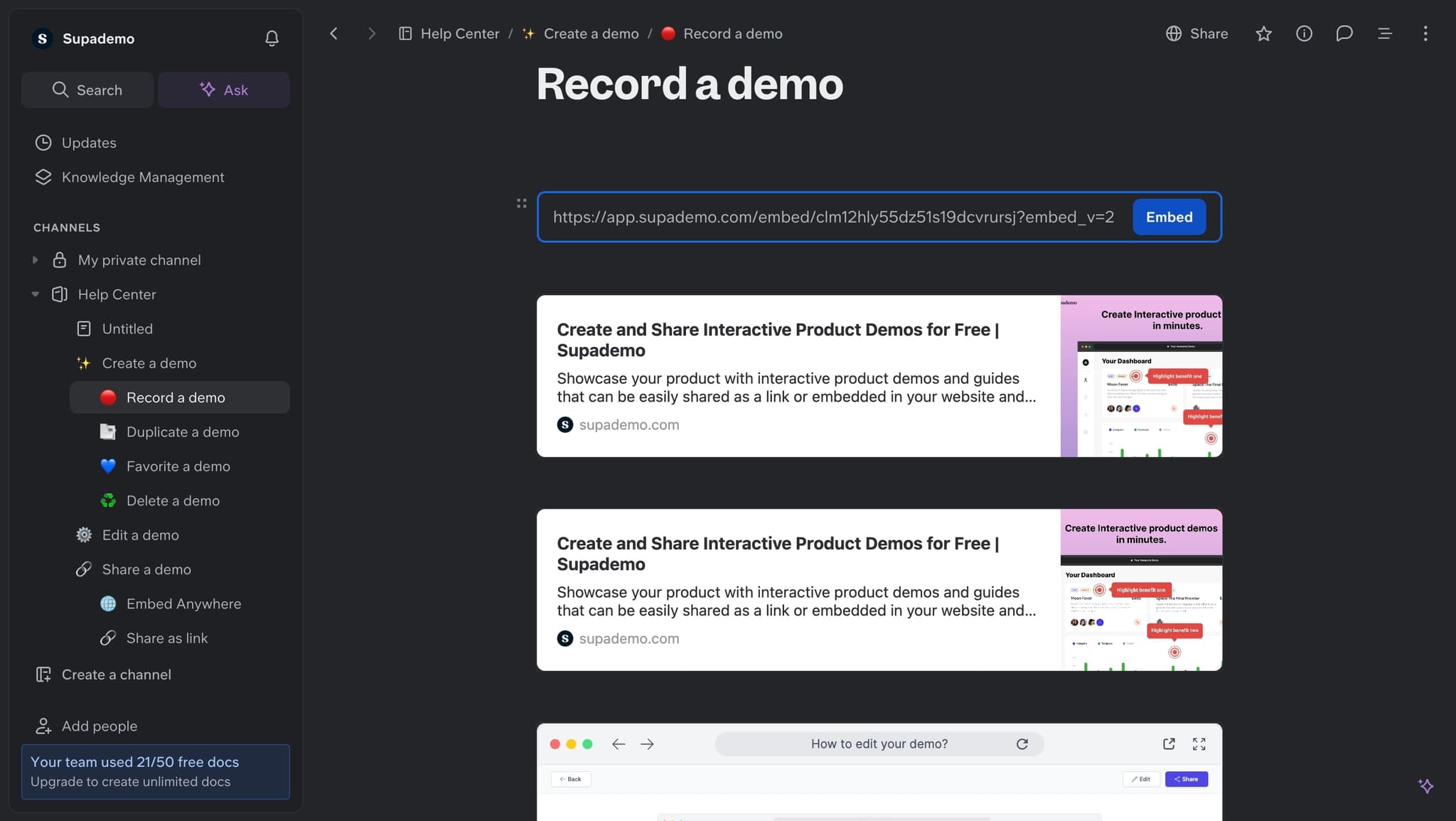
Paste the embed code
Insert your Supademo embed code into the designated field. Slite will process the embed and display a preview of how the demo will appear in your document.
- 5
Customize display settings
Adjust any available options such as demo size, autoplay settings, or display mode to match your documentation layout. These settings ensure the demo integrates seamlessly with your existing content.
- 6
Save and publish your document
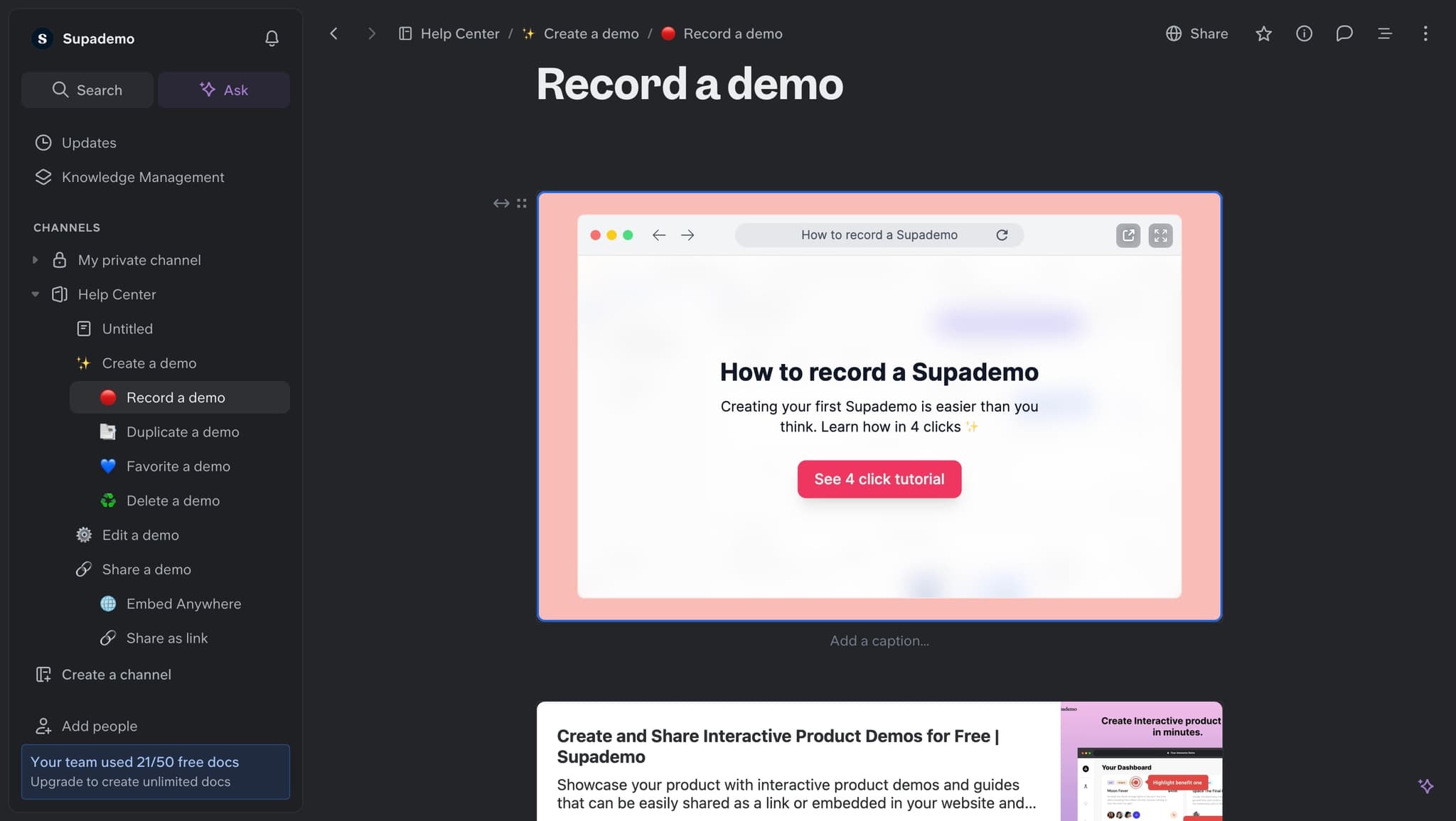
Once configured, save your Slite document and publish it to your workspace. Your team members will now see the embedded demo and can interact with it directly from the documentation page.
Frequently asked questions
Common questions about how to embed supademo on slite.
Can I embed multiple demos in a single Slite document?
Yes, you can embed multiple demos in one document. Simply repeat the embed process for each demo you want to include. This is useful for comprehensive guides that cover multiple workflows or features.
Will the embedded demo update automatically when I make changes?
Changes made to your demo in Supademo will typically reflect in the embedded version automatically, depending on your embed settings. Check your Supademo project settings to ensure dynamic embedding is enabled.
What file formats does Slite support for embedding?
Slite supports embedding through iframe code and various integration formats. Supademo provides embed code that is compatible with Slite's embedding capabilities, so you should use the provided embed code rather than uploading a file.
Can team members interact with the demo if they don't have Supademo accounts?
Yes, viewers do not need Supademo accounts to interact with embedded demos. They can view and navigate through the interactive walkthrough directly from the Slite document.
How do I troubleshoot if the demo doesn't appear in Slite?
First, verify that you've copied the correct embed code and that Slite's embed feature is enabled. Check your browser's console for errors, and ensure the demo is published and accessible. If issues persist, contact Supademo support for assistance with the embed code.