How to enable emails and use it in ClickUp

Email integration in ClickUp allows you to streamline communication by connecting your Gmail account directly to your workspace. This enables you to manage emails and task replies without switching between multiple applications, keeping all project-related correspondence in one centralized location.
Quick summary
In this tutorial, you'll learn how to enable email functionality in ClickUp and integrate your Gmail account. By the end, you'll be able to configure Gmail within ClickUp's App Center and set up email notifications for task replies.
Why this matters
Integrating email with ClickUp reduces context switching and helps teams stay organized by keeping emails and tasks synchronized. This workflow is especially valuable for teams that rely heavily on email communication while managing projects, as it ensures no messages are missed and all correspondence remains accessible within your task management system.
Step-by-step guide
- 1
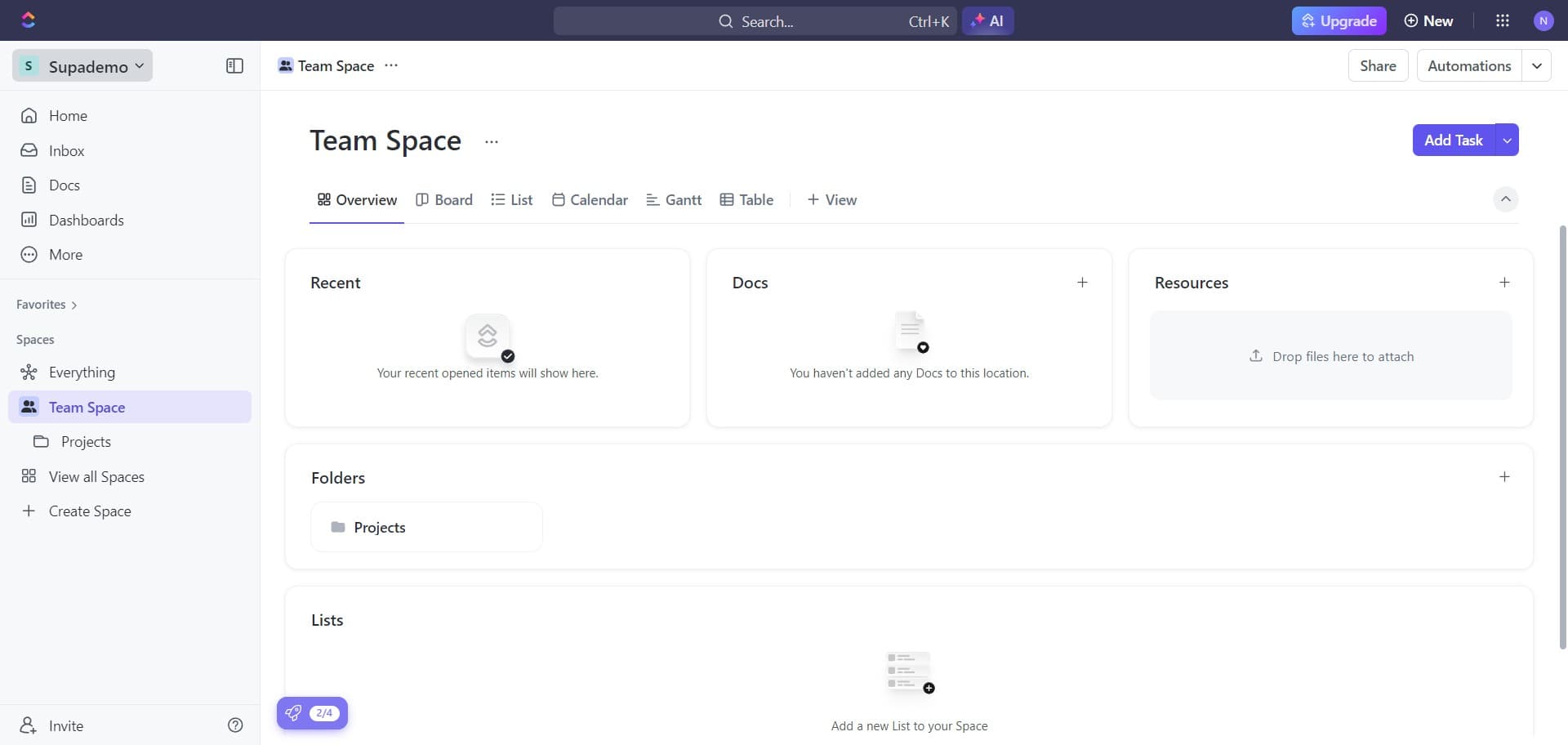
Navigate to the main workspace menu
Click on the Supademo workspace name or menu to access the primary navigation options. This opens the main control panel where you can access all platform features.
- 2
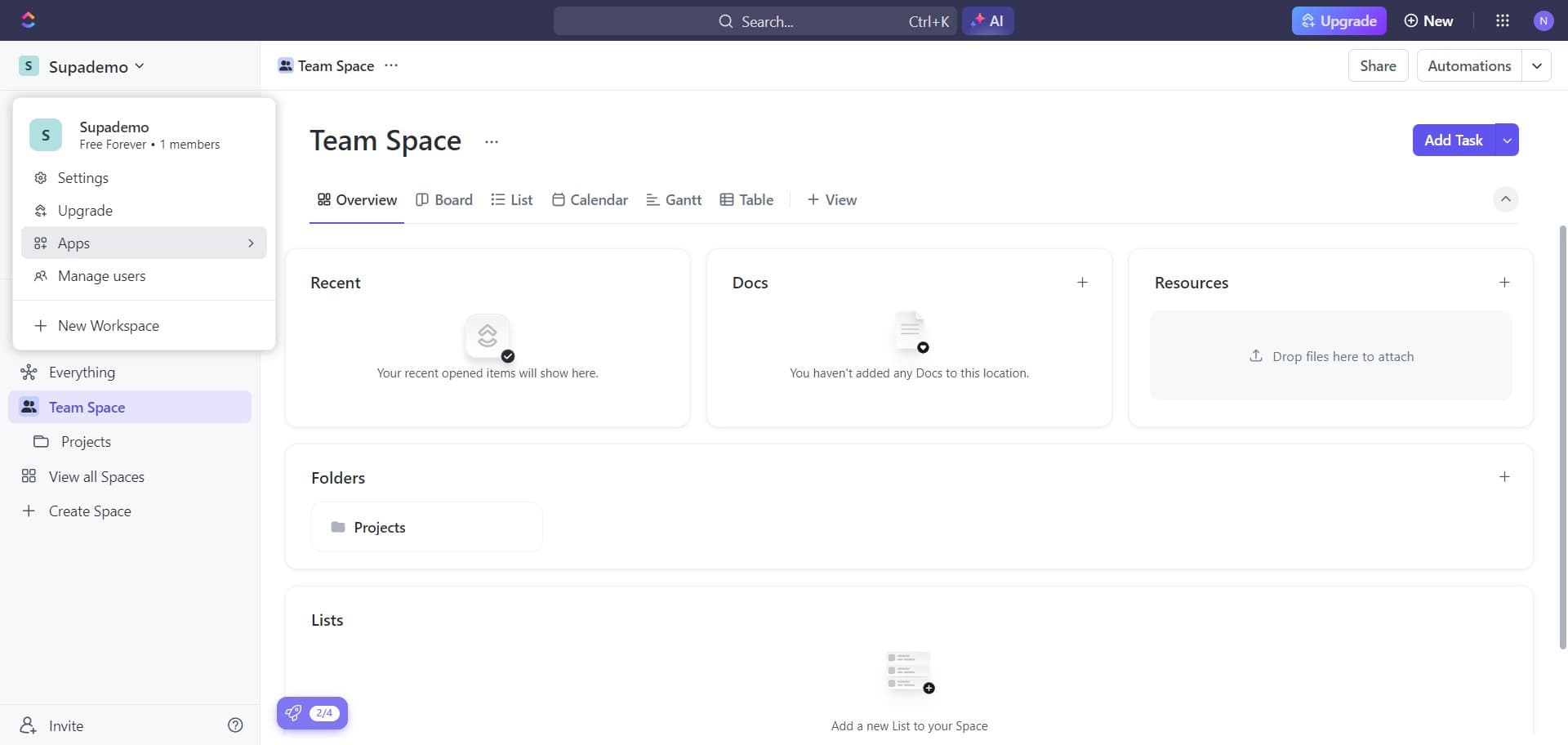
Click on the Apps section
Select Apps from the menu to view all available integrations and extensions. This section displays tools you can connect to ClickUp.
- 3
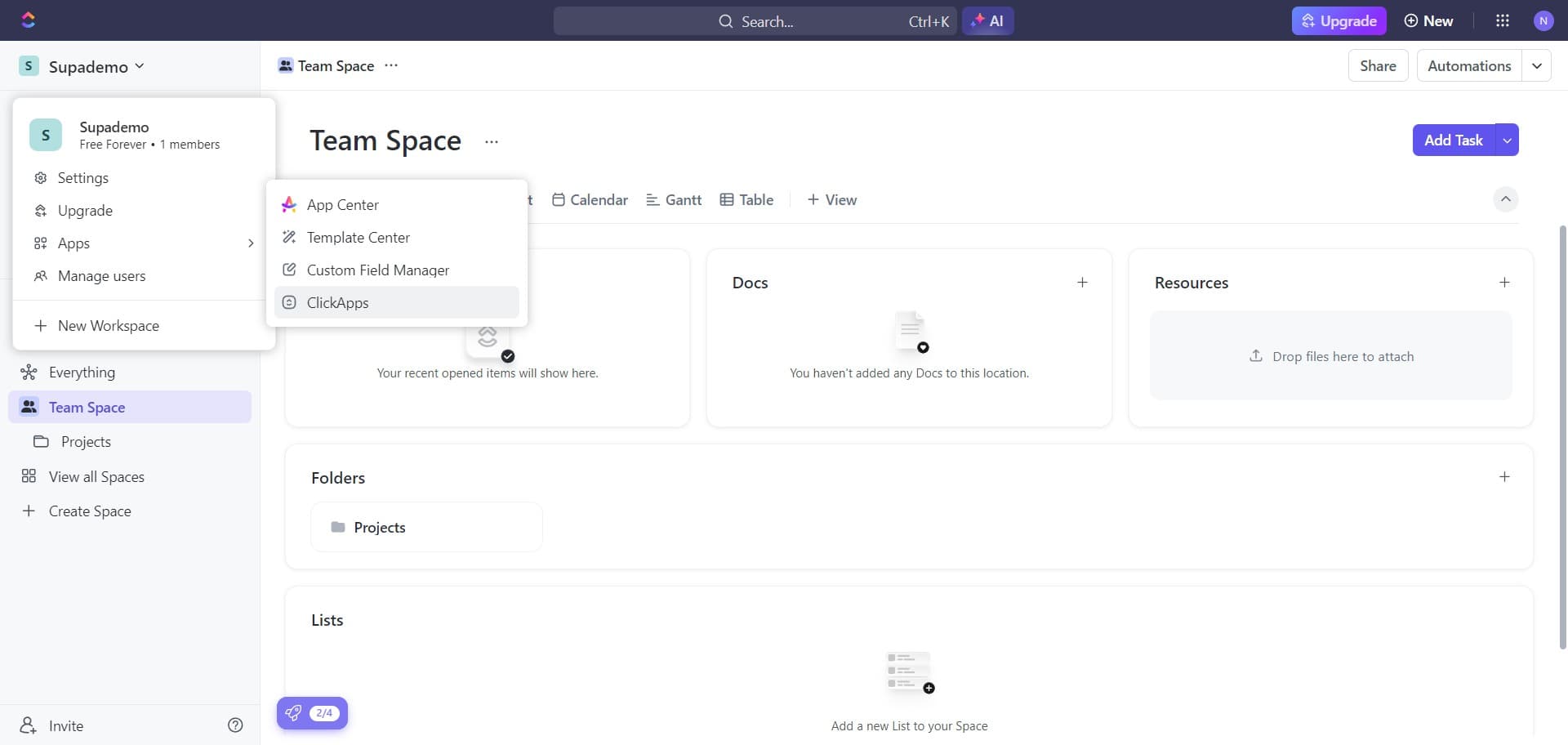
Open the ClickApps menu
Click on ClickApps to see the native integrations and tools built directly into ClickUp. This is where email and communication features are configured.
- 4
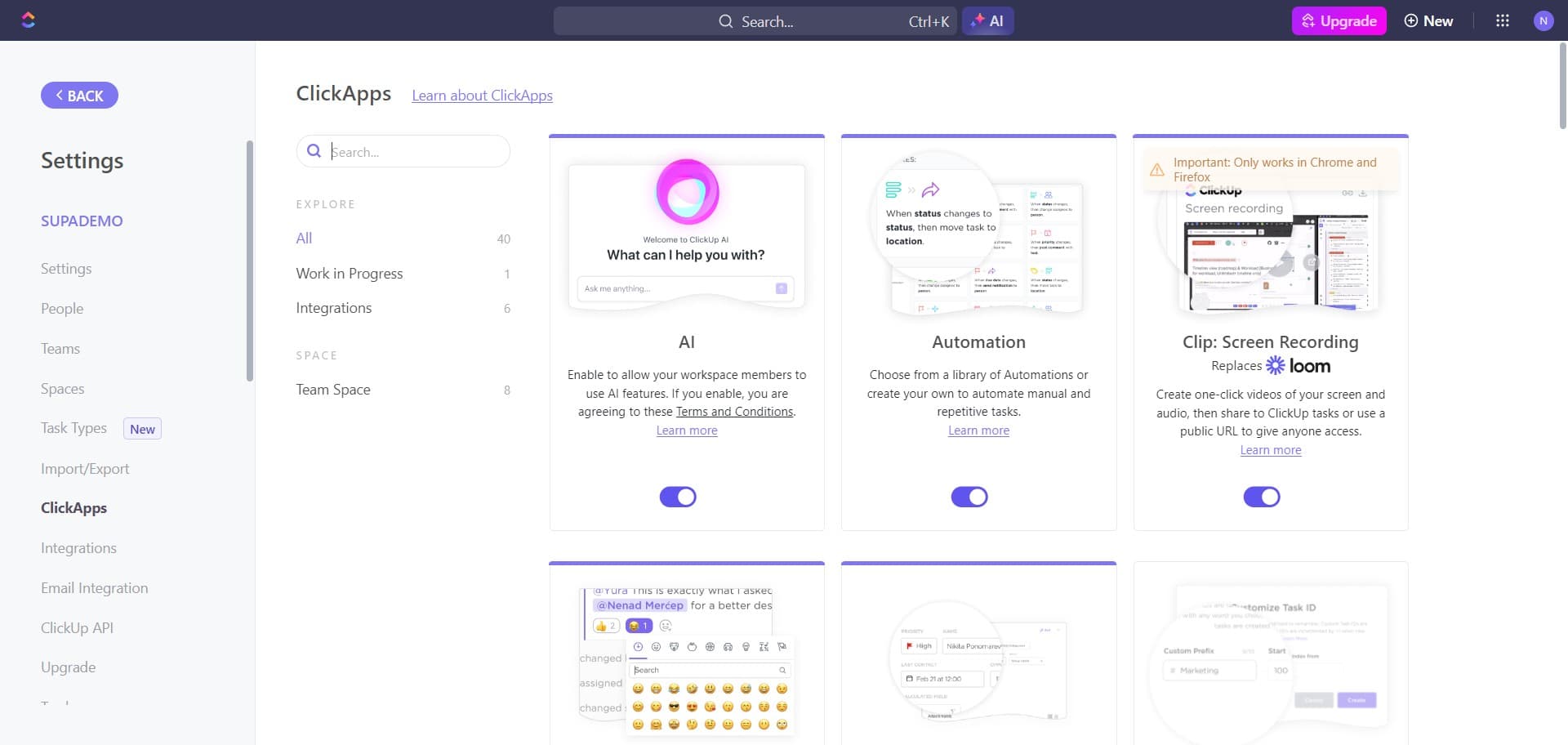
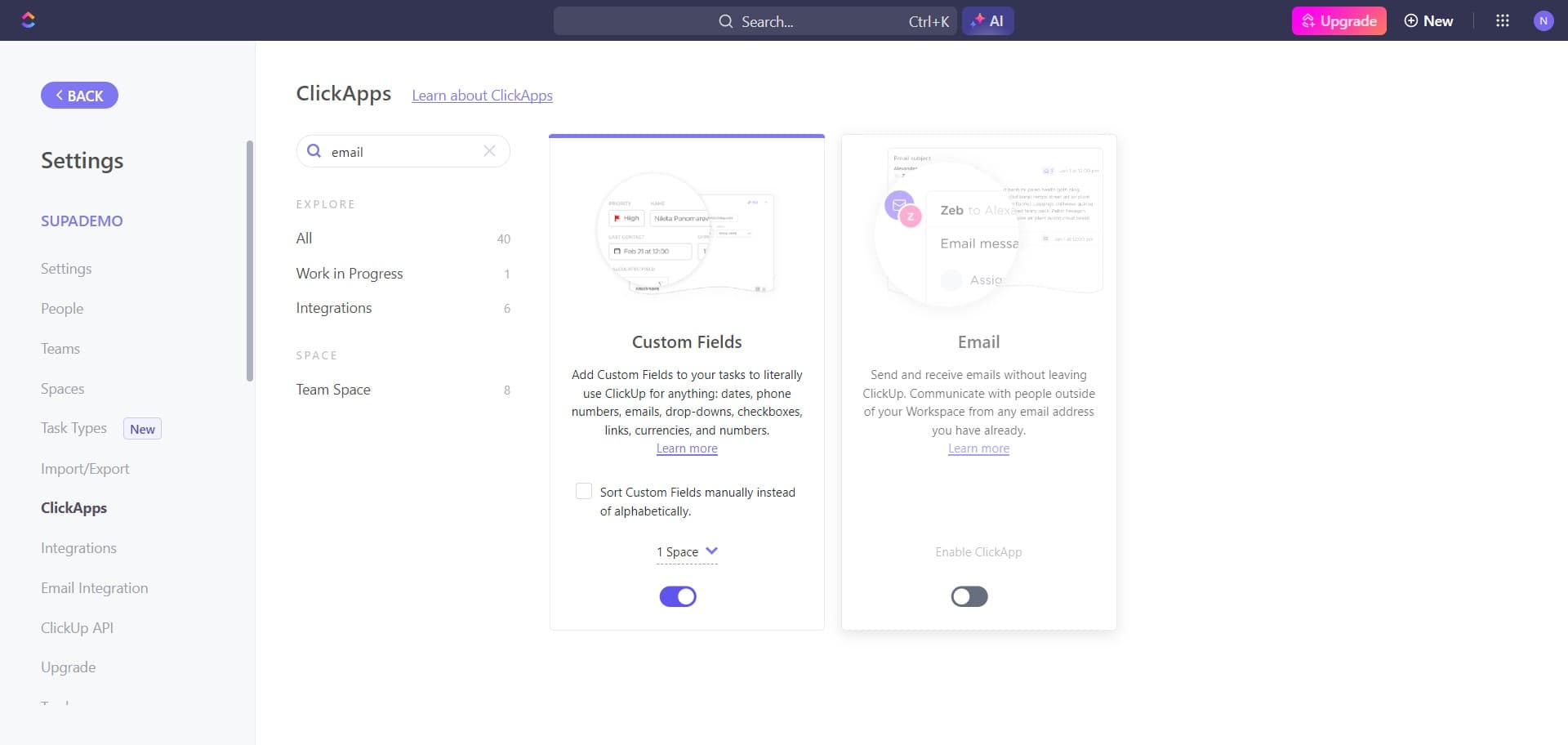
Access email configuration options
Click the designated area to view email-related settings and features. This step prepares you to enable email functionality in your workspace.
- 5
Select your email preferences
Click to continue with the email setup process. You'll be guided through available email options and configurations.
- 6
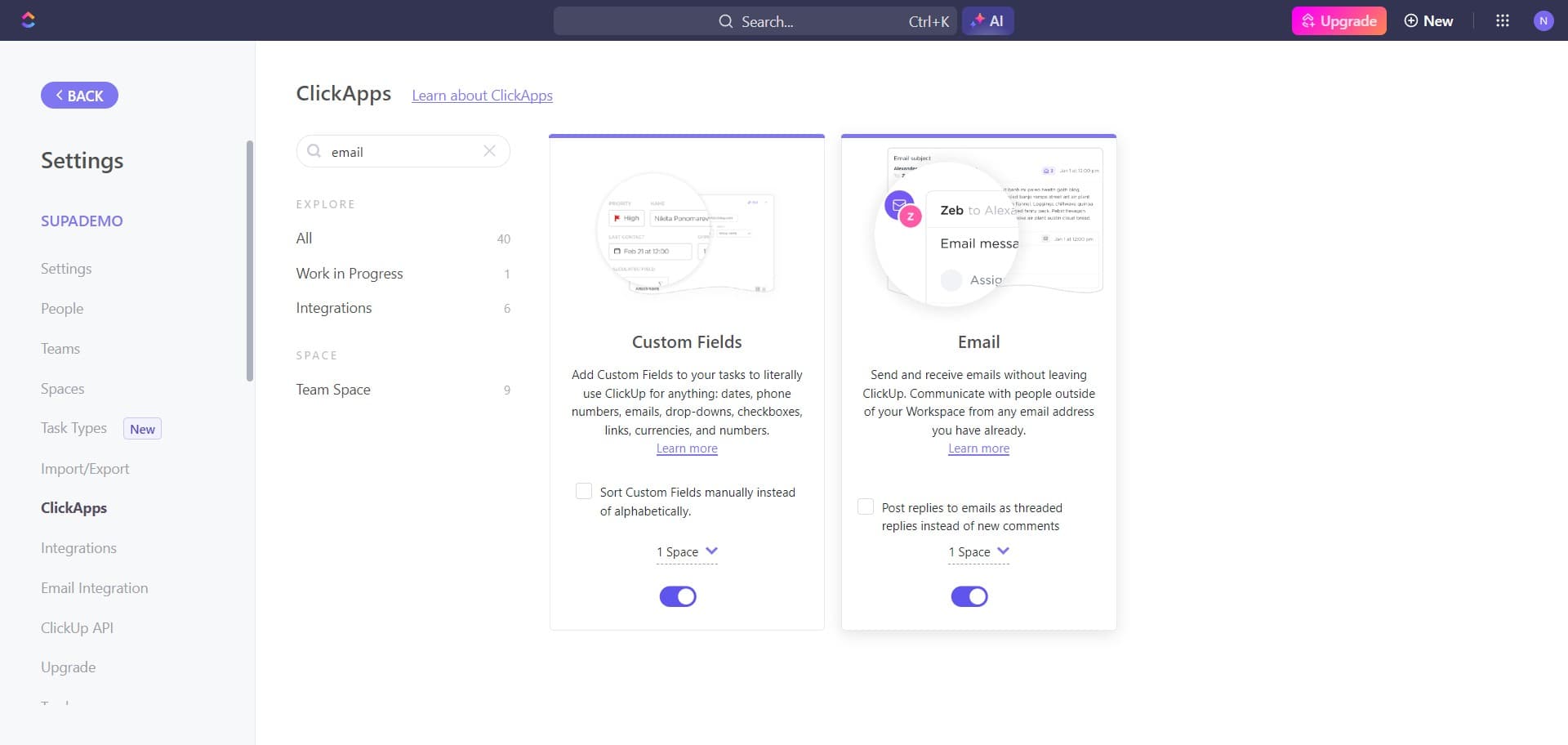
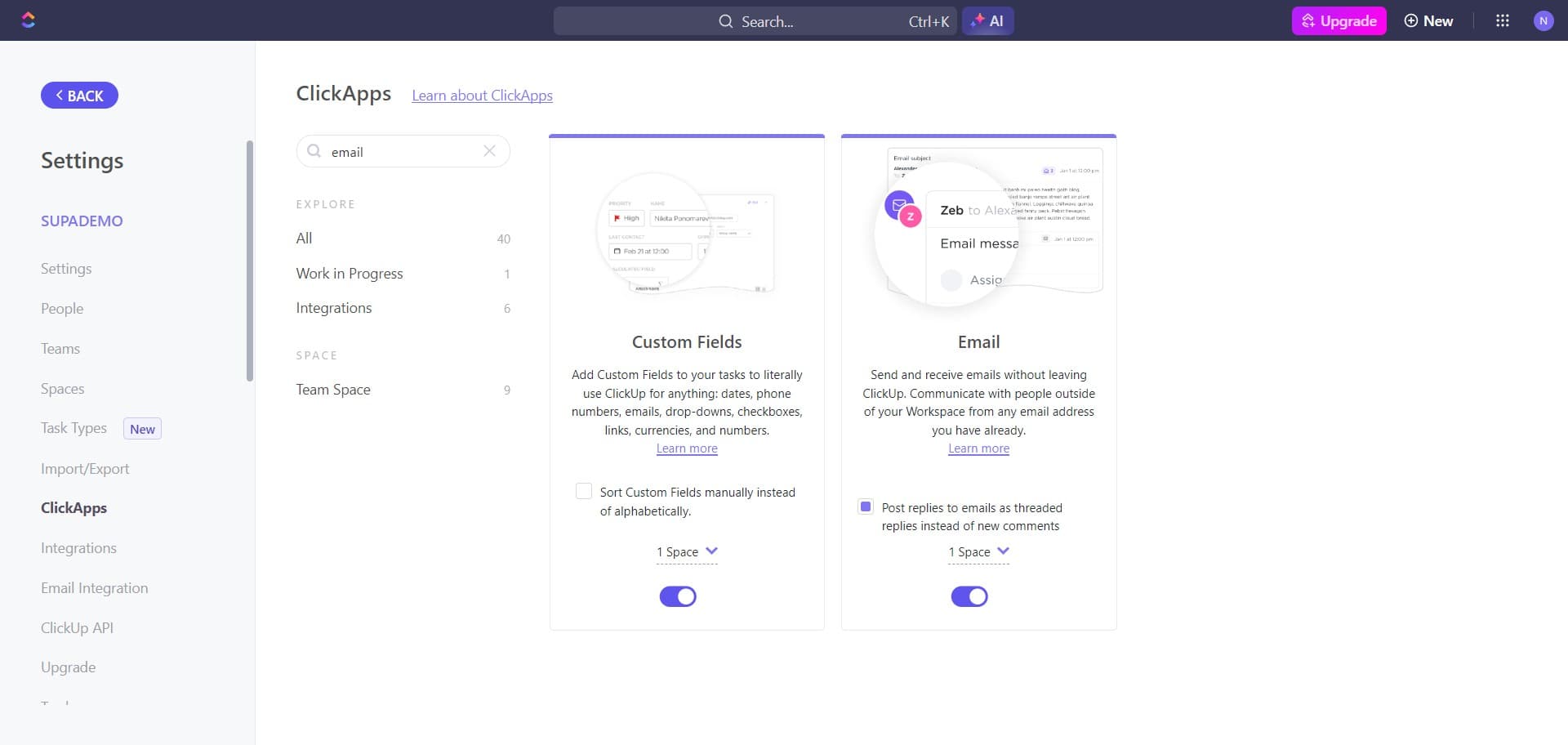
Enable post replies via email
Click on 'Post replies to...' to configure how email responses are handled within ClickUp. This allows task comments and replies to be managed through email.
- 7
Return to the main menu
Click BACK to exit the current menu and return to the previous navigation level. This prepares you to access the App Center for Gmail integration.
- 8
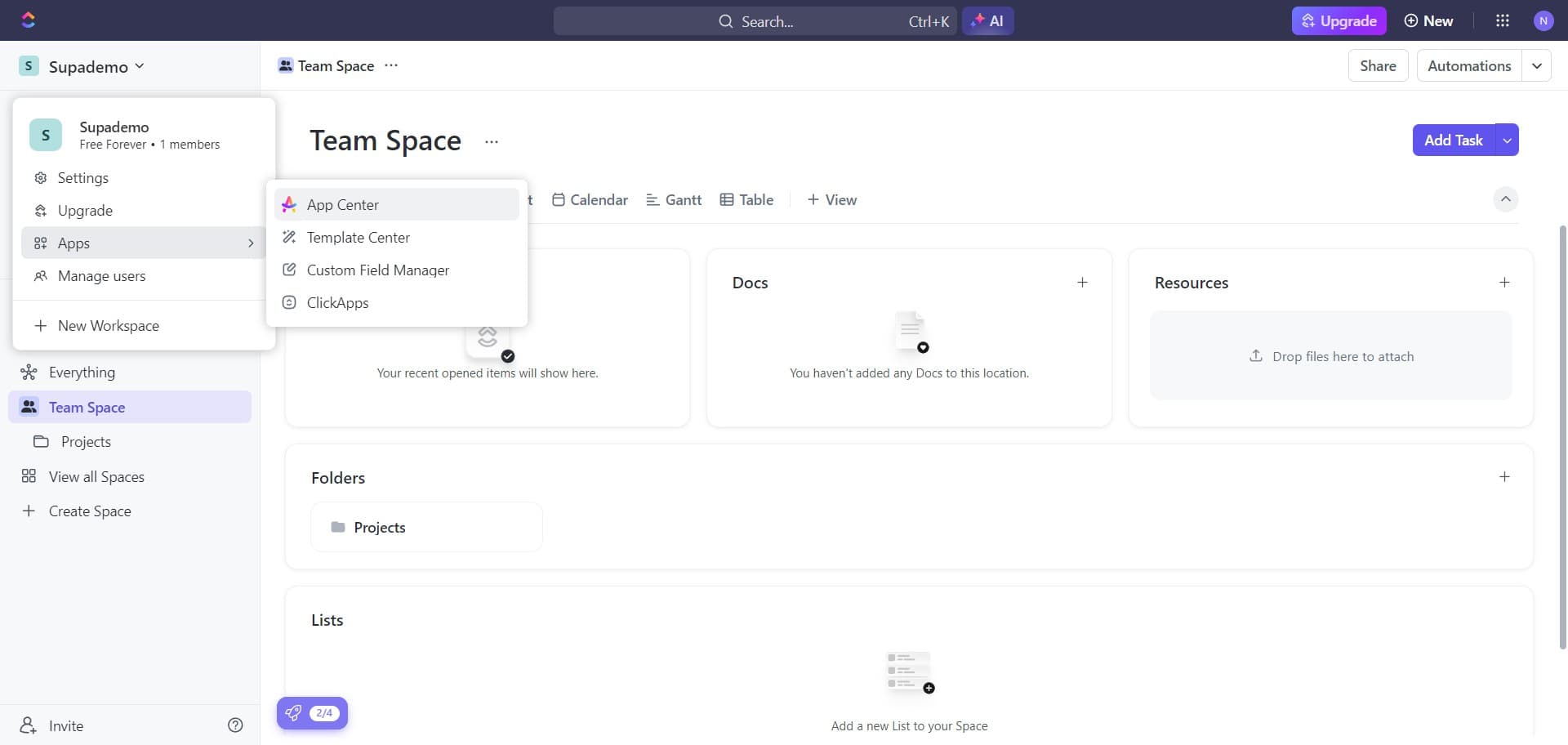
Open the App Center
Click on App Center to access third-party integrations and external applications. The App Center is where you'll find and configure Gmail.
- 9
Select the Gmail integration
Click the appropriate area to locate Gmail among the available integrations. This opens the Gmail app configuration page.
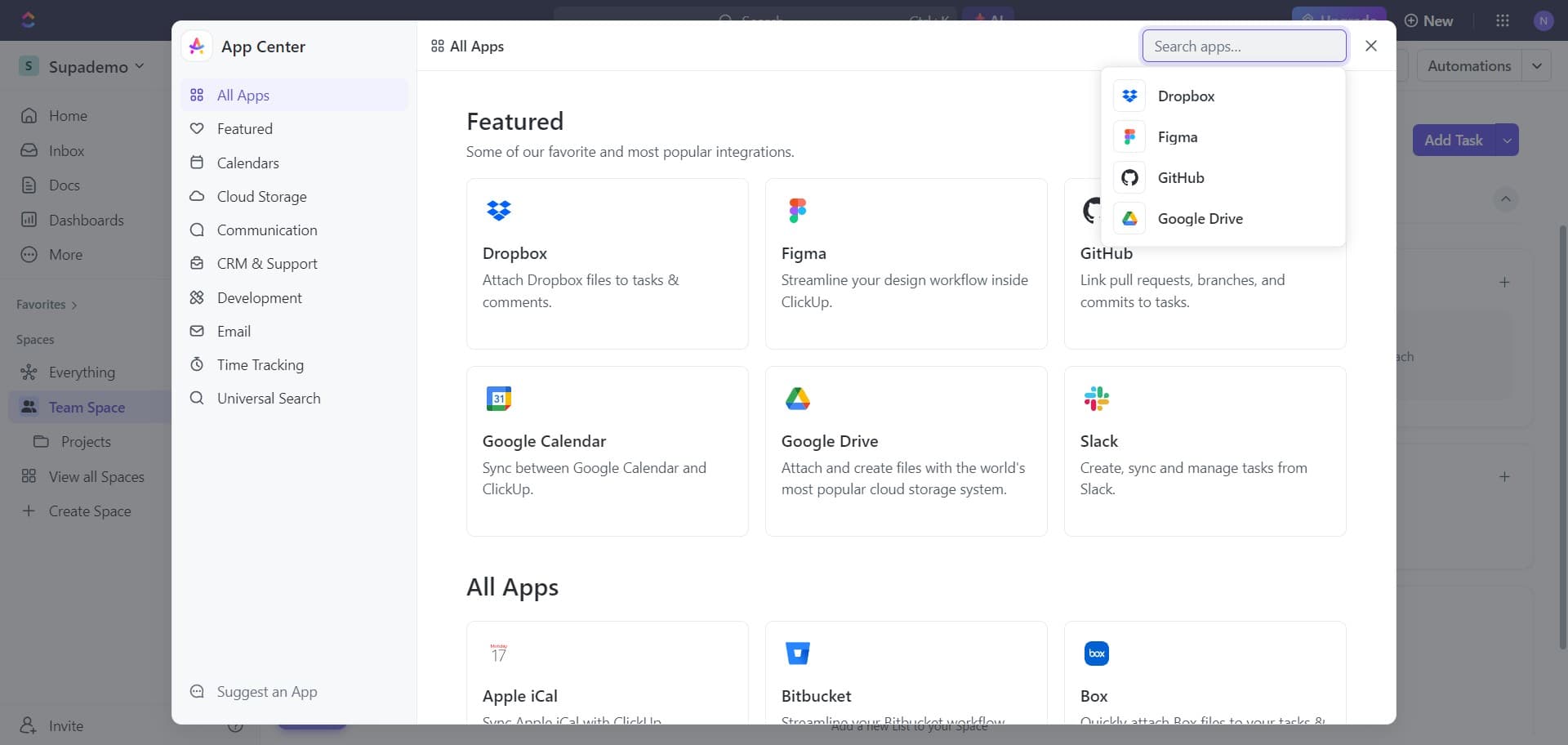
- 10
Access Gmail in the app library
Click on Gmail to select this email service for integration with ClickUp. This displays Gmail-specific setup options.
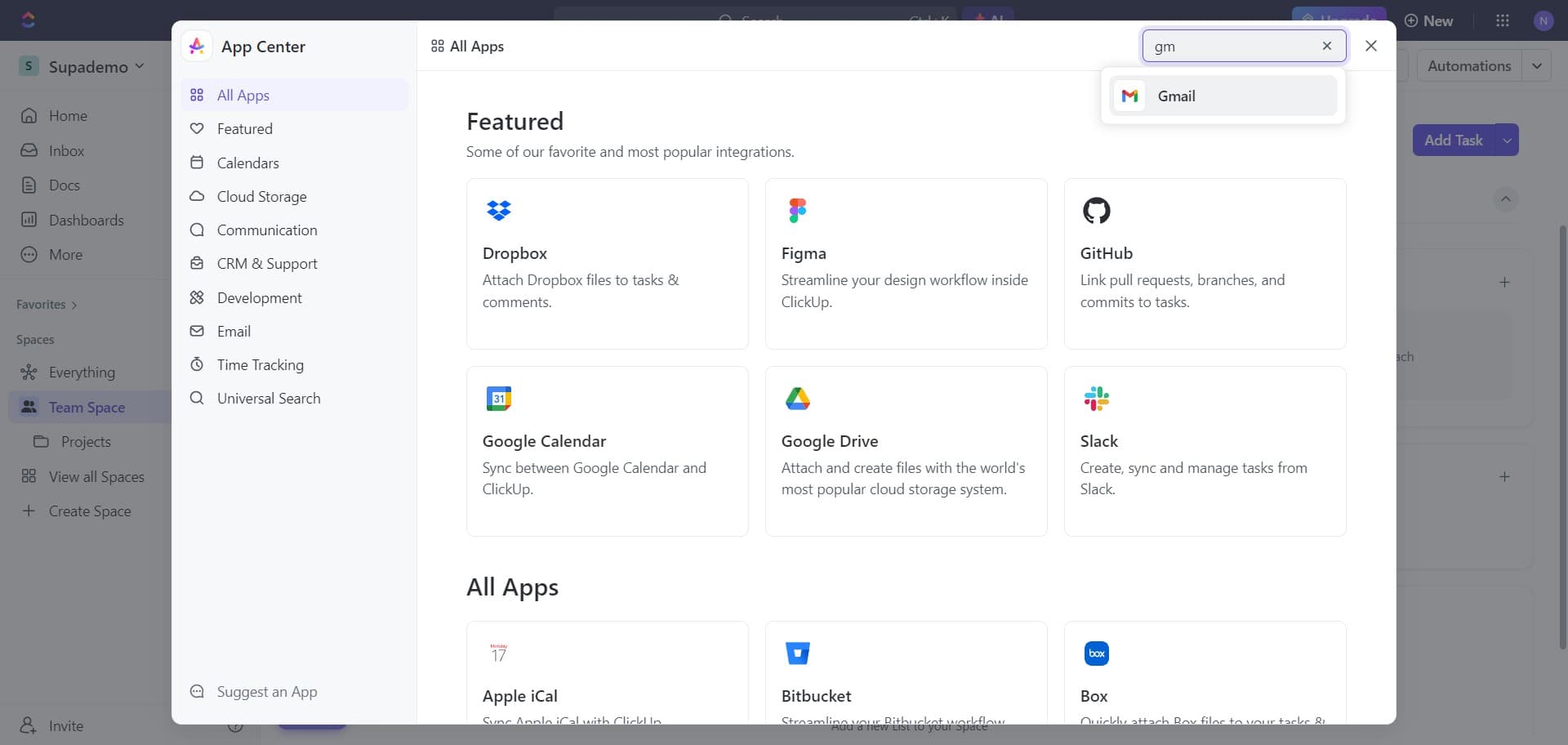
- 11
Begin Gmail configuration
Click Configure to start the Gmail integration setup process. This opens the authentication and permission settings.
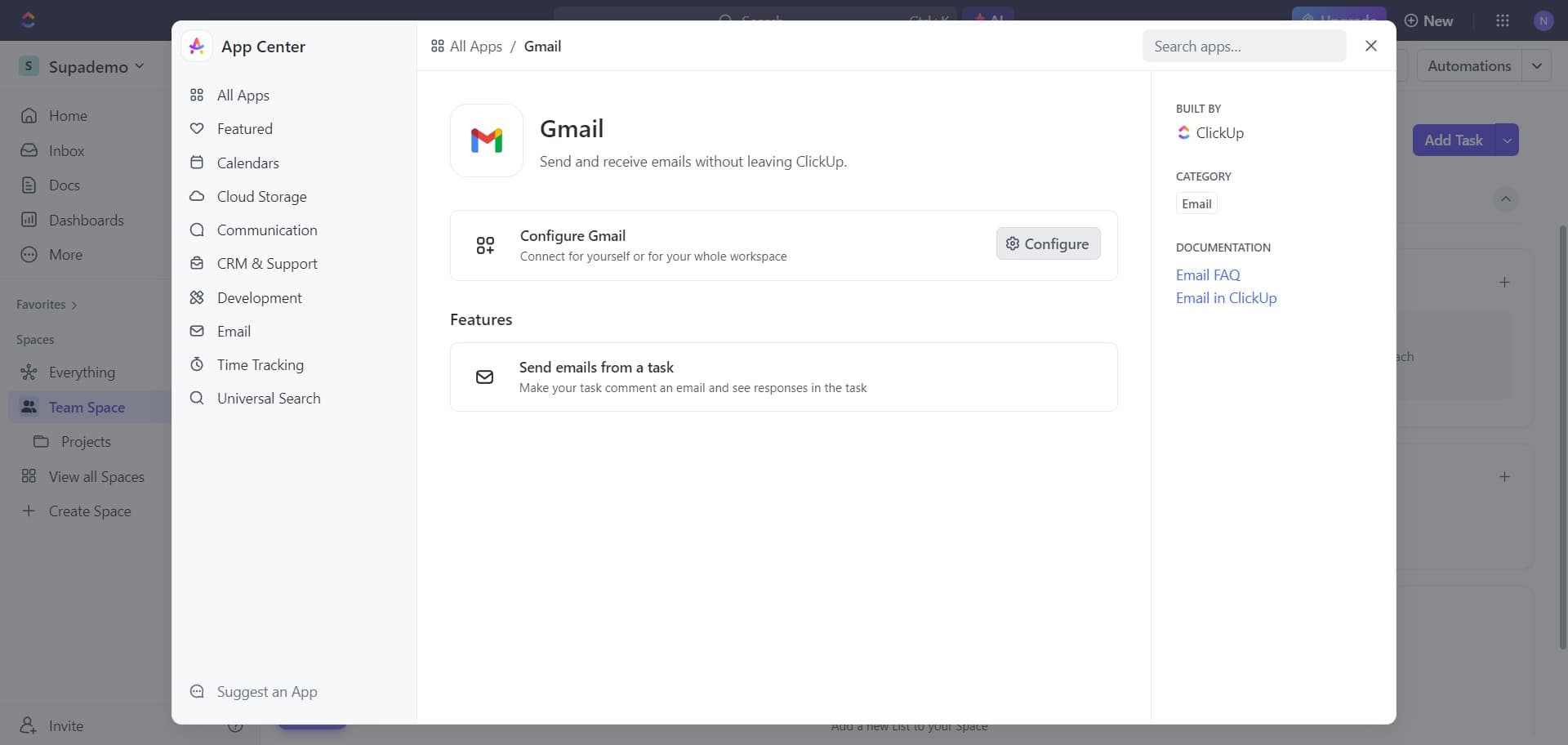
- 12
Authenticate with your Google account
Click Sign in with Google to authorize ClickUp to access your Gmail account. You'll be prompted to verify your Google credentials and grant necessary permissions for the integration.
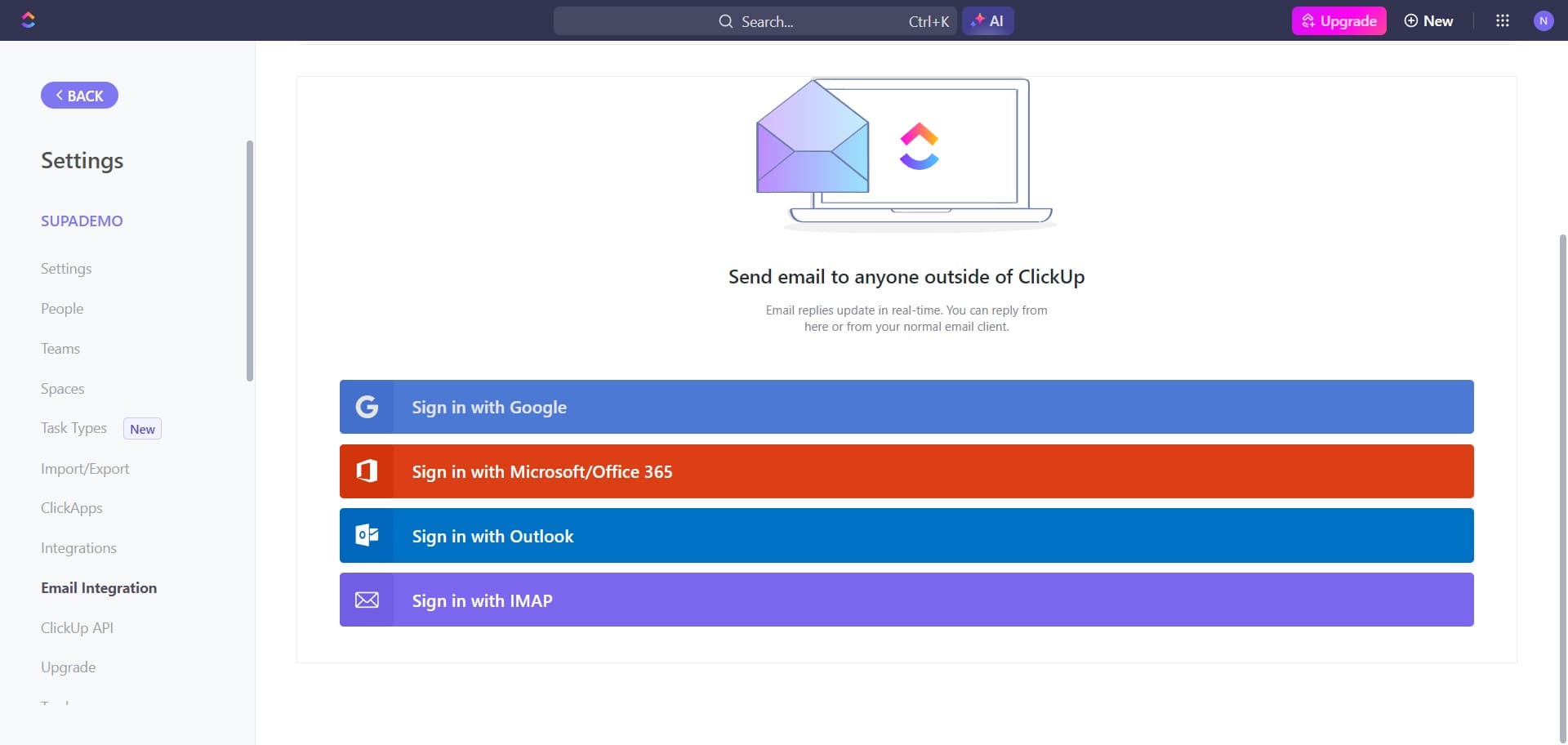
Frequently asked questions
Common questions about how to enable emails and use it in clickup.
Why should I integrate Gmail with ClickUp?
Integrating Gmail with ClickUp centralizes your communications by allowing you to manage emails and task replies directly within ClickUp. This eliminates the need to switch between applications and ensures that project-related email correspondence stays connected to relevant tasks and deadlines.
Will enabling emails affect my existing ClickUp tasks?
No, enabling email functionality doesn't affect your existing tasks. It simply adds a new communication channel that connects your Gmail account to ClickUp. You can continue using ClickUp as normal while gaining the ability to receive and respond to emails within the platform.
Can I control which emails are synced to ClickUp?
Yes, after integrating Gmail, you can configure which emails and types of correspondence are synced to ClickUp. The Post replies feature allows you to control how email responses are handled and which notifications are sent to your tasks.
Is my Google account secure when connected to ClickUp?
Yes, ClickUp uses secure OAuth authentication when you sign in with Google. Your passwords are never shared with ClickUp; instead, you grant specific permissions that allow ClickUp to access only the necessary email functionality. You can revoke these permissions at any time through your Google account settings.
What if I want to disconnect Gmail from ClickUp later?
You can disconnect Gmail at any time by visiting your ClickUp workspace settings and revoking the Gmail integration. This removes the email functionality without affecting your existing tasks, and you can reconnect it again whenever needed.