How to embed a Canva design in ClickUp

Embedding a Canva design directly into ClickUp allows you to keep visual assets and project management in one centralized location. This integration eliminates the need to switch between tools and keeps your team aligned on design references without leaving your task management platform.
Quick summary
In this tutorial, you'll learn how to embed a Canva design into a ClickUp task or space by accessing the embed feature, copying your Canva design link, and pasting it into ClickUp's embed functionality. By the end, your Canva designs will be instantly accessible within your ClickUp workspace.
Why this matters
Embedding Canva designs in ClickUp streamlines collaboration by keeping design mockups, brand guidelines, and marketing assets visible to your entire team without context switching. This workflow reduces miscommunication, saves time on sharing links, and ensures everyone references the most current version of your designs.
Step-by-step guide
- 1
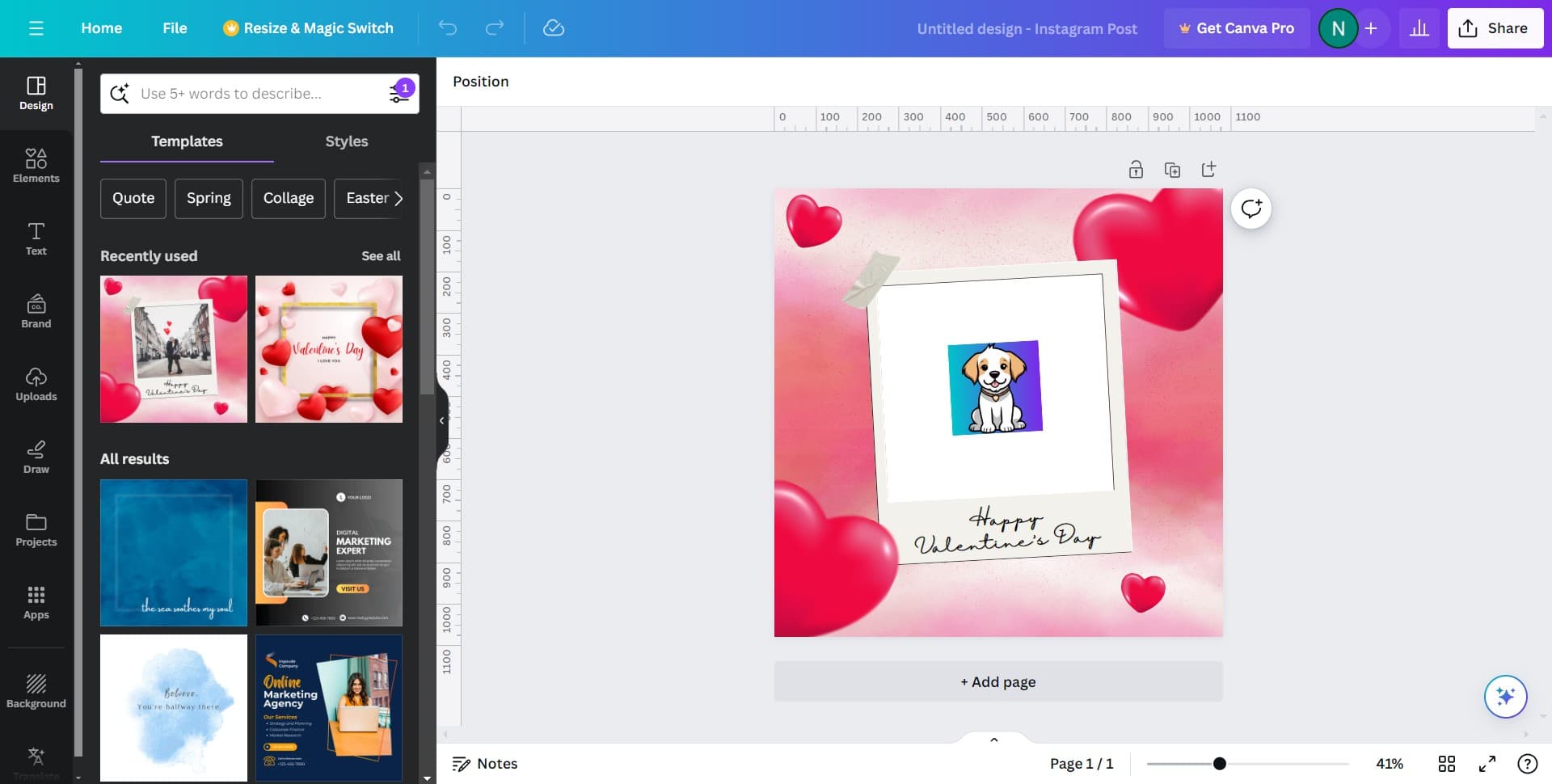
Click on Share
Open your Canva design and locate the Share button, typically found in the top-right corner of the editor. This action opens the sharing options where you can generate an embeddable link.
- 2
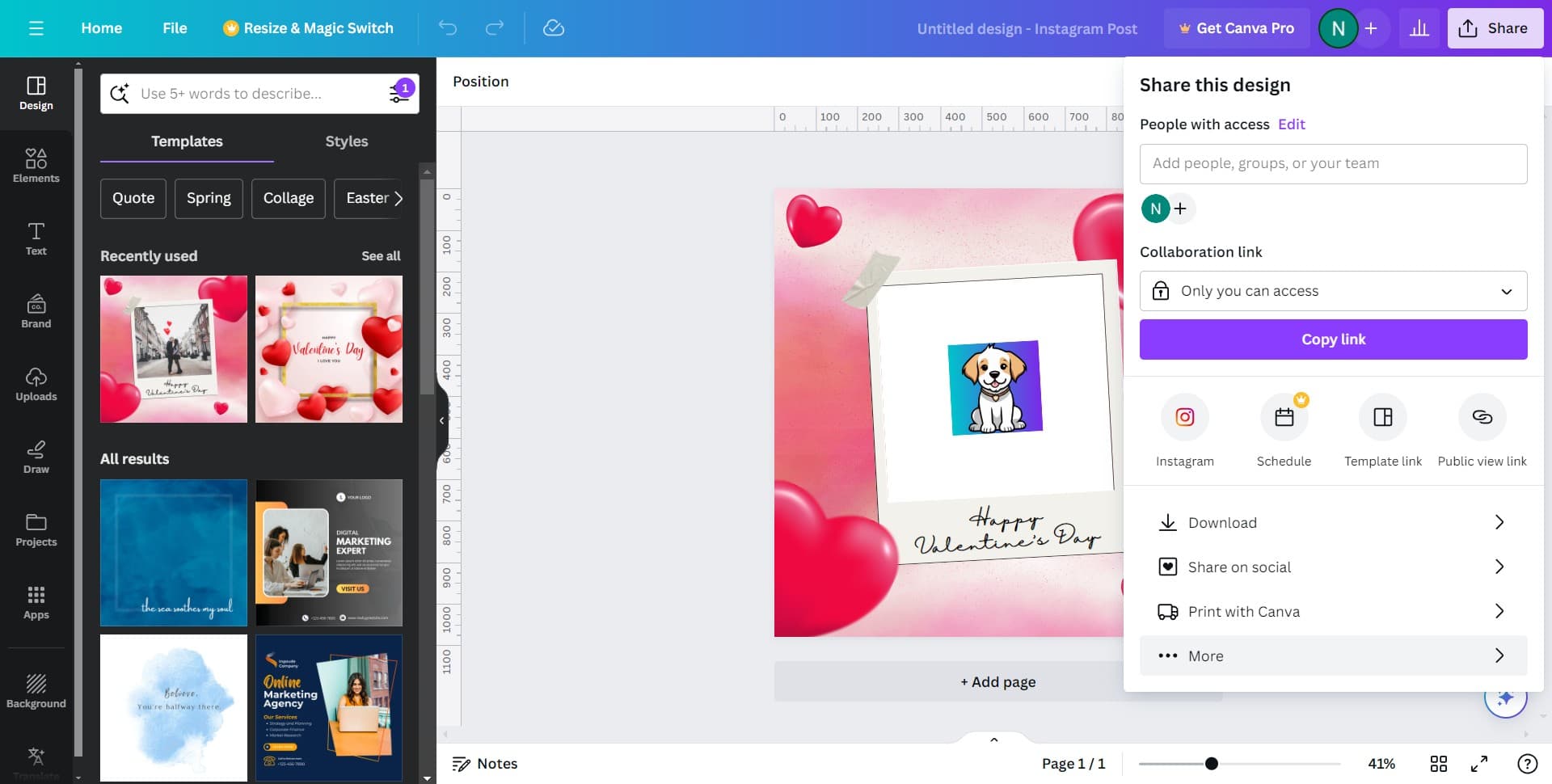
Click on More
In the Share menu, click the More option to reveal additional sharing settings and embed options. This expands the available sharing methods beyond standard sharing.
- 3
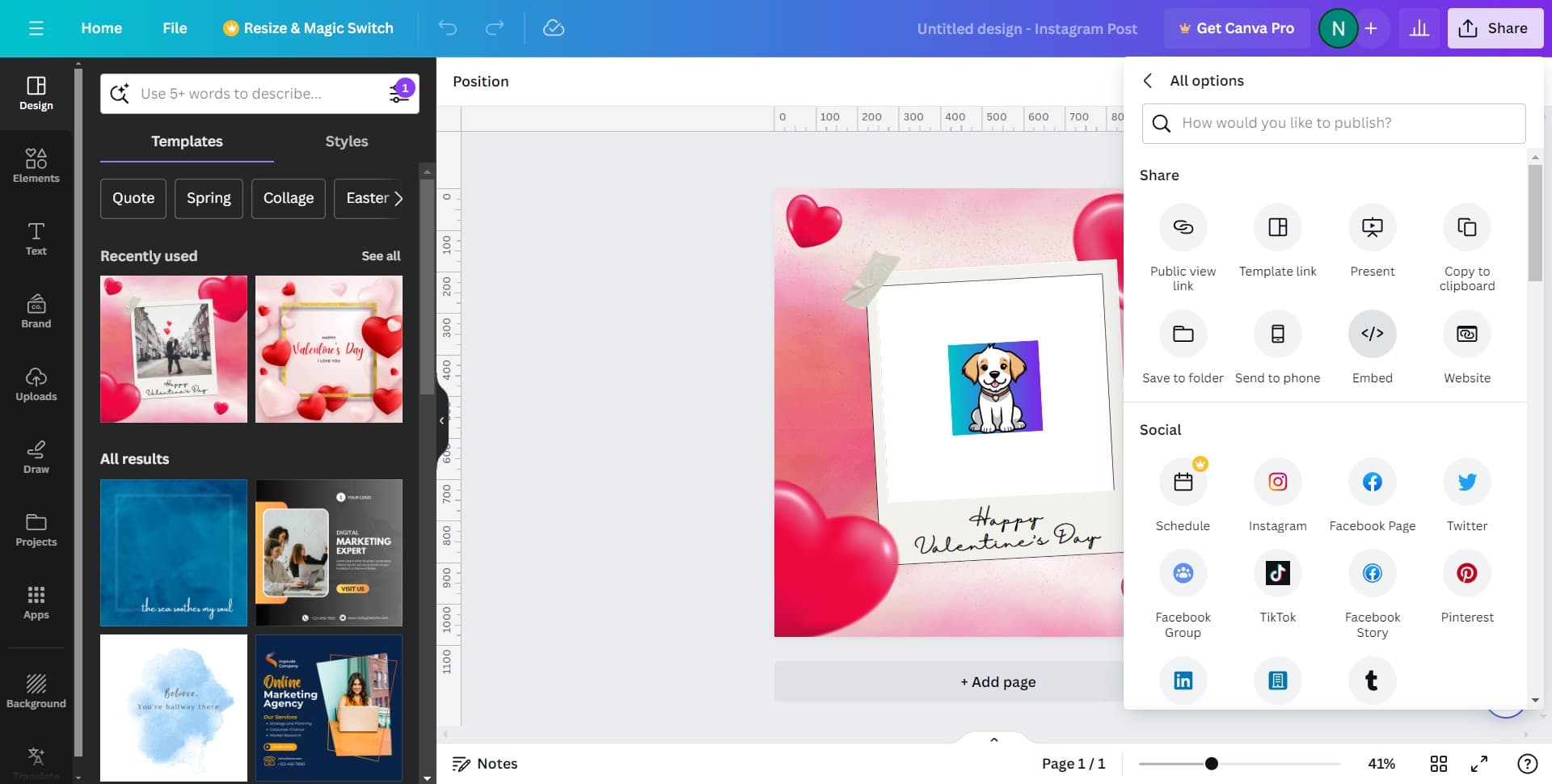
Select the embed option
Look for and select the option that allows you to embed the design. This will prepare your Canva design for embedding in external platforms.
- 4
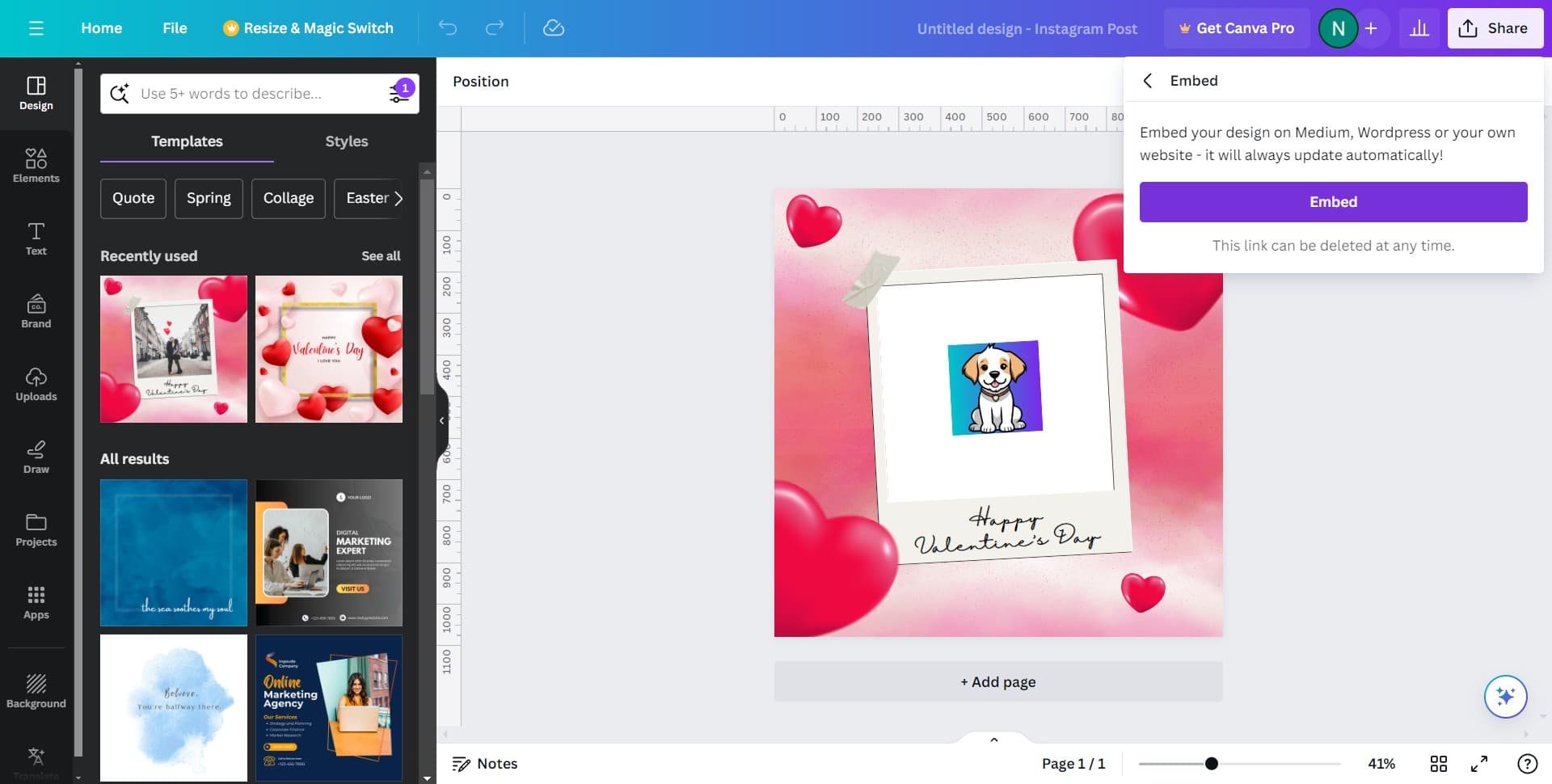
Click on Embed
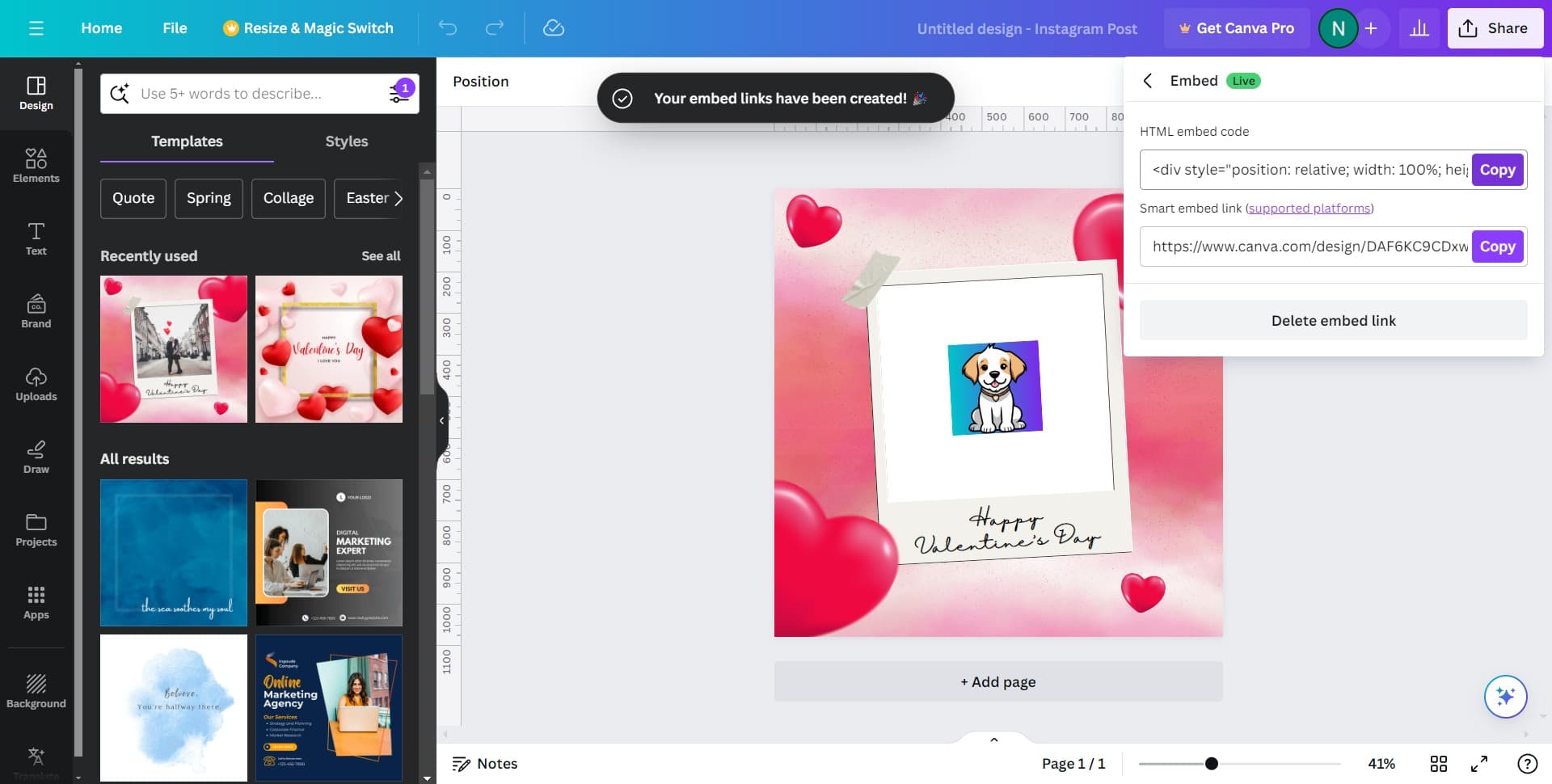
Click the Embed button to access the embed code or link specific to your Canva design. This generates the unique identifier needed to embed your design.
- 5
Click on Copy
Copy the embed code or URL to your clipboard. You'll use this link when adding the embed to your ClickUp task.
- 6
Navigate to ClickUp
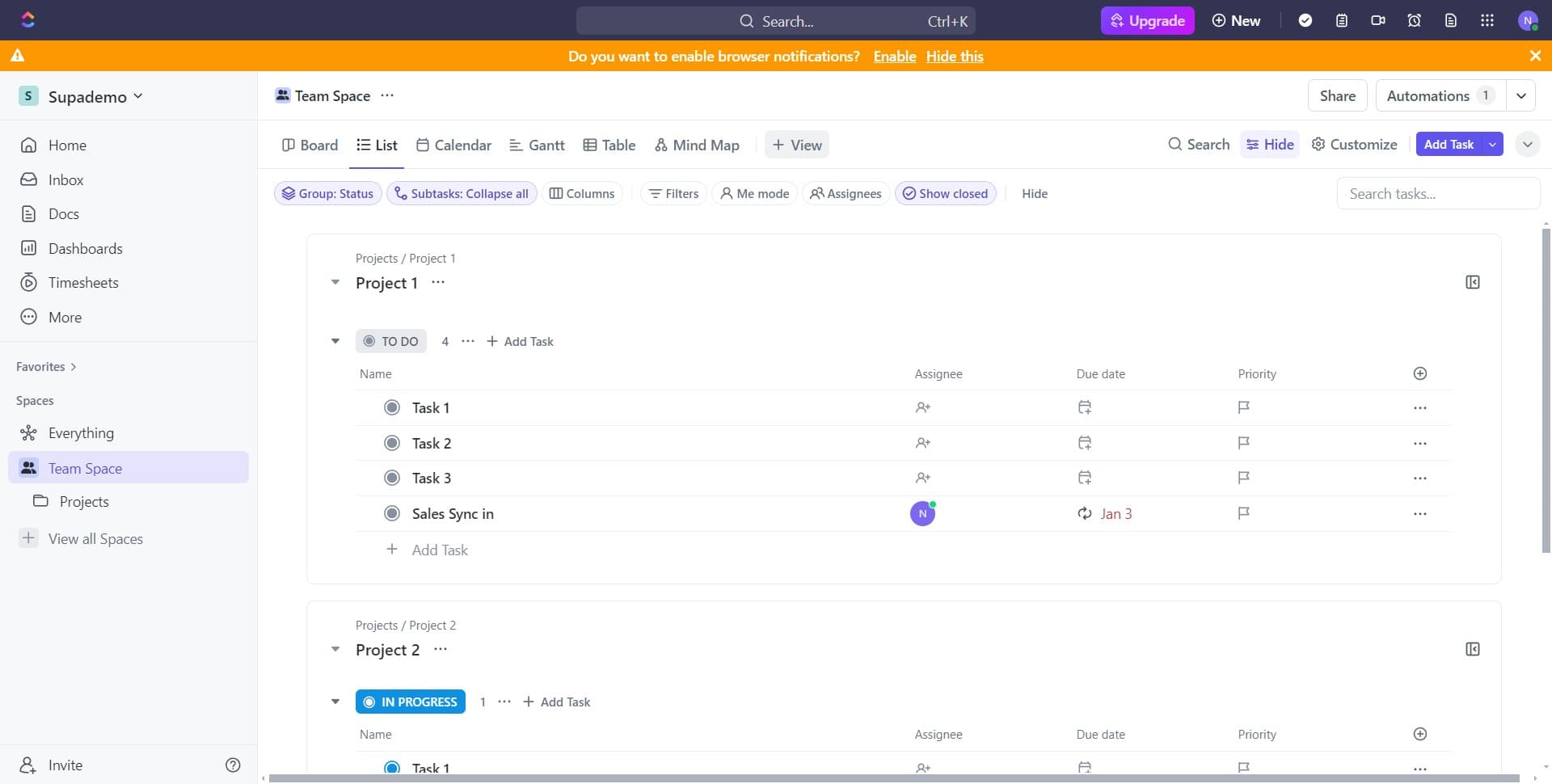
Switch to ClickUp and open the task or space where you want to embed the Canva design. Make sure you have edit permissions for this location.
- 7
Access the embed area
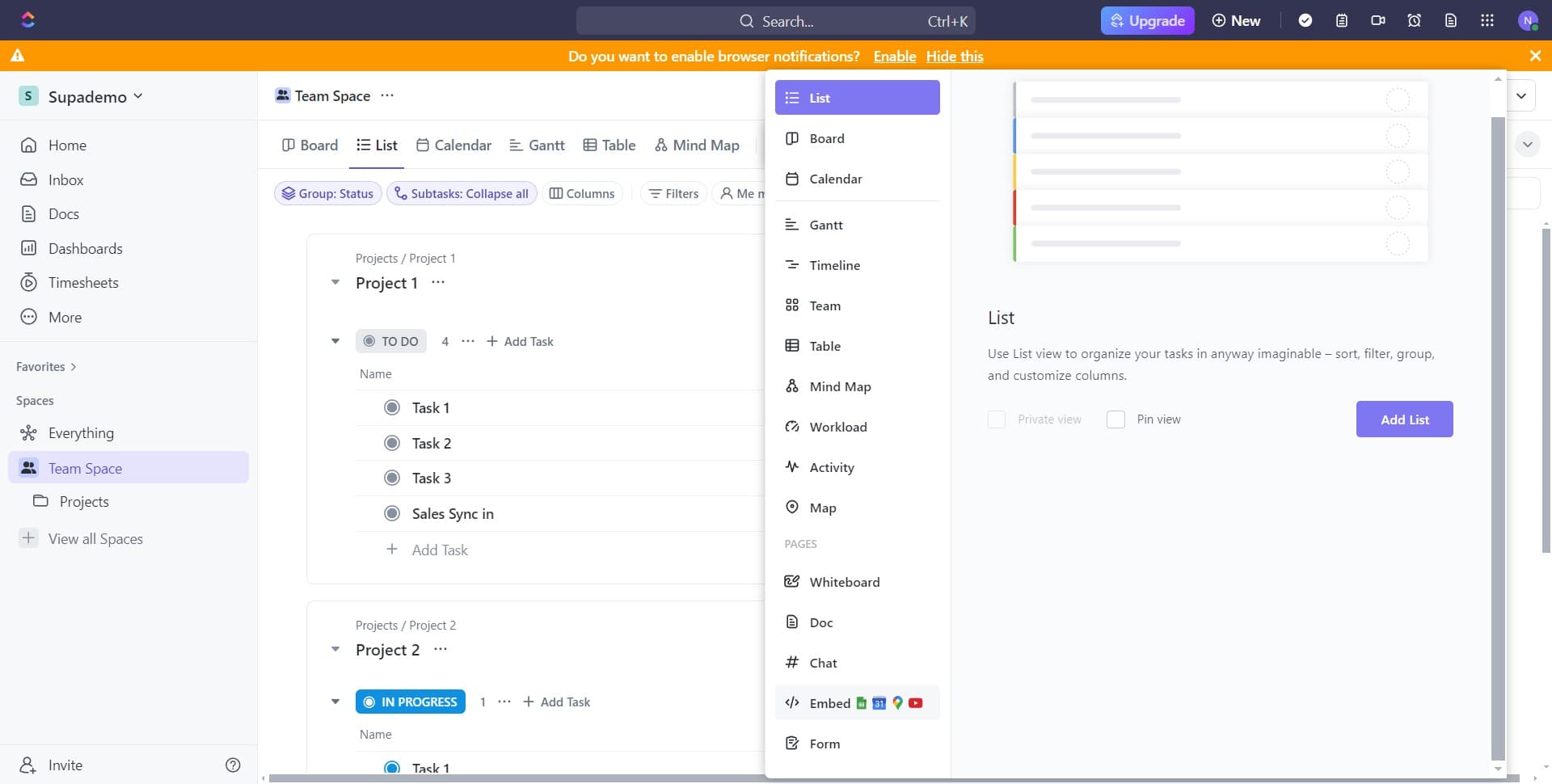
Locate the content area or task description where you can add embeds. This is typically in the main editing space of your ClickUp task.
- 8
Find the embed button
Look for the button or menu option that allows you to add embeds or external content to your ClickUp task. This is usually represented by an icon or labeled clearly in the toolbar.
- 9
Click on Add Embed
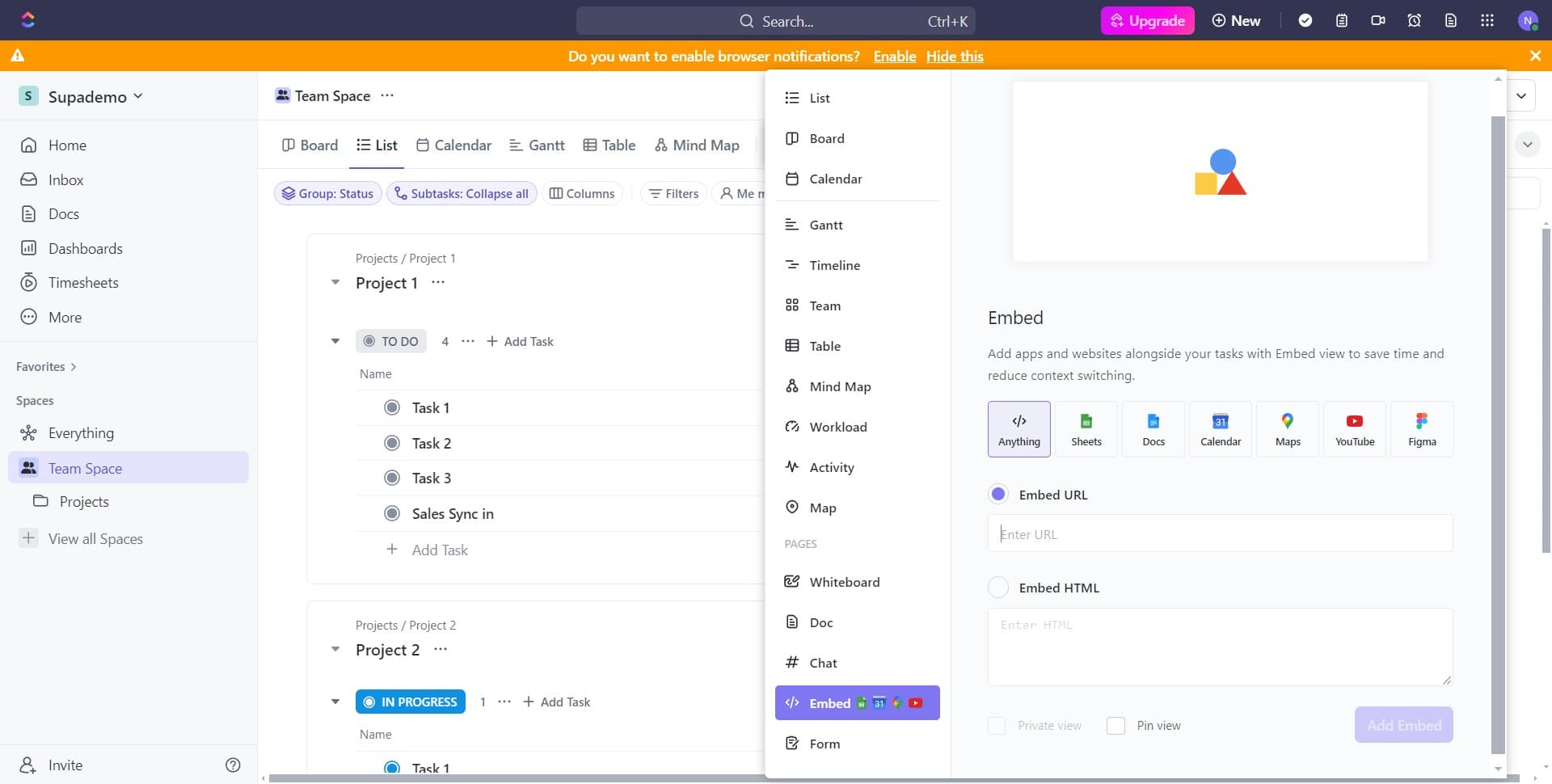
Click the Add Embed button to open the embed insertion dialog. This prompts ClickUp to accept your embed code or URL.
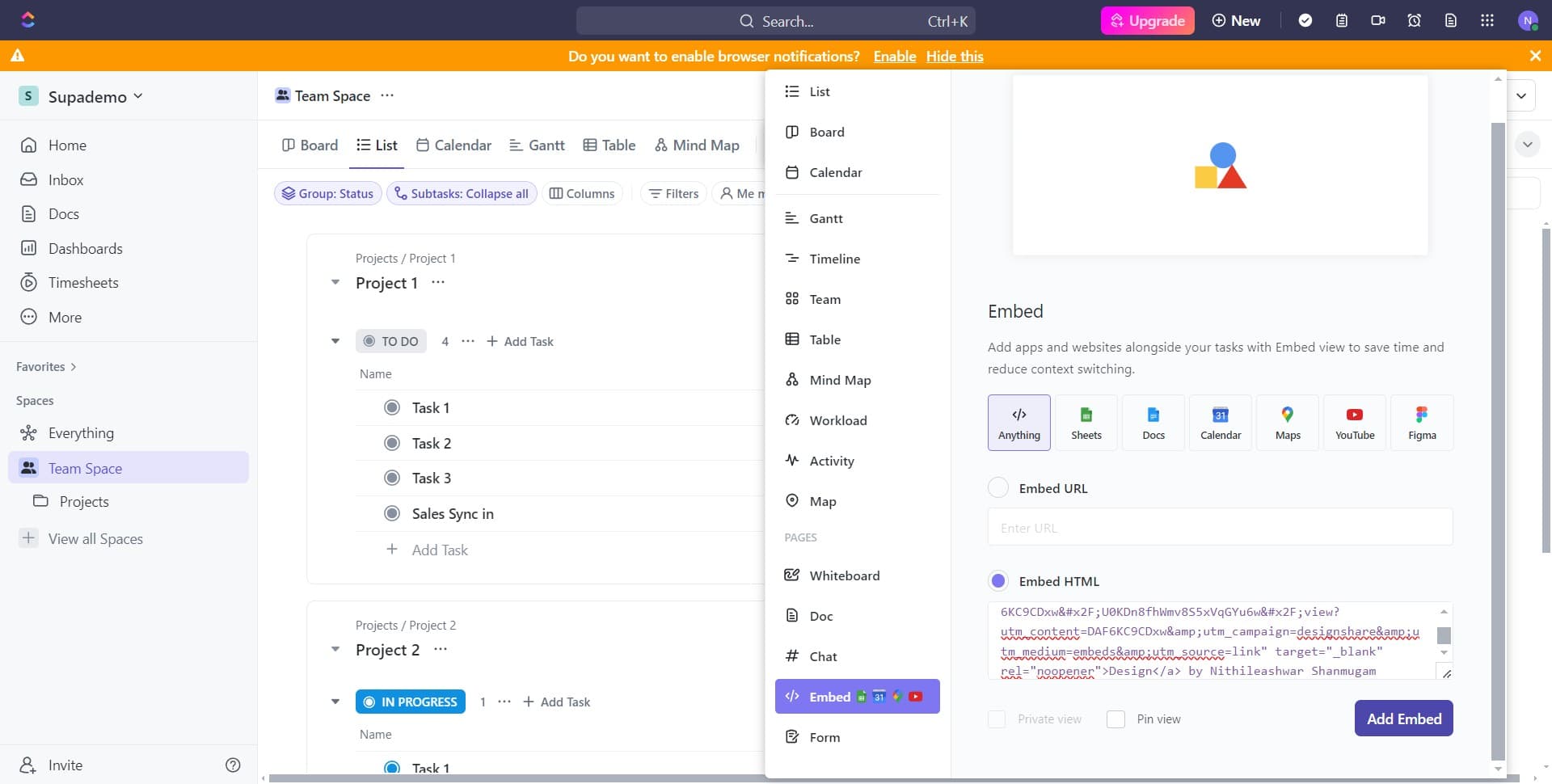
- 10
Upload or paste the embed
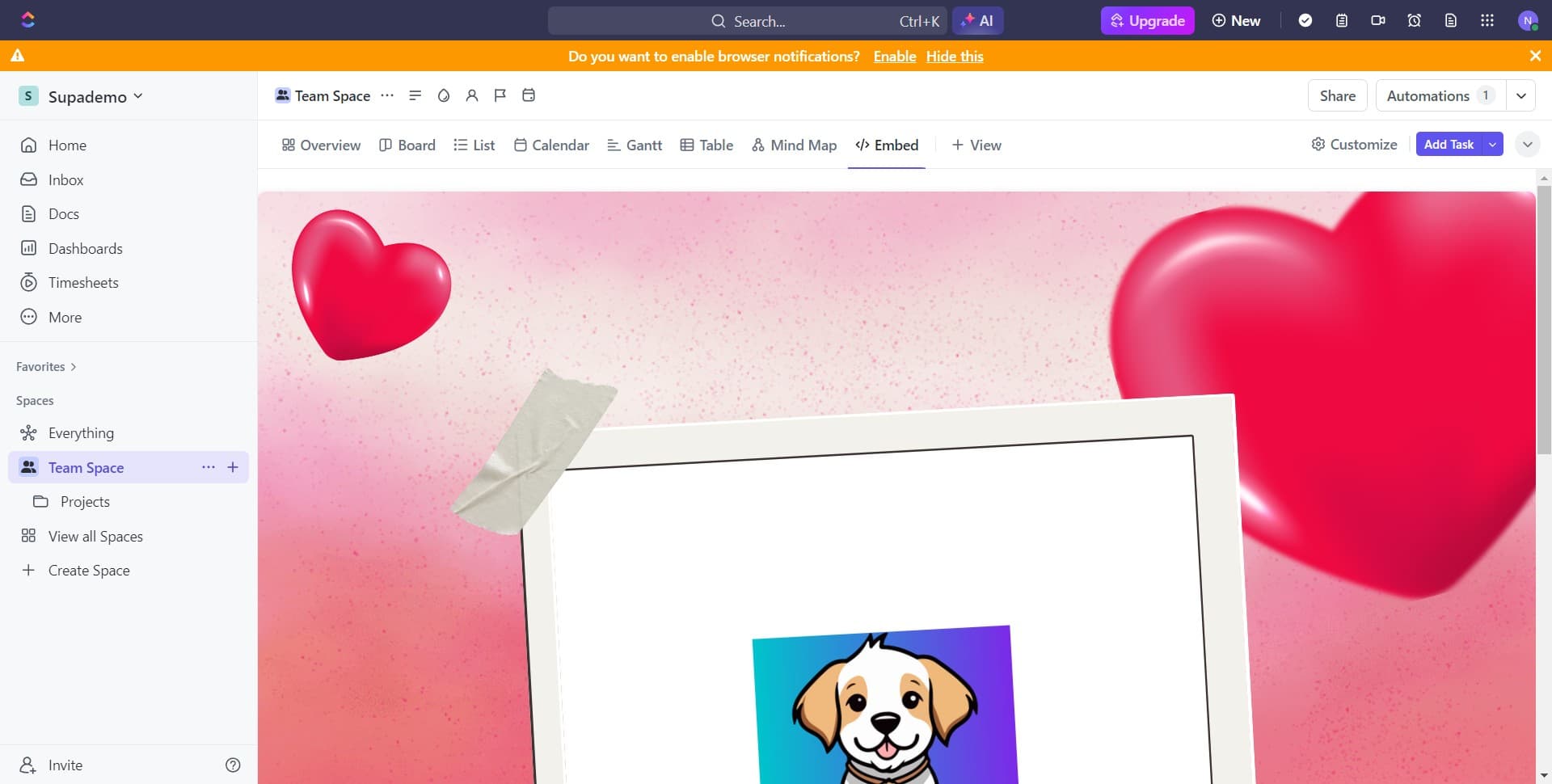
Paste the Canva embed code or URL that you copied earlier into the designated field. Your Canva design will now appear embedded within your ClickUp task, accessible to all team members with view permissions.
Frequently asked questions
Common questions about how to embed a canva design in clickup.
You can only embed Canva designs that you have access to or that have been shared with you with proper permissions. If the design owner restricts sharing, you won't be able to generate an embeddable link. Always ensure you have permission from the design creator before embedding their work.
The embedded design will reflect changes made in Canva, provided the sharing settings remain active and the design link hasn't been modified. If you revoke access or change privacy settings in Canva, the embed may become inaccessible in ClickUp.
Canva allows you to embed any design you create in their platform, including presentations, social media graphics, posters, and documents. ClickUp's embed feature supports most web-based content, so virtually any Canva design can be embedded.
The embed displays the design within ClickUp, but to edit it, team members must open the original Canva file. You can grant Canva editing access to team members separately through Canva's sharing settings to enable collaborative editing.
If you delete the original Canva design, the embed link will break and the design will no longer display in ClickUp. Always maintain the original design in Canva as long as you need it embedded in your ClickUp tasks.