How To Export Data From Airtable To Excel

Exporting data from Airtable to Excel is a straightforward process that allows you to work with your data in spreadsheet format. Whether you need to share information with teammates, perform additional analysis, or create backups, this workflow enables seamless data transfer between platforms.
Quick summary
In this tutorial, you'll learn how to export your Airtable data as a CSV file that opens directly in Excel. You'll navigate to your project, select the appropriate view, and download your data in just a few clicks.
Why this matters
Exporting data to Excel is essential for teams that need to share information across different tools or perform advanced data analysis. This capability ensures data portability and gives you flexibility in how you work with your information across your organization's tech stack.
Step-by-step guide
- 1
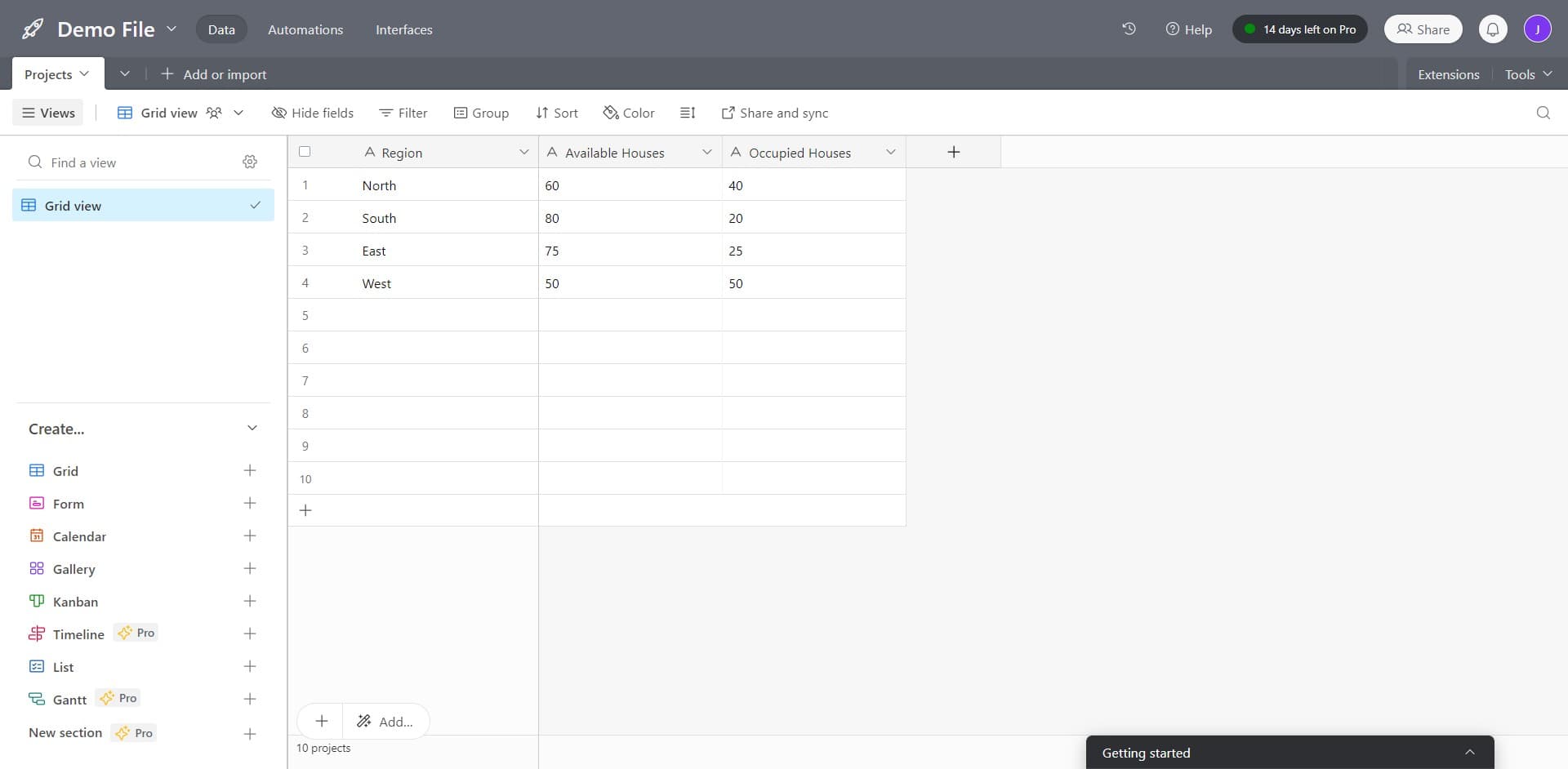
Navigate to Projects and Imports
Open Airtable and locate the 'Projects Add or import' section. This is where you'll access your base and prepare it for export.
- 2
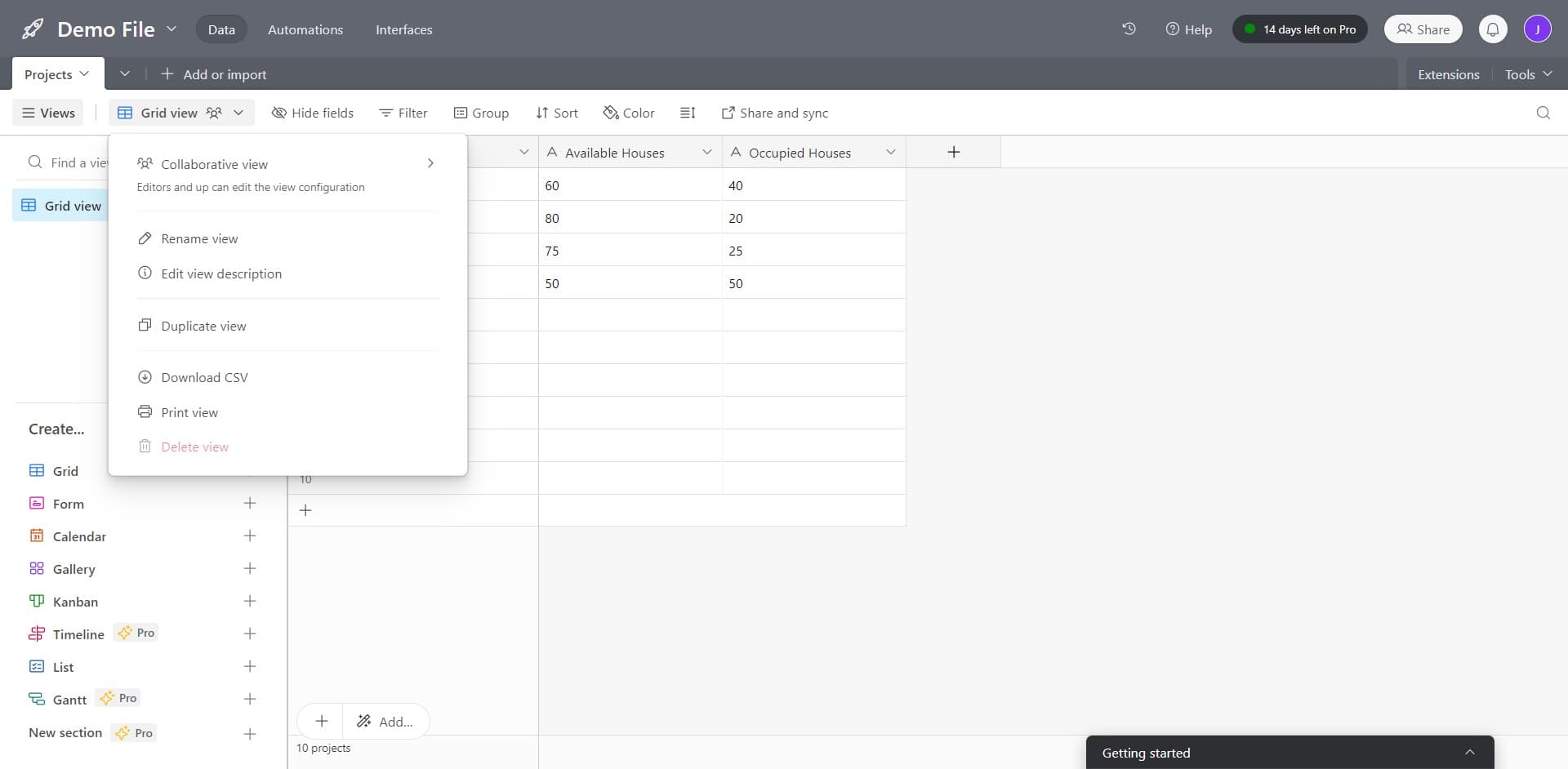
Select Grid View
Click on 'Grid view' to display your data in a table format. This view is the standard layout for exporting and ensures all your records are visible and properly organized.
- 3
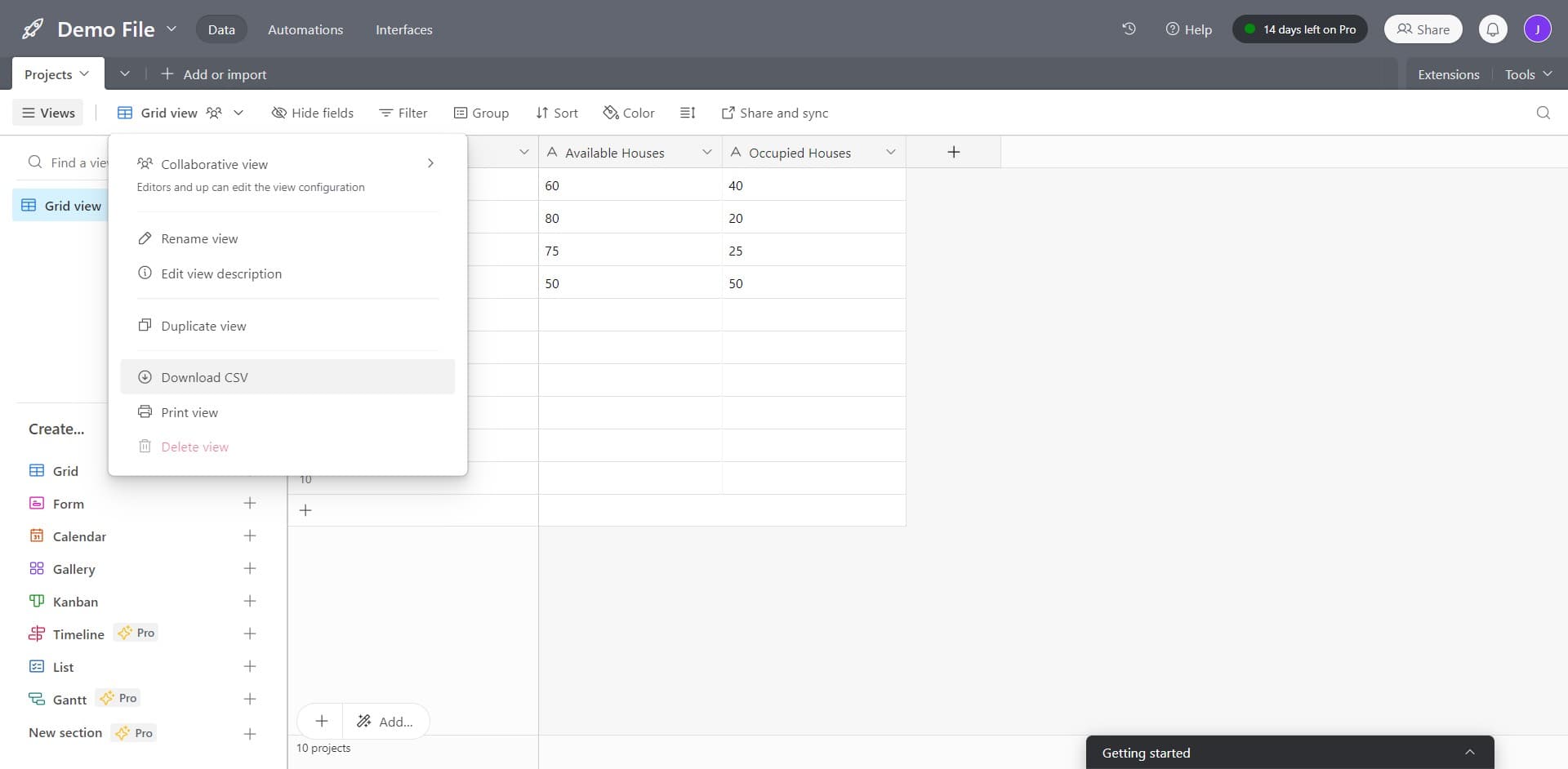
Click Download CSV
Select the 'Download CSV' option to initiate the export process. Your browser will generate and download a CSV file containing all your table data.
- 4
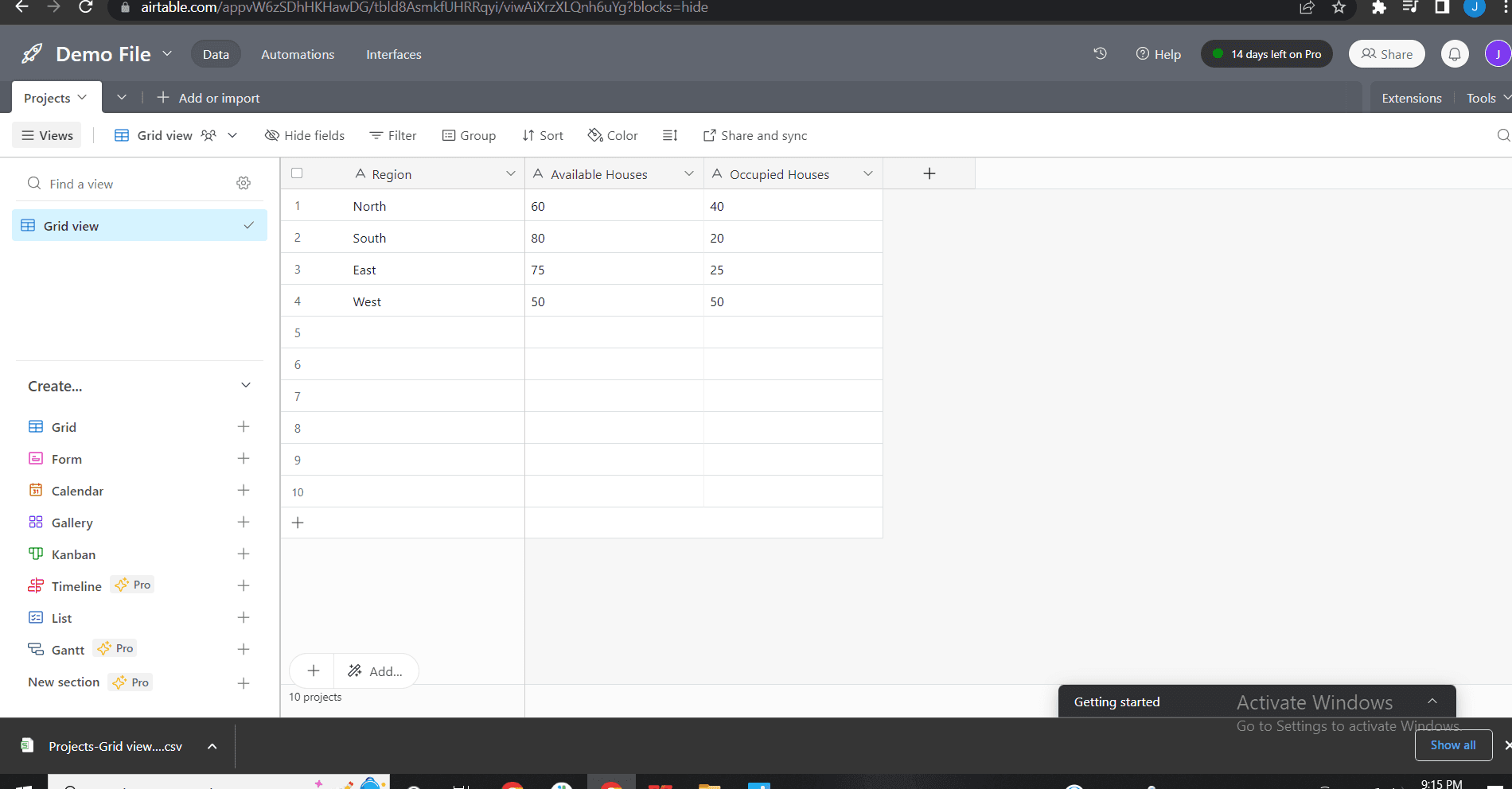
Upload to Excel
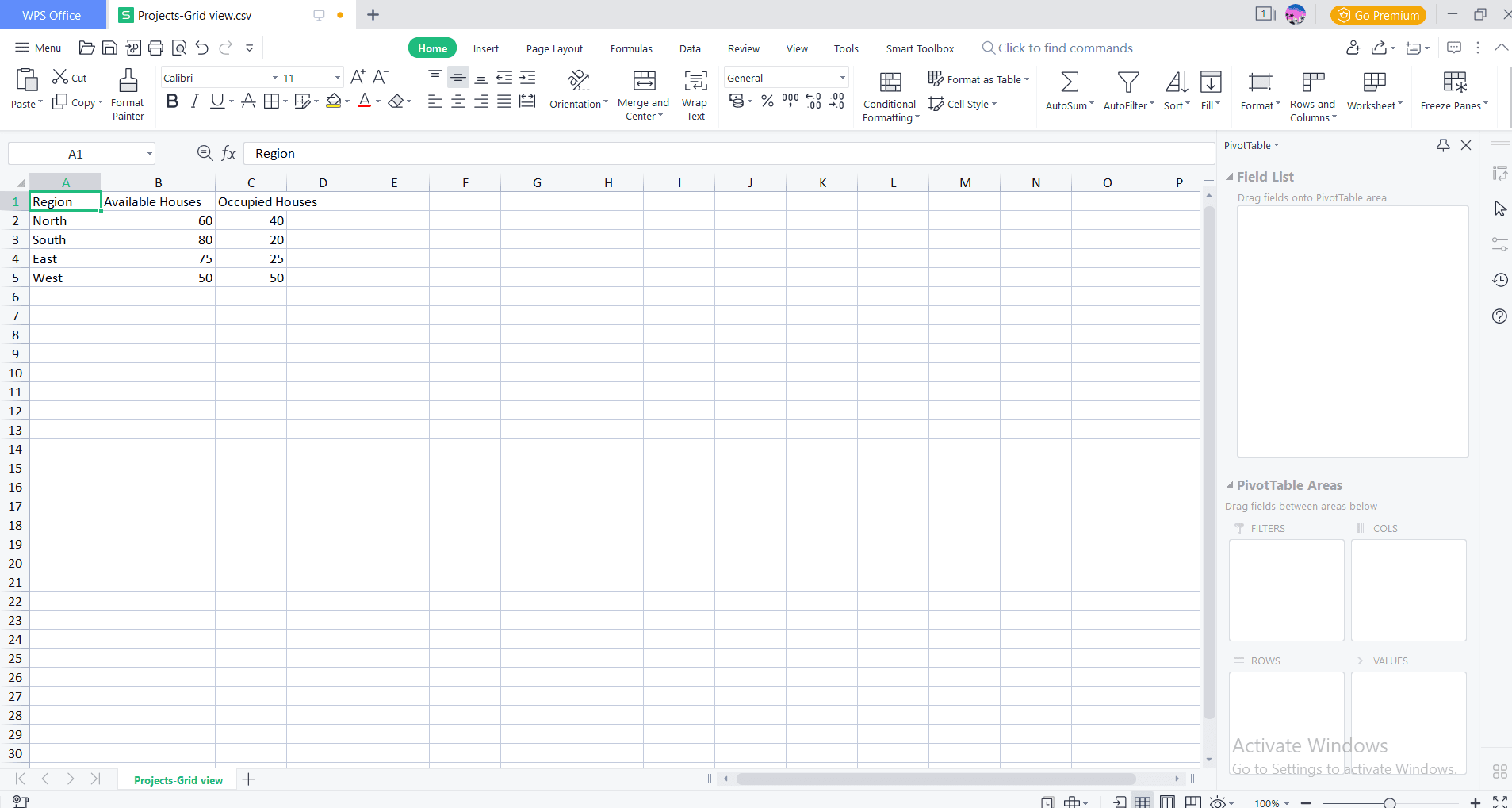
Open the downloaded CSV file in Excel or your preferred spreadsheet application. The file will automatically populate with your Airtable data, maintaining column structure and formatting.
- 5
Verify and Save
Review the imported data in Excel to ensure all records and fields transferred correctly. Save the file in your desired location with an appropriate filename for future reference.
Frequently asked questions
Common questions about how to export data from airtable to excel.
Will exporting to CSV preserve all my Airtable data?
CSV exports capture all records and field values from your selected view. However, some Airtable-specific features like linked records, attachments, and complex formatting may require additional handling in Excel. It's recommended to review your exported file to ensure all critical data transferred as expected.
Can I export data from multiple views at once?
No, the CSV export function downloads data from one view at a time. If you need to export multiple views, you'll need to repeat the download process for each view individually and then combine the files if needed.
What happens to filtered or sorted data when I export?
The CSV export only includes the records visible in your current view, respecting any filters you've applied. However, sorting information is not preserved in the CSV file, so you may need to re-sort your data in Excel after importing.
Is there a file size limit for exporting data from Airtable?
Airtable allows you to export bases with millions of records, but very large exports may take longer to process. If you're exporting a particularly large dataset, consider breaking it into smaller views or time periods to make the export more manageable.
Can I automate the export process or schedule regular exports?
Airtable's native export is manual, but you can use third-party automation tools and APIs to schedule recurring exports. Many integration platforms support Airtable connections and can automatically export data to Excel or cloud storage on a schedule.