How to Group on Canva

Vimal Kumar
Vimal Kumar·
How to Group on Canva
Interactive demo powered by Supademo

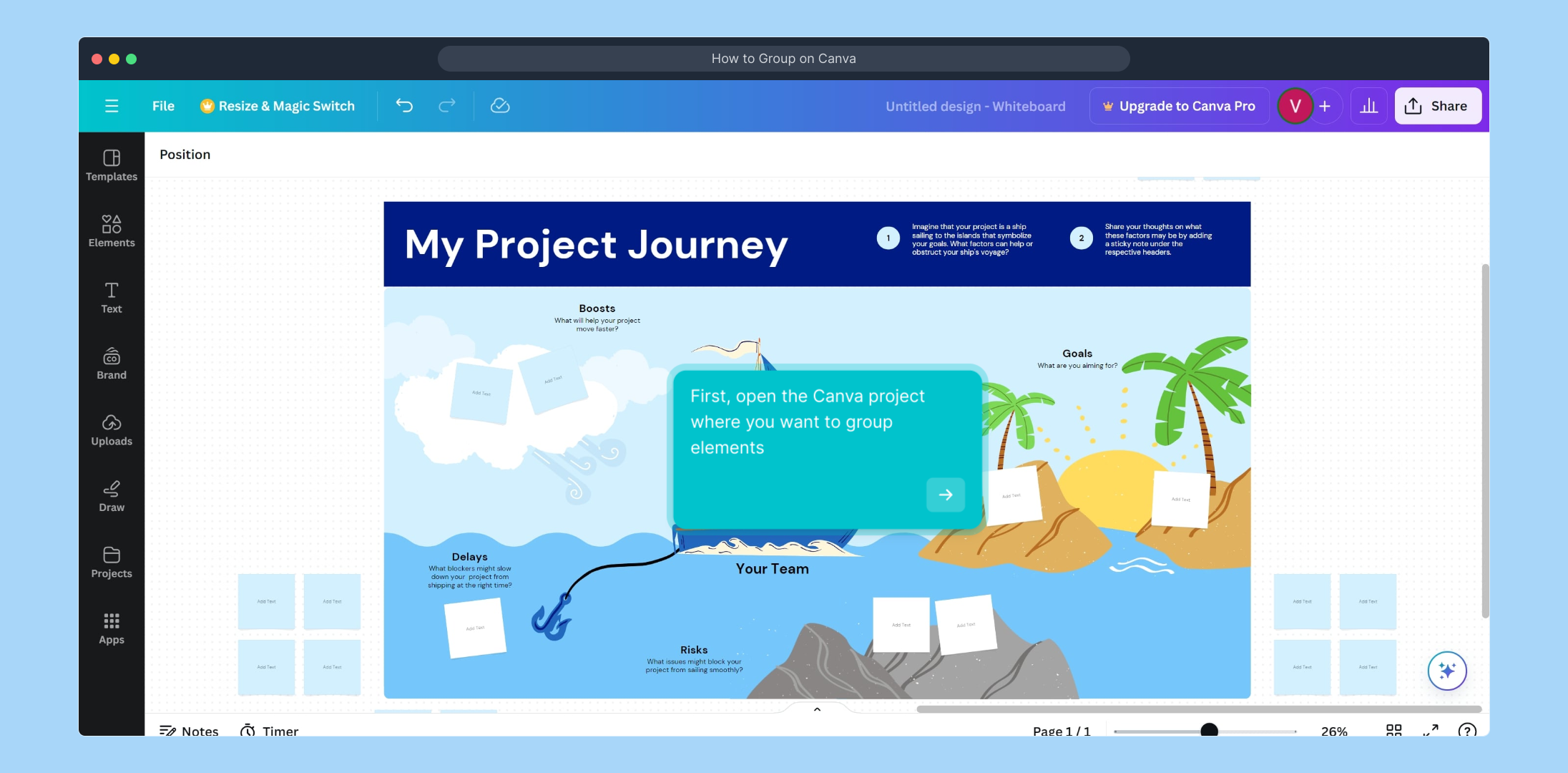
1. First, open the Canva project where you want to group elements

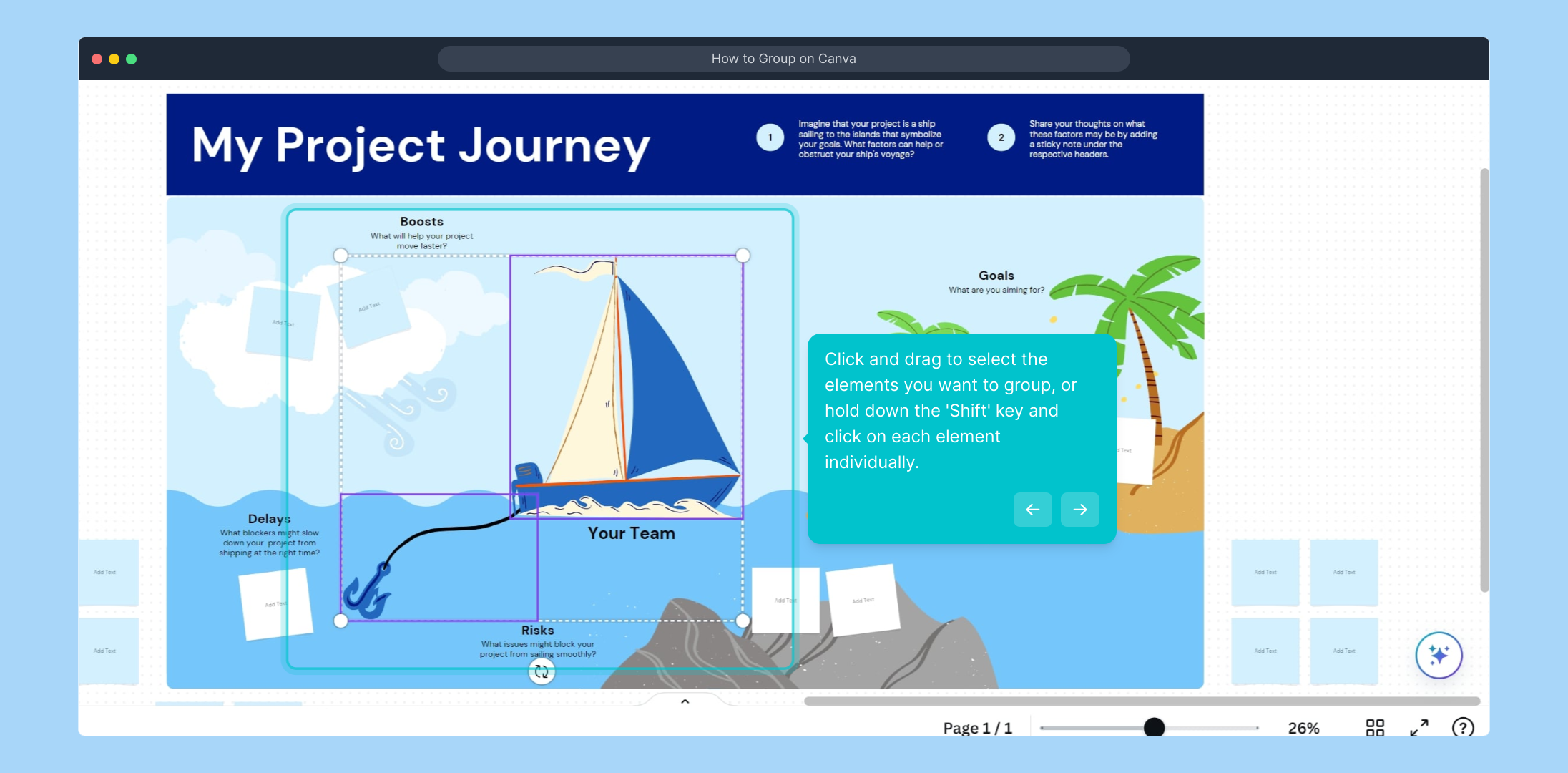
2. Click and drag to select the elements you want to group, or hold down the 'Shift' key and click on each element individually.

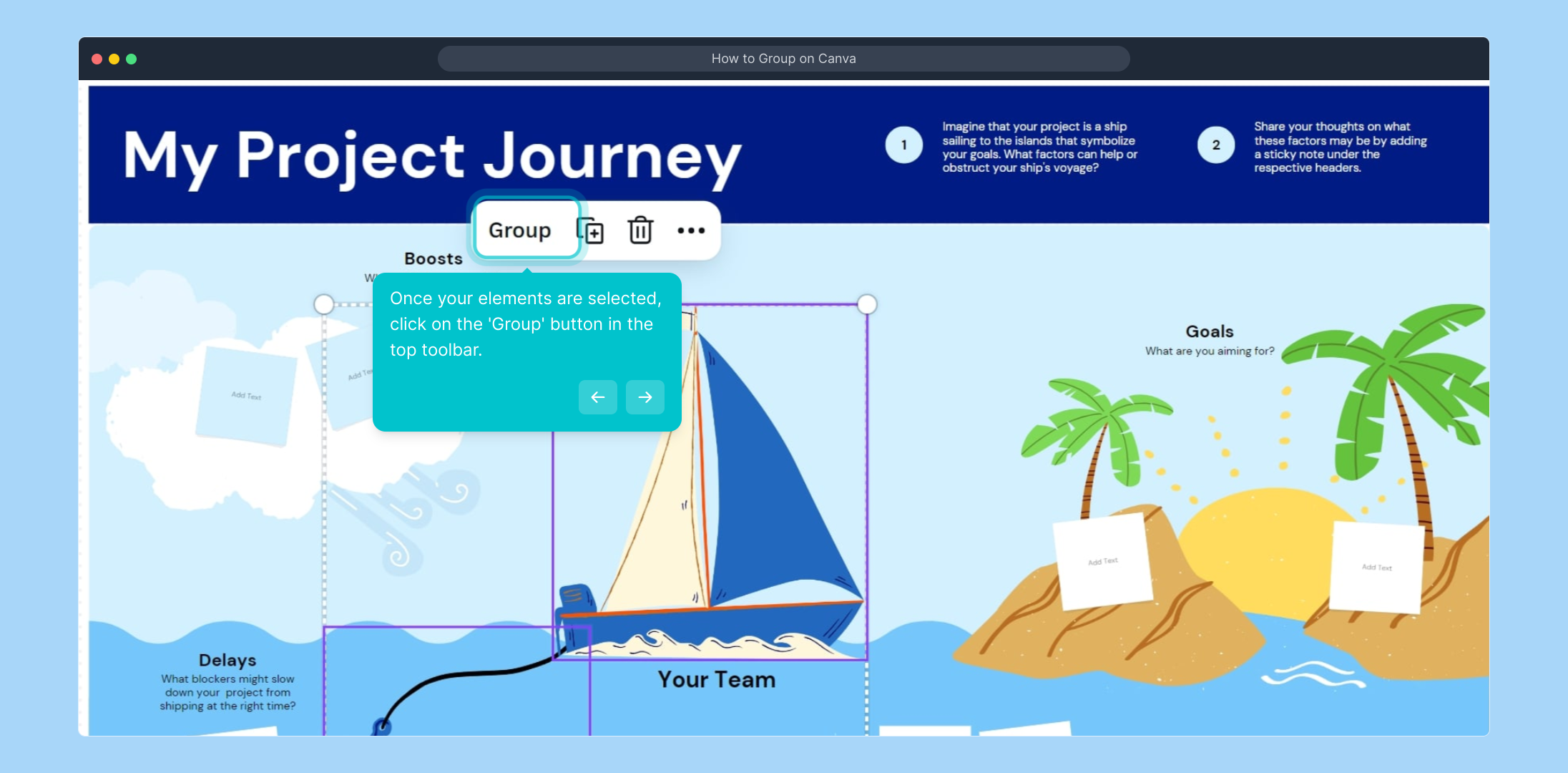
3. Once your elements are selected, click on the 'Group' button in the top toolbar.

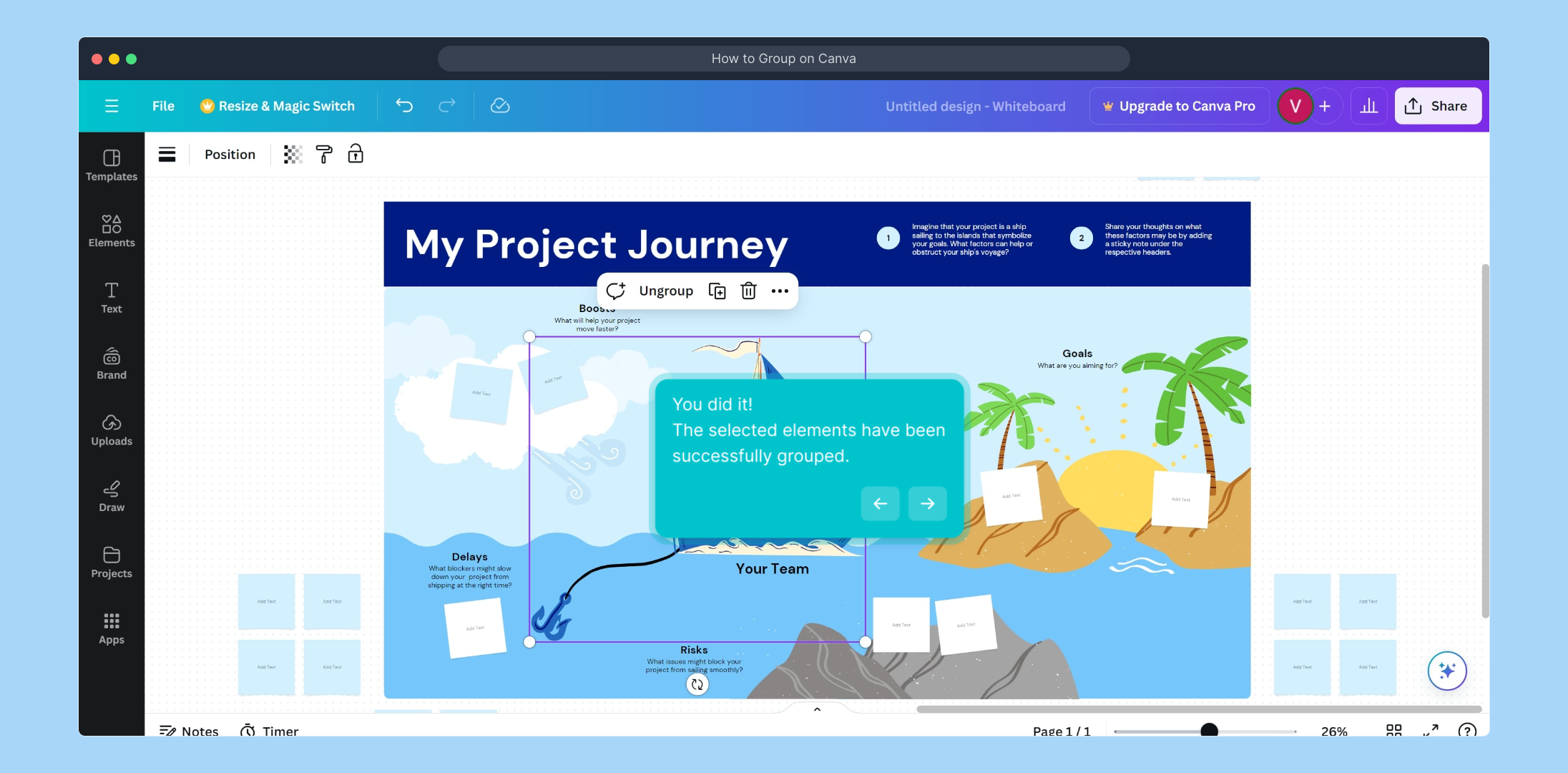
4. You did it!
The selected elements have been successfully grouped.

5. Create a Supademo in seconds

This interactive demo/guided walkthrough on How to Group on Canva was created using Supademo.


How to Group on Canva : Step-by-Step Guide

Begin by launching your Canva project where you plan to organize multiple elements. This will serve as the workspace for grouping, helping you manage your design components more efficiently.
1

Next, select the items you want to combine by clicking and dragging your cursor around them. Alternatively, hold down the 'Shift' key and click on each element individually to ensure you include everything needed for your group.
2

After highlighting all desired elements, locate the 'Group' option positioned in the top toolbar. Clicking this button will link your selected items together, making it easier to move or edit them as a single unit.
3

Congratulations! Your elements are now grouped, allowing you to treat them as one. This helps streamline your design process and keeps your workspace tidy.
4

With grouping complete, you’re ready to quickly assemble a Supademo, simplifying your workflow and boosting productivity in just moments.
5

Create your own interactive demos in < 5 mins with Supademo

You can create your own interactive product demo in minutes using Supademo. Drive growth, scale enablement, and supercharge product-led onboarding with Supademo.

Sign up for free here with no credit card required.


FAQs

Commonly asked questions about this topic.

What does grouping elements in Canva do?

Grouping elements in Canva combines multiple selected objects so you can move, resize, or edit them as a single unit. This simplifies design management and maintains relative positioning between elements for easier adjustments.

Can I group text and images together in Canva?

Yes, Canva allows you to group text, images, shapes, and other design elements together. This flexibility helps keep your designs organized and makes editing multiple items faster and more efficient.

How do I select multiple elements to group in Canva?

You can select multiple elements by clicking and dragging your mouse cursor to form a box around them or by holding down the 'Shift' key and clicking on each element individually, then clicking the 'Group' button.

Is there a shortcut to group elements in Canva?

Yes, after selecting your elements, you can use the keyboard shortcut Ctrl + G (Cmd + G on Mac) to group them quickly without clicking the toolbar button, speeding up your workflow.

Can I ungroup elements after grouping them?

Absolutely. You can select the grouped elements and click 'Ungroup' in the toolbar, or use the shortcut Ctrl + Shift + G (Cmd + Shift + G on Mac) to separate them back into individual items.

Does grouping affect individual element properties like color or font?

No, grouping does not alter individual properties such as color or font. You can still edit each element’s attributes separately even when they are grouped together.

Can I group elements across different Canva pages?

No, grouping works only within the same Canva page. Elements from different pages cannot be grouped together since each page is an independent workspace.

Will grouping elements improve Canva project organization?

Yes, grouping helps organize your designs by bundling related elements. It simplifies moving and resizing while keeping your project workspace cleaner and more manageable.

Can I resize grouped elements proportionally?

When you resize grouped elements in Canva, all items scale proportionally together, maintaining their layout and relative sizes, which ensures a consistent design appearance.

Why can’t I find the 'Group' button in Canva?

The 'Group' button appears only after selecting multiple elements. If you don’t see it, ensure multiple objects are selected. Also, make sure your Canva version is up-to-date, as UI changes can affect toolbar visibility.

Vimal Kumar

Vimal Kumar

Product Operations Associate

Vimal Kumar helps build and grow Supademo’s team and GTM efforts, with a focus on figuring out growth levers and improving product traction.

More from the blog

How to Add Products to Shopify

How to Add Products to Shopify

Learn step-by-step how to add products to your Shopify store effortlessly, including tips on product details, images, pricing, and inventory management to boost your online sales.

Vimal Kumar
Vimal KumarDec 17, 2025
How to Deactivate Your Shopify Store

How to Deactivate Your Shopify Store

Learn step-by-step how to deactivate your Shopify store easily, including important considerations and tips to pause or close your shop without losing data.

Vimal Kumar
Vimal KumarDec 17, 2025
How to Remove 'Powered by Shopify'

How to Remove 'Powered by Shopify'

Learn how to easily remove the 'Powered by Shopify' text from your online store with step-by-step instructions and tips to customize your Shopify storefront.

Vimal Kumar
Vimal KumarDec 17, 2025
How to Create a Shopify Account

How to Create a Shopify Account

Learn step-by-step how to create a Shopify account quickly and easily, set up your online store, and start selling your products in no time.

Vimal Kumar
Vimal KumarDec 17, 2025
How to Create a Stripe Account

How to Create a Stripe Account

Learn how to create a Stripe account quickly and easily with our step-by-step guide, perfect for beginners looking to start accepting online payments.

Vimal Kumar
Vimal KumarDec 17, 2025
How to Contact Stripe Support

How to Contact Stripe Support

Learn the easiest ways to contact Stripe support for quick assistance with your payment processing, account issues, and technical questions.

Vimal Kumar
Vimal KumarDec 16, 2025