How to Highlight Meeting Moments in Fathom

Fathom automatically records and transcribes your meetings, but knowing how to highlight key moments ensures you capture the most important points for future reference. This guide walks you through the process of marking and organizing meeting highlights so your team can quickly locate critical discussions, decisions, and action items.
Quick summary
In this tutorial, you'll learn how to highlight important moments during or after a Fathom meeting recording. You'll discover how to mark timestamps, add context to highlights, and use them to streamline team collaboration and knowledge sharing.
Why this matters
Highlighting meeting moments saves your team countless hours searching through recordings. By marking key decisions, action items, and important discussions, you create a searchable index of your most valuable meeting content, making it easier for team members to stay aligned and reference critical information without rewatching entire recordings.
Step-by-step guide
- 1
Open your Fathom meeting recording
Navigate to your Fathom dashboard and select the meeting recording you want to highlight. The video player and transcript will load, displaying the full meeting content with timestamps.
- 2
Locate the moment to highlight
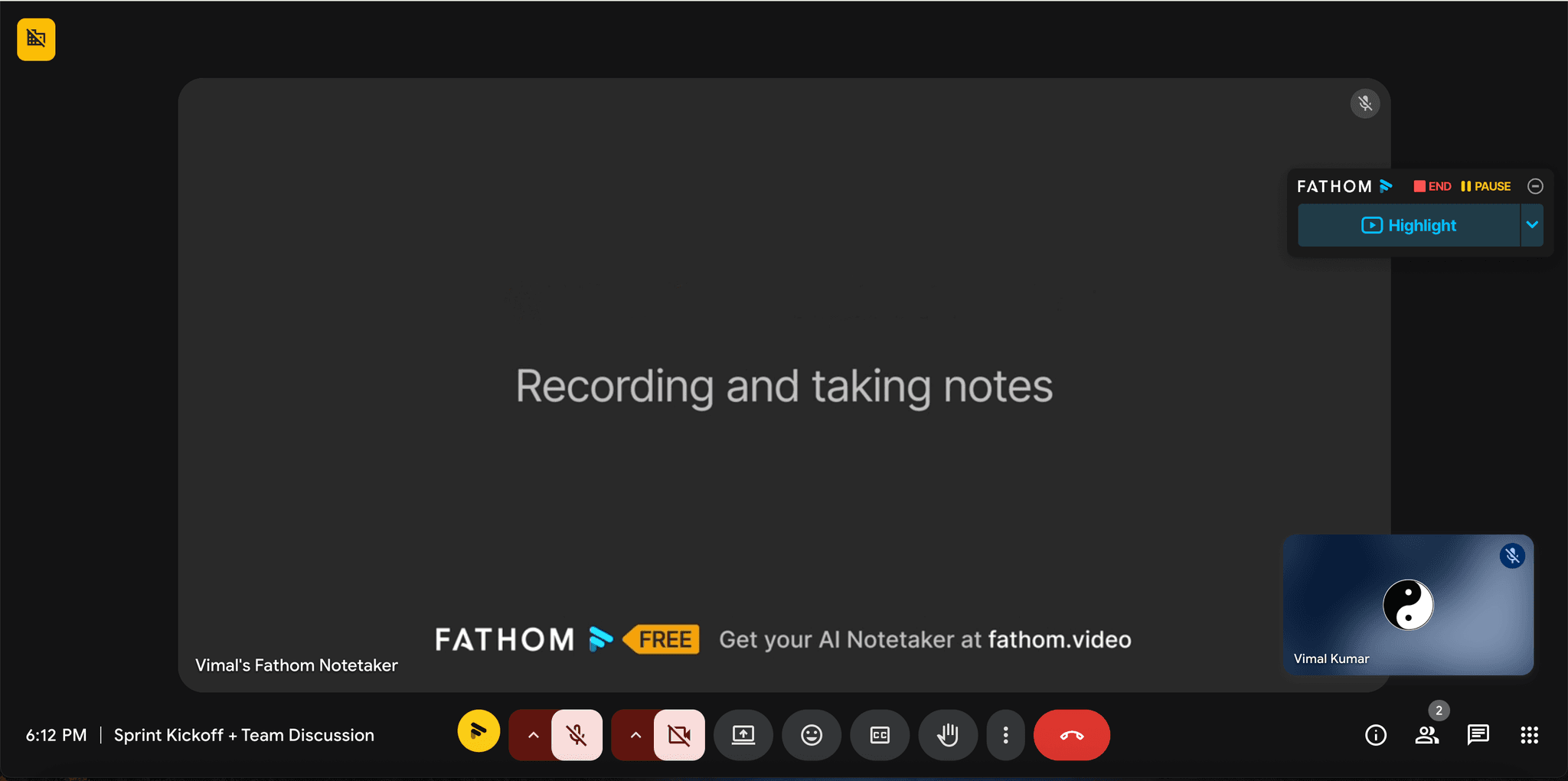
Play through the recording or scroll the transcript to find the specific moment you want to mark. You can use the search function to quickly locate keywords or topics relevant to your highlight.
- 3
Click the highlight button
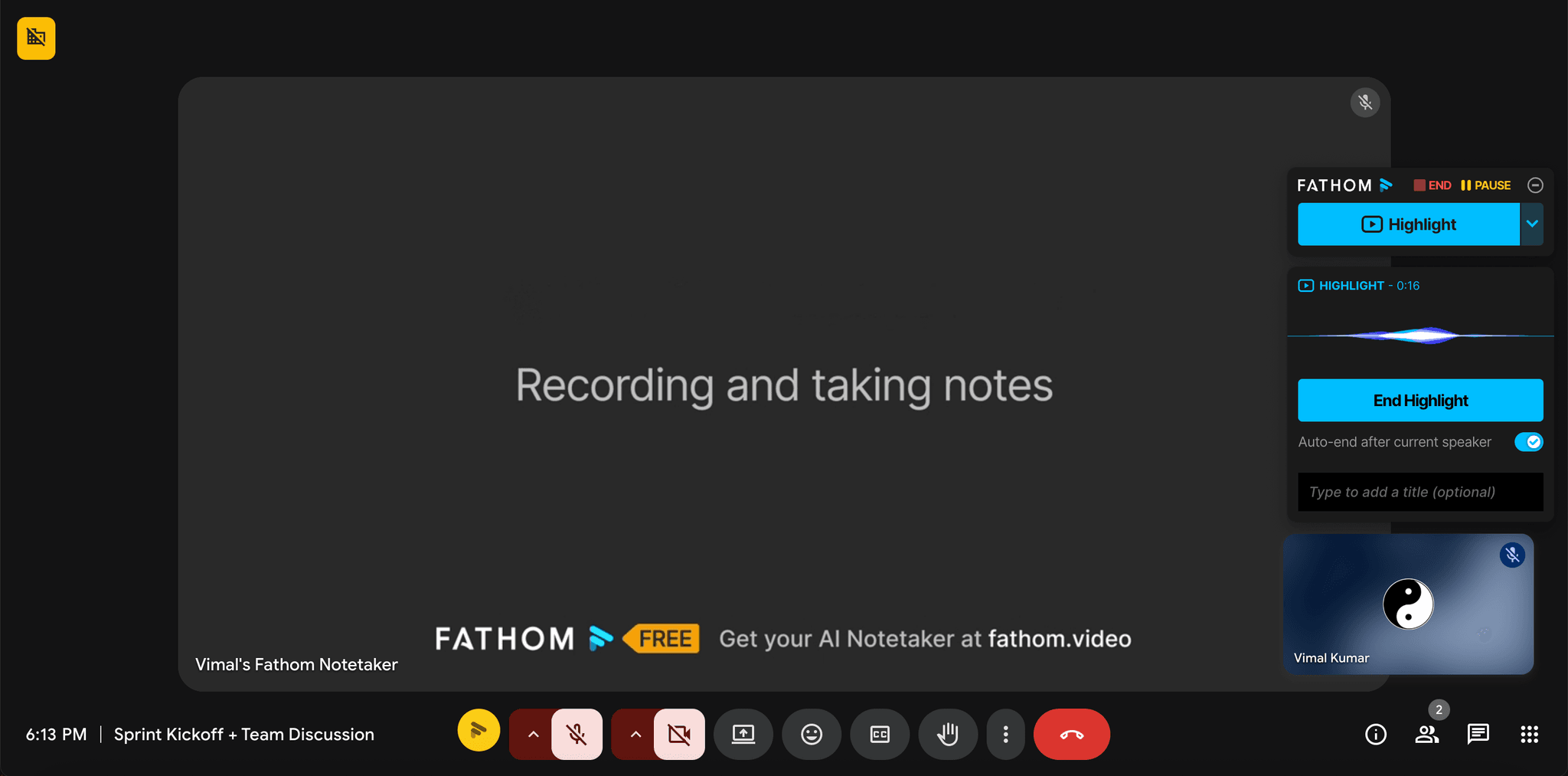
When you reach the important moment, click the highlight icon (usually a star or flag) in the player controls or transcript panel. This marks the timestamp and prepares it for annotation.
- 4
Add a label or description
Enter a brief, descriptive label for your highlight such as 'Budget Approval', 'Action Item: Follow up with marketing', or 'Key Decision'. This helps you and your team quickly understand the highlight's purpose when reviewing.
Frequently asked questions
Common questions about how to highlight meeting moments in fathom.
Can I highlight multiple moments in a single meeting?
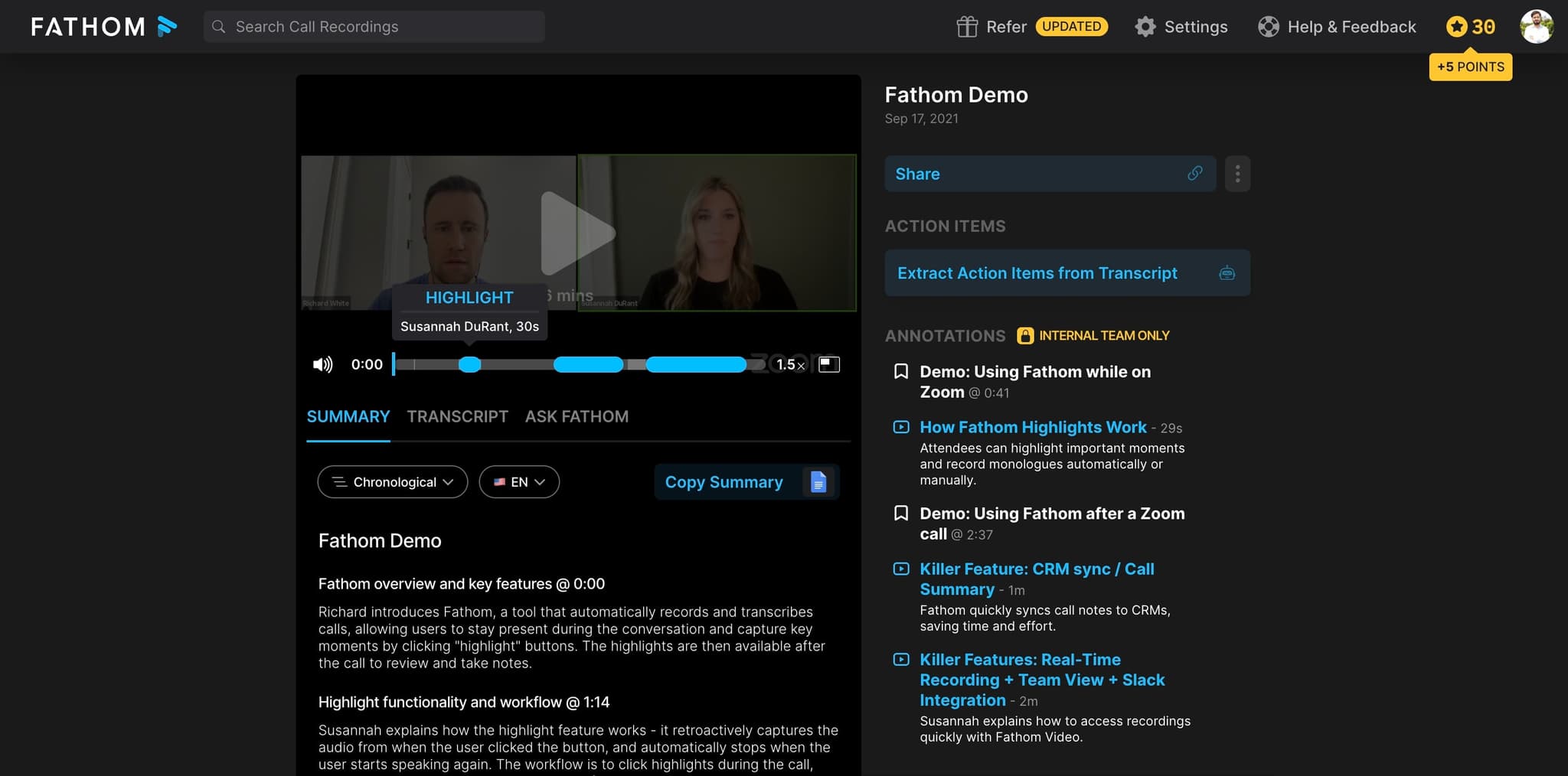
Yes, you can create as many highlights as needed throughout a single meeting recording. Each highlight is stored independently with its own timestamp and label, allowing you to create a comprehensive reference guide for that meeting.
Can my team members see the highlights I create?
Yes, highlights are visible to everyone who has access to the meeting recording in Fathom. This makes it easy for team members to quickly navigate to the most important moments without watching the entire meeting.
Can I edit or delete a highlight after creating it?
Yes, you can edit the label or description of any highlight at any time. You can also delete highlights if they're no longer relevant, giving you flexibility to refine your highlights as your understanding of the meeting evolves.
What's the best way to label highlights for searchability?
Use clear, specific labels that describe the content or type of moment, such as 'Decision', 'Action Item', 'Budget Discussion', or 'Customer Feedback'. Consistent labeling across meetings makes it easier to search and filter highlights later.
How do I find all highlights across multiple meetings?
Fathom's search and filter features allow you to view highlights across meetings. You can filter by label, date range, or keyword to quickly locate all instances of specific highlight types across your entire recording library.