How to Set Up Fathom for Zoom

Fathom is a powerful AI meeting assistant that automatically records, transcribes, and summarizes your Zoom meetings. Integrating Fathom with Zoom enables you to capture valuable insights from every conversation without manual note-taking.
Quick summary
In this tutorial, you'll learn how to connect Fathom to your Zoom account and configure it to automatically record and transcribe your meetings. By the end, you'll have Fathom ready to capture meeting insights seamlessly.
Why this matters
Setting up Fathom for Zoom saves your team significant time on meeting documentation and follow-up. Automatic transcription and AI-generated summaries ensure no important details are missed and allow team members to focus on the conversation rather than taking notes.
Step-by-step guide
- 1
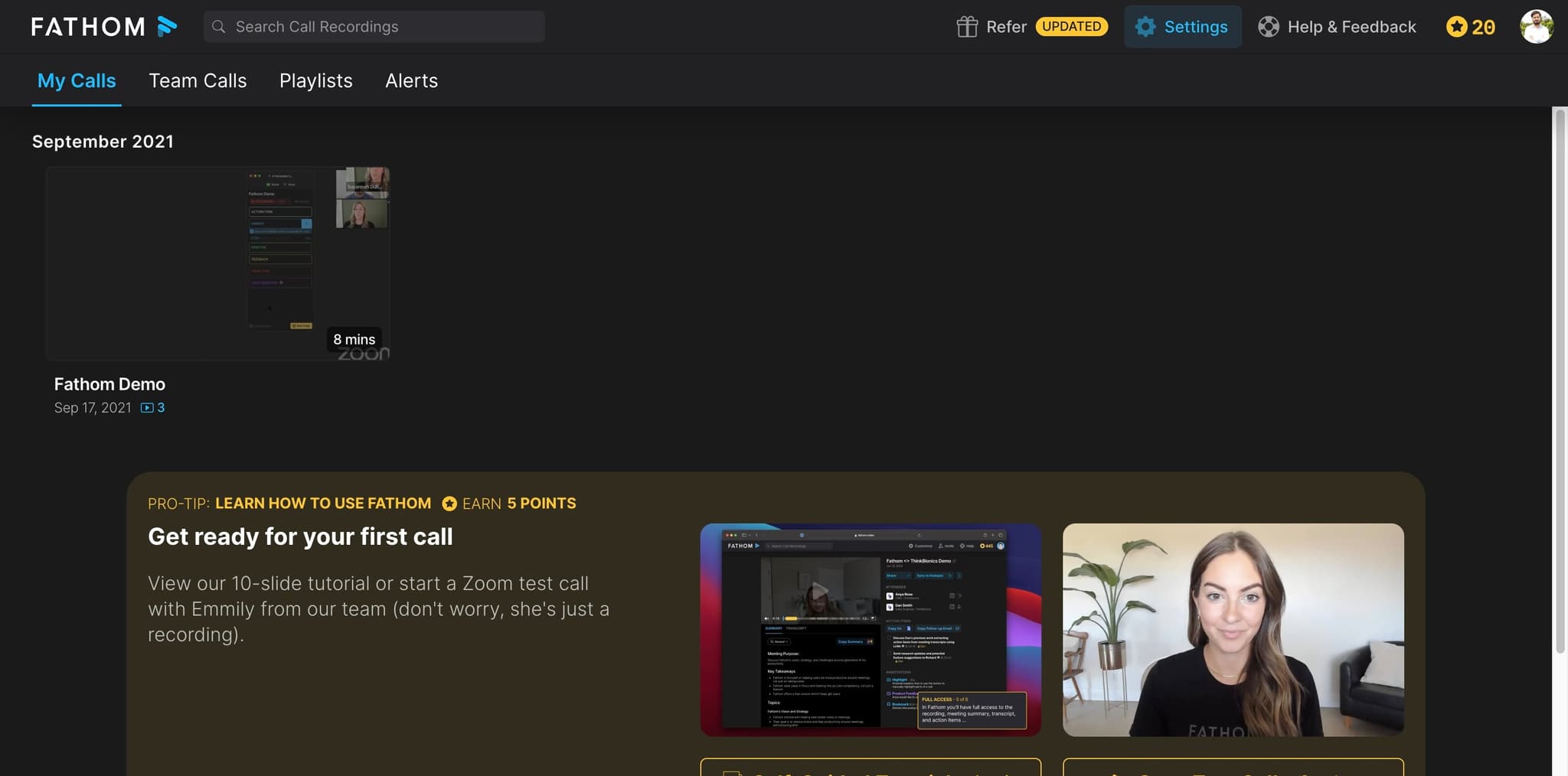
Navigate to Fathom's Zoom integration page
Visit the Fathom integrations dashboard and locate the Zoom integration option. This is where you'll initiate the connection between Fathom and your Zoom account.
- 2
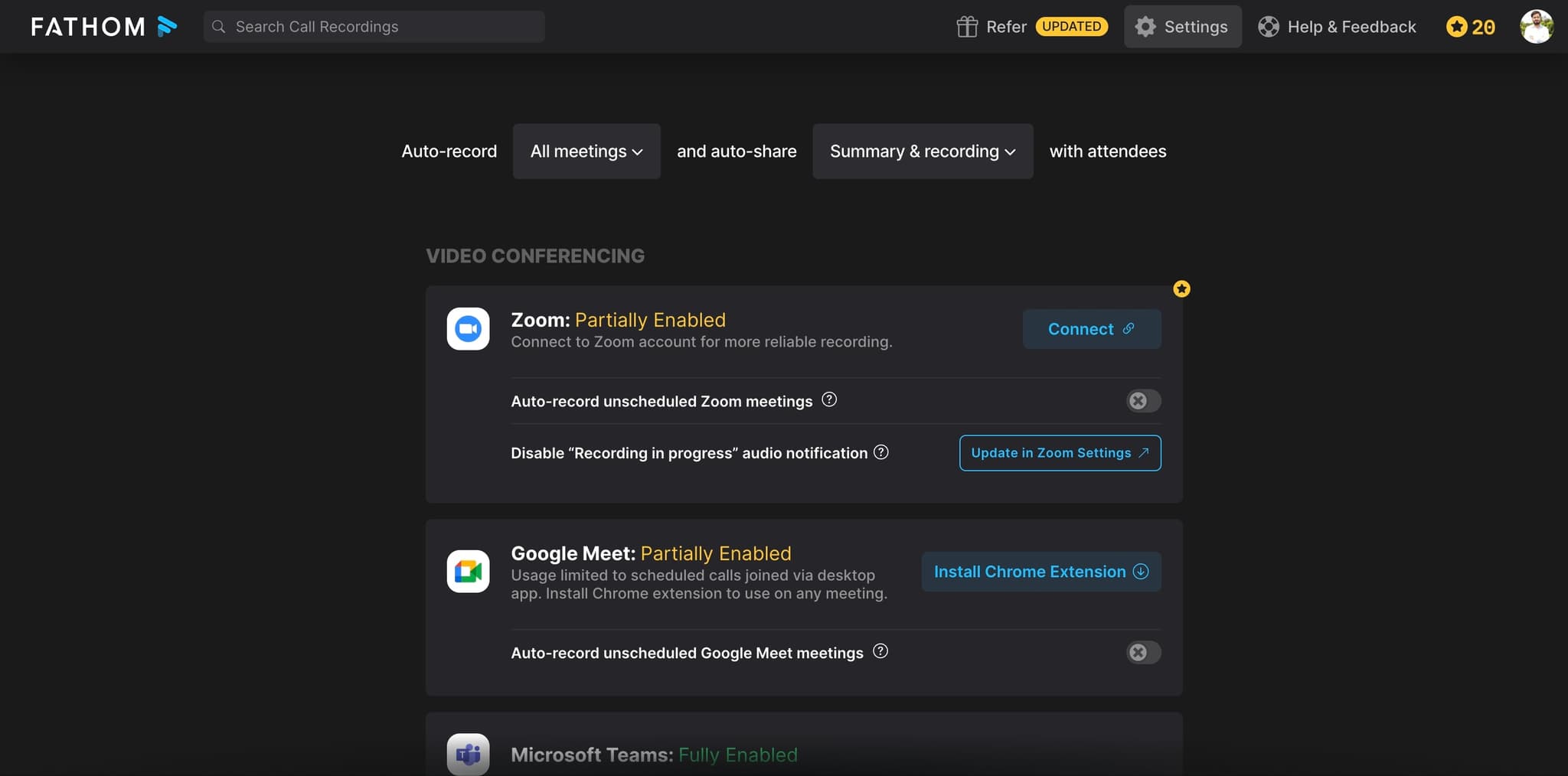
Click the Connect to Zoom button
Select the button to authorize Fathom to access your Zoom account. You'll be redirected to Zoom's authentication page to verify the connection.
- 3
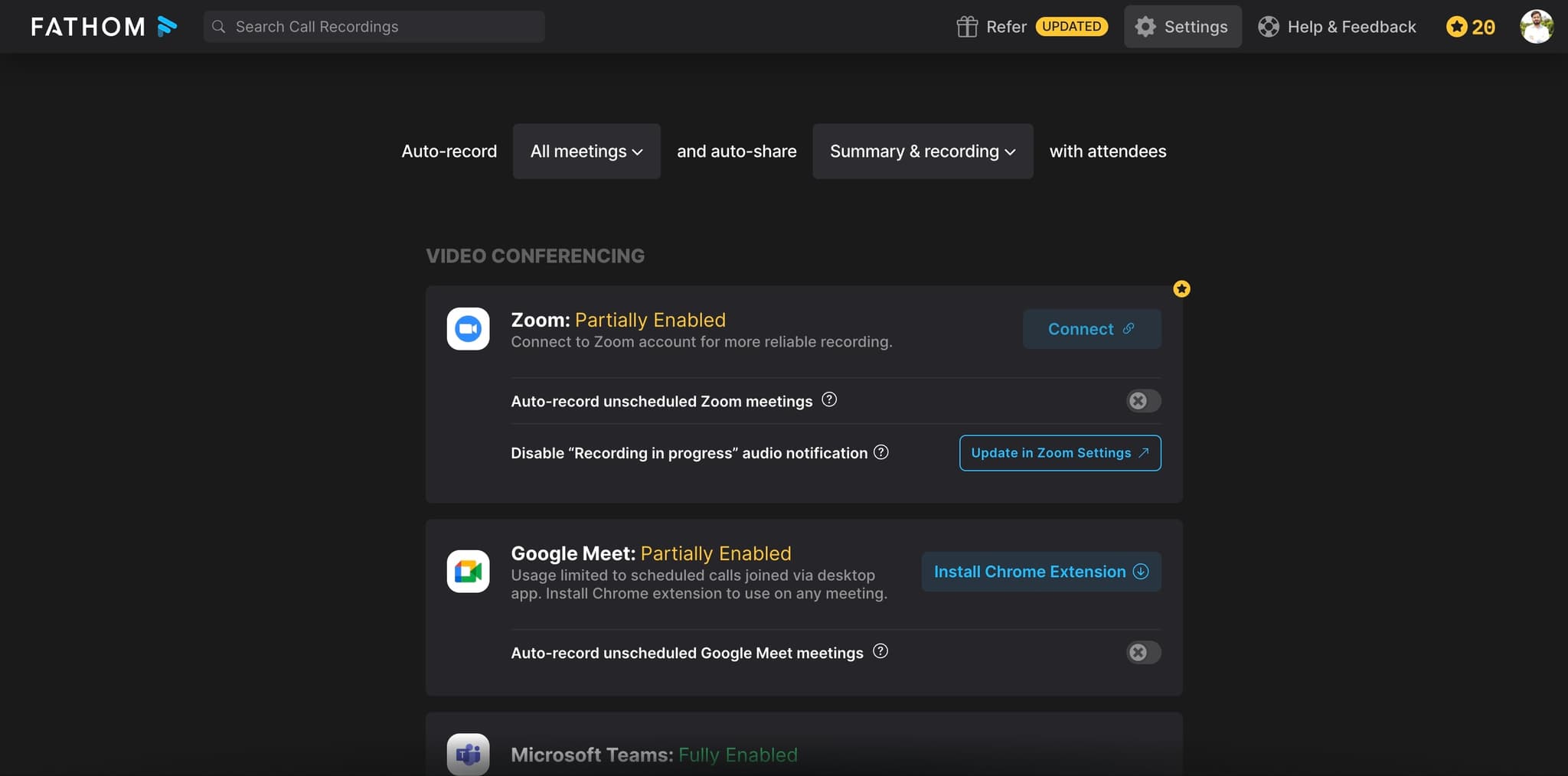
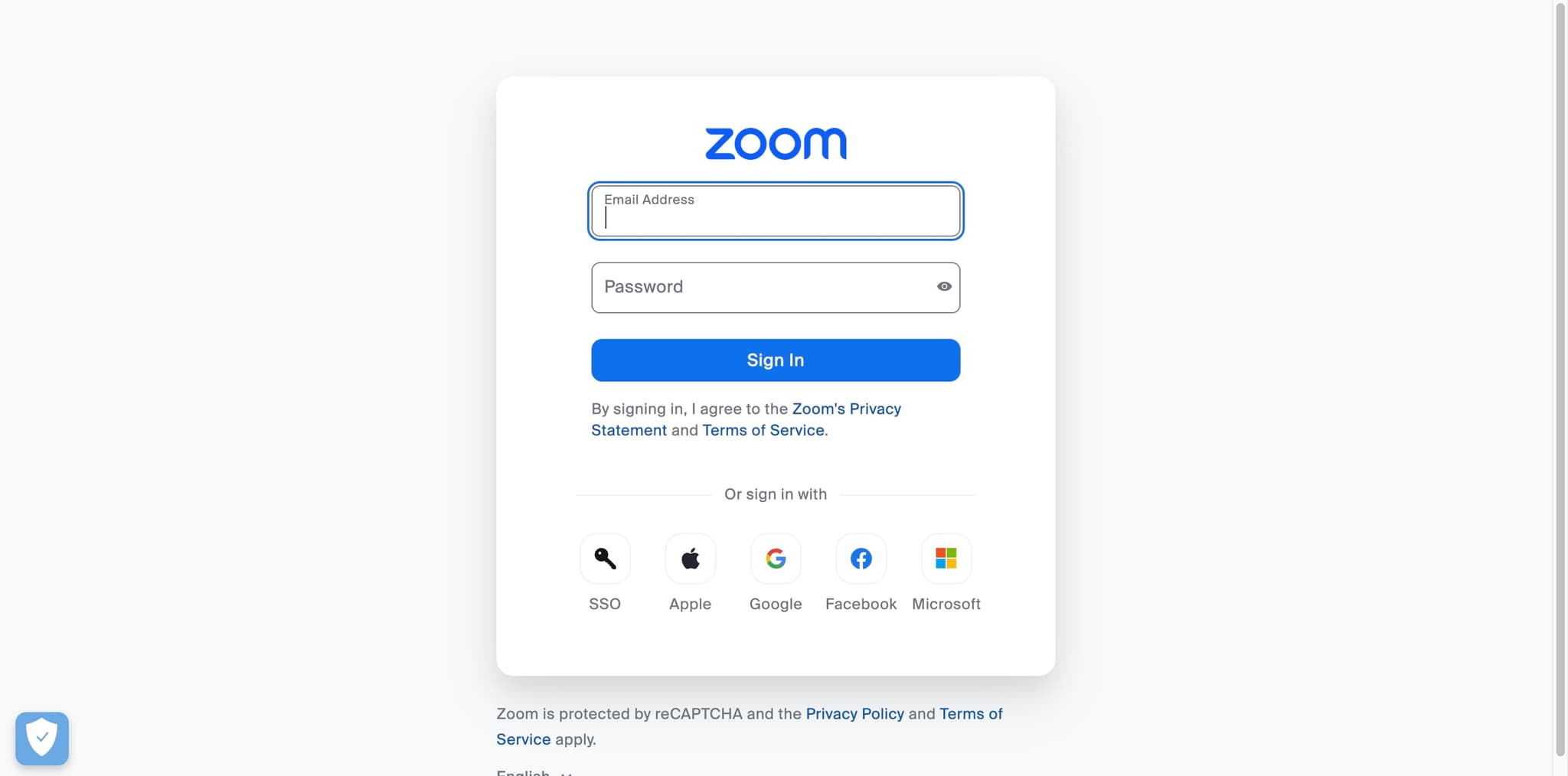
Sign in to your Zoom account
Enter your Zoom credentials on the authentication screen. Make sure you're using the account that hosts the meetings you want Fathom to record.
- 4
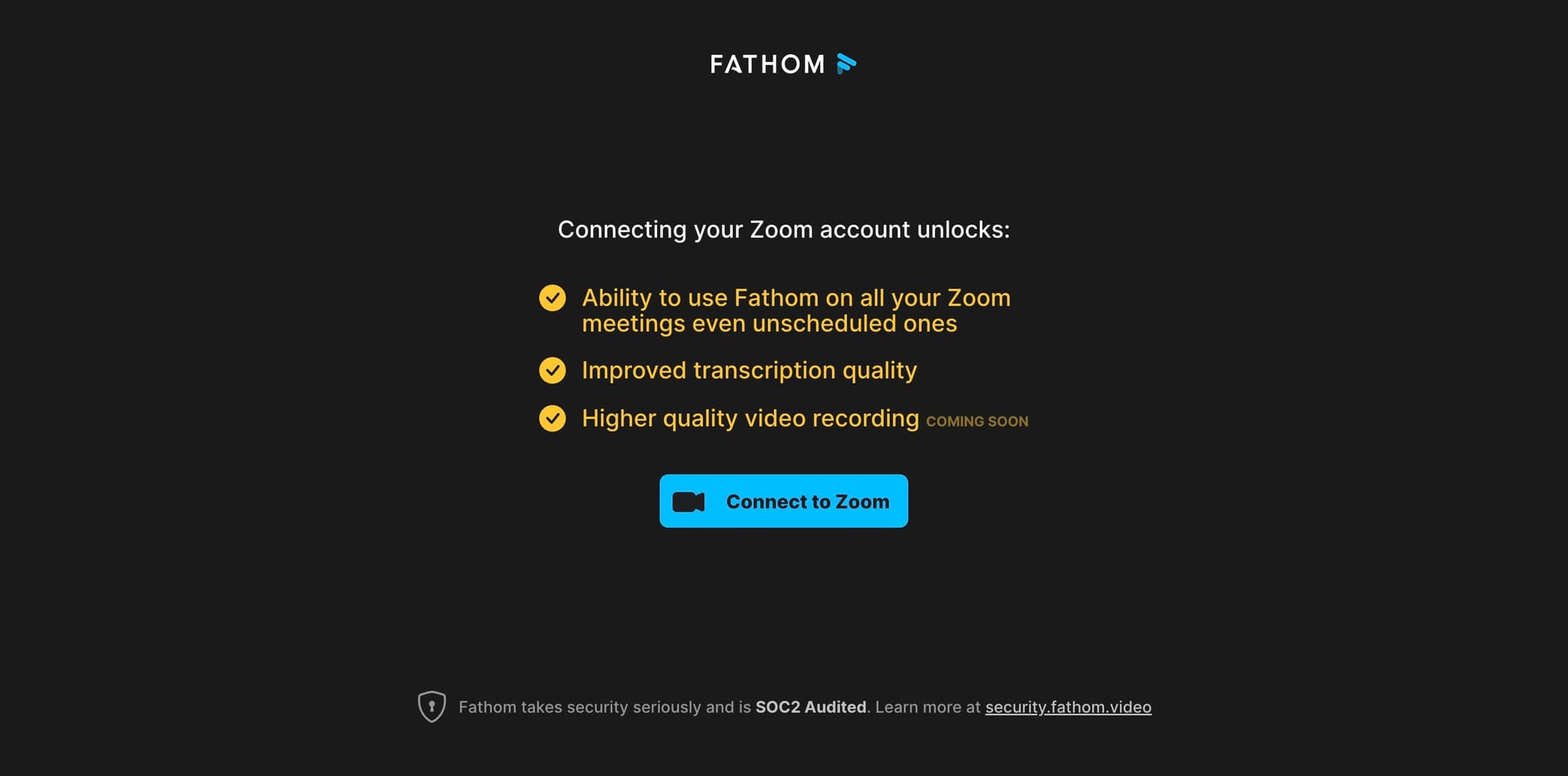
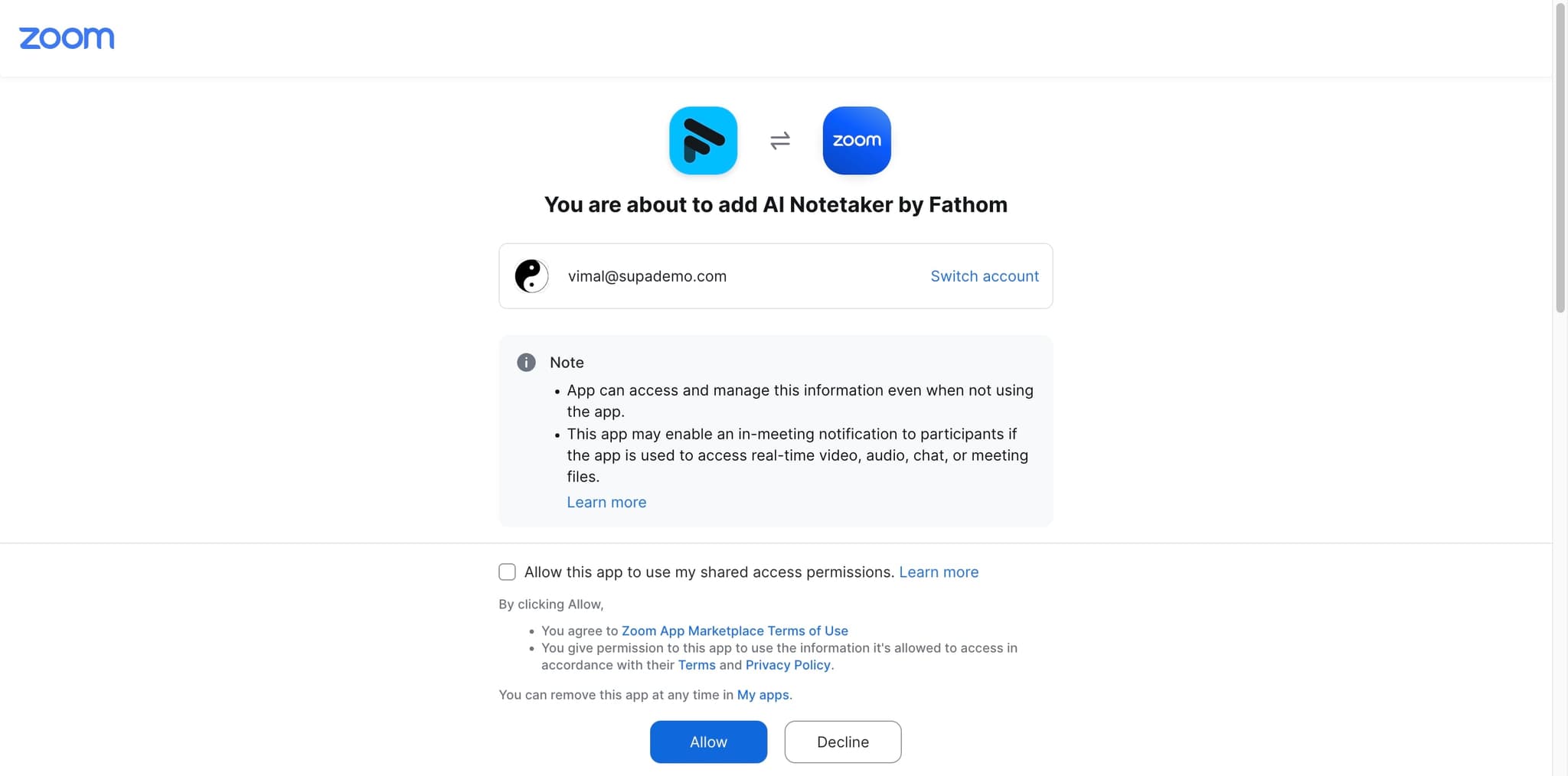
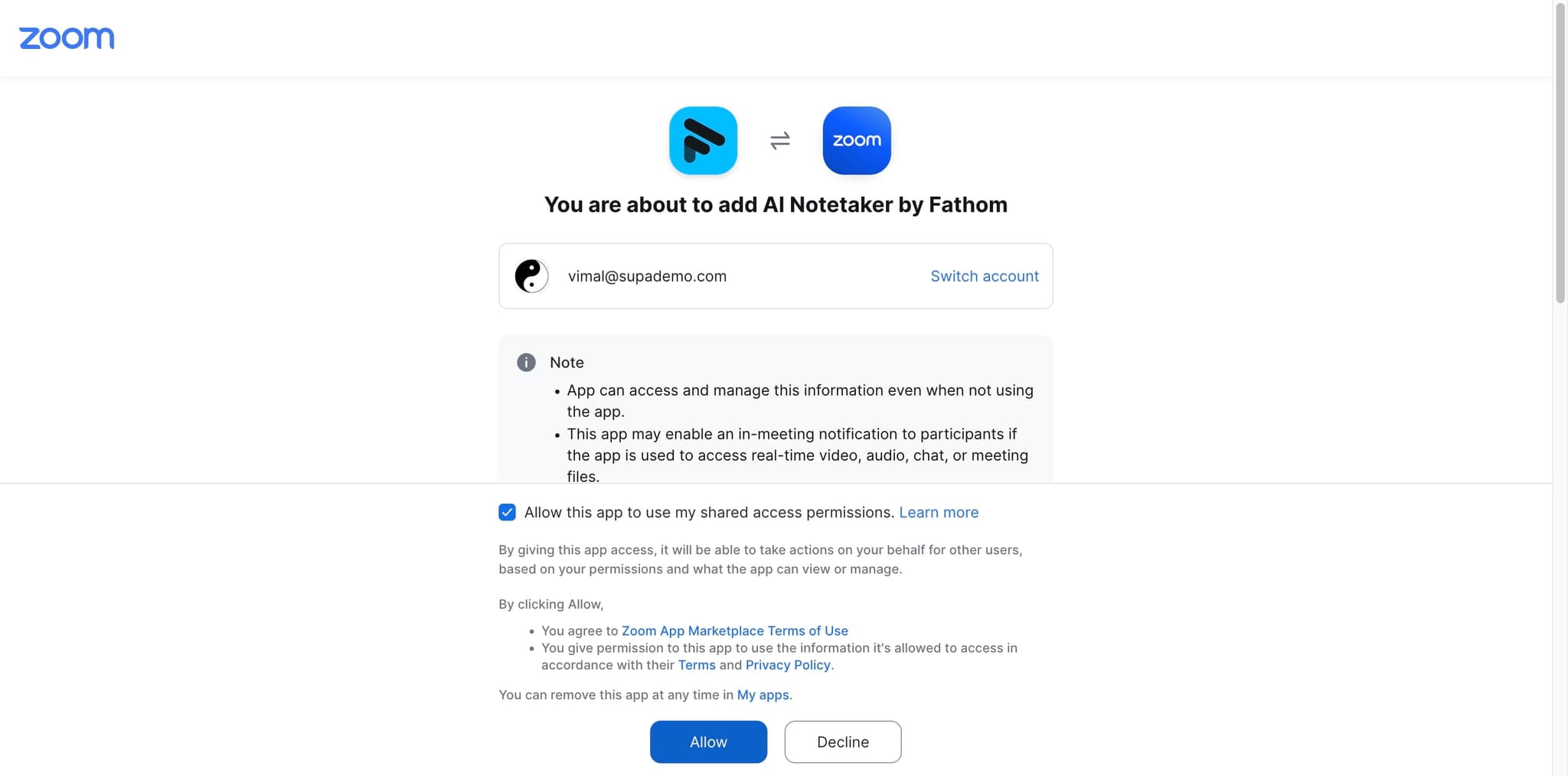
Grant Fathom the required permissions
Review the permissions Fathom is requesting and click Authorize. These permissions allow Fathom to access your Zoom meetings and recording settings.
- 5
Configure your recording preferences
Set your preferred recording options, such as whether to auto-record all meetings or manually select which meetings to record. You can also choose transcription language and other output settings.
- 6
Enable meeting notifications
Turn on notifications to receive alerts when Fathom has completed recording and transcribing your meetings. This ensures you're informed when summaries are ready to review.
- 7
Verify the integration is active
Confirm that the Zoom integration shows as connected in your Fathom dashboard. You can now schedule or start a Zoom meeting and Fathom will be ready to record.
Frequently asked questions
Common questions about how to set up fathom for zoom.
This depends on your configuration. You can set Fathom to automatically record all meetings, or you can manually select which meetings to record. Check your recording preferences in the Fathom settings to confirm your chosen approach.
You need to be the Zoom account owner or have admin privileges to authorize third-party integrations. If you don't have these permissions, contact your Zoom administrator to grant access to Fathom.
Yes, you can revoke the Fathom integration at any time through your Zoom account settings or the Fathom dashboard. This will prevent Fathom from accessing future Zoom meetings.
Fathom supports multiple languages for transcription and summarization. During setup, you can select your preferred language in the configuration settings. Check Fathom's documentation for the complete list of supported languages.
All recorded meetings, transcripts, and AI-generated summaries are stored in your Fathom dashboard. You can search, organize, and share these records with your team directly from the Fathom interface.