How to Get Meeting Transcripts in Fathom

Fathom automatically records and transcribes your video meetings, making it easy to search, share, and reference conversation details later. Learning how to access and use meeting transcripts can save you time on note-taking and help your team stay aligned on key discussion points.
Quick summary
In this tutorial, you'll learn how to retrieve meeting transcripts in Fathom, including where to find them, how to search within transcripts, and how to share them with your team. By the end, you'll be able to quickly locate specific moments from any recorded meeting.
Why this matters
Meeting transcripts are invaluable for compliance, knowledge retention, and asynchronous communication. Instead of rewatching entire meetings, you can search for keywords and jump directly to relevant moments, dramatically improving team efficiency and accountability.
Step-by-step guide
- 1
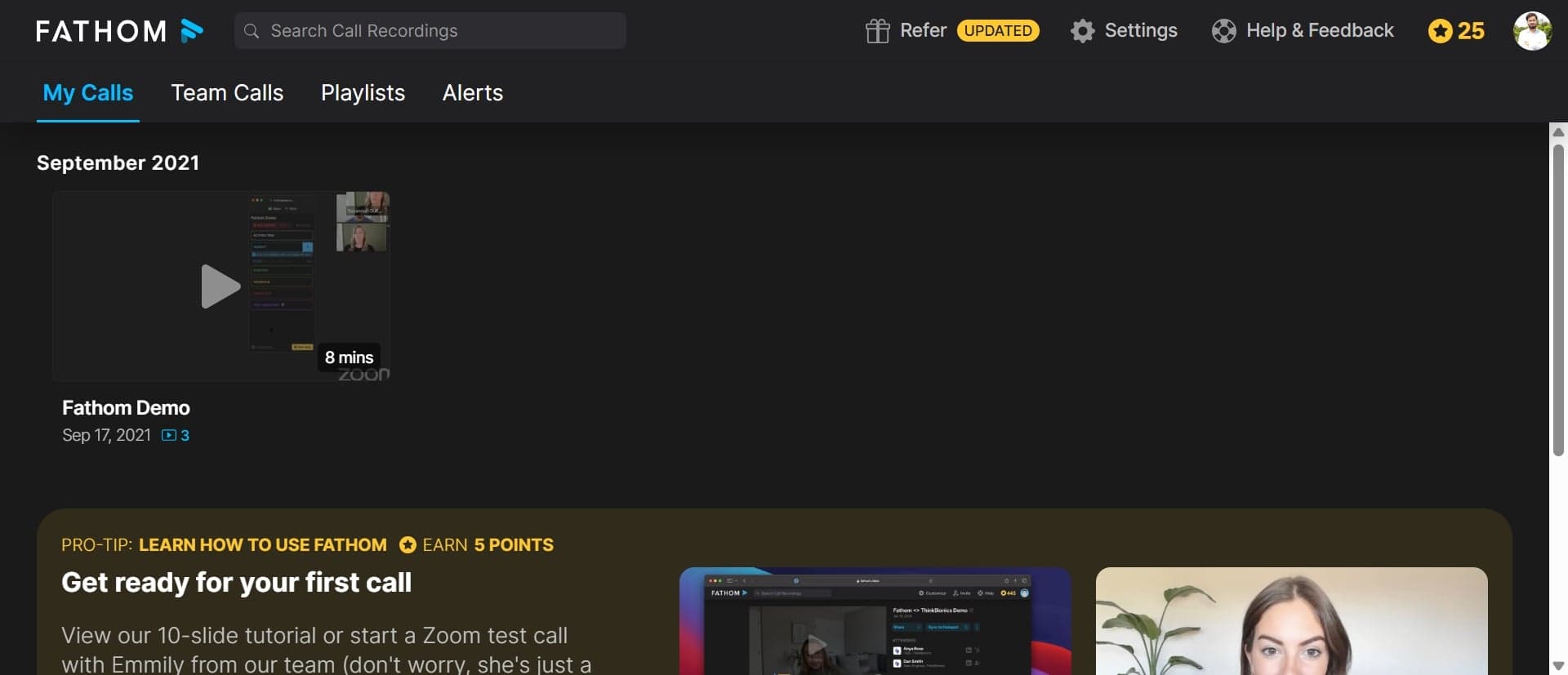
Open Fathom and access your recordings
Log into your Fathom account and navigate to the Recordings section from the main dashboard. You'll see a list of all your recorded meetings with options to filter and sort by date, participant, or status.
- 2
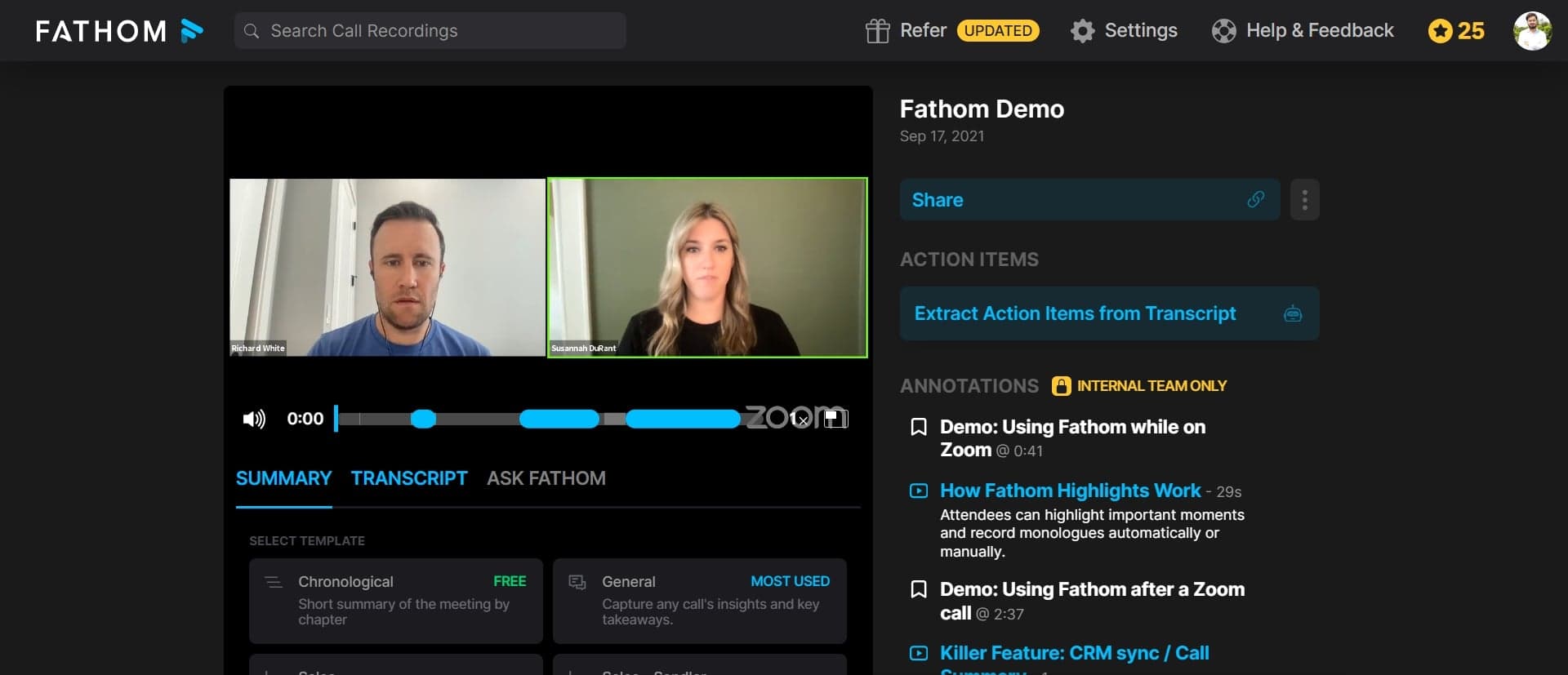
Select a meeting to view transcript
Click on the specific meeting you want to review. Fathom will load the video player along with the transcript panel, which appears alongside or below the video depending on your layout preference.
- 3
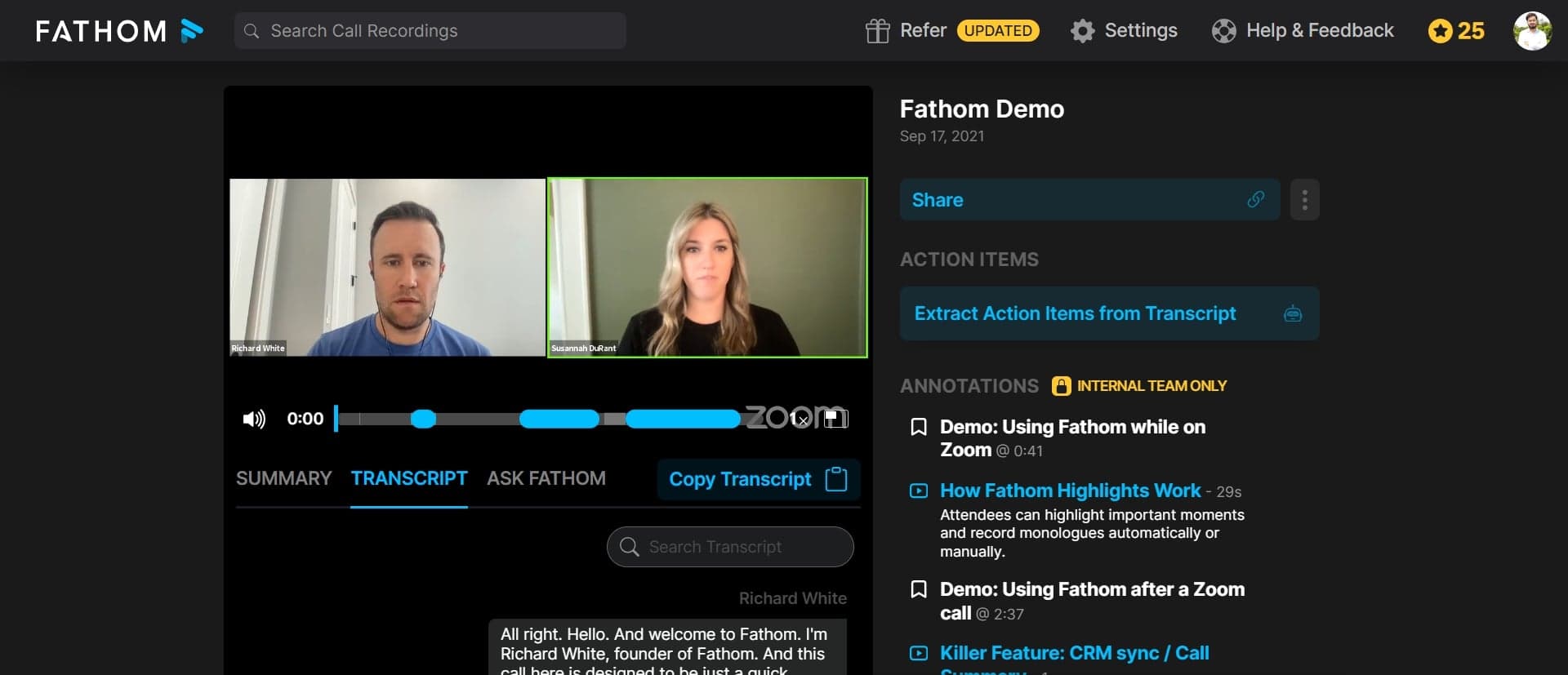
Search for keywords in the transcript
Use the search function within the transcript panel to find specific words or phrases discussed during the meeting. Fathom will highlight matching text and allow you to jump to that timestamp in the video with a single click.
- 4
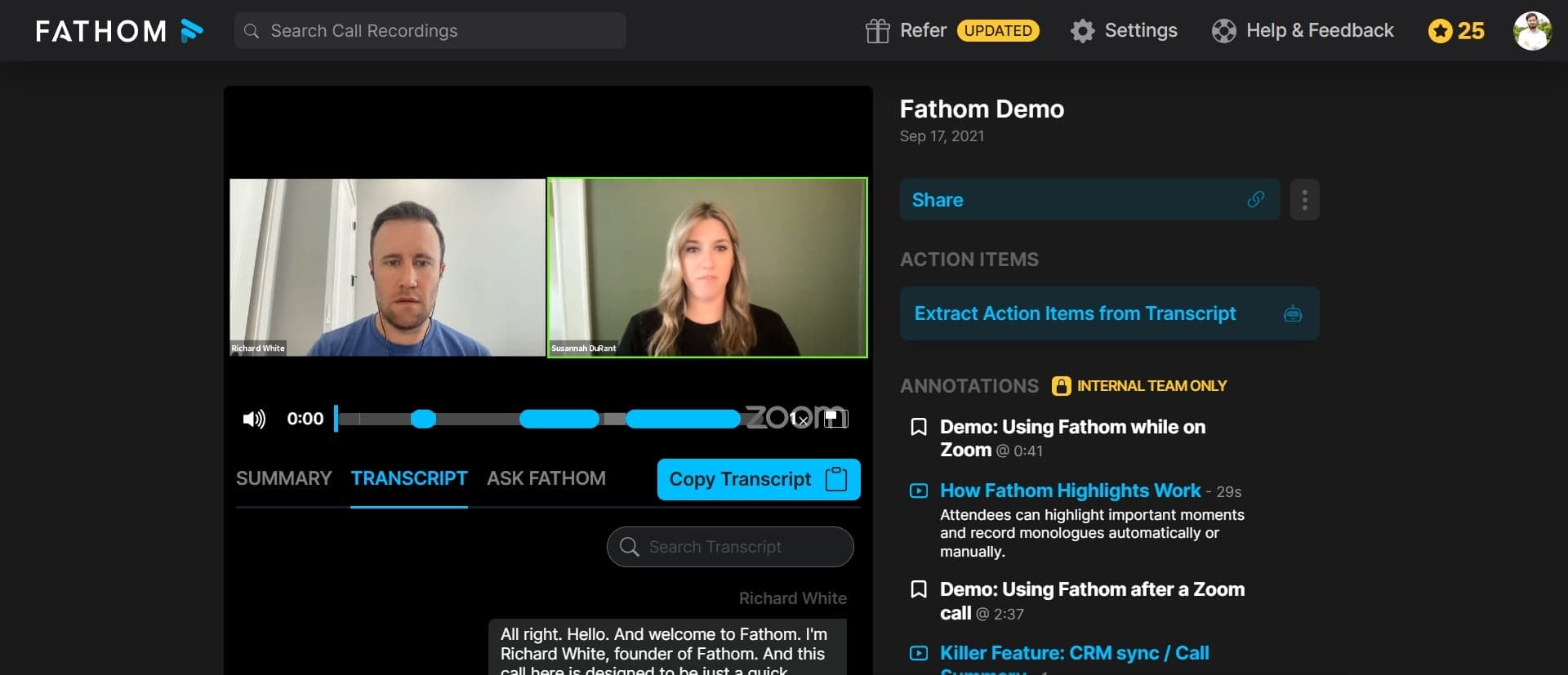
Export or share the transcript
Click the share or export button to send the transcript to team members via email or copy it to your clipboard. You can also adjust sharing permissions to control whether recipients can view the full recording or transcript only.
Frequently asked questions
Common questions about how to get meeting transcripts in fathom.
Yes, Fathom automatically transcribes all recorded meetings using AI-powered speech recognition. Transcription begins immediately after recording ends, though processing time depends on meeting length and audio quality. You can typically access the transcript within minutes of the meeting concluding.
Fathom allows you to edit transcript text directly in the platform to fix any speech recognition errors. Simply click on the text you want to modify, make your changes, and save. These edits are reflected in any exports or shares you create afterward.
Fathom's search function works best with single keywords or short phrases. For multiple keywords, perform separate searches or use the Boolean operators supported by the platform, such as AND, OR, and NOT, depending on your Fathom plan level.
Yes, Fathom supports exporting transcripts in multiple formats including PDF, TXT, and CSV. Access the export option from the transcript panel and select your preferred format before downloading to your device.
When you share a meeting recording with team members, they can access and search the transcript if your sharing settings permit it. You can customize permissions to allow or restrict transcript access independently from video access based on your security requirements.