How to Create AI Summaries in Fathom

Fathom's AI-powered summary feature transforms meeting recordings into concise, actionable summaries in seconds. This capability helps teams save time by eliminating the need to review entire recordings and ensures key discussion points are captured accurately.
Quick summary
In this tutorial, you'll learn how to leverage Fathom's AI summarization feature to automatically generate meeting summaries. You'll discover how to access this feature, customize summary preferences, and use generated summaries to stay aligned with your team.
Why this matters
Meeting summaries are critical for productivity and accountability, especially in remote and hybrid teams. AI-generated summaries reduce manual note-taking overhead, improve knowledge retention, and ensure that stakeholders who couldn't attend meetings can quickly get up to speed without watching hours of video.
Step-by-step guide
- 1
Open Fathom and select a recording
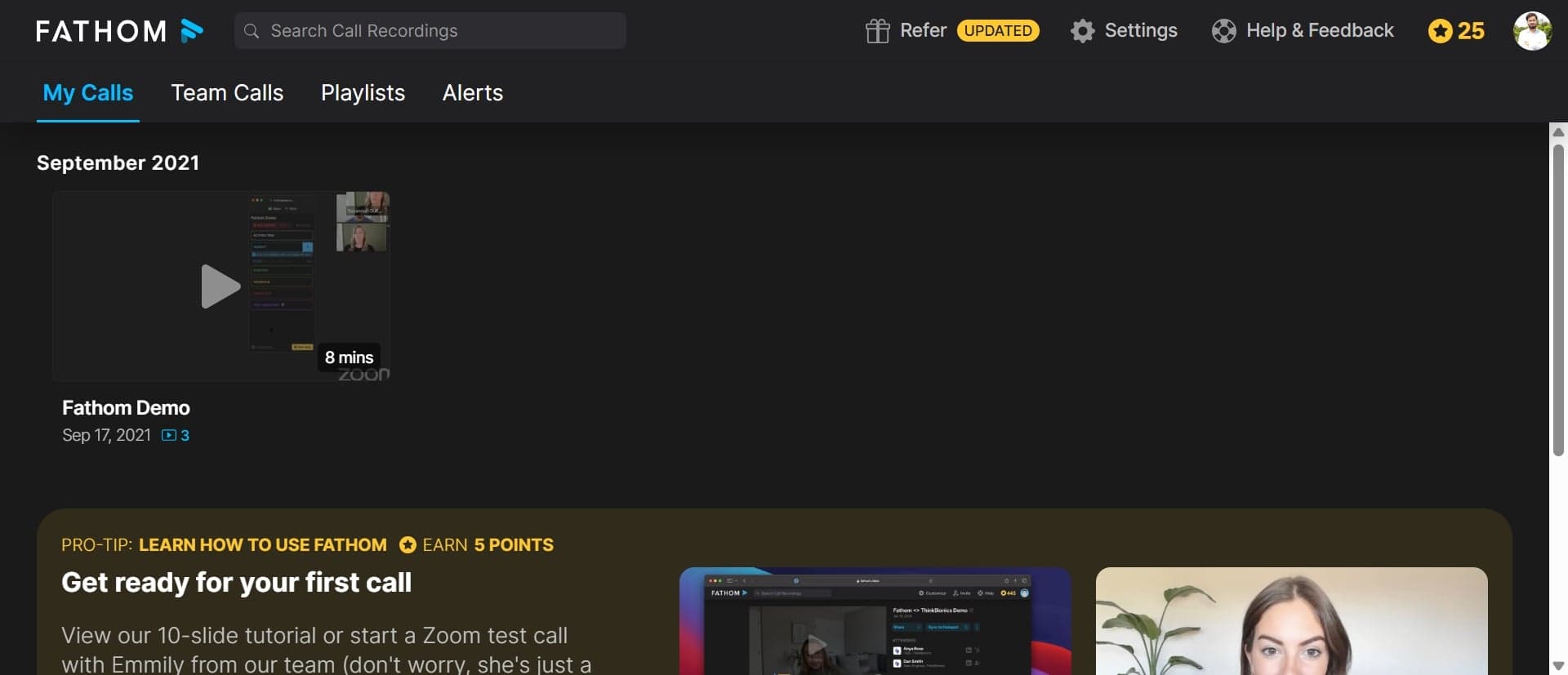
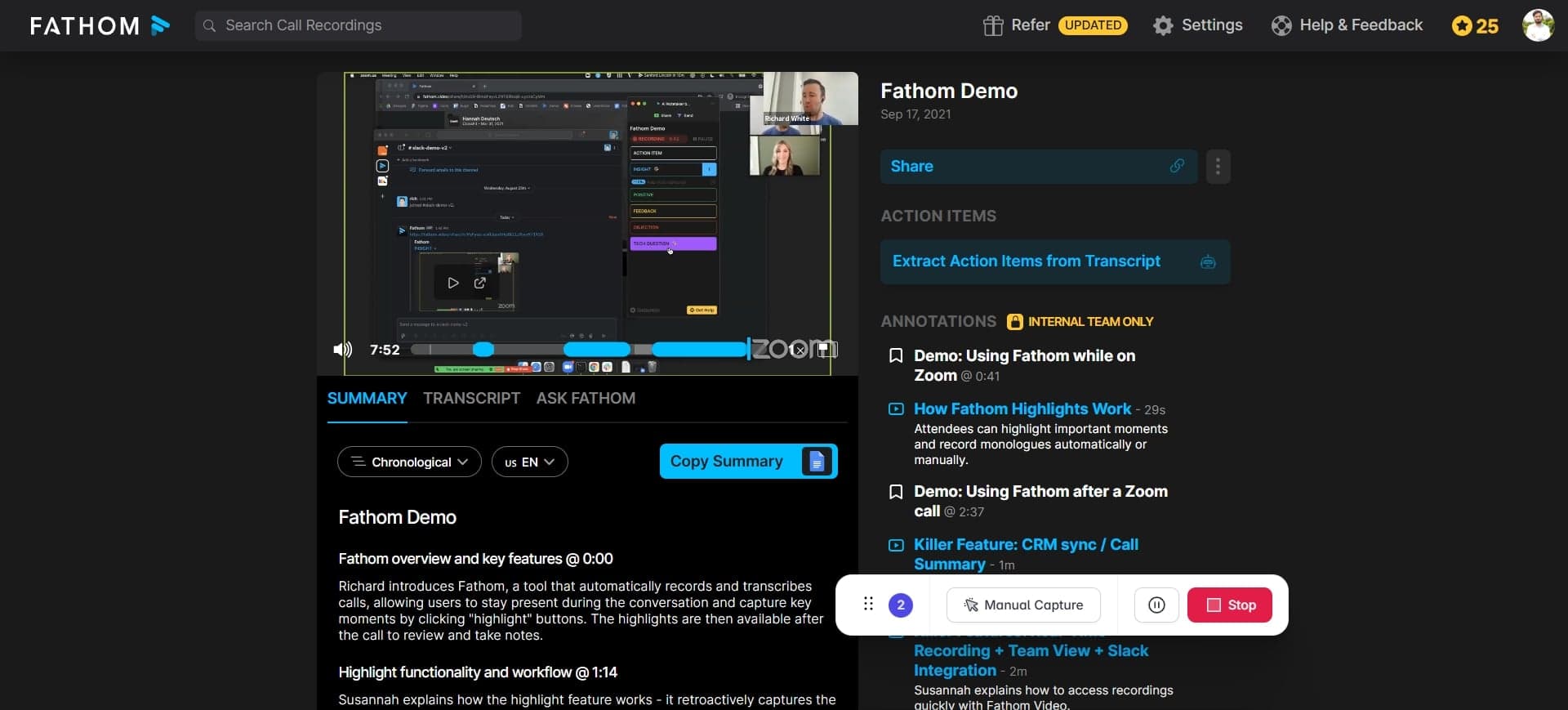
Navigate to your Fathom account and locate the meeting recording you want to summarize. Click on the recording to open its details page.
- 2
Access the AI summary feature
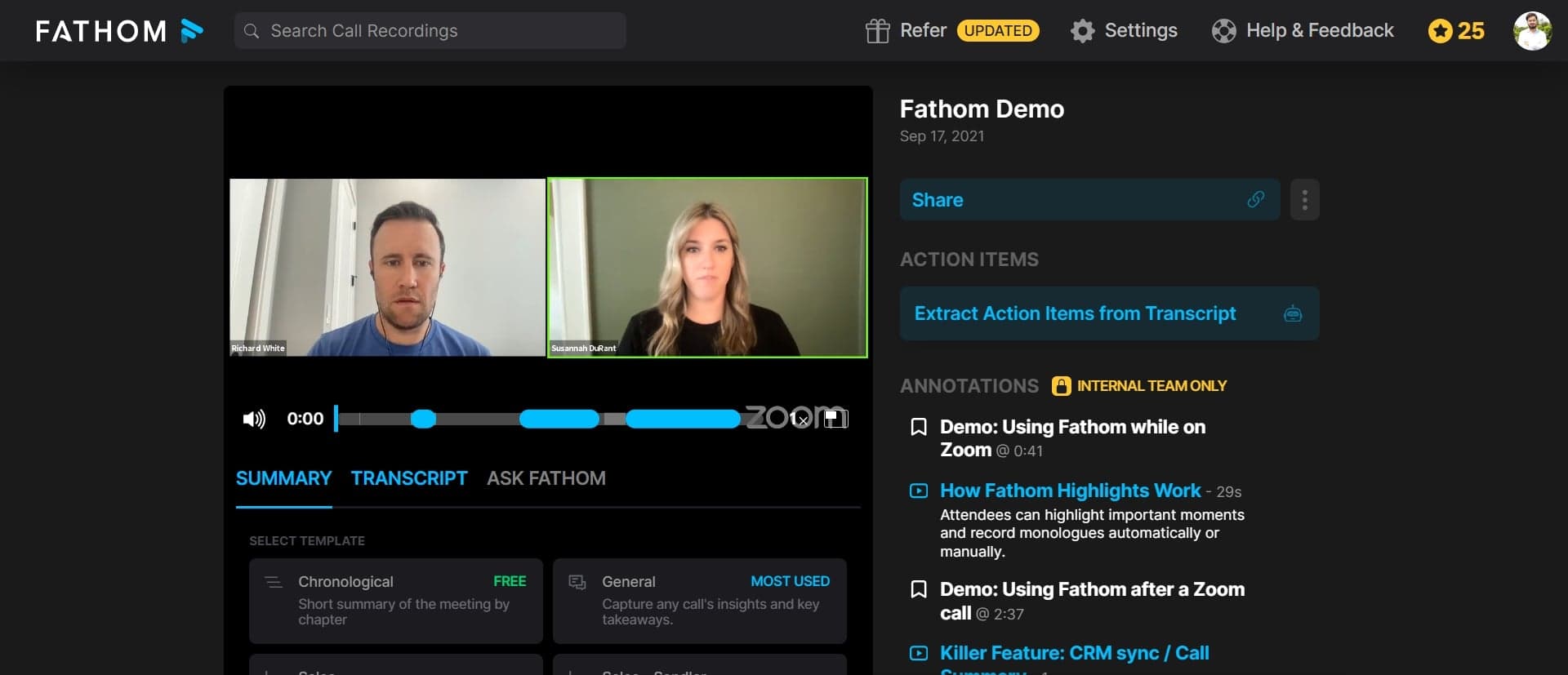
Look for the AI Summary or Generate Summary option in the recording interface, typically located in the toolbar or right-side panel. Click this button to initiate the summarization process.
- 3
Wait for summary generation
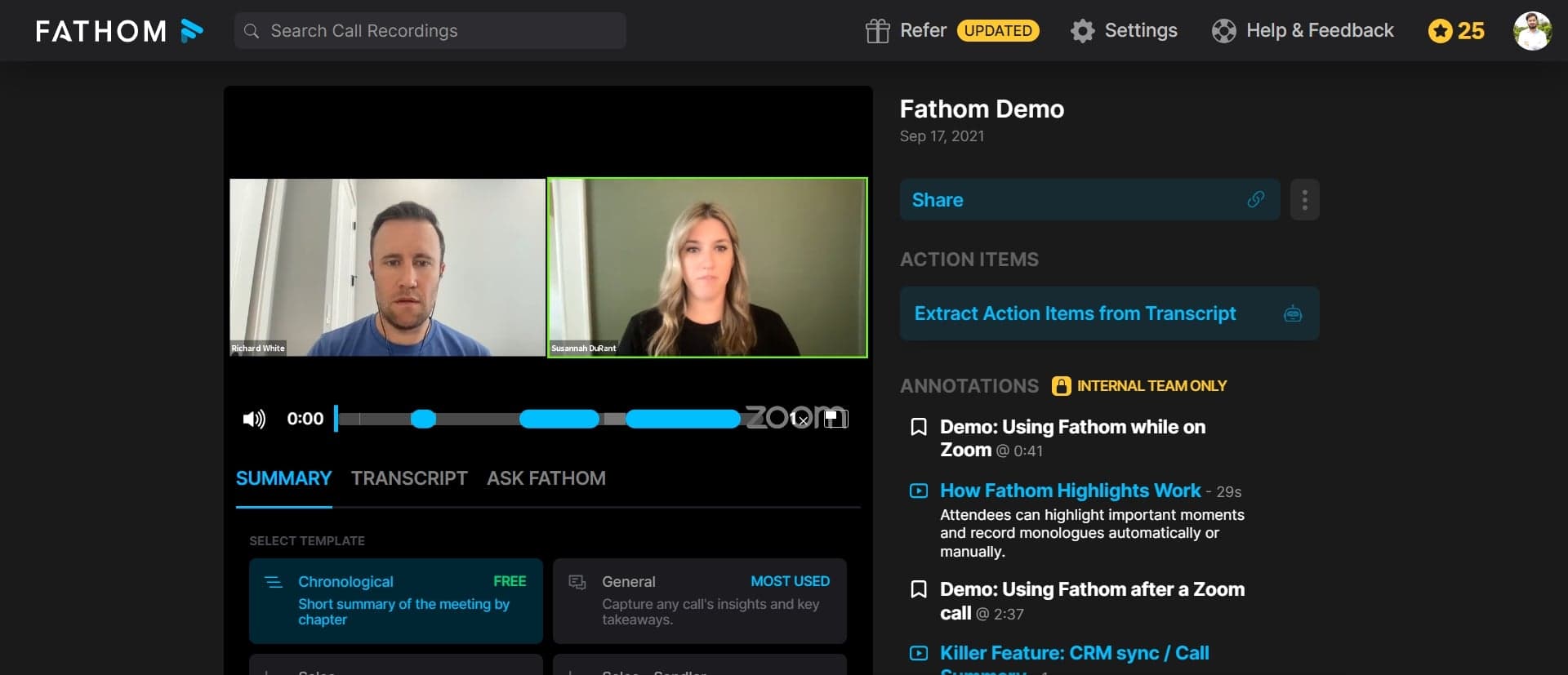
Fathom's AI will process the recording and generate a comprehensive summary within moments. You'll see a loading indicator as the system analyzes the meeting content.
- 4
Review the generated summary
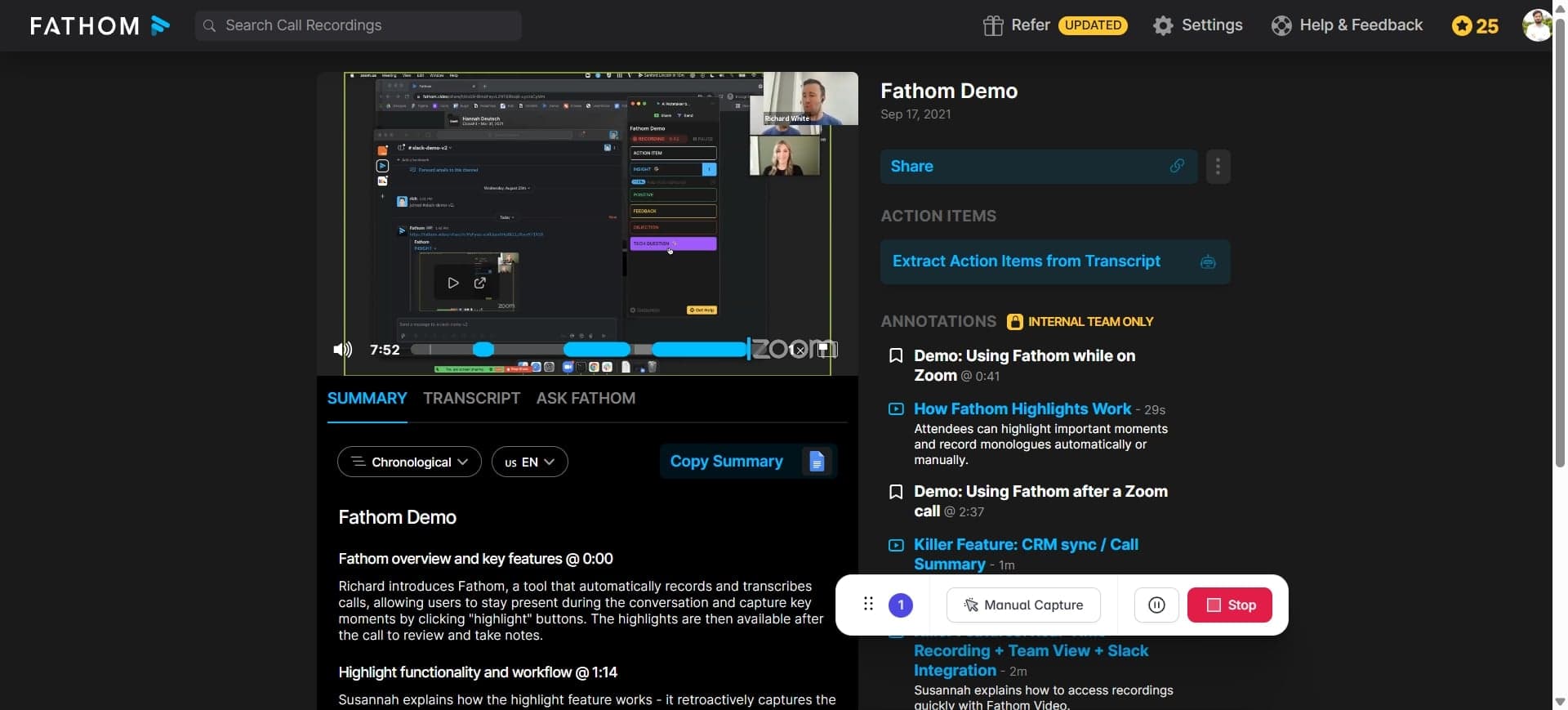
Once complete, the summary will display key discussion points, decisions, and action items extracted from the meeting. Read through to verify accuracy and relevance.
- 5
Share or export the summary
Use the sharing options to distribute the summary to team members via email, Slack, or other integrations. You can also copy the summary text for use in notes, emails, or project management tools.
Frequently asked questions
Common questions about how to create ai summaries in fathom.
Fathom typically generates AI summaries within seconds to a few minutes, depending on the length and complexity of your meeting recording. The exact time may vary based on server load and recording duration.
Yes, most Fathom summaries can be edited directly within the platform. You can modify the text to add context, remove irrelevant points, or adjust the tone to match your team's preferences.
Fathom's AI is designed to identify and highlight action items from meetings. These are typically listed separately or highlighted within the summary for easy reference.
You can manually edit the summary to correct any inaccuracies or add missing information. For recurring issues, consider reviewing your meeting audio quality or checking Fathom's settings to ensure the AI is configured correctly.
Depending on your Fathom plan, you may be able to enable automatic summarization for all new recordings. Check your account settings or plan features to see if this option is available for your subscription level.