How to host a meeting in Zoom via browser

Nithil Shanmugam
Nithil Shanmugam·
How to host a meeting in Zoom via browser

Overview:

Streamline your virtual meetings with ease by utilizing Zoom on browsers. This guide simplifies the process of hosting a meeting, offering step-by-step instructions to optimize your virtual collaboration experience. Enhance efficiency and clarity in your online interactions, ensuring a seamless meeting setup within the Zoom platform, all through the convenience of your web browser.

Who is Zoom best suited for?

Zoom is best suited for a wide range of professionals, including Remote Workers, Educators, and Sales Teams. For example, Remote Workers can use Zoom for virtual meetings and team collaboration, Educators can leverage it for conducting online classes and webinars, and Sales Teams can use it for virtual client meetings and presentations, all benefiting from Zoom’s reliable video conferencing and screen-sharing features.

How to host a meeting in Zoom via browser

Interactive demo powered by Supademo

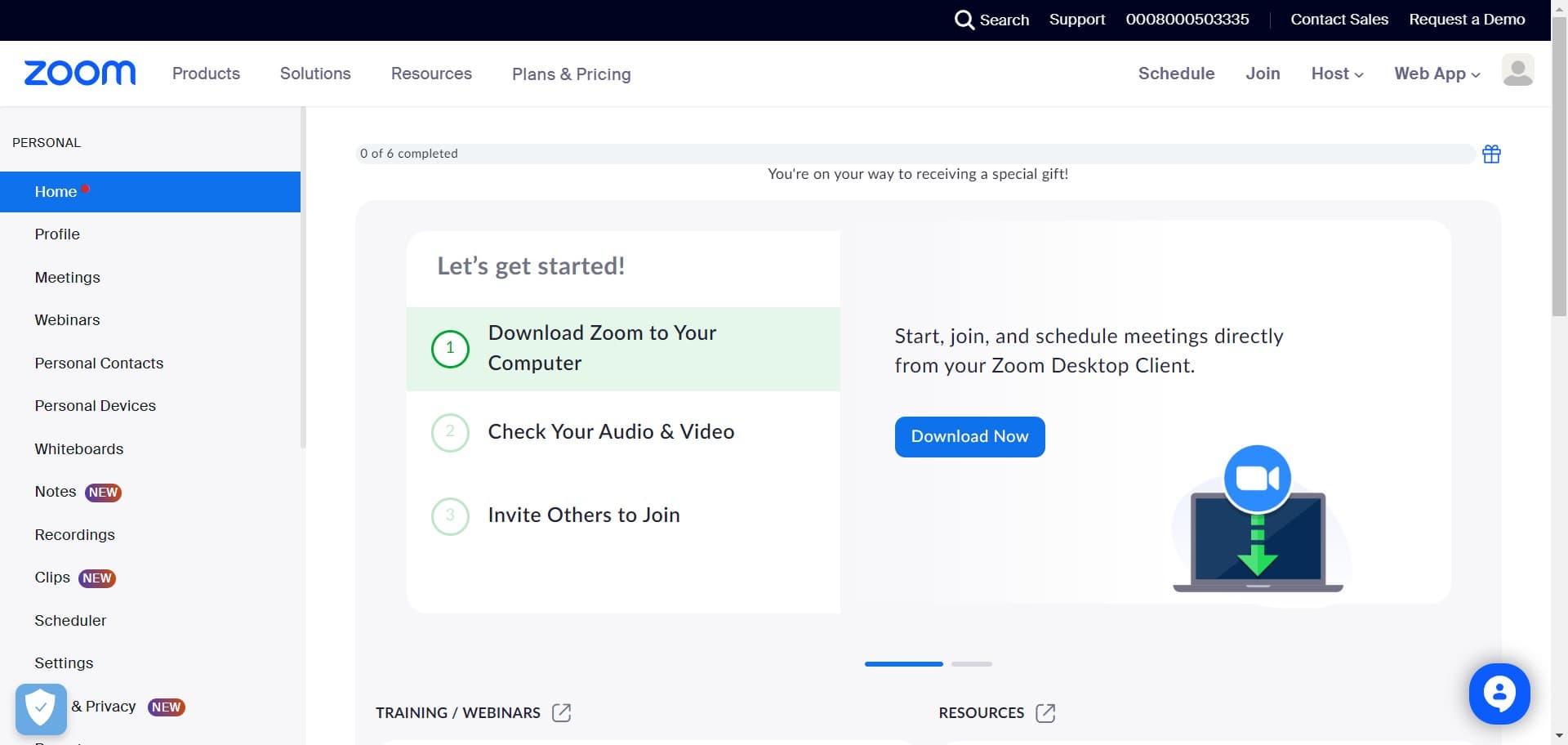
1. Initiate process by selecting 'Host'

1 Click on "Host "

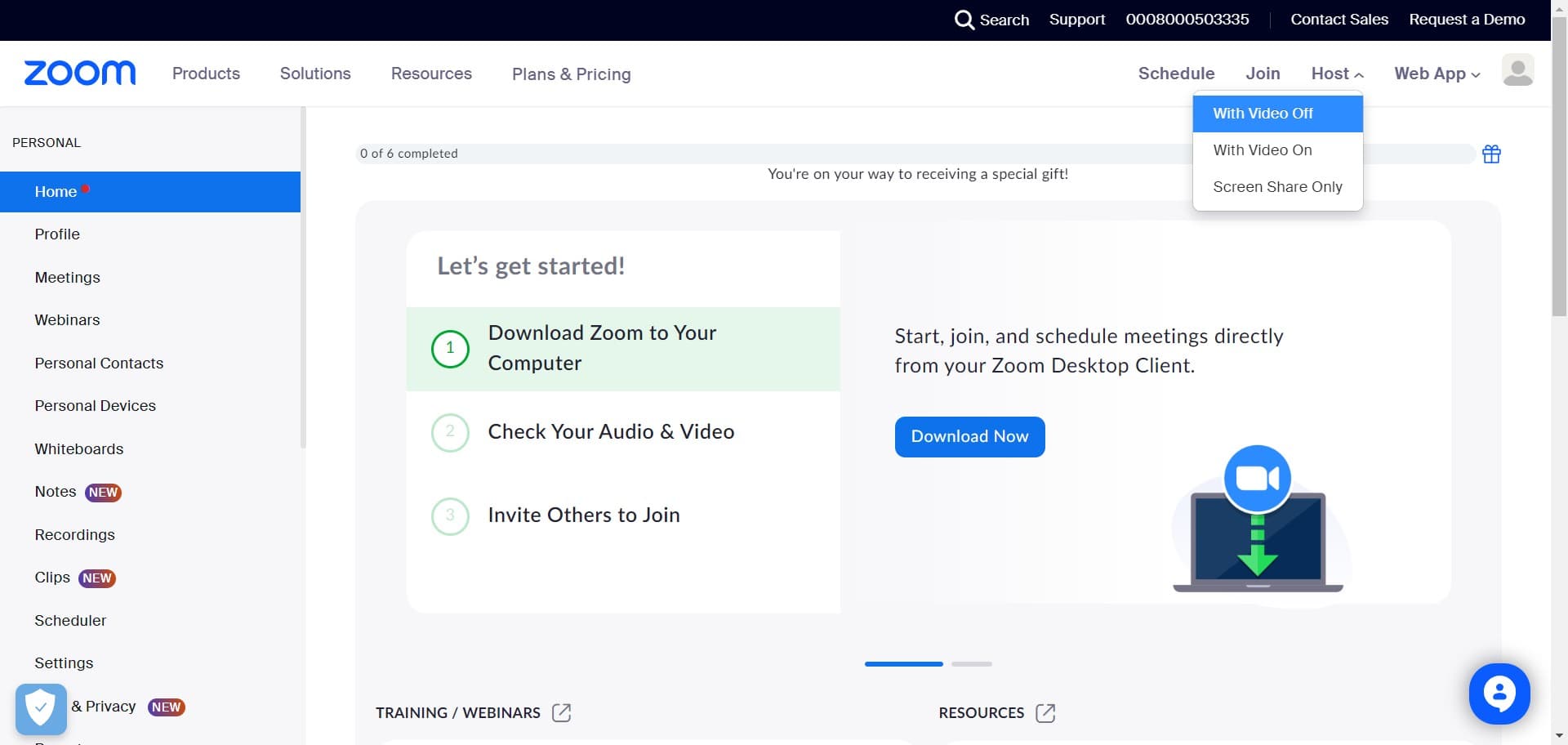
2. Pick your preferred video setting

2 Click on "With Video Off"

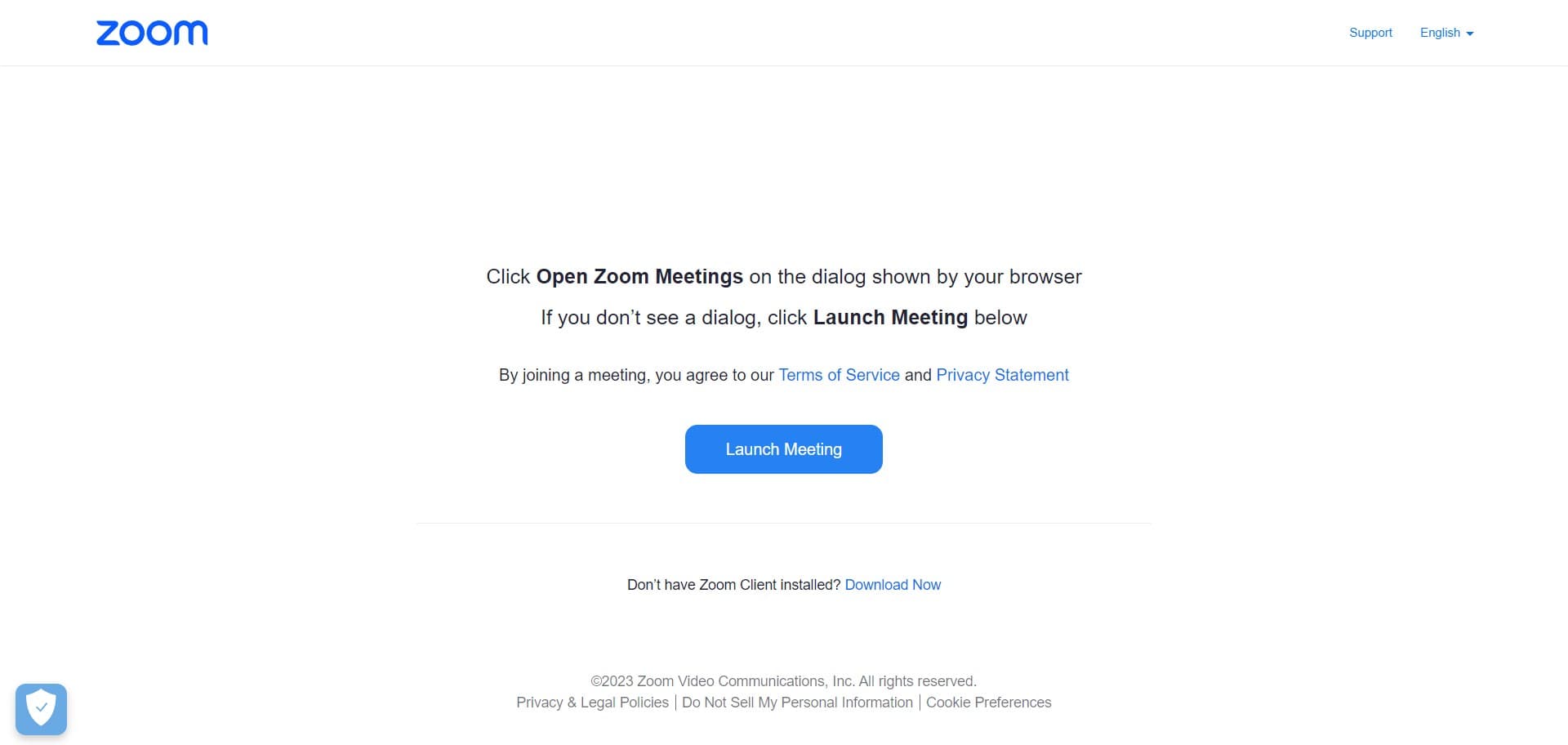
3. Proceed by choosing 'Launch Meeting'

3 Click on "Launch Meeting"

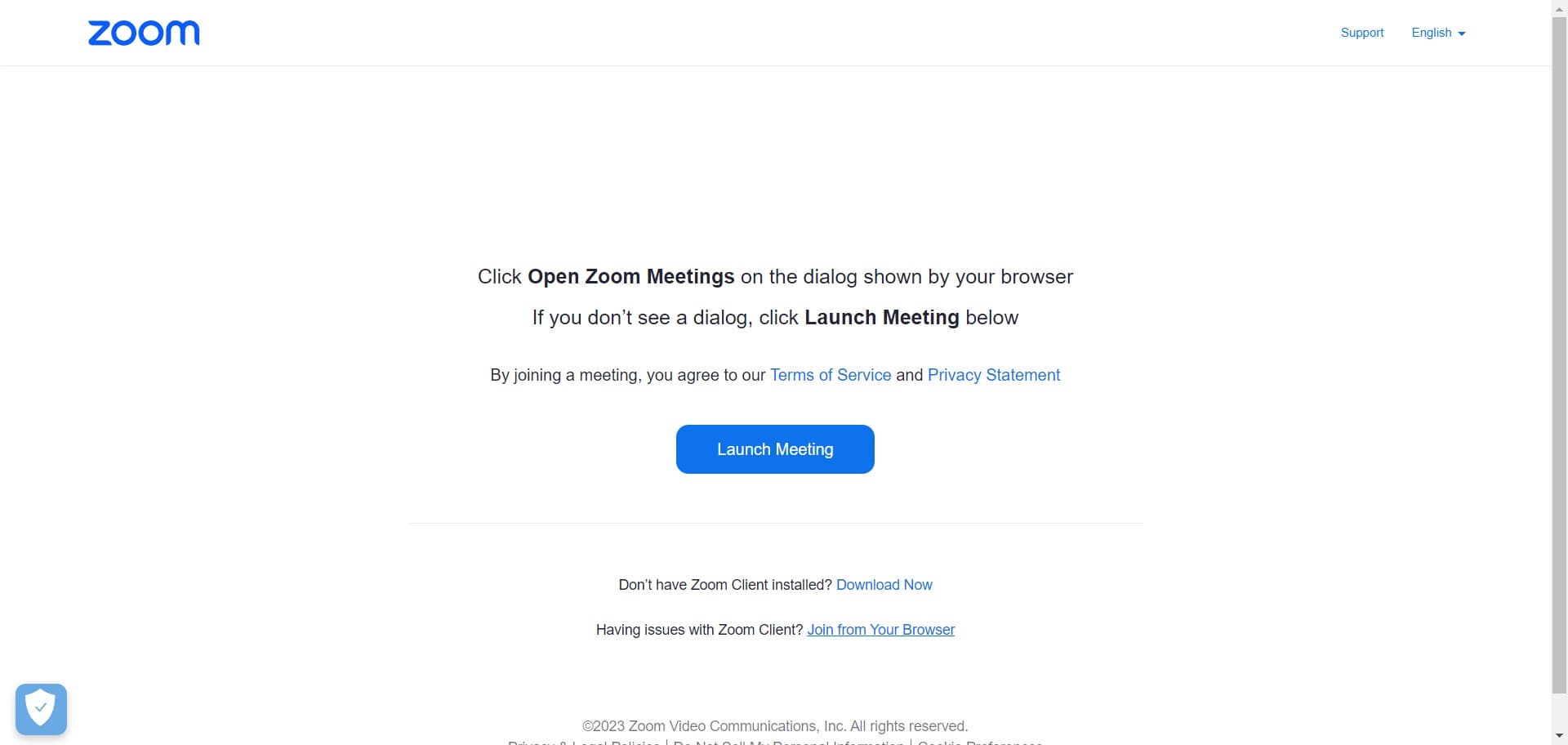
4. Opt to 'Join from Your Browser'

4 Click on "Join from Your Browser"

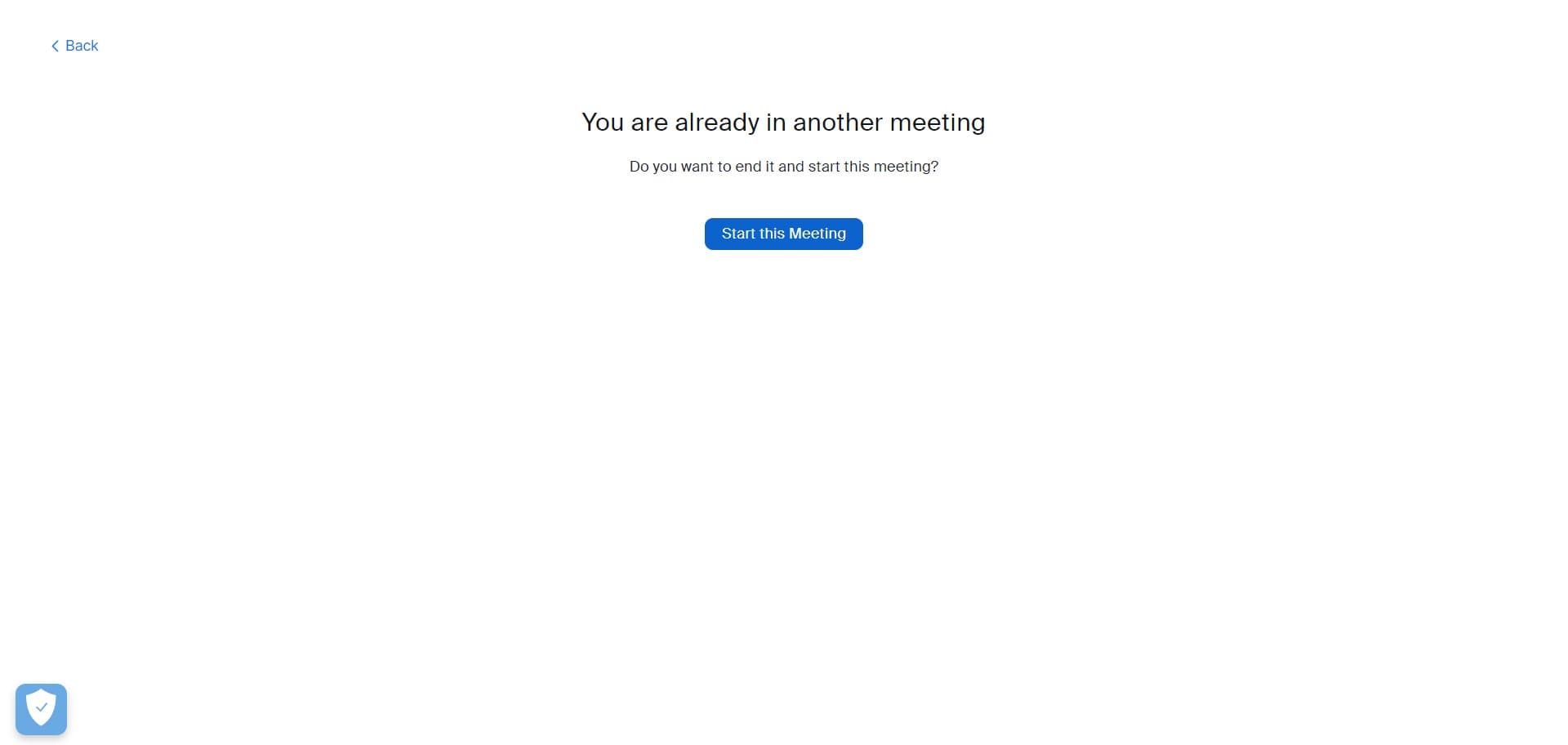
5. Get things going by hitting 'Start this Meeting'

5 Click on "Start this Meeting"

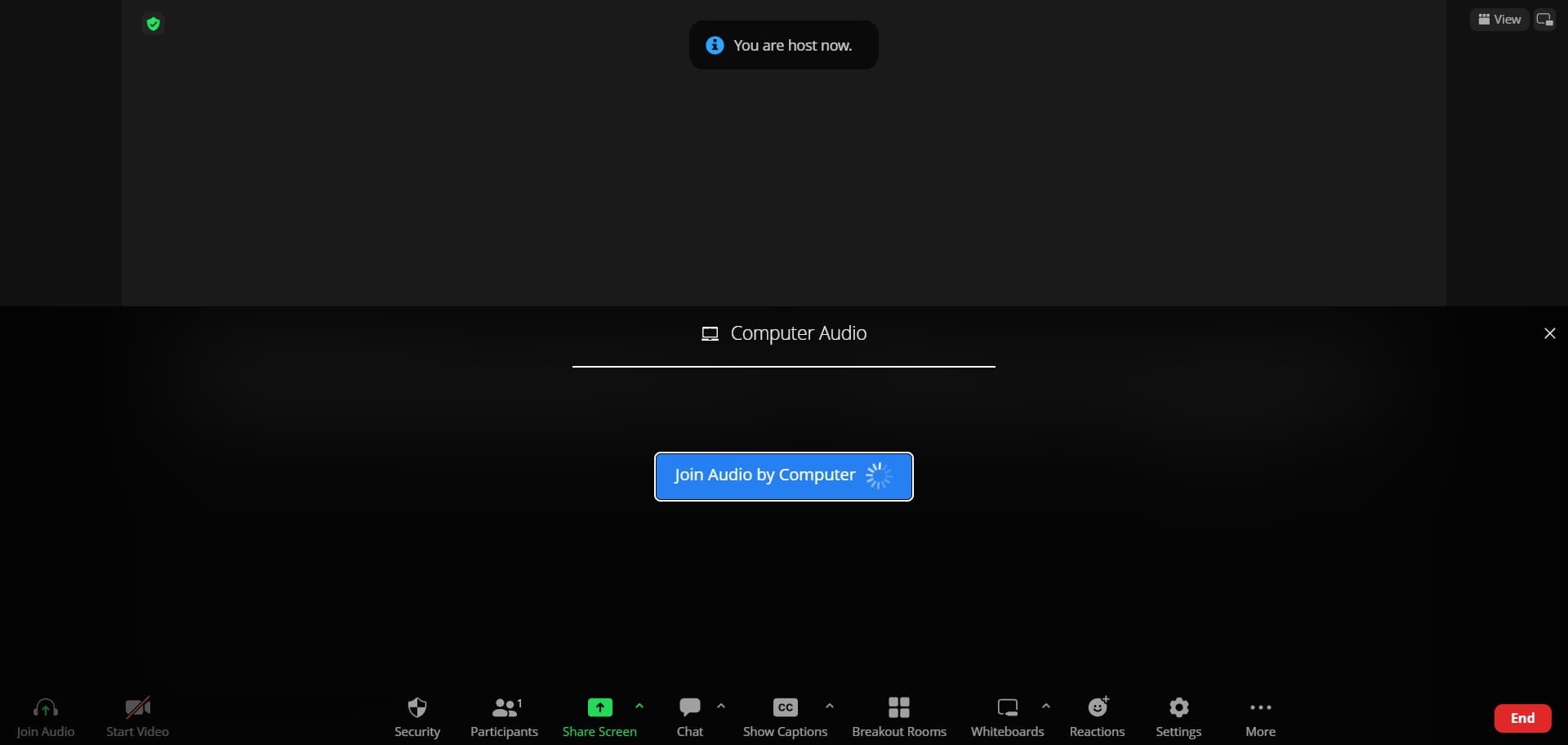
6. Secure audio source by activating 'Join Audio by Computer'

6 Click on "Join Audio by Computer"

Common FAQs on Zoom

How do I schedule a Zoom meeting?

To schedule a Zoom meeting, log in to your Zoom account and click on “Schedule a Meeting” in the top menu. Fill in the meeting details, such as the topic, description, date, and time. You can also set additional options like meeting ID, password, video settings, and meeting options (e.g., enable waiting room, record meeting automatically). Once all details are entered, click “Save.” You can then share the meeting link and invitation with participants.

Can I record a Zoom meeting, and how do I access the recordings?

Yes, you can record a Zoom meeting. During the meeting, click the “Record” button in the toolbar at the bottom of the screen. You can choose to record on your computer or to the cloud (if you have a Zoom subscription). To access the recordings, log in to your Zoom account and go to the “Recordings” tab. Here, you’ll find a list of your recorded meetings, which you can download, share, or play directly from the Zoom web portal.

How do I enable and use breakout rooms in Zoom?

To enable breakout rooms, log in to your Zoom account and go to the “Settings” tab. Under the “Meeting” section, navigate to “In Meeting (Advanced)” and toggle on the “Breakout room” option. During a meeting, click the “Breakout Rooms” button in the toolbar. You can create multiple breakout rooms and assign participants manually or automatically. Participants can then join their assigned breakout rooms for smaller group discussions, and the host can move between rooms or broadcast messages to all rooms.

Create your own step-by-step demo

Scale up your training and product adoption with beautiful AI-powered interactive demos and guides. Create your first Supademo in seconds for free.

Frequently Asked Questions about how to host a meeting in zoom via browser

Commonly asked questions about this topic.

How can I create standard operating procedures for hosting meetings in Zoom through a web browser?

Capture the end-to-end process with annotated screenshots or clickable walkthroughs — written-only SOPs often go unread. Tools like Supademo let you record the exact steps in Zoom via browser, creating a living reference that stays current with UI changes. Store documentation where your team already works, not in a separate wiki they'll forget to check. In practice, beehiiv saw 50% better conversion rates after adopting interactive demos.

Which Zoom subscription tier is required to access all hosting features in the browser version?

Free tiers on platforms like Zoom via browser often include basic host a meeting functionality, while advanced features like automation, custom fields, and timeline views typically require paid plans. Compare your must-have features against each tier's offering — paying for features you don't use wastes budget, but outgrowing a free plan mid-project is disruptive. Easy Software closed $100k+ in contracts using interactive demos in their sales process. Companies using interactive demos report an average 28% reduction in customer acquisition cost.

What workflows can be streamlined when hosting a Zoom meeting from a web browser?

Many project management and productivity tools, including Zoom via browser, support workflow automation for repetitive tasks. Common automations include status updates, notifications, recurring task creation, and approval flows. Start with simple automations and expand gradually — over-automating early can create maintenance headaches. According to the State of Interactive Demos 2026 report, teams that update demos weekly or monthly see ~18% higher impact than those updating only for major releases.

How often should I review and update my host a meeting?

At minimum, review weekly with your team to flag outdated items and reprioritize as needed. For fast-moving projects, daily check-ins on critical host a meeting elements prevent misalignment. Build the review cadence into your regular team rituals — standalone review meetings rarely get prioritized. This is backed by data — the State of best Arcade alternatives for 2026s 2026 report found teams using interactive demos across 3-5 use cases report up to 29% higher impact scores.

What integrations does Zoom via browser support for hosting a meeting?

Zoom via browser typically integrates with popular tools like Slack, Google Workspace, Microsoft 365, and Zapier for cross-platform automation. These integrations help connect hosting a meeting workflows with your existing tech stack. Check Zoom via browser's integration marketplace for specific connectors relevant to your use case. According to Supademo's 2026 report, 78% of teams now use interactive demos across 2+ use cases.

How does Zoom via browser handle permissions and sharing for host a meeting?

Most platforms offer role-based permissions that control who can view, edit, or admin your host a meeting. Zoom via browser typically supports workspace-level, project-level, and item-level permissions. Review your sharing) settings before collaborating with external stakeholders — default permissions may expose more data than intended. 68% of teams rate support and self-service impact from interactive demos as high or very high.

Does Zoom via browser offer templates for host a meeting?

Most modern platforms like Zoom via browser include starter templates for common use cases-vs-storylane-vs-supademo), including host a meeting. Templates save setup time but should be customized to match your team's specific needs — default configurations rarely fit every workflow. Check Zoom via browser's template gallery or community library for options relevant to your industry. Supademo is rated #1 for easiest setup and fastest implementation on G2. Supademo integrates with 30+ tools including HubSpot, Salesforce, Slack, and more.
Nithil Shanmugam

Nithil Shanmugam

Nithil is a startup-obsessed operator focused on growth, sales and marketing. He's passionate about wearing different hats across startups to deliver real value.

More from the blog

How to Remove 'Powered by Shopify'

How to Remove 'Powered by Shopify'

Learn how to easily remove the 'Powered by Shopify' text from your online store with step-by-step instructions and tips to customize your Shopify storefront.

Vimal Kumar
Vimal KumarJan 3, 2026
How to Add Products to Shopify

How to Add Products to Shopify

Learn step-by-step how to add products to your Shopify store effortlessly, including tips on product details, images, pricing, and inventory management to boost your online sales.

Vimal Kumar
Vimal KumarDec 17, 2025
How to Deactivate Your Shopify Store

How to Deactivate Your Shopify Store

Learn step-by-step how to deactivate your Shopify store easily, including important considerations and tips to pause or close your shop without losing data.

Vimal Kumar
Vimal KumarDec 17, 2025
How to Remove 'Powered by Shopify'

How to Remove 'Powered by Shopify'

Learn how to easily remove the 'Powered by Shopify' text from your online store with step-by-step instructions and tips to customize your Shopify storefront.

Vimal Kumar
Vimal KumarDec 17, 2025
How to Create a Shopify Account

How to Create a Shopify Account

Learn step-by-step how to create a Shopify account quickly and easily, set up your online store, and start selling your products in no time.

Vimal Kumar
Vimal KumarDec 17, 2025
How to Create a Stripe Account

How to Create a Stripe Account

Learn how to create a Stripe account quickly and easily with our step-by-step guide, perfect for beginners looking to start accepting online payments.

Vimal Kumar
Vimal KumarDec 17, 2025