How to insert and delete tables in Google Docs

Tables are powerful tools in Google Docs for organizing data, creating layouts, and presenting information clearly. This tutorial covers the essential techniques for inserting new tables and removing unwanted rows or columns to keep your documents well-structured and professional.
Quick summary
In this tutorial, you'll learn how to insert tables into your Google Docs document and manage table structure by deleting specific rows and columns. These fundamental skills will help you organize content efficiently and maintain clean, readable document layouts.
Why this matters
Mastering table insertion and deletion is critical for creating organized, data-driven documents. Whether you're building reports, schedules, or comparison charts, the ability to quickly adjust table structure ensures your documents remain clear and professional without unnecessary formatting work.
Step-by-step guide
- 1
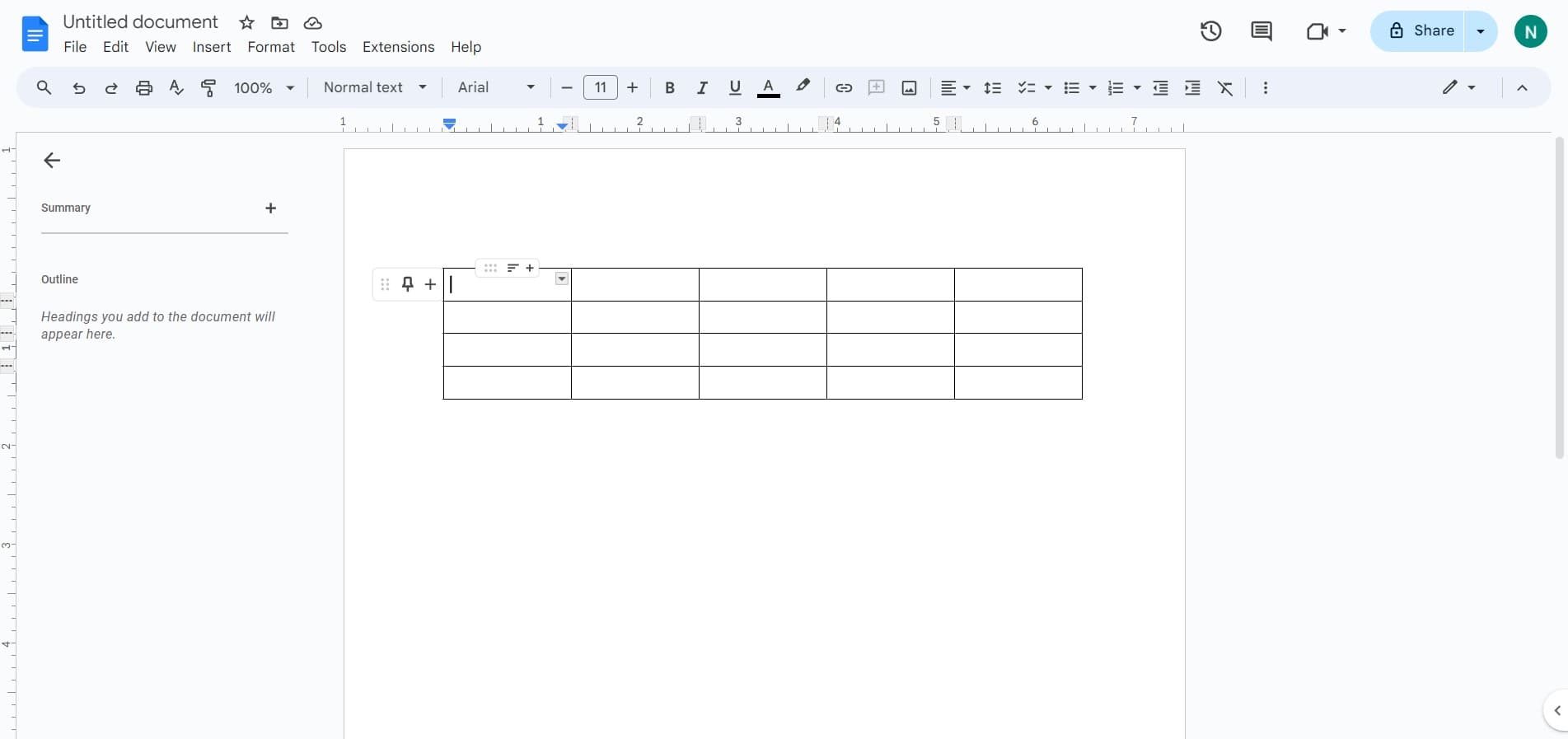
Access the table insertion menu
Click on the designated location in the toolbar to open the table insertion options. This will display the available table tools and formatting choices.
- 2
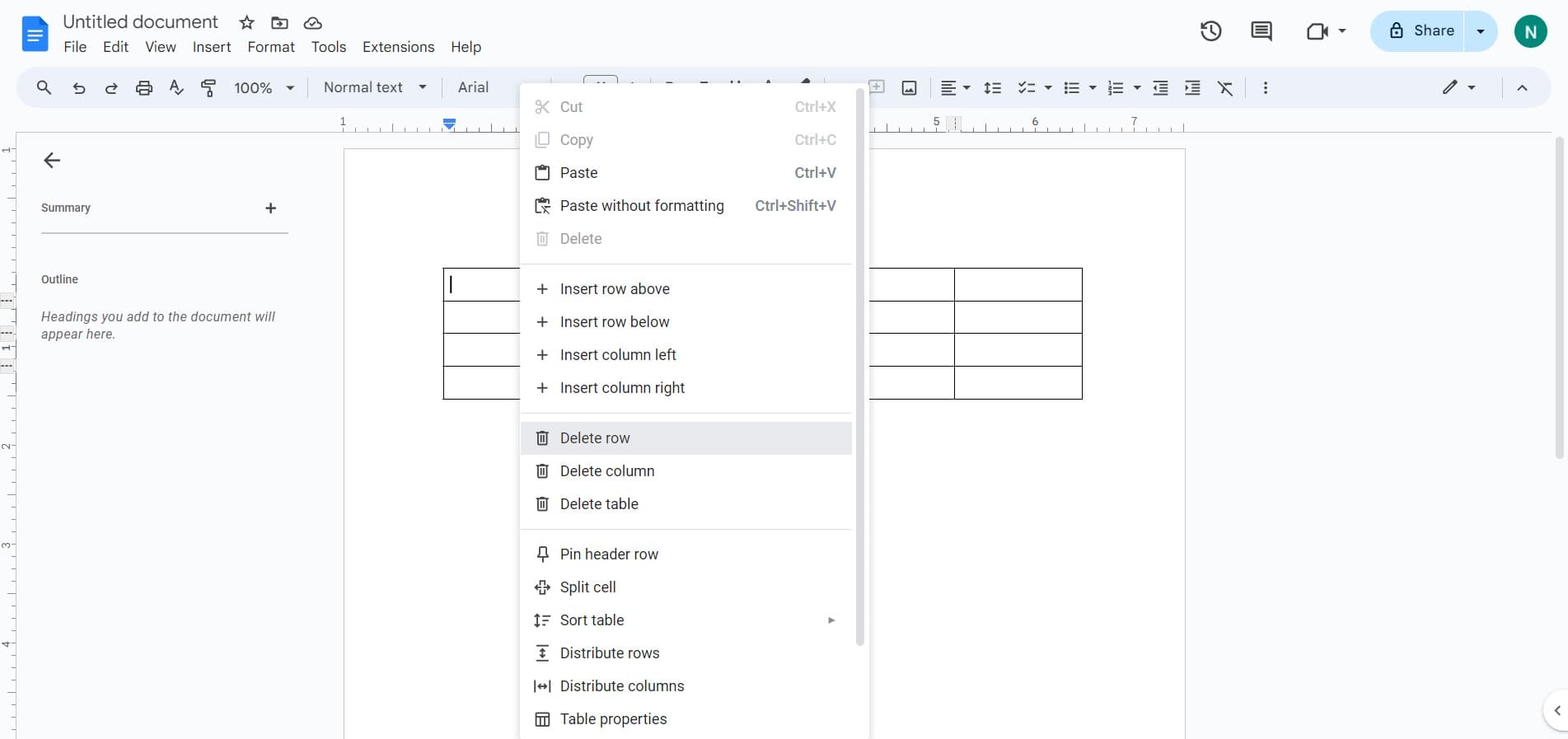
Delete an unwanted row
Select the row you want to remove and click on 'Delete row' from the context menu. The row will be immediately removed from your table, and remaining rows will shift up automatically.
- 3
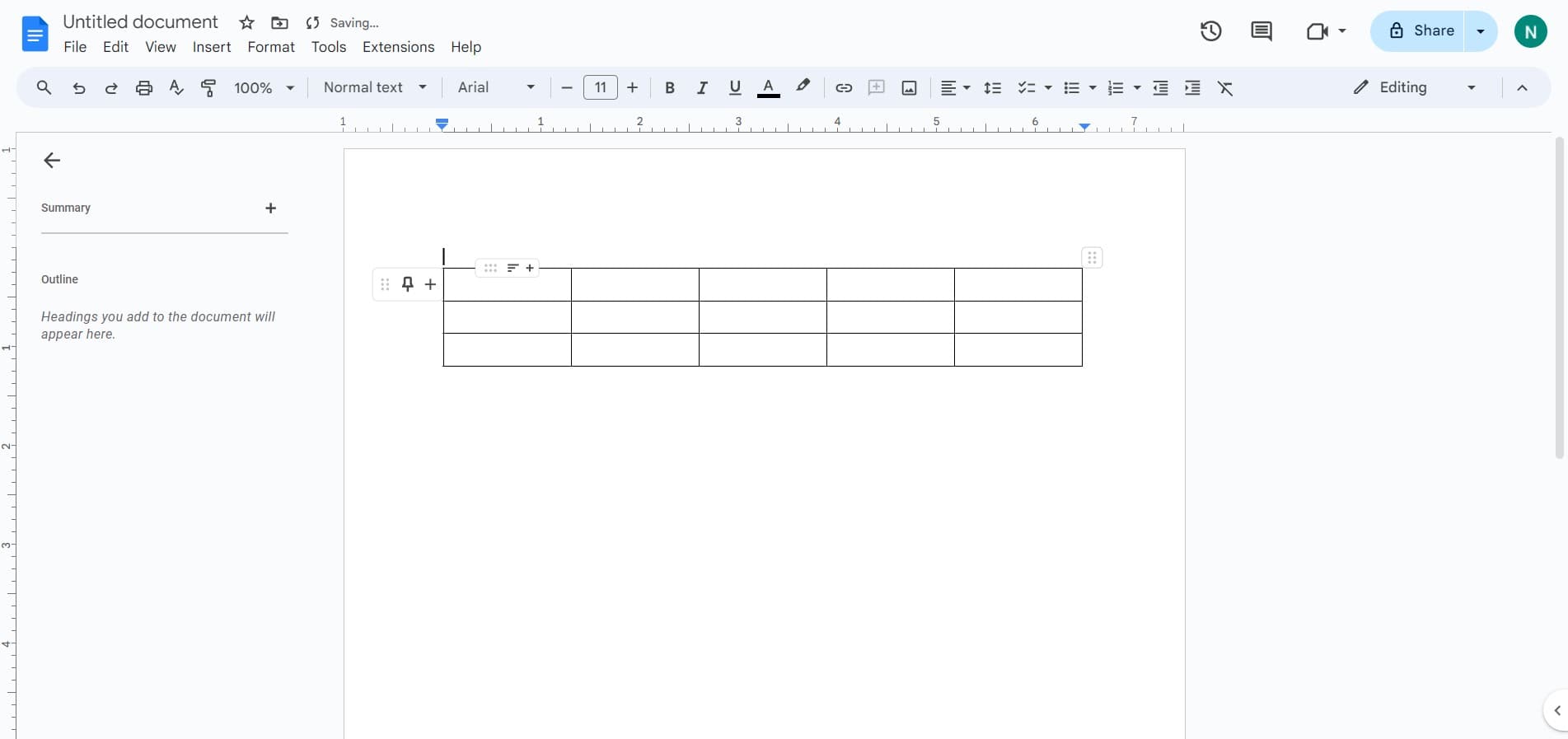
Locate the column deletion option
Click on the area containing column management tools to access deletion options. This will highlight the column controls available in your current table.
- 4
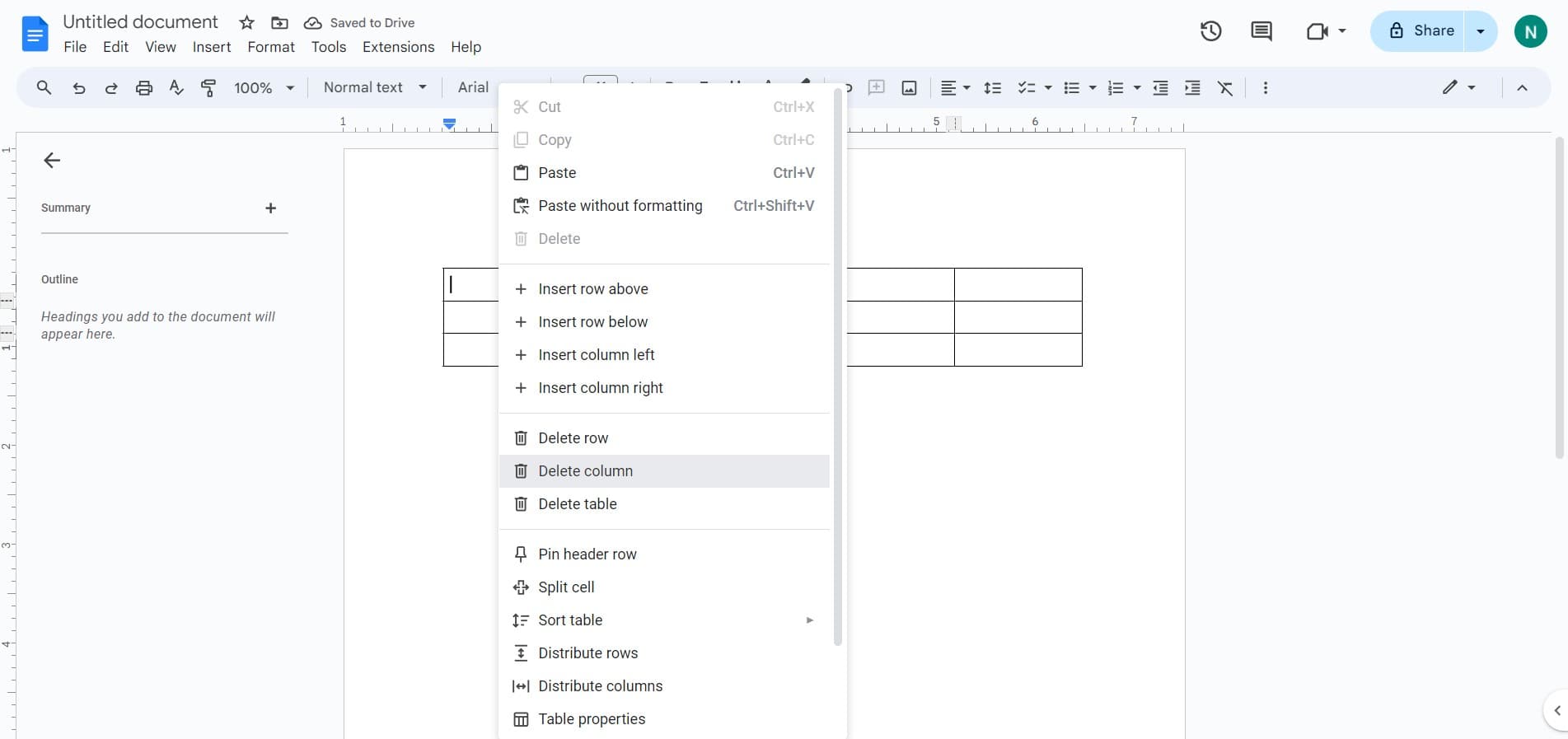
Delete an unwanted column
Select 'Delete column' to remove the selected column from your table. All remaining columns will adjust automatically to fill the space.
- 5
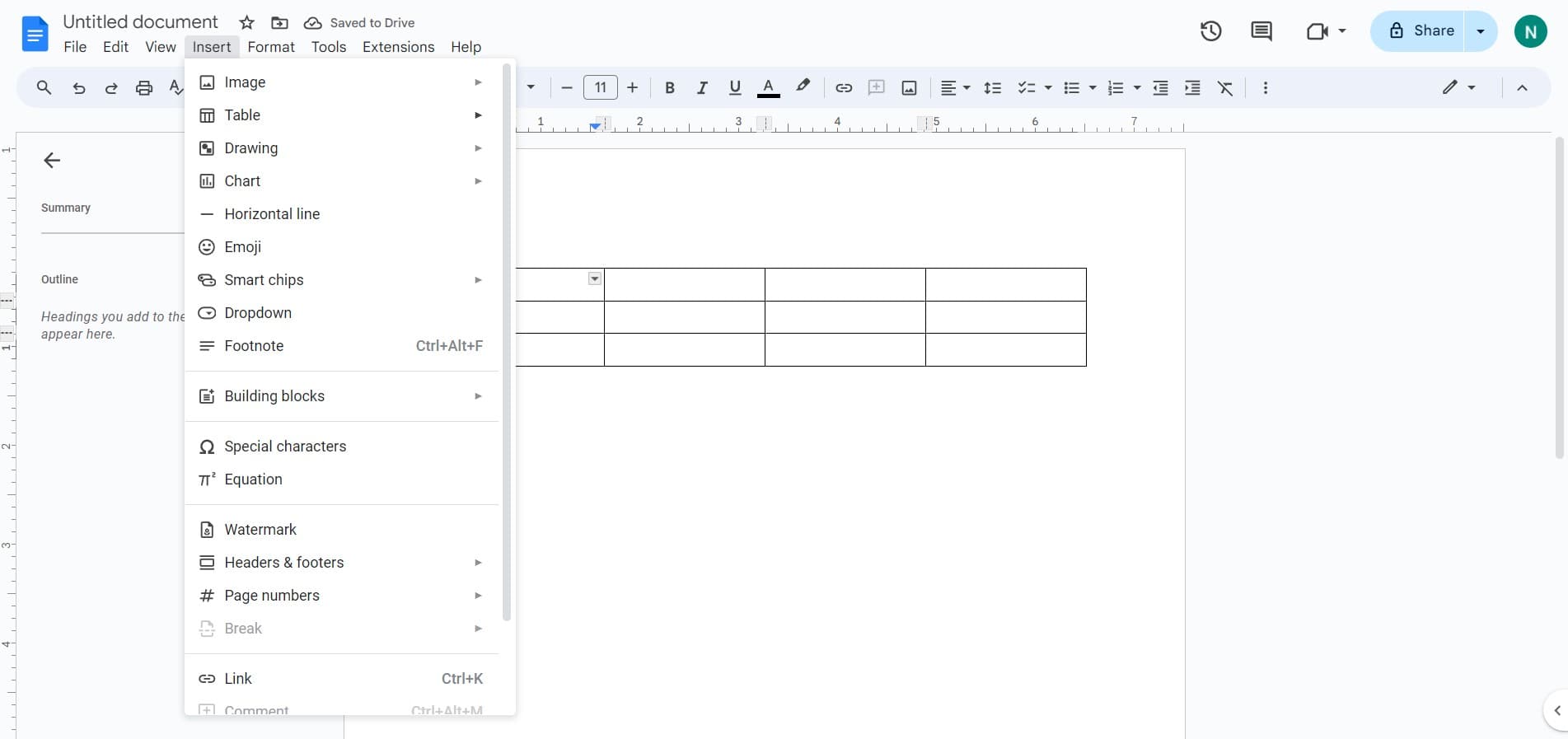
Insert a new table
Click on 'Insert' to add a new table to your document. You'll be prompted to specify the number of rows and columns you need for your table.
- 6
Complete the table setup
Click 'Upload' or confirm your table configuration to finalize the insertion. Your new table will appear in the document ready for data entry.
Frequently asked questions
Common questions about how to insert and delete tables in google docs.
Can I undo a deleted row or column?
Yes, you can use the keyboard shortcut Ctrl+Z (or Cmd+Z on Mac) immediately after deletion to undo the action. Google Docs maintains an undo history that allows you to revert recent changes to your table structure.
How do I know how many rows and columns to create?
Plan your table structure before inserting based on your data needs. You can always add or remove rows and columns later, so it's better to start with an estimate and adjust as needed rather than trying to predict the exact size.
Will deleting a row or column remove the data inside it?
Yes, deleting a row or column will permanently remove all data contained within it. Always verify you have the correct row or column selected before confirming deletion, and consider copying important data elsewhere first if needed.
Absolutely. After inserting a table, you can click and drag the cell borders to adjust column widths and row heights to fit your content. Google Docs allows flexible resizing for any table you create.
Google Docs does not have a strict limit on table size, but very large tables may affect document performance and readability. For complex data sets, consider breaking information into multiple smaller tables or using other organizational methods.