How to integrate Google images to Miro whiteboard

Integrating Google Images into your Miro whiteboard streamlines your design workflow by allowing you to search and insert images directly from Google without leaving the platform. This integration leverages Miro Labs' Google Workspace app to connect your Google account and access images seamlessly.
Quick summary
In this tutorial, you'll learn how to set up the Google Images integration in Miro, connect it to your Google Workspace account, and upload images to your whiteboard. By following these step-by-step instructions, you'll be able to enhance your collaborative designs with Google Images in minutes.
Why this matters
Direct image integration saves time during collaborative brainstorming and design sessions by eliminating the need to switch between applications. Teams can maintain focus on their whiteboard while accessing a vast library of images, improving productivity and creative output.
Step-by-step guide
- 1
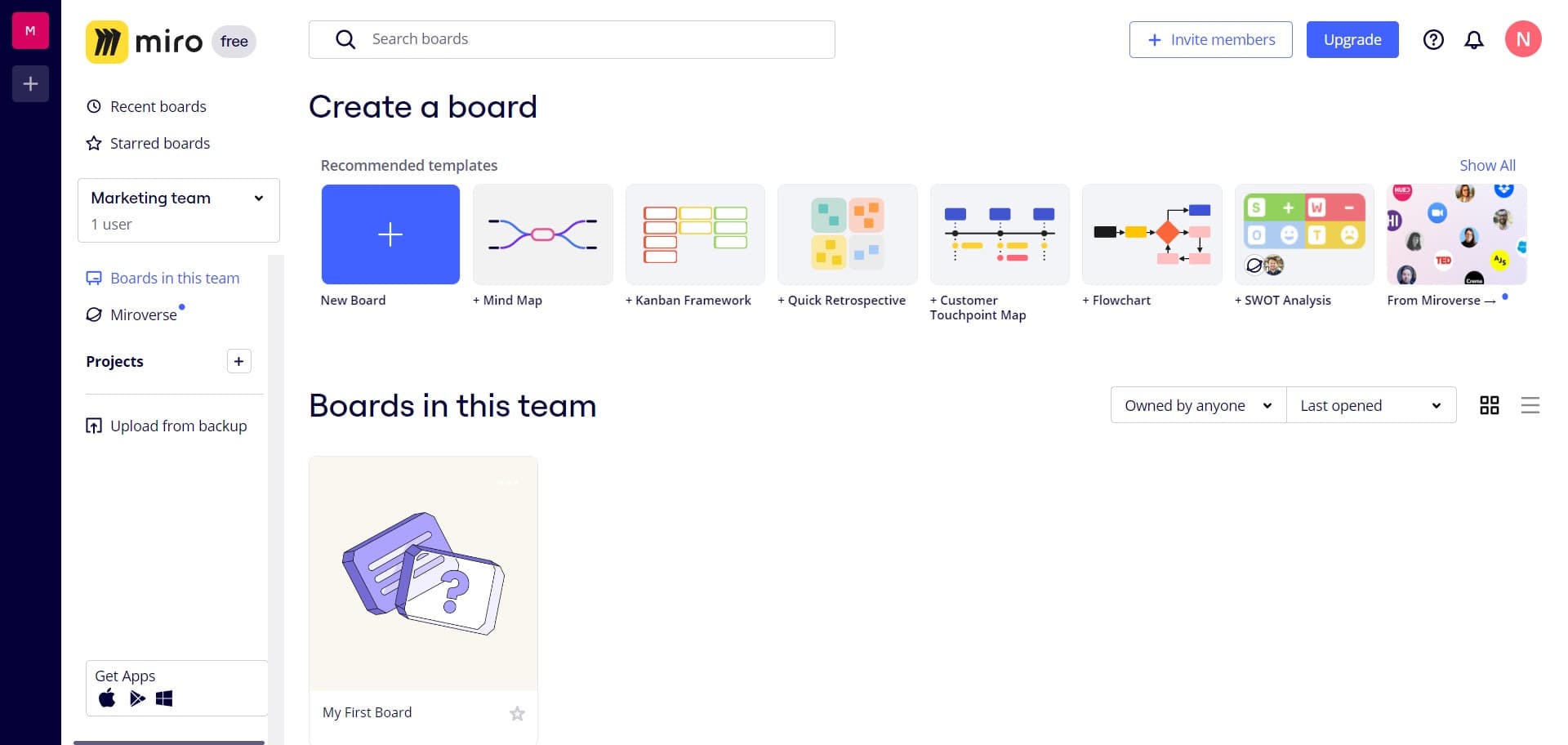
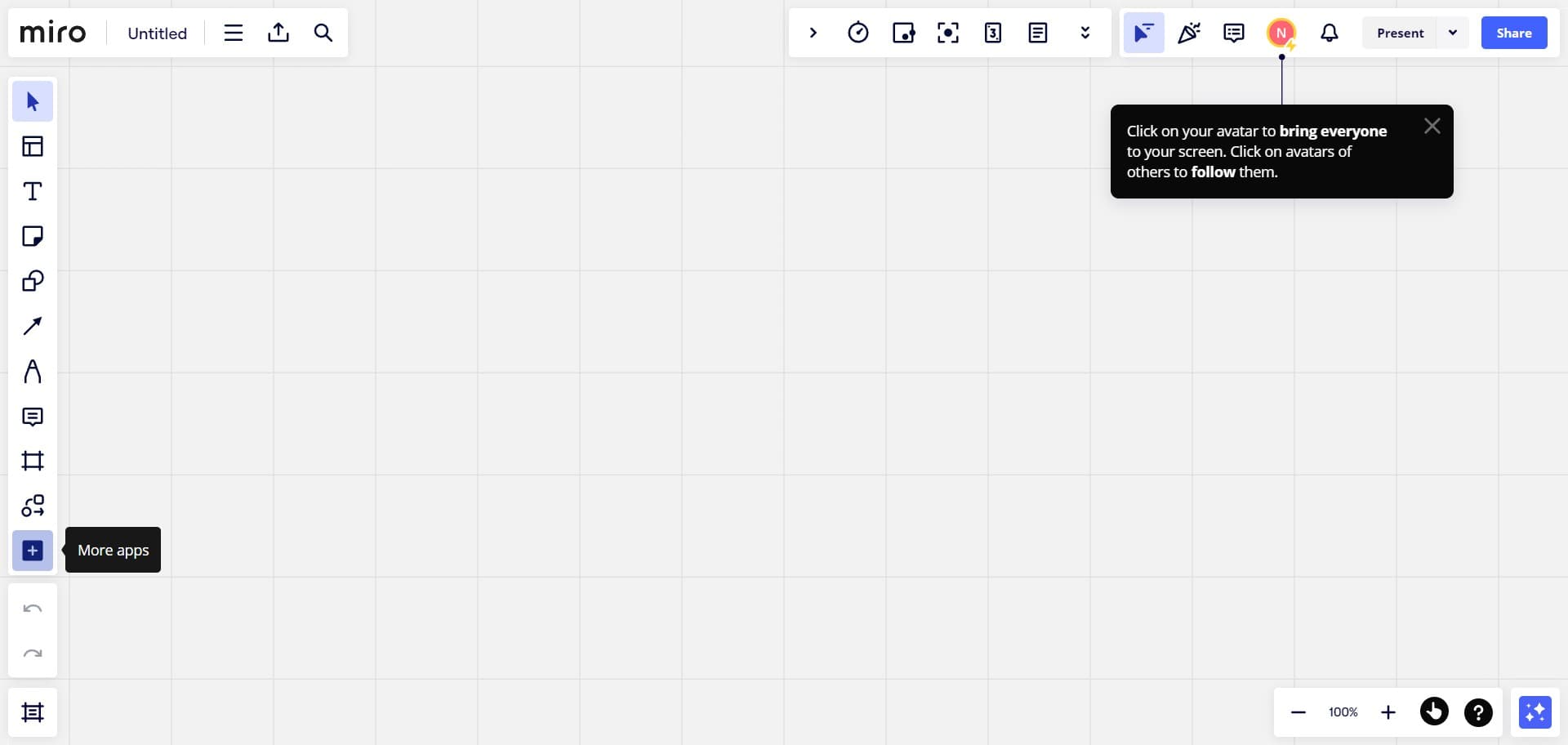
Click on the Image button
Open your Miro whiteboard and locate the Image button in the toolbar. Click it to access image insertion options.
- 2
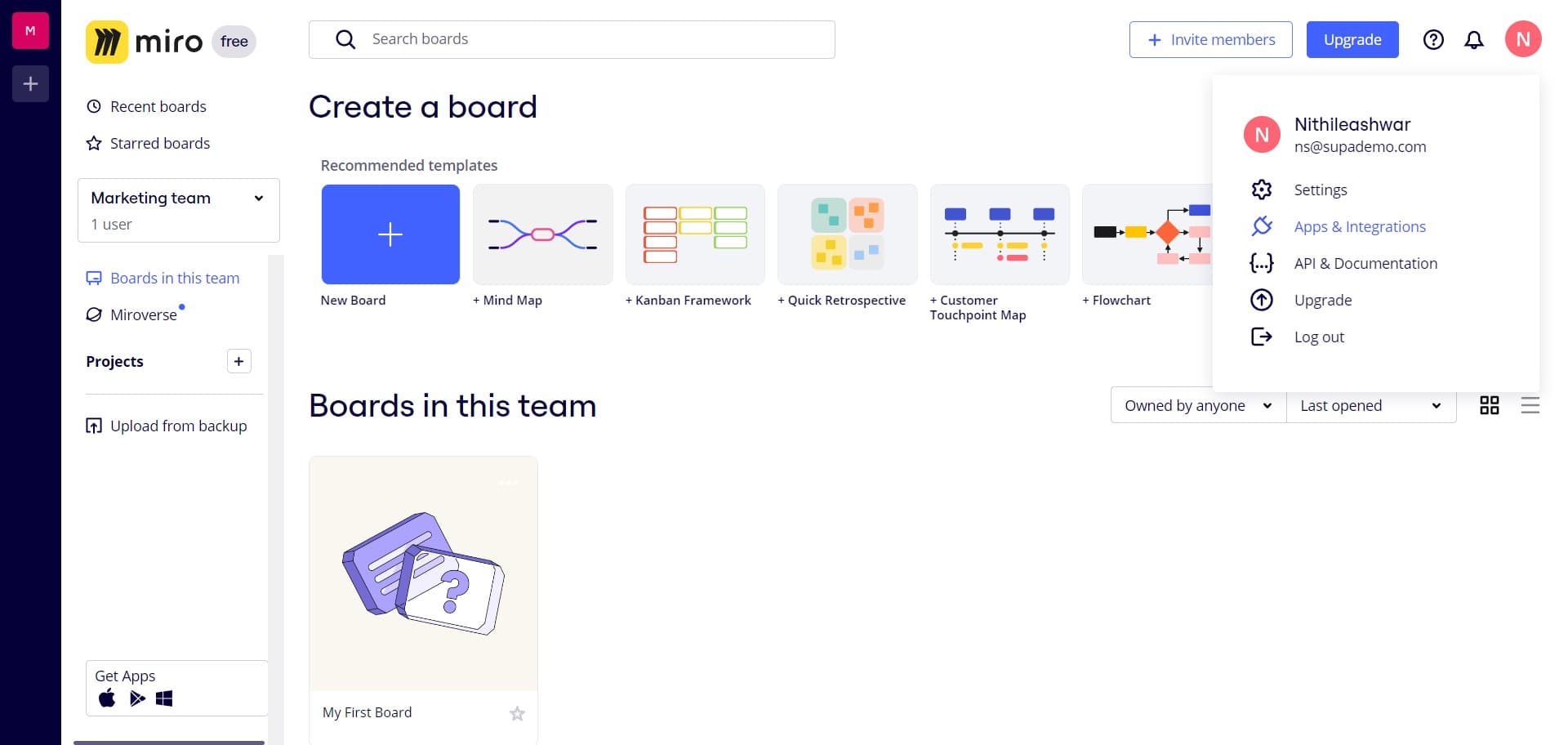
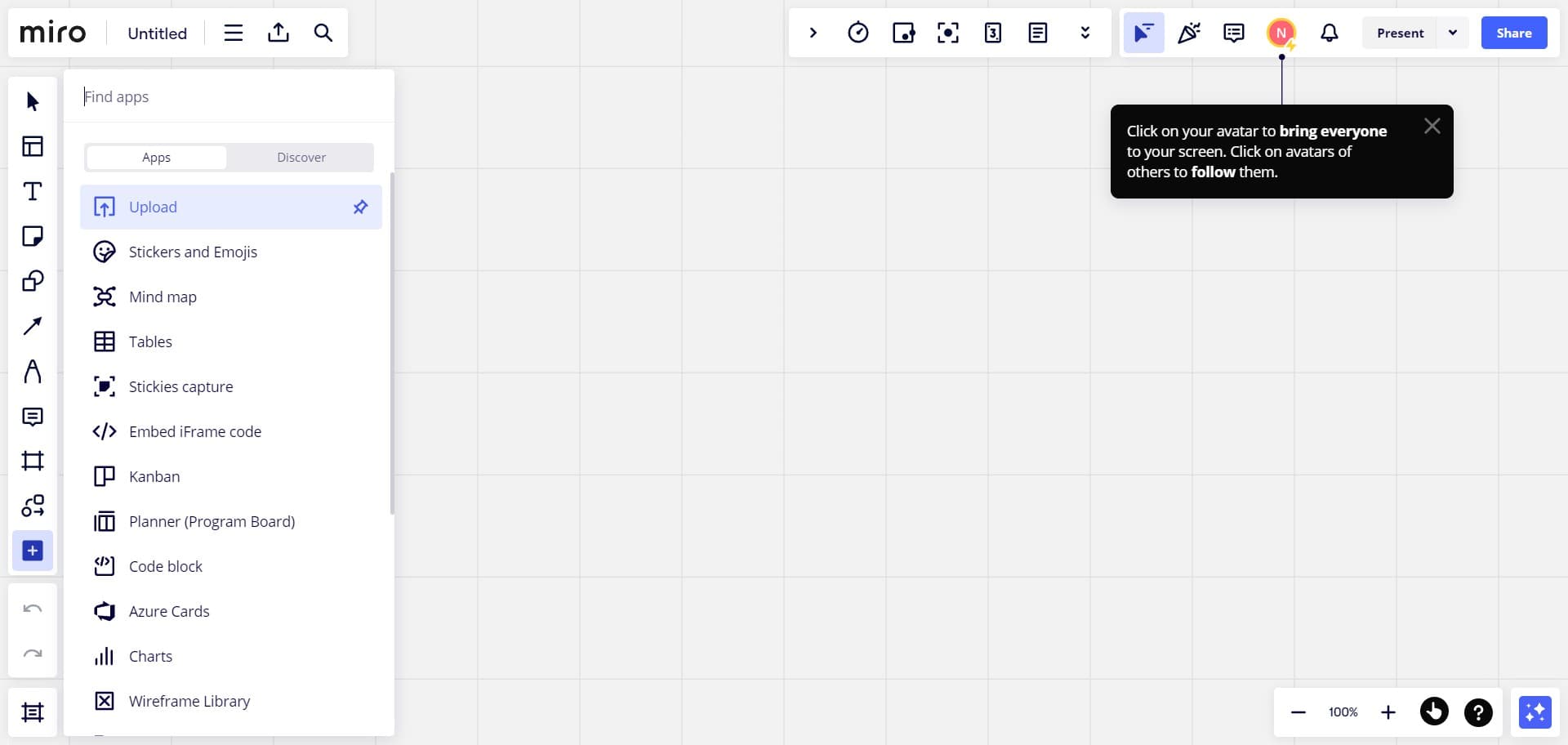
Navigate to Apps & Integrations
From the image options menu, select Apps & Integrations to view available integration tools.
- 3
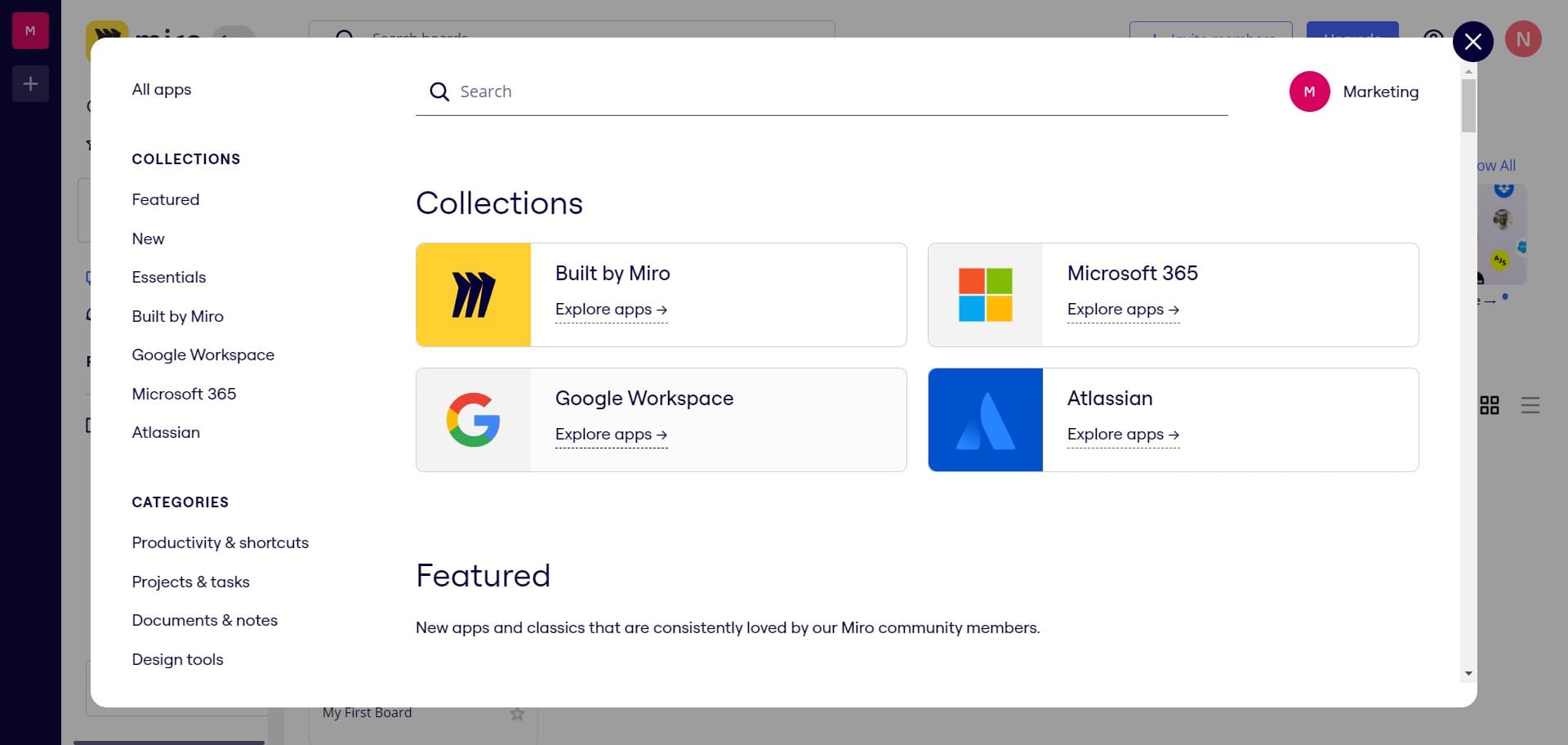
Explore Google Workspace apps
Click on Explore apps for Google Workspace to view all available Google integrations that can enhance your workflow.
- 4
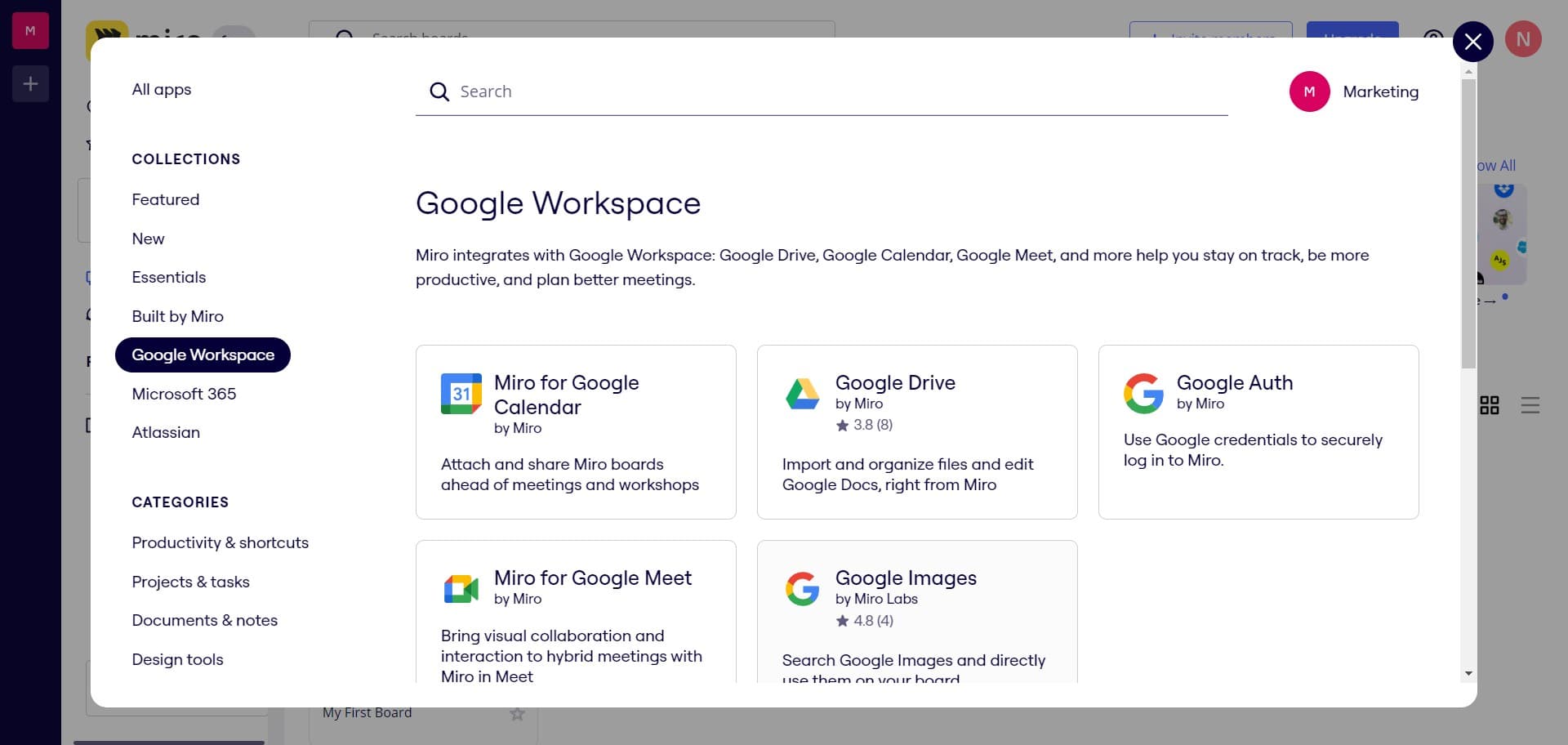
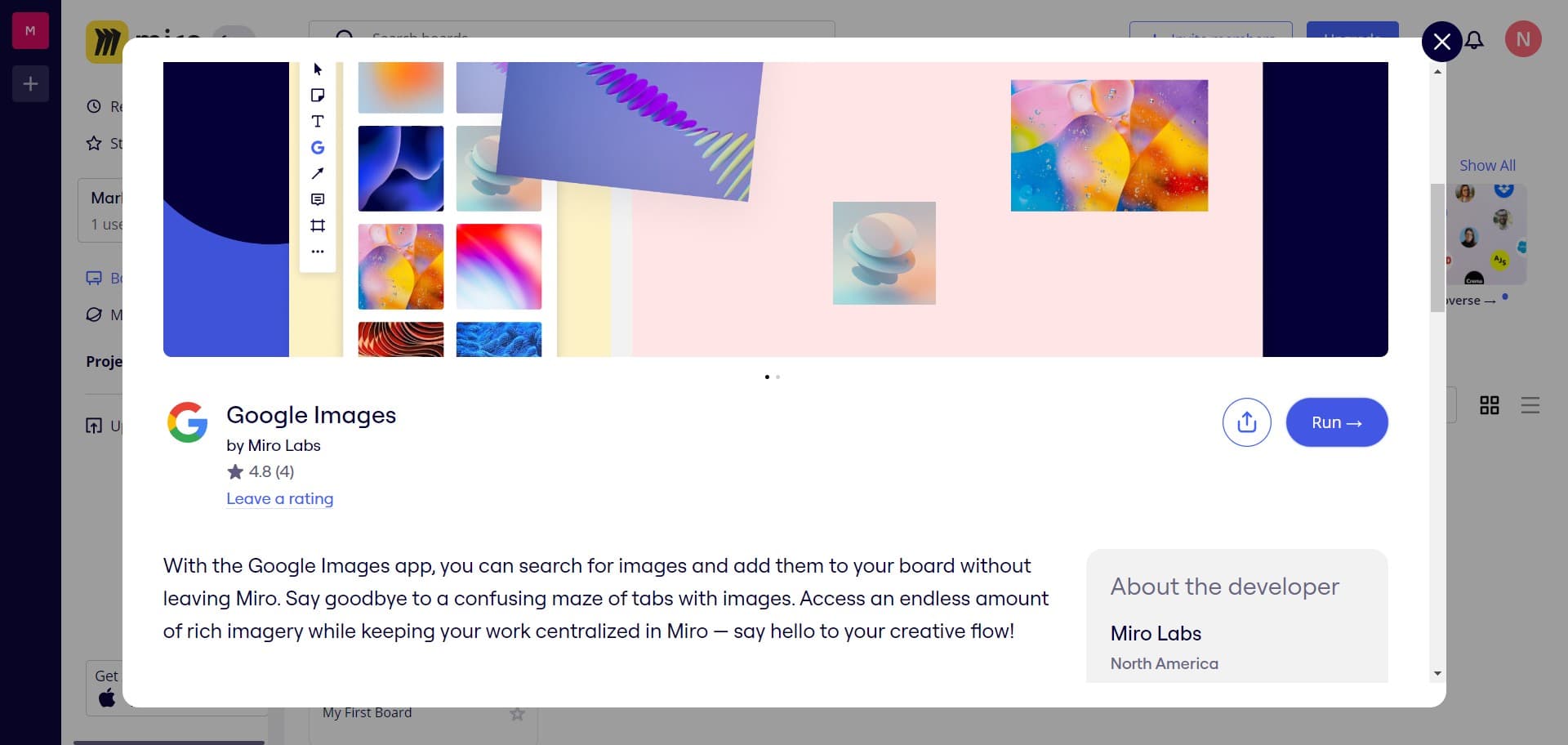
Select the Miro Labs app
Locate and click on the app developed by Miro Labs, which provides the official Google Images integration for Miro.
- 5
Run the integration
Click the Run button to launch the Google Images integration and begin the setup process.
- 6
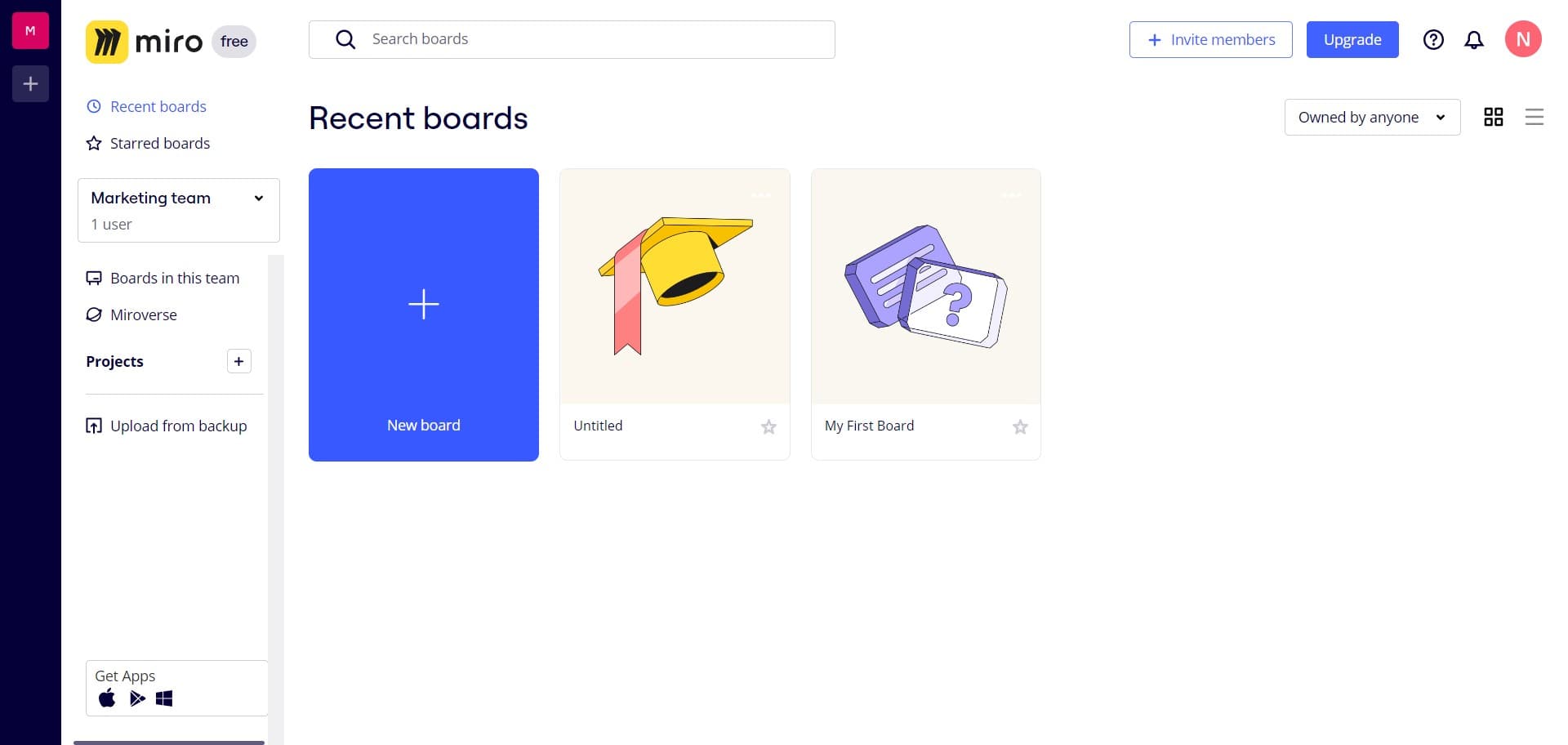
Upload image one
Select your first image from Google Images to upload to your whiteboard.
- 7
Upload image two
Select your second image from Google Images to add to your whiteboard.
- 8
Upload image three
Select your third image from Google Images to add to your whiteboard.
- 9
Upload image four
Select your fourth image from Google Images to add to your whiteboard.
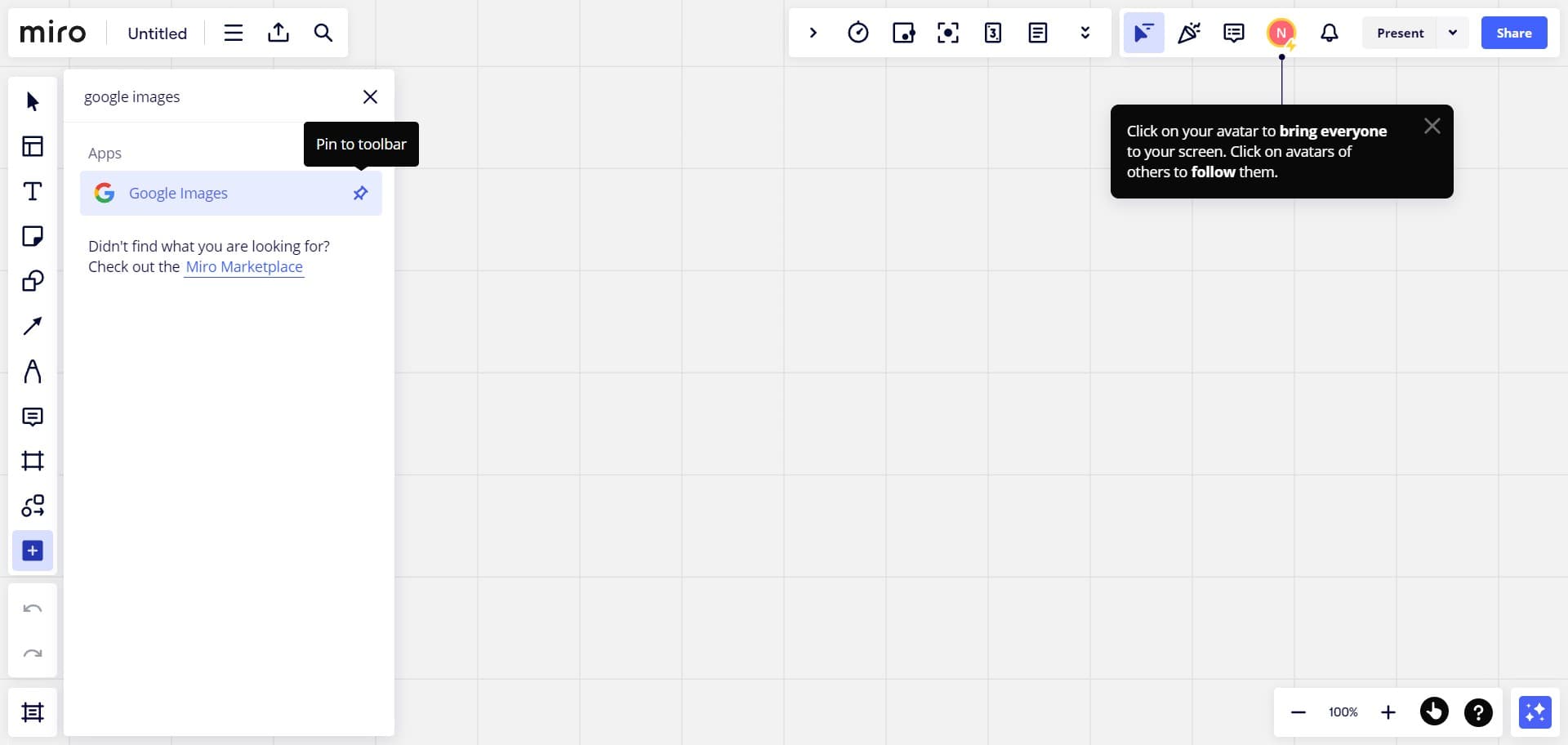
- 10
Upload image five
Select your fifth image from Google Images to add to your whiteboard.
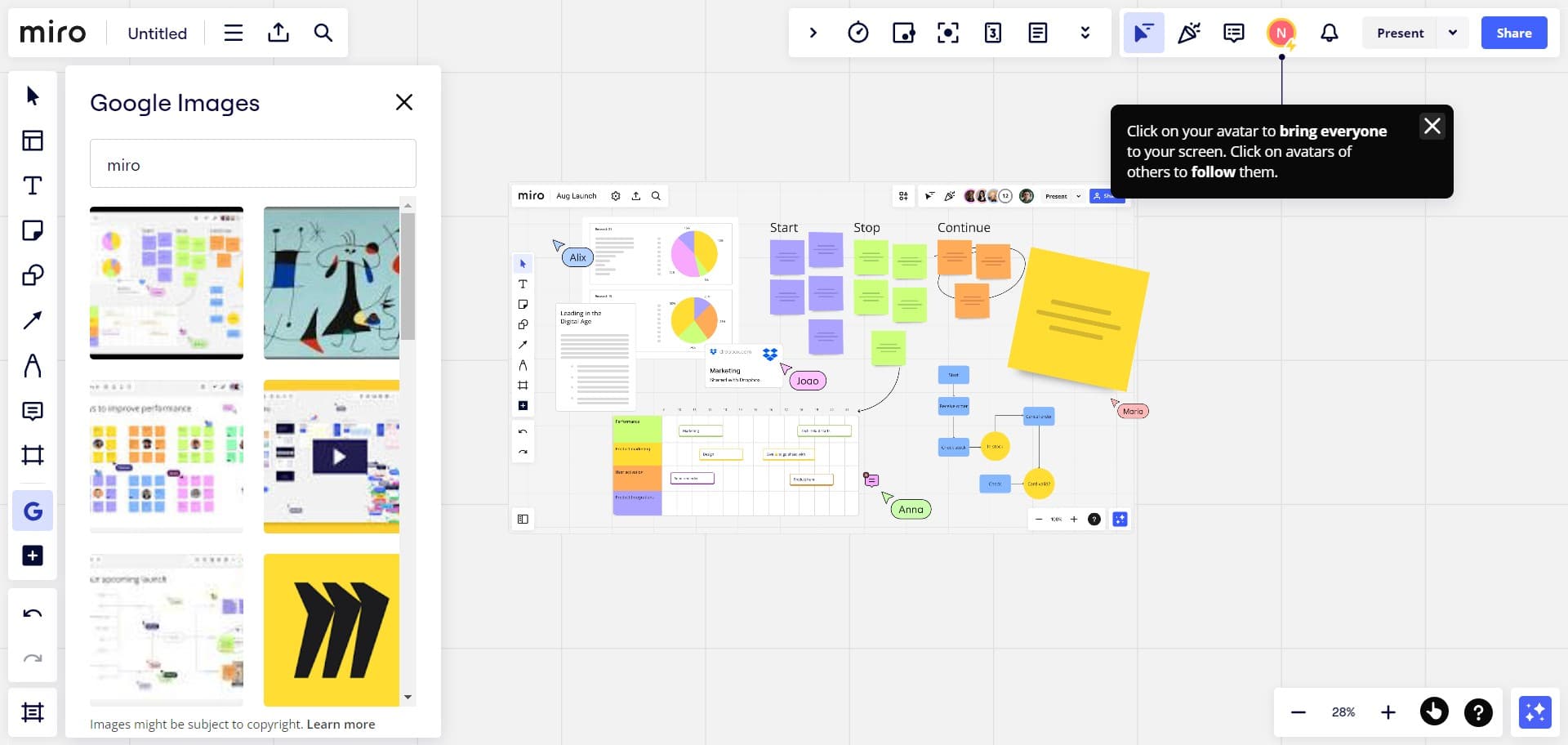
- 11
Upload image six
Select your sixth image from Google Images to complete your uploads to the whiteboard.
Frequently asked questions
Common questions about how to integrate google images to miro whiteboard.
Do I need a Google account to use this integration?
Yes, you need an active Google account to use the Google Images integration with Miro. The integration requires authentication with your Google Workspace account to access images and upload them to your whiteboard.
Can I search for specific images within the integration?
The Google Images integration allows you to search for and select images from Google's image database. Once you find the images you want, you can upload them directly to your Miro whiteboard without leaving the platform.
Is there a limit to how many images I can upload?
While the integration itself doesn't restrict the number of images you can upload, your Miro board's performance may be affected by adding too many high-resolution images. It's recommended to optimize images for web use to maintain smooth collaboration.
What image formats are supported?
Miro supports common image formats including PNG, JPG, and GIF. The Google Images integration will handle these formats seamlessly when uploading to your whiteboard.
Can other team members access images I've uploaded?
Yes, all images uploaded to your Miro whiteboard are visible to anyone with access to that board. Team members can view, move, and interact with uploaded images as part of the collaborative workspace.