How to upload a file to Miro whiteboard

Uploading files to your Miro whiteboard is a straightforward way to incorporate images, documents, and other assets into your collaborative workspace. Whether you're adding design mockups, reference materials, or supporting documents, Miro supports multiple upload methods to fit your workflow.
Quick summary
In this tutorial, you'll learn how to upload files to a Miro whiteboard using both direct device uploads and URL-based imports. By following these step-by-step instructions, you'll be able to quickly add files from your computer or the web to enhance your board's content.
Why this matters
Uploading files directly to your Miro board keeps all project assets centralized and accessible to your entire team. This eliminates the need for external file sharing and ensures everyone is working with the most current versions of reference materials and supporting documents.
Step-by-step guide
- 1
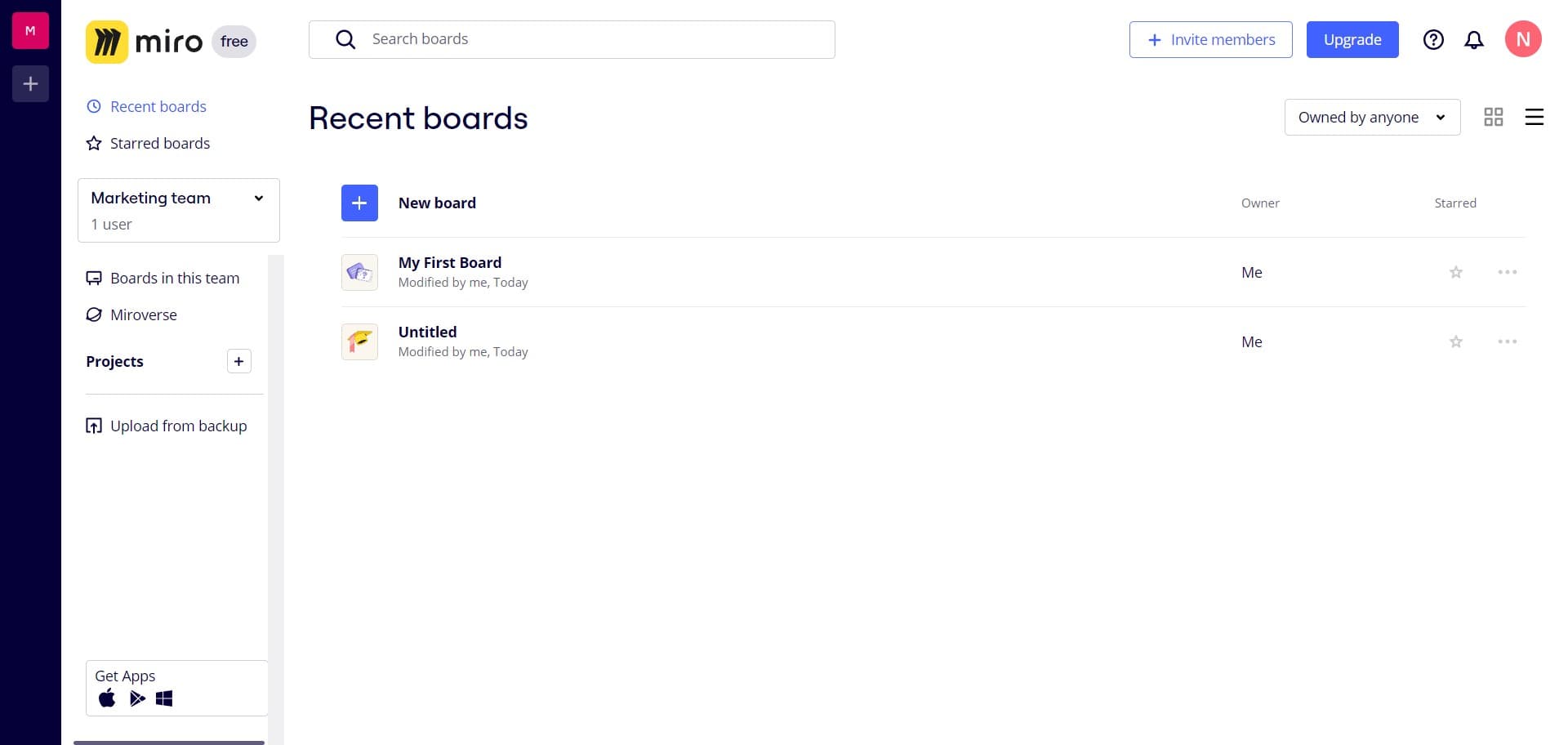
Open your Miro board
Navigate to your Miro workspace and click on 'My First Board' to access the board where you want to upload your file. This opens the whiteboard canvas where you'll be able to add and organize your files.
- 2
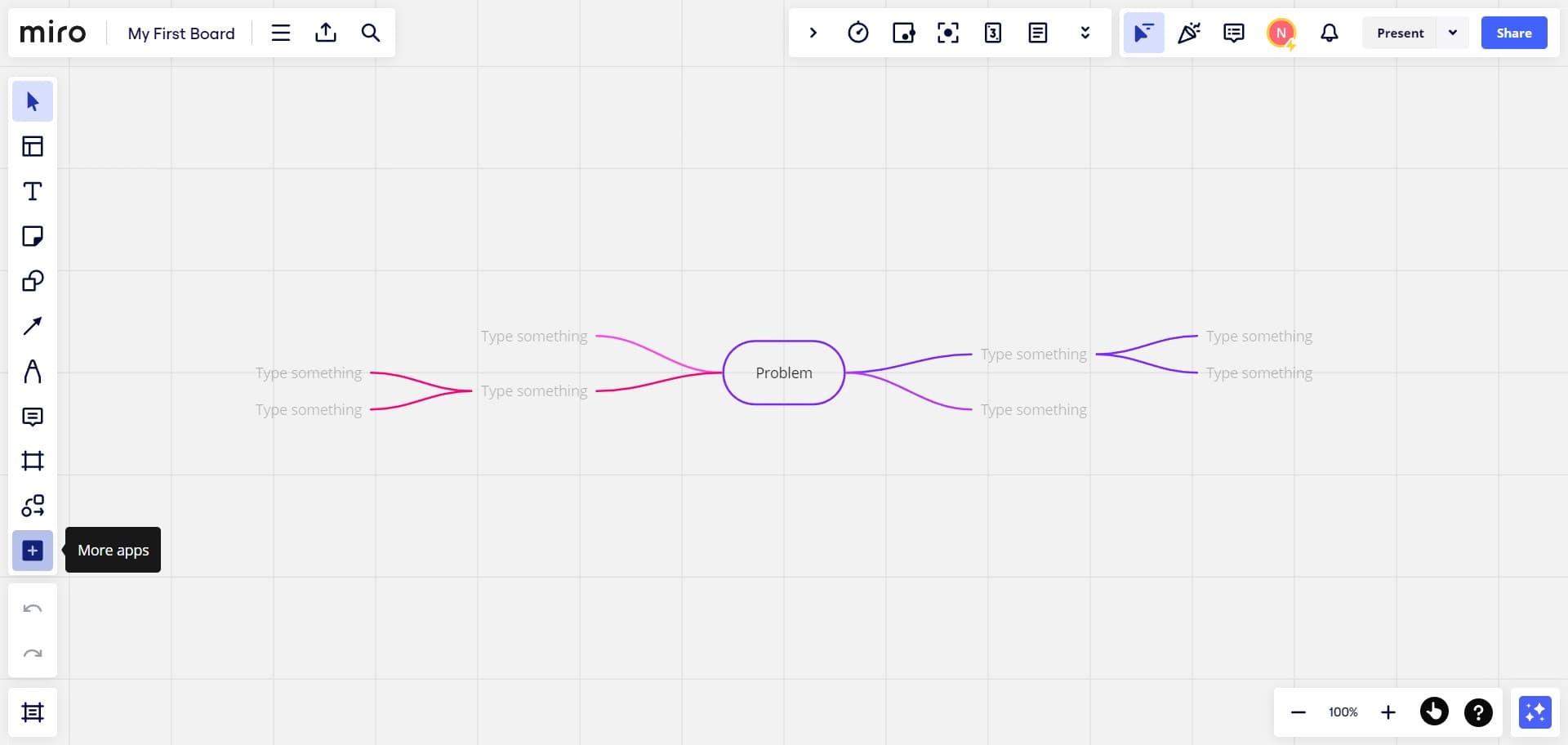
Access the upload menu
Click on the designated area to reveal the upload options. This brings up the menu containing different ways to add files to your board.
- 3
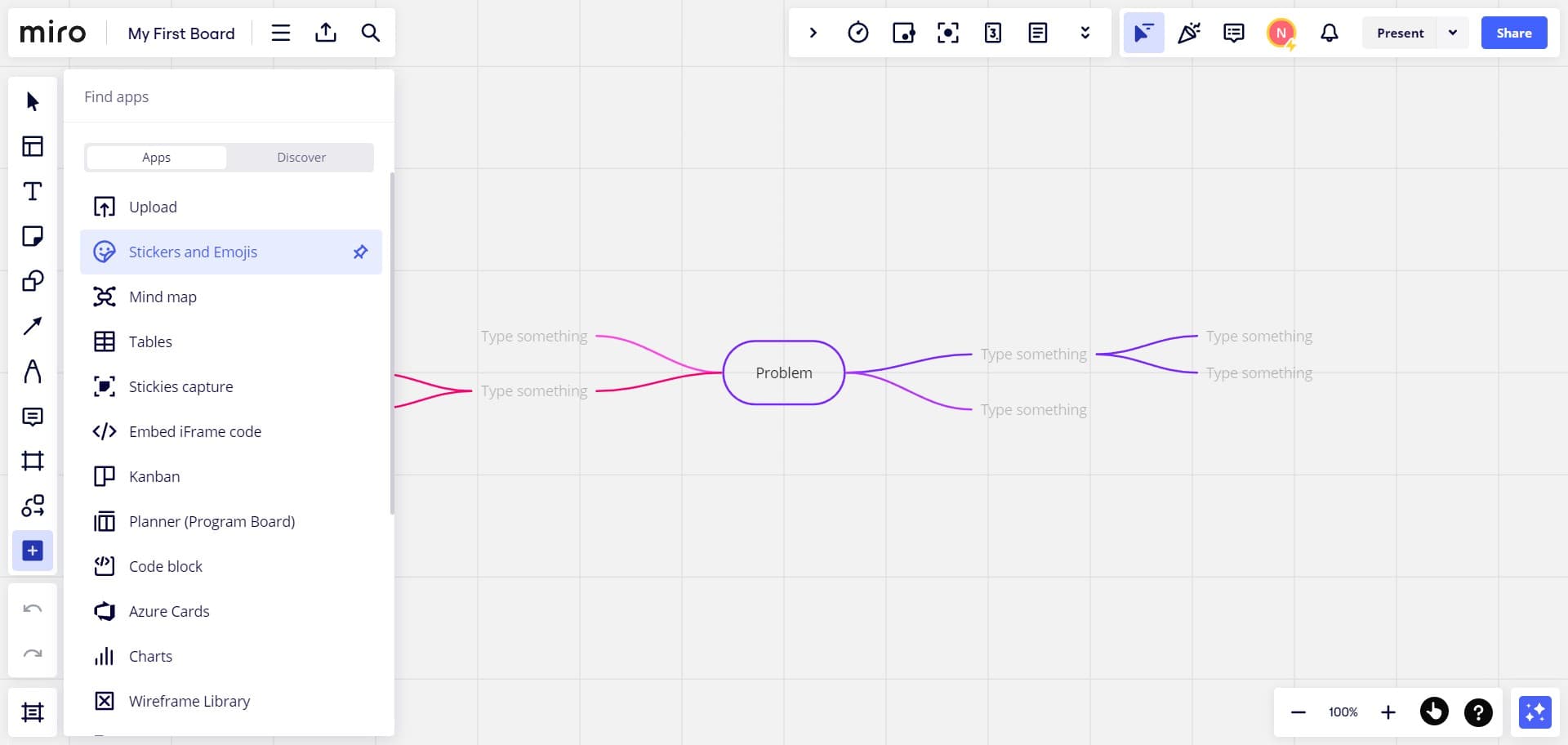
Navigate to upload options
Continue navigating through the menu to find the file upload controls. You'll see multiple upload methods available at this stage.
- 4
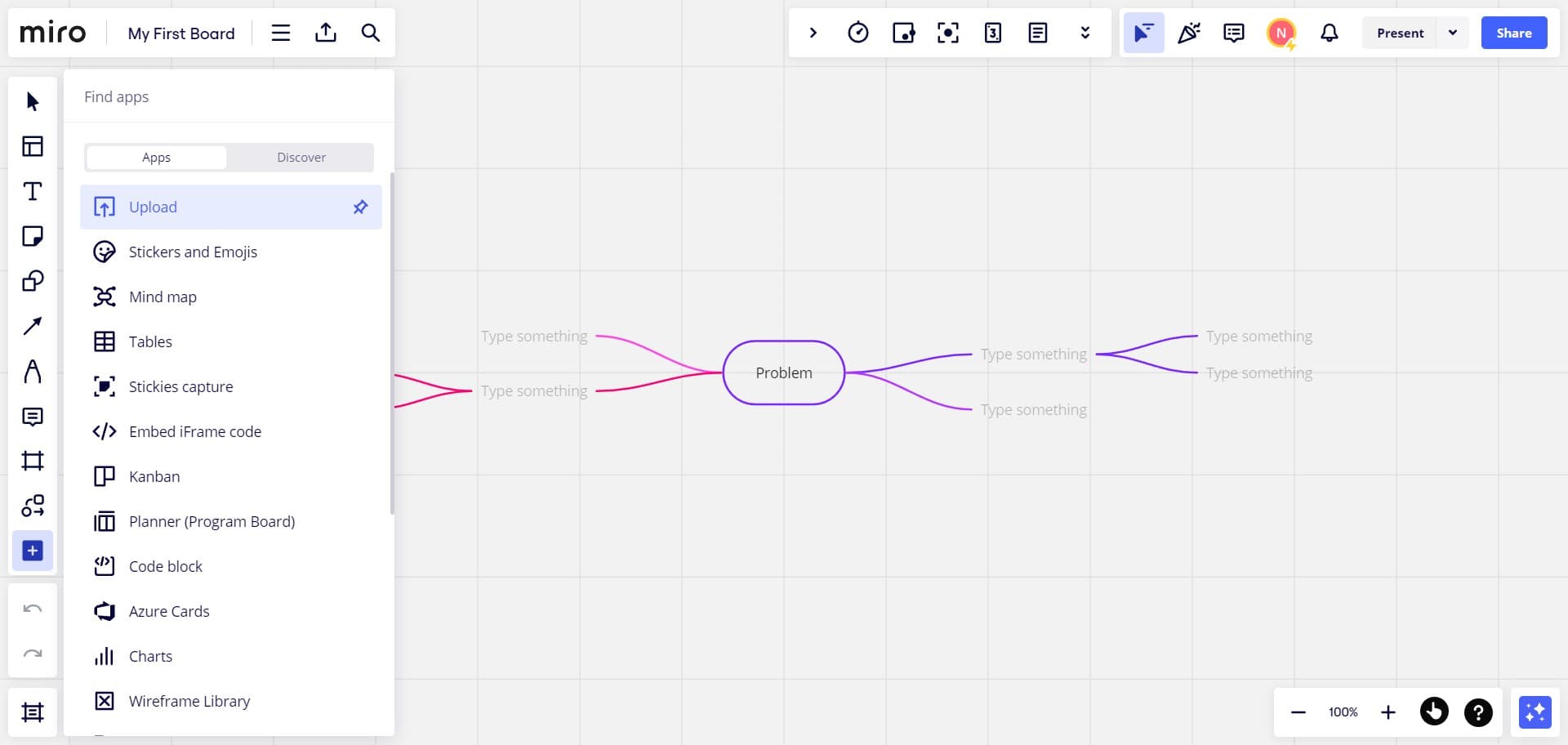
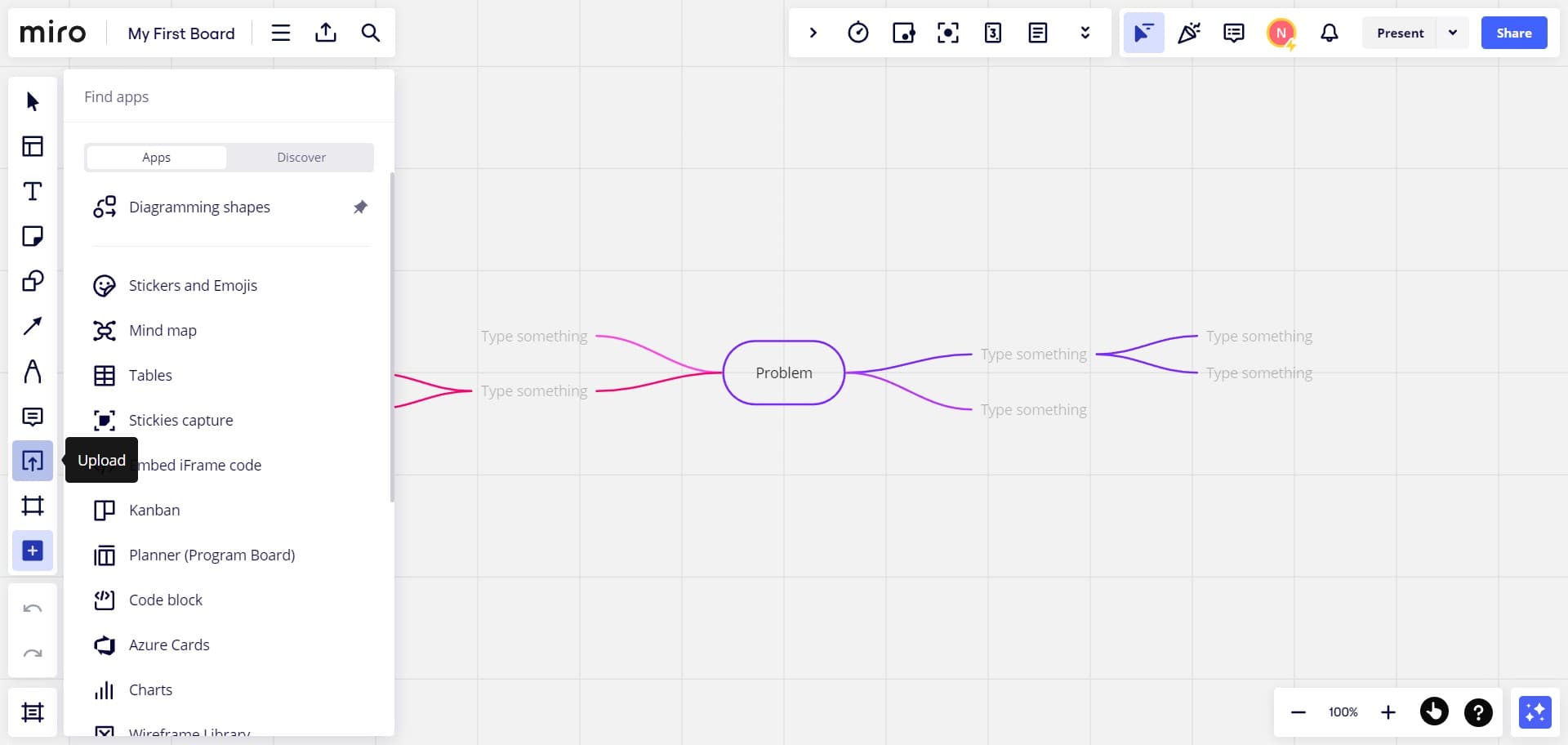
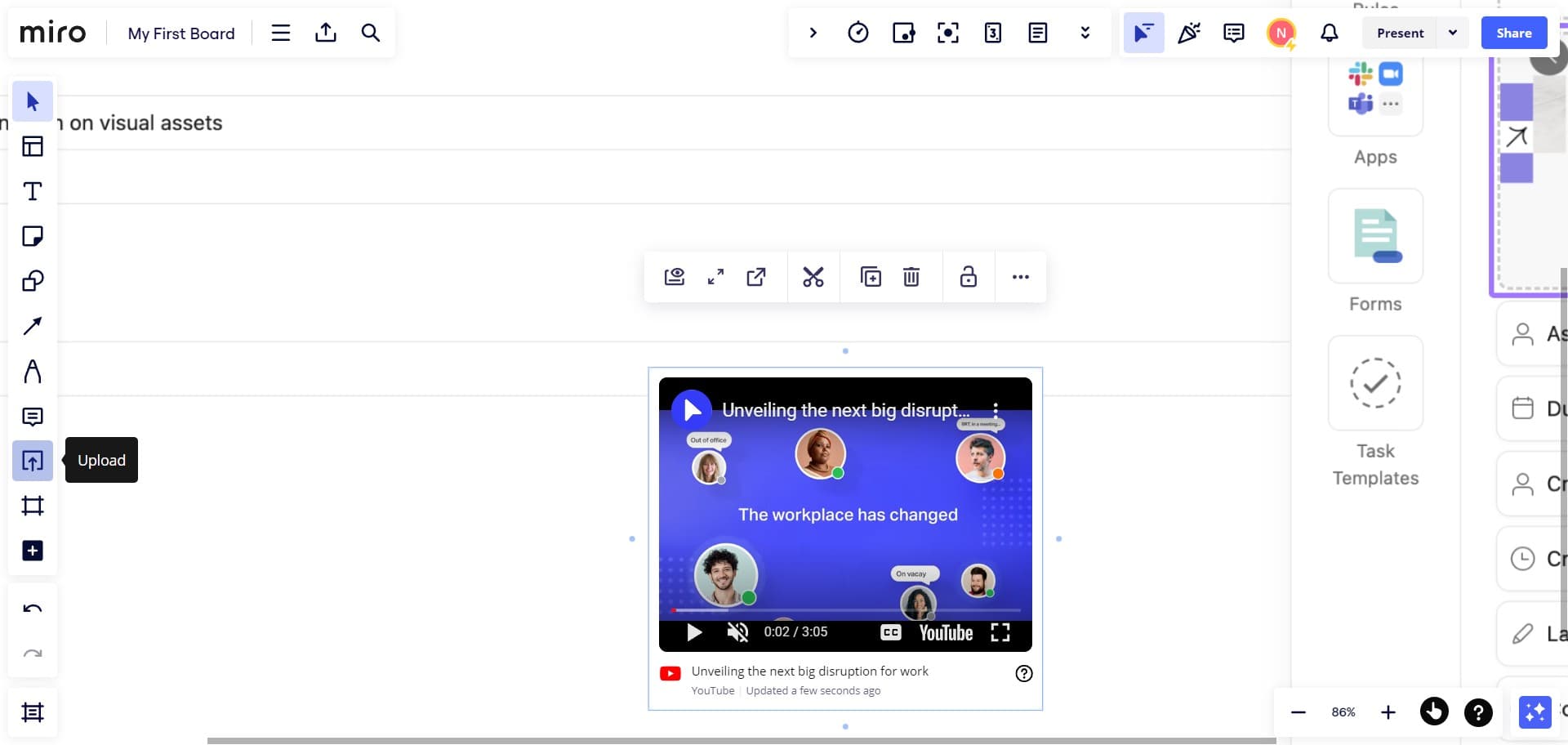
Select Upload option
Click on the 'Upload' button to proceed with adding a file to your board. This activates the file upload interface.
- 5
Confirm upload method selection
Click here to confirm your choice and move to the next step in the upload process. This prepares the system to receive your file.
- 6
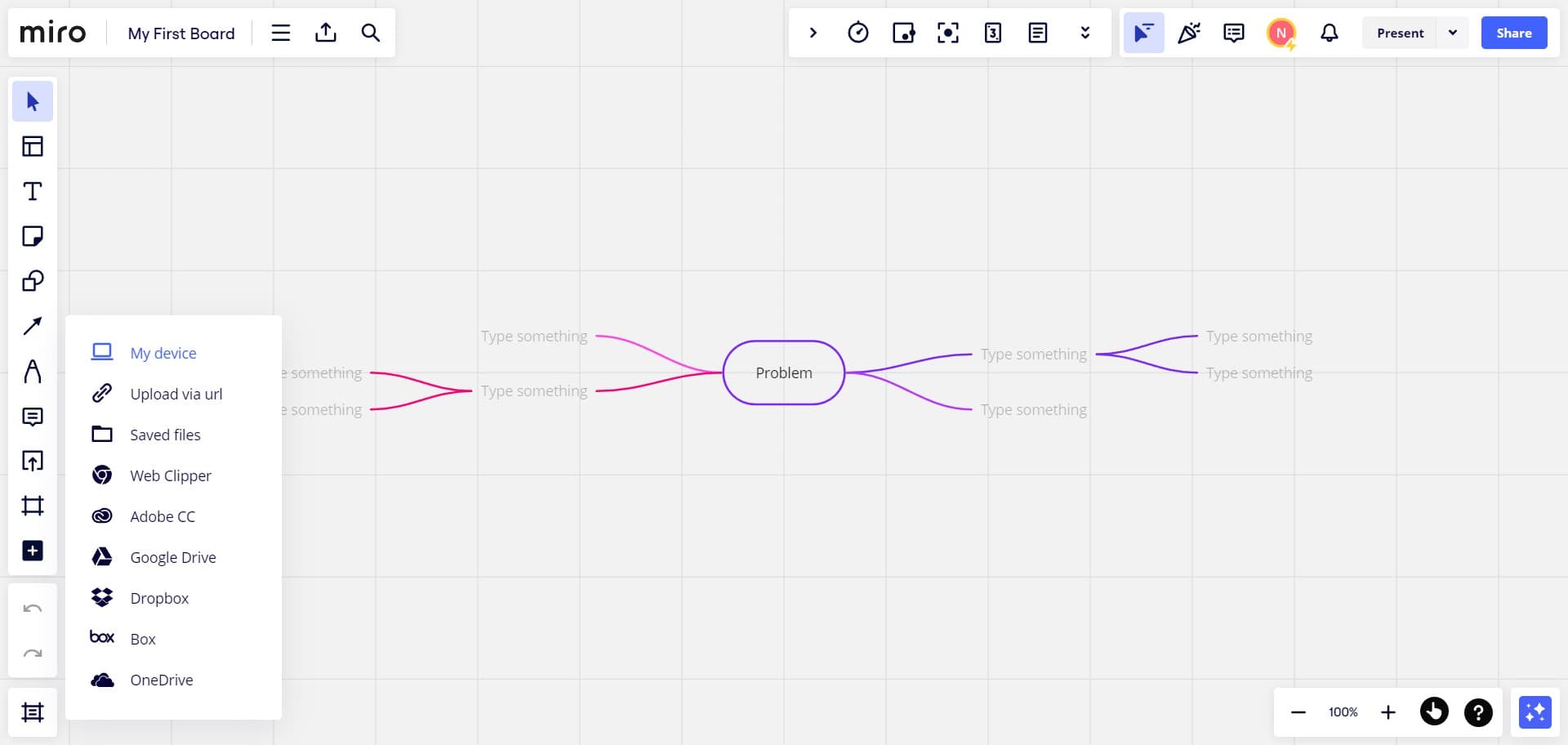
Choose My device option
Click on 'My device' to upload a file directly from your computer. This opens a file browser where you can select files stored locally on your machine.
- 7
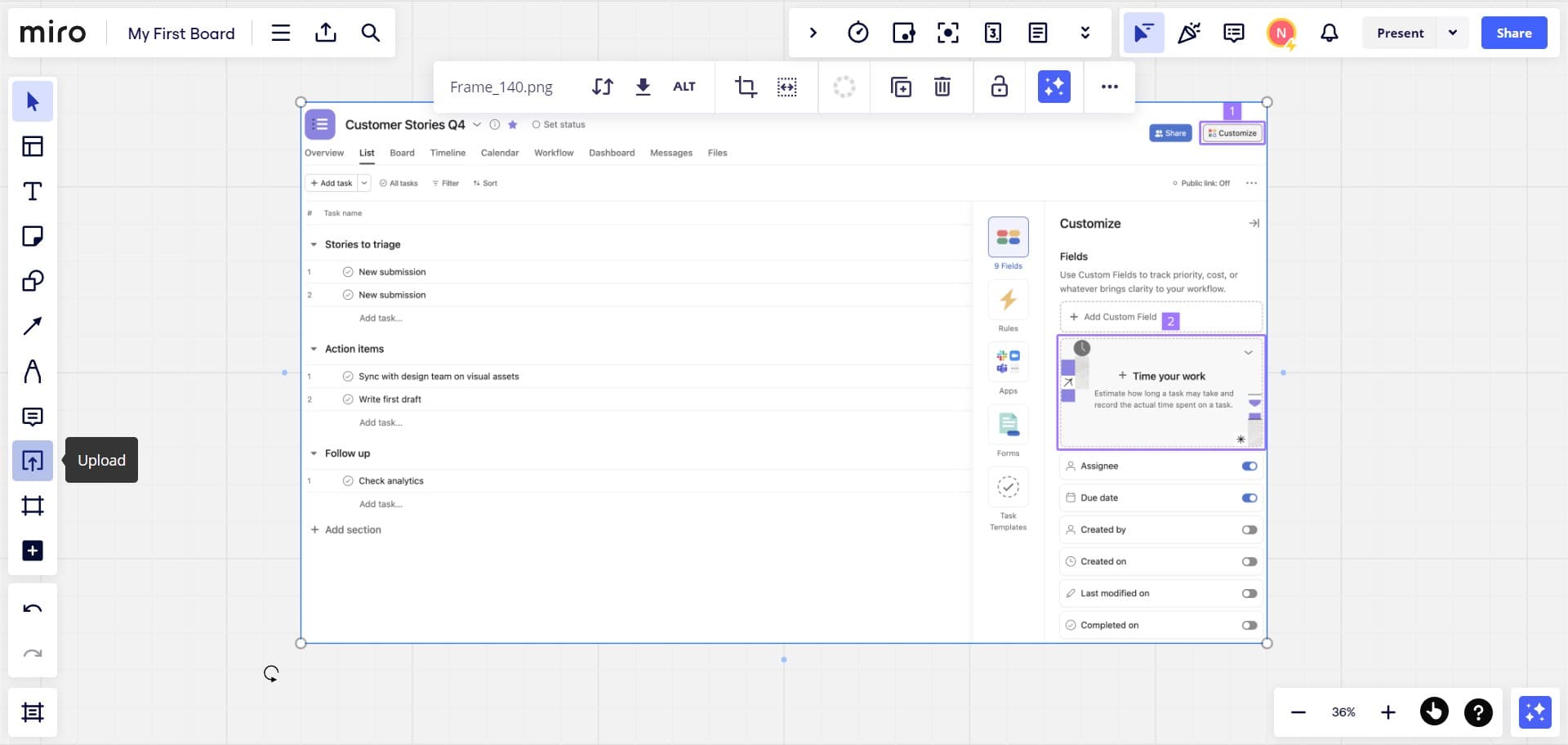
Select your file
Navigate to and select the file you want to upload from your device. Once selected, the file will be queued for upload to your board.
- 8
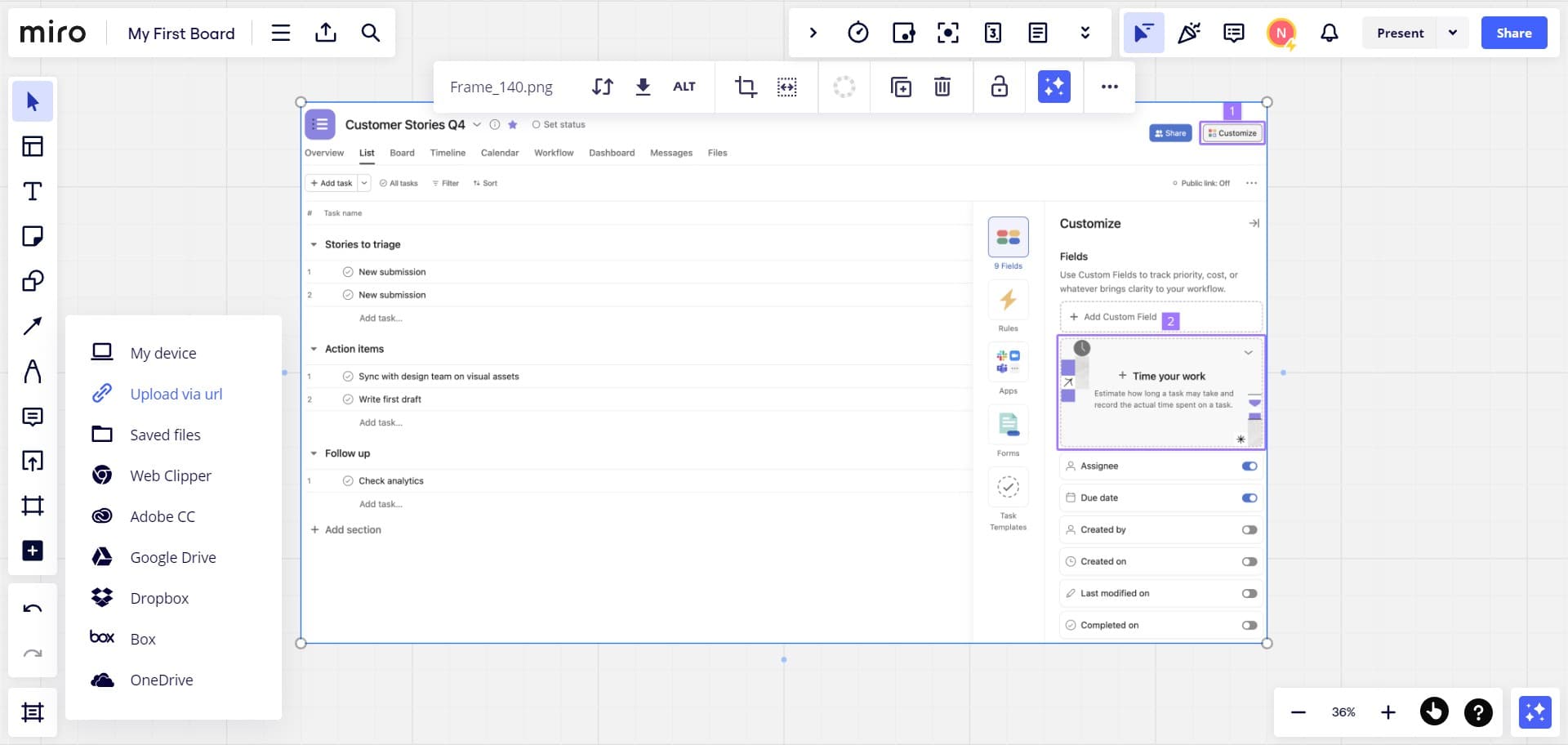
Choose URL upload method
Click on 'Upload via url' to add a file from the web by providing its direct link. This option is useful when you want to embed files hosted online without downloading them first.
- 9
Complete the upload
Click 'Upload' to finalize adding your file to the Miro whiteboard. The file will now appear on your board and be available for you and your team to interact with.
Frequently asked questions
Common questions about how to upload a file to miro whiteboard.
Miro supports a wide variety of file types including images (PNG, JPG, SVG), PDFs, videos, and design files. The platform is designed to handle most common file formats used in design and collaboration workflows. For the most current list of supported formats, check Miro's documentation.
Yes, all team members with access to a Miro board can upload files simultaneously. This makes it easy for teams to collaborate and add resources in real time without waiting for one person to finish uploading.
Miro does have file size limits depending on your subscription plan. Larger files may take longer to upload and process. If you encounter issues uploading a large file, consider compressing it or splitting it into smaller parts.
You can upload files from cloud storage by first downloading them to your device and then using the 'My device' upload option. Alternatively, if your cloud service provides a shareable URL, you can use the 'Upload via url' option to add files directly from the web.
Once files are uploaded to your Miro board, you can drag and arrange them anywhere on the canvas. You can group related files together, use frames to organize by project section, or stack them strategically to maintain a clean, organized workspace.