How to change your board background color in Miro

Customizing your Miro board's background color is a simple way to enhance visual clarity and match your team's branding or workspace preferences. Whether you're creating a professional presentation board or a casual brainstorming space, changing the background color can improve focus and reduce visual fatigue.
Quick summary
In this tutorial, you'll learn how to access Miro's background color settings and change your board to white or other available colors. By following these straightforward steps, you'll be able to personalize your board's appearance in just a few clicks.
Why this matters
A well-chosen background color can significantly impact your team's collaboration experience on Miro. The right color reduces distractions, improves readability of content, and creates a more professional or welcoming environment depending on your project needs.
Step-by-step guide
- 1
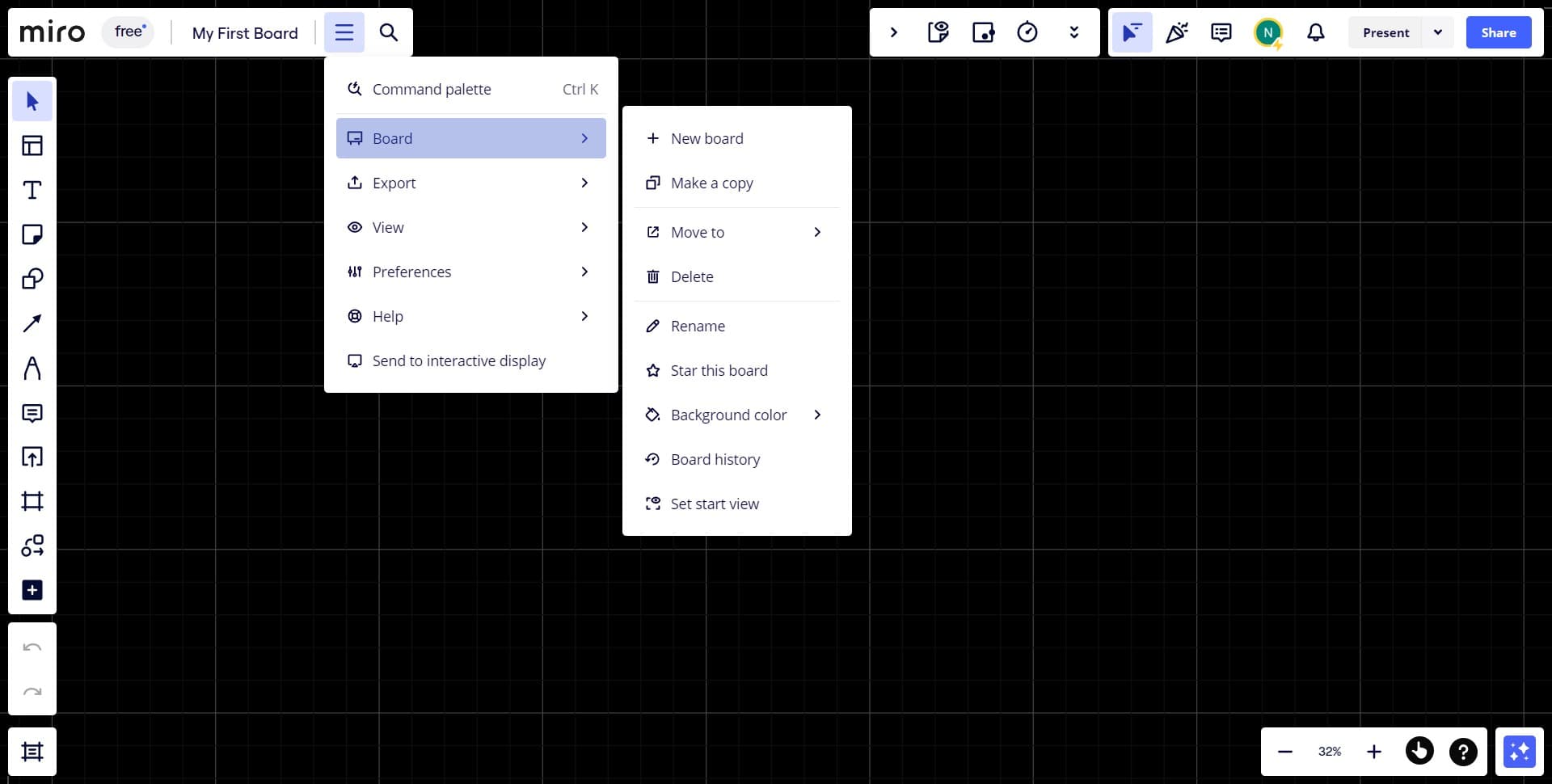
Click on Board
Start by locating and clicking the Board menu at the top of your Miro interface. This opens the board-level options where you can access appearance and formatting settings.
- 2
Select Upload
From the Board menu, click on the Upload option. This gives you access to board customization features, including background color settings.
- 3
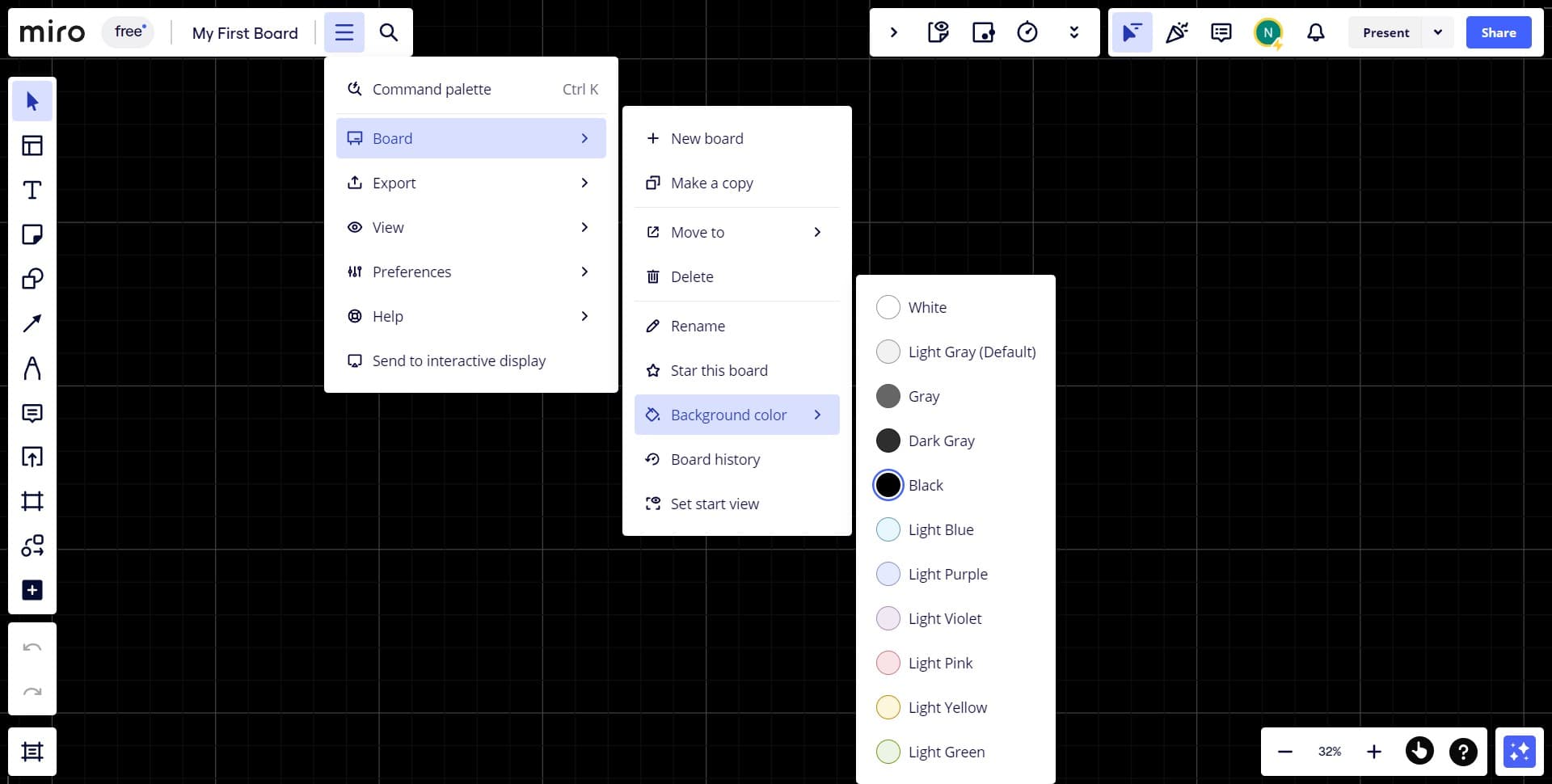
Click on Background color
Find and click on the Background color option in the menu. A color picker or palette will appear, allowing you to choose from available color options for your board.
- 4
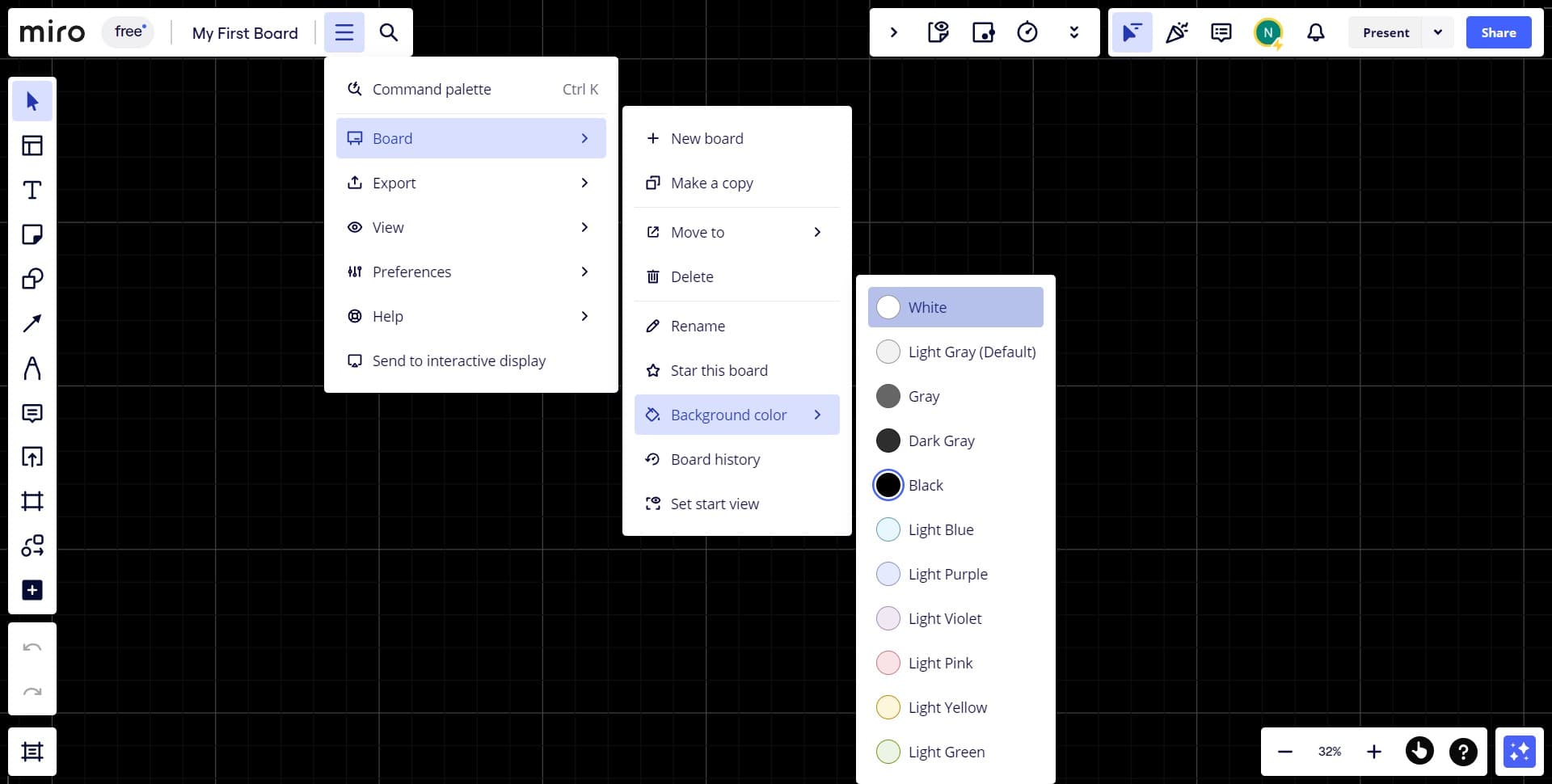
Choose White
Select the white color from the available options to apply it to your board background. The change will be applied immediately, giving your board a clean, professional appearance.
Frequently asked questions
Common questions about how to change your board background color in miro.
Yes, Miro offers a range of background color options beyond white. You can explore the color palette when you access the Background color settings to find the color that best suits your needs and preferences.
No, changing the background color only affects the board's appearance and does not modify or remove any of your existing content, shapes, text, or images.
The background color is a board-level setting that applies to all users viewing that board. All team members will see the same background color when they access the board.
You can return to the Background color settings at any time and select a different color, including the default option. Changes are applied instantly, so you can experiment freely.
The background color setting applies to the entire board. However, you can use shapes or frames with different colors to create visual sections or zones within your board as an alternative approach.