How to create a Miro board

Creating a Miro board is the first step to unlocking collaborative visual workspace capabilities. This guide walks you through the process of setting up a new team board where you and your collaborators can brainstorm, plan, and design together.
Quick summary
In this tutorial, you'll learn how to create a Miro board from start to finish, including accessing the board creation interface, selecting the team board option, and uploading any necessary files or assets. By the end, you'll have a fully functional board ready for collaboration.
Why this matters
Creating a dedicated Miro board for projects enables teams to centralize their visual work and maintain a single source of truth for brainstorming and planning activities. Team boards specifically allow multiple collaborators to work simultaneously, making them essential for distributed teams and cross-functional projects.
Step-by-step guide
- 1
Access the Miro interface
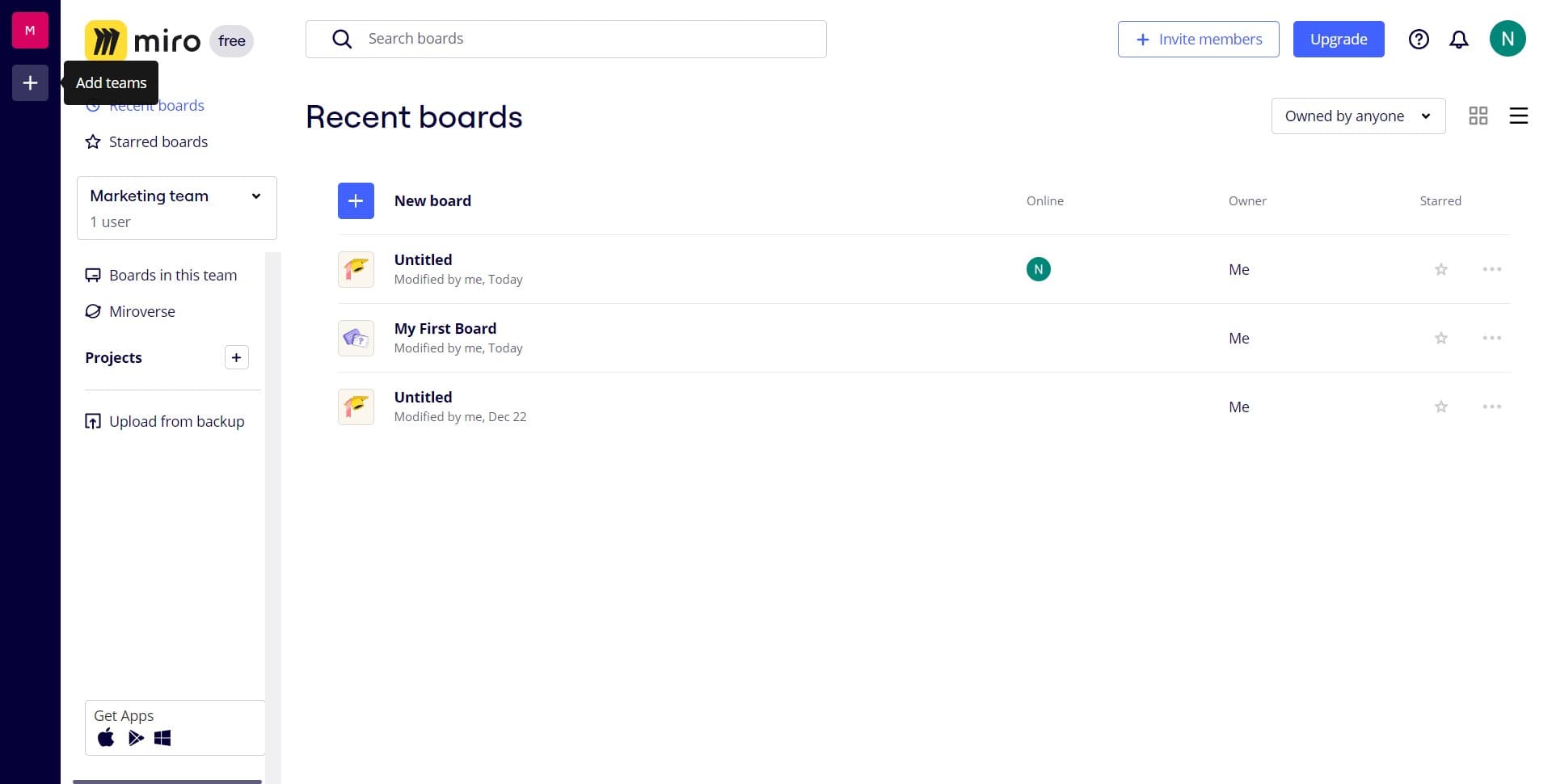
Start by opening Miro and navigating to the main dashboard or home screen. This is where you'll find all options for creating new boards and managing existing ones.
- 2
Navigate to board creation
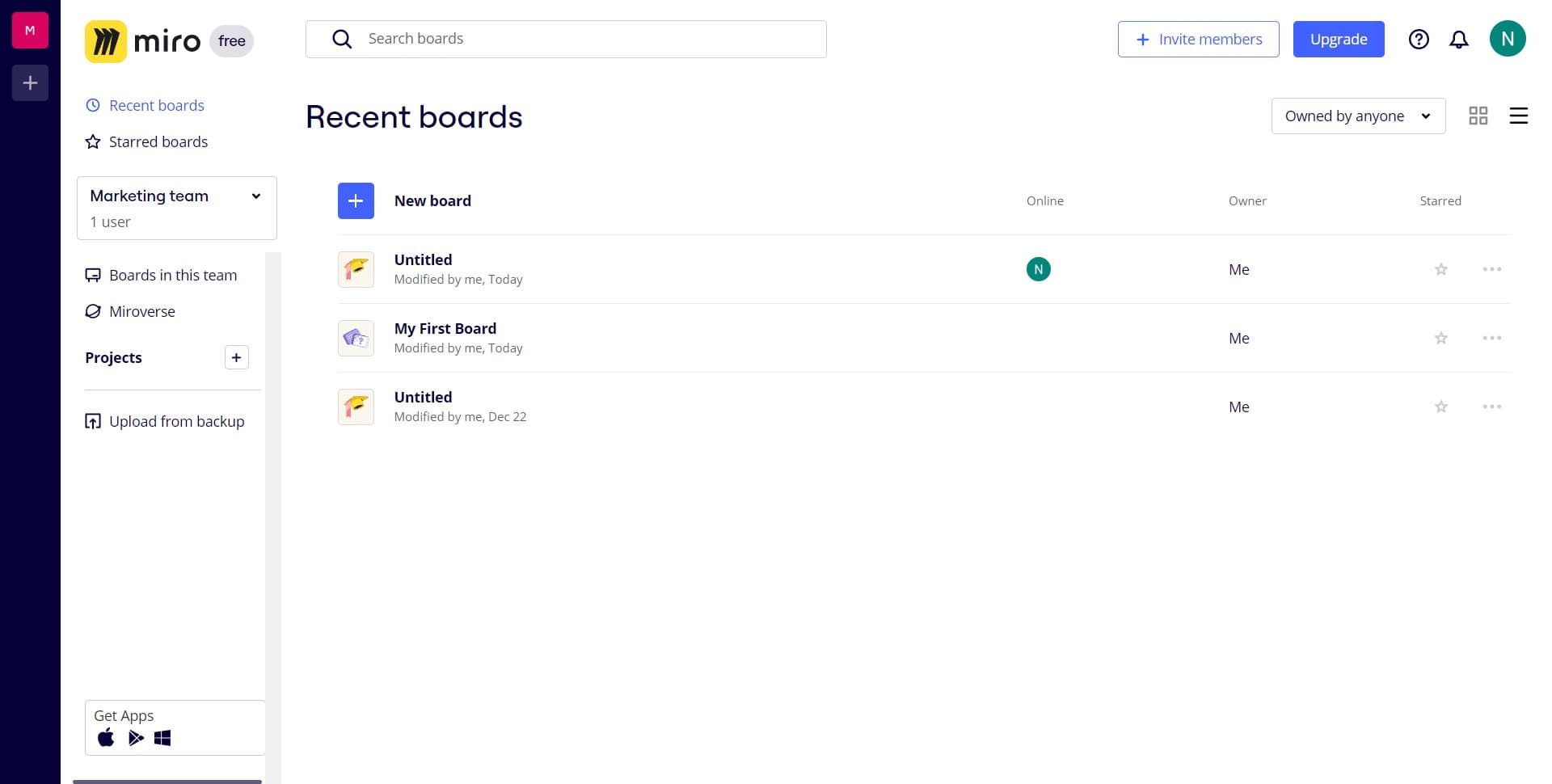
Click on the appropriate menu or button that initiates the board creation process. Look for options like 'Create' or 'New Board' in the main interface.
- 3
Click on Create team board
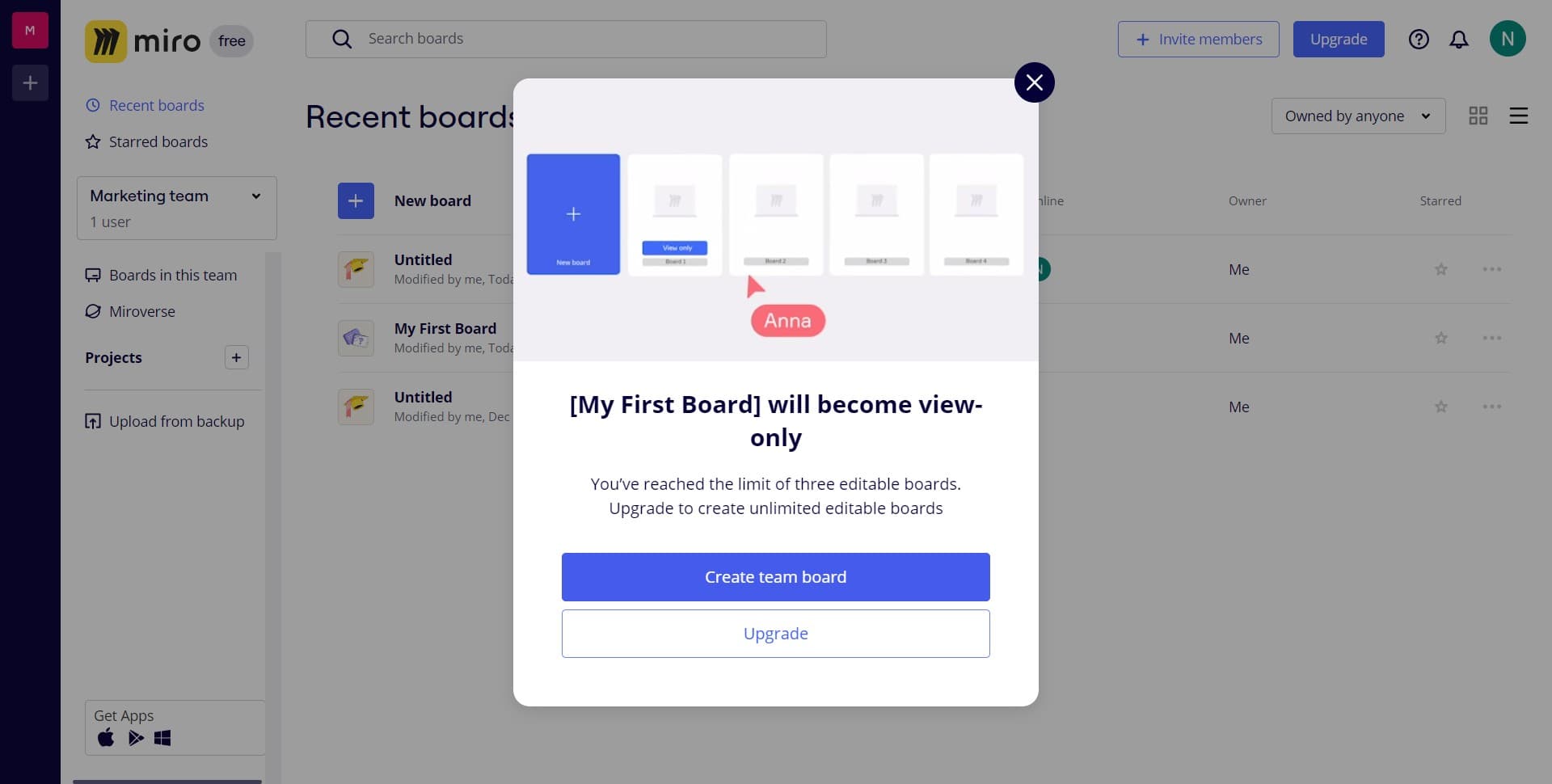
Select the 'Create team board' option to establish a board that multiple team members can access and collaborate on simultaneously. This ensures your board is set up with the proper permissions and sharing capabilities.
- 4
Configure board settings
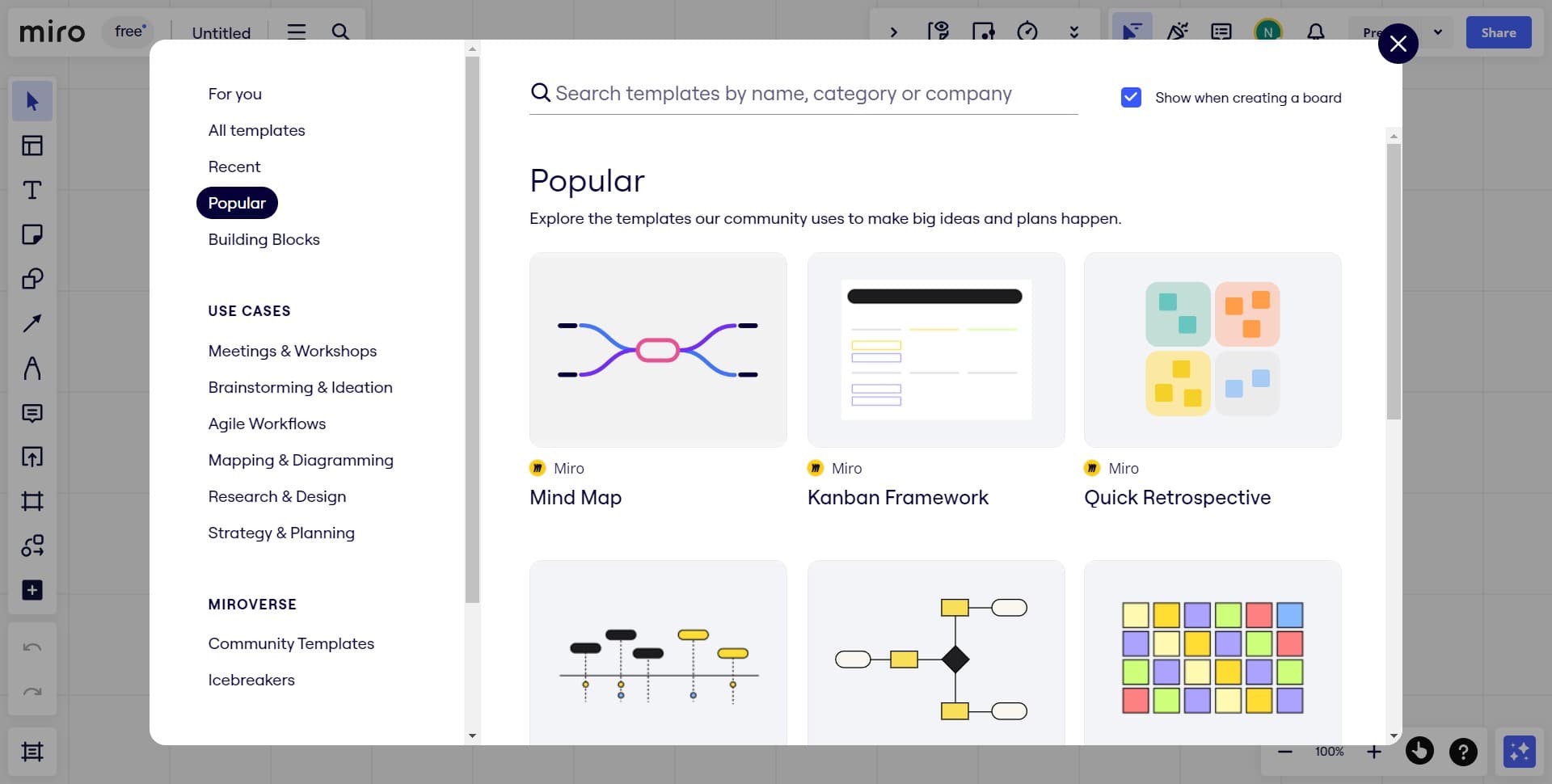
Follow the prompts to set up your board with the desired configuration, such as naming your board and selecting any initial templates or preferences. These settings determine how your board will function and appear to collaborators.
- 5
Upload files or assets
If needed, upload any files, images, or other assets to your new board to get started. Miro allows you to import content from various sources to kickstart your collaborative session.
Frequently asked questions
Common questions about how to create a miro board.
A personal board is for individual use only, while a team board can be accessed and edited by multiple collaborators simultaneously. Team boards are ideal for projects requiring input from multiple stakeholders and enable real-time collaboration across your organization.
In most cases, you can adjust board settings and permissions after creation, but converting between personal and team boards may require additional steps. It's recommended to select the correct board type during initial creation to avoid complications.
Miro supports various file formats including images, PDFs, and documents. Check Miro's documentation for the complete list of supported file types and any size limitations that may apply to your uploads.
After creating your team board, use the sharing or collaboration settings to invite specific team members by email or generate a shared link. Miro allows you to control permission levels for each collaborator, determining whether they can view, edit, or manage the board.
Board creation limits depend on your Miro subscription plan. Free accounts may have restrictions, while paid plans typically offer unlimited board creation. Review your account plan details for specific limitations.