How to Make a PPT Using ChatGPT

Vimal Kumar
Vimal Kumar·
How to Make a PPT Using ChatGPT
Interactive demo powered by Supademo

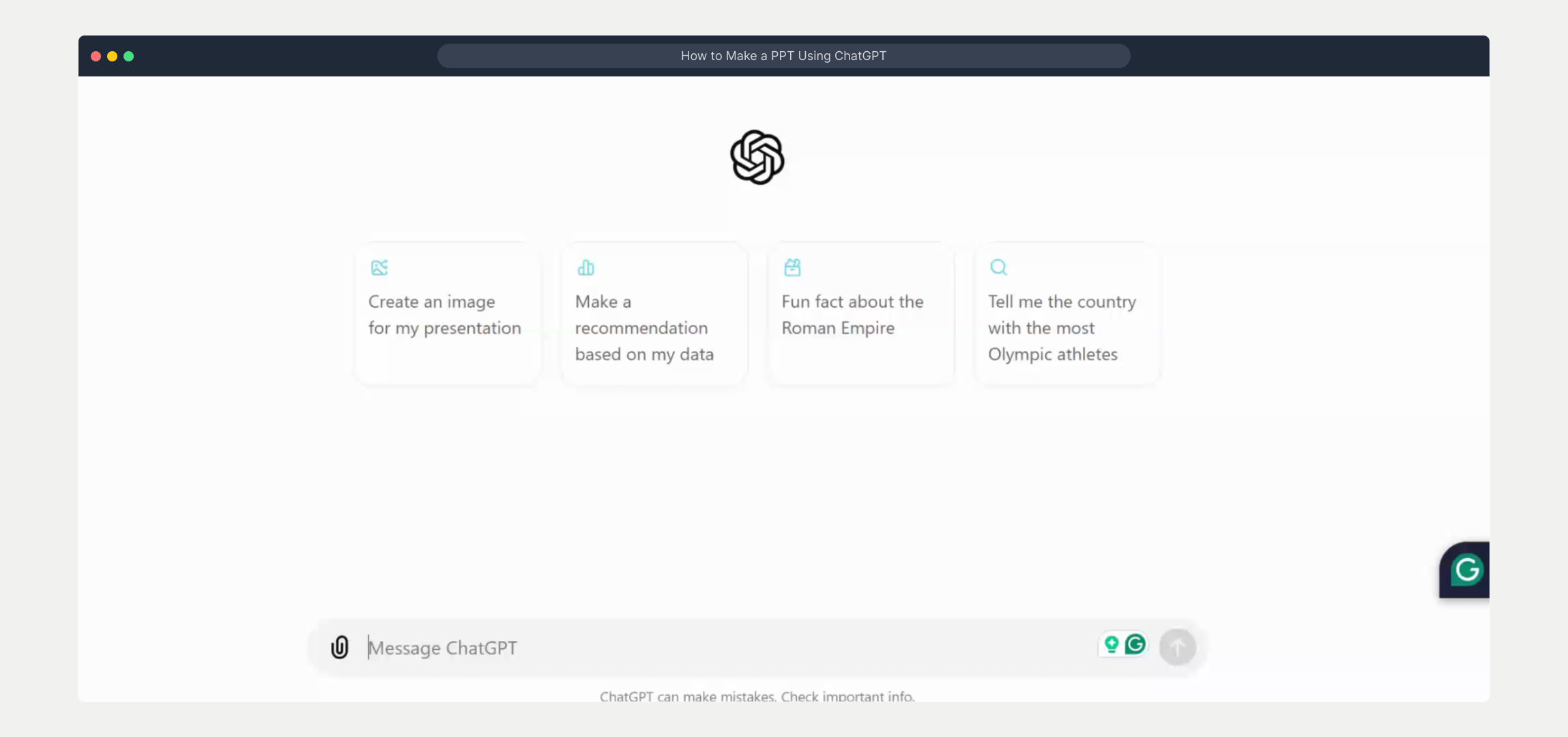
1. Begin by opening ChatGPT in your web browser or application. Start a new session to begin creating your PowerPoint presentation.

2. Video Step

(

Play Now

)

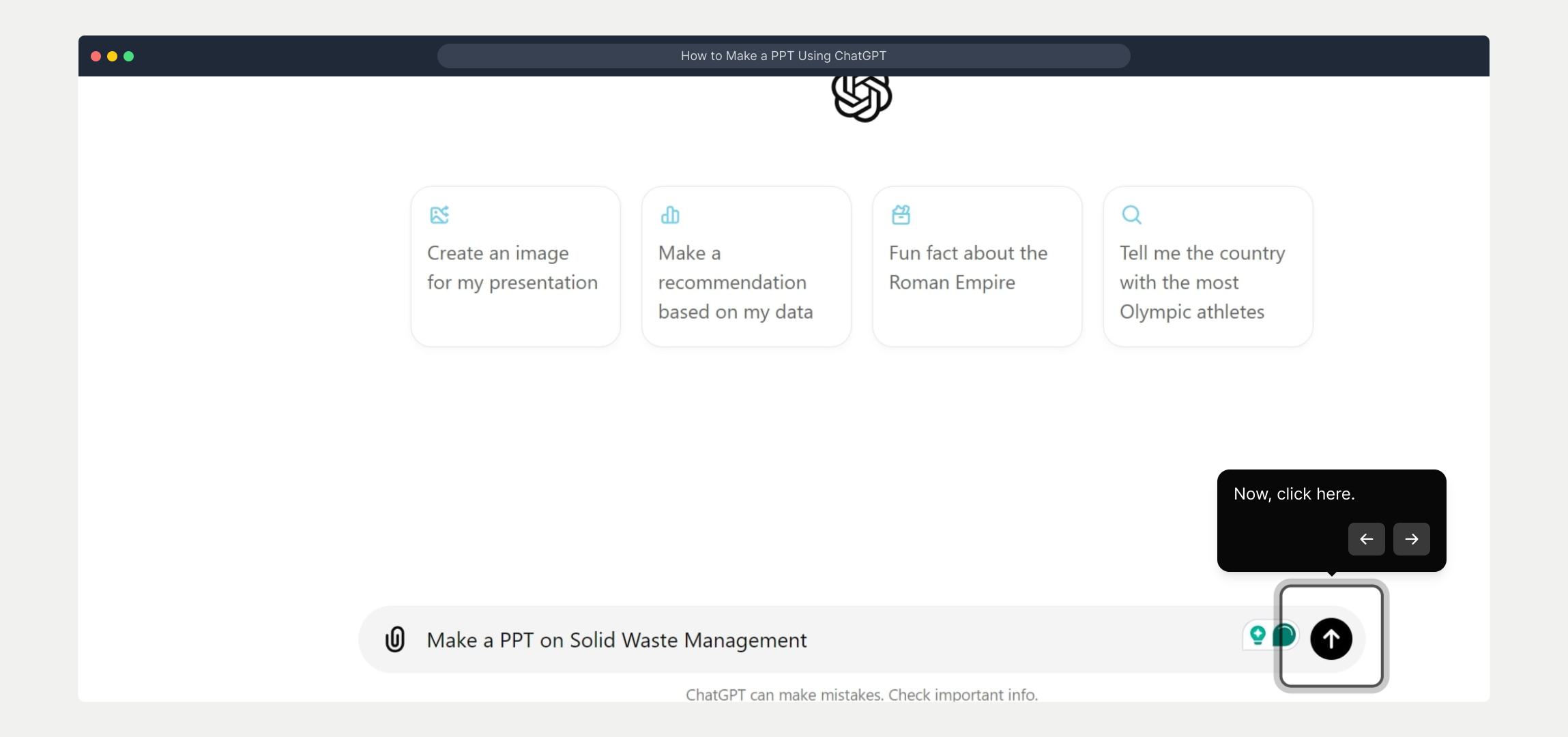
3. Now, click here.

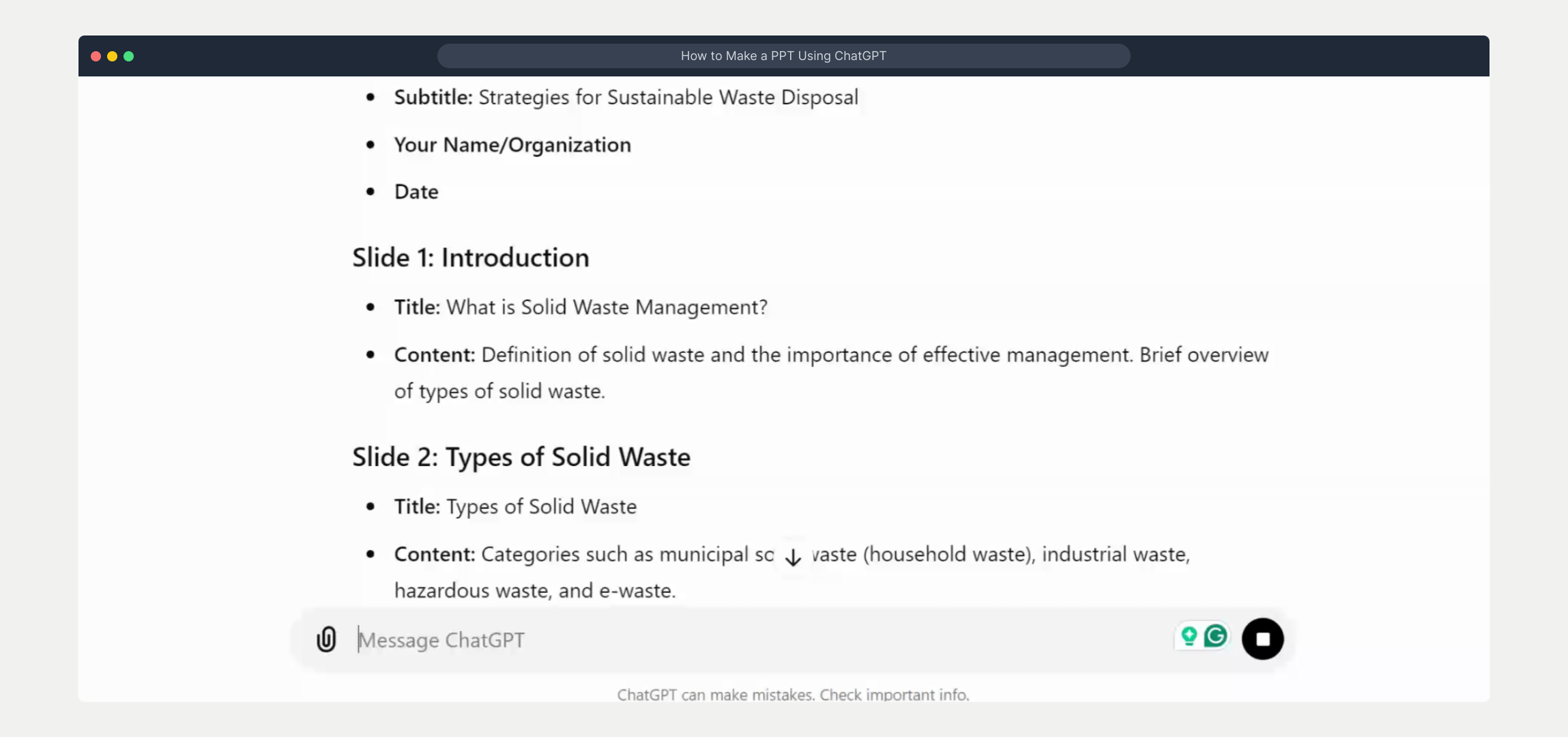
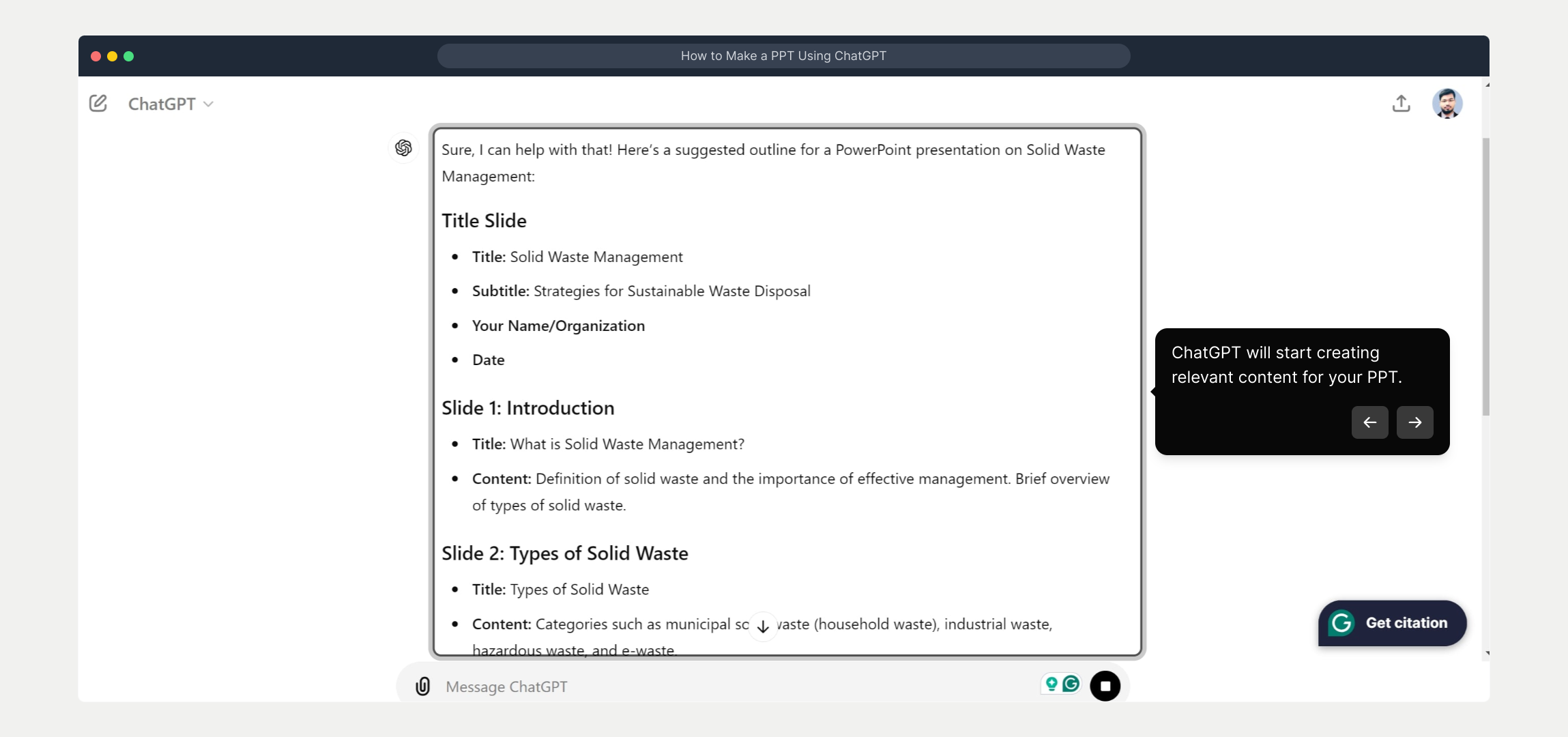
4. ChatGPT will start creating relevant content for your PPT.

5. To generate more specific content. Click on the Message ChatGPT box.

6. Video Step

(

Play Now

)

7. Now you can open PowerPoint and create a new presentation. Use the content generated by ChatGPT to populate your slides with text, images, and other elements.

8. Create a Supademo in seconds

This interactive demo/guided walkthrough on How to Make a PPT Using ChatGPT was created using Supademo.


How to Make a PPT Using ChatGPT : Step-by-Step Guide

Start by launching ChatGPT through your preferred web browser or dedicated app. Once you're on the main interface, initiate a fresh conversation to prepare for crafting your PowerPoint presentation content.

1

Video Step

(

Play Now

)

2

Next, look for the indicated button or option on the screen and select it to proceed with generating content. This step allows ChatGPT to start processing your input effectively.
3

ChatGPT will now analyze your request and begin producing content tailored specifically for your presentation. You'll start seeing relevant ideas and text that you can use for your slides.
4

If you want to refine or specify your presentation’s content further, click into the message box to send additional instructions or ask follow-up questions. This helps tailor the output more closely to your needs.
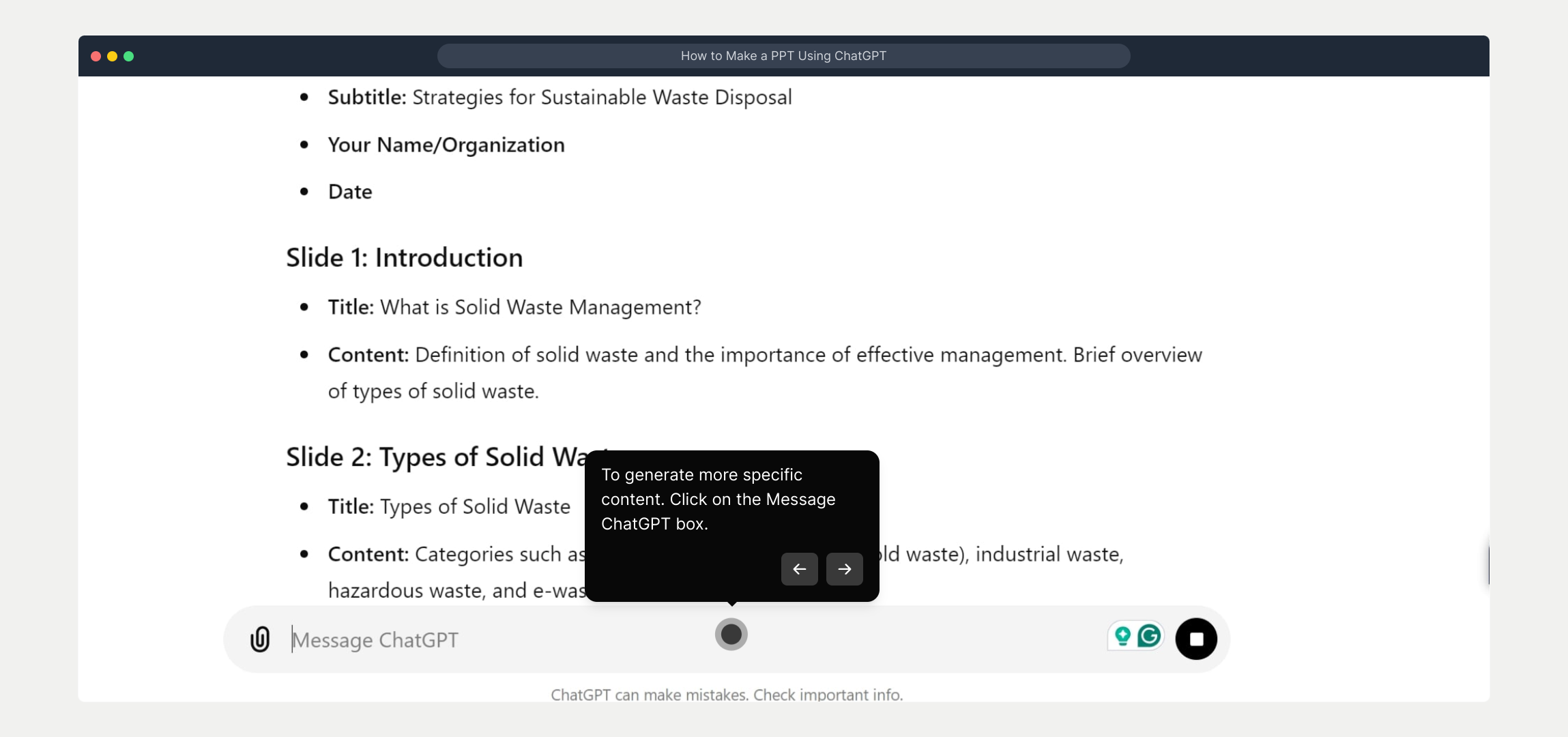
5

Video Step

(

Play Now

)

6

Once you’ve gathered all the content you need, open the PowerPoint application and start a new presentation file. Use the text and suggestions generated by ChatGPT to build engaging slides, incorporating any relevant images or media.
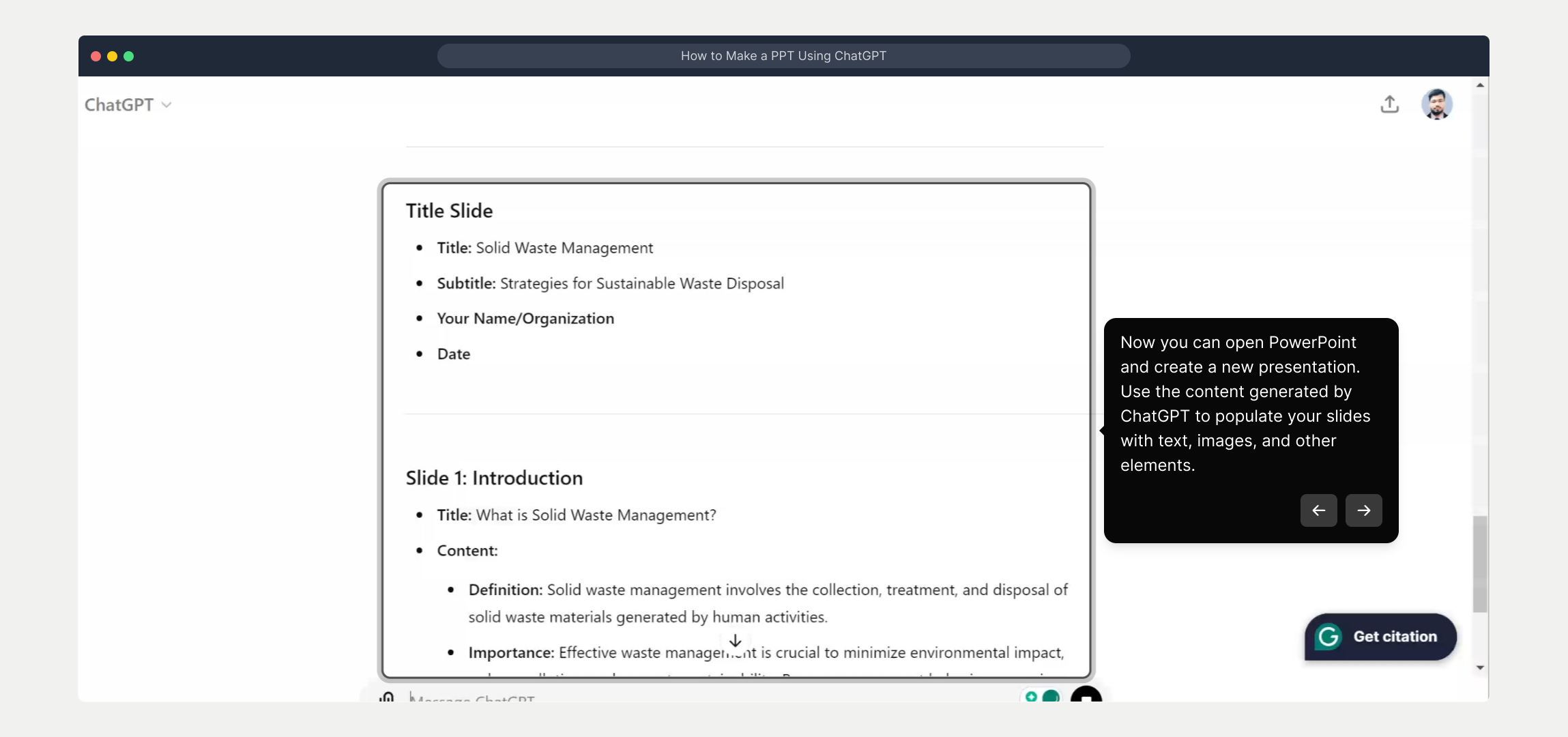
7

With these steps complete, you’re ready to create an impressive presentation quickly and efficiently using the powerful combination of ChatGPT and PowerPoint. Enjoy building your Supademo in moments.
8

Create your own interactive demos in < 5 mins with Supademo

You can create your own interactive product demo in minutes using Supademo. Drive growth, scale enablement, and supercharge product-led onboarding with Supademo. Sign up for free here with no credit card required.


FAQs

Commonly asked questions about this topic.

What is ChatGPT and how does it help in making a PPT?

ChatGPT is an AI language model that can generate textual content based on your prompts. It helps in making a PPT by providing structured, relevant slide content quickly, saving time and effort in research and writing.

Can ChatGPT create slide designs and images for the presentation?

ChatGPT primarily generates text. For slide designs and images, you will need to manually apply design elements in PowerPoint or use other graphic tools. However, ChatGPT can suggest ideas for visuals.

Is it necessary to have a PowerPoint software to use ChatGPT for PPT creation?

Yes. ChatGPT generates content but does not create .pptx files. You will need PowerPoint or another presentation tool to assemble the slides with the generated text and media.

How do I start creating a PPT with ChatGPT?

Begin by opening ChatGPT and starting a new conversation. Provide clear prompts about your presentation topic, desired slide count, and key points so ChatGPT can generate relevant content.

Can I customize the content generated by ChatGPT?

Absolutely. You can ask ChatGPT follow-up questions, specify tone or detail level, and request edits to tailor the presentation content precisely as you need it.

Are there templates available when using ChatGPT to create presentations?

ChatGPT does not provide templates, but it can suggest slide structures and layouts. Actual templates must be applied within PowerPoint or other presentation software.

How can I ensure the accuracy of the content generated by ChatGPT?

Always verify factual information and data generated by ChatGPT through trusted sources before including it in your slides to maintain accuracy and credibility.

Can ChatGPT generate content for any presentation topic?

Yes, ChatGPT can generate content for a wide range of topics, but the output quality depends on the clarity and detail of your prompts. More specific prompts yield more relevant results.

Is there a cost to use ChatGPT for creating PPT content?

ChatGPT offers free and paid plans. The free plan is sufficient for many tasks, but paid plans may provide faster responses, priority access, and other features to enhance your experience.

What is Supademo and how does it relate to PPT creation?

Supademo is a platform for creating interactive demos and guided walkthroughs. While not a PPT tool, it complements PPT creation by allowing users to build interactive presentations or demos efficiently.

Vimal Kumar

Vimal Kumar

Product Operations Associate

Vimal Kumar helps build and grow Supademo’s team and GTM efforts, with a focus on figuring out growth levers and improving product traction.

More from the blog

How to Add Products to Shopify

How to Add Products to Shopify

Learn step-by-step how to add products to your Shopify store effortlessly, including tips on product details, images, pricing, and inventory management to boost your online sales.

Vimal Kumar
Vimal KumarDec 17, 2025
How to Deactivate Your Shopify Store

How to Deactivate Your Shopify Store

Learn step-by-step how to deactivate your Shopify store easily, including important considerations and tips to pause or close your shop without losing data.

Vimal Kumar
Vimal KumarDec 17, 2025
How to Remove 'Powered by Shopify'

How to Remove 'Powered by Shopify'

Learn how to easily remove the 'Powered by Shopify' text from your online store with step-by-step instructions and tips to customize your Shopify storefront.

Vimal Kumar
Vimal KumarDec 17, 2025
How to Create a Shopify Account

How to Create a Shopify Account

Learn step-by-step how to create a Shopify account quickly and easily, set up your online store, and start selling your products in no time.

Vimal Kumar
Vimal KumarDec 17, 2025
How to Create a Stripe Account

How to Create a Stripe Account

Learn how to create a Stripe account quickly and easily with our step-by-step guide, perfect for beginners looking to start accepting online payments.

Vimal Kumar
Vimal KumarDec 17, 2025
How to Contact Stripe Support

How to Contact Stripe Support

Learn the easiest ways to contact Stripe support for quick assistance with your payment processing, account issues, and technical questions.

Vimal Kumar
Vimal KumarDec 16, 2025