How to Make Background Transparent in Canva

Making backgrounds transparent in Canva is an essential skill for creating professional graphics, logos, and design assets. This feature allows you to remove unwanted backgrounds and overlay your designs on different contexts. Learn how to quickly achieve transparent backgrounds using Canva's built-in editing tools.
Quick summary
In this tutorial, you'll discover how to make a background transparent in Canva by uploading an image, accessing the image editor, and using Canva's background removal features. You'll learn to isolate design elements and create clean, professional graphics ready for any project.
Why this matters
Transparent backgrounds are crucial for versatile design work, enabling your graphics to blend seamlessly into various layouts and marketing materials. Whether you're designing social media content, product images, or branded assets, removing backgrounds saves time and elevates the professionalism of your final output.
Step-by-step guide
- 1
Open the design editor
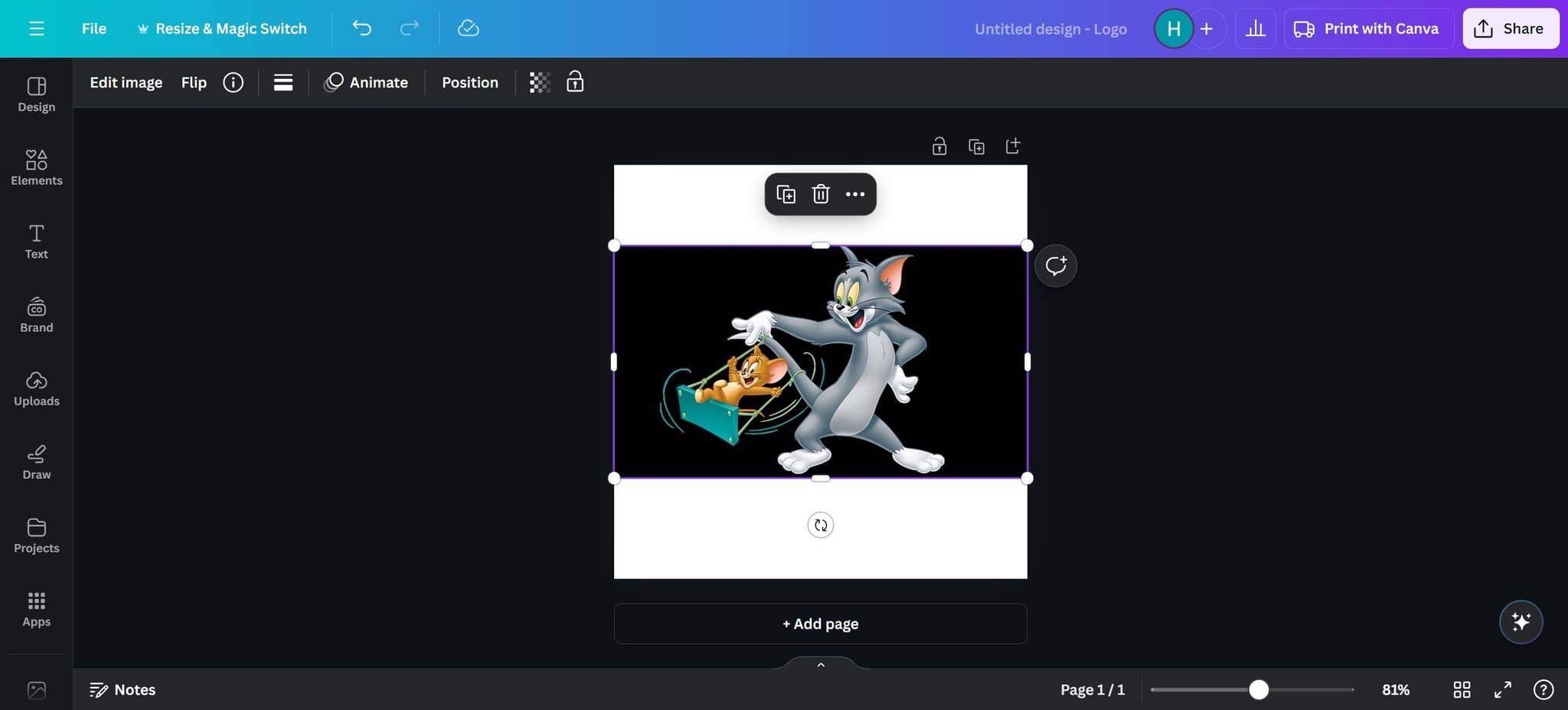
Start by clicking to access Canva's design workspace. This opens the main editor where you can begin your design project.
- 2
Upload your image
Click the upload option to add your image to the canvas. Select the image file from your device that you want to make transparent.
- 3
Select Edit Image option
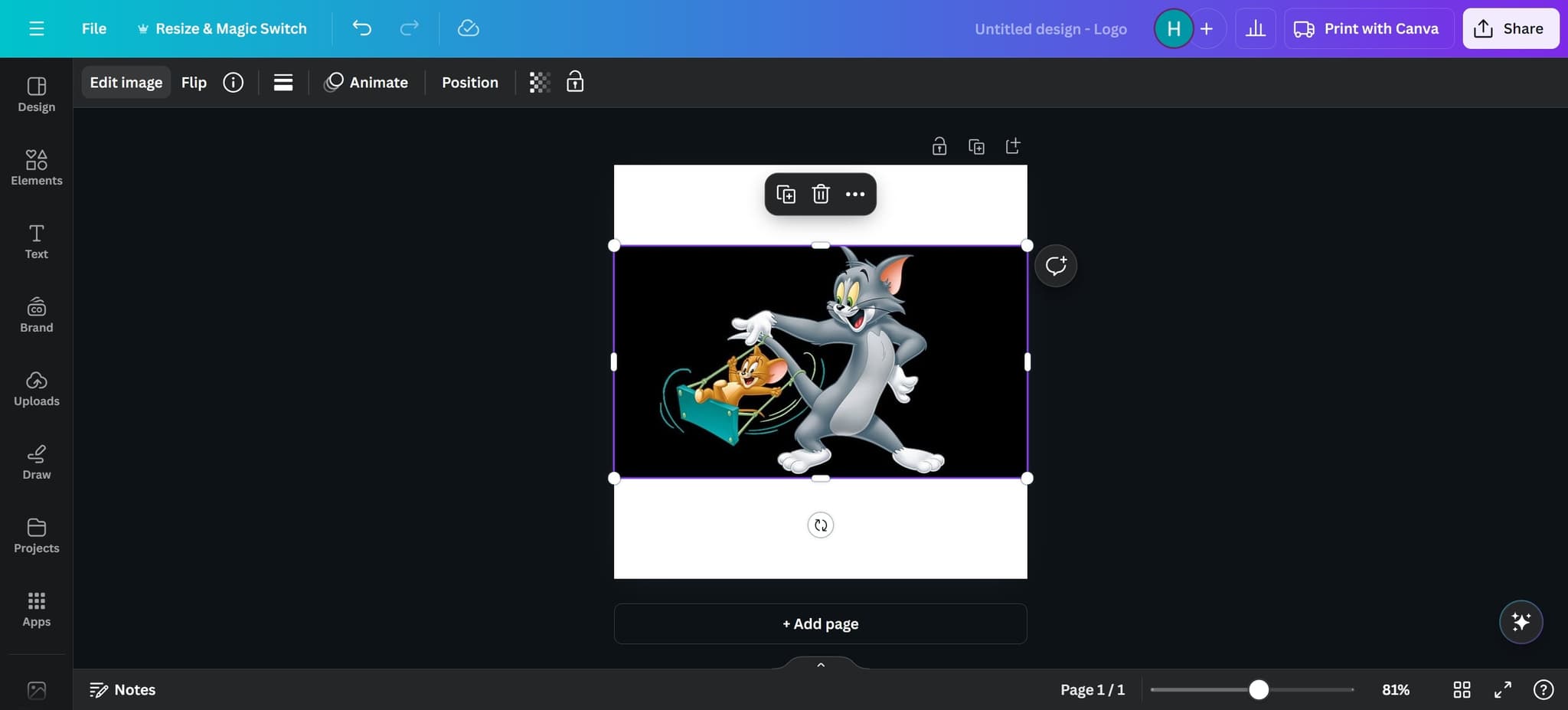
Right-click or access the menu for your uploaded image and click on 'Edit image'. This opens the image editing tools within Canva.
- 4
Access the background removal tool
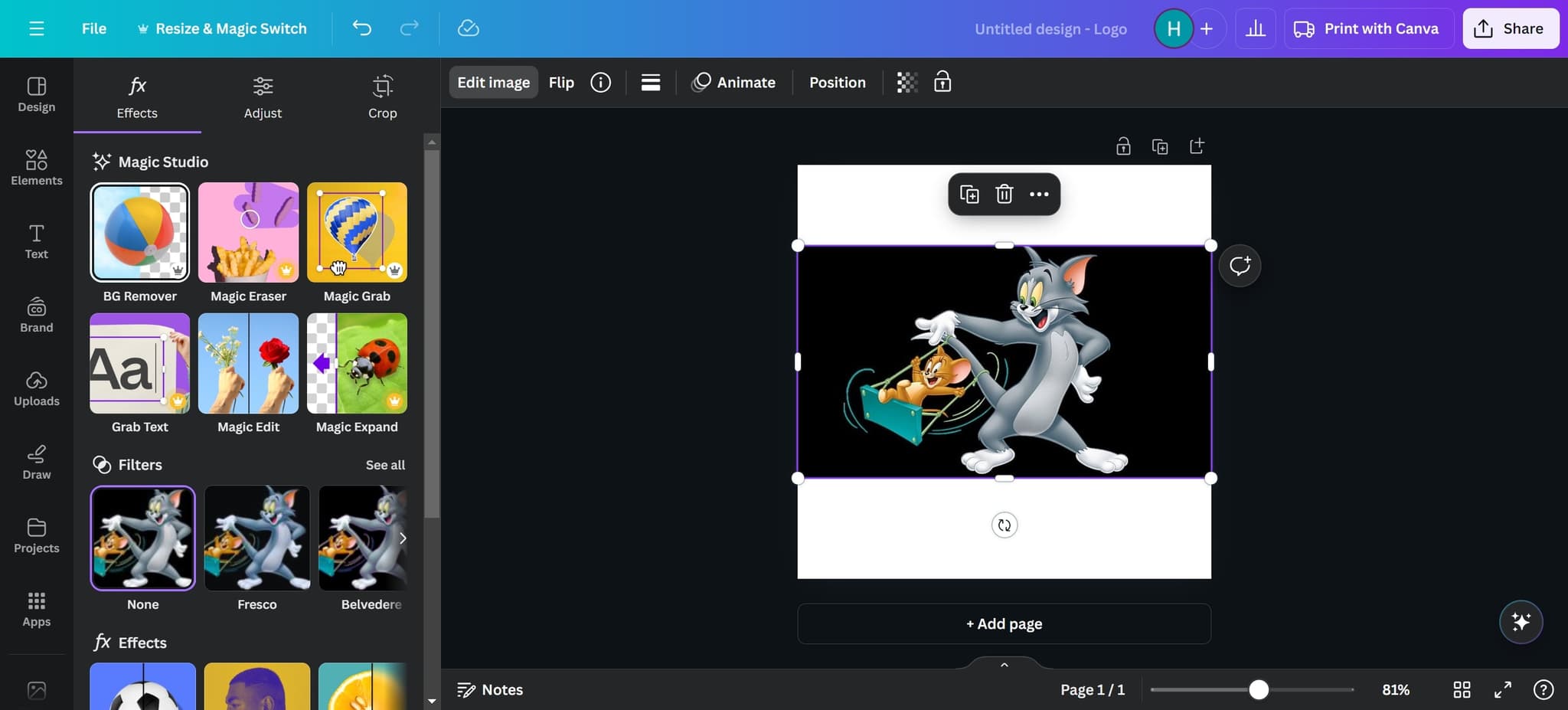
Click the designated button to activate the background removal feature. Canva will automatically detect and highlight the background for removal.
- 5
Apply and confirm the element
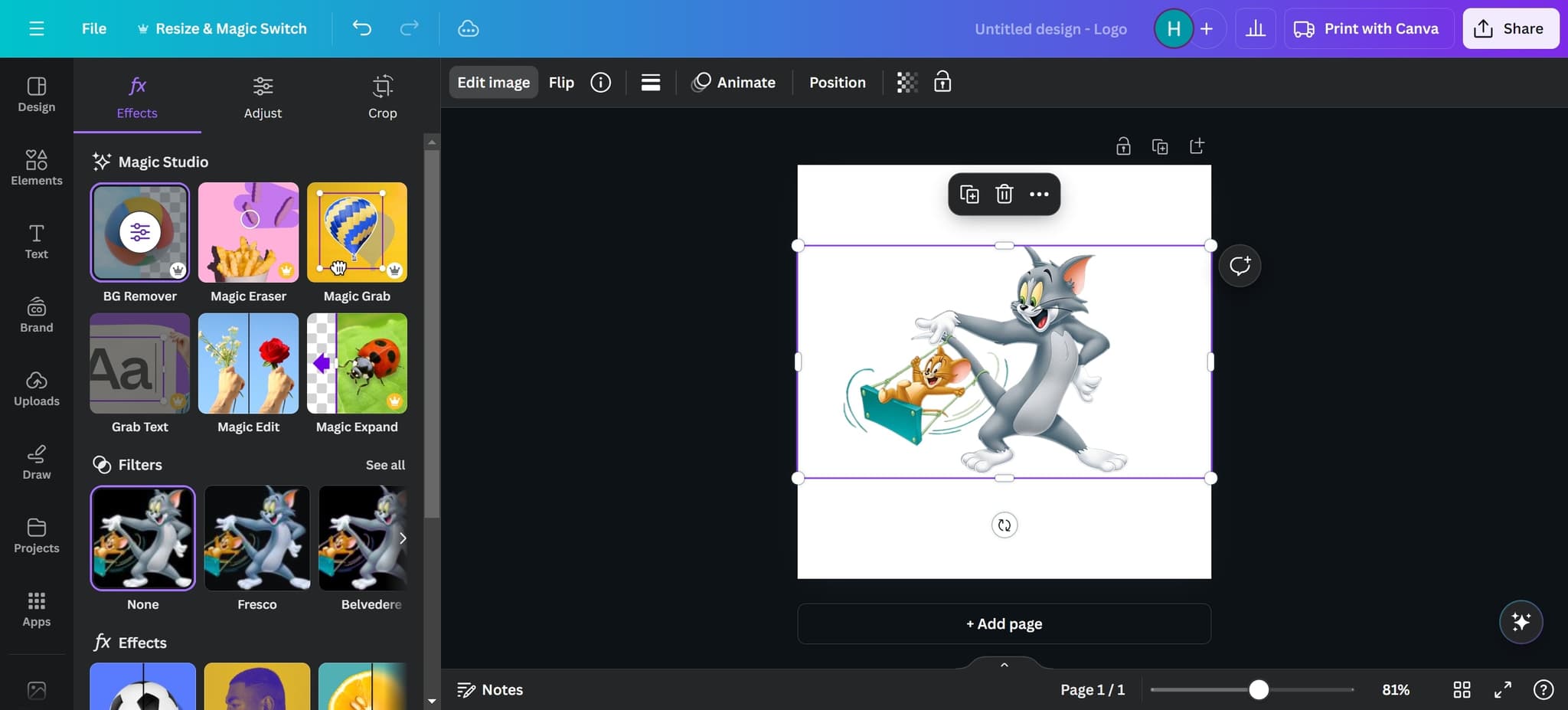
Click on the element to confirm your selection and apply the transparency effect. Your image now has a transparent background and is ready to use in your design.
Frequently asked questions
Common questions about how to make background transparent in canva.
Can I undo the transparent background if I change my mind?
Yes, Canva allows you to undo changes during your editing session. Simply press Ctrl+Z (or Cmd+Z on Mac) to revert the background removal. If you've already saved, you can edit the image again and restore the background.
What image formats support transparent backgrounds in Canva?
Canva supports PNG format for transparent backgrounds, which is the standard format for maintaining transparency. When you download your design, make sure to select PNG as your file format to preserve the transparent background.
Will the transparent background work on all social media platforms?
Most platforms support transparent PNGs, but some like Facebook and Instagram may add a white background when you upload. Always check the platform's image requirements before uploading, and test your design to ensure it appears as intended.
How accurate is Canva's automatic background removal?
Canva's tool works well for images with clear contrast between the subject and background. For complex images with intricate edges or similar color tones, you may need to manually refine the selection using additional editing tools.
Can I make the background transparent for text or other design elements?
The background removal tool in Canva primarily works on uploaded images. For text and other design elements, you can adjust opacity settings or use Canva's layering features to create transparency effects without needing the background removal tool.