How to Prefill Answers in a Google Form

Prefilling answers in Google Forms allows you to create personalized form links that automatically populate certain fields with data, saving respondents time and reducing manual entry errors. This feature is particularly useful for surveys, registration forms, and feedback collections where some information is already known.
Quick summary
In this tutorial, you'll learn how to prefill answers in Google Forms by constructing special URLs with parameter values. You'll discover how to identify form field IDs, build prefill parameters, and generate shareable links that automatically populate responses.
Why this matters
Prefilling form answers streamlines data collection by eliminating duplicate entries and improving response accuracy. This workflow is essential for follow-up surveys, personalized customer feedback forms, and any scenario where you want to pre-populate known information while letting respondents complete remaining fields.
Step-by-step guide
- 1
Open your Google Form
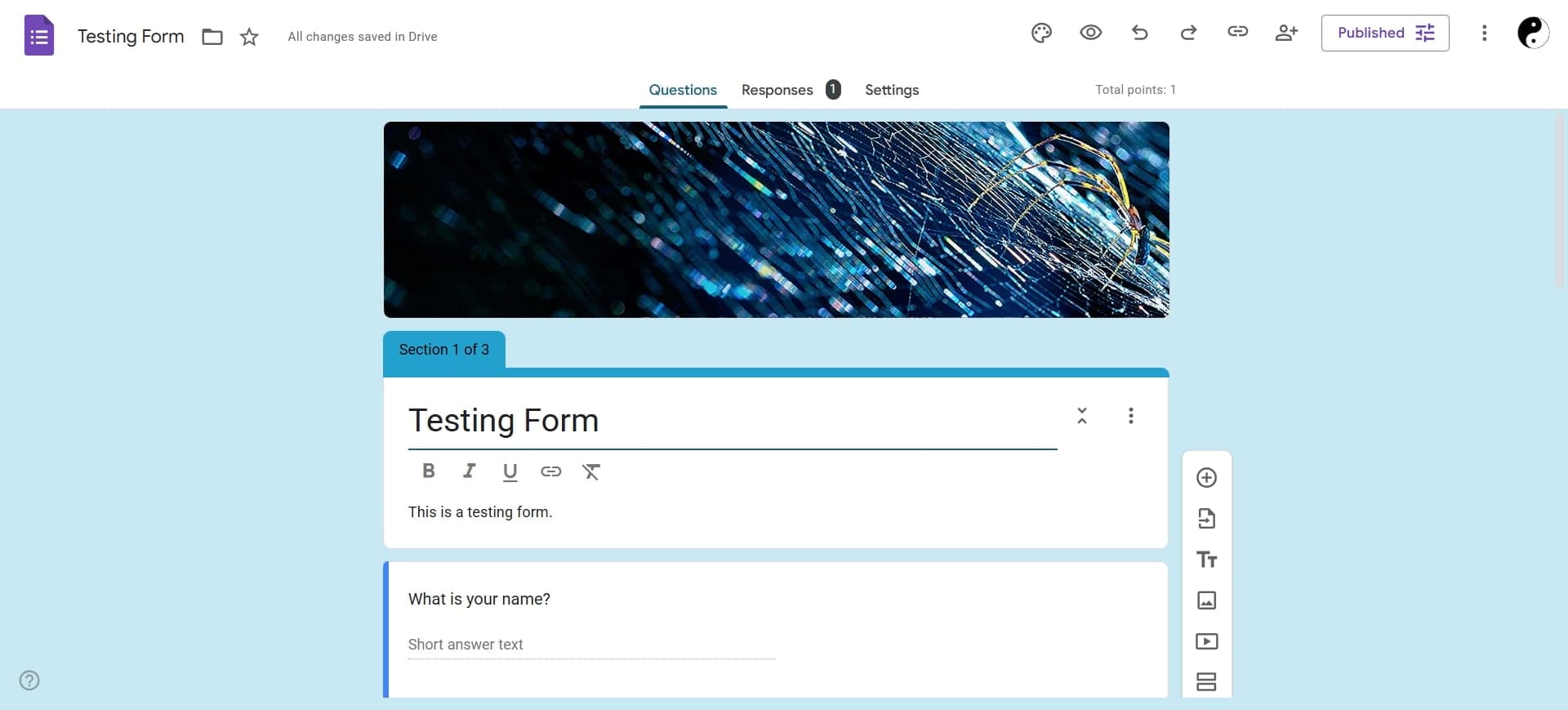
Navigate to Google Forms and open the form you want to prefill. Ensure you have edit access to the form so you can view field details and generate prefill links.
- 2
Identify the form's edit URL
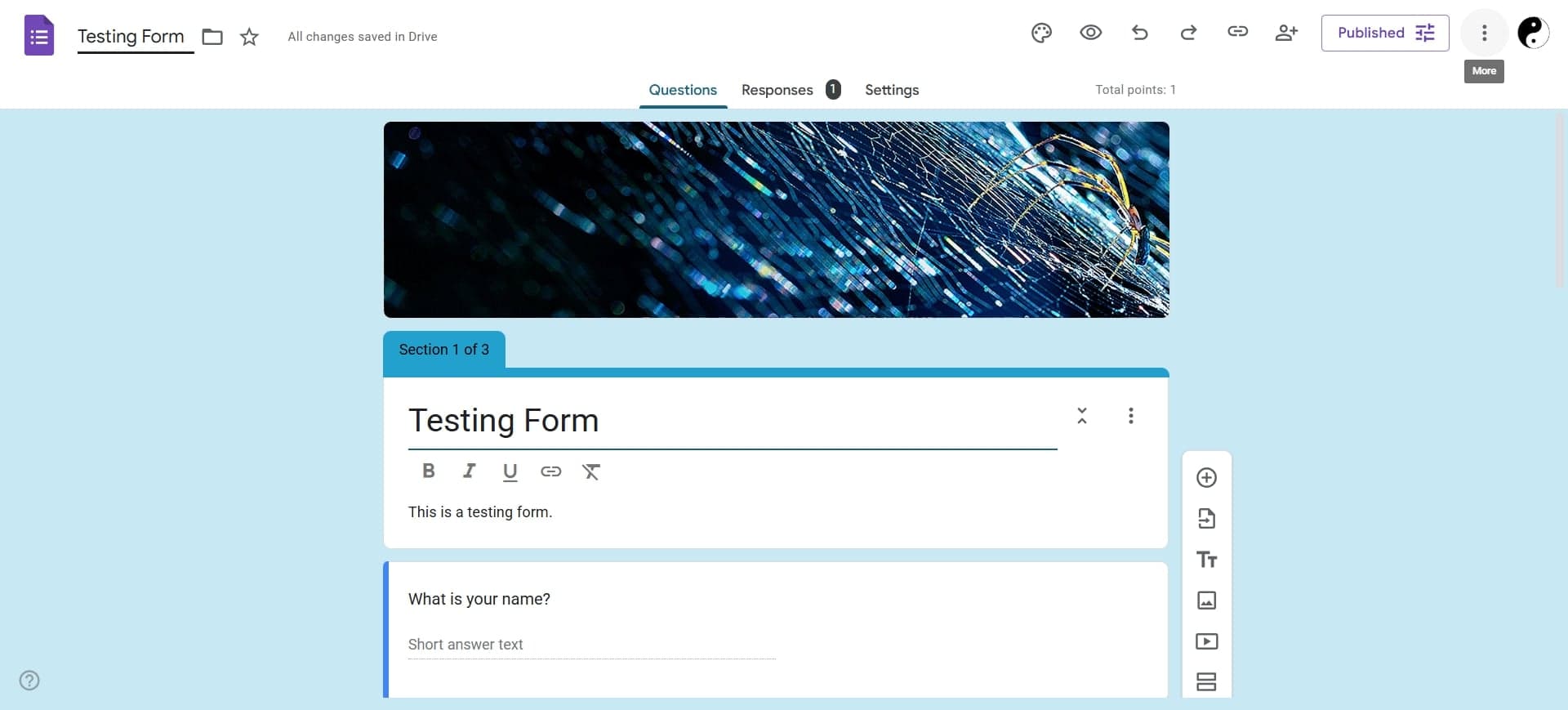
Look at the browser's address bar and note the form ID from the URL. The format is typically docs.google.com/forms/d/{FORM_ID}/edit. Copy this form ID for later use.
- 3
Access each question's field ID
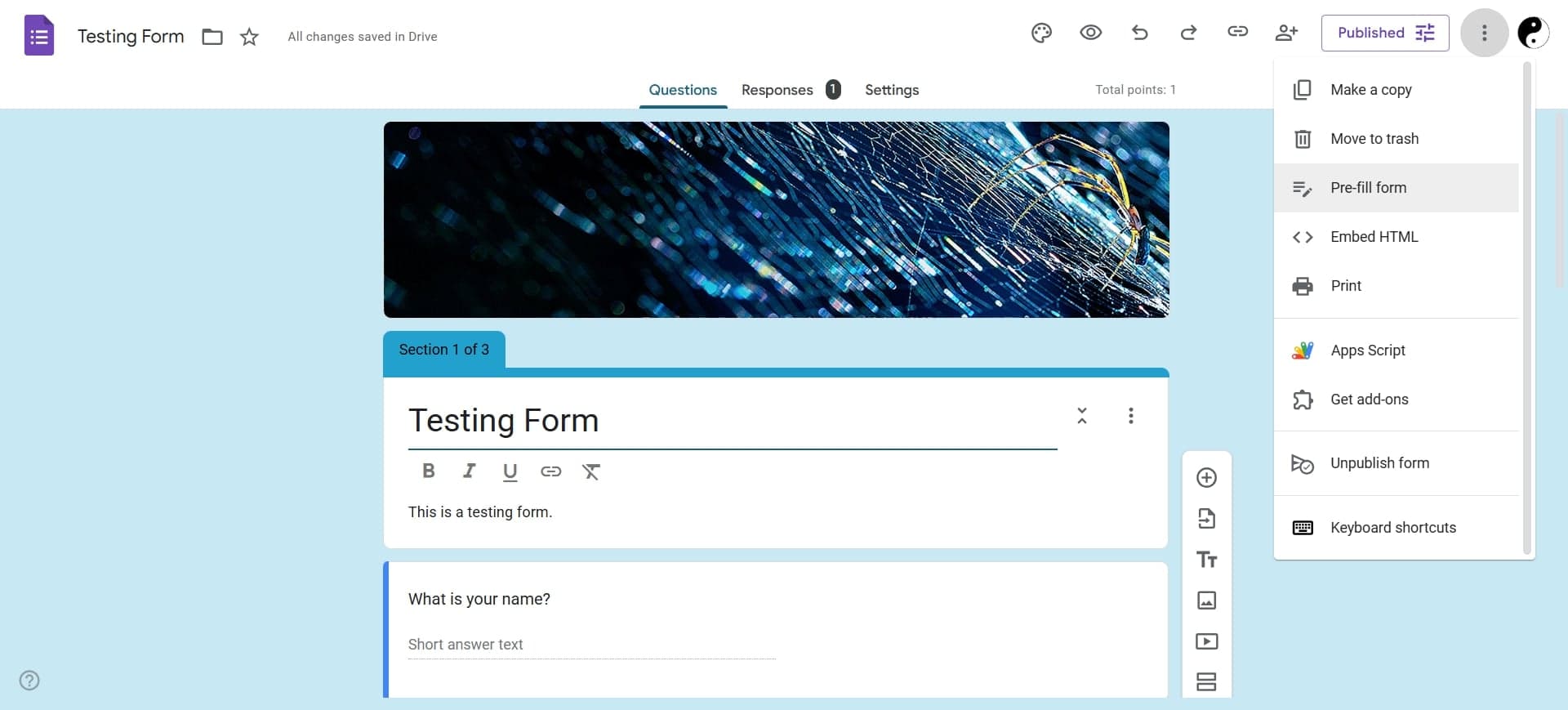
In edit mode, click on each question and look for the field ID in the URL or use the inspect element tool. The field ID appears as a parameter when you interact with form fields in edit mode.
- 4
Construct the prefill URL base
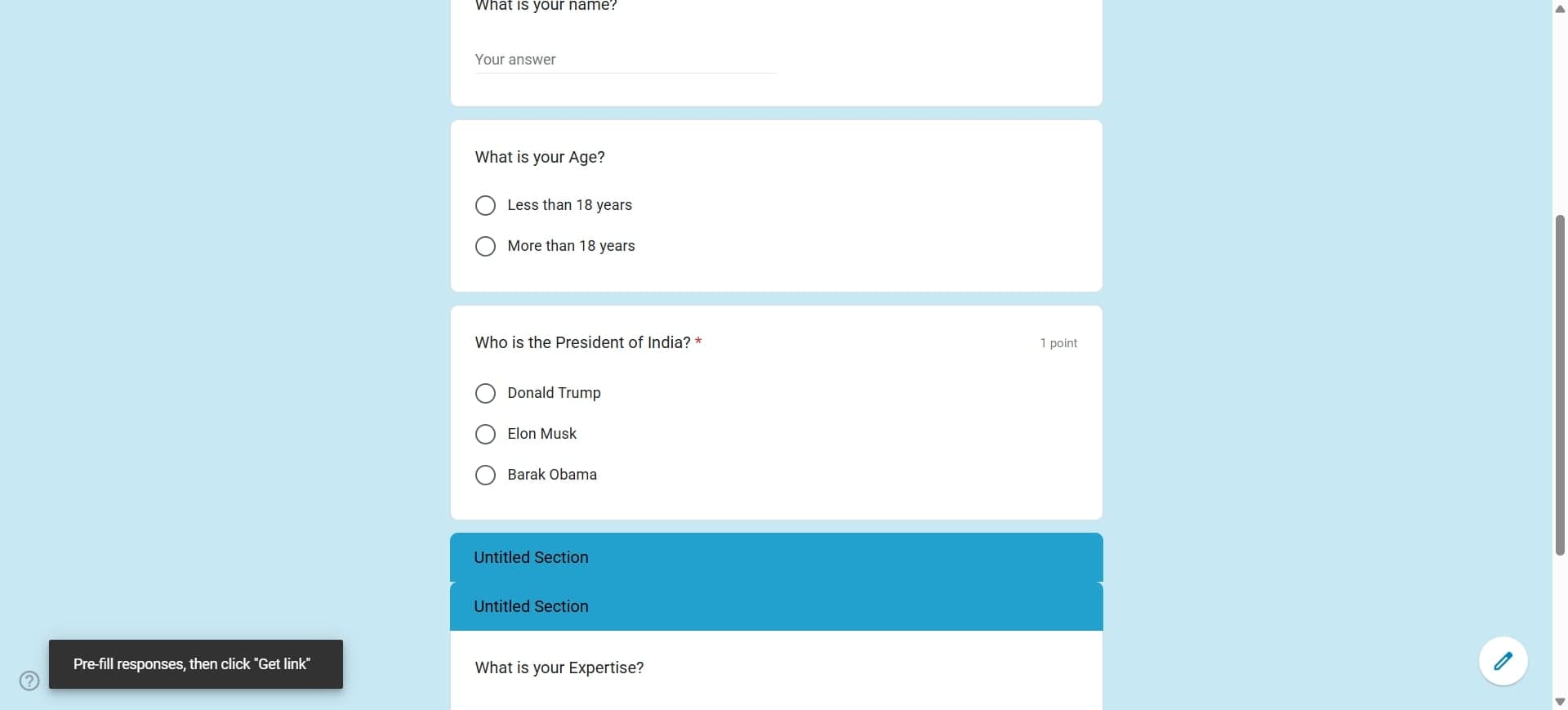
Start building your prefill URL using the format: https://docs.google.com/forms/d/{FORM_ID}/viewform. This is the foundation for all prefill parameters.
- 5
Add answer parameters to the URL
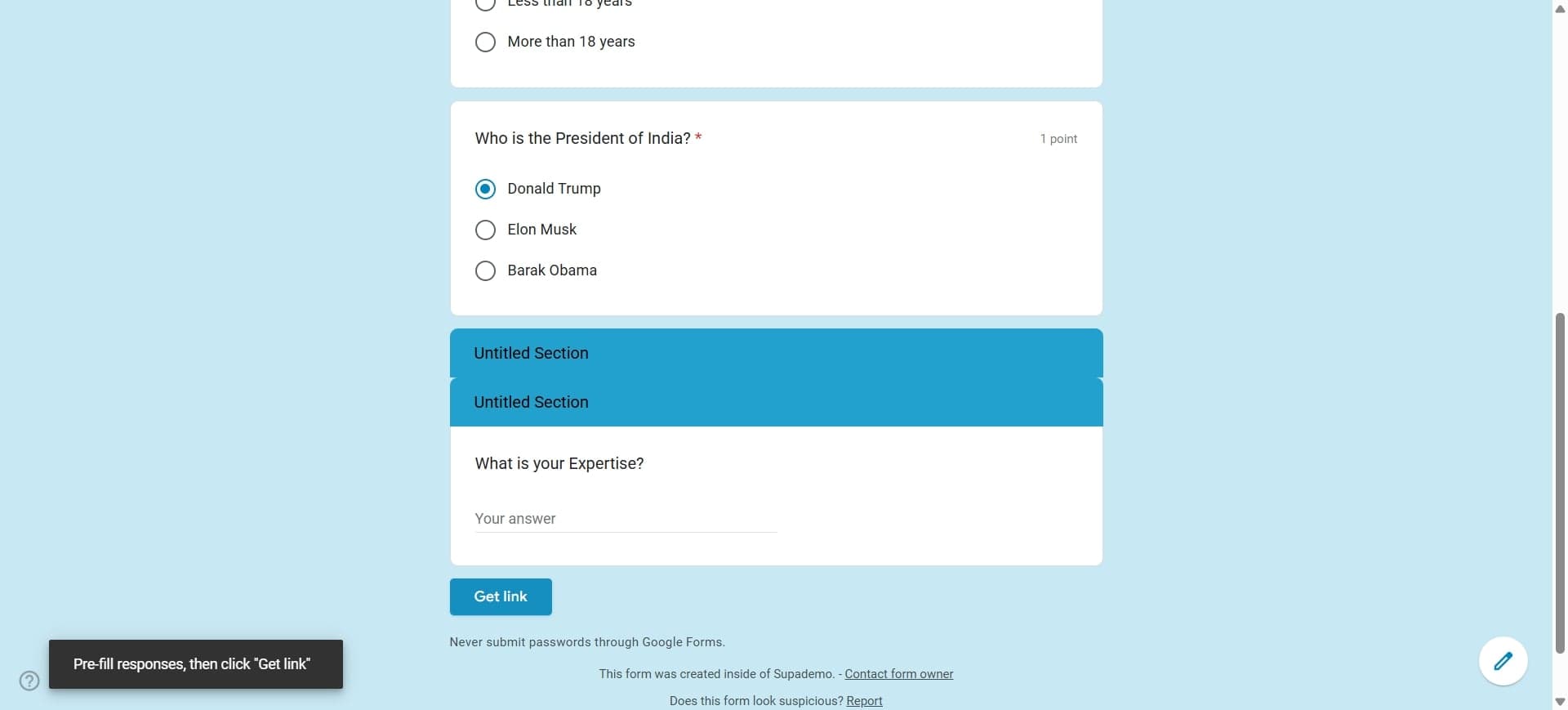
Append prefill parameters using the syntax ?entry.{FIELD_ID}={ANSWER_VALUE} for the first parameter, then &entry.{FIELD_ID}={ANSWER_VALUE} for additional fields. URL-encode special characters and spaces as %20.
- 6
Test the prefilled form link
Copy the complete prefill URL and paste it into a new browser tab to verify that the correct answers populate in the appropriate fields. Check multiple fields to ensure accuracy.
- 7
Share the prefill link
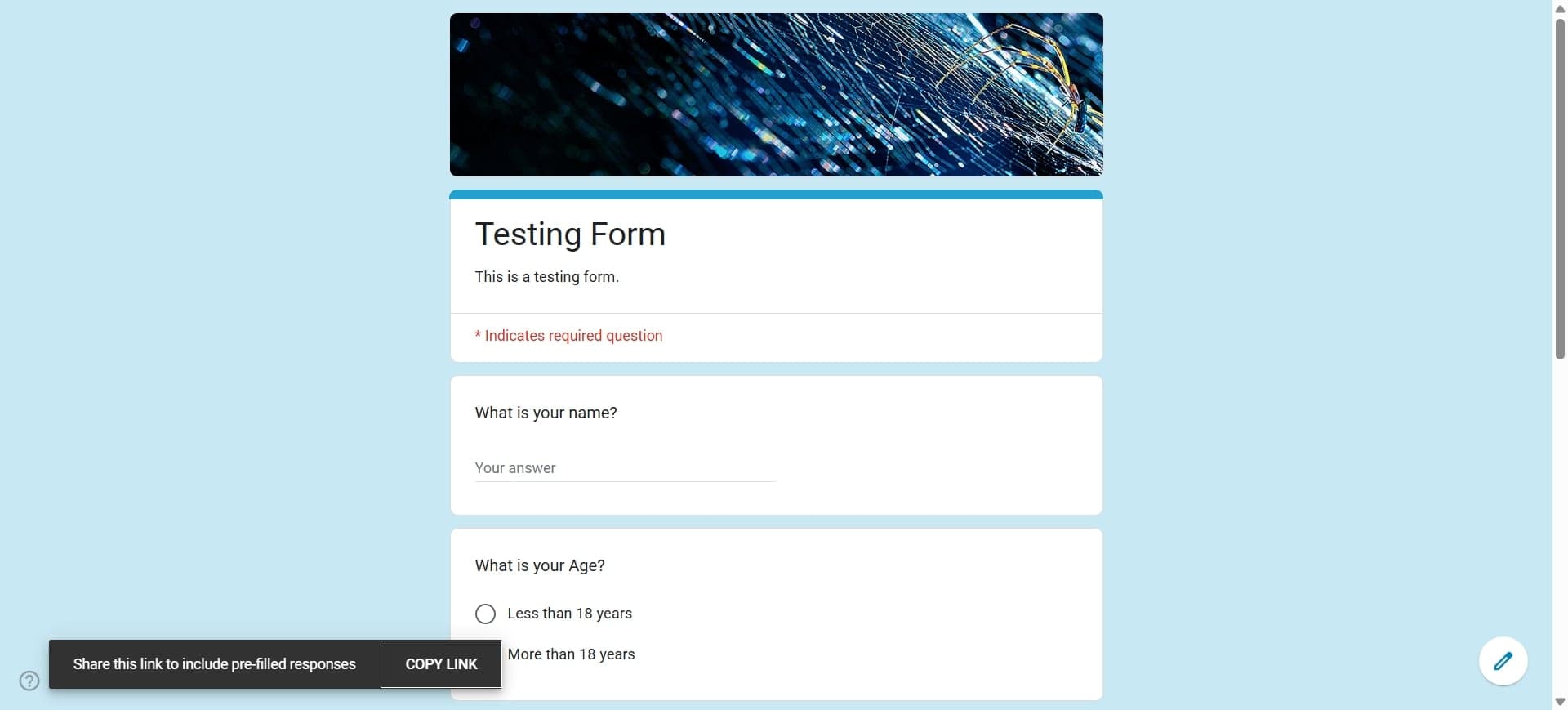
Distribute the prefilled URL through email, messaging platforms, or embed it in web pages. Respondents will see the form with your specified answers already filled in, and can modify or complete remaining fields.
Frequently asked questions
Common questions about how to prefill answers in a google form.
How do I find the field ID for each question?
In Google Forms edit mode, click on a question and observe the URL structure, or use your browser's inspect element tool to examine the form's HTML. The field ID appears as a number in the entry parameters. Some users find it easier to test different ID numbers systematically to identify which corresponds to which question.
Can I prefill all types of questions in Google Forms?
Prefilling works best with short answer, paragraph, multiple choice, dropdown, and checkbox questions. Complex questions like file uploads, grids, and date pickers may have limitations or require special formatting. It's recommended to test your specific question types before distributing links widely.
What happens if a respondent changes a prefilled answer?
Respondents can freely edit any prefilled answers since they appear as regular form fields. The prefilled data is just a starting point; respondents maintain complete control over their submission. This allows flexibility for cases where the prefilled information needs adjustment.
How do I handle special characters or spaces in prefill values?
Special characters and spaces must be URL-encoded in your prefill parameters. For example, spaces become %20, ampersands become %26, and equals signs become %3D. Use an online URL encoder tool to properly format complex values before adding them to your prefill URL.
Can I create multiple prefill links with different preset answers?
Yes, you can create as many unique prefill URLs as needed, each with different parameter values. This is useful for personalized surveys, different departments or locations, or A/B testing different form variations. Each link can prefill any combination of fields you choose.