How to Publish a Google Form

Publishing a Google Form makes it accessible to respondents and enables you to start collecting responses. Whether you're creating a survey, quiz, or registration form, publishing is the final step that activates your form and generates a shareable link.
Quick summary
In this tutorial, you'll learn how to publish a Google Form and distribute it to your audience. We'll cover locating the publish button, choosing your sharing method, and generating the form's shareable link or embed code.
Why this matters
Publishing your Google Form is essential for launching any survey, feedback collection, or registration initiative. Without publishing, your form remains inaccessible to respondents, preventing you from gathering the data you need. Understanding the publishing workflow ensures you can quickly activate forms and start collecting responses efficiently.
Step-by-step guide
- 1
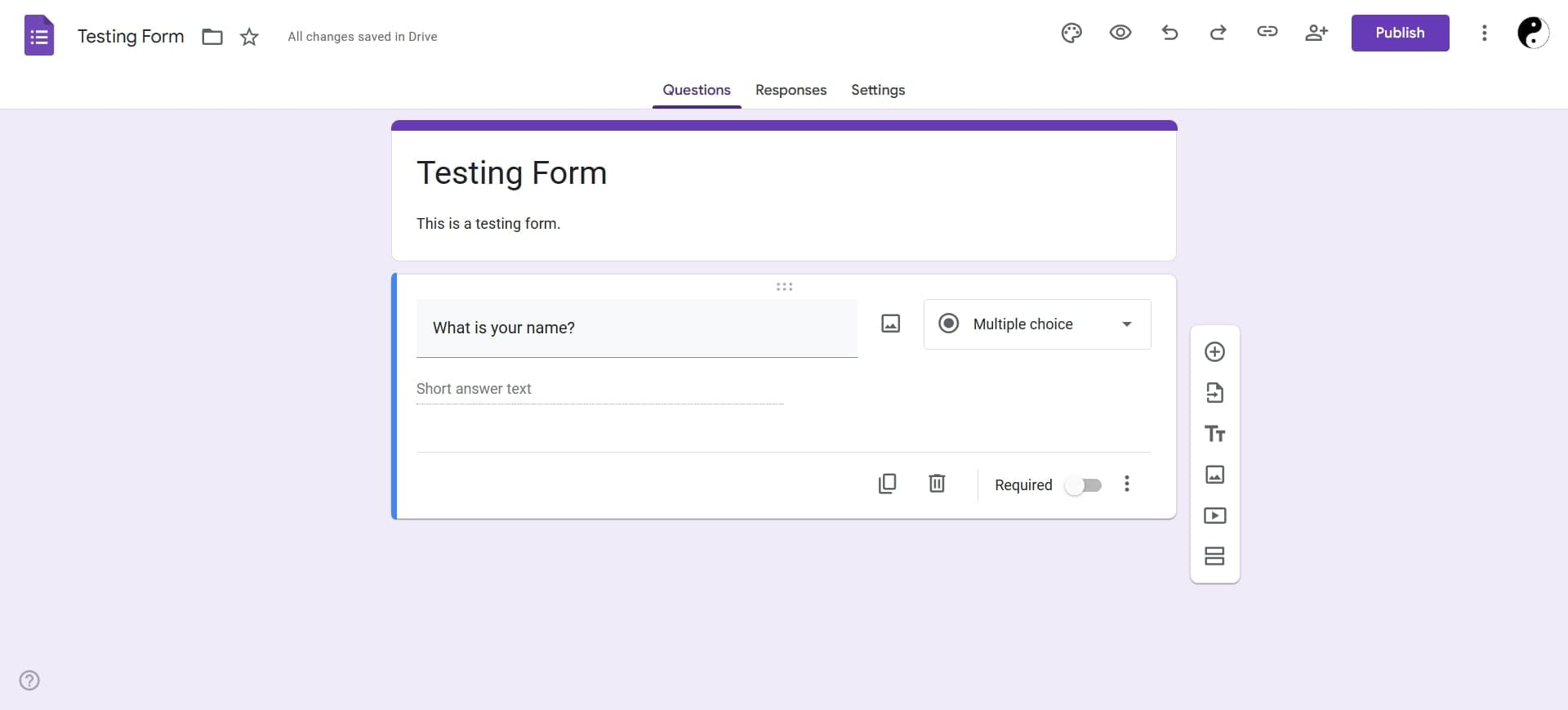
Open your completed Google Form
Navigate to your Google Form in Google Forms and ensure all questions and settings are finalized. Review the form to confirm all fields, logic, and design elements are correct before proceeding to publish.
- 2
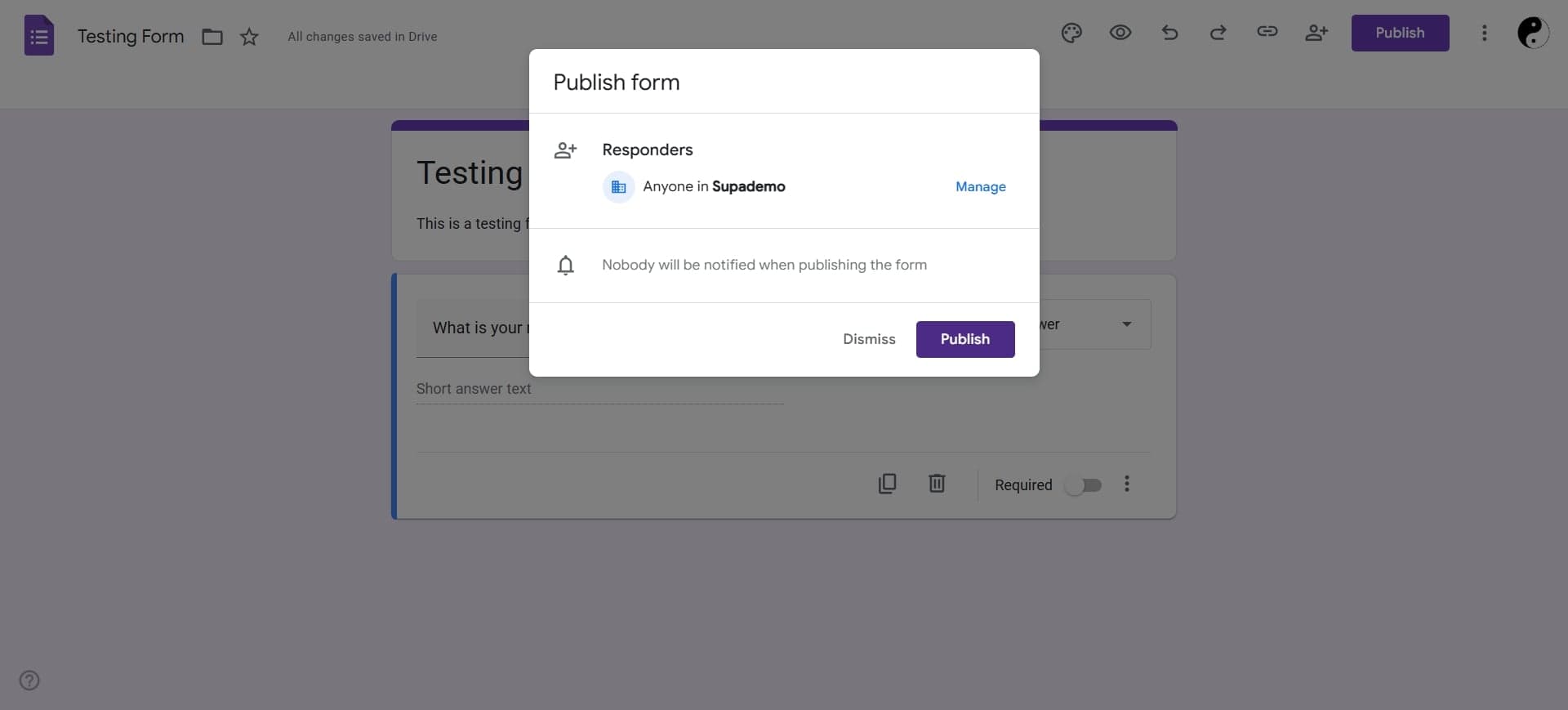
Click the Send button
Locate and click the Send button, typically found in the top-right corner of the form editor. This button opens the sharing and publishing options for your form.
- 3
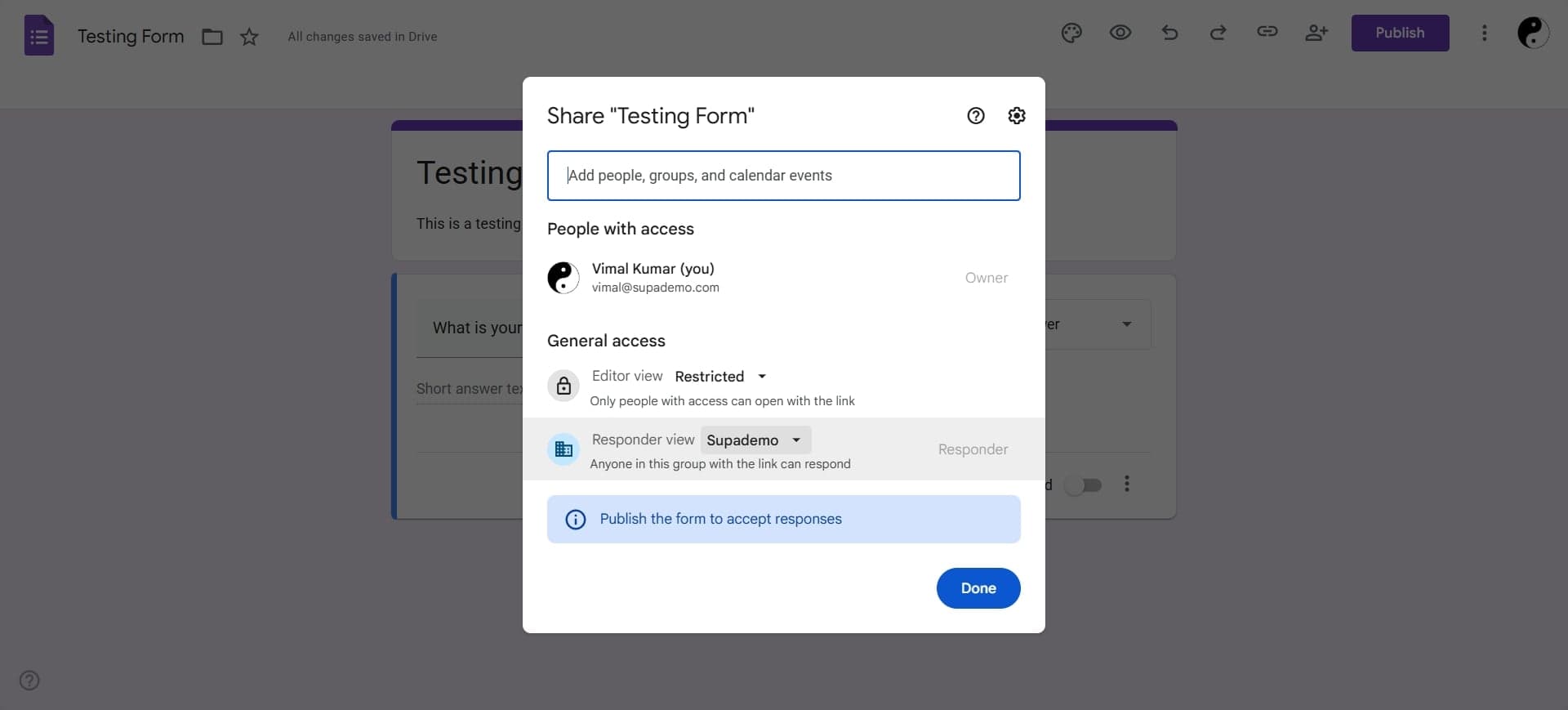
Select your sharing method
Choose how you want to distribute your form: via email, link, or embedded code. Each method has different use cases—email is ideal for specific recipients, link sharing works for broad distribution, and embedding is useful for websites or blogs.
- 4
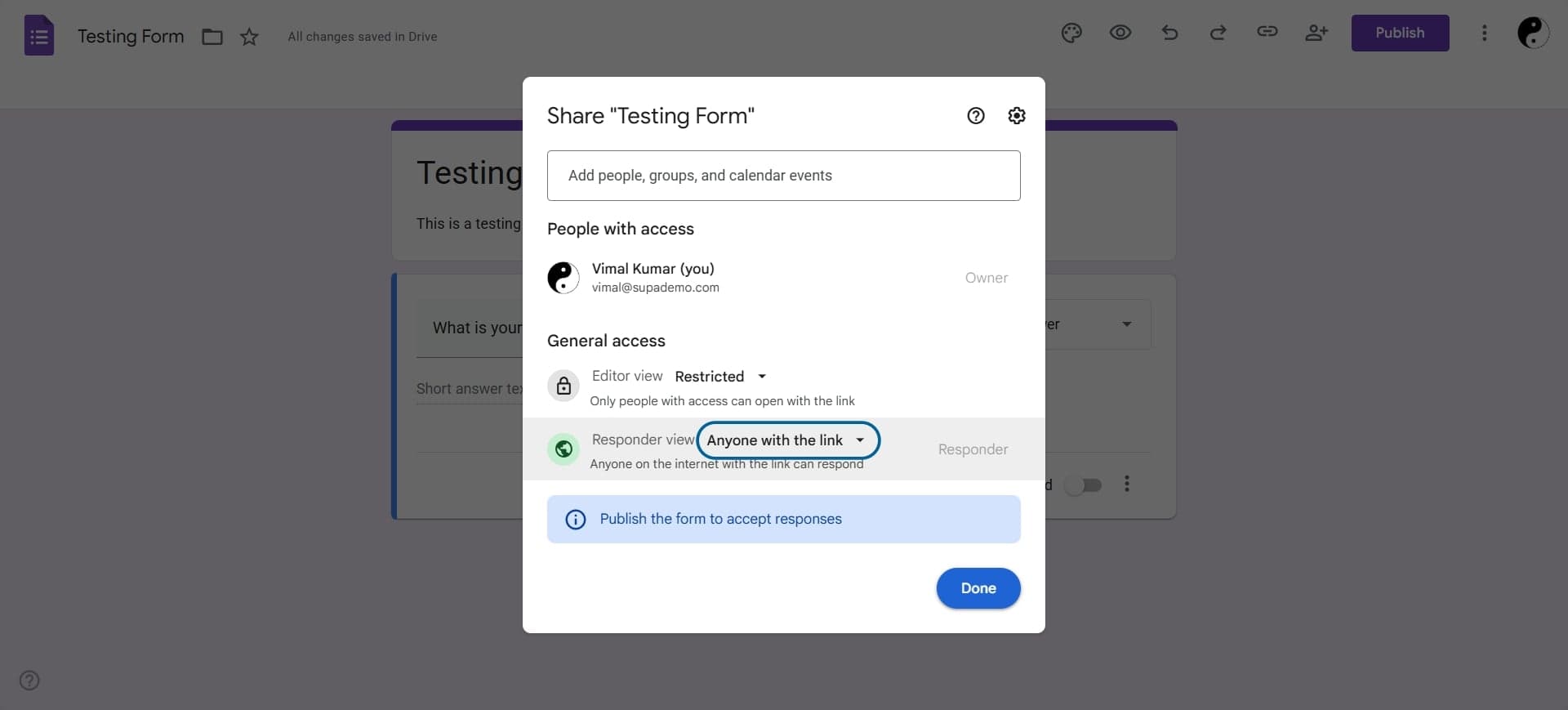
Copy the form link
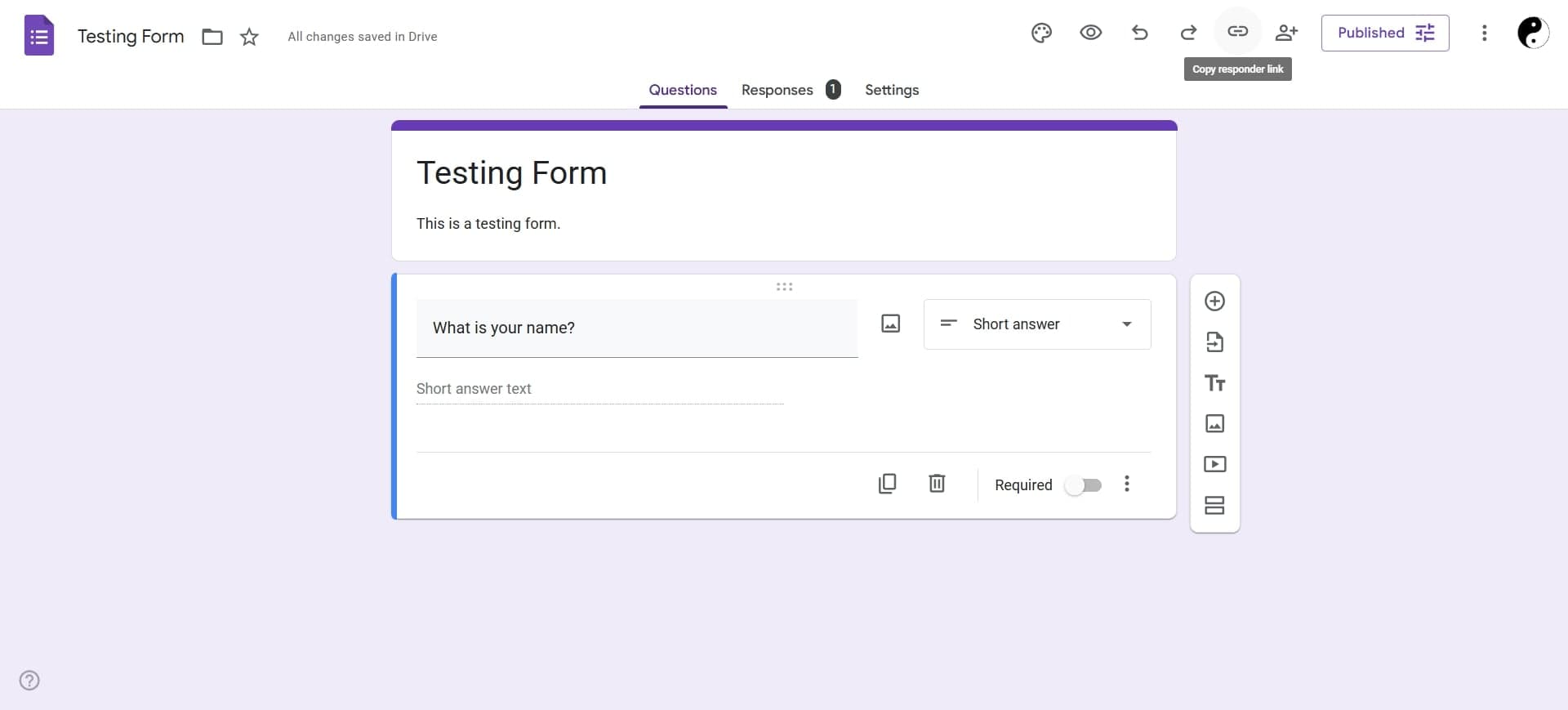
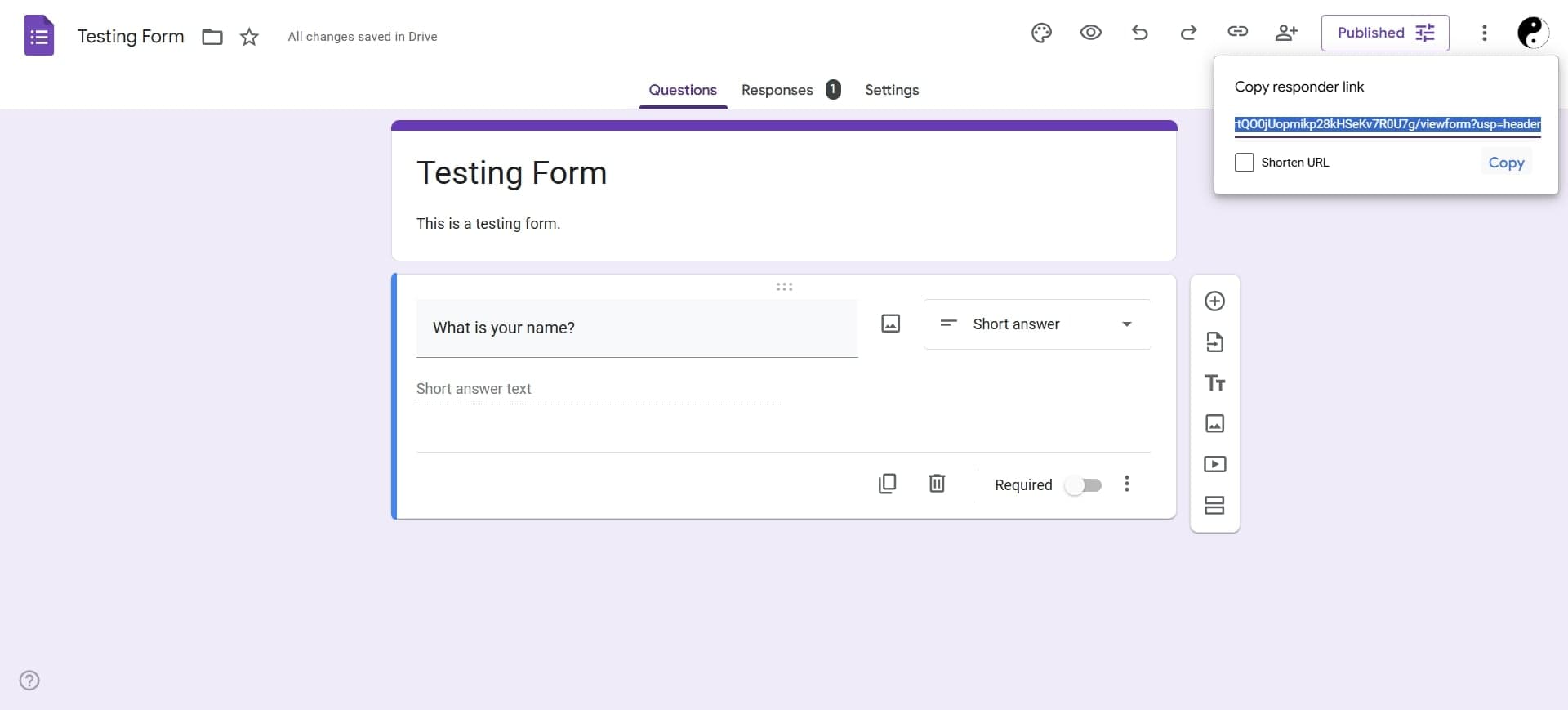
If sharing via link, click the link icon and copy the generated URL. This link can be pasted into emails, messages, social media, or any platform where you want to direct respondents.
- 5
Customize sharing settings if needed
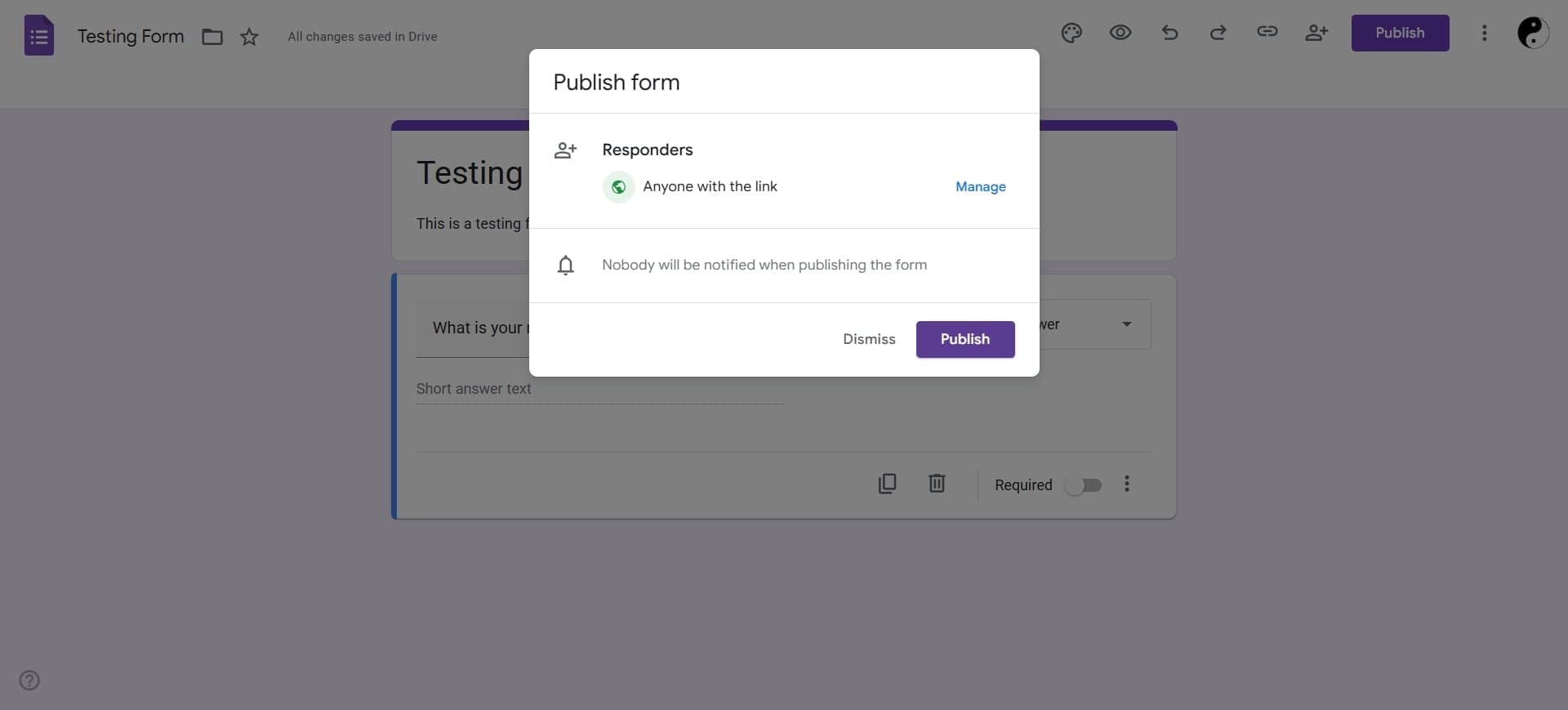
Adjust permissions to control whether respondents need a Google account or if they can submit anonymously. You can also limit responses or require sign-in depending on your form's requirements.
- 6
Send or distribute the form
If sending via email, enter recipient addresses and add a message before sending. For link sharing, paste the copied URL in your chosen channel and let respondents know the form is live.
- 7
Monitor responses in real time
Once published, responses appear automatically in the Responses tab. You can view individual submissions or switch to Summary view to see aggregate data and charts as respondents submit answers.
Frequently asked questions
Common questions about how to publish a google form.
Can I publish a Google Form multiple times?
Yes, you can publish and unpublish a Google Form as many times as needed. The same link remains valid even if you temporarily unpublish it. Changes to your form take effect immediately after saving, so you can edit questions and design elements at any time without re-publishing.
What's the difference between sharing via link and email?
Sharing via link generates a URL that you can distribute through any channel, while email sharing allows you to send invitations directly to specific people with a personalized message. Email sharing is better for targeted surveys, while link sharing is more flexible for social media or public forms.
Do respondents need a Google account to submit my form?
By default, respondents do not need a Google account. However, you can require sign-in in the sharing settings if you want responses limited to people with Google accounts or your organization. Check the settings before publishing if you need this restriction.
Can I embed a Google Form on my website?
How do I stop receiving responses after publishing?
Click the Send button again and select the option to turn off the form or unpublish it. You can also set a response limit or deadline in the form settings before publishing. Unpublishing prevents new responses but preserves all data already collected.