How to Resize on Canva

Resizing designs in Canva is essential when you need to repurpose content for different platforms or formats. This tutorial walks you through the straightforward process of resizing your Canva designs to a specific dimension while preserving your creative work.
Quick summary
In this tutorial, you'll learn how to select a design element, access the resize options, choose a new dimension, and create a resized copy of your project. By following these steps, you'll be able to quickly adapt your designs for various use cases without starting from scratch.
Why this matters
Resizing is a practical workflow that saves time when you need the same design in multiple formats—such as converting a social media post to a presentation slide or adjusting an image for web use. Canva's resize feature intelligently handles layout adjustments, ensuring your content remains visually balanced across different sizes.
Step-by-step guide
- 1
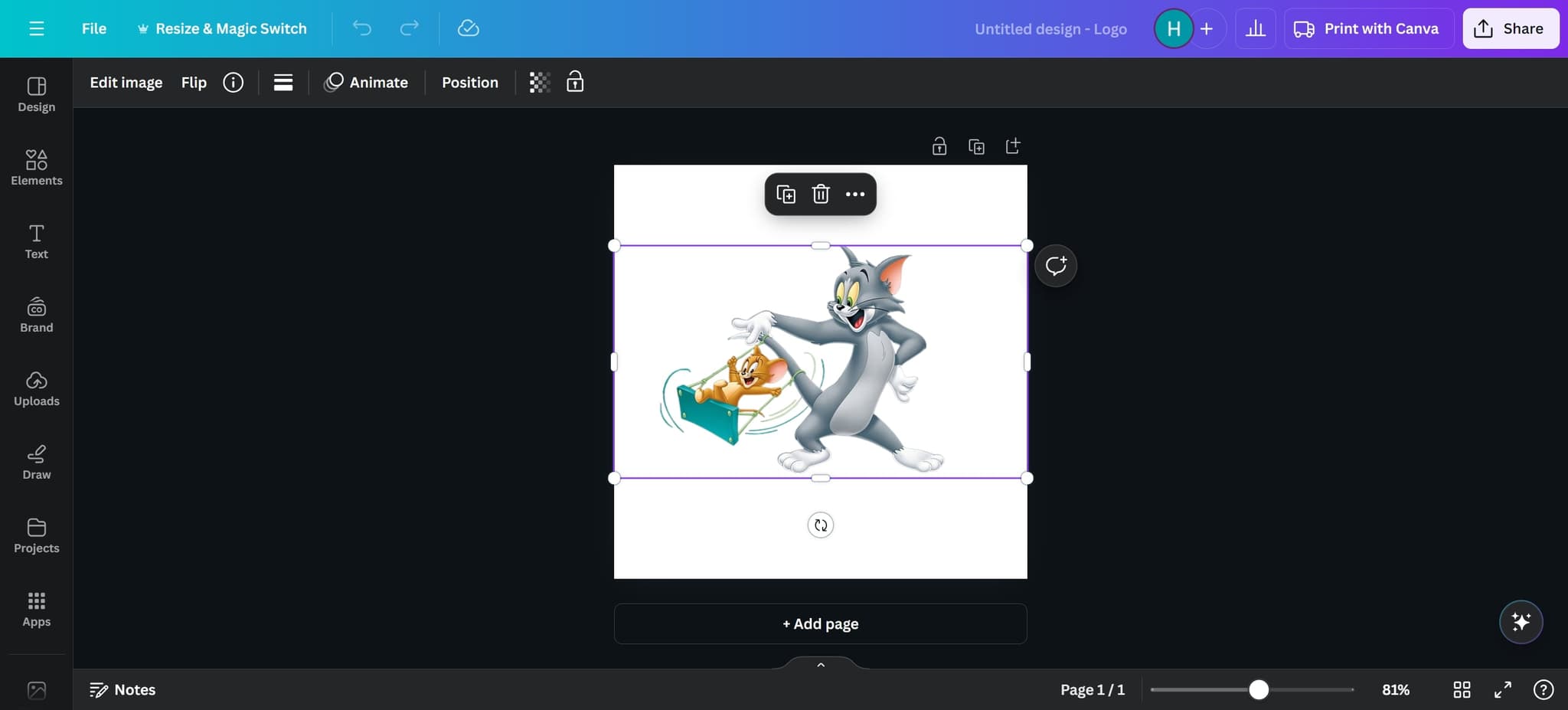
Select the design element
Click on the element you want to work with in your Canva canvas. This selects the component and prepares it for the next action.
- 2
Access the options menu
Click on the designated menu area to reveal additional options for your selected element. This step opens the tools you need to proceed.
- 3
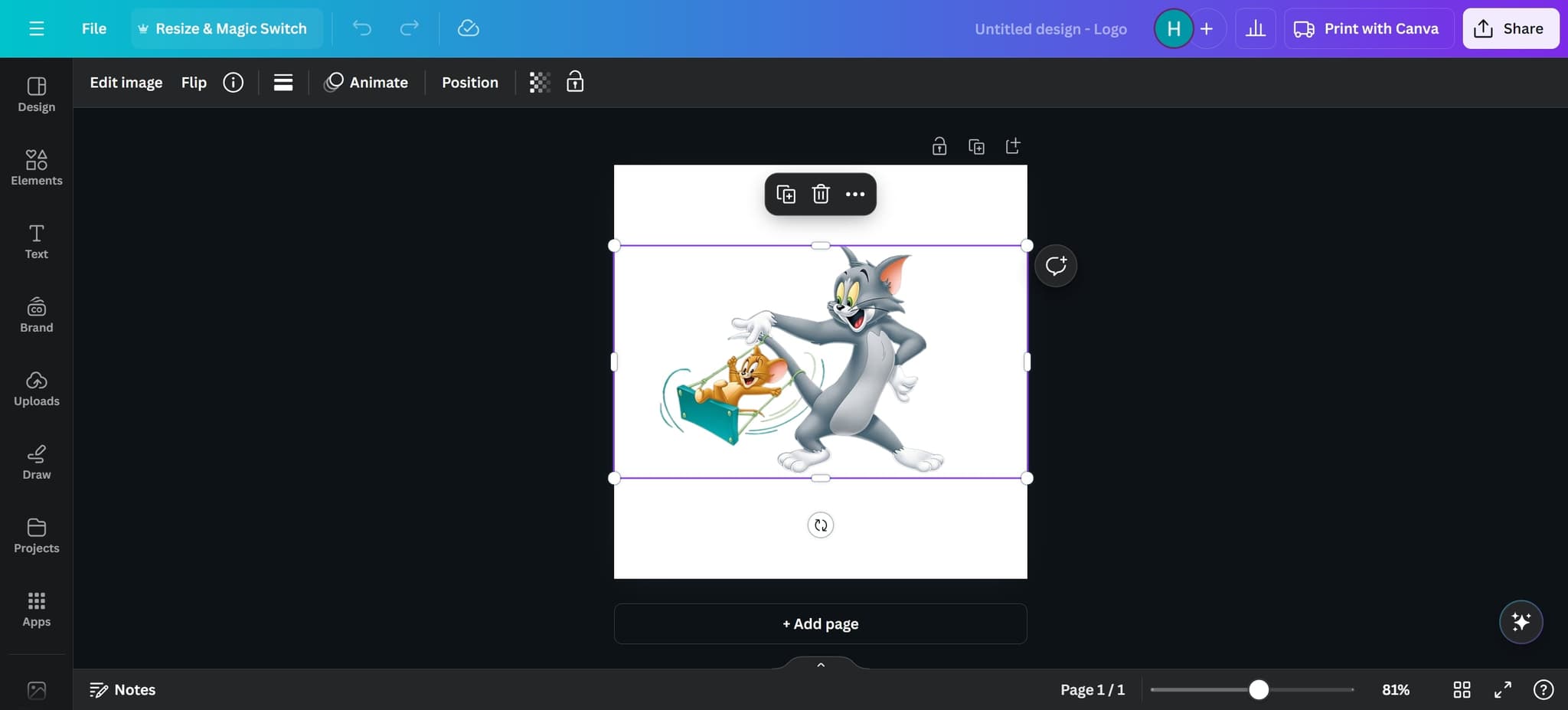
Open Resize & Magic Switch
Click on the 'Resize & Magic Switch' option from the menu. This feature allows you to resize your design and adapt it to new dimensions.
- 4
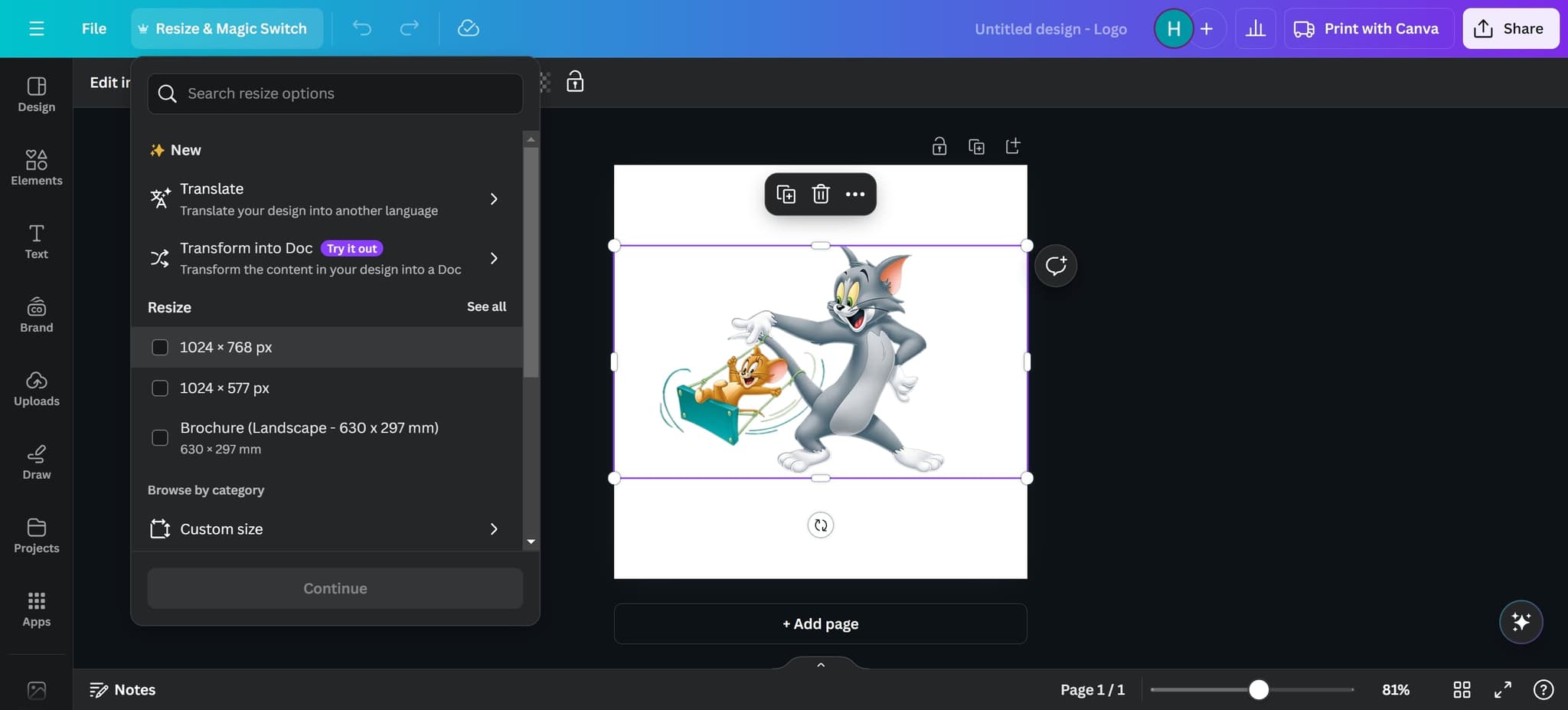
Choose your target dimension
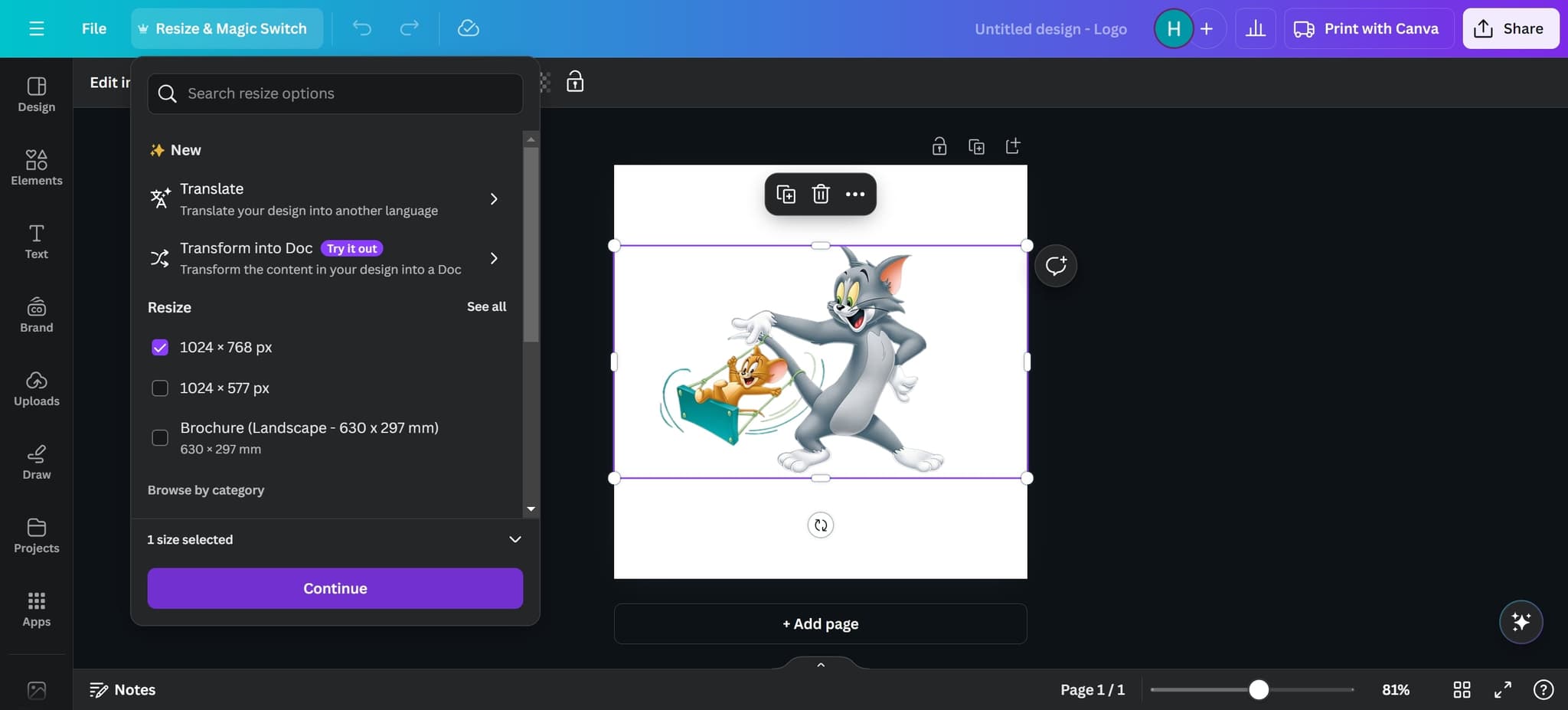
Click on '1024 × 768 px' to select this specific size for your resized design. You can choose other dimensions depending on your needs.
- 5
Confirm the resize action
Click on 'Continue' to proceed with the resize process. This confirms your chosen dimension and moves you to the final step.
- 6
Create a resized copy
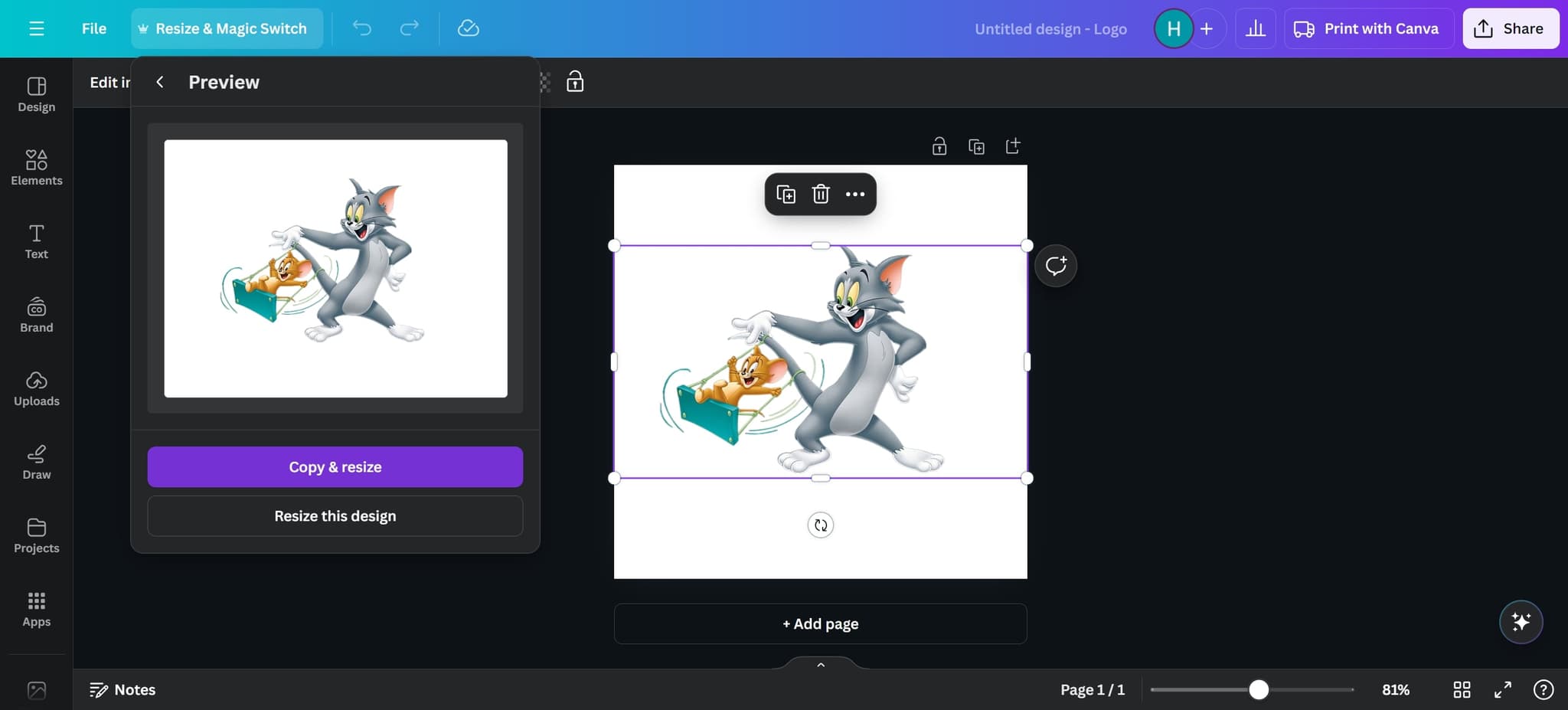
Click on 'Copy & resize' to generate a new version of your design at the selected dimensions. Canva will create this copy while preserving your original design.
- 7
Complete the process
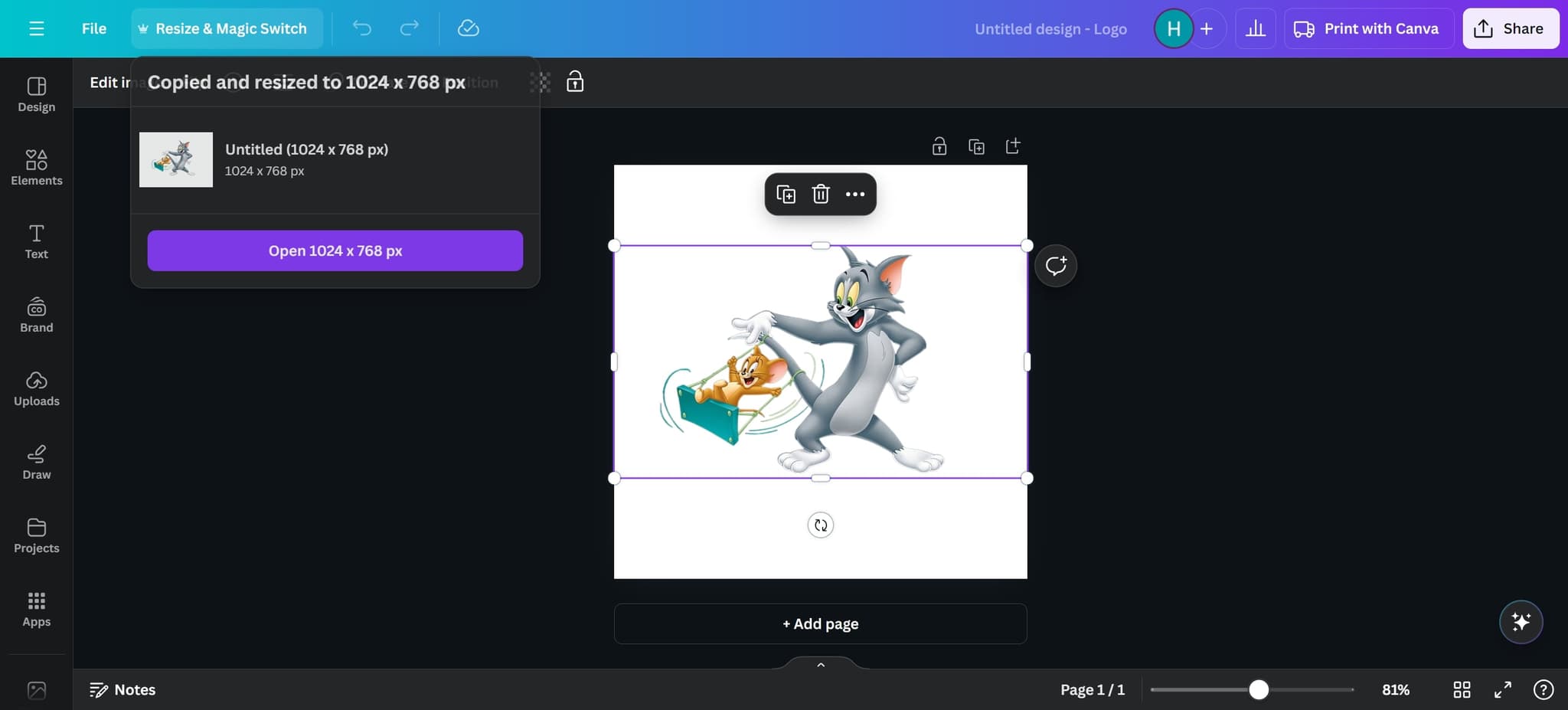
Click on the final action area to finish. Your resized design is now ready to use or download.
Frequently asked questions
Common questions about how to resize on canva.
Can I resize to custom dimensions instead of presets?
Yes, Canva allows you to enter custom dimensions when resizing. Rather than selecting a preset size like 1024 × 768 px, you can input your own width and height values to match your exact requirements.
Will resizing affect the quality of my design?
Canva's resize feature is designed to maintain quality when scaling your design. If you're enlarging a design significantly, vector elements will remain crisp, though raster images may show some quality loss depending on the enlargement factor.
Does 'Copy & resize' keep my original design intact?
Yes, 'Copy & resize' creates a new version of your design at the selected dimensions while keeping your original completely unchanged. You'll have both versions available in your account.
What are common use cases for the 1024 × 768 px size?
This dimension is useful for older presentations, standard website graphics, or tablet-sized designs. It's a versatile size that works well for various digital projects.
Can I resize multiple elements at once?
The resize feature typically works on entire designs rather than individual elements. If you need to resize multiple components, you may need to adjust each one separately or resize the entire design canvas.