How to turn dark mode in Mixpanel

Dark mode reduces eye strain during extended work sessions and can improve focus in low-light environments. Mixpanel offers a built-in dark mode setting that you can enable in just a few clicks. This guide walks you through the process of activating dark mode in your Mixpanel account.
Quick summary
In this tutorial, you'll learn how to navigate Mixpanel's settings and enable dark mode for a more comfortable viewing experience. By the end, you'll have a fully customized interface that matches your preferred lighting conditions.
Why this matters
Enabling dark mode in Mixpanel is particularly useful if you analyze data late into the evening or work in dimly lit environments. The reduced brightness minimizes eye fatigue and can help maintain better focus during long analytical sessions. Many analytics professionals prefer dark mode for its aesthetic appeal and functional benefits.
Step-by-step guide
- 1
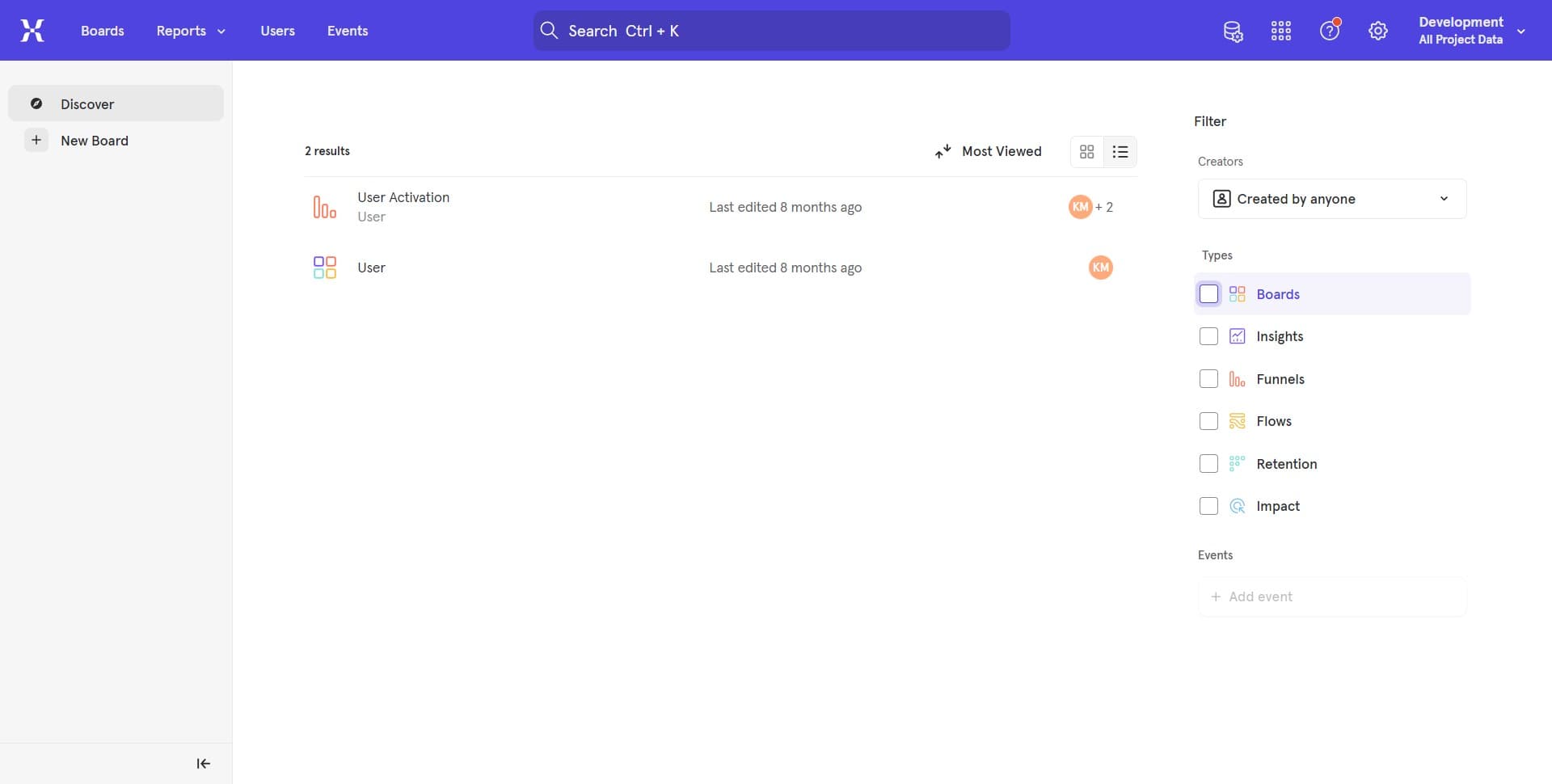
Access Mixpanel settings
Log into your Mixpanel account and locate the settings option, typically found in the top navigation bar or user menu. Click on the settings icon to open the preferences panel.
- 2
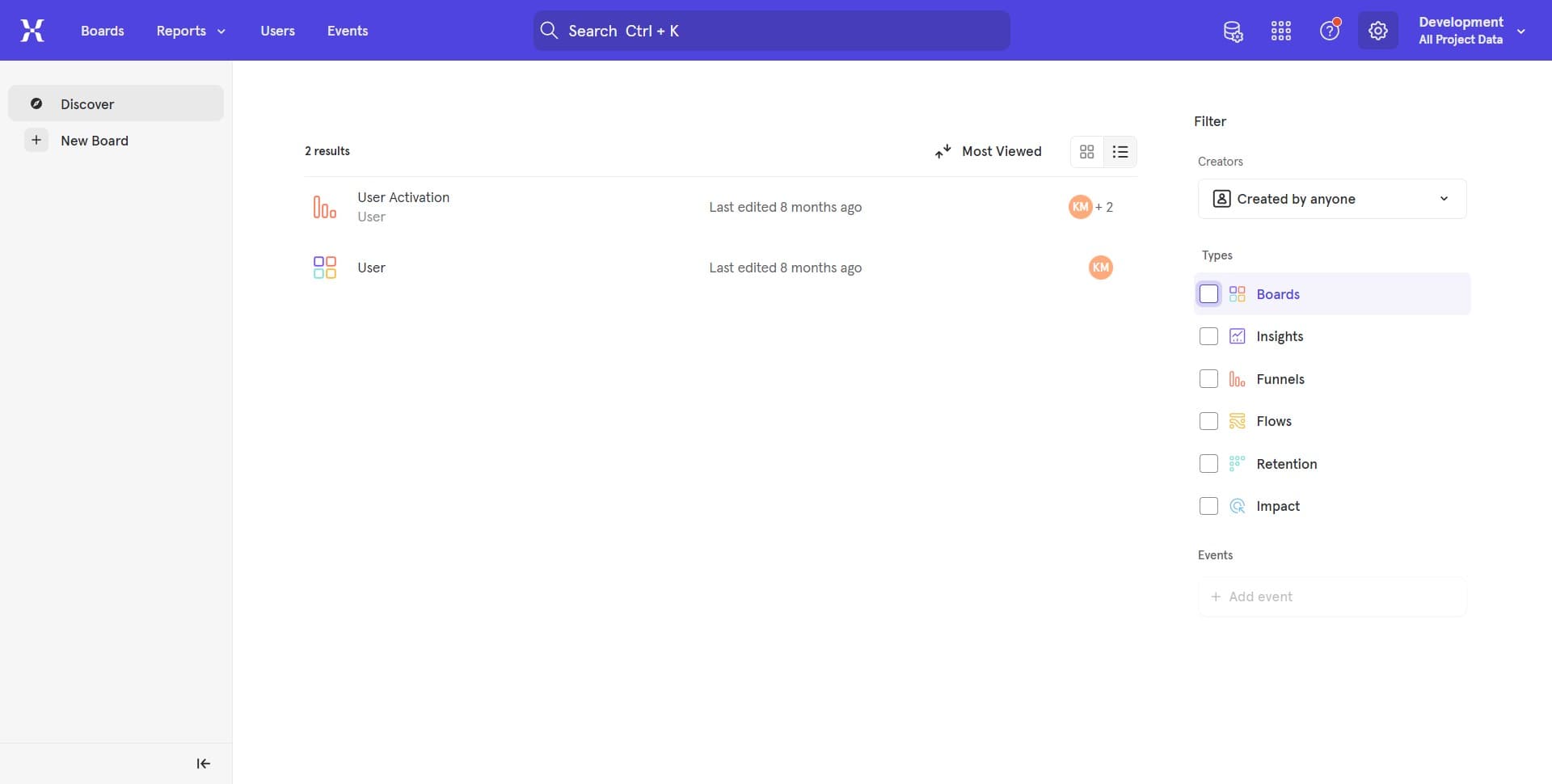
Navigate to appearance settings
Within the settings menu, find and click on the 'Appearance' or 'Display' section. This section contains all visual customization options for your account.
- 3
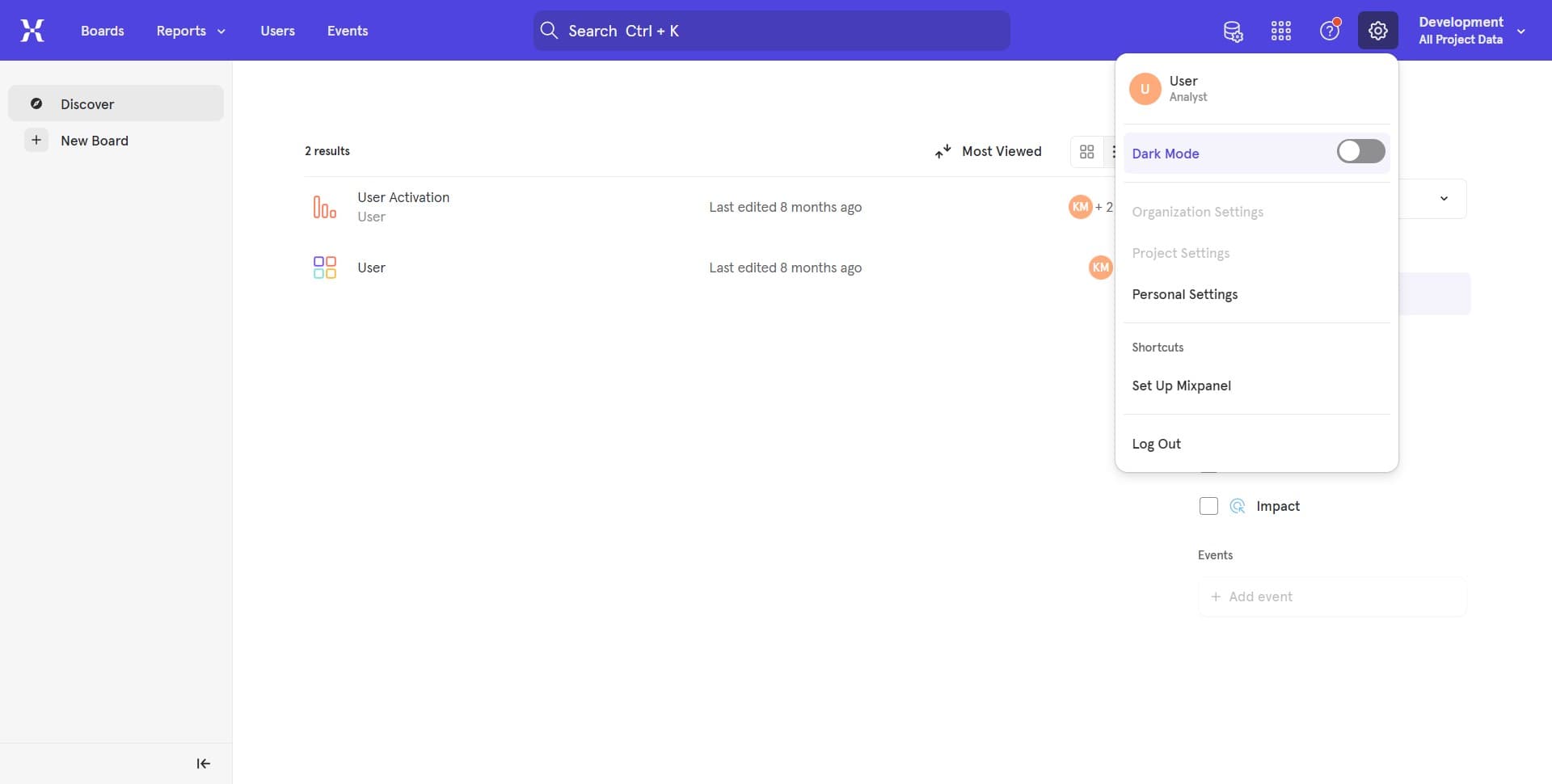
Select dark mode option
Look for the dark mode toggle or theme selector in the appearance settings. Click the toggle to enable dark mode for your account.
- 4
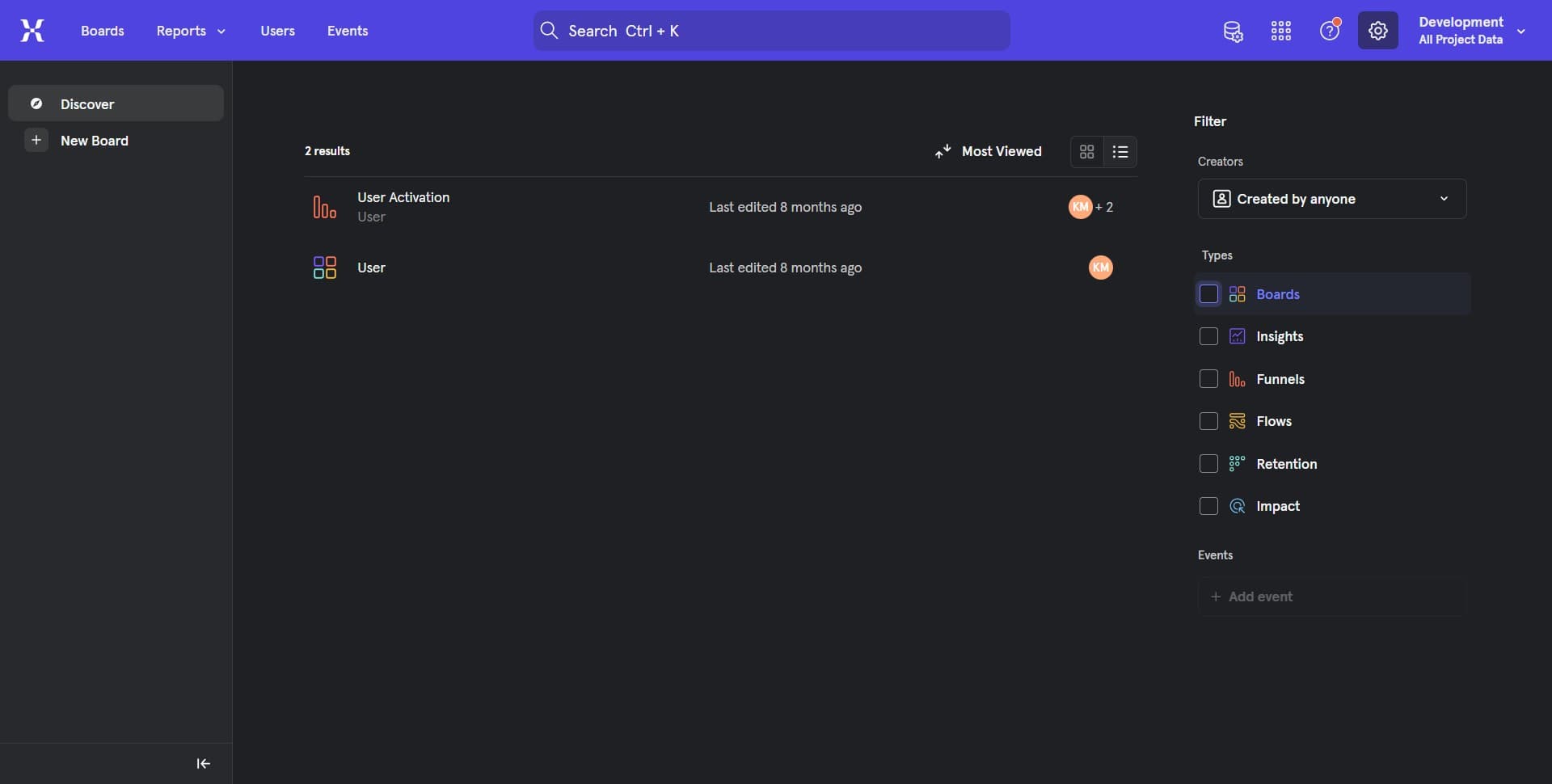
Confirm and save changes
Your dark mode preference should be saved automatically in Mixpanel. The interface will immediately switch to dark mode, and the setting will persist across all your sessions.
Frequently asked questions
Common questions about how to turn dark mode in mixpanel.
Will dark mode affect my data analysis or reports?
No, dark mode is purely a visual preference and does not change any functionality or data in Mixpanel. Your reports, charts, and analysis remain exactly the same regardless of the theme you choose.
Can I switch between dark and light mode easily?
Yes, you can toggle between dark and light mode at any time through the appearance settings. The change takes effect immediately across your account.
Does dark mode work on mobile devices?
Dark mode availability on mobile Mixpanel apps depends on your device settings and app version. Check your mobile app's settings menu to see if dark mode options are available.
Why does dark mode sometimes appear inconsistent in certain areas?
Some third-party integrations or embedded content in Mixpanel may not fully support dark mode styling. This is a minor limitation and doesn't affect the core functionality or your data analysis.
Is there a way to schedule dark mode to turn on at specific times?
Mixpanel's built-in settings don't currently offer scheduled dark mode. However, some browsers and operating systems support system-wide dark mode scheduling that Mixpanel can respect if you enable that feature.