How to create and move a project in Mixpanel

Creating and moving projects in Mixpanel helps you organize your analytics data and keep your workspace structured as your product evolves. This guide walks you through the process of setting up new projects and relocating existing ones within your Mixpanel account.
Quick summary
In this tutorial, you'll learn how to create new projects in Mixpanel and move existing projects between folders or workspace locations. By the end, you'll have the skills to maintain a well-organized analytics environment that scales with your team's needs.
Why this matters
Proper project organization in Mixpanel ensures your team can quickly access the right analytics data and prevents confusion across multiple product lines or environments. Moving projects between locations helps consolidate related analytics and maintain a logical structure as your organization grows, making collaboration more efficient.
Step-by-step guide
- 1
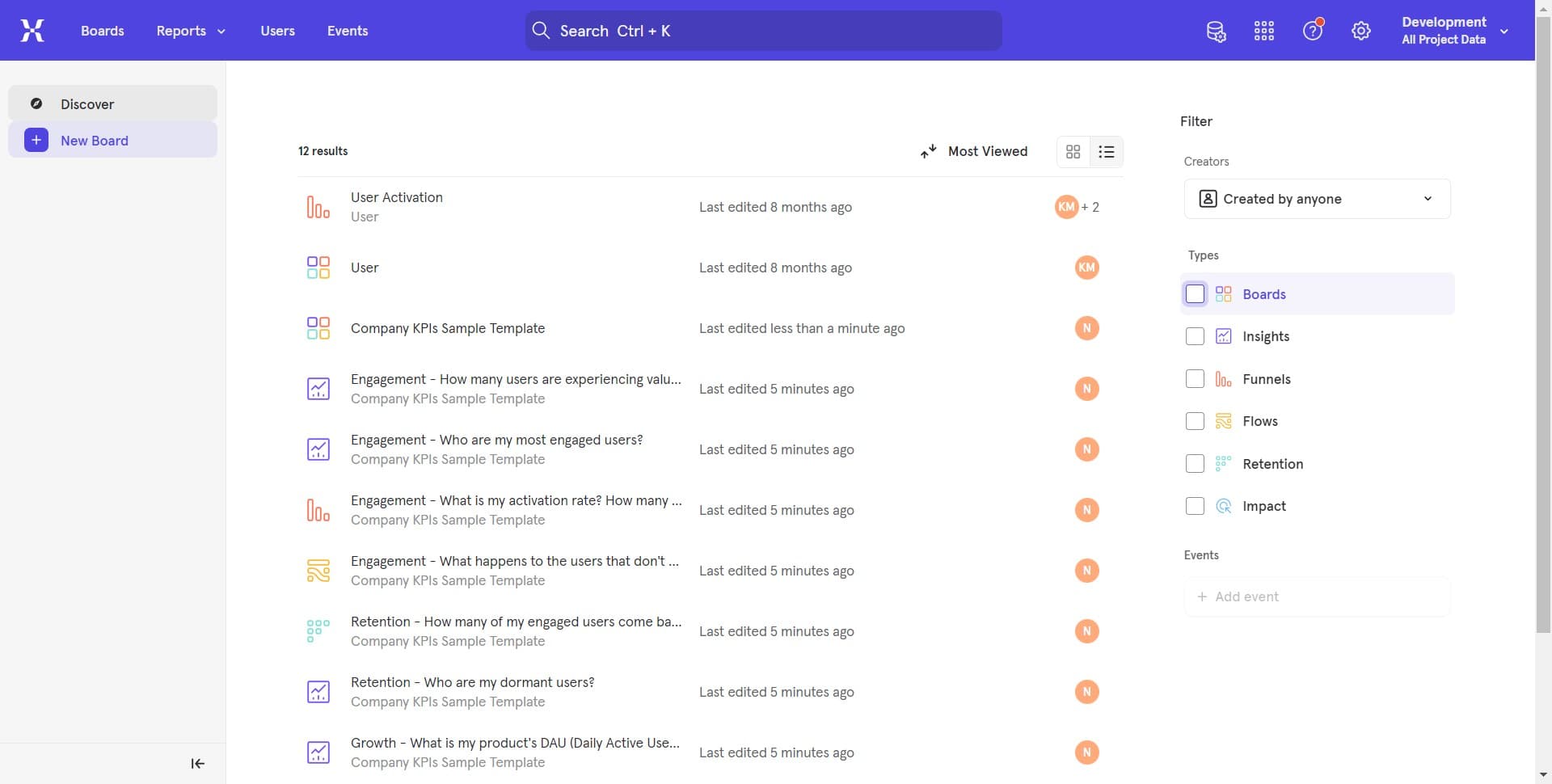
Access the projects menu
Start by navigating to your projects section in Mixpanel. Look for the main menu or dashboard area where your current projects are listed.
- 2
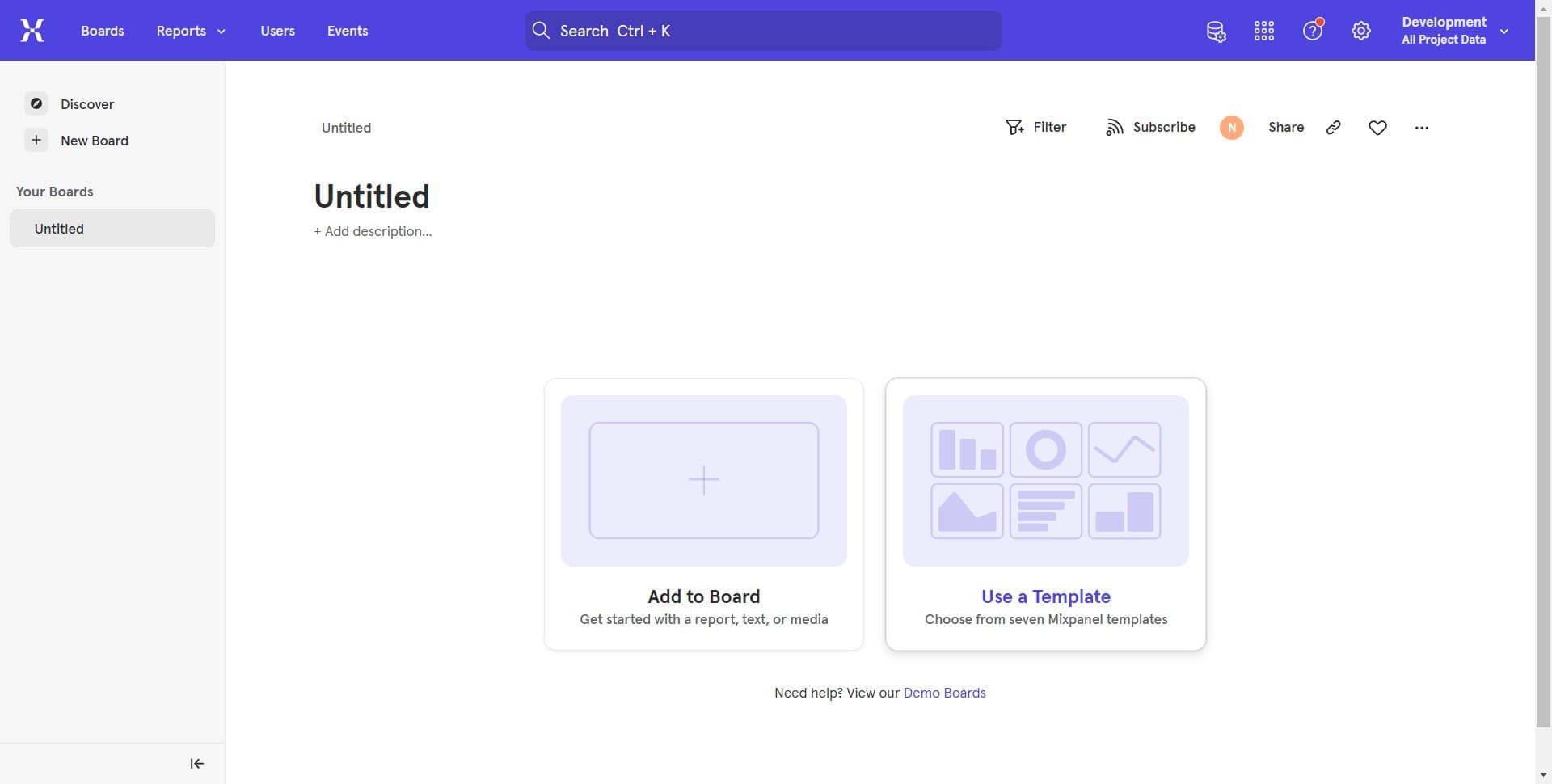
Open project settings
Locate and click on the settings or options button associated with your project. This will reveal additional management options.
- 3
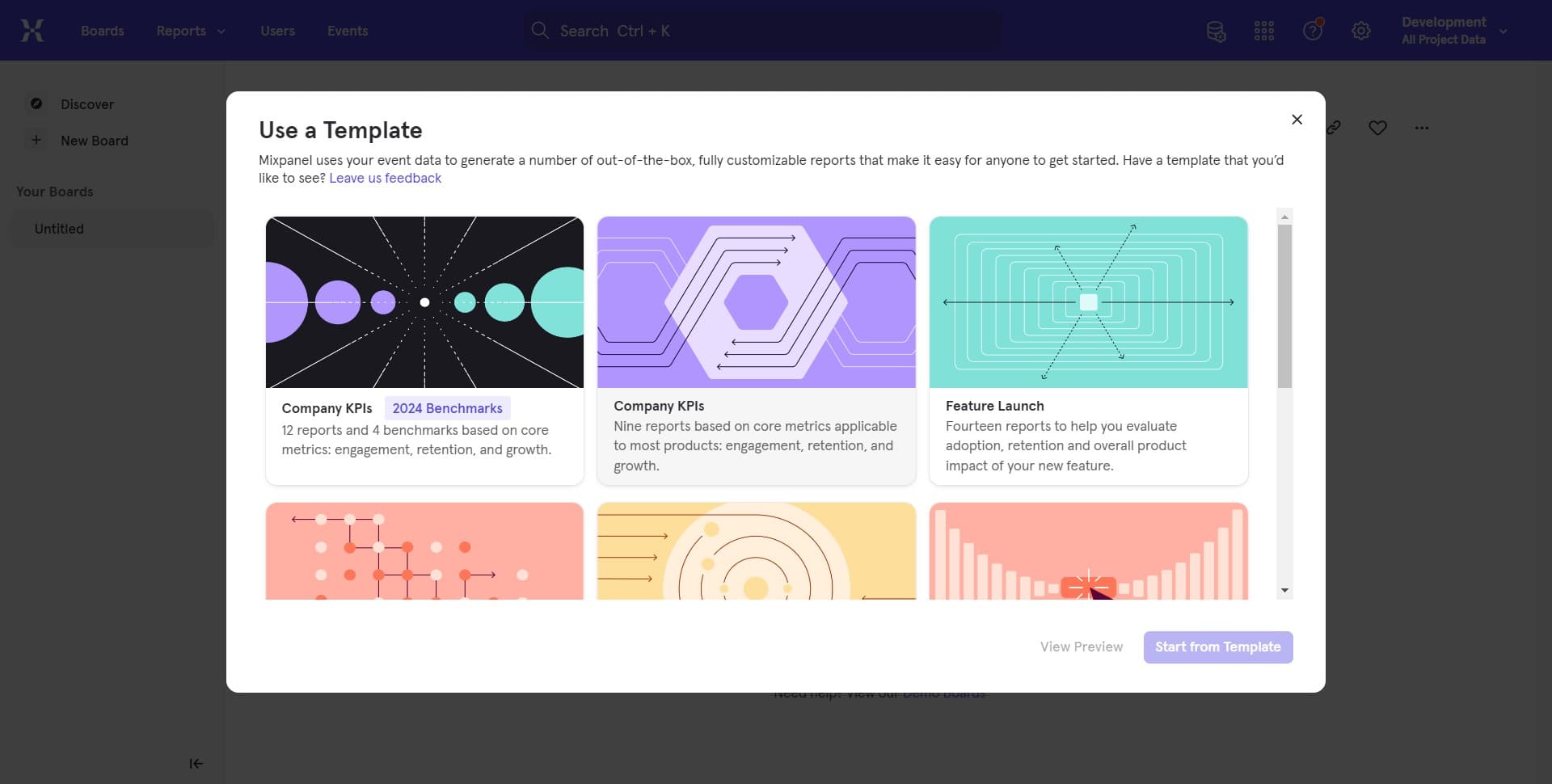
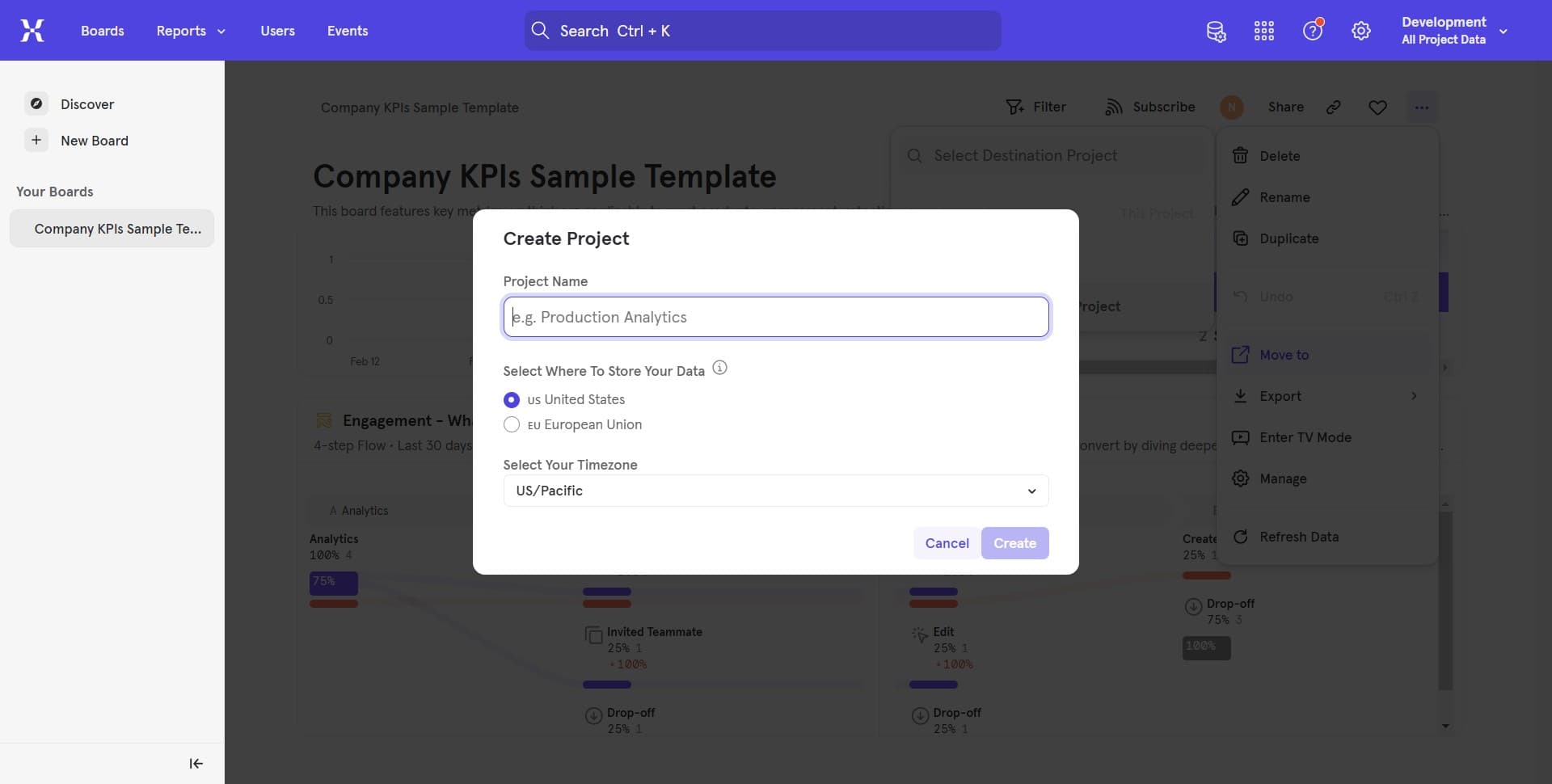
Select project creation option
Click on the option to create a new project. This may appear as a button labeled 'New Project' or similar depending on your interface.
- 4
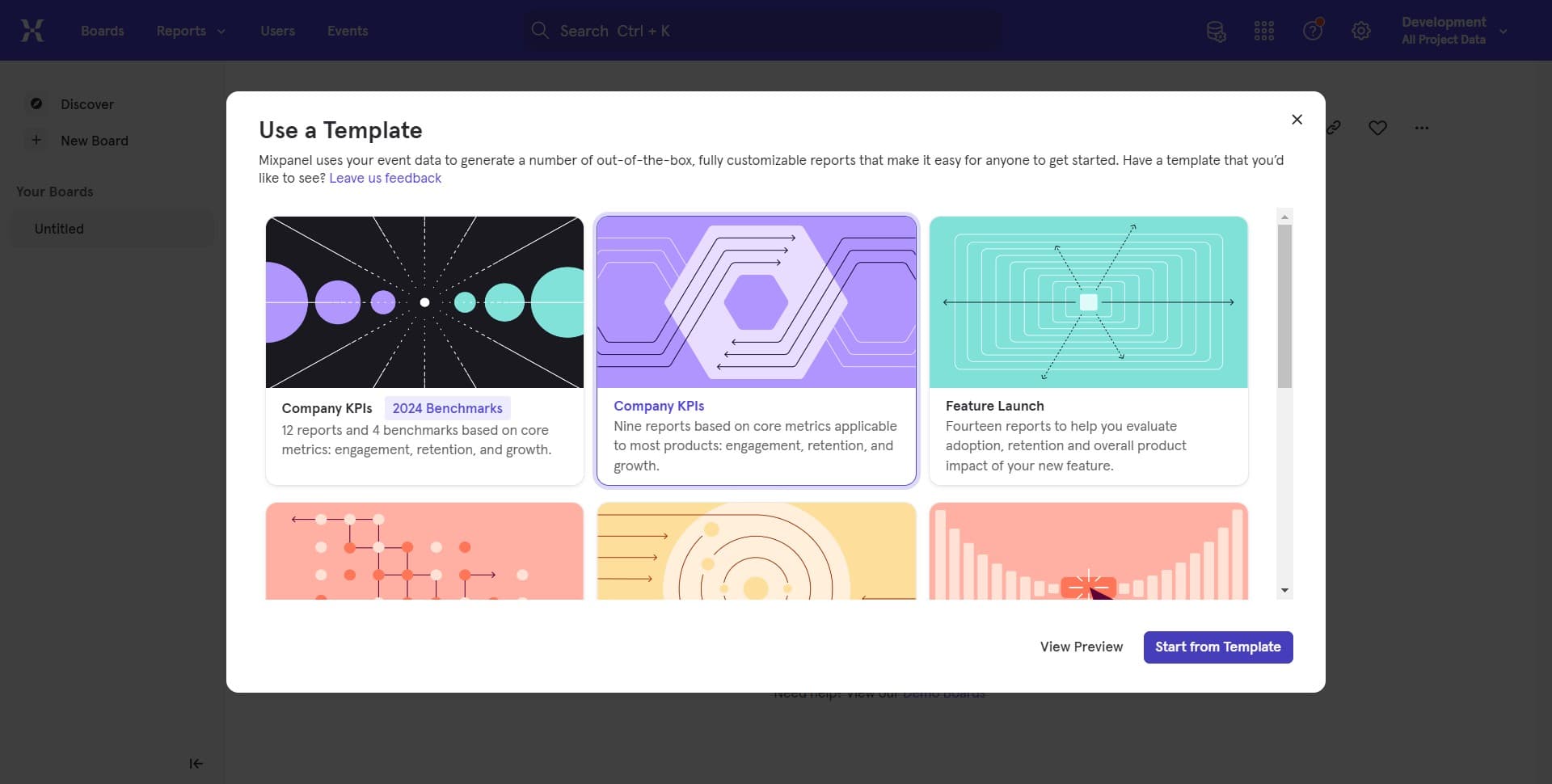
Confirm project creation
Follow the prompts to finalize the creation of your new project. You may be asked to provide a name and select basic configuration options.
- 5
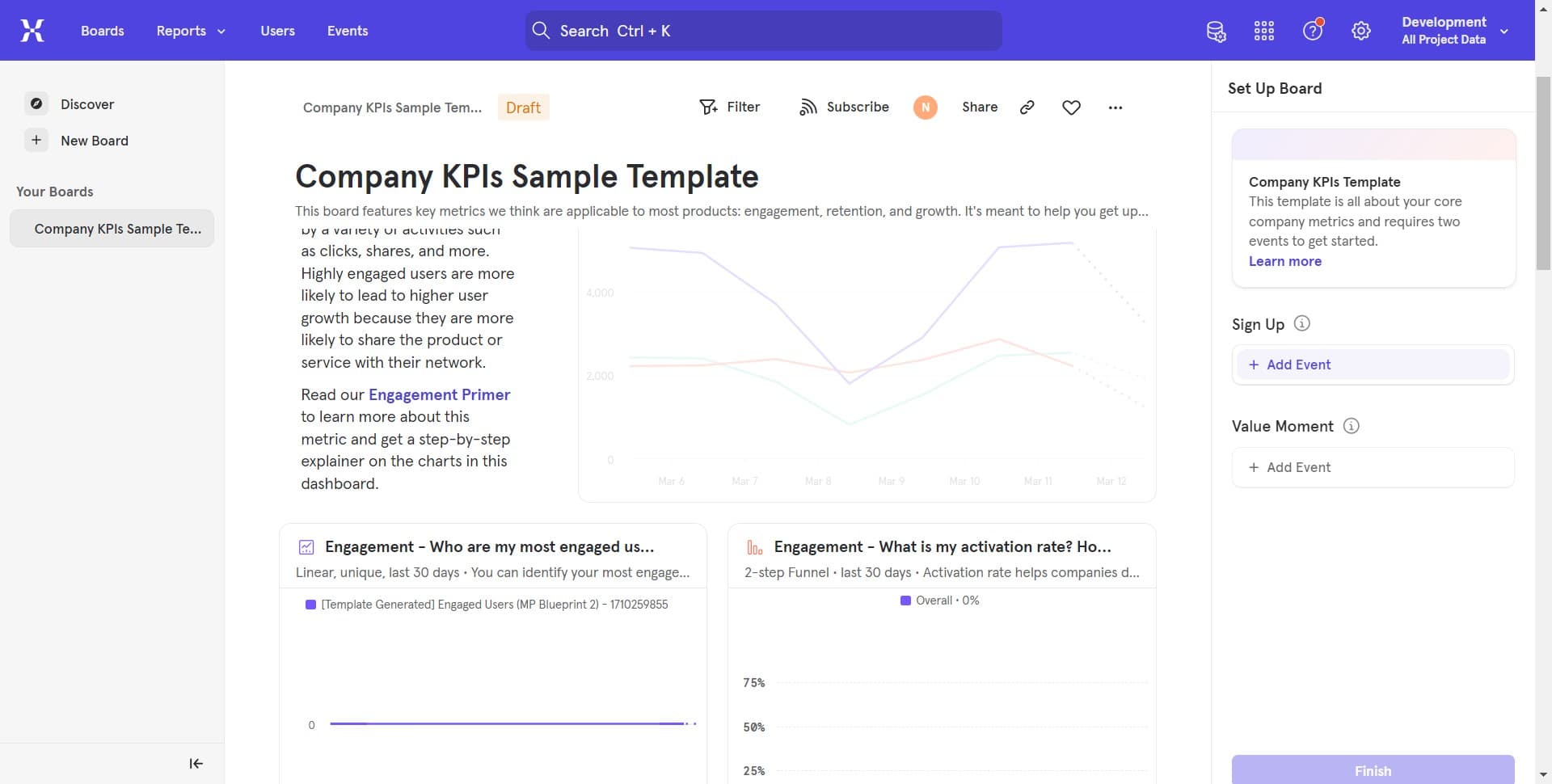
Access Company KPIs project
Locate and click on the 'Company KPIs Sa...' project in your projects list. This project will be used for the next steps in the moving process.
- 6
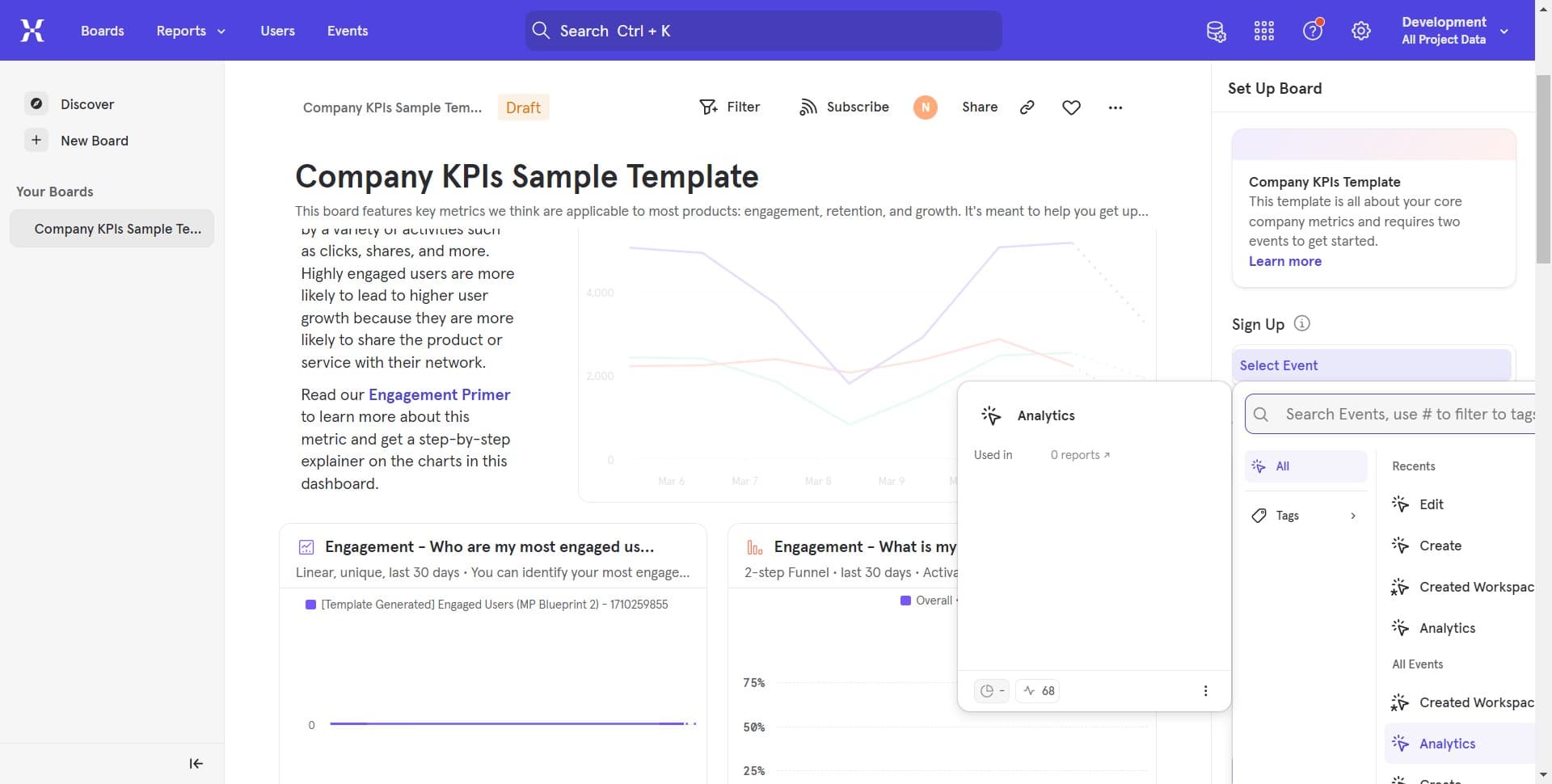
Open project options menu
Click on 'Company KPIs Sa...' again to access its detailed view and available management options.
- 7
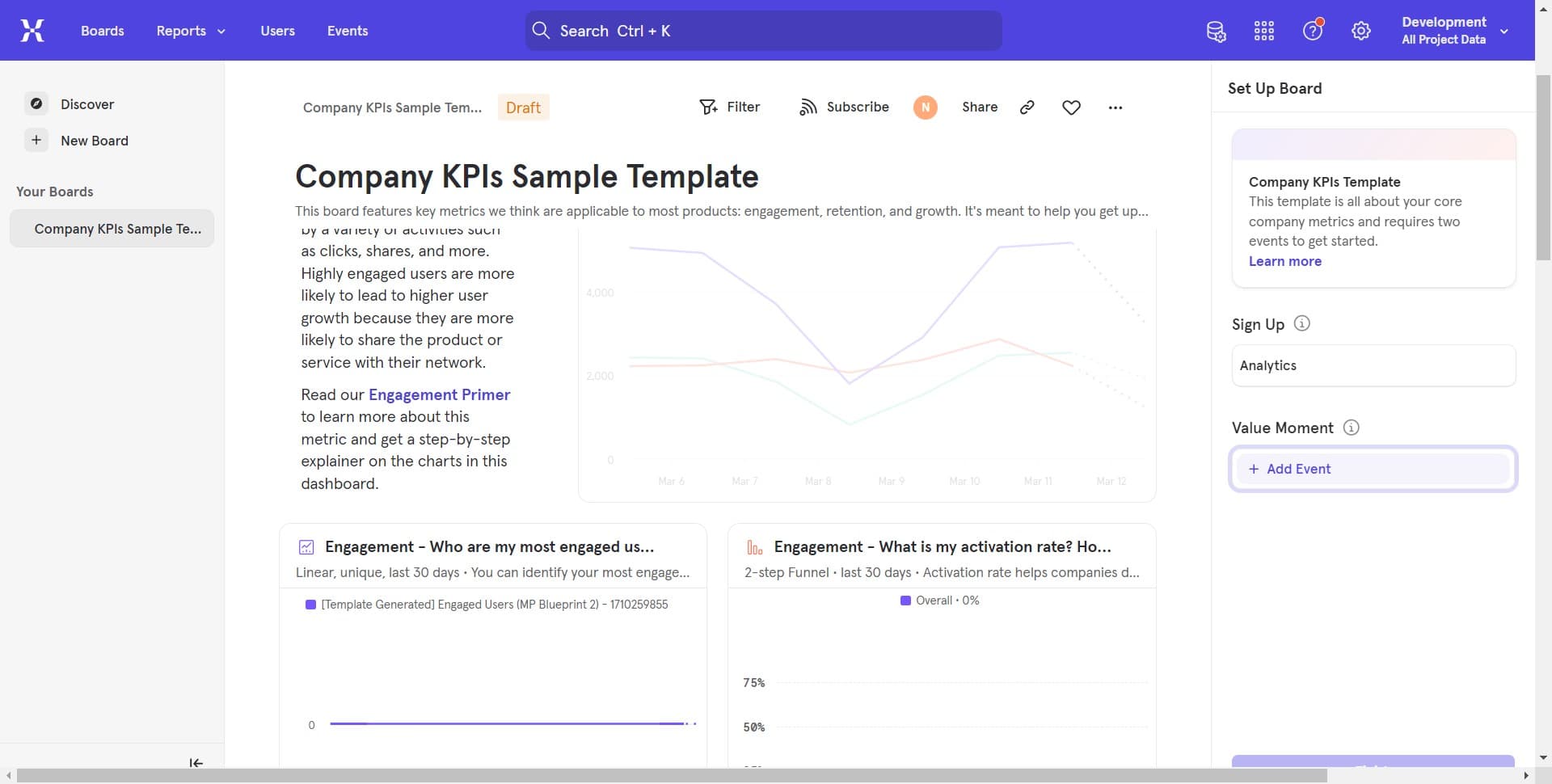
Select move or transfer option
Click on 'Company KPIs Sa...' to find the move or transfer functionality. This will allow you to relocate the project to a different location.
- 8
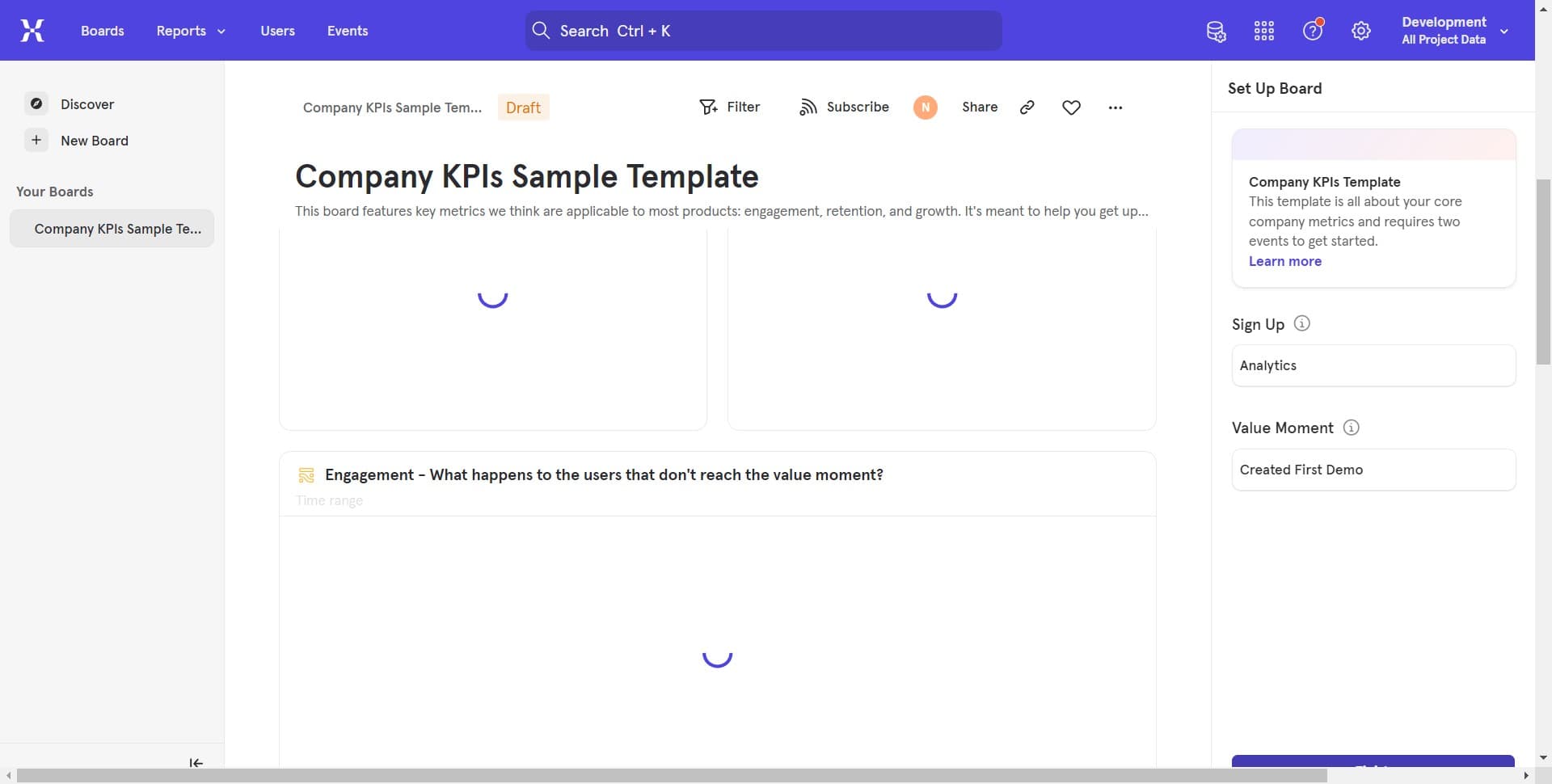
Confirm project destination
Click on 'Company KPIs Sa...' to select where you want to move the project. Choose your desired destination folder or workspace location.
- 9
Upload project data
If prompted, upload any necessary project files or configurations. Ensure all required data is transferred during the move process.
- 10
Verify the move
Click to confirm that the project has been successfully moved to its new location. Check that all project data and settings remain intact.
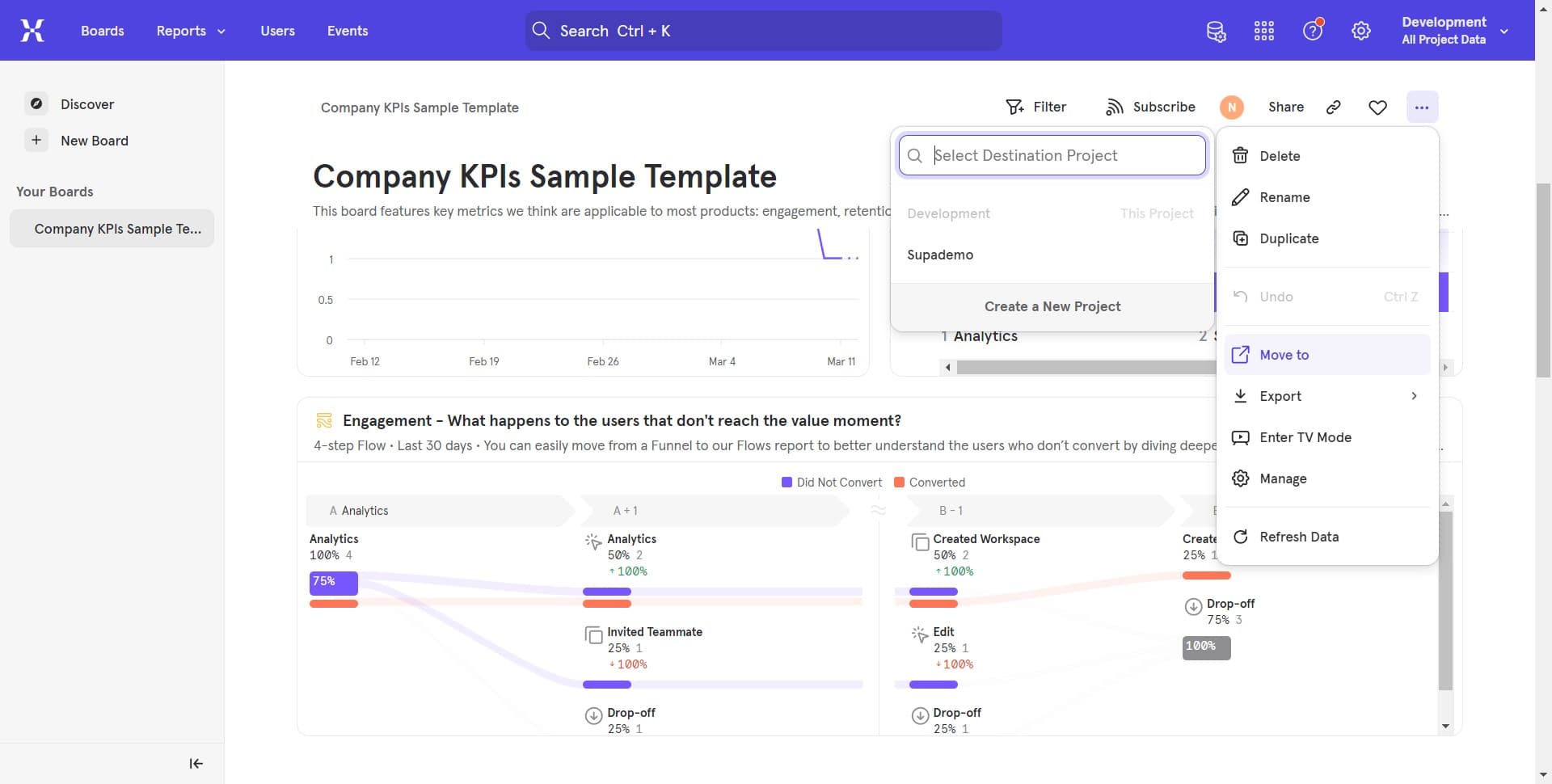
- 11
Review project details
Click to view the updated project information in its new location. Confirm that the project name, data, and configuration are correct.
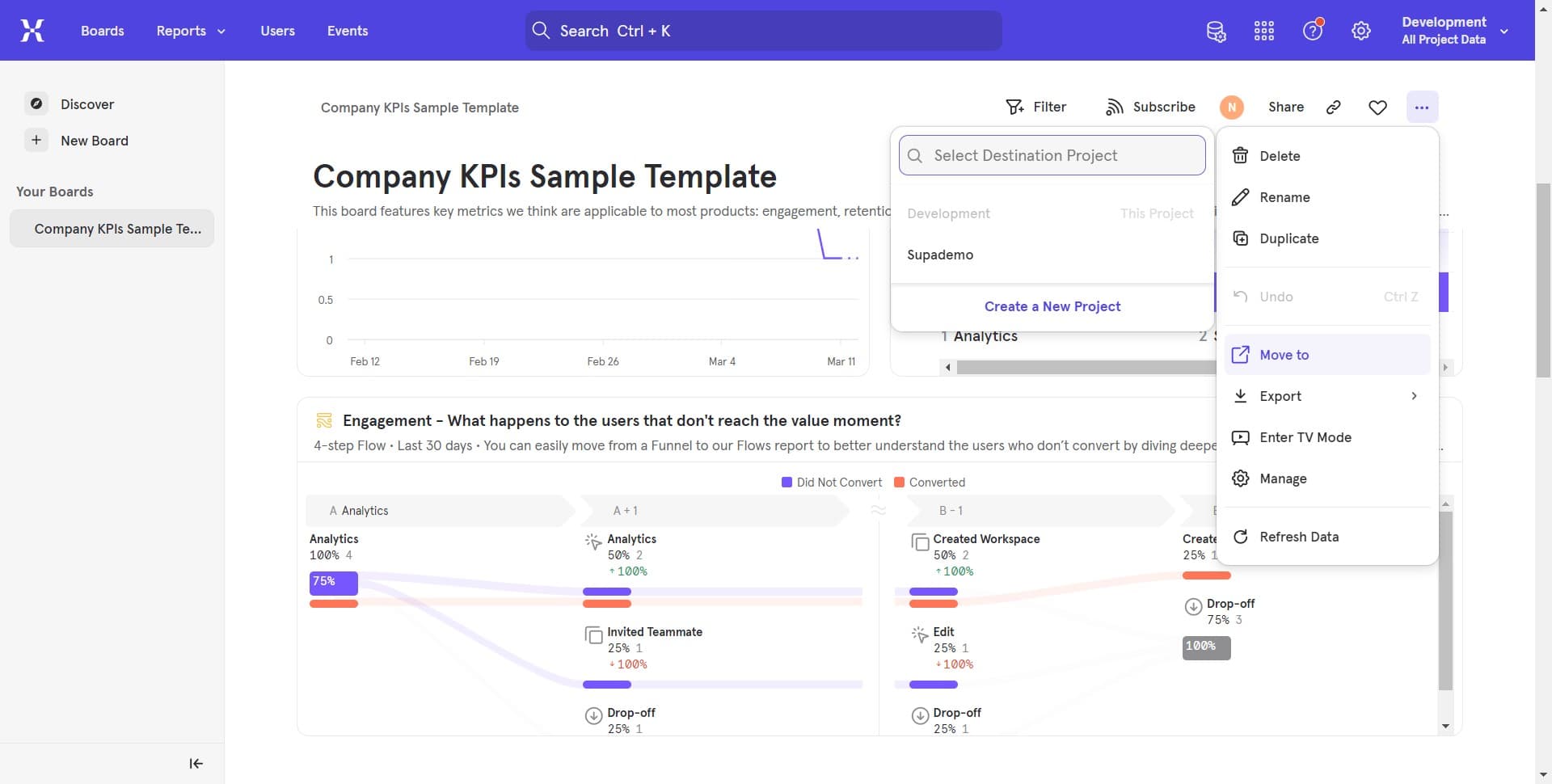
- 12
Close and save changes
Click to complete the process and save all changes. Your project should now be in its new location and fully functional.
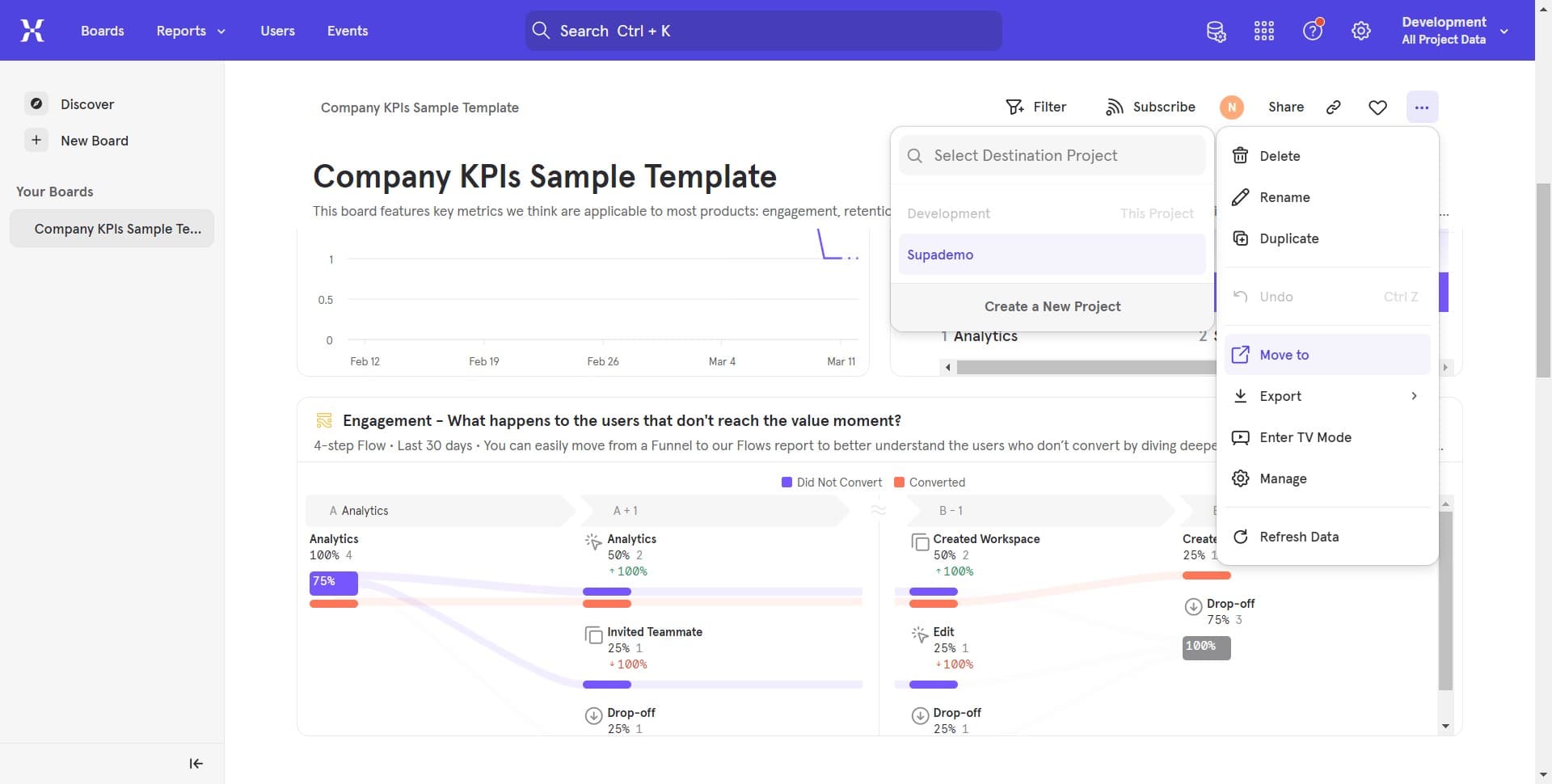
- 13
Return to projects dashboard
Click to exit the project management interface and return to your main projects dashboard. Verify that your newly created and moved projects appear correctly in the list.
Frequently asked questions
Common questions about how to create and move a project in mixpanel.
Yes, Mixpanel allows you to move projects to different locations within your account. The process involves accessing your project settings, selecting the move option, and choosing your desired destination. Make sure you have the appropriate permissions to move projects before attempting this action.
When you move a project in Mixpanel, your analytics data and historical records remain intact. The move operation only changes the project's location in your workspace organization and does not affect the underlying data or tracking capabilities.
Creating a new project in Mixpanel is typically instantaneous. Once you complete the initial setup steps and confirm the project creation, the project becomes available for use right away. You can immediately start connecting your data sources and configuring analytics.
Project creation and movement permissions depend on your Mixpanel account role and team settings. Workspace administrators typically have full access, while other team members may have restricted permissions. Check with your workspace admin if you encounter permission issues.
Yes, you can rename a project at any time through the project settings. This can be done before or after moving the project, and the rename operation doesn't affect your analytics data or the project's new location.