How to integrate apps with Mixpanel

Integrating your apps with Mixpanel enables you to track user behavior and engagement across your entire product ecosystem. This guide walks you through the process of connecting third-party applications to Mixpanel, starting with Google Adwords and following the platform's integration workflow.
Quick summary
In this tutorial, you'll learn how to navigate Mixpanel's integration interface and connect Google Adwords to your Mixpanel account. By the end, you'll understand the complete setup process and be ready to enable data flow between your apps and Mixpanel.
Why this matters
Connecting your marketing and product tools to Mixpanel centralizes your analytics, allowing you to correlate ad performance with user behavior and engagement metrics. This integrated view helps you make data-driven decisions about campaigns, user retention, and product optimization.
Step-by-step guide
- 1
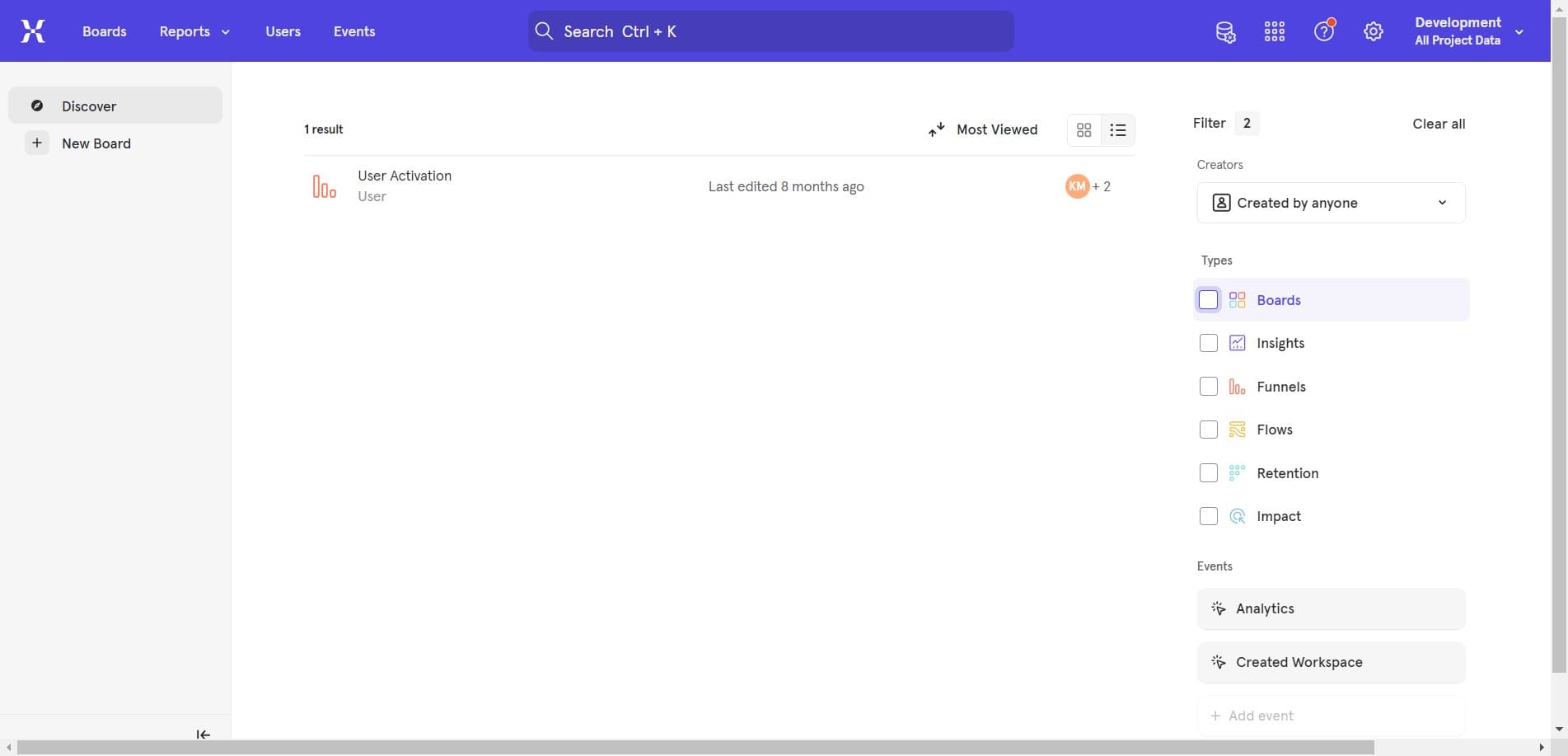
Access the integration settings
Click on the designated integration area in your Mixpanel dashboard. This section provides access to all available third-party app connections and integration options.
- 2
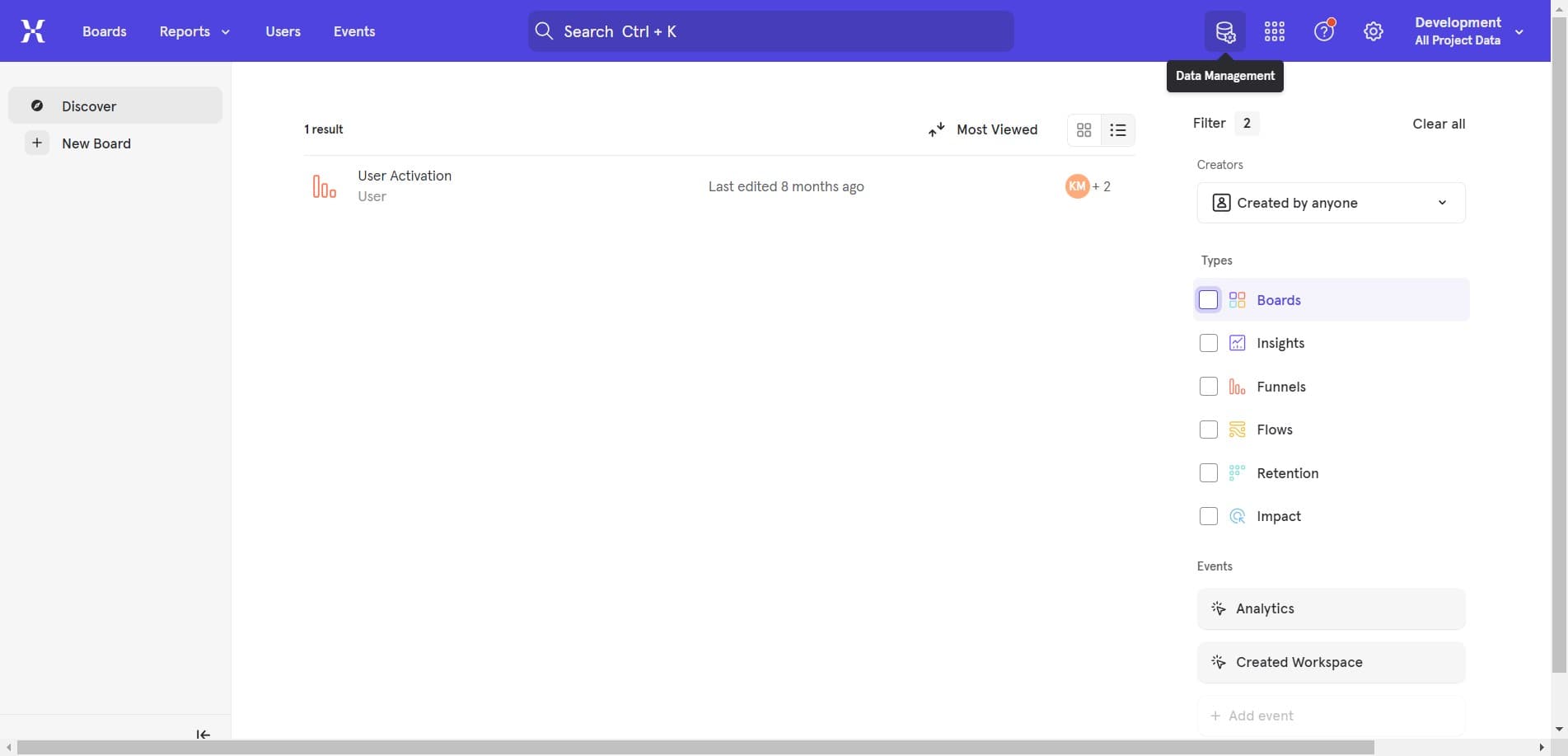
Navigate to integrations menu
Click through to the integrations management section. You'll see a list of available apps and services ready to be connected to your Mixpanel workspace.
- 3
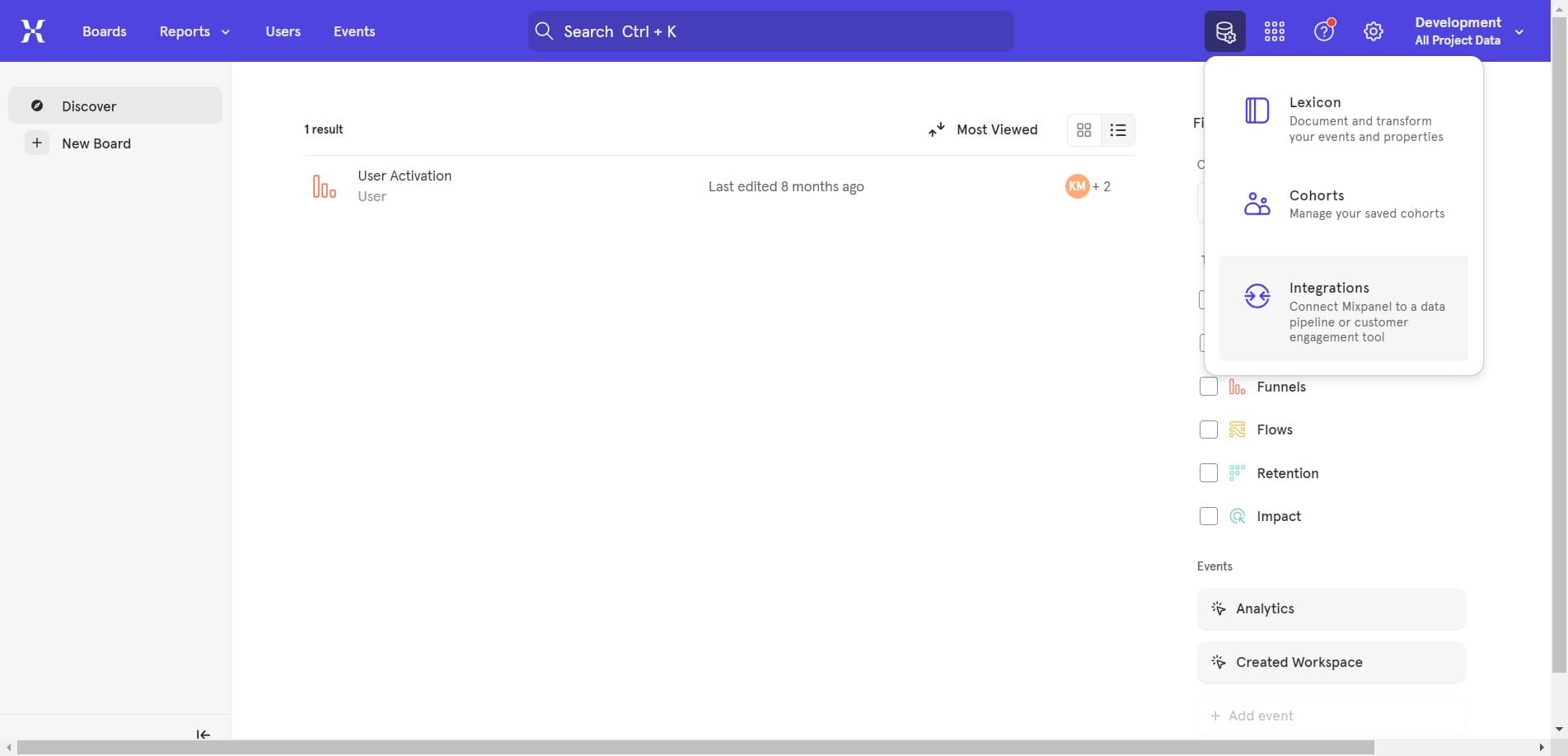
Browse available integrations
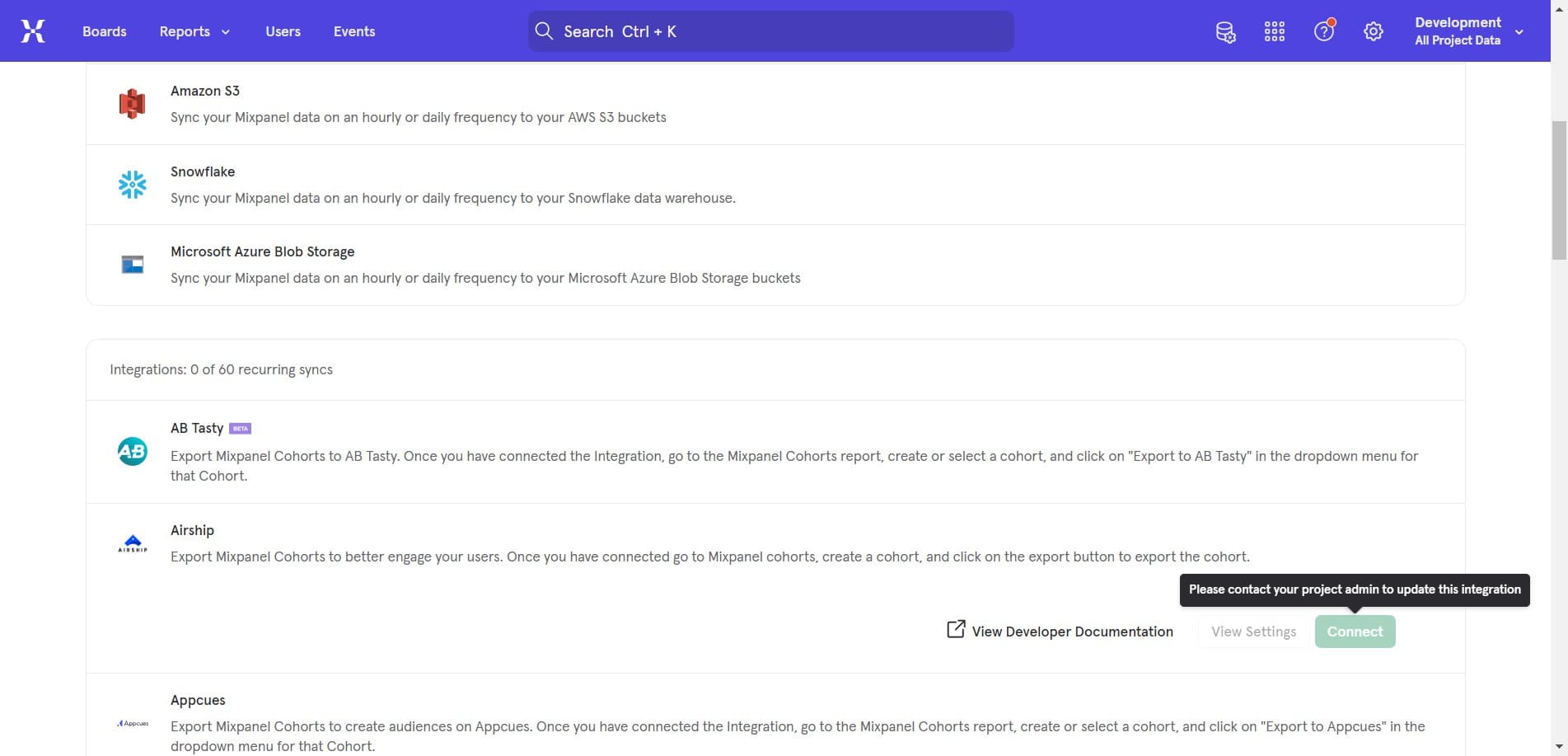
Click to view the full catalog of supported integrations. This displays all the applications that can connect to Mixpanel, including advertising platforms, CRM tools, and data warehouses.
- 4
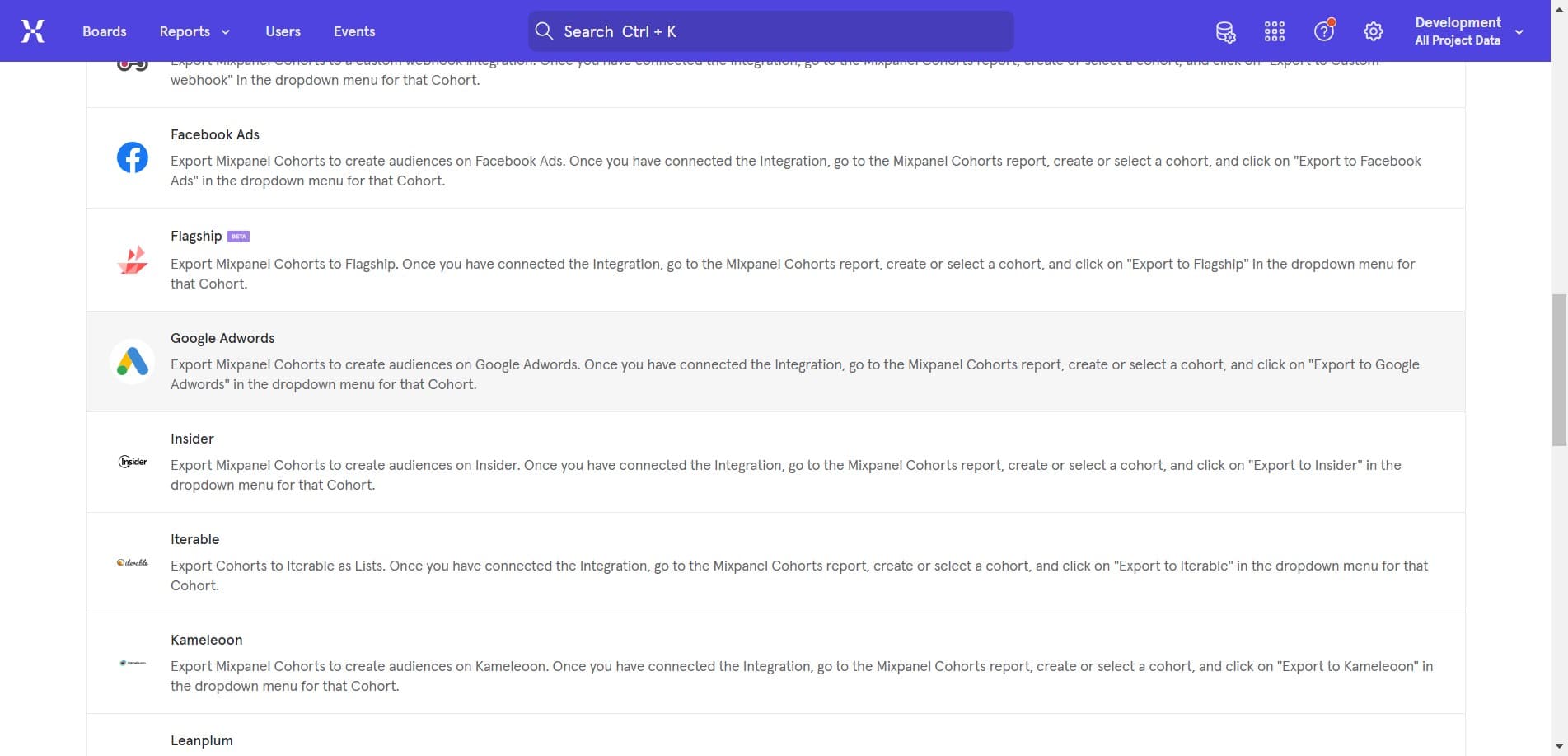
Select Google Adwords
Click on Google Adwords from the integration list. Mixpanel will display the connection details and requirements for syncing your advertising data.
- 5
Establish the connection
Click on the Connect button to authorize Mixpanel to access your Google Adwords account. You'll be prompted to log in with your Google credentials and grant the necessary permissions.
Frequently asked questions
Common questions about how to integrate apps with mixpanel.
Google Adwords integration sends campaign performance data including impressions, clicks, conversions, and spend information to Mixpanel. This data syncs regularly, allowing you to correlate ad performance with user behavior tracked on your product side.
Initial data sync typically begins within a few minutes of connecting Google Adwords. Historical data may take up to 24 hours to fully populate depending on your account size. Real-time data syncs occur on a regular schedule, usually within 1-2 hours.
Yes, Mixpanel supports multiple Google Adwords account connections. Each account can be connected separately through the integrations panel, allowing you to consolidate data from different campaigns or business units.
Mixpanel requires read-only access to your Google Adwords account to retrieve campaign and performance data. You'll authorize these permissions during the connection process, and you can revoke them at any time through your Google account settings.
If the connection fails, verify that your Google account has access to the Adwords data you're trying to sync and that your Mixpanel account has the necessary permissions. Check that you've authenticated with the correct Google credentials, and try disconnecting and reconnecting if issues persist.