
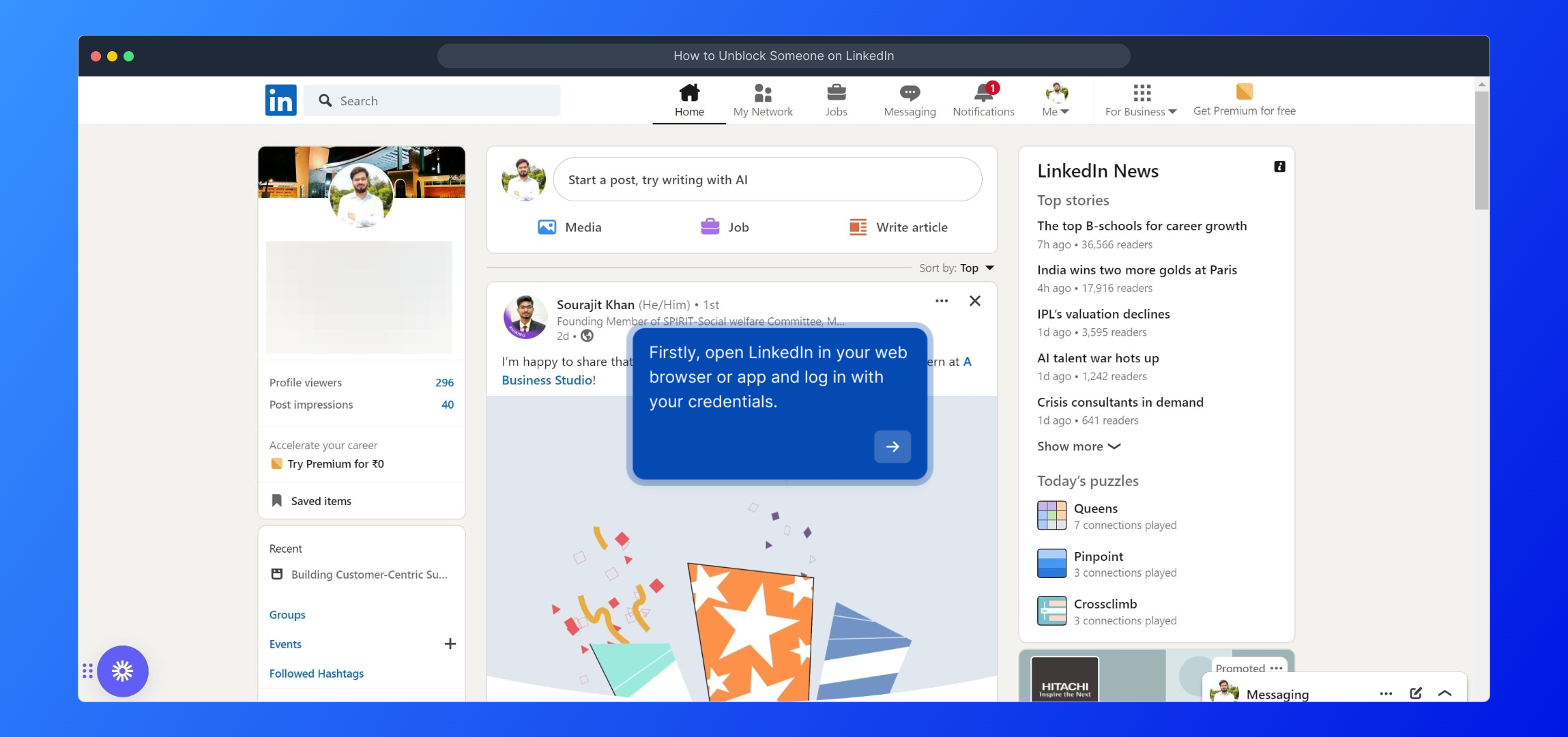
1. Firstly, open LinkedIn in your web browser or app and log in with your credentials.
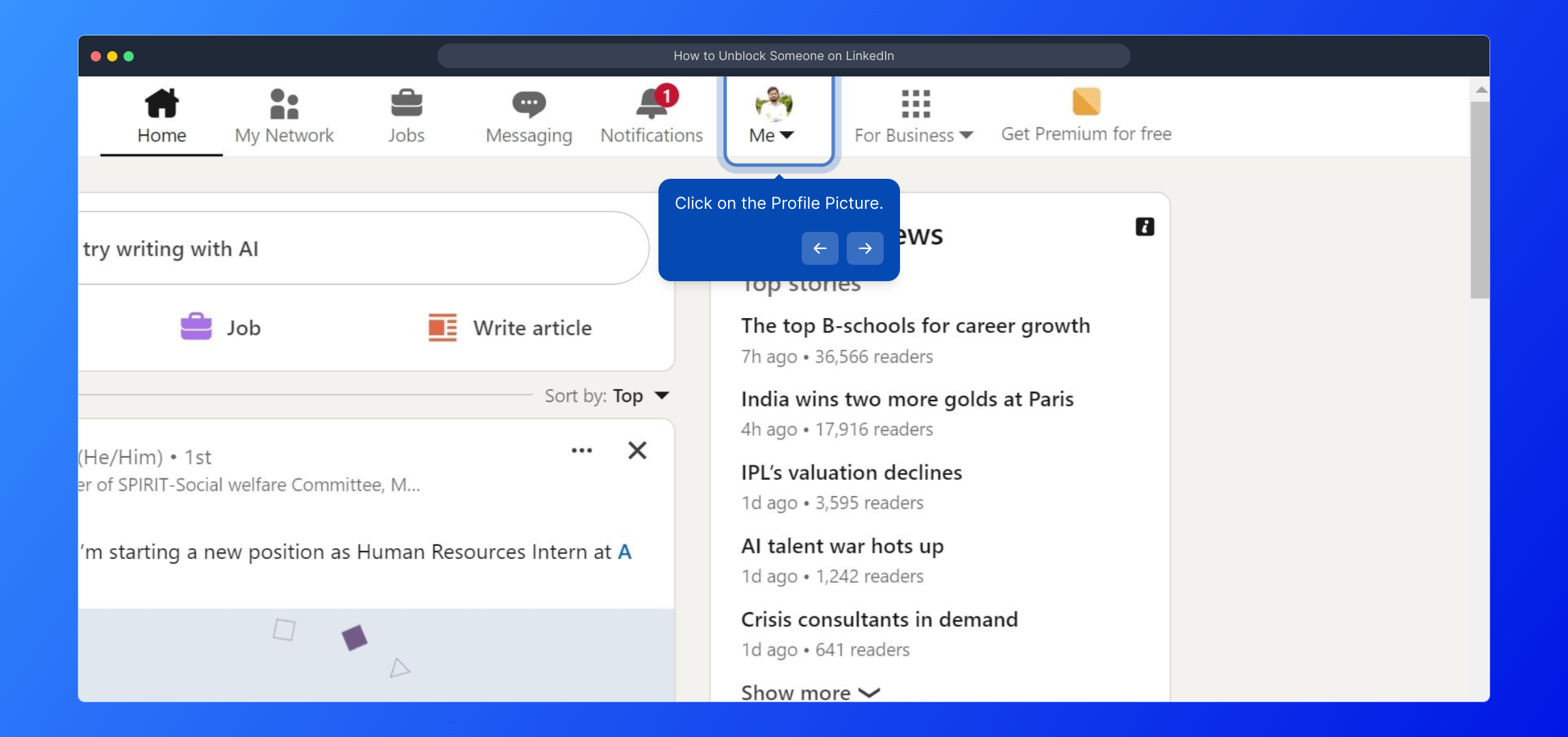
2. Click on the Profile Picture.
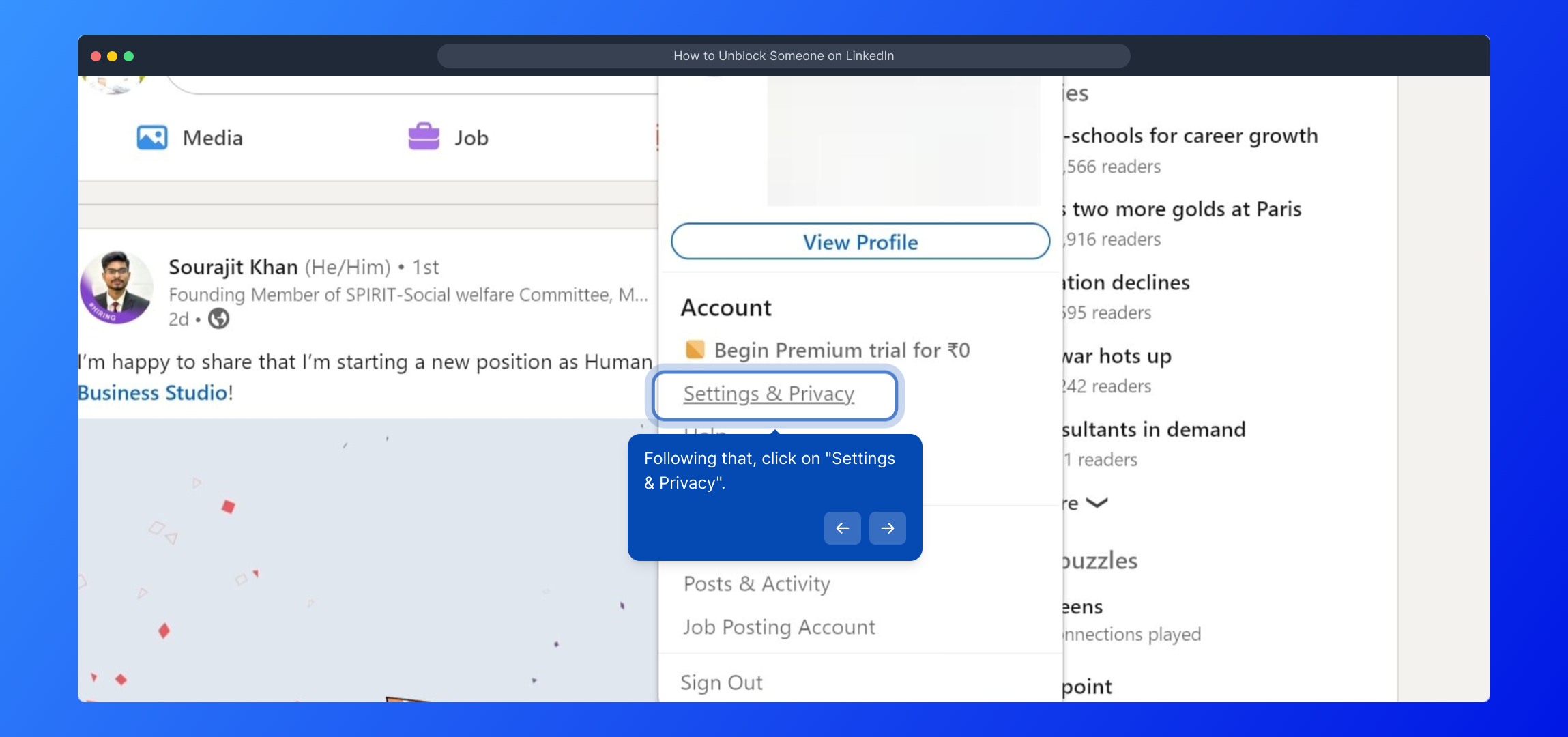
3. Following that, click on "Settings & Privacy".
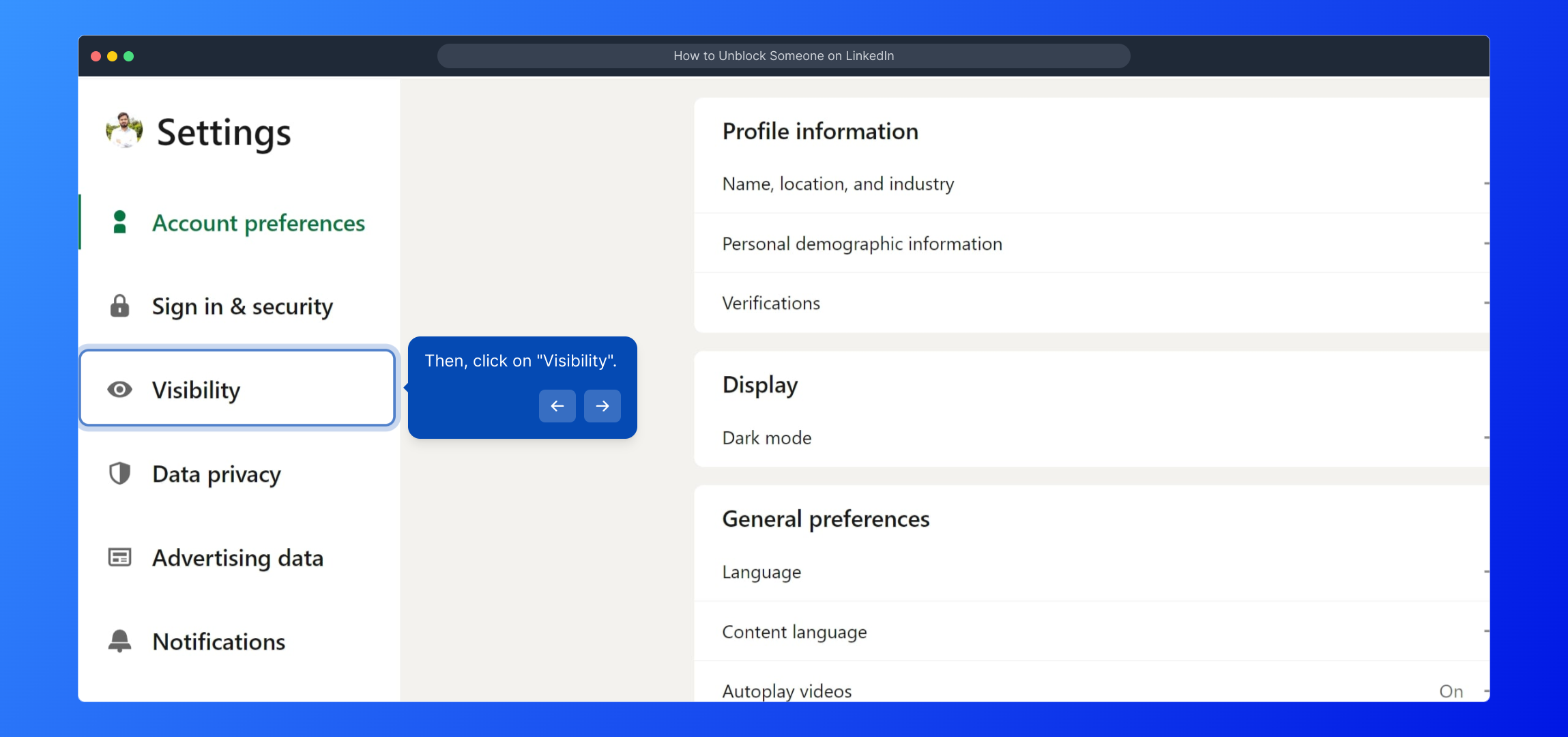
4. Then, click on "Visibility".
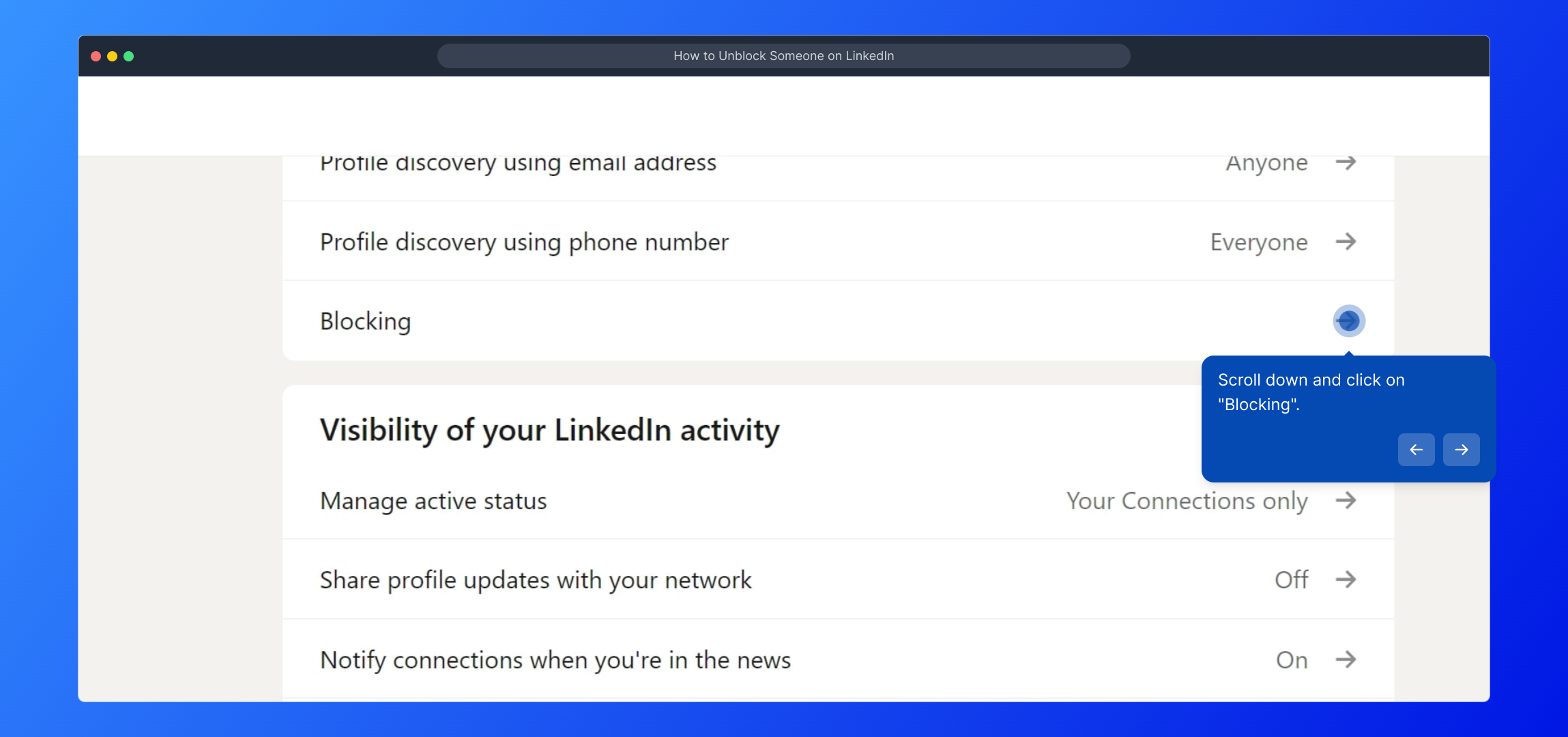
5. Scroll down and click on "Blocking".
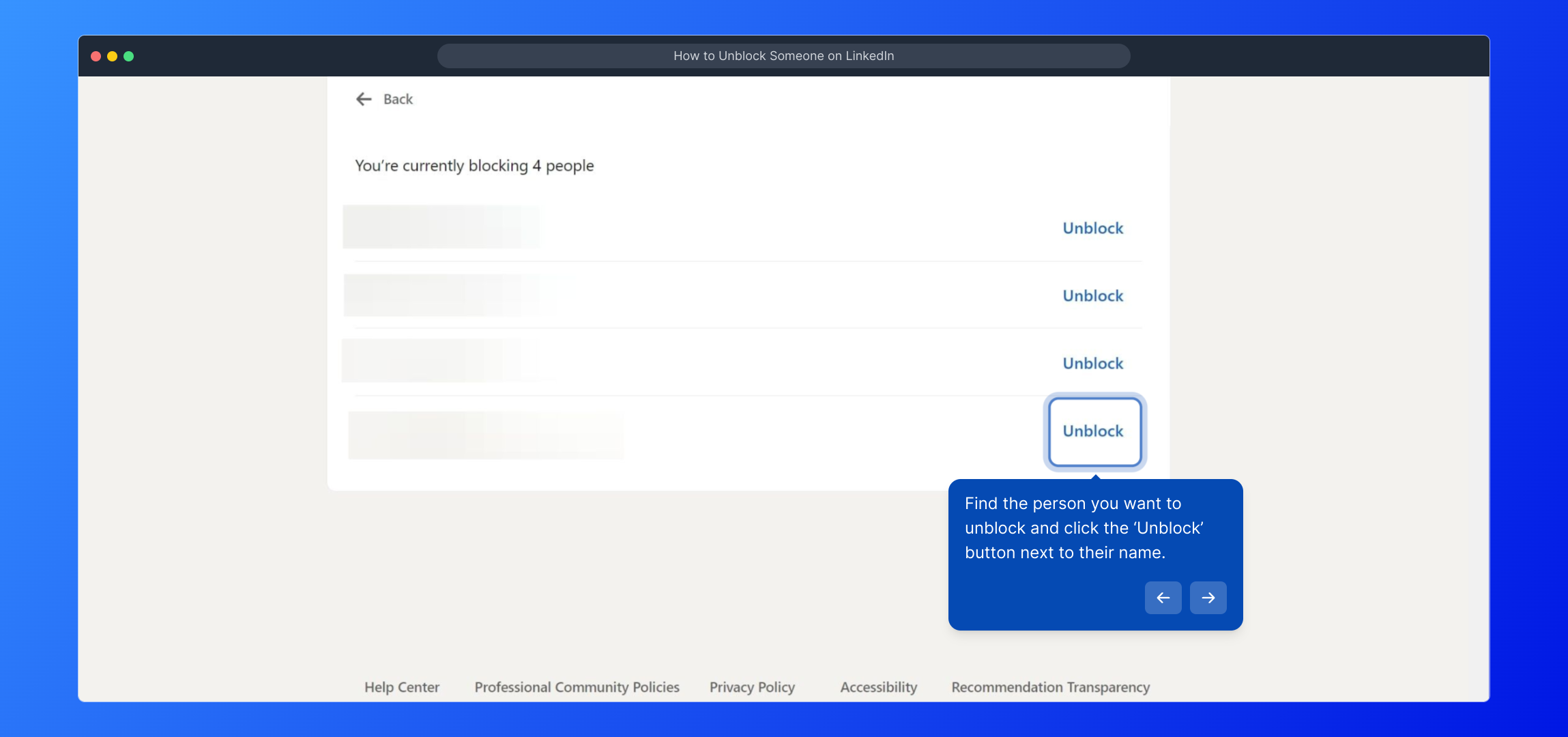
6. Find the person you want to unblock and click the ‘Unblock’ button next to their name.
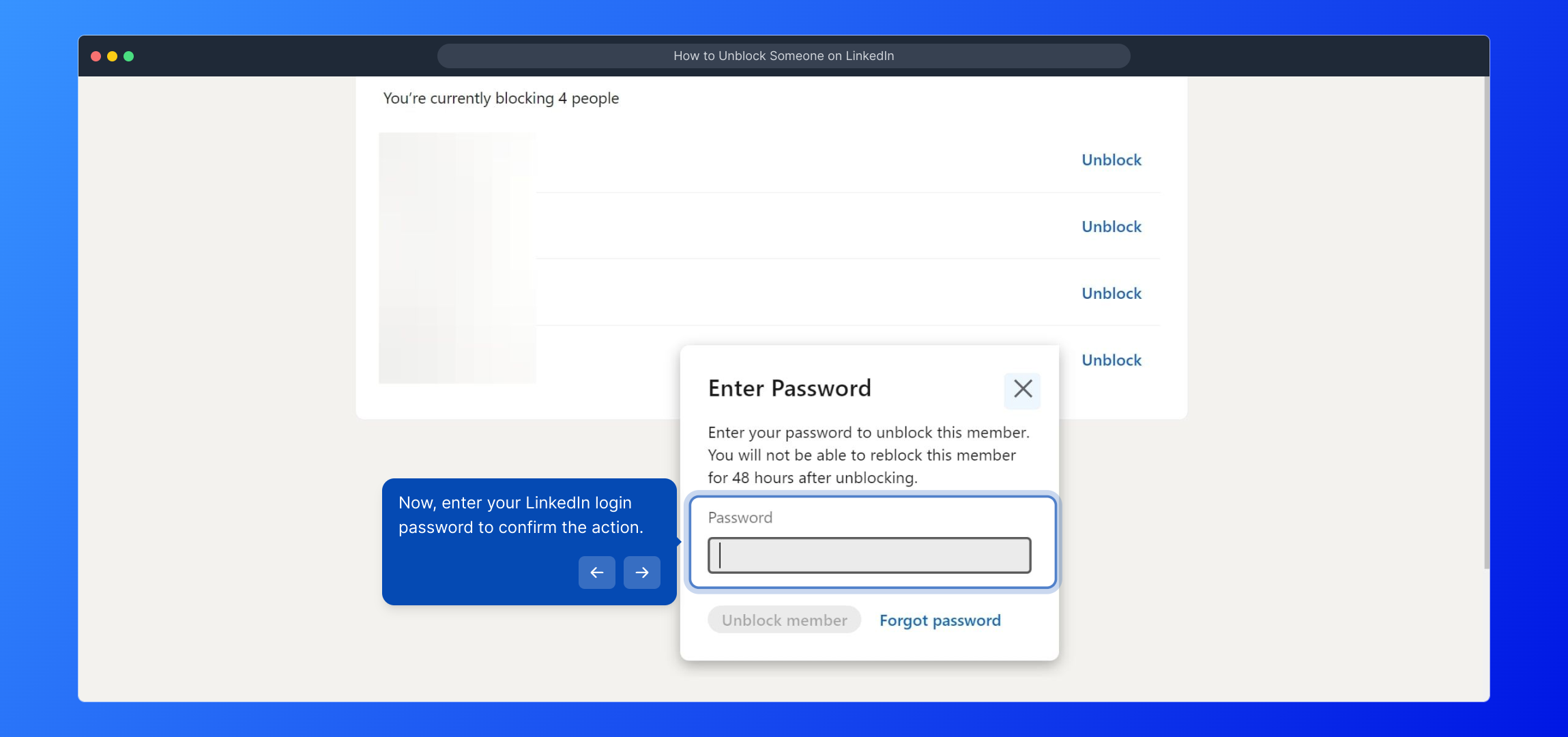
7. Now, enter your LinkedIn login password to confirm the action.
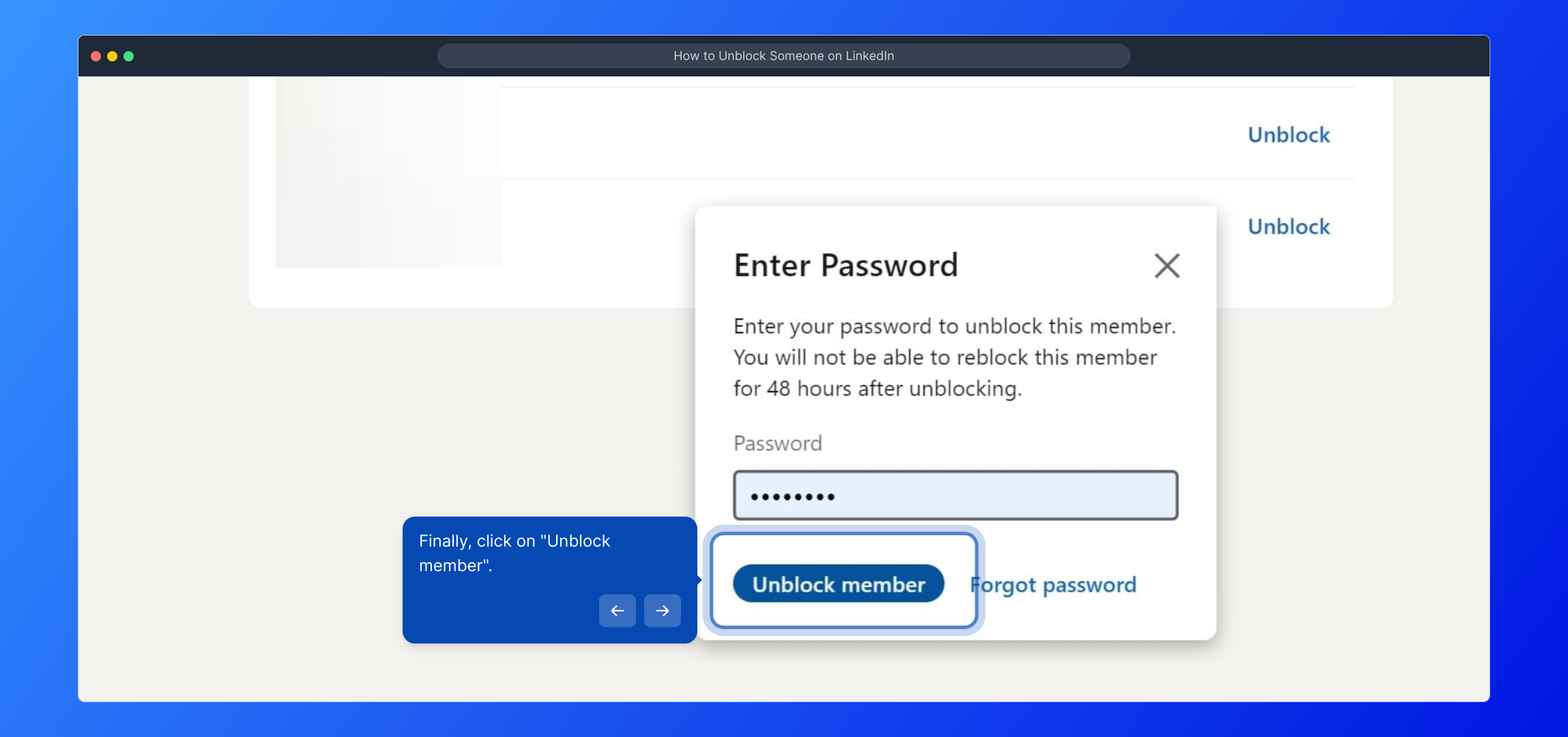
8. Finally, click on "Unblock member".
9. Create a Supademo in seconds
This interactive demo and guided walkthrough on How to Unblock Someone on LinkedIn was created using Supademo.
How to Unblock Someone on LinkedIn : Step-by-Step Guide
To get started, open LinkedIn either through your preferred web browser or the mobile app. Once there, log in using your usual username and password to access your account.
After logging in, locate your profile picture in the top right corner of the page. Click on it to open a dropdown menu where you can access various account settings and options.
Within the dropdown menu, find and select the option labeled "Settings & Privacy." This section houses your personal preferences, privacy controls, and account settings.
Once inside the Settings & Privacy area, navigate to the "Visibility" tab. This is where you manage who can see your activity and profile information on LinkedIn.
Scroll down through the Visibility options until you find the "Blocking" section. Here, you’ll see a list of users you’ve blocked previously, which you can manage as needed.
Look through the blocked users list to find the individual you want to unblock. When you spot their name, click the ‘Unblock’ button located next to their entry to initiate unblocking.
To confirm that you want to proceed with unblocking, you'll be prompted to enter your LinkedIn account password. Enter it carefully to verify your identity and continue.
Lastly, complete the process by clicking on the "Unblock member" button. This will officially remove the block and restore the person’s access to your profile and content.
That’s it—you’ve successfully unblocked someone on LinkedIn. Now you can reconnect and interact with them as before. Keep exploring LinkedIn to make the most of your professional network!
Create your own interactive demos in < 5 mins with Supademo
You can create your own interactive product demo in minutes using Supademo. Drive growth, scale enablement, and supercharge product-led onboarding with Supademo. Sign up for free here with no credit card required.
FAQs
Commonly asked questions about this topic.
How do I unblock someone on LinkedIn?
Can I unblock someone without entering my password?
What happens when I unblock someone on LinkedIn?
Where can I find the list of people I have blocked on LinkedIn?
Can I unblock someone from the LinkedIn mobile app?
Is there any limit on how many people I can unblock?
Will unblocking someone notify them on LinkedIn?
After unblocking, do I have to send a new connection request?
Can I block the same person again after unblocking?
Does unblocking remove any previous message history with that person?

Product Operations Associate
Vimal Kumar helps build and grow Supademo’s team and GTM efforts, with a focus on figuring out growth levers and improving product traction.


