How to create a Gantt view chart in Airtable

Gantt charts are powerful visualization tools for managing timelines and project dependencies in Airtable. This guide walks you through creating a Gantt view to track tasks, milestones, and deadlines at a glance.
Quick summary
In this tutorial, you'll learn how to set up a Gantt view in Airtable by adding a new view type and configuring it for your project data. You'll discover how to visualize task timelines and manage project schedules efficiently using Airtable's built-in Gantt view feature.
Why this matters
Gantt views are essential for project managers and teams who need to see task schedules, identify bottlenecks, and ensure timely project completion. By visualizing dependencies and timelines in Airtable, you can communicate project status clearly and make data-driven scheduling decisions without switching tools.
Step-by-step guide
- 1
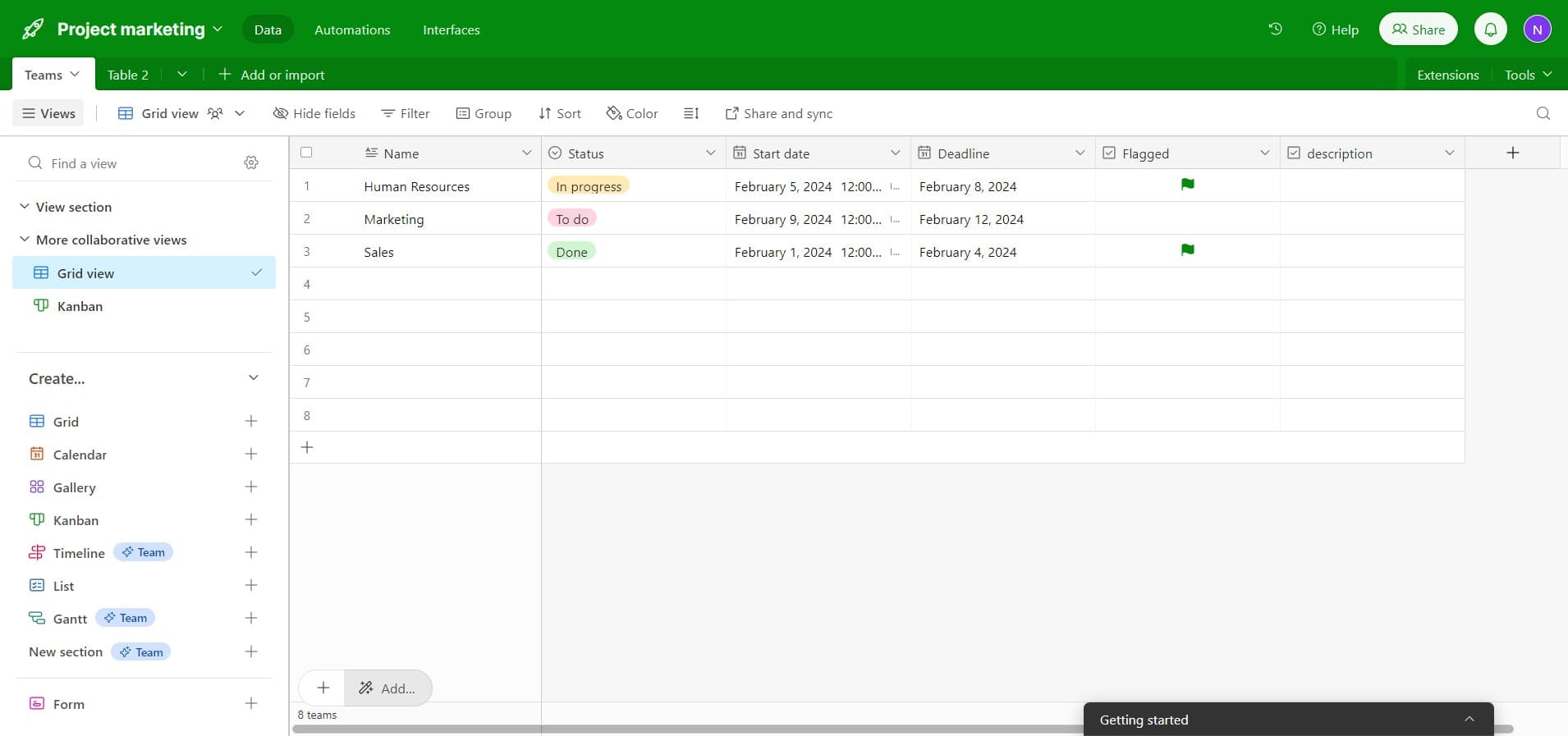
Click on Add to start
Open your Airtable base and locate the view menu at the top of your table. Click the plus icon or "Add..." button to access options for creating a new view.
- 2
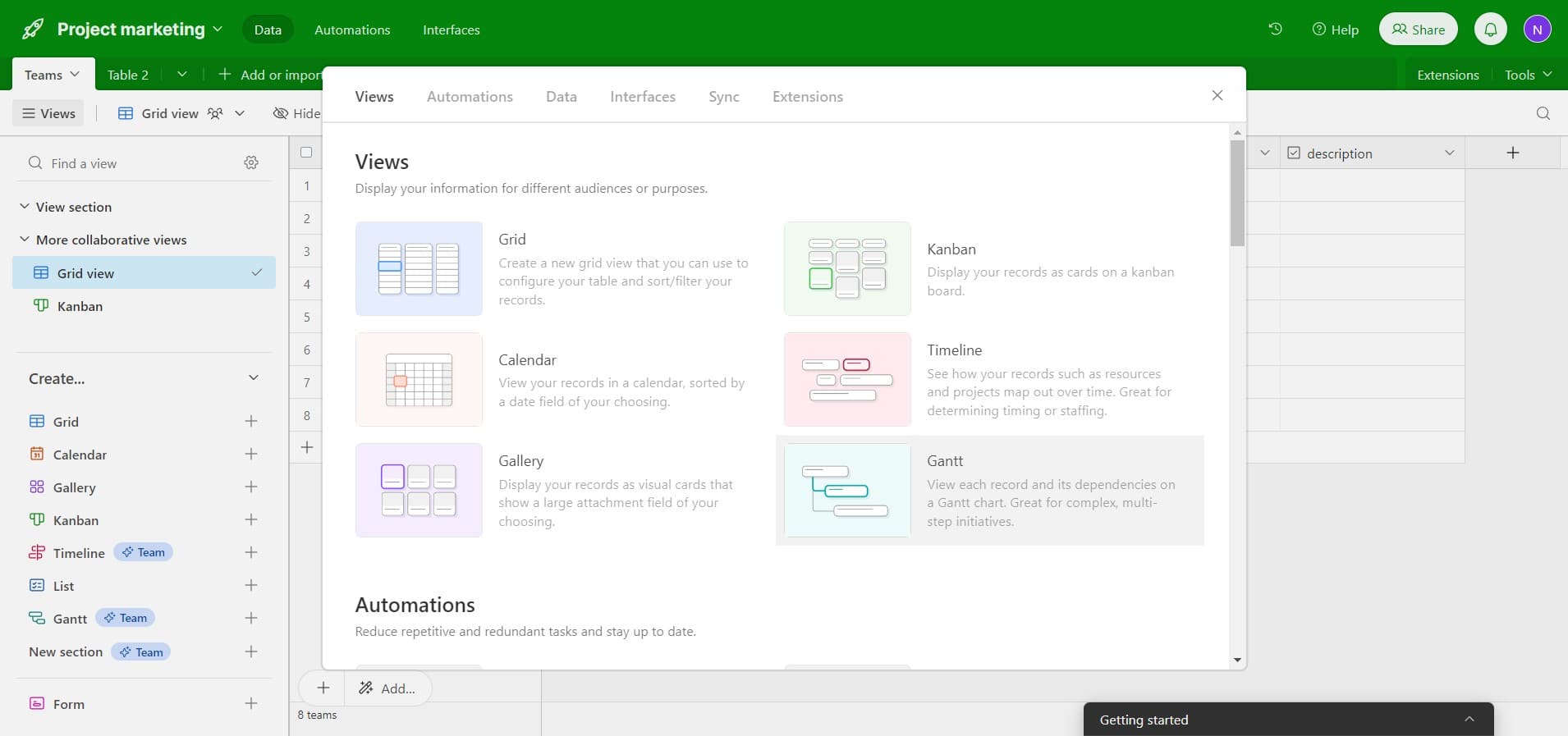
Select Gantt view option
From the menu that appears, find and click on "Gantt" to choose the Gantt view type. This will initiate the creation of a new Gantt chart view for your current table.
- 3
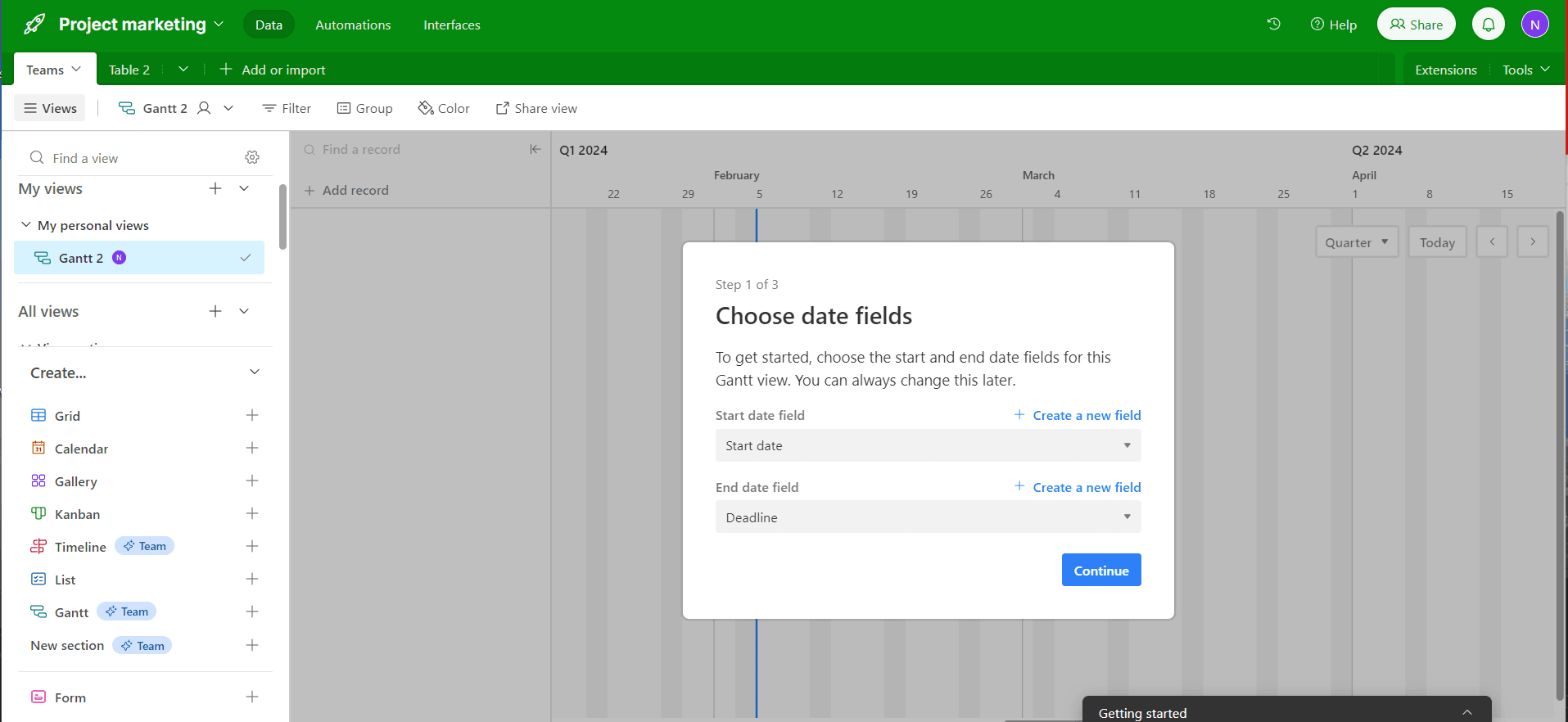
Configure start date field
Select the field in your table that represents the task start date. Airtable will use this field to position tasks on the left side of your Gantt timeline.
- 4
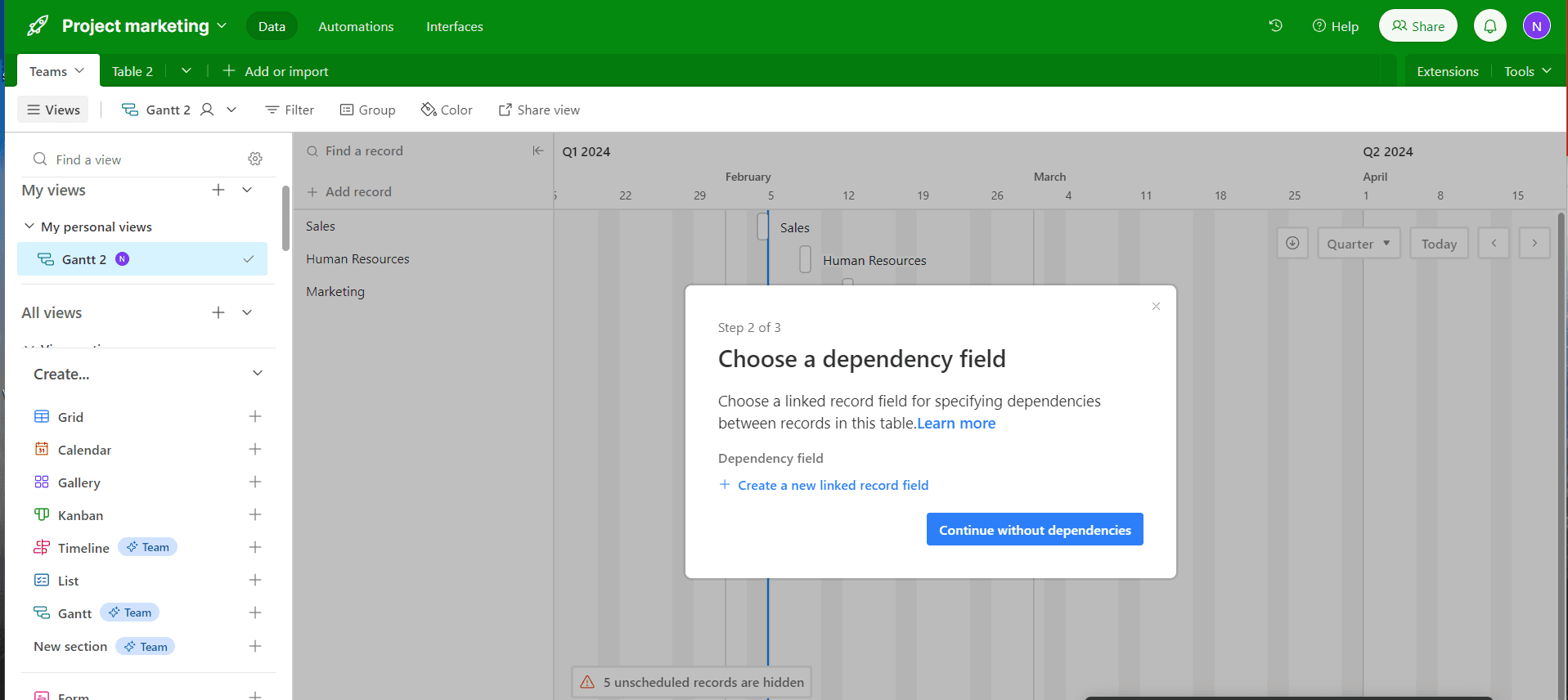
Configure end date field
Choose the field that contains the task end date or duration. This determines how long each task bar extends on your Gantt chart and defines the project timeline.
- 5
Set grouping and display options
Customize how tasks are grouped or color-coded in your Gantt view. You can organize by assignee, status, priority, or other fields to make your chart more readable and actionable.
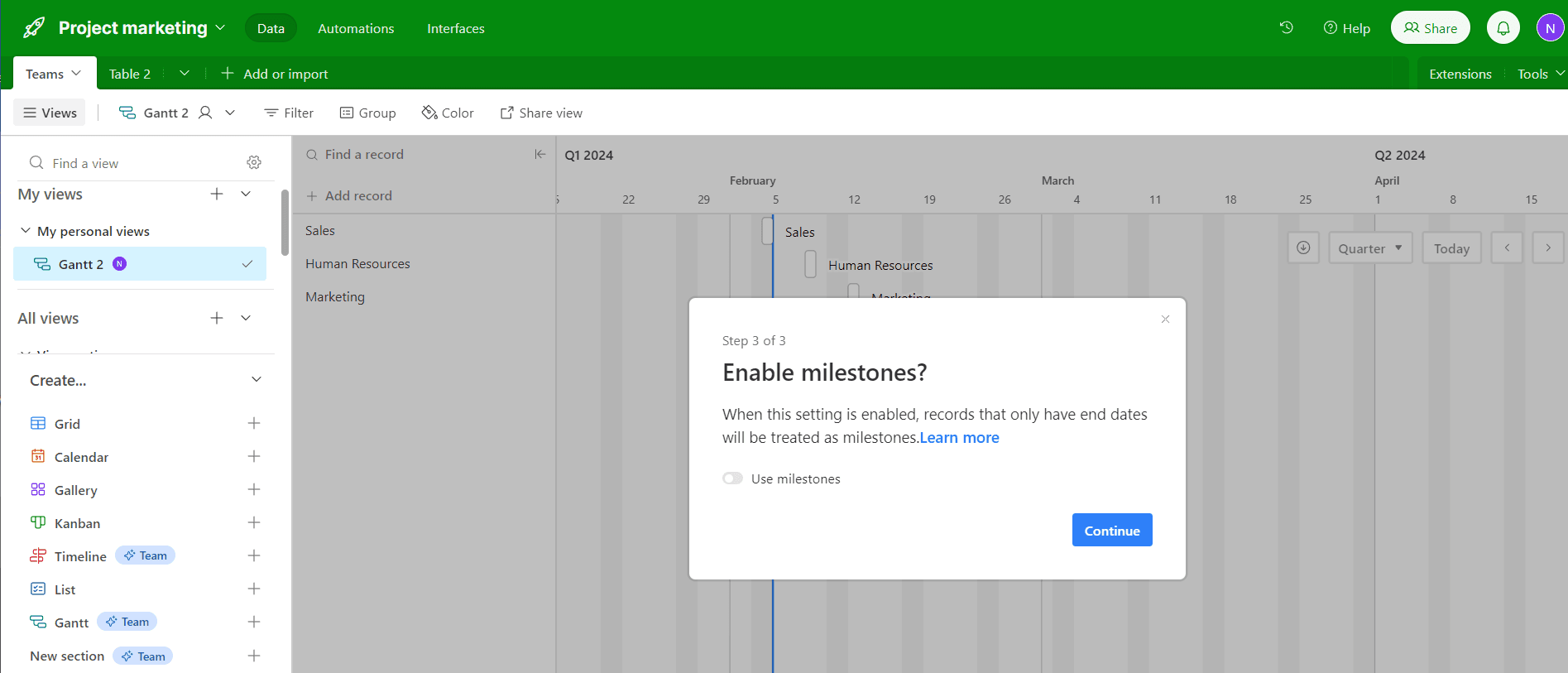
- 6
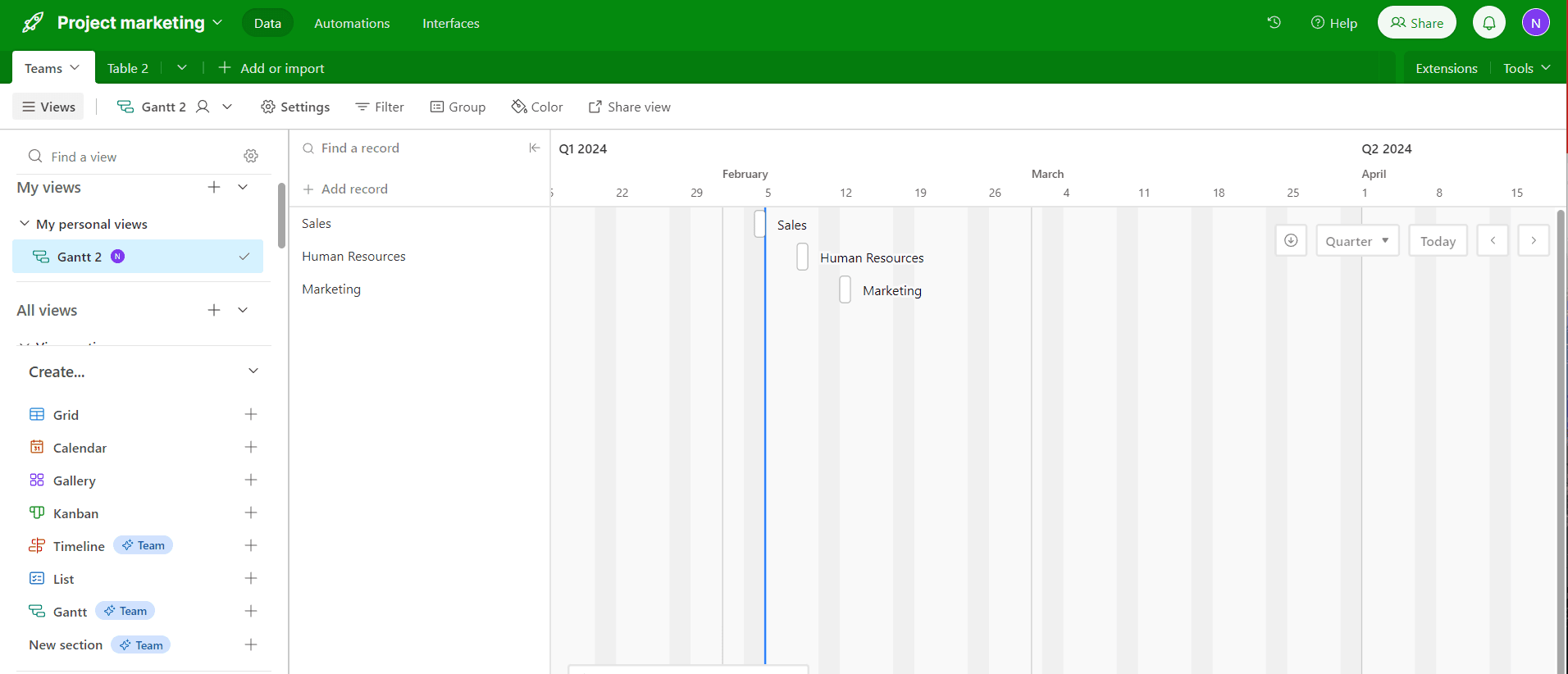
Save and view your Gantt chart
Review your Gantt view to ensure all tasks display correctly with proper dates and groupings. Your new view will be saved automatically and accessible alongside your other table views.
Frequently asked questions
Common questions about how to create a gantt view chart in airtable.
You need at least a start date field for your tasks. An end date field is optional but recommended to show task duration on the chart. Both fields should be date or date-time type fields in Airtable for the Gantt view to work properly.
Yes, you can drag task bars on the Gantt chart to adjust start and end dates directly. You can also click on tasks to open the detailed record view and edit other fields like assignee, status, or priority.
Click on the view settings or configuration icon within your Gantt view. Look for grouping options and select a different field to reorganize how tasks are grouped visually on your chart.
Yes, you can filter your Gantt view to show tasks from multiple projects or use grouping to separate them visually. Apply filters based on project name, status, or other criteria to focus on specific work.
Tasks without an end date will still appear on your Gantt chart using only the start date. The task bar will typically show as a single point or a minimal-width bar depending on Airtable's current settings. You can add end dates later to update the visualization.