How to create and share a calendar in Airtable

Airtable's calendar view transforms your data into a visual timeline, making it easy to track events, deadlines, and schedules at a glance. Learn how to create a calendar view and share it with your team so everyone stays aligned on important dates and milestones.
Quick summary
In this tutorial, you'll discover how to set up a calendar view in Airtable using date fields, customize it with color coding, and generate a shareable link for team collaboration. By the end, you'll be able to create professional calendar views that keep your entire team informed without requiring direct database access.
Why this matters
Calendar views in Airtable eliminate the need for separate calendar tools and spreadsheet management. By sharing calendar links, you enable stakeholders to view project timelines and deadlines in real time while maintaining database security and preventing accidental edits to source data.
Step-by-step guide
- 1
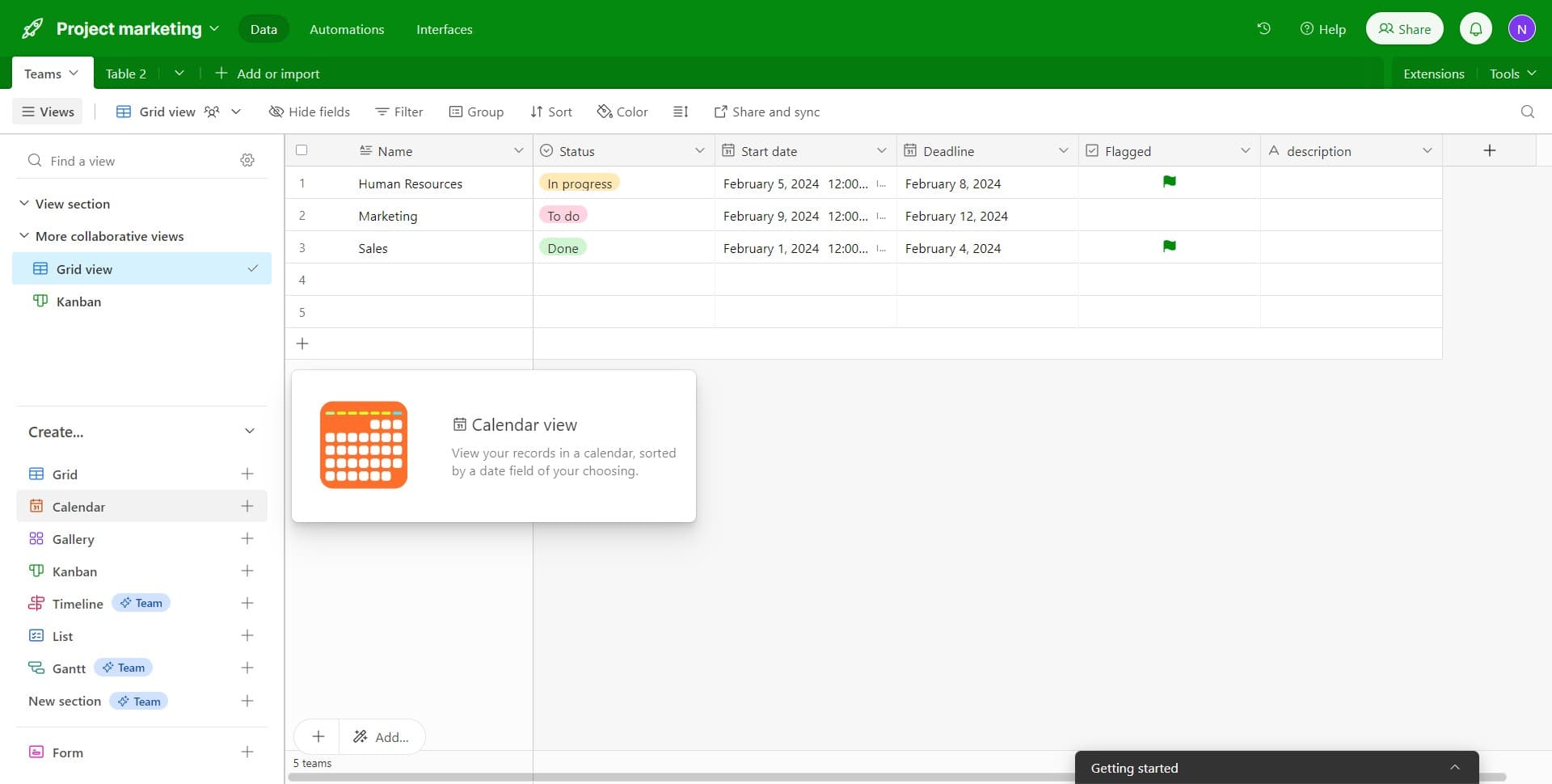
Access the Calendar view option
Navigate to your Airtable base and click on 'Calendar' from the view menu. This is the first step in creating a calendar-based view of your data.
- 2
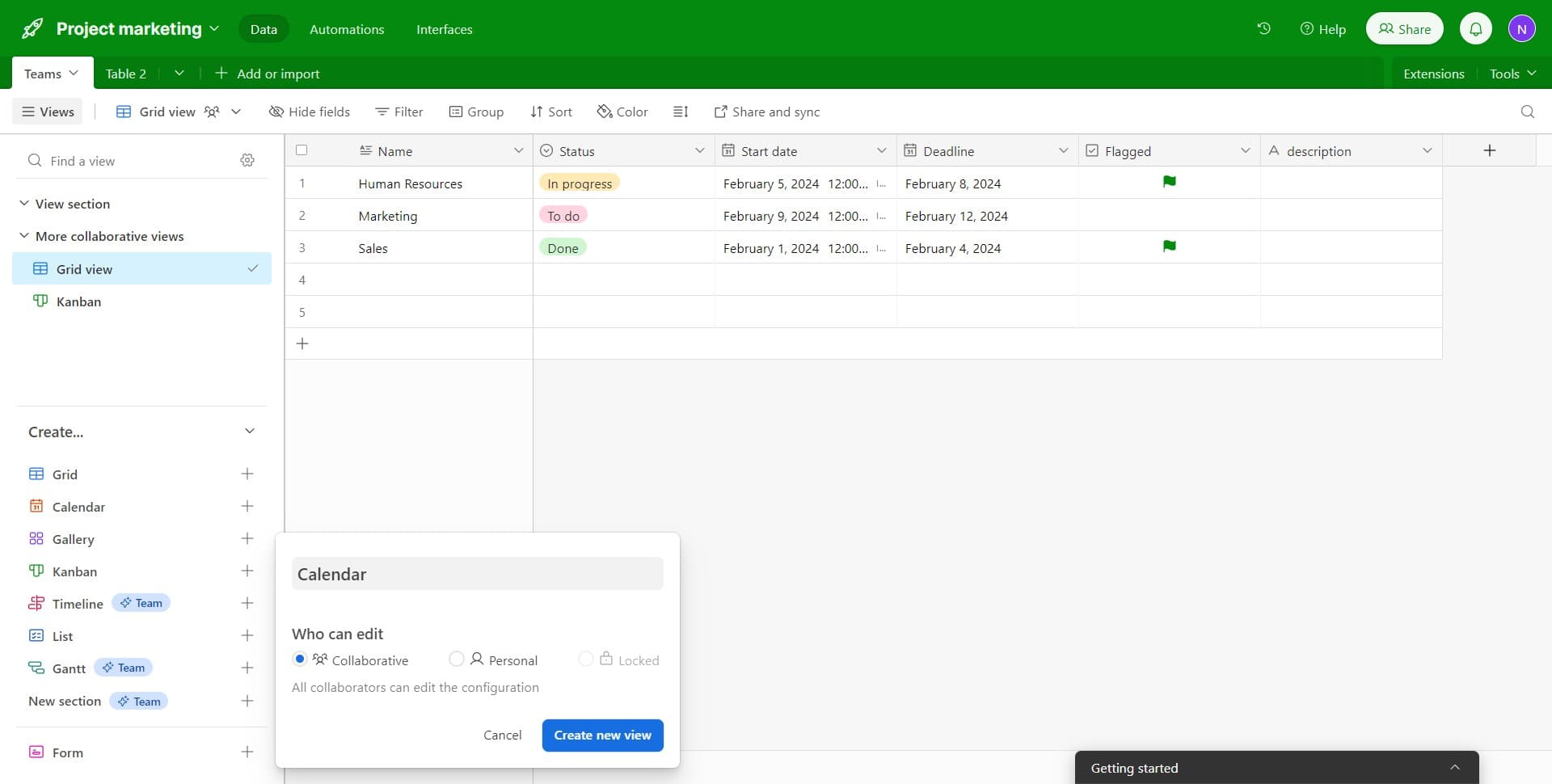
Select your base or table
Click on the designated area to confirm your selection and proceed with creating the new view. This ensures you're working within the correct data set.
- 3
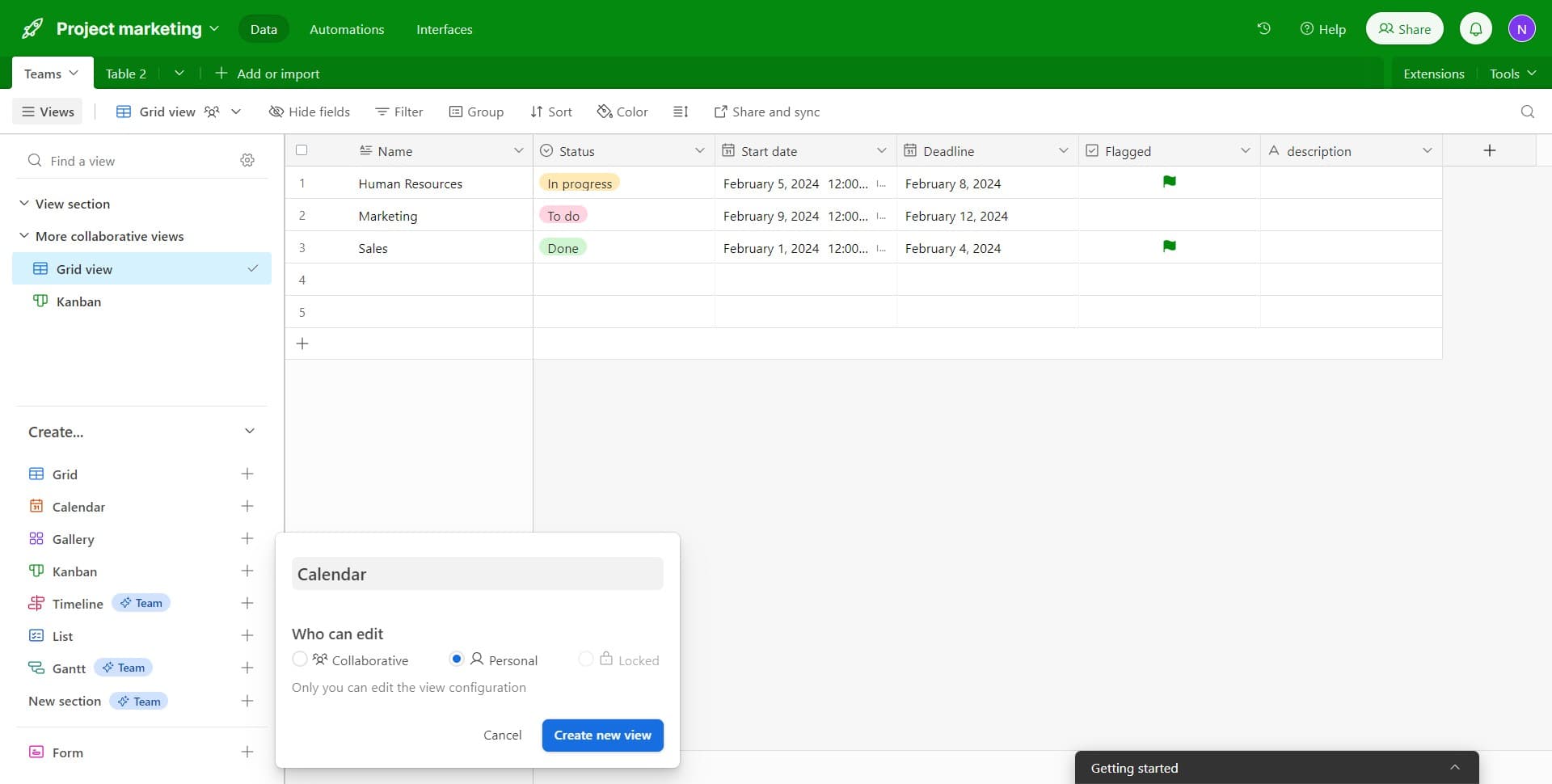
Create a new view
Click on 'Create new view' to initialize the calendar view creation process. You'll be guided through options to configure how your data appears.
- 4
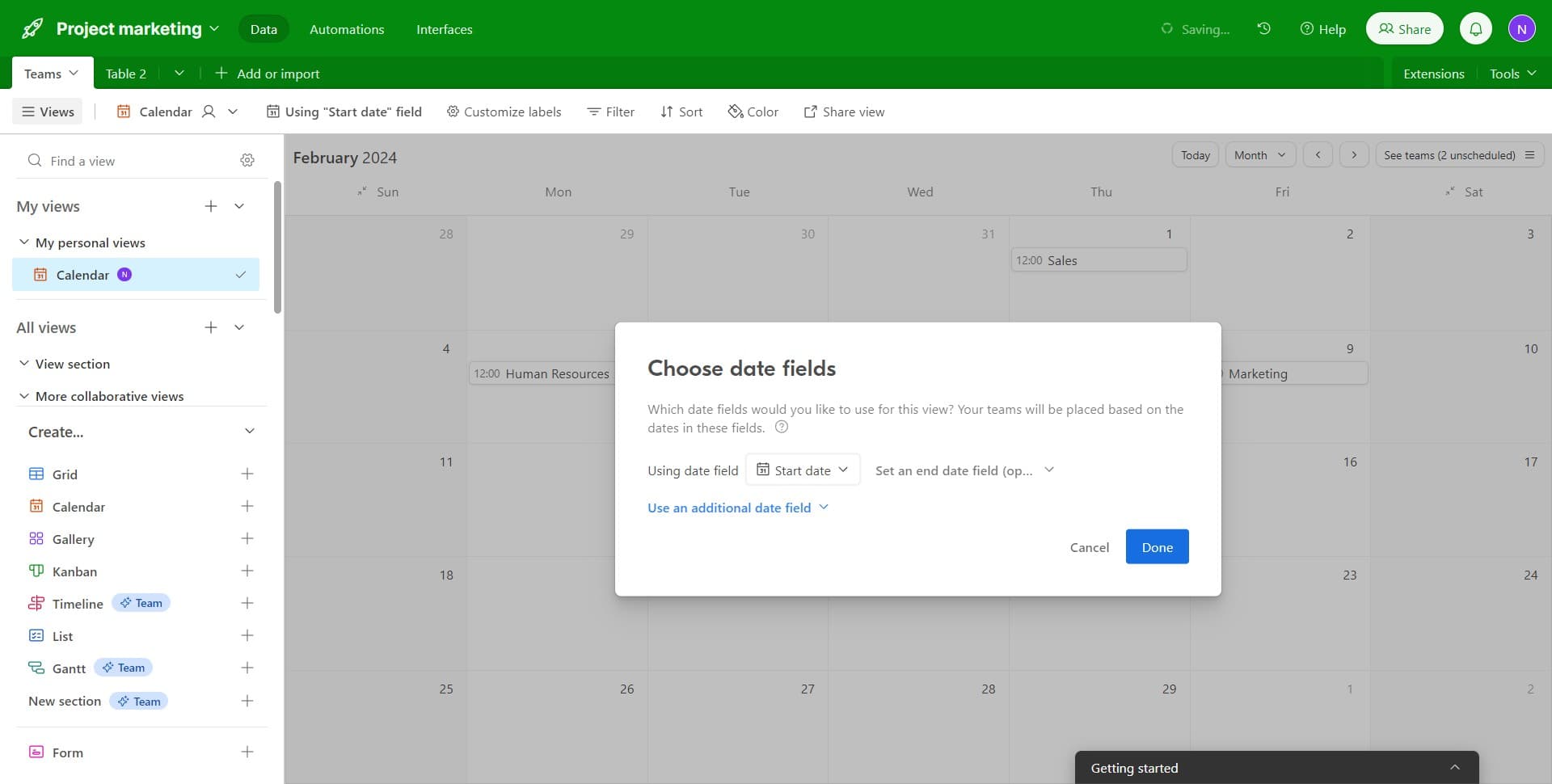
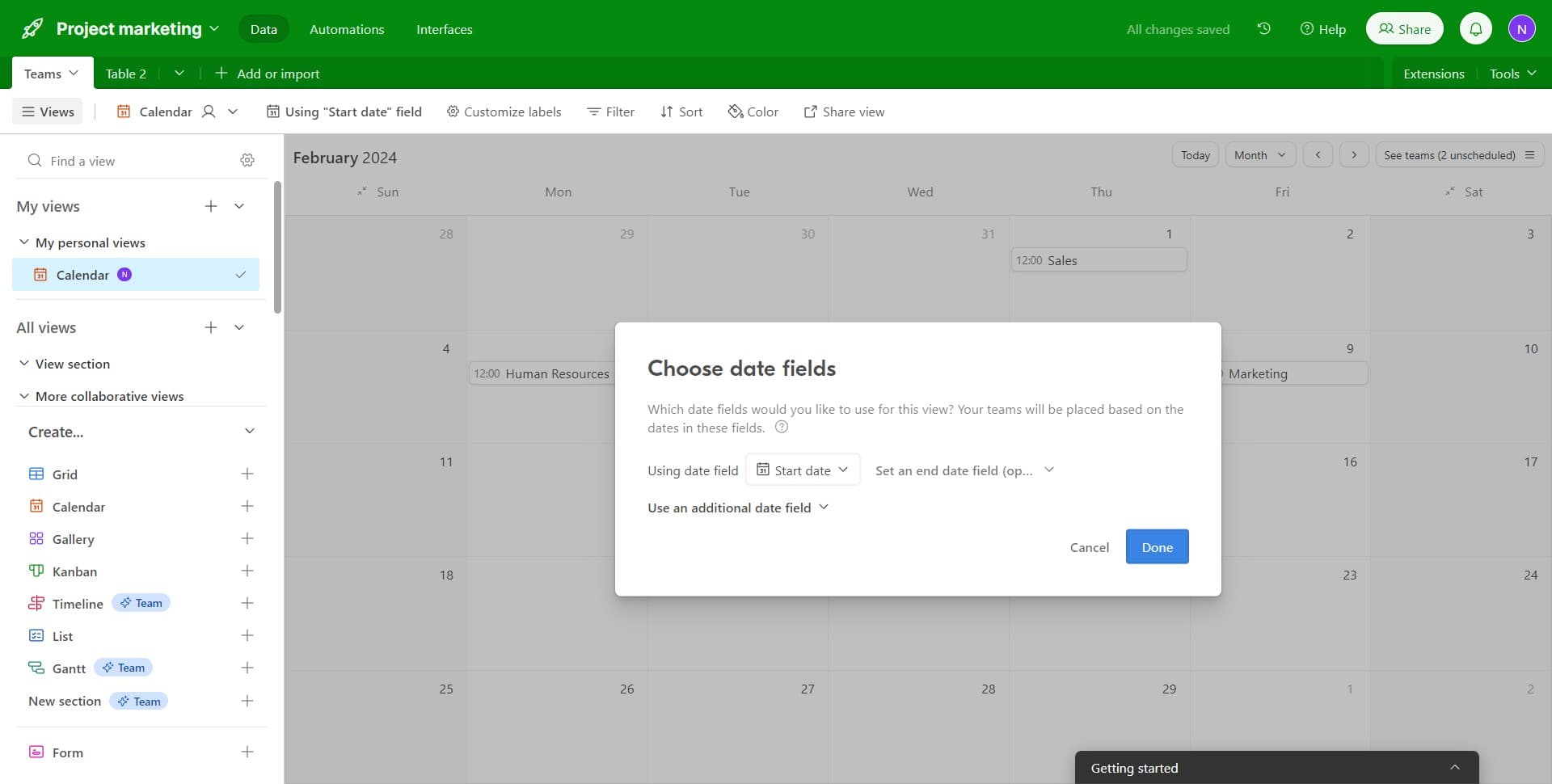
Add a date field to the calendar
Click on 'Use an additional date field' to include multiple date fields in your calendar if needed. This allows you to layer different dates and create a more comprehensive timeline view.
- 5
Finalize the calendar setup
Click on 'Done' to confirm your calendar configuration. Your calendar view will now be created and ready for customization.
- 6
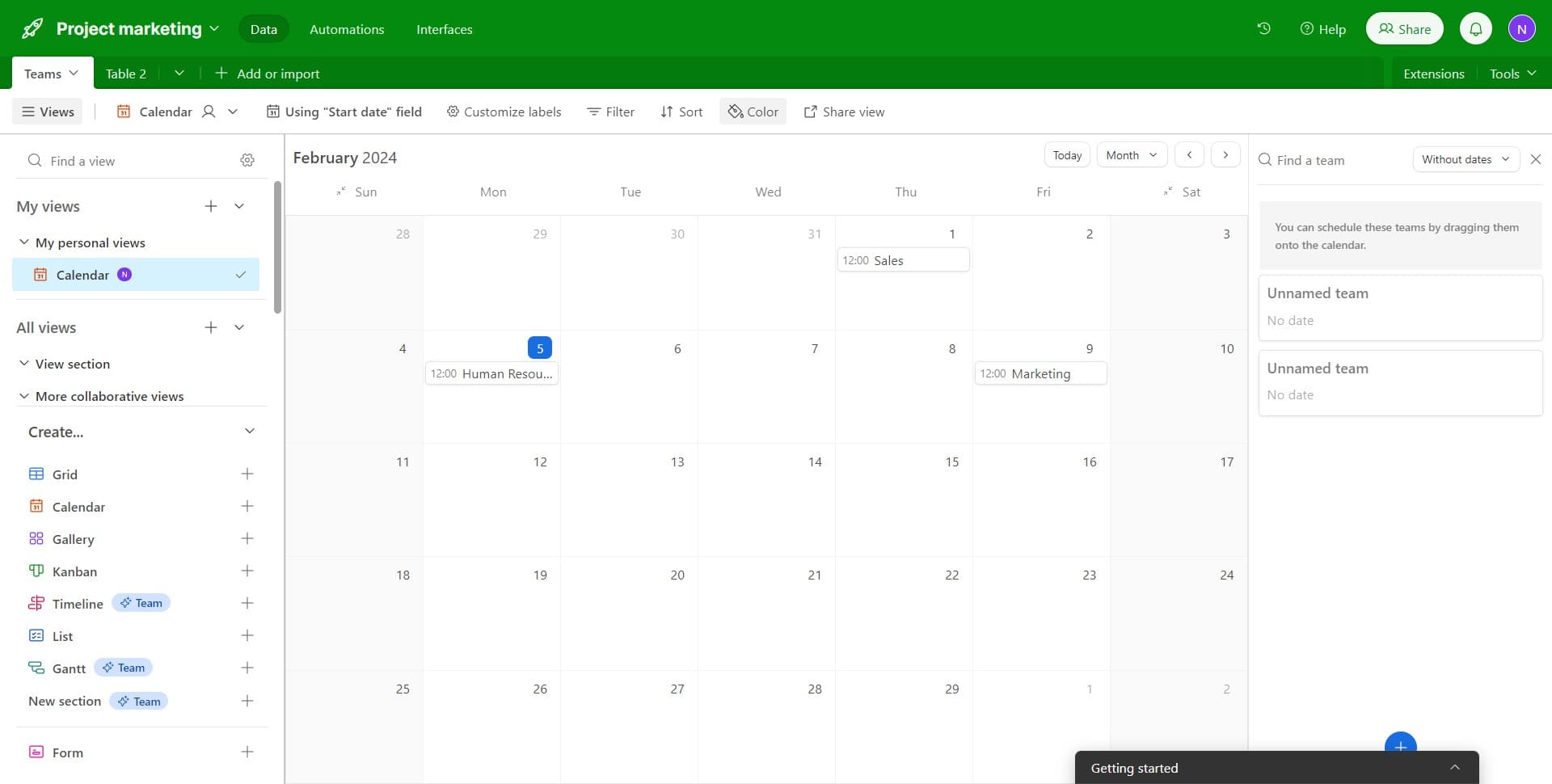
Access calendar customization options
Click on the specified area to open additional customization settings for your calendar view. This gives you access to formatting and sharing features.
- 7
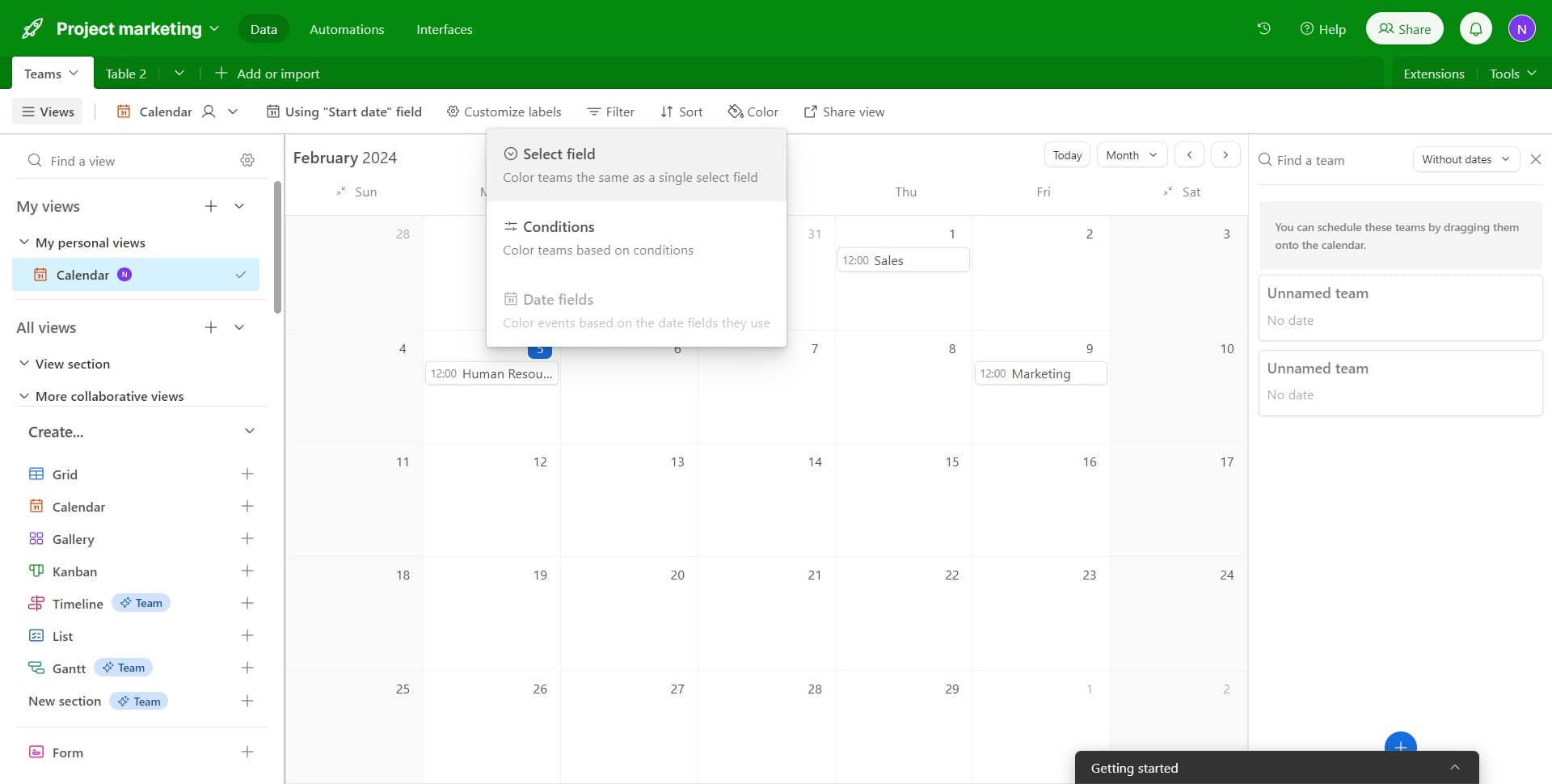
Apply color coding to teams
Click on 'Color teams the...' option to assign different colors to team categories or other fields. This visual organization makes it easier to distinguish between different types of entries at a glance.
- 8
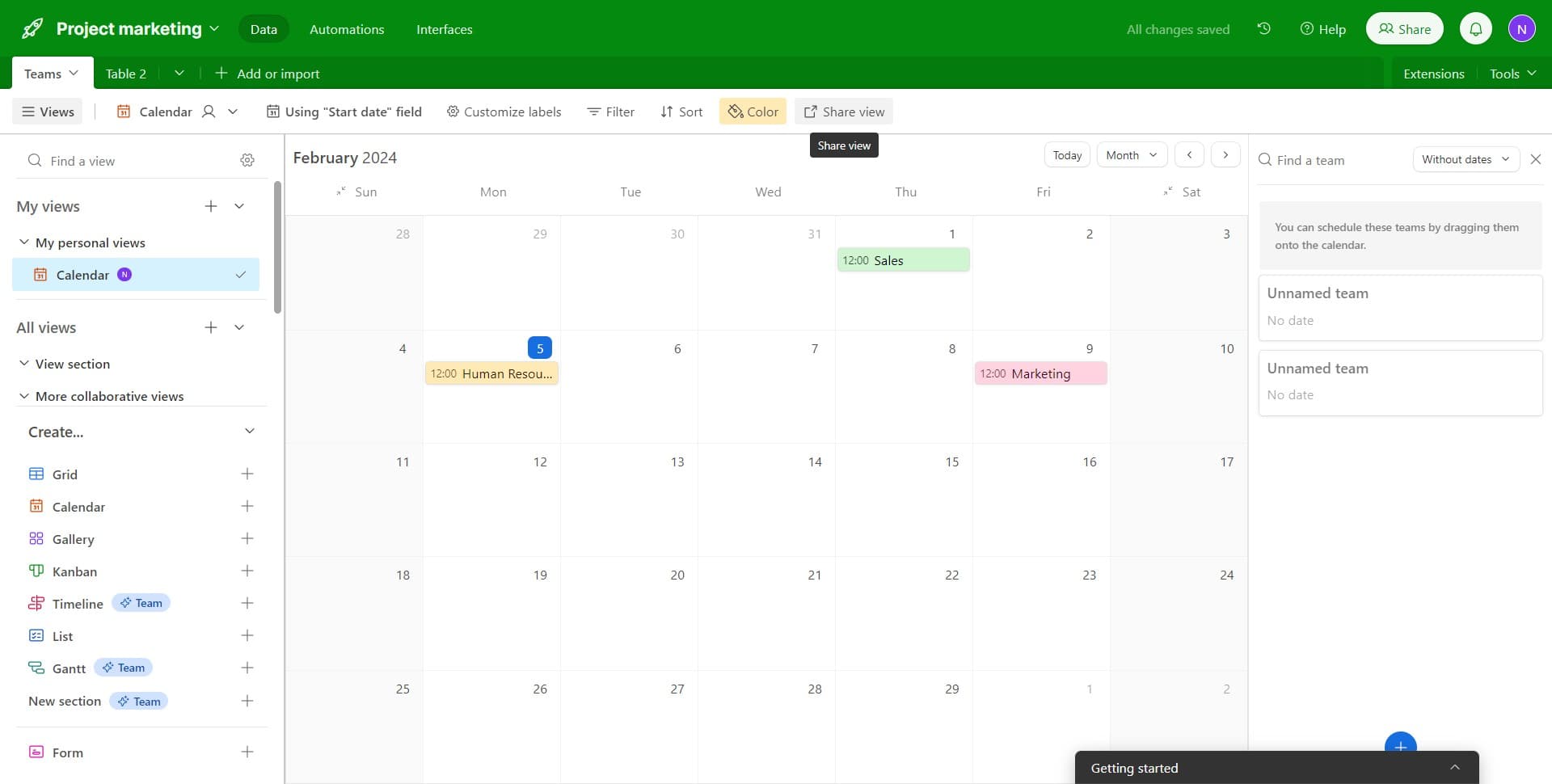
Open the sharing settings
Click on 'Share view' to access options for sharing your calendar with others. This is where you'll control who can see and interact with your calendar.
- 9
Generate a shareable link
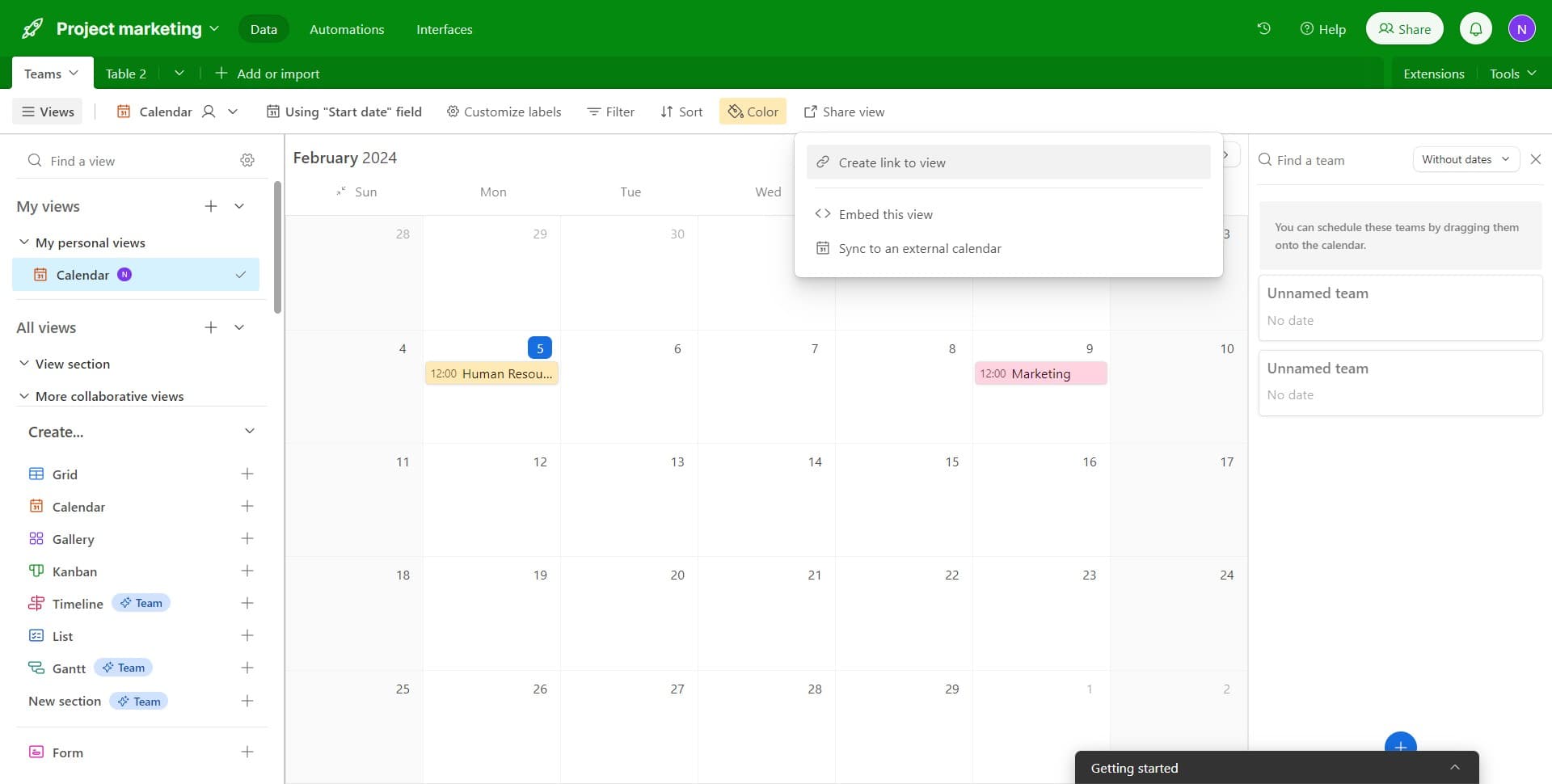
Click on 'Create link to view' to generate a unique URL that you can share with team members and stakeholders. This link will allow them to view the calendar without needing Airtable access.
- 10
Copy and distribute the link
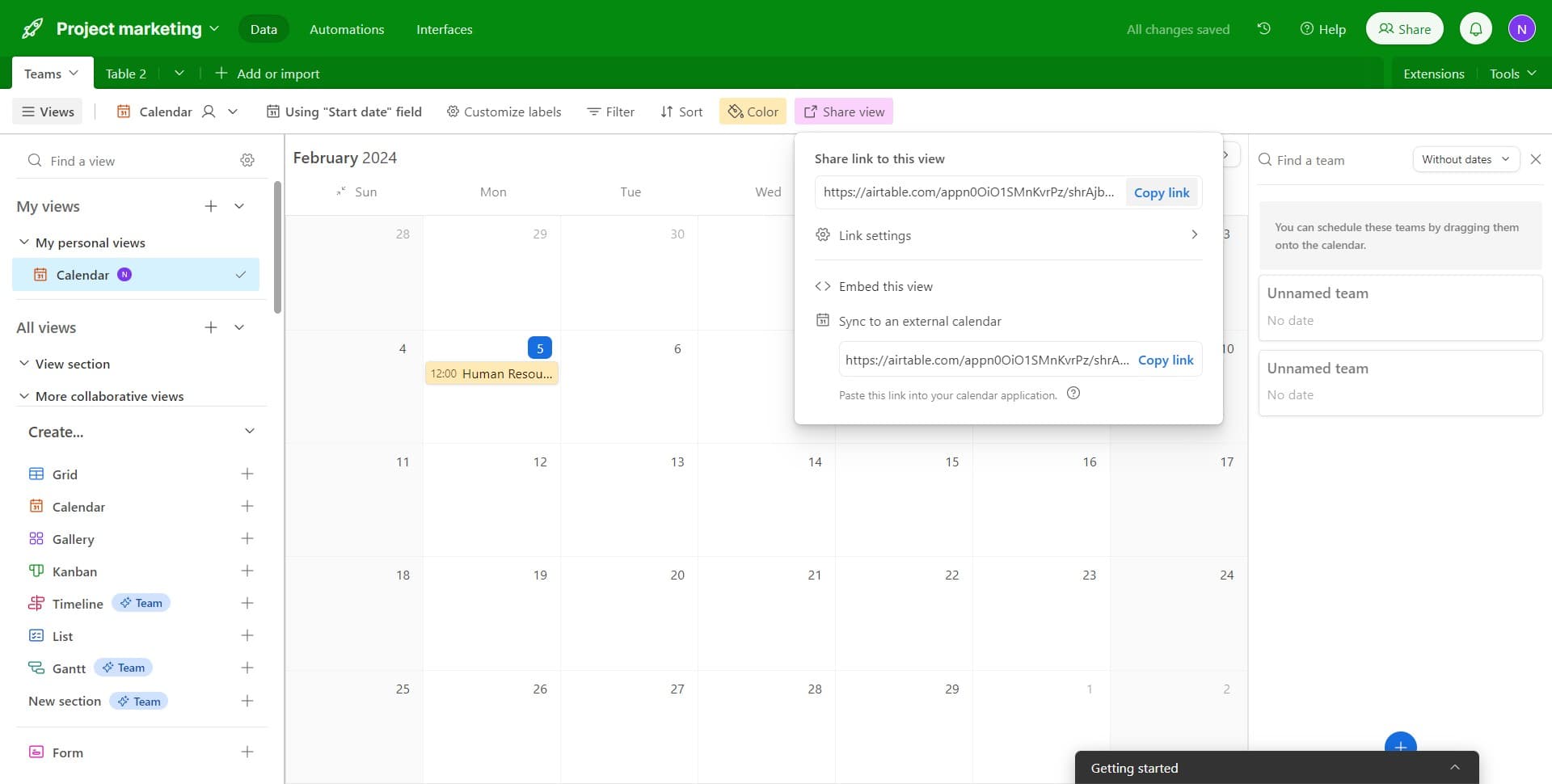
Click on 'Copy link' to add the shareable URL to your clipboard. You can now paste and send this link via email, Slack, or any other communication channel.
Frequently asked questions
Common questions about how to create and share a calendar in airtable.
Yes, Airtable allows you to create multiple calendar views from a single table. Each view can be configured with different date fields, filters, and color coding schemes. This is useful when you want to display the same data in different ways for different audiences.
When you share a calendar link, the recipient can view the calendar in read-only mode by default, depending on your sharing settings. They do not need an Airtable account and cannot edit the underlying database unless you explicitly grant edit permissions through the sharing options.
Yes, you can modify the date field by editing the calendar view settings. Click on the view options and select a different date field at any time without losing your existing customizations like color coding.
Color coding allows you to visually distinguish between different teams, projects, or categories on your calendar. This makes it easier to scan the calendar quickly and identify which events or tasks belong to specific groups without reading every entry.
Yes, you can manage sharing permissions in Airtable's share settings. You can disable or delete a shared link at any time to prevent further access. Changes take effect immediately for anyone using that specific link.