How to create dashboard in Airtable

Dashboards in Airtable provide a centralized view of your data, allowing you to visualize key metrics and manage information efficiently. This tutorial walks you through creating a professional dashboard from scratch, enabling you to organize and present your data in a meaningful way.
Quick summary
In this tutorial, you'll learn how to create a dashboard in Airtable by setting up a high-level view, configuring it for team collaboration, and publishing it for sharing. By the end, you'll have a fully functional dashboard ready to share with your team via a shareable link.
Why this matters
Dashboards are essential for gaining quick insights into your data without manually scrolling through records. They help teams stay aligned by providing a shared, real-time view of important information, making decision-making faster and more collaborative.
Step-by-step guide
- 1
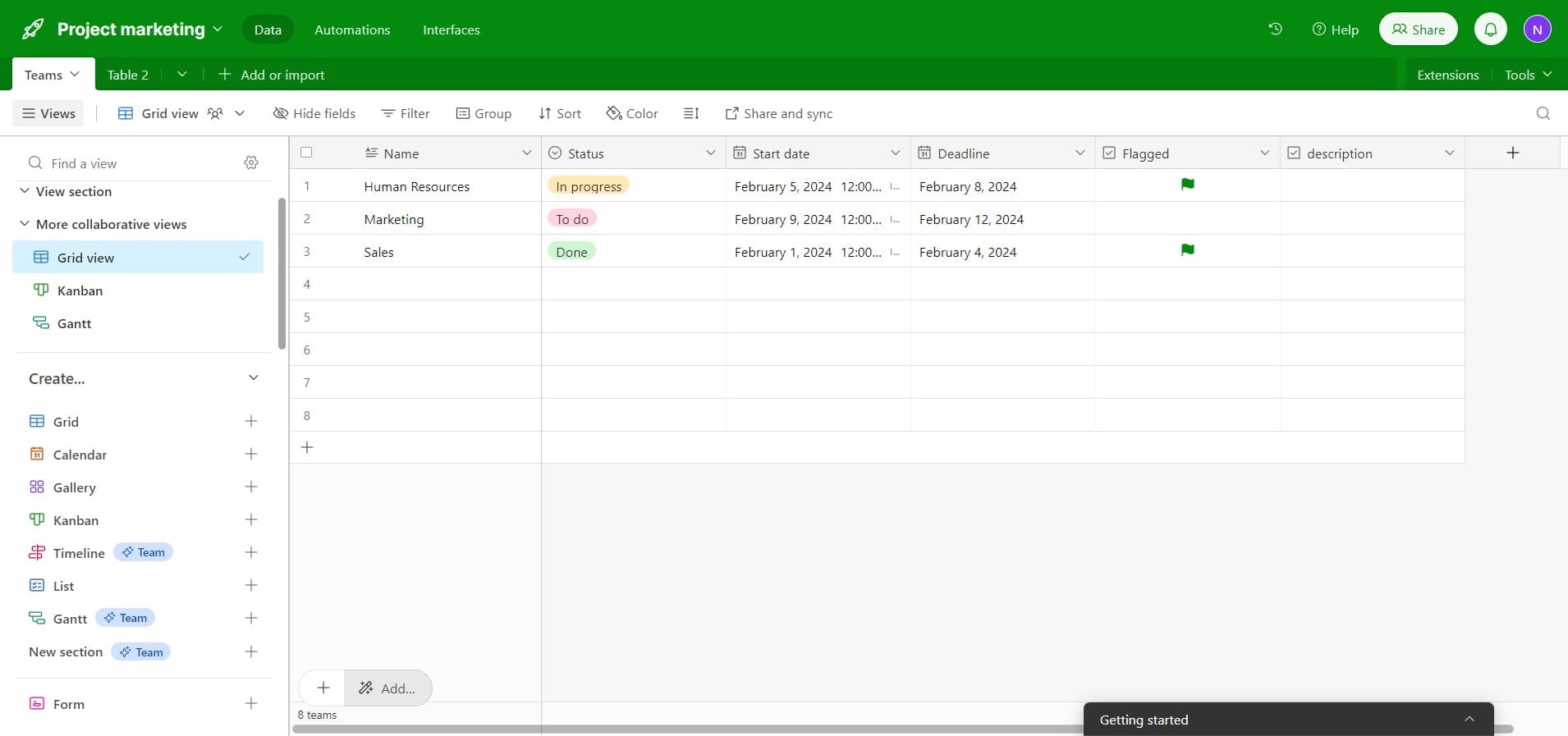
Click on Add button
Start by clicking the 'Add...' button in your Airtable workspace. This opens the menu for creating new views and components.
- 2
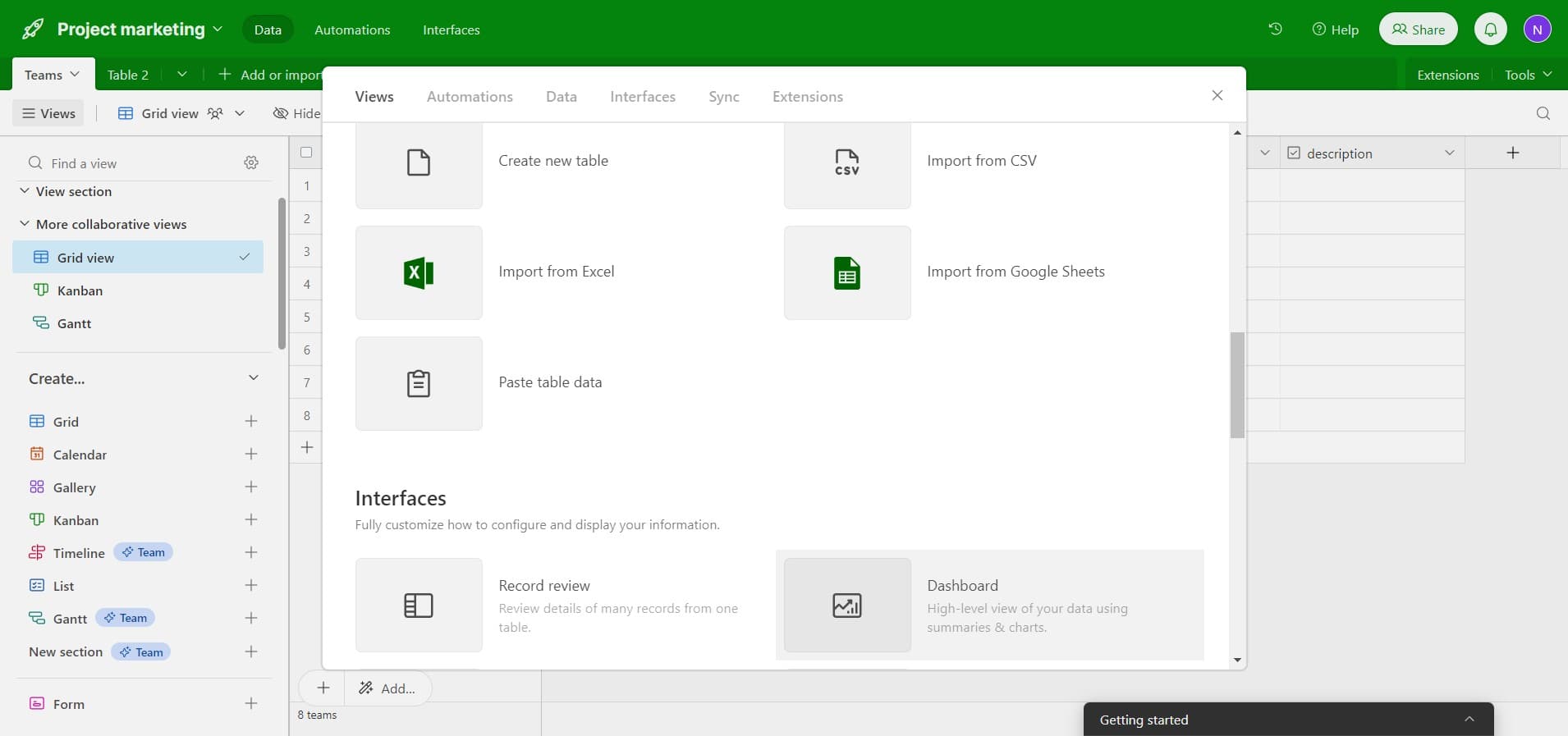
Select High-level view option
From the dropdown menu, click on 'High-level view...' to begin building a dashboard. This view type is designed for creating visual summaries of your data.
- 3
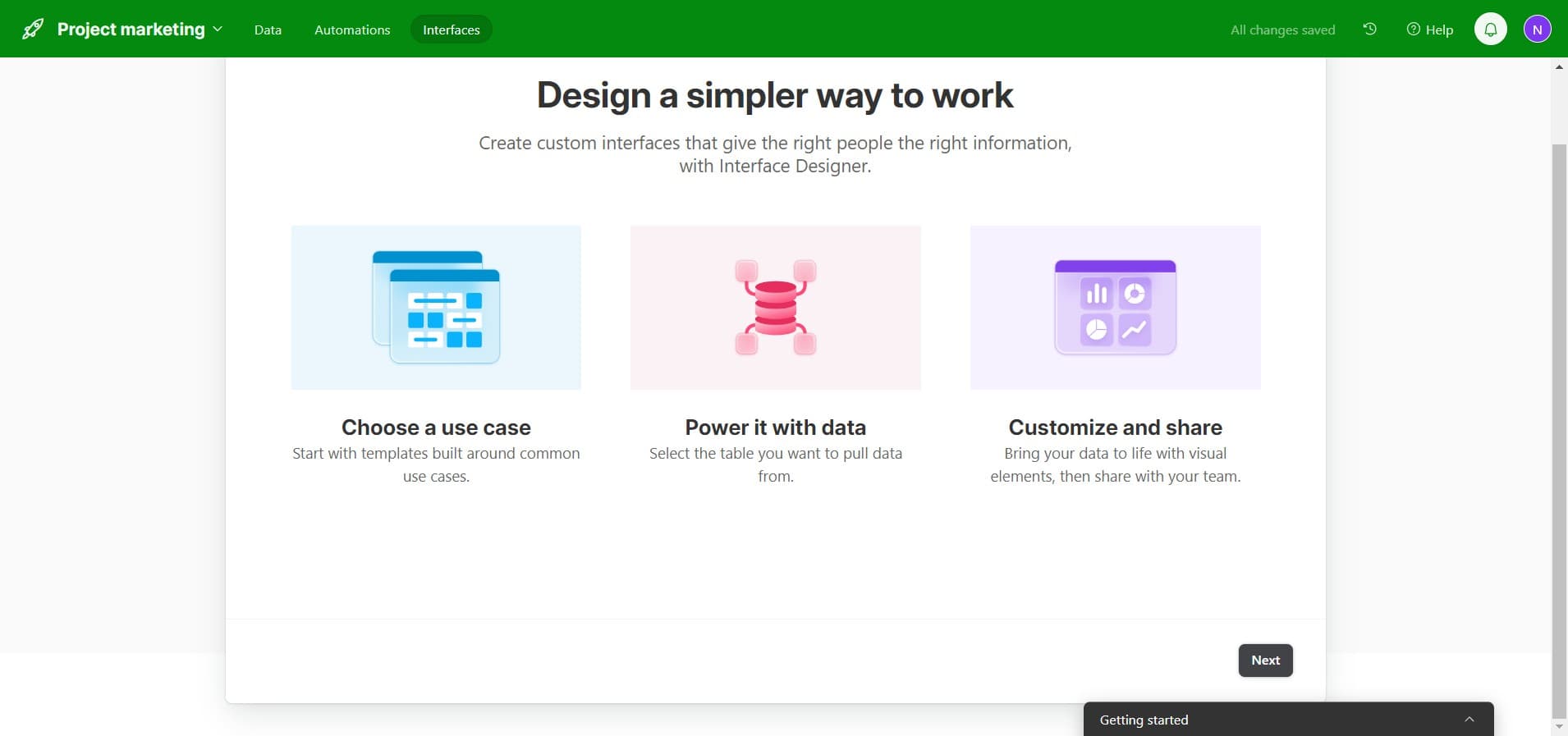
Proceed to next configuration screen
Click 'Next' to move to the dashboard configuration screen. This allows you to define the layout and structure of your dashboard.
- 4
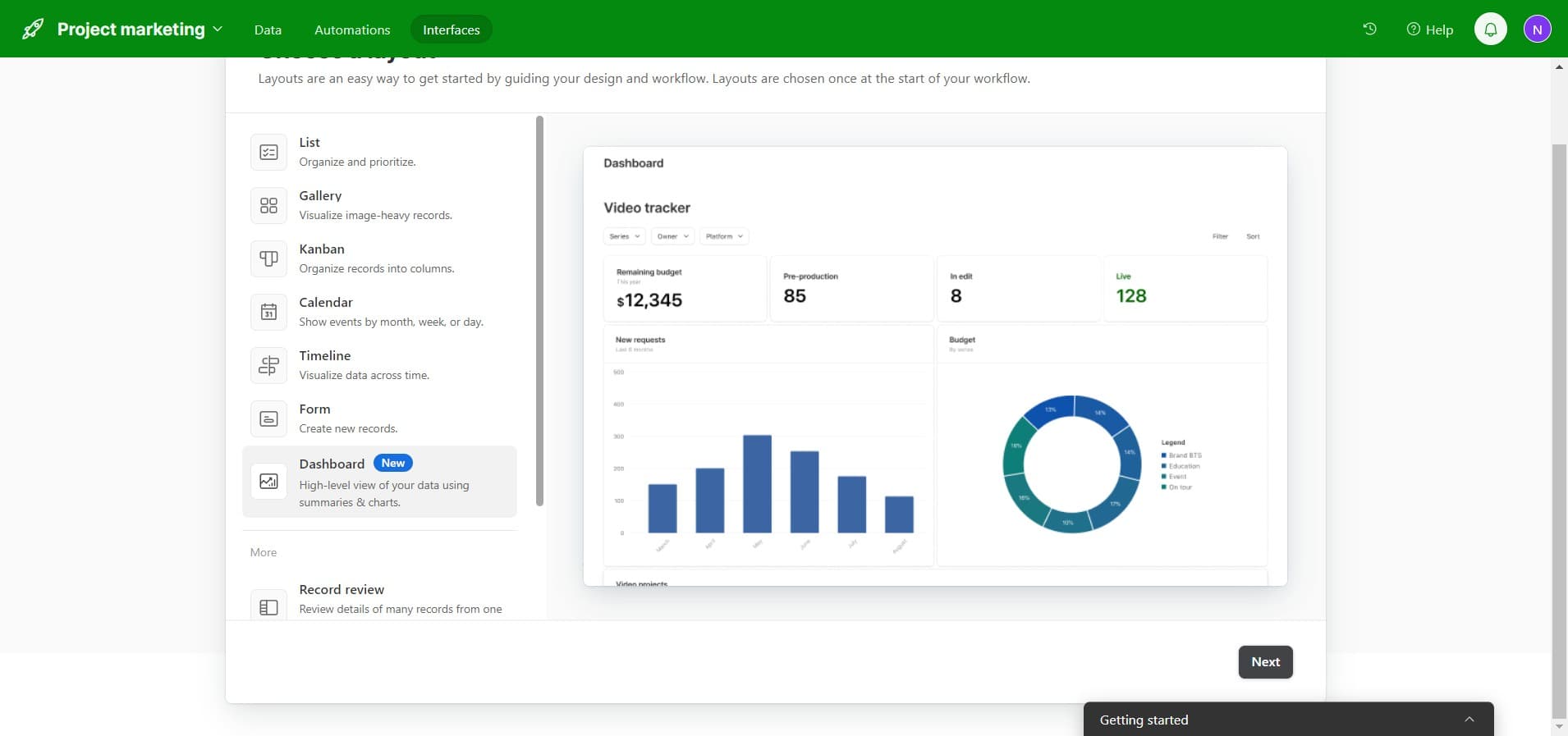
Continue to team assignment
Click 'Next' again to advance to the team assignment section. Here you'll specify who can access and interact with your dashboard.
- 5
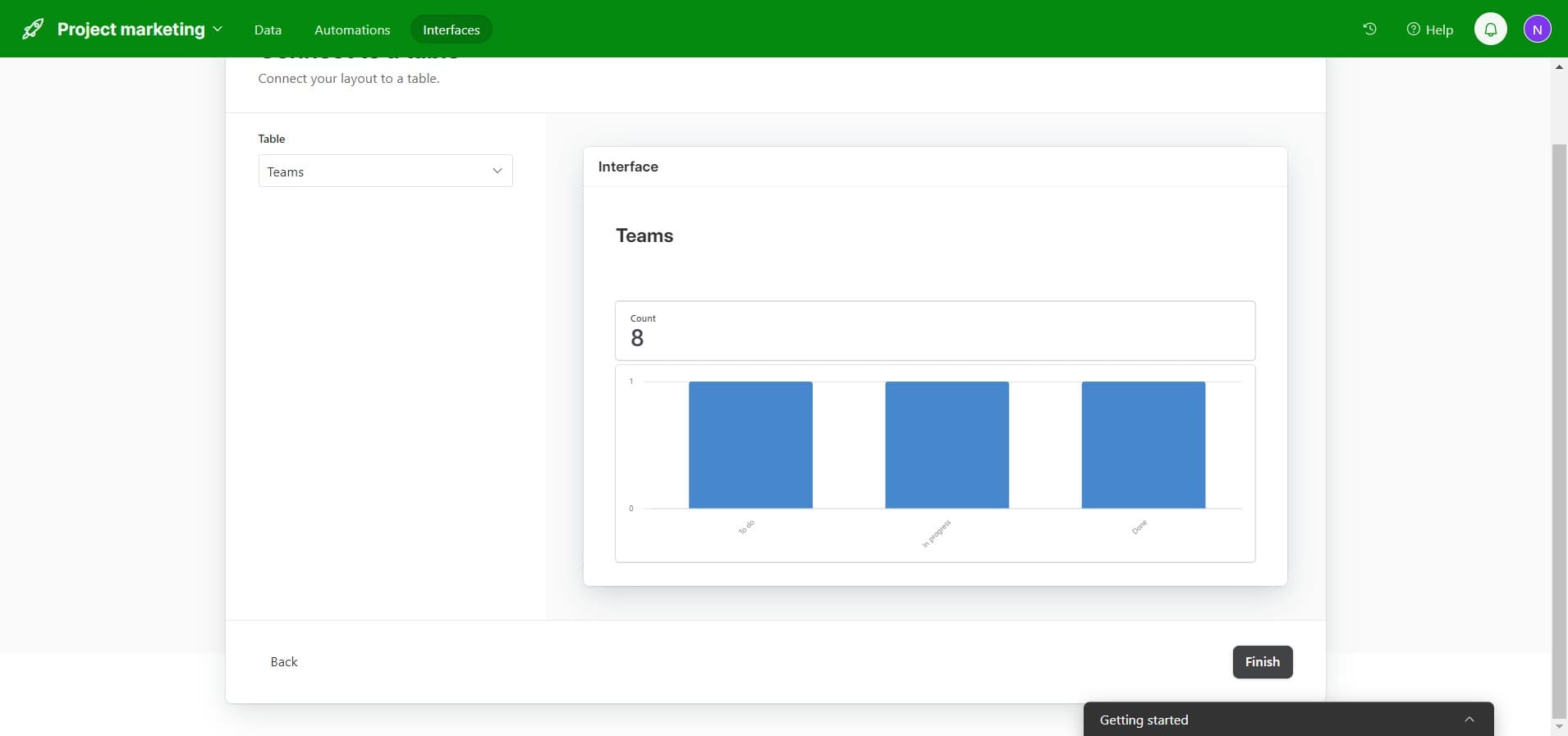
Assign to Teams
Click on 'Teams' to select which team or teams should have access to this dashboard. This ensures the right people can view and use your dashboard.
- 6
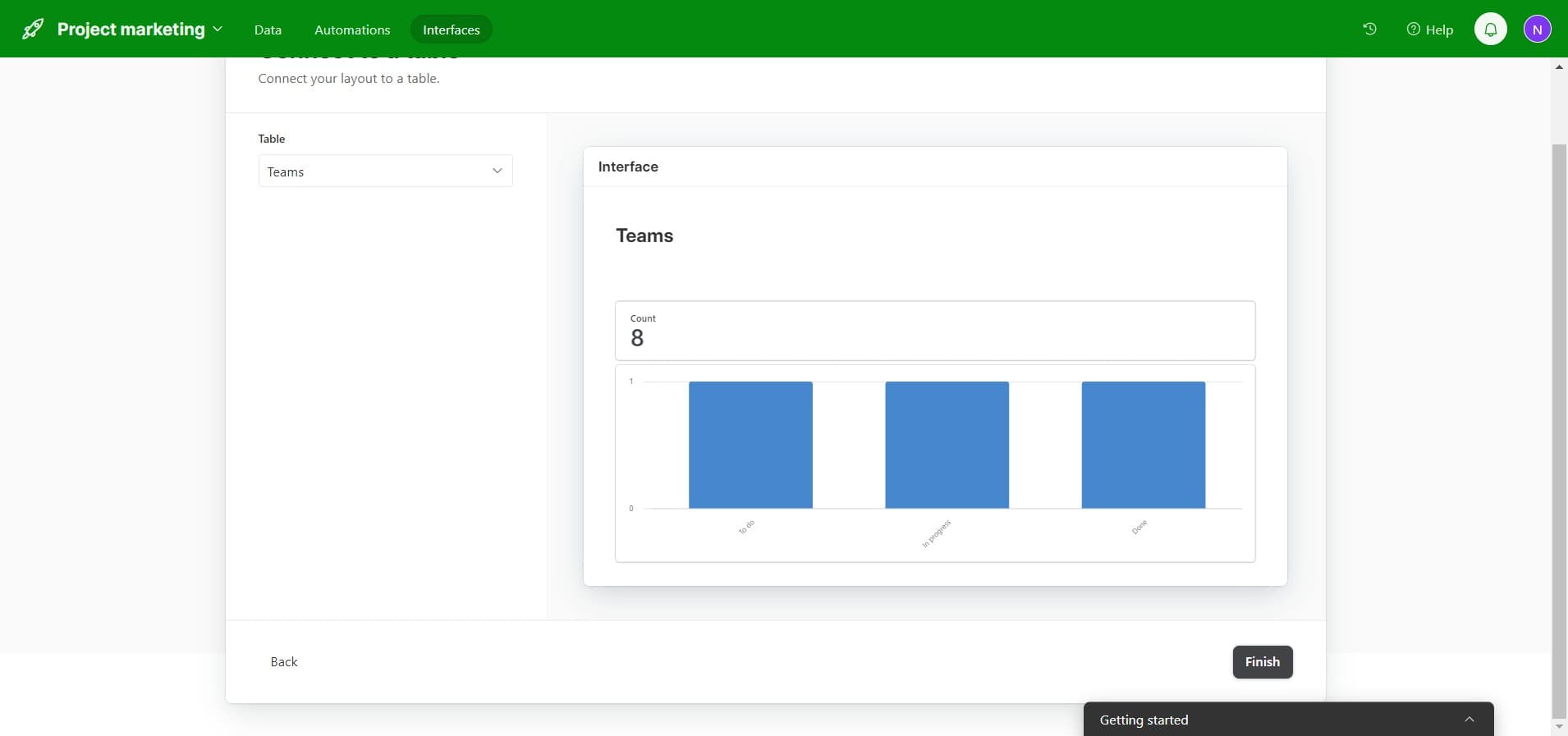
Complete dashboard setup
Click 'Finish' to finalize your dashboard creation. The dashboard is now created and ready for publishing.
- 7
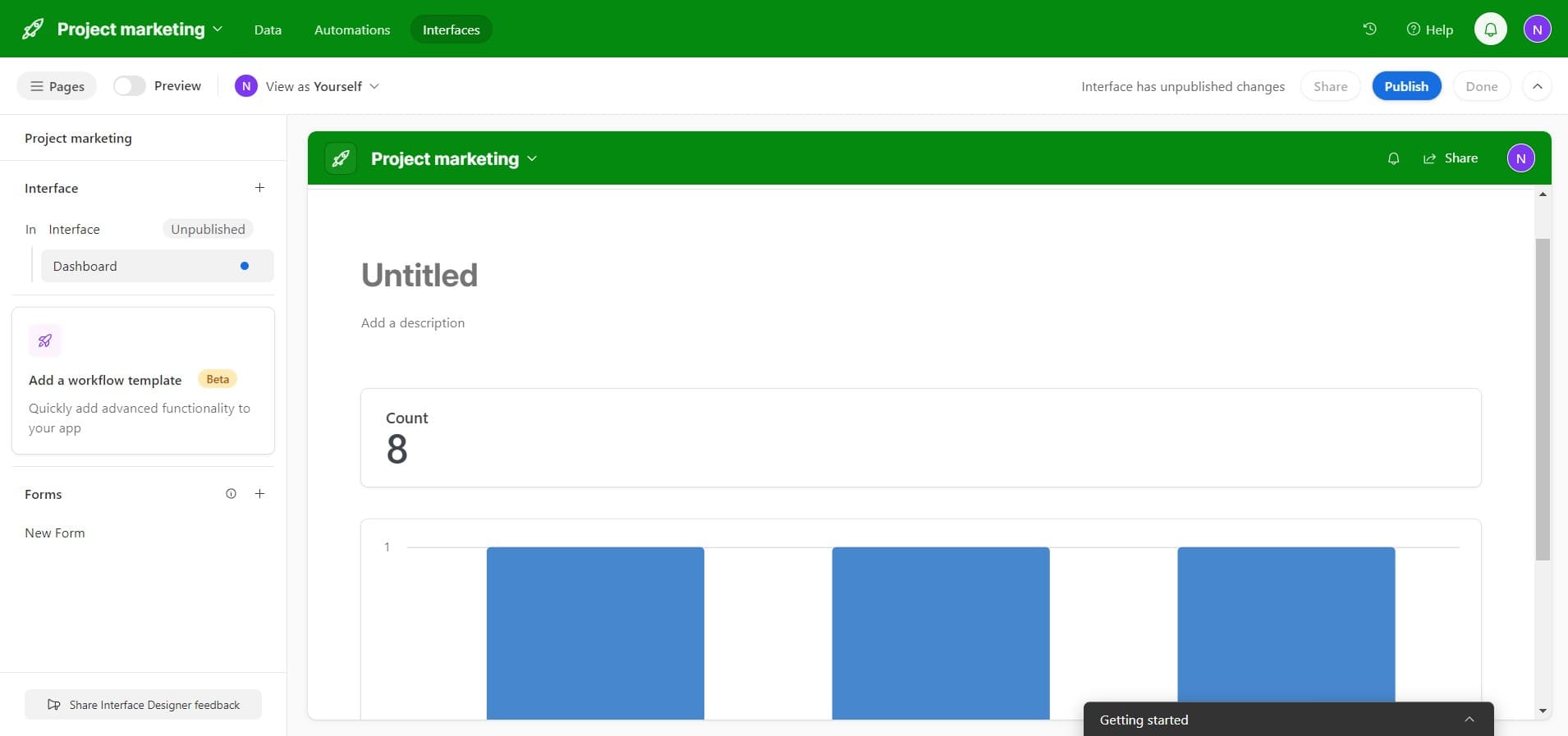
Publish the dashboard
Click 'Publish' to make your dashboard live and accessible. This is the first step in making the dashboard available to your team.
- 8
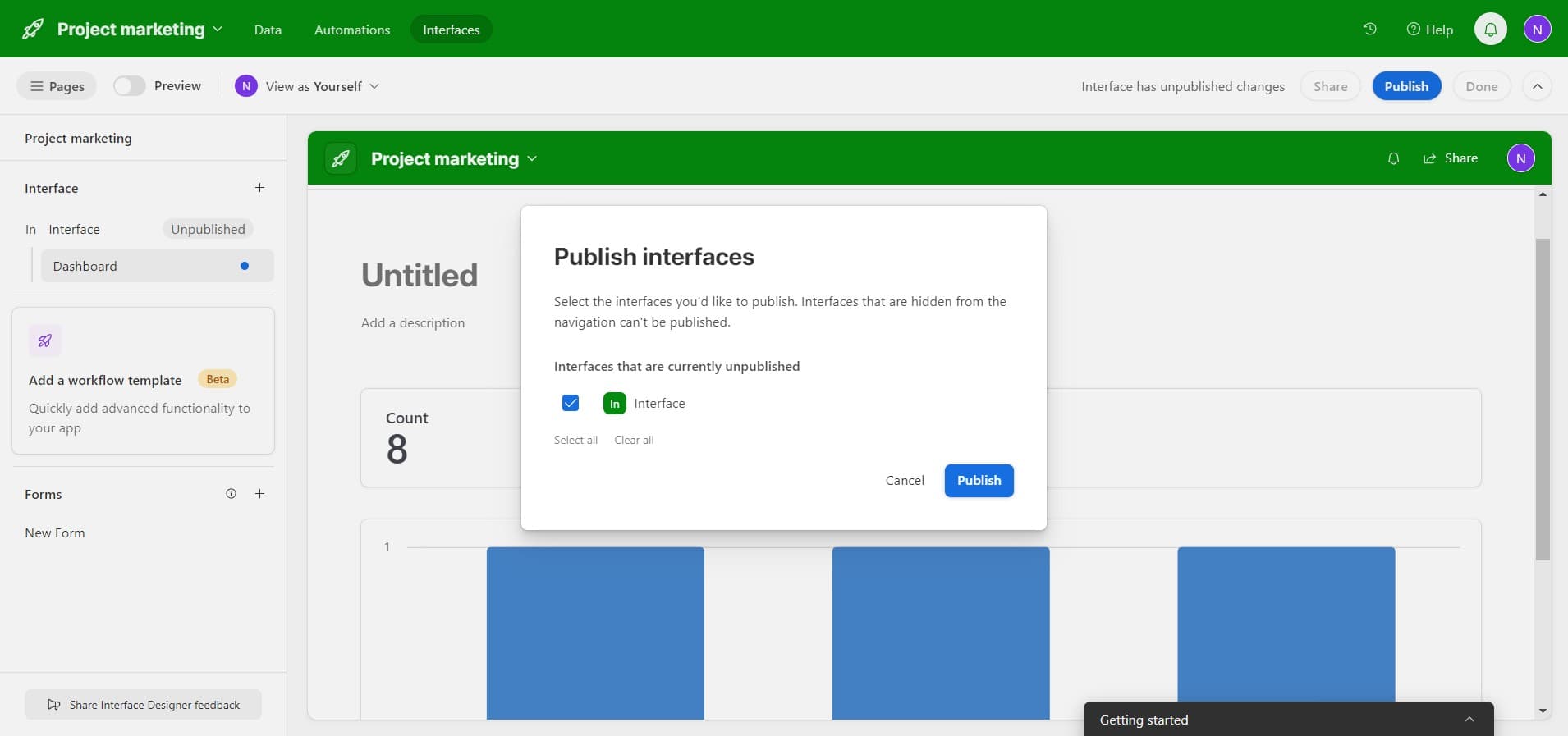
Confirm publication
Click 'Publish' again to confirm the publication of your dashboard. Your dashboard is now active and visible to assigned team members.
- 9
Access sharing options
Click 'Share' to open the sharing menu. This allows you to control how others can access and interact with your dashboard.
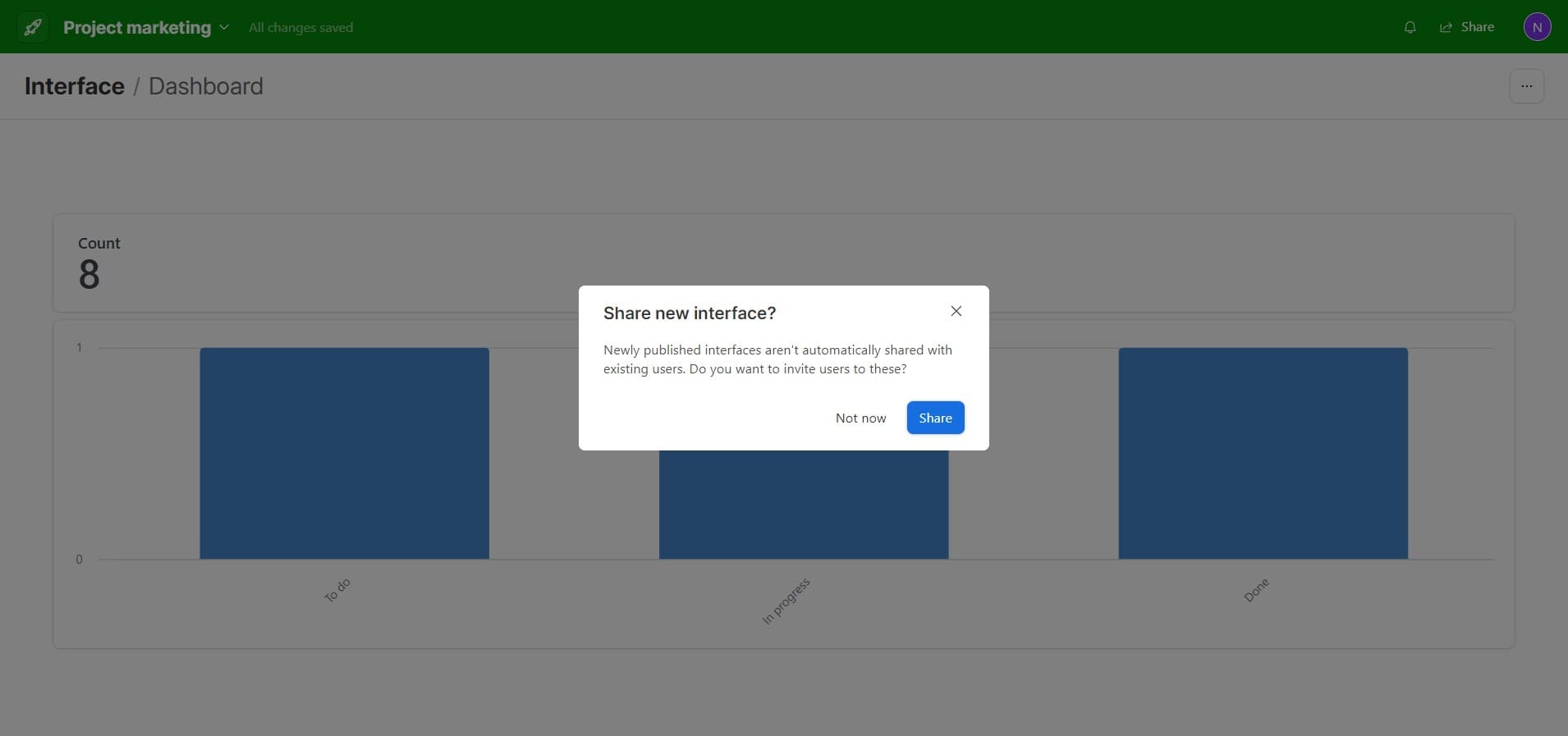
- 10
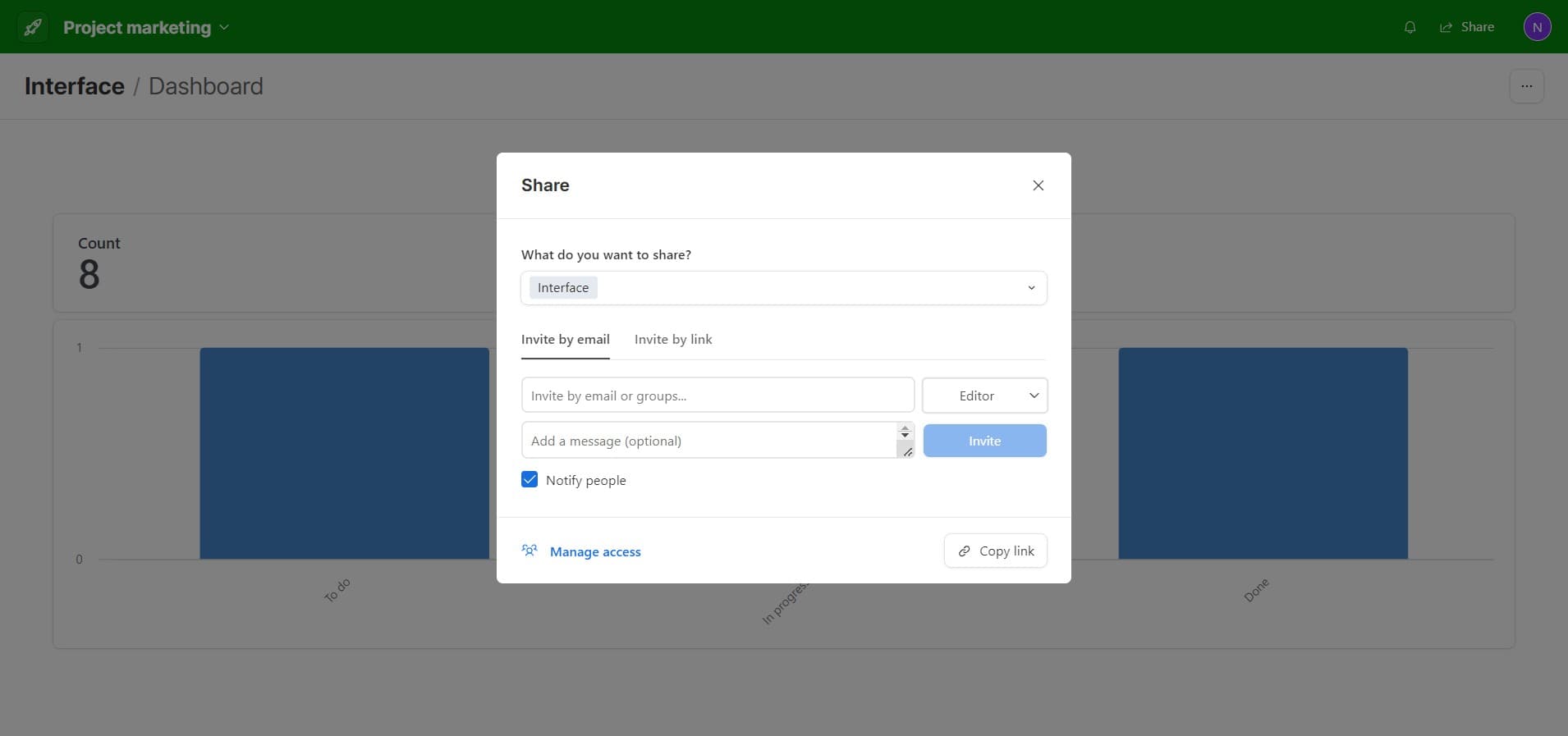
Generate shareable link
Click 'Invite by link' to create a shareable link for your dashboard. You can now distribute this link to team members or external collaborators who need access.
Frequently asked questions
Common questions about how to create dashboard in airtable.
Yes, Airtable dashboards are highly customizable. You can add different view types, charts, summaries, and filters to display the specific data and metrics that matter most to your workflow. You can adjust these elements at any time after creating the dashboard.
After publishing, use the 'Share' option to manage access permissions. You can adjust settings for specific teams or individuals and control whether viewers can edit or only view the dashboard. These permissions can be modified anytime without republishing.
A high-level view is optimized for creating dashboards with summary information, charts, and key metrics in a single visual layout. Other view types like grid or calendar show detailed records in different formats. High-level views are best for executive summaries and data visualization.
Yes, when you use 'Invite by link', you can share the dashboard with anyone, including people outside your Airtable workspace. You can control their permission level to determine whether they can view only or also edit the data.
Yes, Airtable dashboards are dynamic and reflect real-time changes to your underlying data. Any updates made to records in your base will immediately appear on the published dashboard, ensuring everyone always sees the most current information.