How to edit fields in Airtable

Editing fields in Airtable allows you to customize your database structure, change field types, and add helpful descriptions for your team. Whether you're refining a new base or updating existing fields, understanding how to edit field properties is essential for maintaining organized and efficient workflows.
Quick summary
In this tutorial, you'll learn how to access and modify field settings in Airtable, including changing field types and adding descriptions. By the end, you'll be able to edit any field in your base to better suit your data management needs.
Why this matters
Properly configured fields ensure your Airtable base captures the right data in the right format, reducing errors and improving team collaboration. As your workflow evolves, editing fields lets you adapt your base structure without losing existing data.
Step-by-step guide
- 1
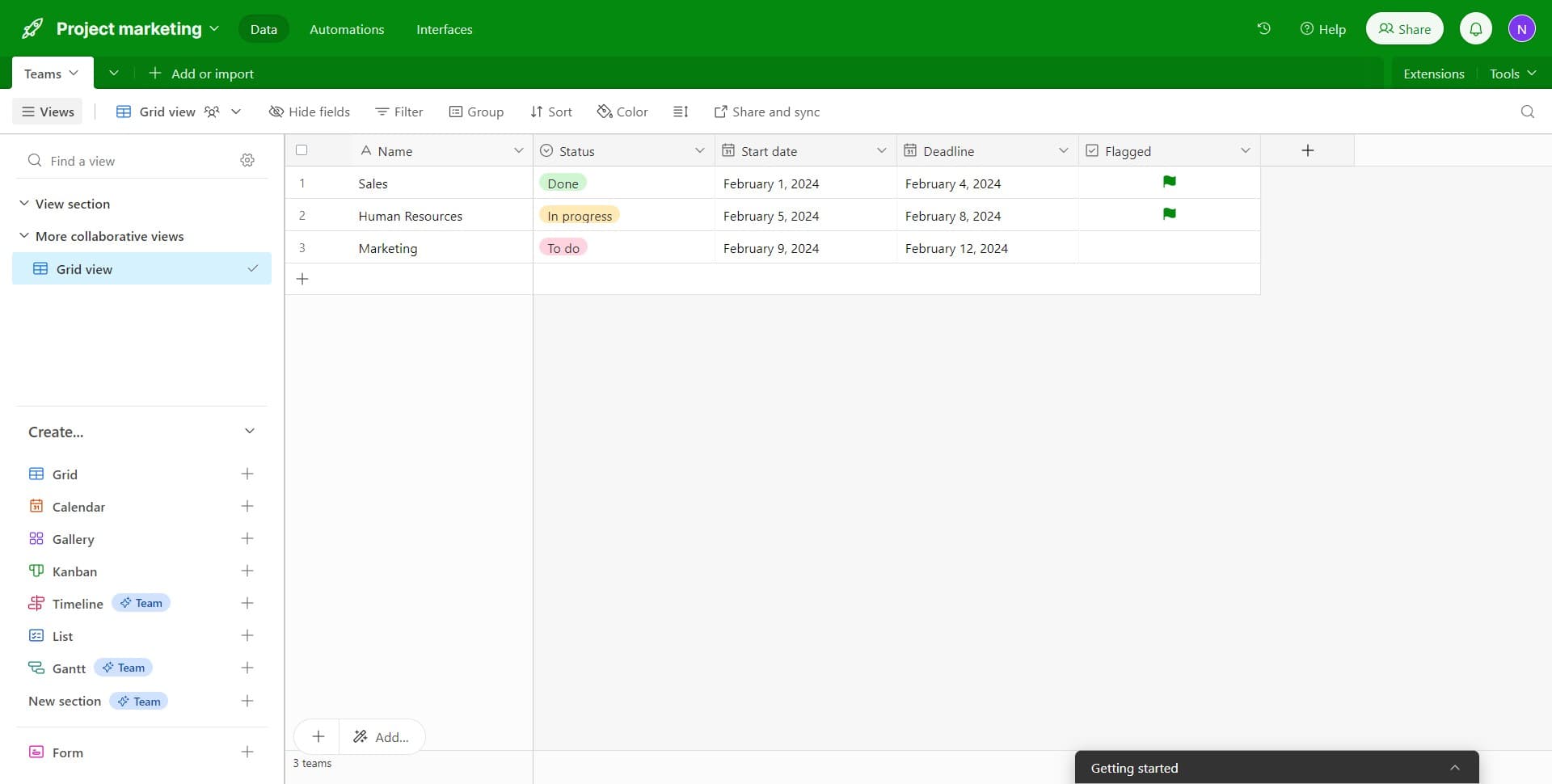
Click on the field name
Start by selecting the field you want to edit by clicking on its header in the table view. This action highlights the field and prepares it for editing.
- 2
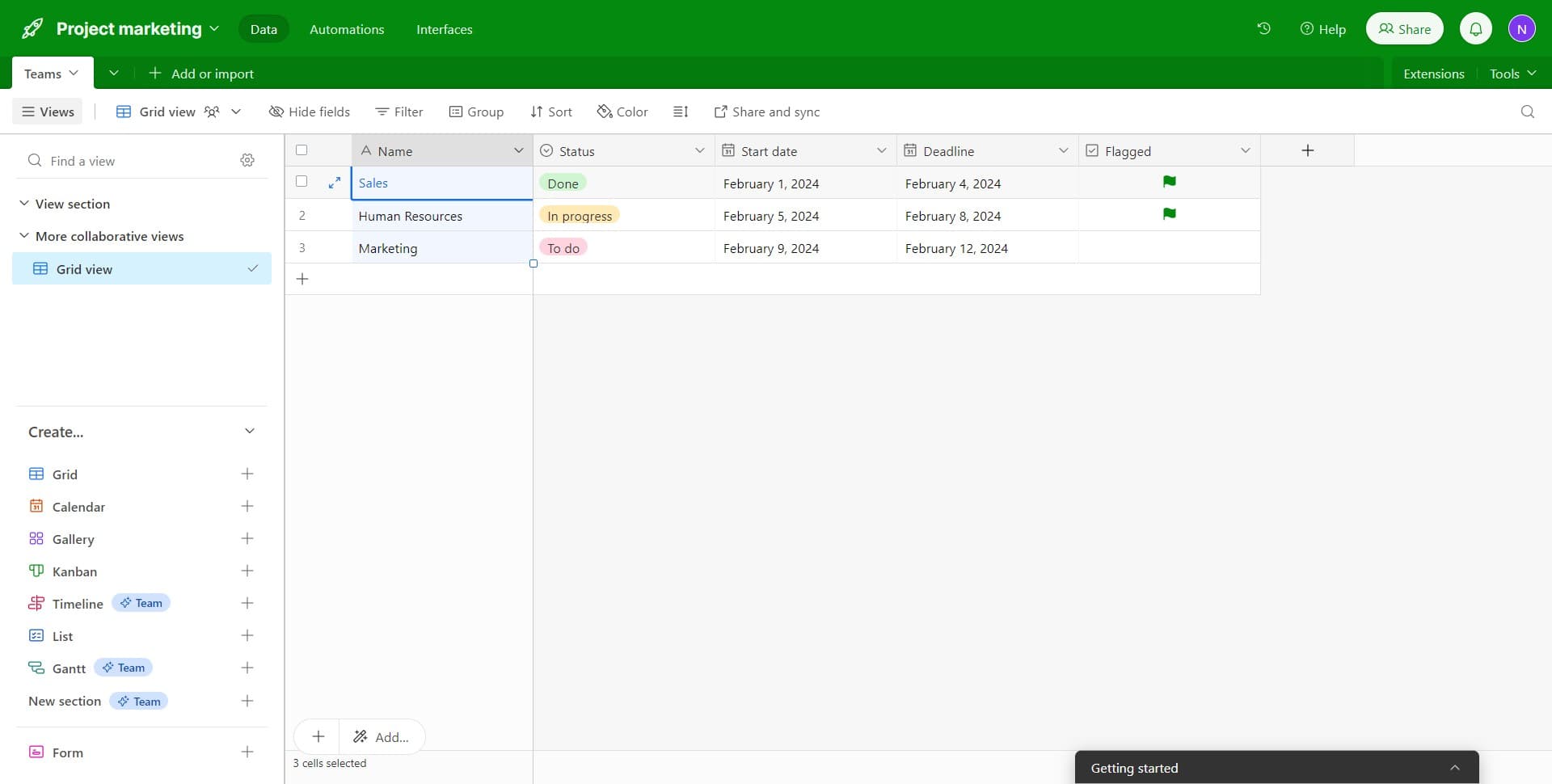
Access the field menu
Click on the menu icon or dropdown arrow that appears next to the field name. This reveals the available options for managing the selected field.
- 3
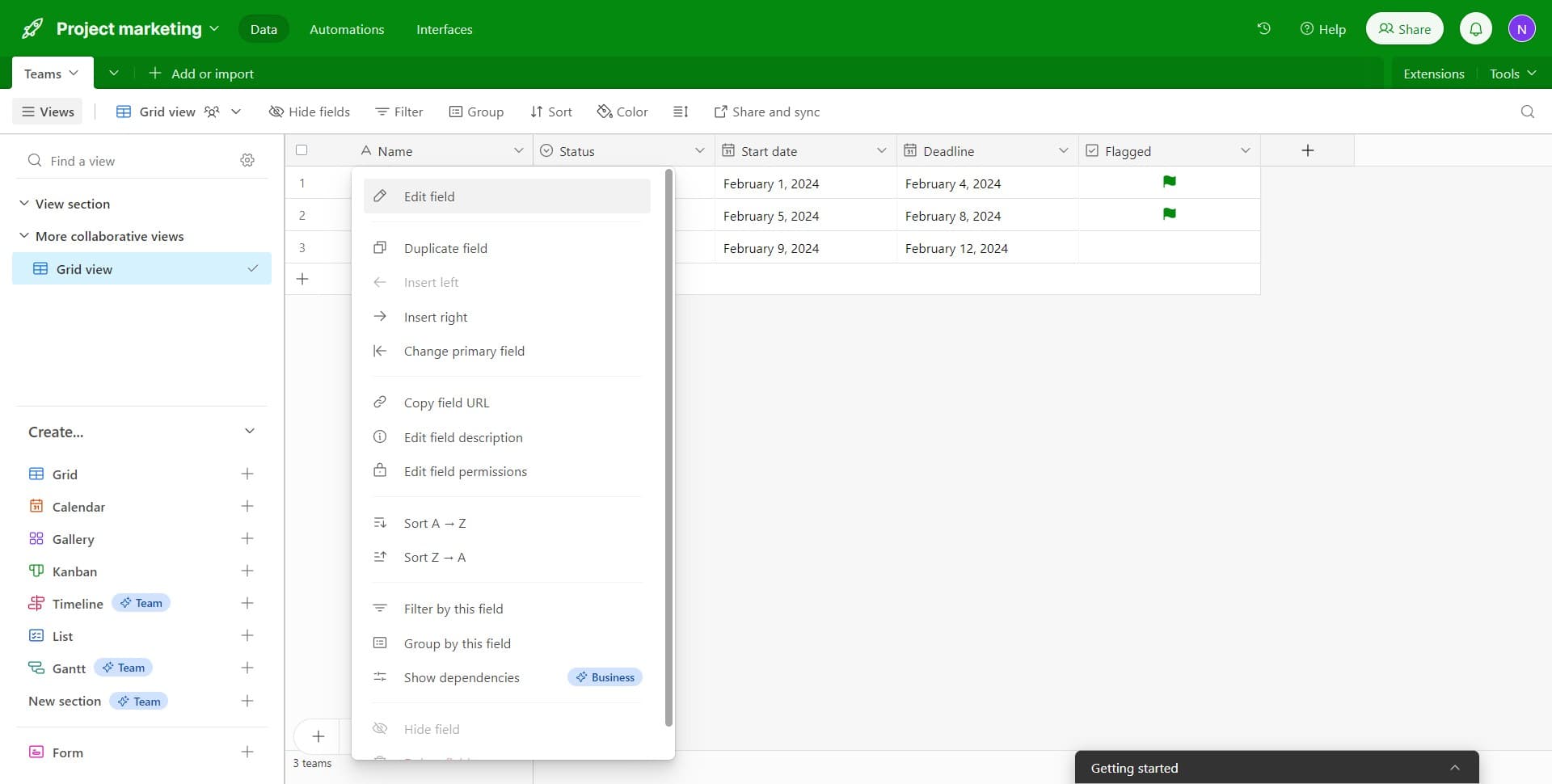
Select Edit field
From the dropdown menu, click on 'Edit field' to open the field configuration panel. This opens a detailed editor where you can modify all field properties.
- 4
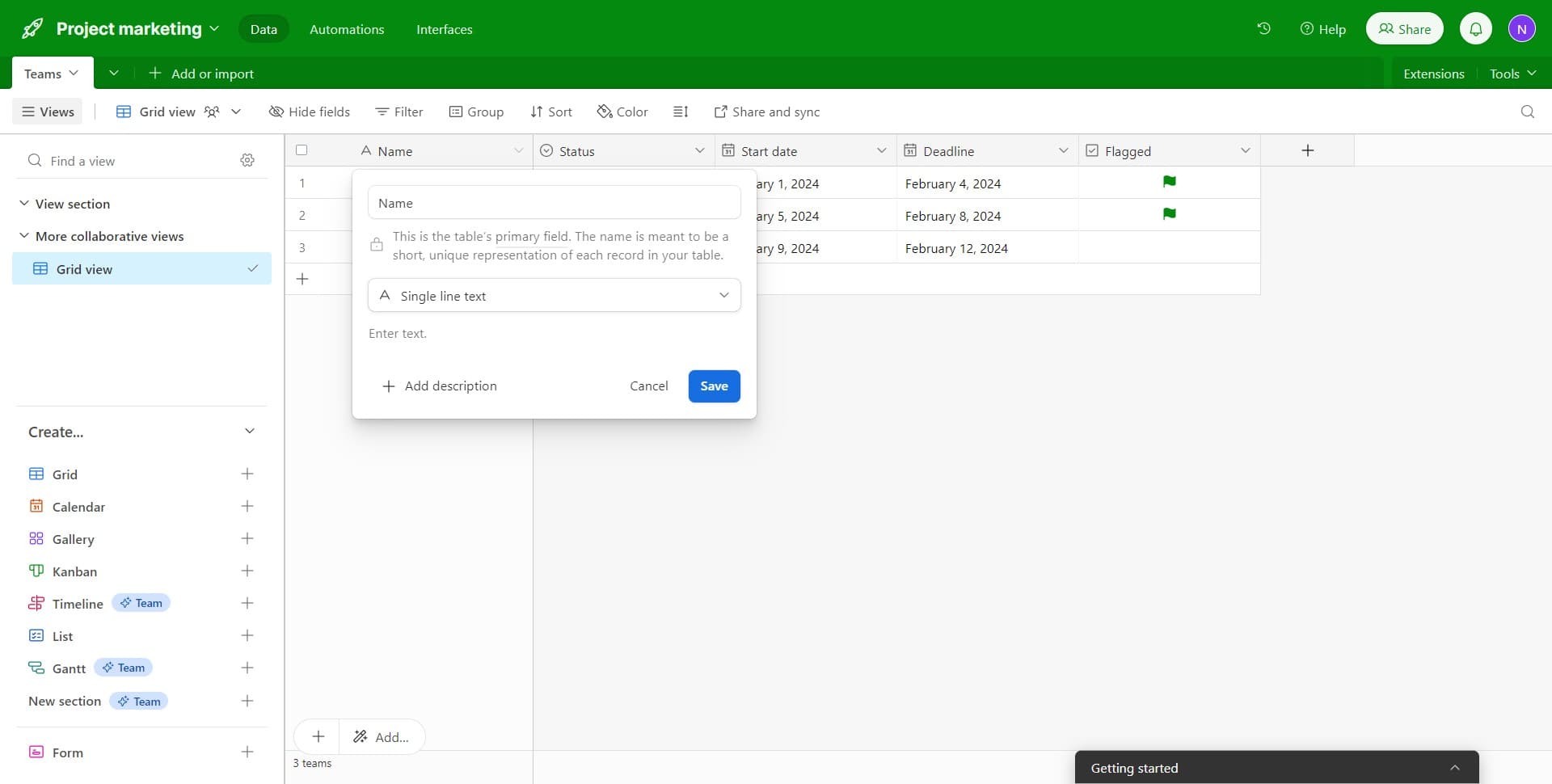
Change the field type
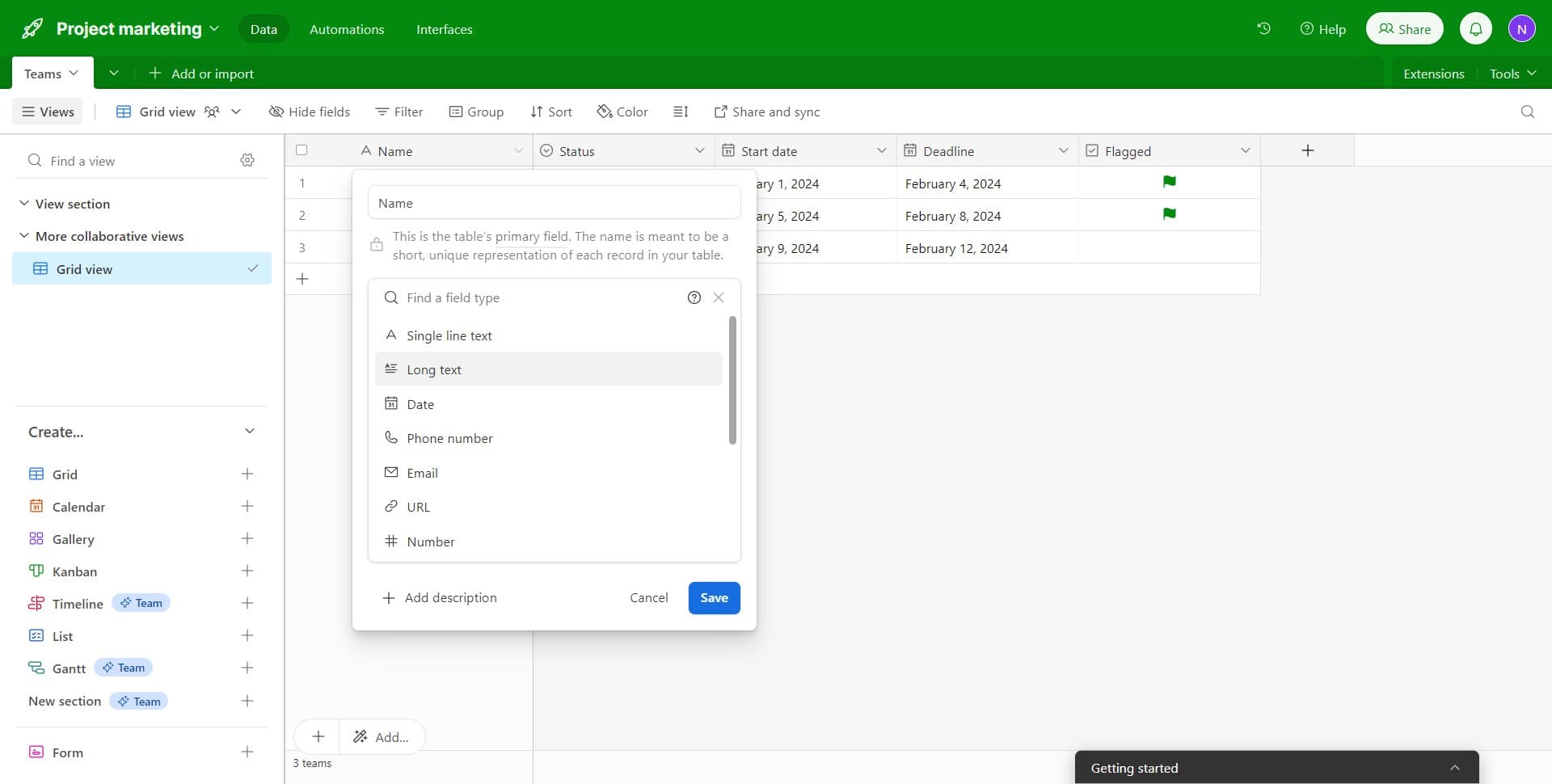
Click on the current field type (e.g., 'Single line text') to see available options. Select a new field type like 'Long text' if you need to change how data is stored or formatted.
- 5
Select Long text option
If you want to allow longer content, click on 'Long text' from the field type options. This field type supports multiple lines and is ideal for notes, descriptions, or longer entries.
- 6
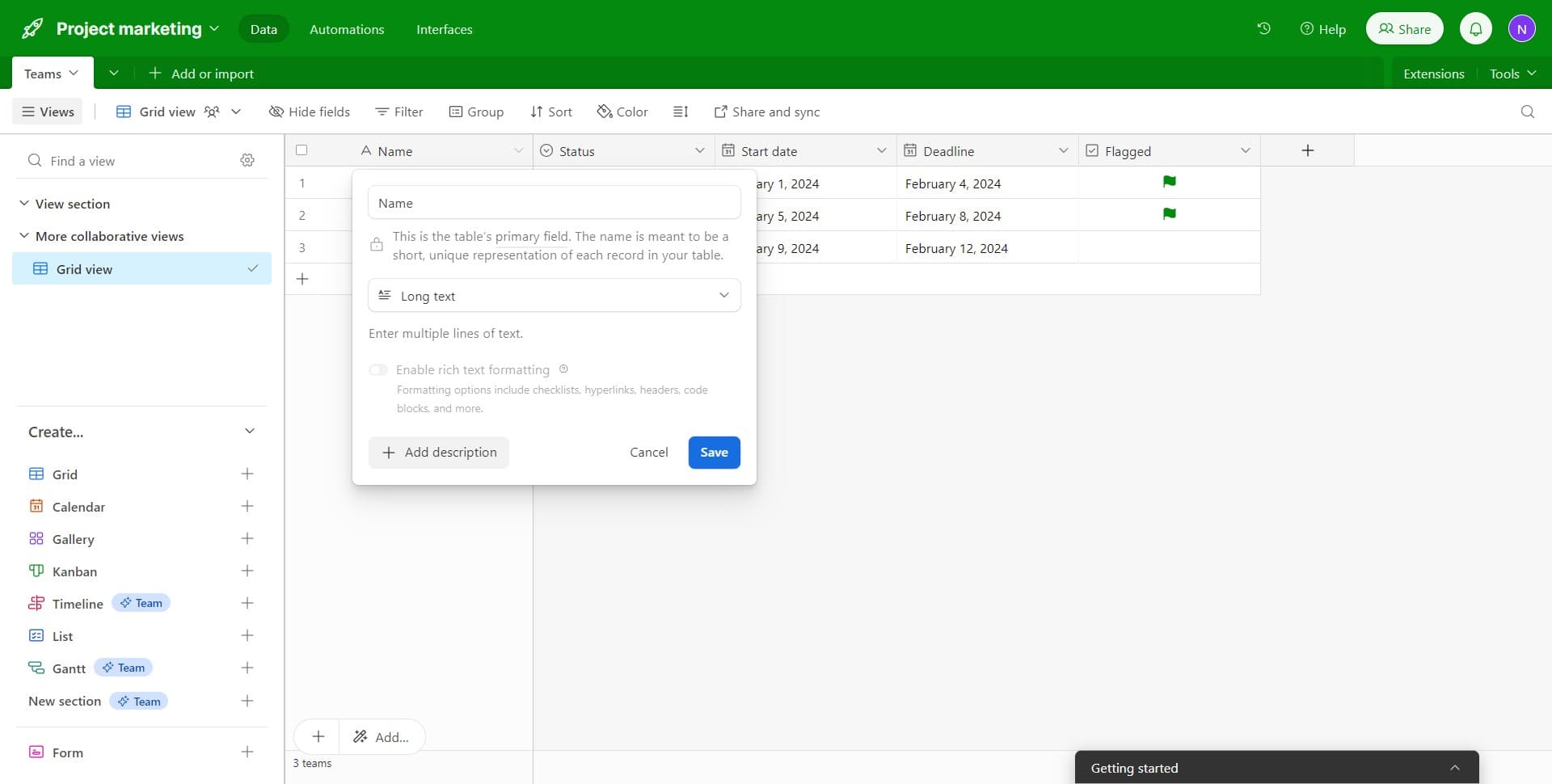
Add a field description
Click on 'Add description' to include helpful context about the field for your team members. Descriptions explain the purpose and usage guidelines for each field.
- 7
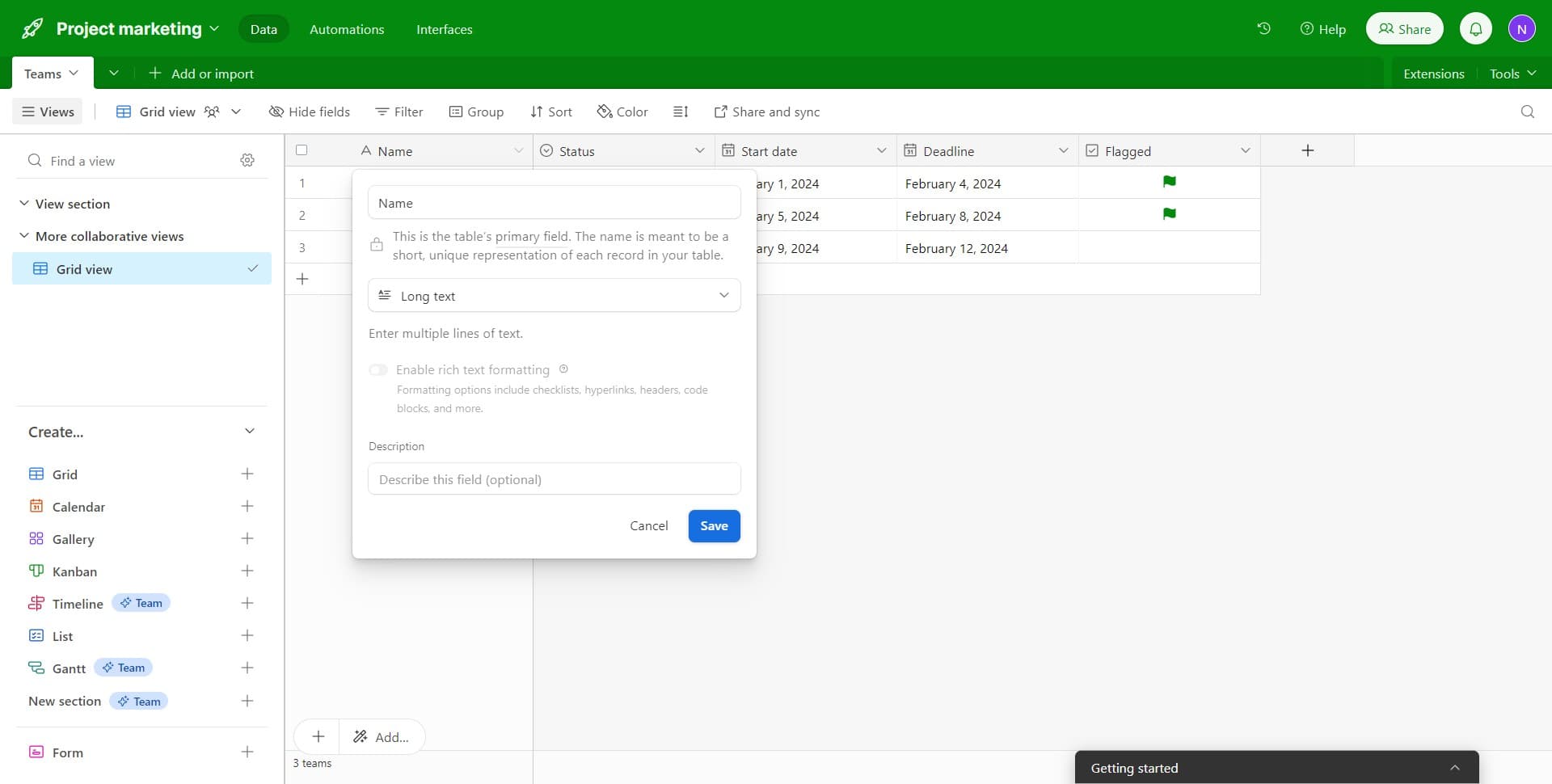
Save your changes
Click the 'Save' button to apply all modifications to your field. Airtable will update the field immediately, and any changes take effect across your entire base.
- 8
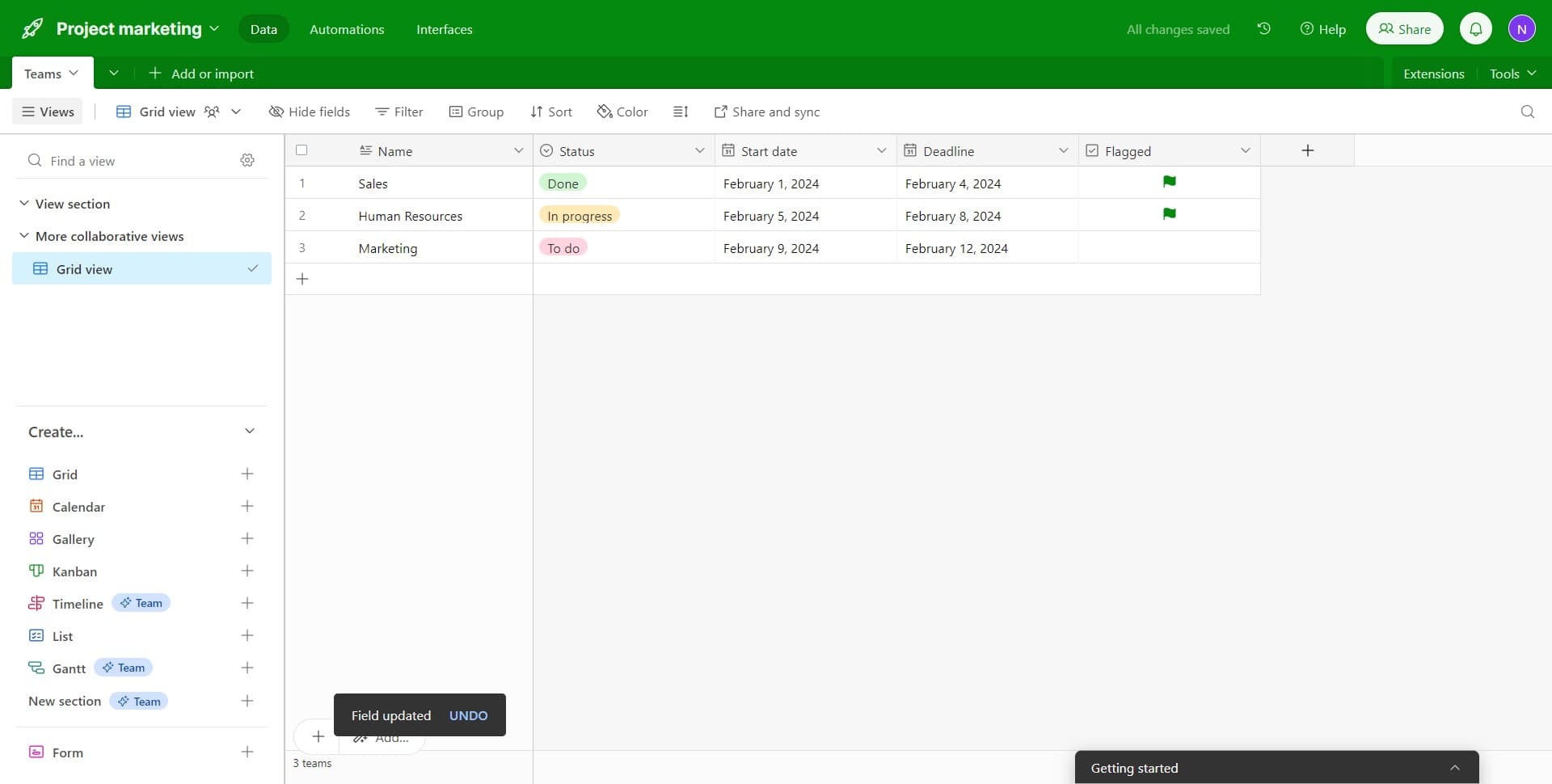
Edit additional fields as needed
Repeat the process for other fields in your base, such as 'Start date' or any other columns you need to modify. You can edit multiple fields in succession to refine your base structure.
Frequently asked questions
Common questions about how to edit fields in airtable.
Airtable allows most field type conversions while preserving data, but compatibility depends on the source and target types. For example, converting single line text to long text preserves the content, but converting to incompatible types may result in data loss. Always review Airtable's conversion warnings before confirming changes.
Single line text fields are optimized for short entries like names or titles and display content on one line. Long text fields support multiple lines and are better for detailed information like descriptions, notes, or comments.
Yes, the field description feature allows you to add context and instructions for each field. These descriptions help team members understand the field's purpose and how to use it correctly when entering data.
When you click on the field type selector during editing, Airtable displays all available field types organized by category. The options include text, number, date, formula, lookup, and many specialized types for different data needs.
Field editing permissions depend on your access level in the shared base. Base creators and users with edit permissions can modify fields, while viewers typically cannot. Check your base permissions if you encounter restrictions.