How to filter records in Airtable

Filtering records in Airtable allows you to display only the data that meets your specific criteria, making it easier to focus on relevant information. Whether you're managing a large dataset or need to exclude certain records temporarily, Airtable's filtering feature is essential for organizing your workspace efficiently.
Quick summary
In this tutorial, you'll learn how to set up filters in Airtable by selecting a field, choosing a filter condition, and specifying the criteria you want to apply. You'll discover how to use conditions like 'contains' and 'does not contain' to refine your views and display exactly the records you need.
Why this matters
Filtering is crucial for data management because it reduces visual clutter and helps you focus on actionable information without modifying your underlying data. By mastering Airtable filters, you can quickly analyze subsets of your records, improve workflow efficiency, and make better decisions based on targeted data views.
Step-by-step guide
- 1
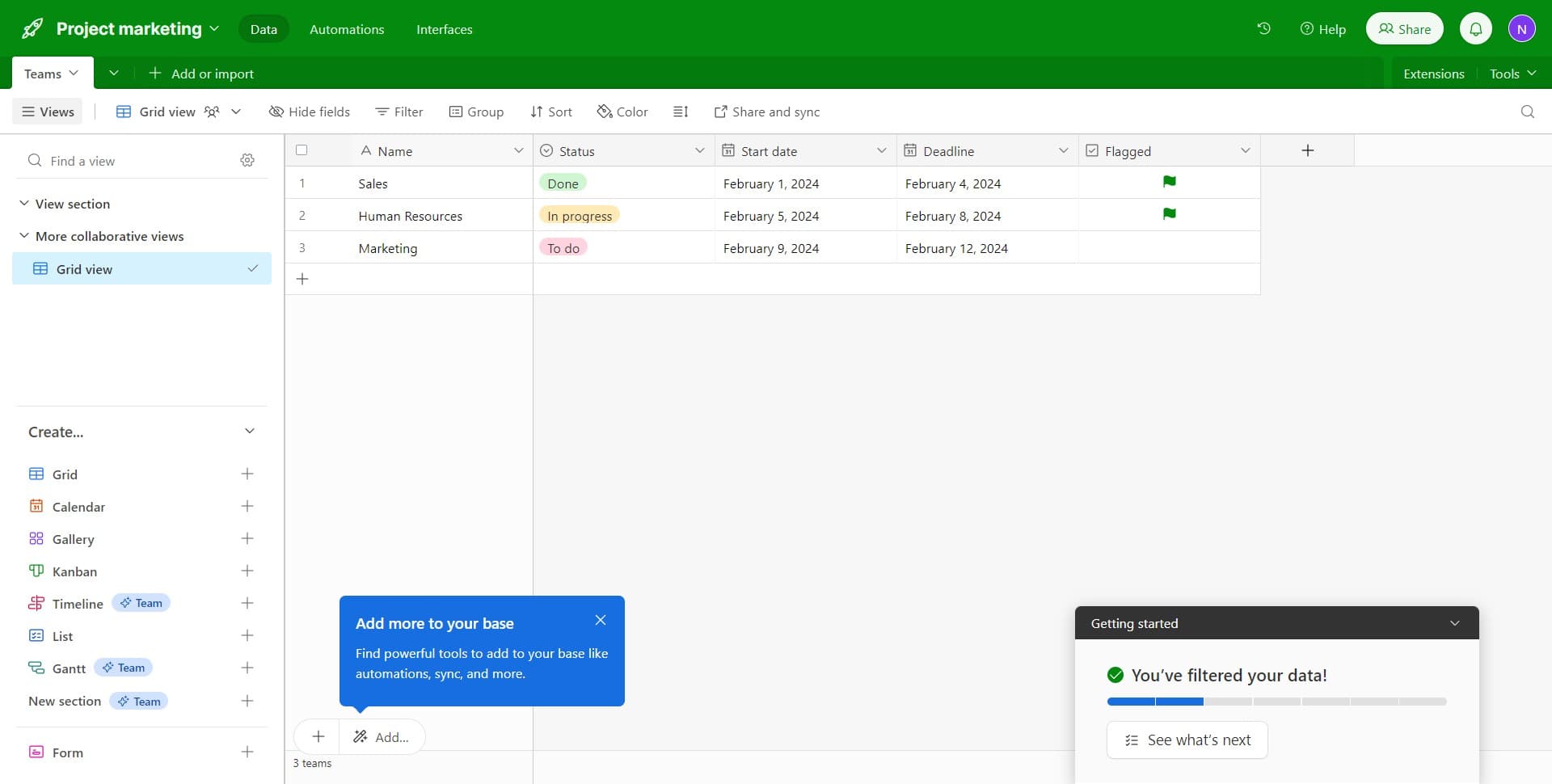
Click on the Name field
Start by clicking on the 'Name' field in your Airtable table. This selects the field you want to apply the filter to.
- 2
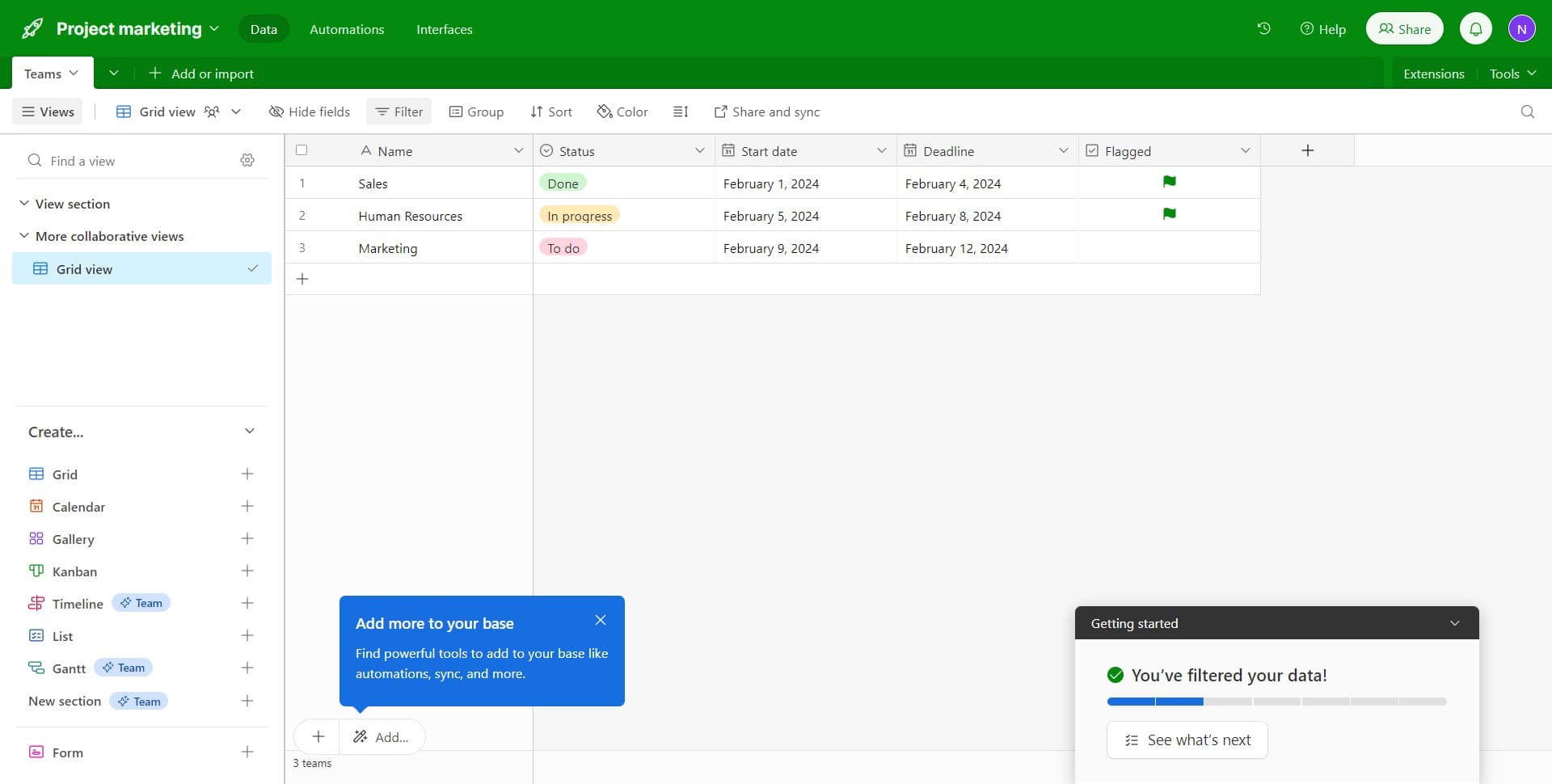
Access the Filter menu
Click on the 'Filter' option that appears after selecting the Name field. This opens the filtering interface for your selected field.
- 3
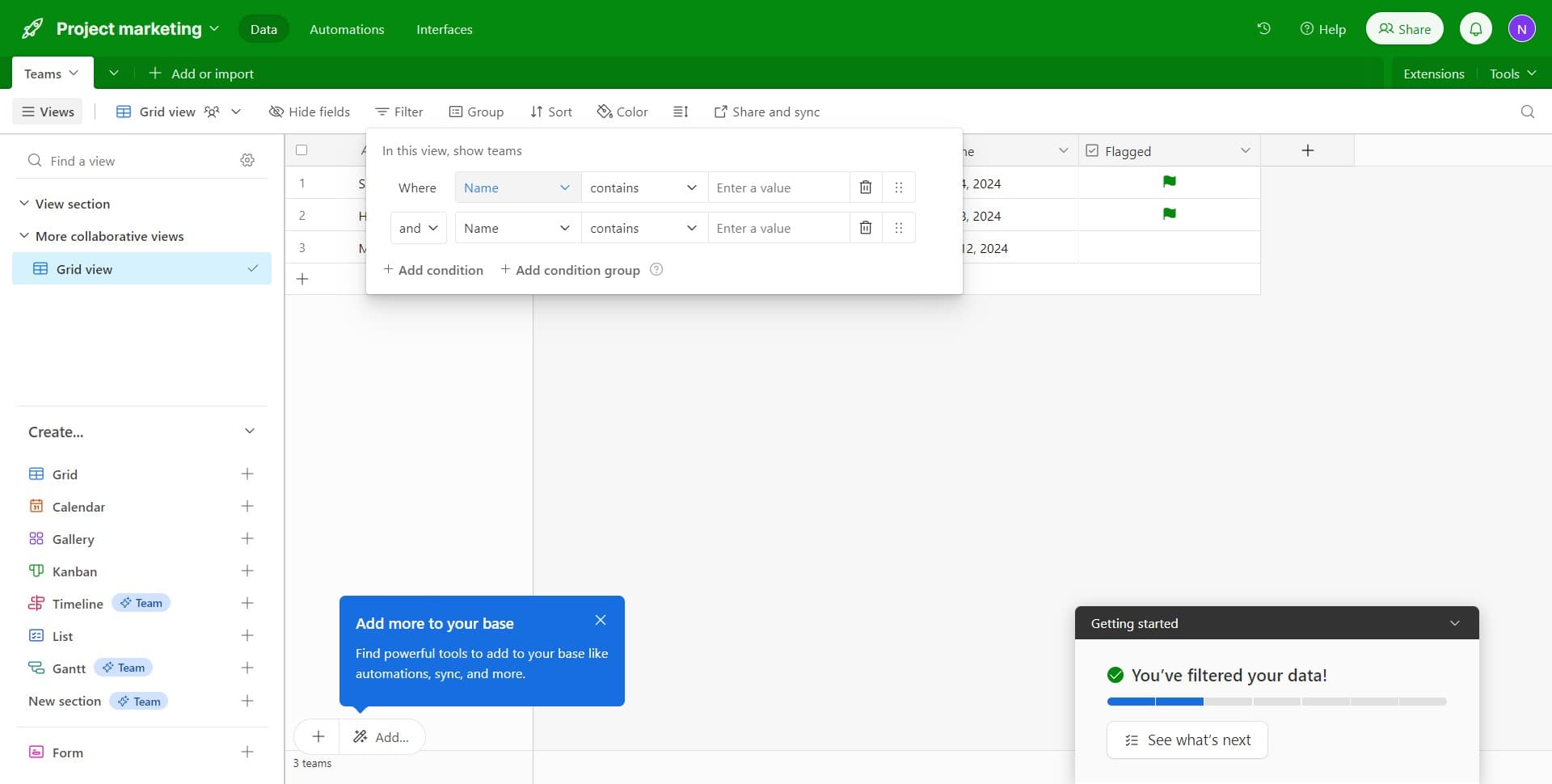
Select the field to filter
Click on 'Name' again to confirm the field you're filtering by. This ensures your filter will be applied to the correct column in your table.
- 4
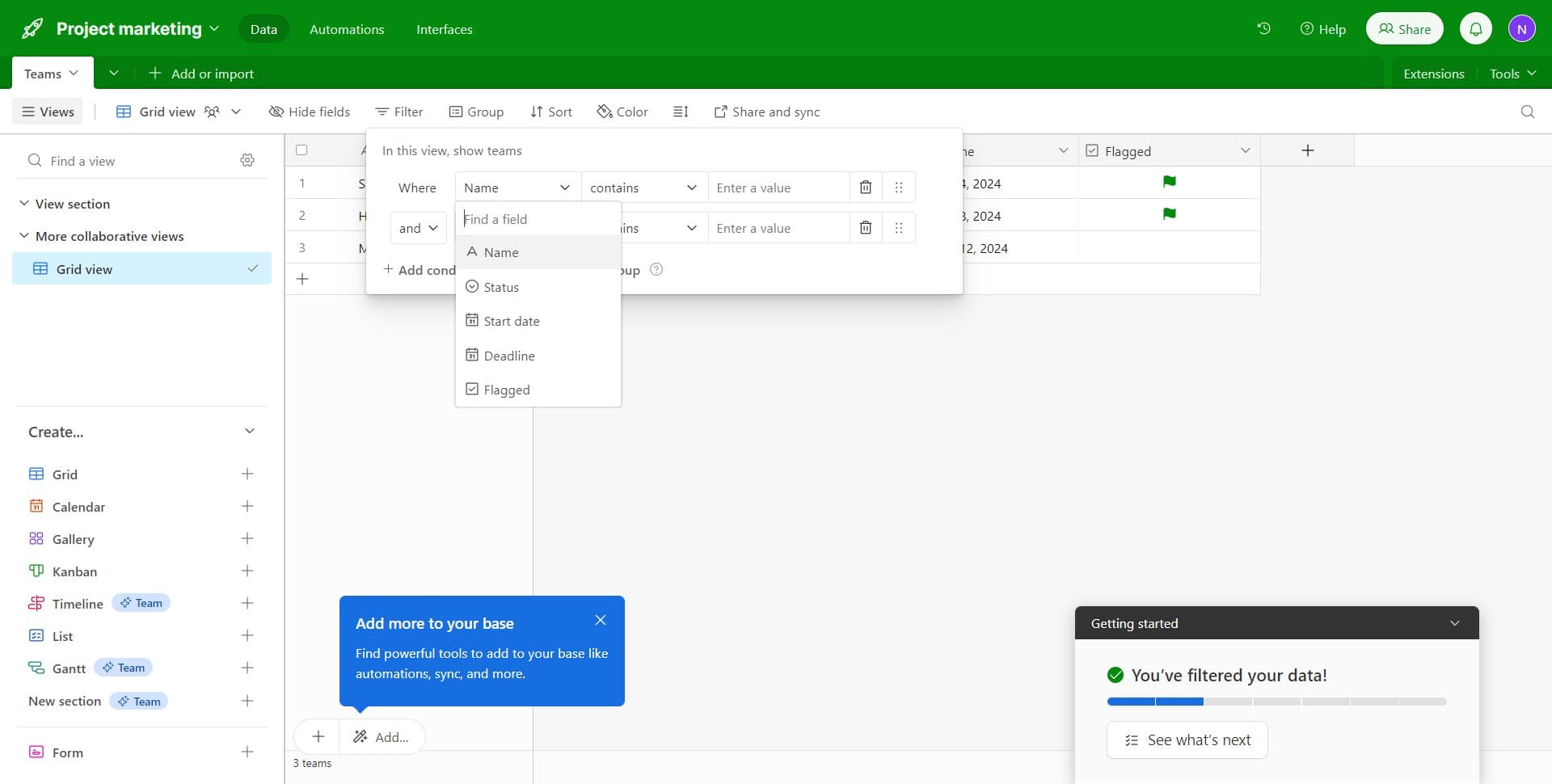
Confirm the field selection
Click on 'Name' once more to lock in your field selection and proceed to the next configuration step.
- 5
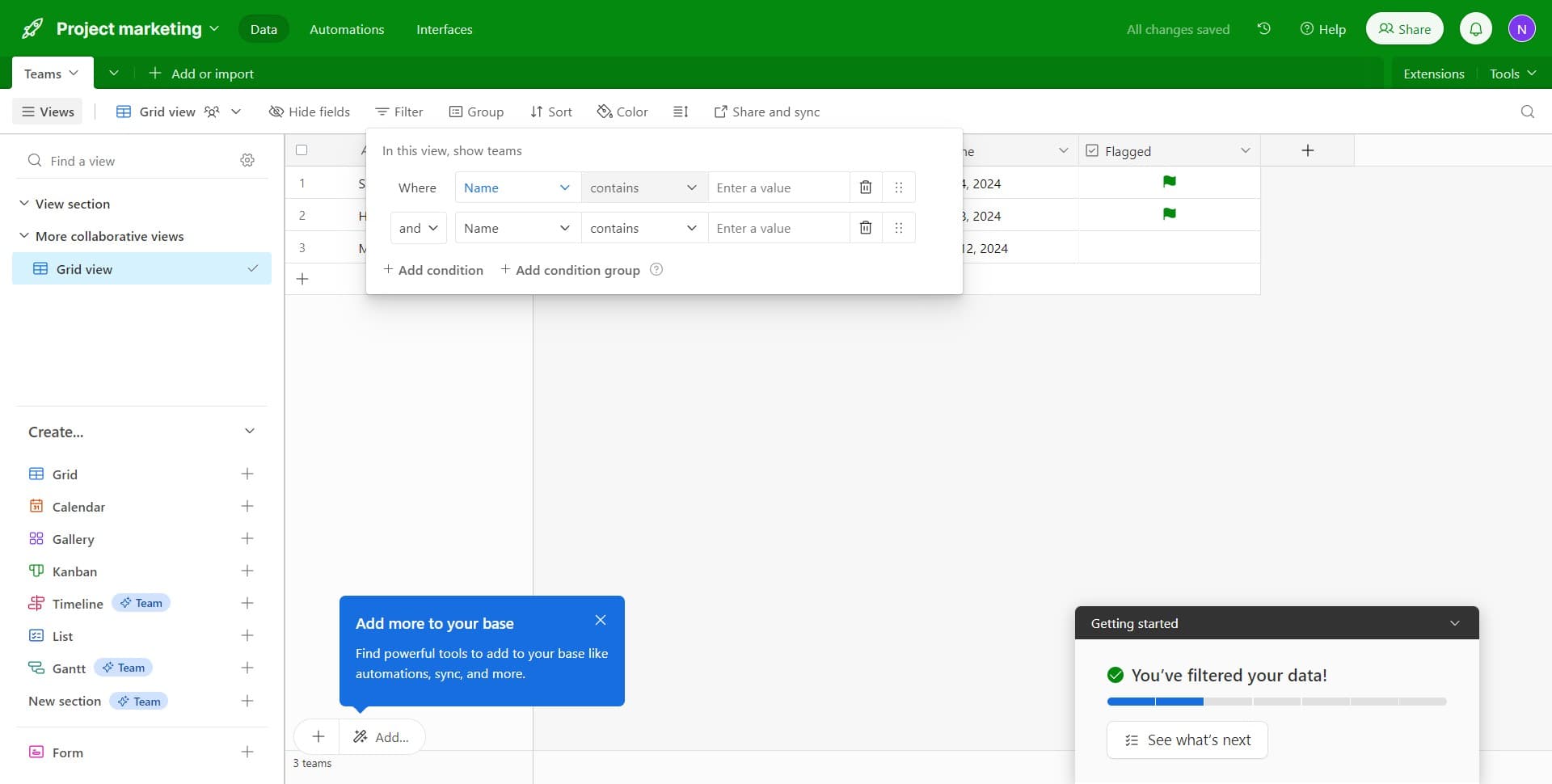
Choose the 'contains' condition
Click on 'contains' to select this filter condition. This option will display only records where the Name field contains your specified text.
- 6
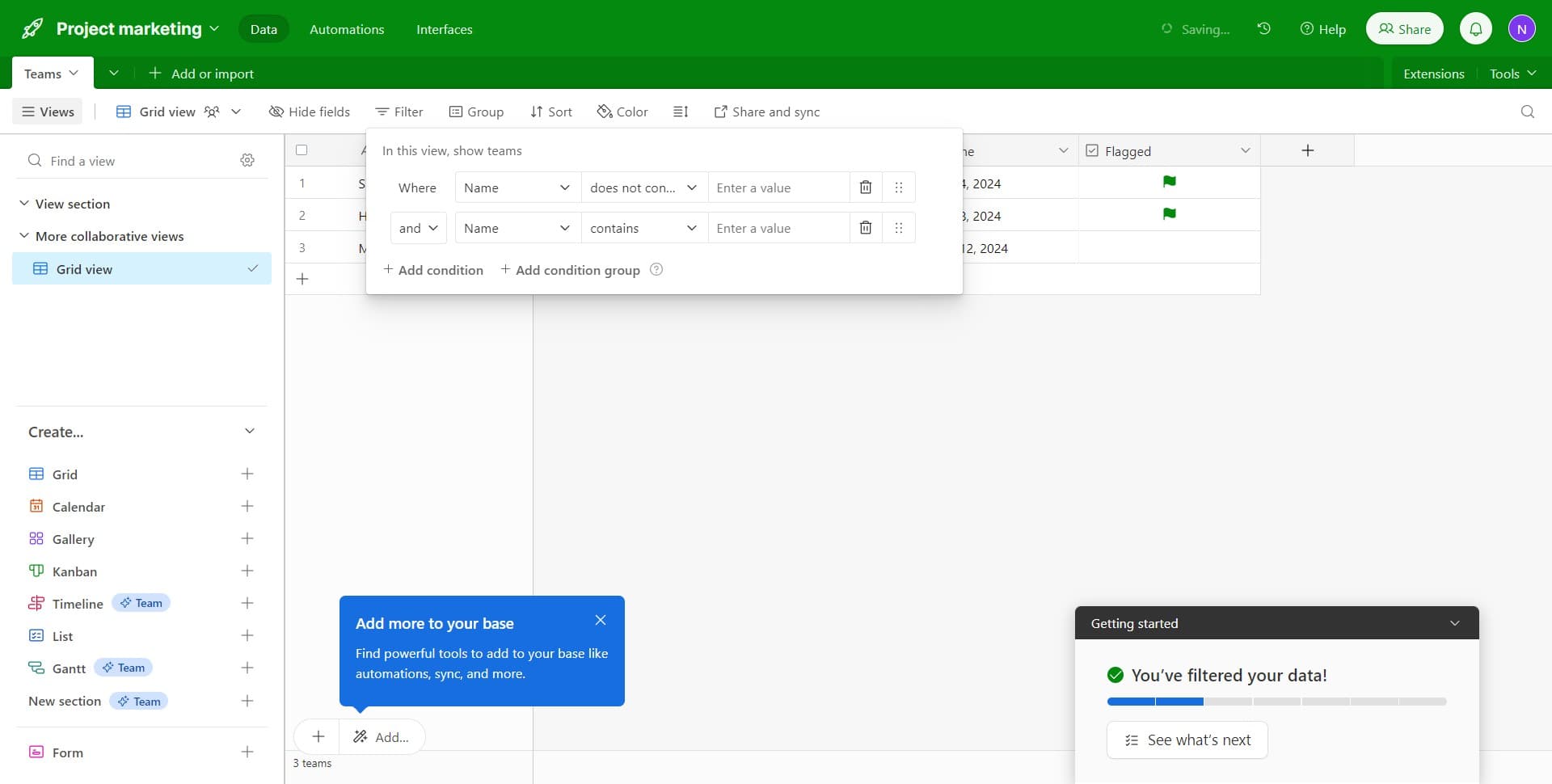
Switch to 'does not contain'
Click on 'does not contain...' to change your filter condition. This allows you to exclude records that match your criteria instead of including them.

- 7
Review the filter configuration
Click on 'Where Name does not contain' to see your current filter setup. This confirms the field and condition you've selected before adding your filter value.
- 8
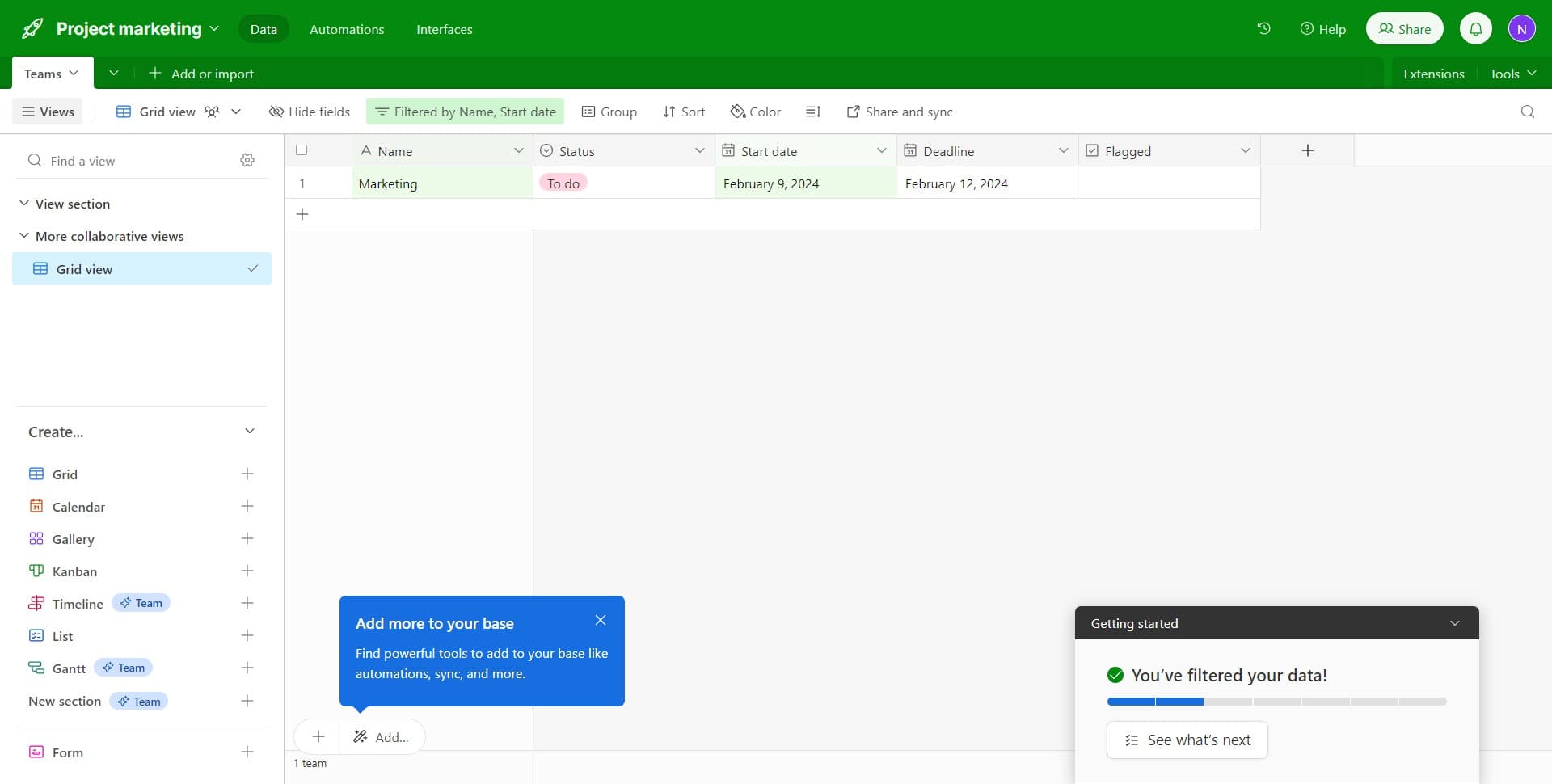
Add additional filter criteria
Click on 'Status' to add another filter condition to your view. This allows you to combine multiple filters and refine your results further based on additional fields.
Frequently asked questions
Common questions about how to filter records in airtable.
Yes, you can stack multiple filters in Airtable to create more complex views of your data. Each filter you add will work together to show only records that meet all your specified criteria, helping you narrow down results more precisely.
No, filtering is a non-destructive operation that only hides records from view. Your original data remains completely intact, and you can remove or modify filters at any time without affecting your table.
The 'contains' filter shows only records where the specified field includes your search text, while 'does not contain' shows records where the field does not include that text. Use 'contains' to find matching records and 'does not contain' to exclude unwanted records.
Yes, filters in Airtable are saved within specific views. When you create a filtered view, Airtable automatically saves your filter settings, allowing you to return to the same filtered perspective each time you open that view.
To remove a filter, click on the filter icon in your view and select the delete or remove option next to the filter you want to eliminate. You can also clear all filters at once by using the 'Clear all filters' option in the filter menu.