How to group a record in Airtable

Grouping records in Airtable helps you organize and visualize your data by categories, making it easier to spot patterns and manage large datasets. This tutorial walks you through the process of setting up record grouping in your Airtable base, from selecting a field to configuring subgroups.
Quick summary
In this tutorial, you'll learn how to group records in Airtable by a specific field and add subgroups to create multi-level organization. By the end, you'll be able to organize your data hierarchically to improve readability and analysis.
Why this matters
Grouping records is essential for managing complex datasets and gaining quick insights into your data structure. It allows you to collapse and expand categories, reducing clutter and helping you focus on the information that matters most for your workflow.
Step-by-step guide
- 1
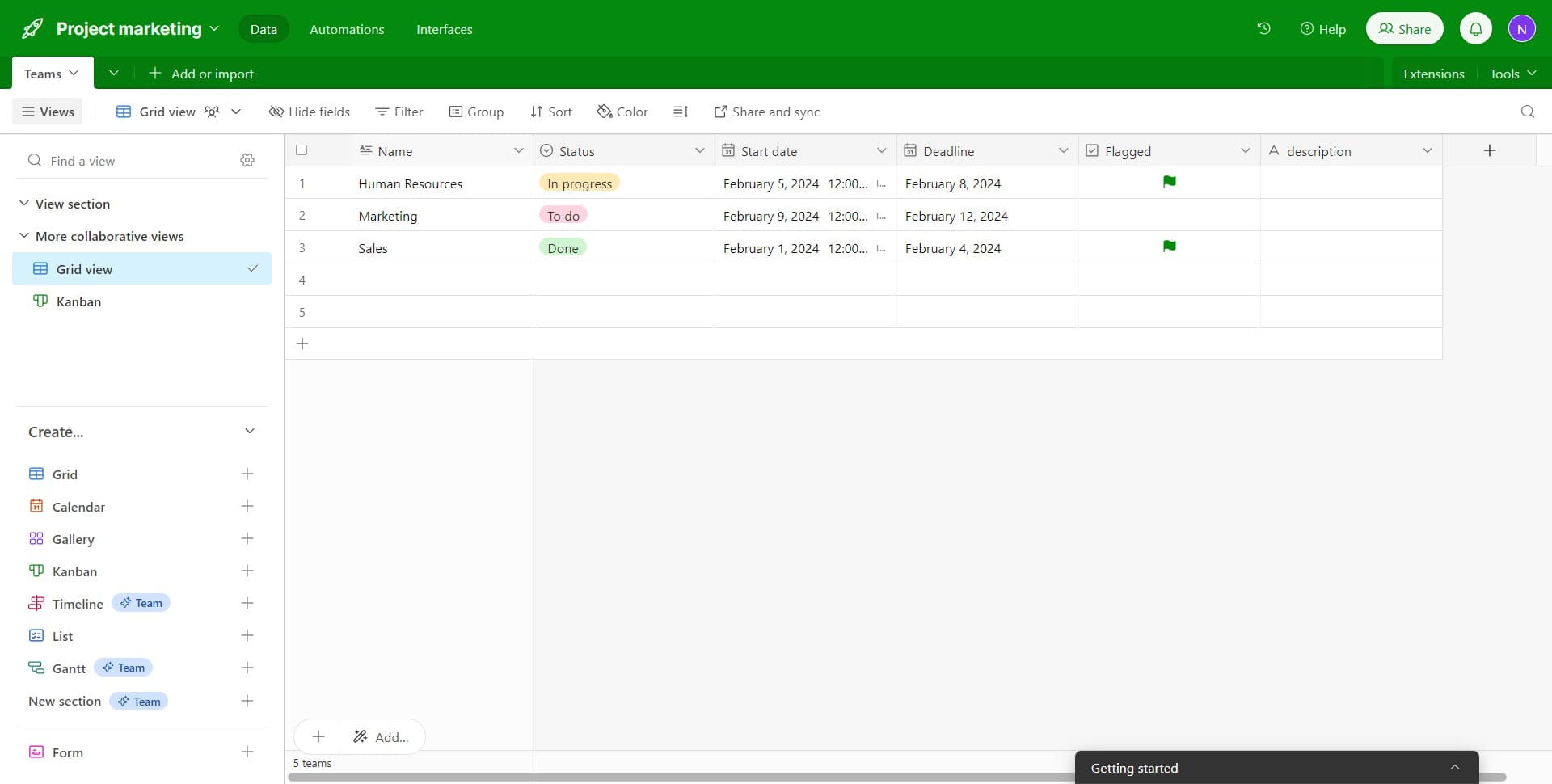
Click on the Name field
Start by selecting the field you want to group your records by. In this case, click on the Name field to designate it as your primary grouping criterion.
- 2
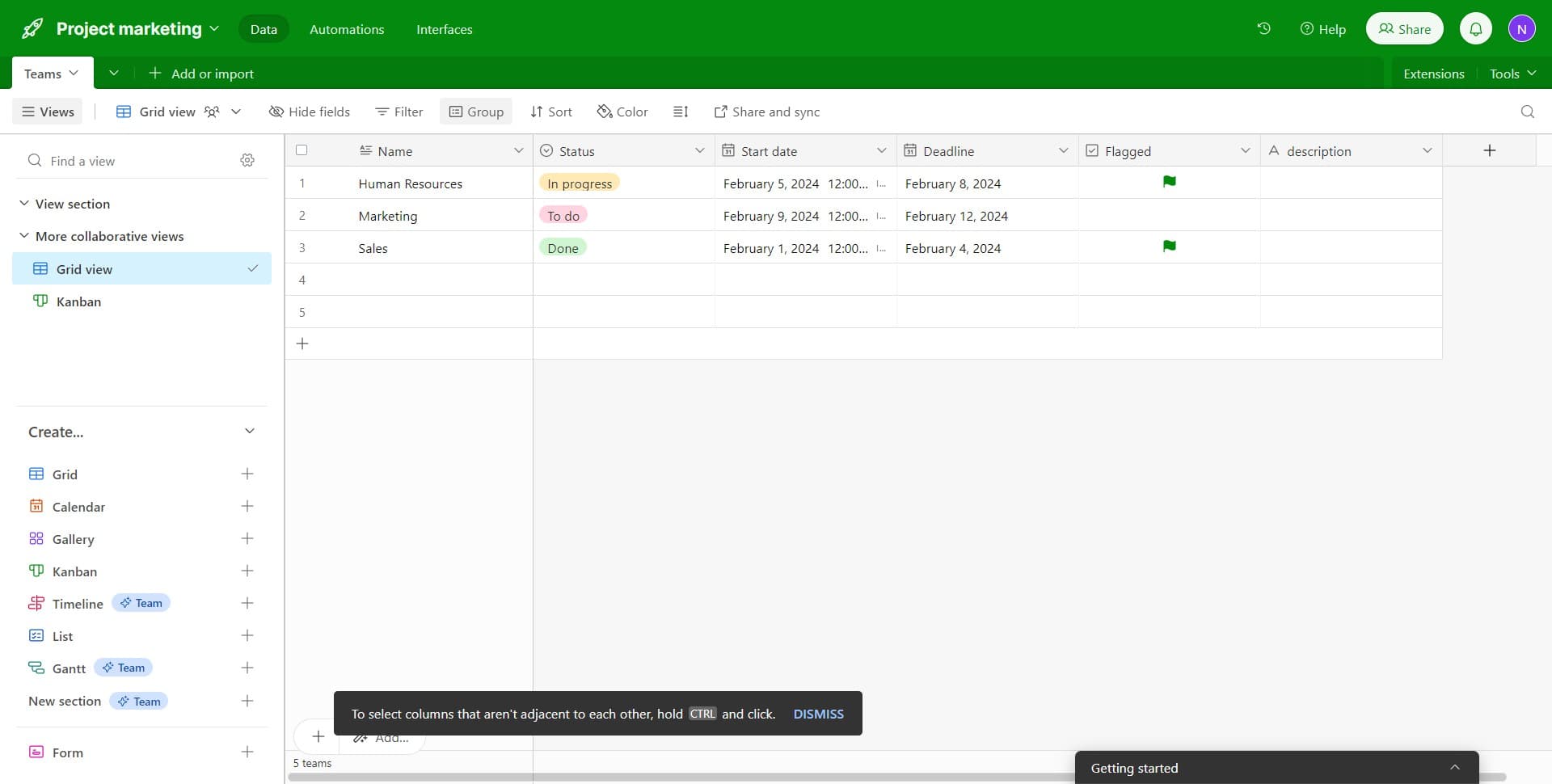
Click on Group
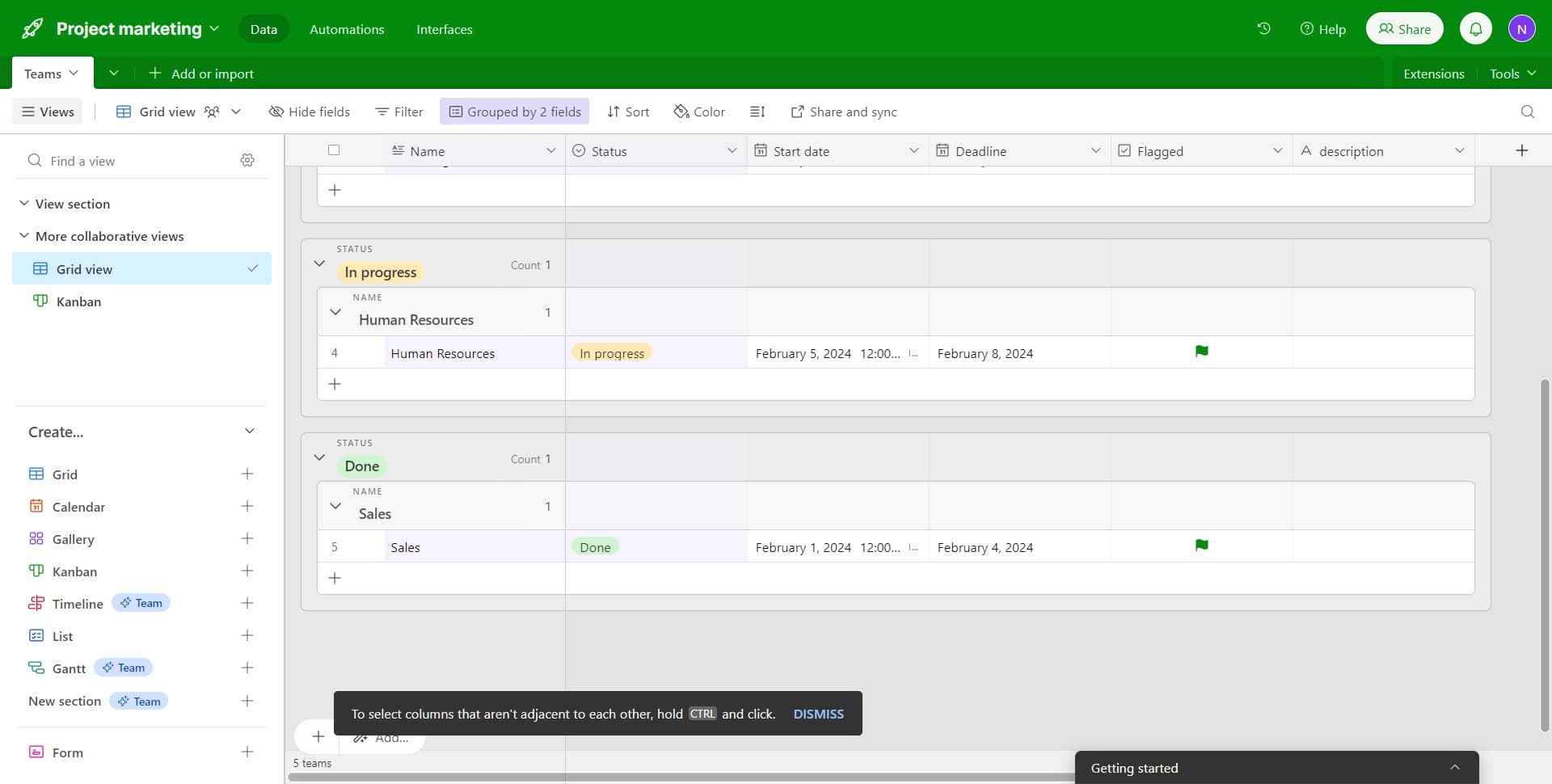
Once you've selected your field, click the Group button to activate the grouping feature. This will reorganize your view to display records grouped by the selected field's values.
- 3
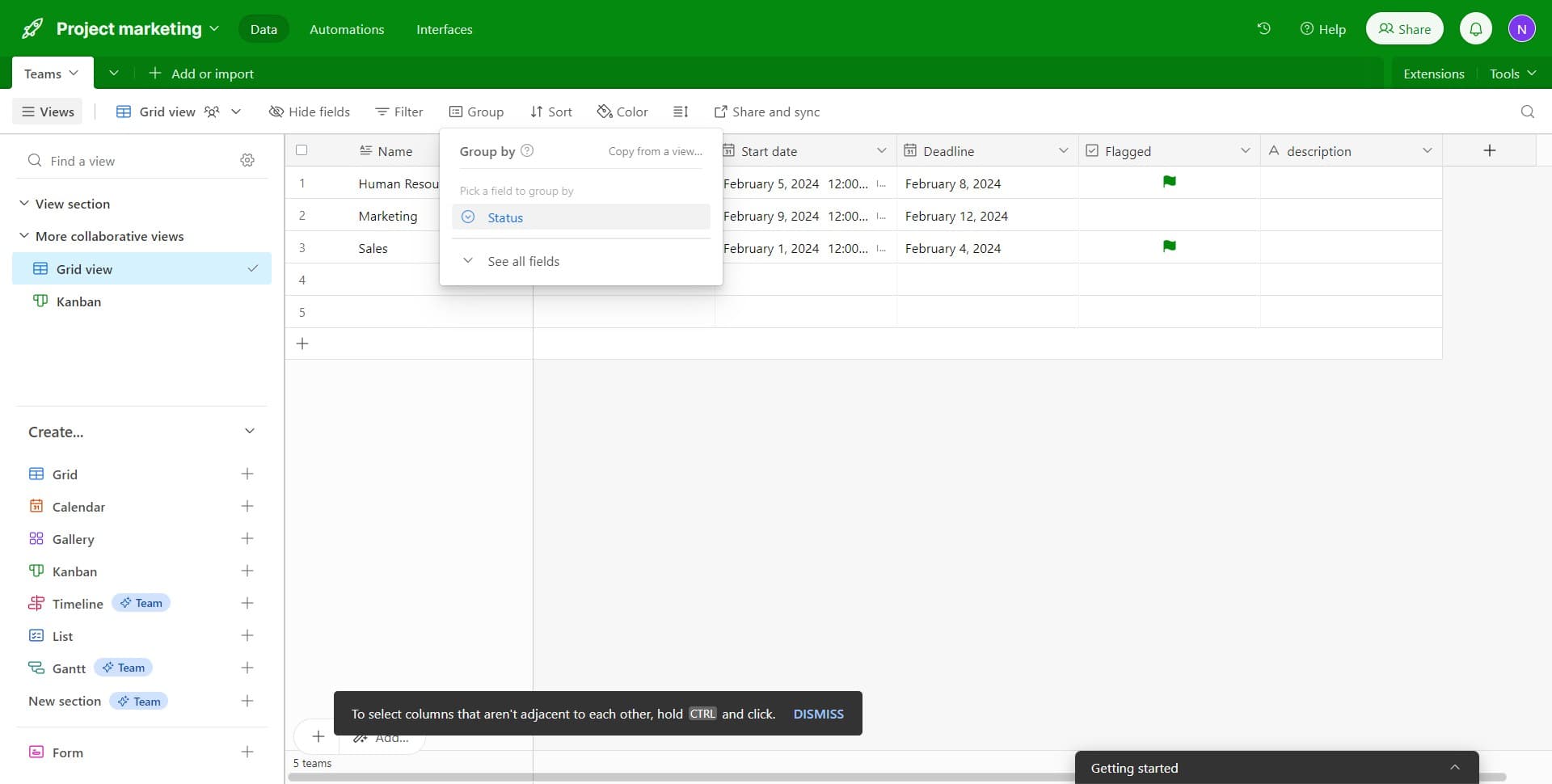
Access the subgroup options
Look for the grouping configuration panel that appears after activating the Group feature. This is where you'll manage your grouping settings and add additional layers of organization.
- 4
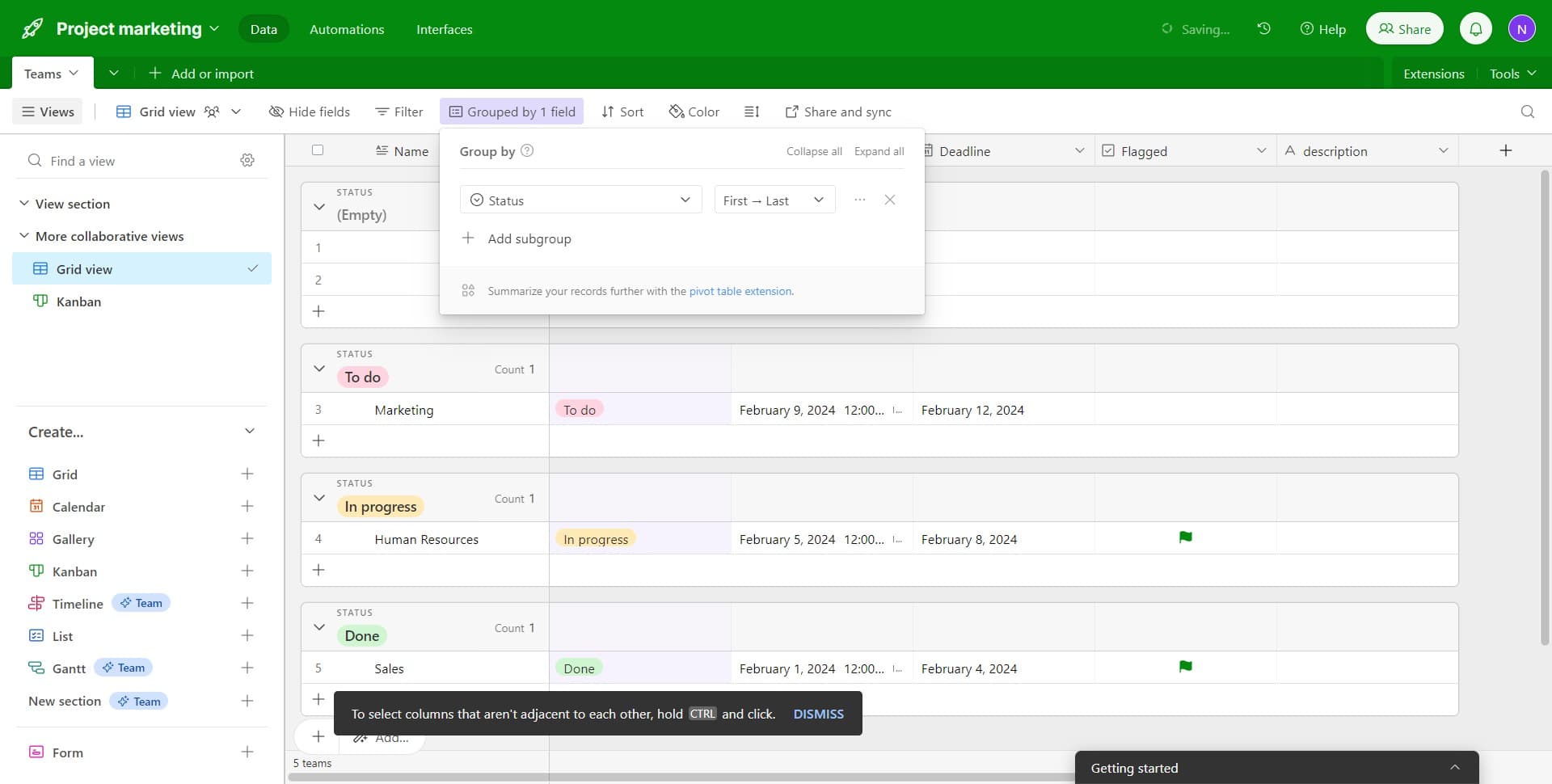
Click on Add subgroup
Select Add subgroup to create a secondary level of organization within your primary groups. This allows you to nest records into multiple levels of categorization for more detailed organization.
- 5
Select your subgroup field
Choose the field you want to use for your secondary grouping—in this example, select the In progress status field. Your records will now be organized first by the primary group, then by this secondary field within each group.
Frequently asked questions
Common questions about how to group a record in airtable.
Yes, Airtable allows you to add multiple subgroups beyond your primary grouping. You can create up to three levels of grouping by using the Add subgroup option repeatedly, enabling you to organize your data in a hierarchical structure that suits your workflow.
No, grouping is a view-level feature that only changes how your data is displayed in Airtable. Your actual records and their values remain unchanged, and you can switch between different views without losing any information.
Yes, once you've configured your grouping, Airtable automatically saves the view. You can create multiple different views with different grouping configurations and switch between them as needed.
Fields with discrete, limited values work best for grouping—such as Status, Category, Priority, or Select fields. Date and single-line text fields can also be used, though they may create many small groups if they contain highly varied data.
Yes, when grouping is active, you can click the collapse arrow next to any group header to hide its records. This is useful for managing large datasets where you want to focus on specific groups at a time.