How to Link Records in Airtable

Linking records in Airtable allows you to create relationships between different tables, enabling you to organize complex data structures and avoid duplication. This powerful feature lets you connect related information across your base, making your data more interconnected and easier to query.
Quick summary
In this tutorial, you'll learn how to establish links between Airtable records by accessing the link field option and configuring field relationships. You'll discover how to connect records from one table to another, creating meaningful data associations that enhance your base's functionality.
Why this matters
Linked records are essential for managing relational data in Airtable, allowing you to maintain data integrity and reduce redundancy across your base. By linking records, you can create a single source of truth for shared information while viewing connections from multiple perspectives, which is critical for projects, CRM systems, and inventory management.
Step-by-step guide
- 1
Click on the element
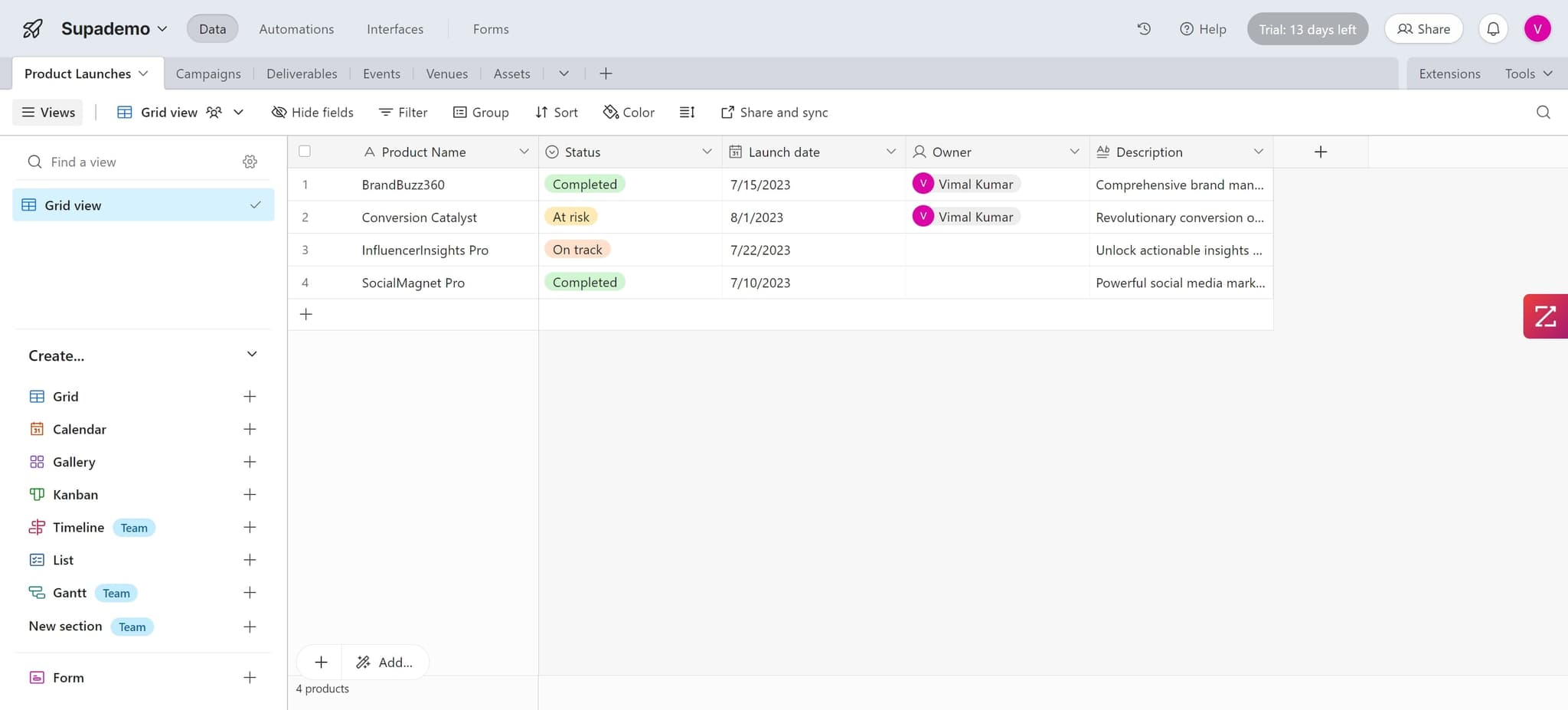
Start by clicking on the specific cell or field where you want to add the link. This selects the location where the linked record relationship will be established.
- 2
Upload your data
Add or upload the necessary data to your Airtable field. This prepares your table with the information that will be linked to records in another table.
- 3
Click on 'Link to another record'
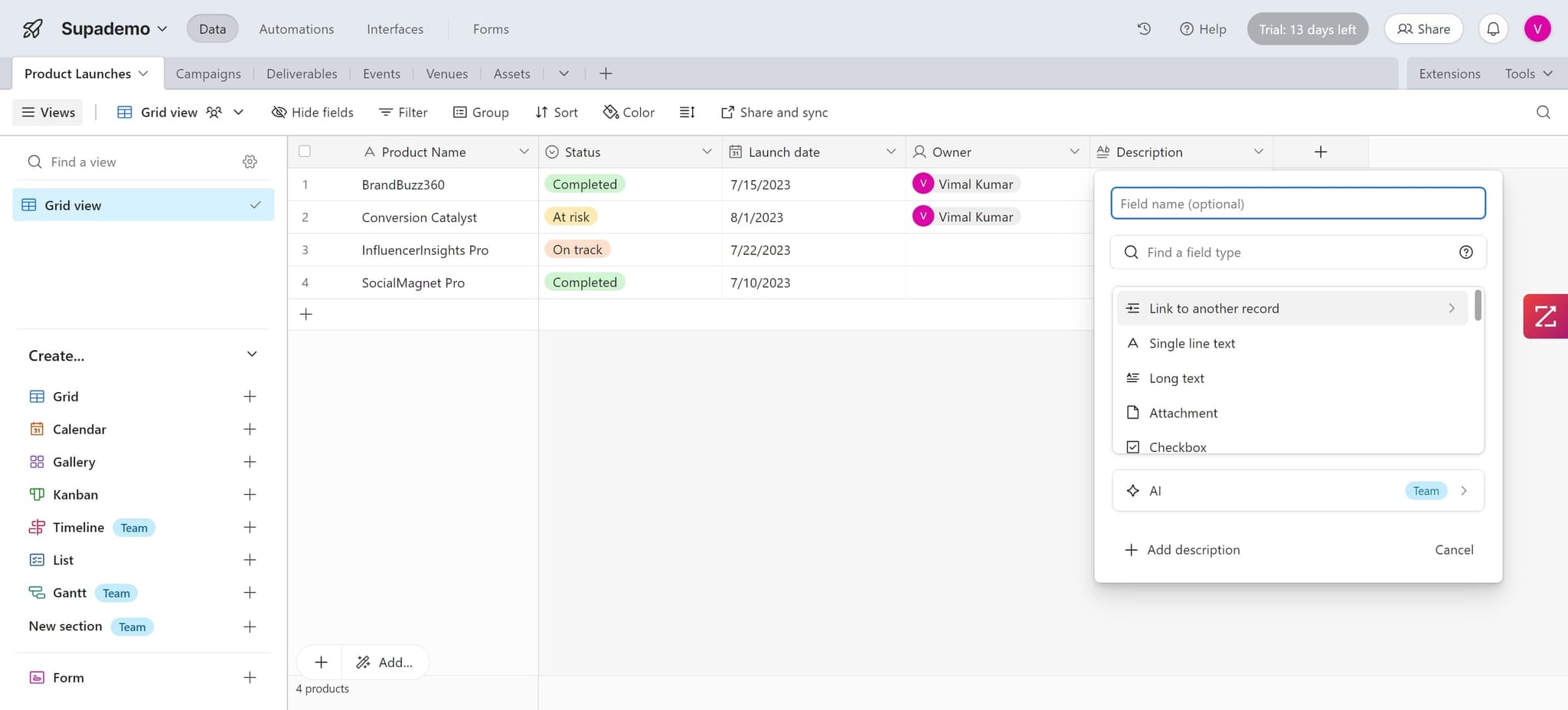
Select the 'Link to another record' option from the field type menu. This activates the linking feature and allows you to configure which table you want to link to.
- 4
Upload additional data
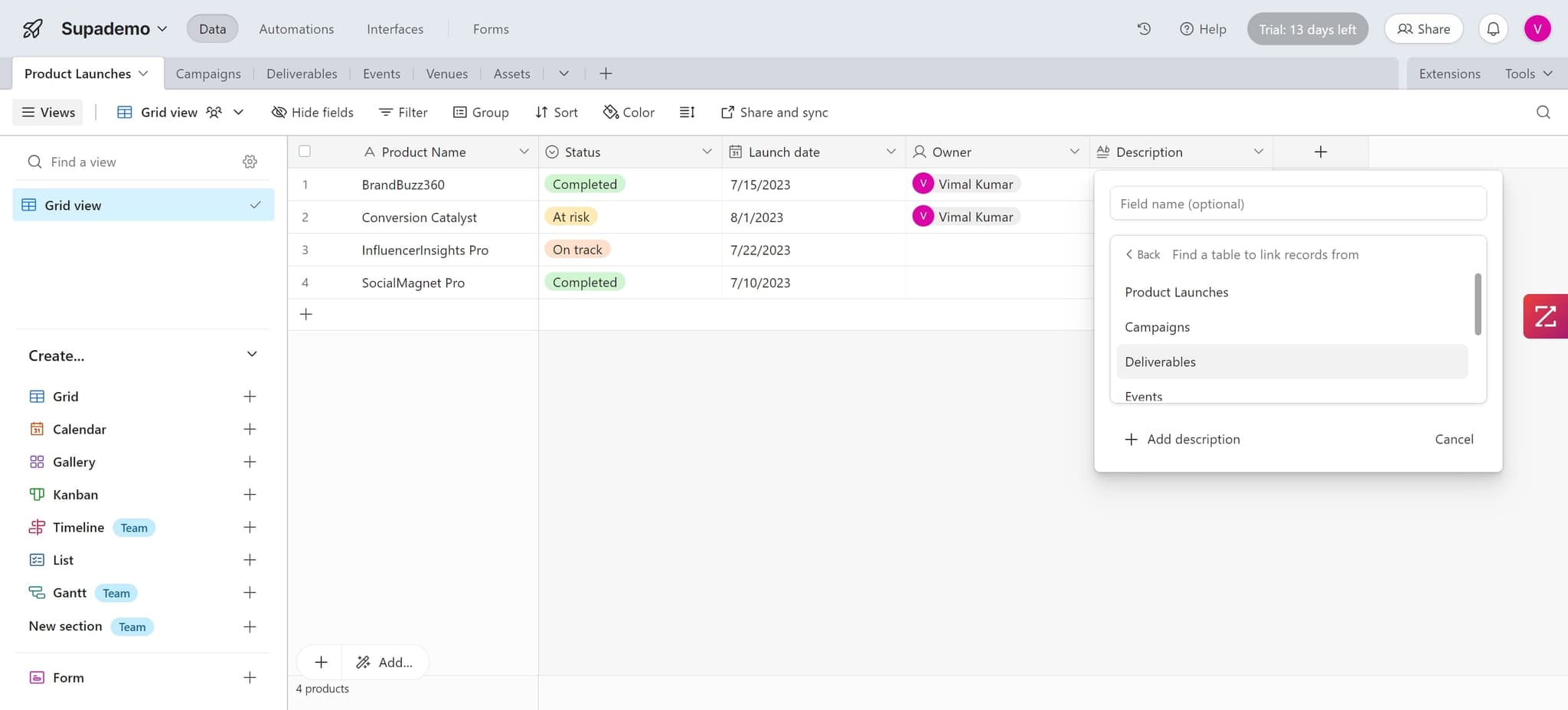
If needed, upload or add any additional data required to establish the link between tables. This ensures all necessary information is available for the connection.
- 5
Click on the element
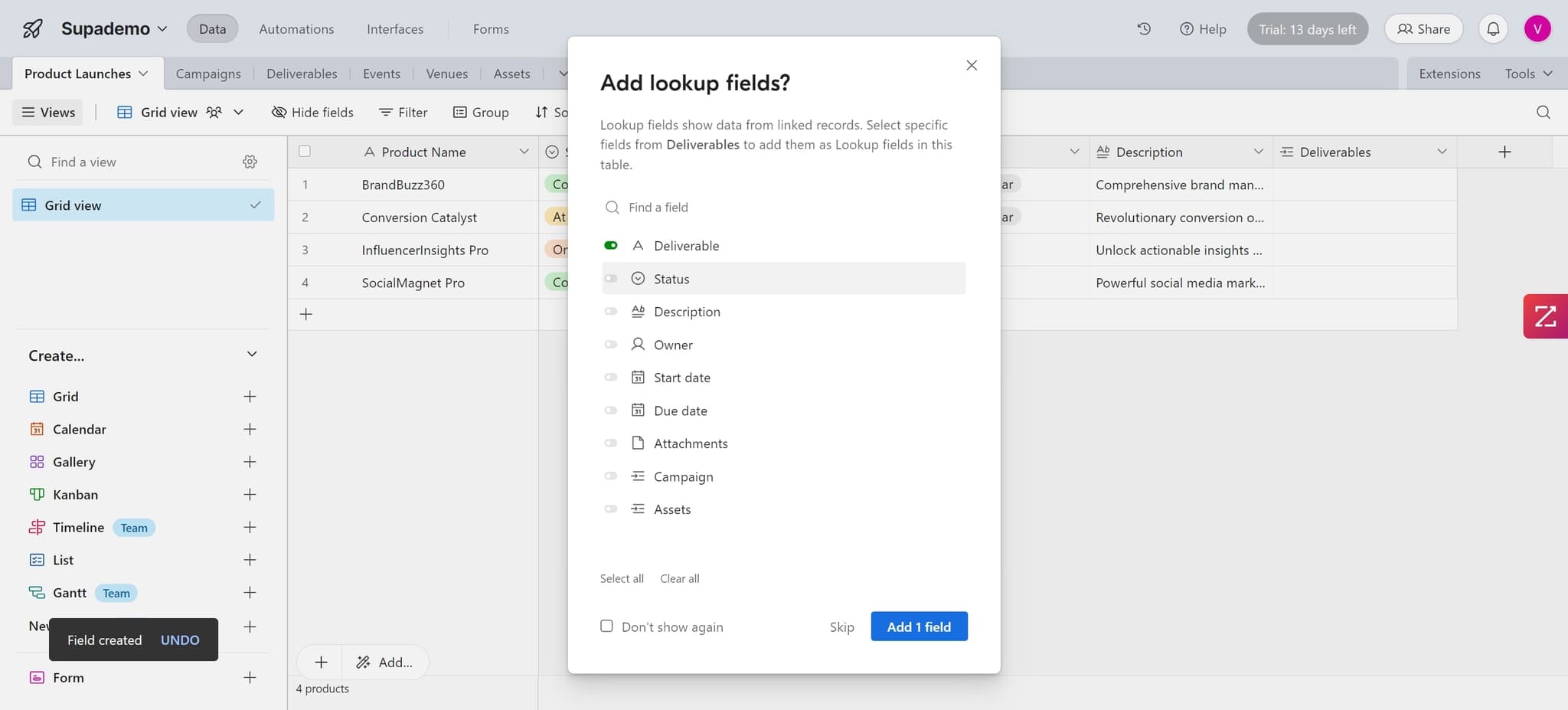
Click on the appropriate field or element to proceed with configuring your link settings. This action moves you forward in the linking configuration process.
- 6
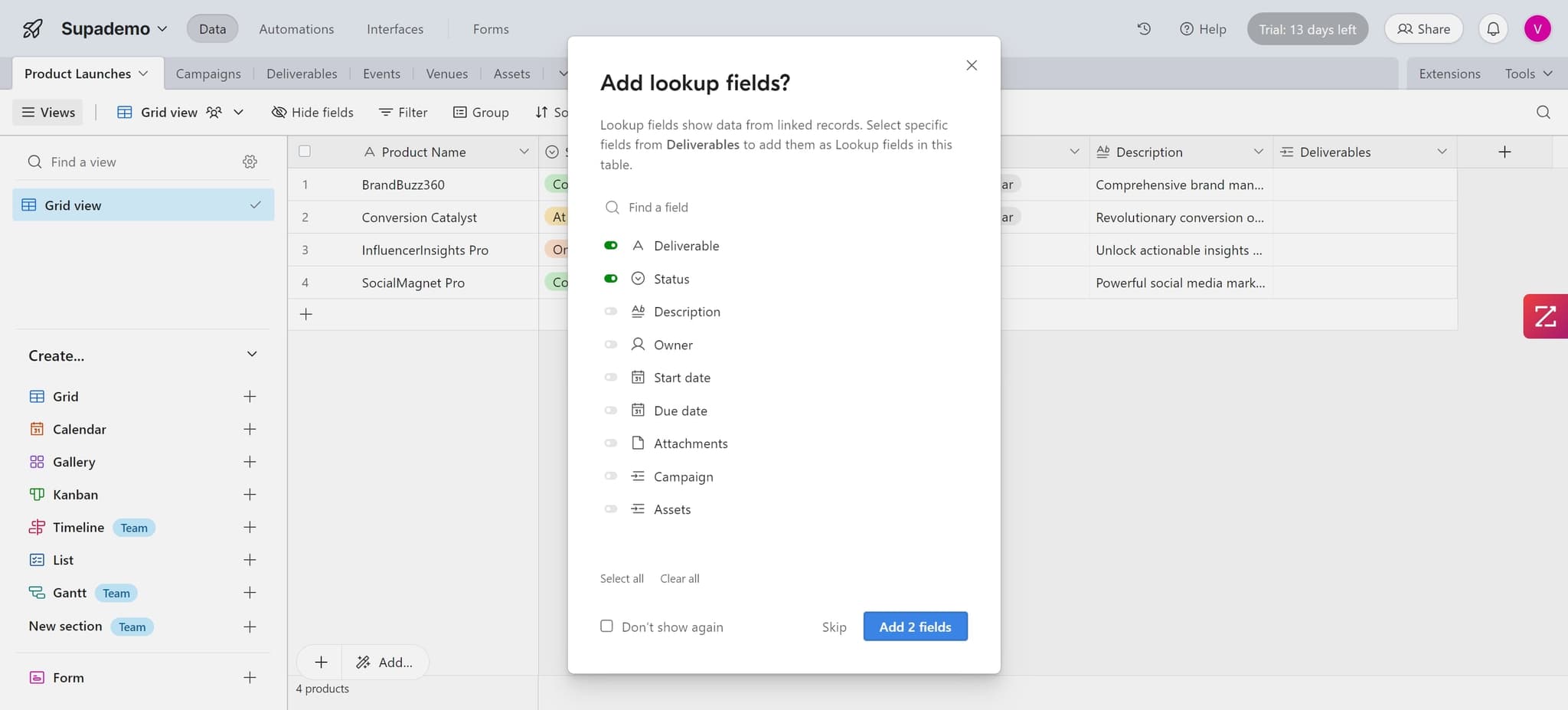
Click on 'Add 2 fields'
Select 'Add 2 fields' to create the two-way relationship between your records. This automatically creates linked fields in both tables, allowing you to view connections from either direction.
Frequently asked questions
Common questions about how to link records in airtable.
A linked record is a connection between two records in different tables that allows you to reference and view related information. When you link records, Airtable automatically creates a two-way relationship, so you can see the connection from both the source and target tables.
Yes, you can create linked records within the same table. This is useful for establishing hierarchical relationships or connecting related items, such as linking a project to subtasks or connecting team members to their managers.
When you delete a record, the link is removed from the related record as well. The linked field will no longer display that connection, but the related record itself remains intact. You can configure deletion behavior in your field settings if needed.
Yes, you can create multiple links from a single record to many other records in the target table. Airtable supports many-to-many relationships, allowing flexible data connections based on your needs.
You can view all linked records in the linked field cell, which displays them as tags or in an expandable list. You can also create views or filters to show records based on their linked relationships, giving you different perspectives on your connected data.