How to share a Airtable view

Sharing Airtable views allows you to collaborate with team members and stakeholders by giving them access to specific data without granting full base permissions. This workflow enables you to control what information viewers can see and interact with while maintaining data security.
Quick summary
In this tutorial, you'll learn how to share an Airtable view by configuring link settings and generating a shareable link. You'll discover how to customize viewer permissions and copy the link for easy distribution to collaborators.
Why this matters
Sharing views is essential for cross-functional collaboration, client feedback, and data transparency without compromising sensitive information. By controlling view-level access, you can streamline communication and ensure team members only see relevant data.
Step-by-step guide
- 1
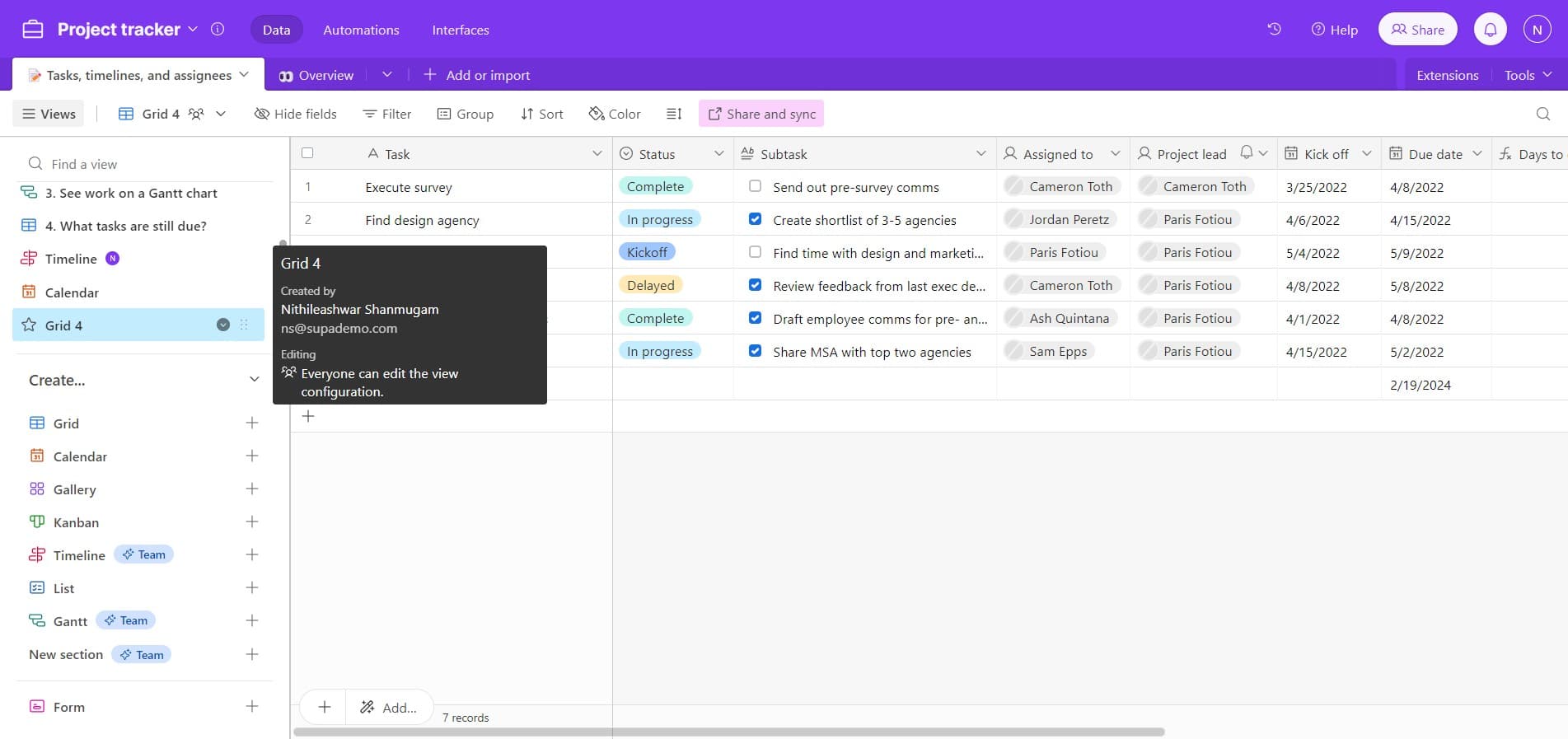
Select the view to share
Locate and click on the view you want to share, such as 'Grid 4'. This view will become the basis for your shared link and will determine what data recipients can access.
- 2
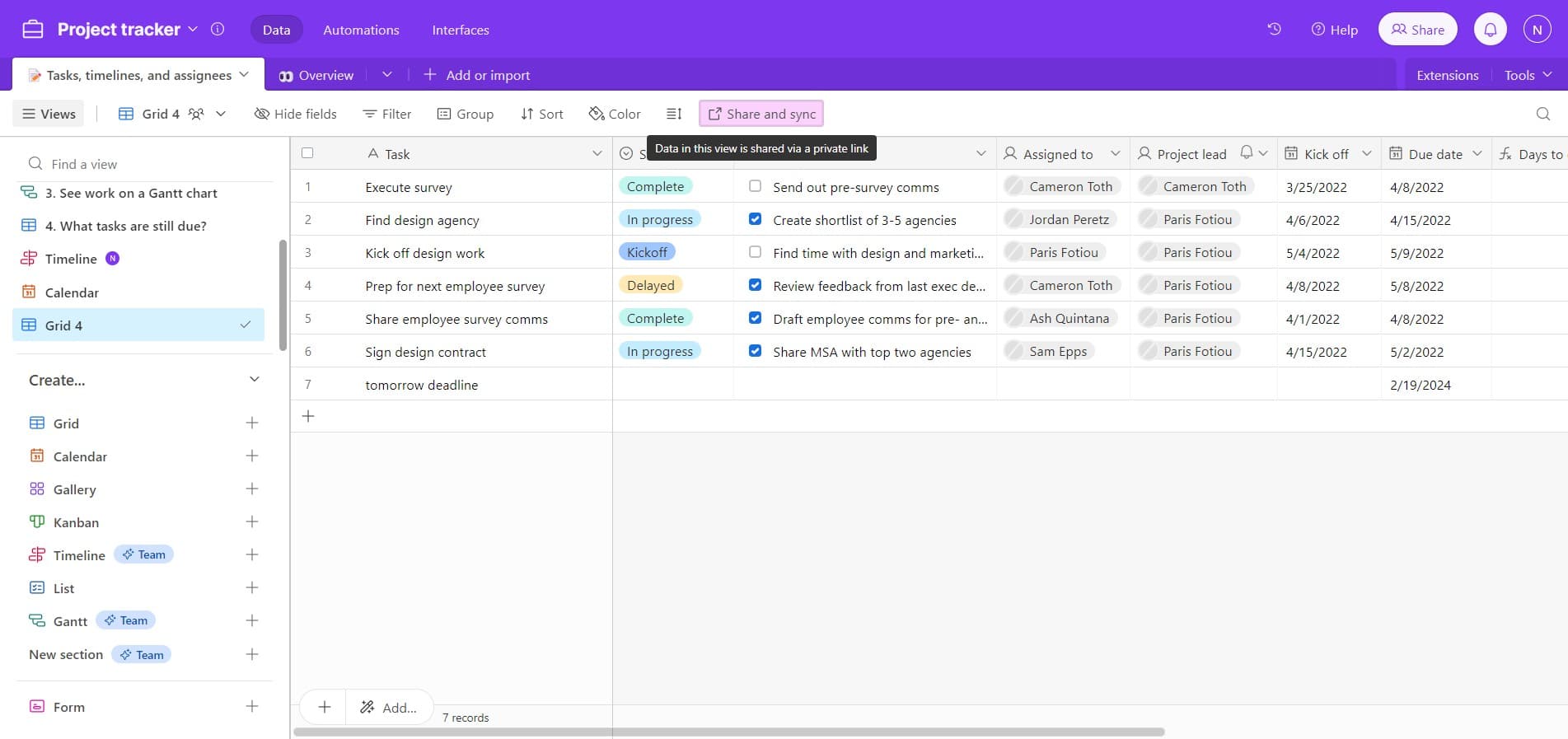
Access share and sync options
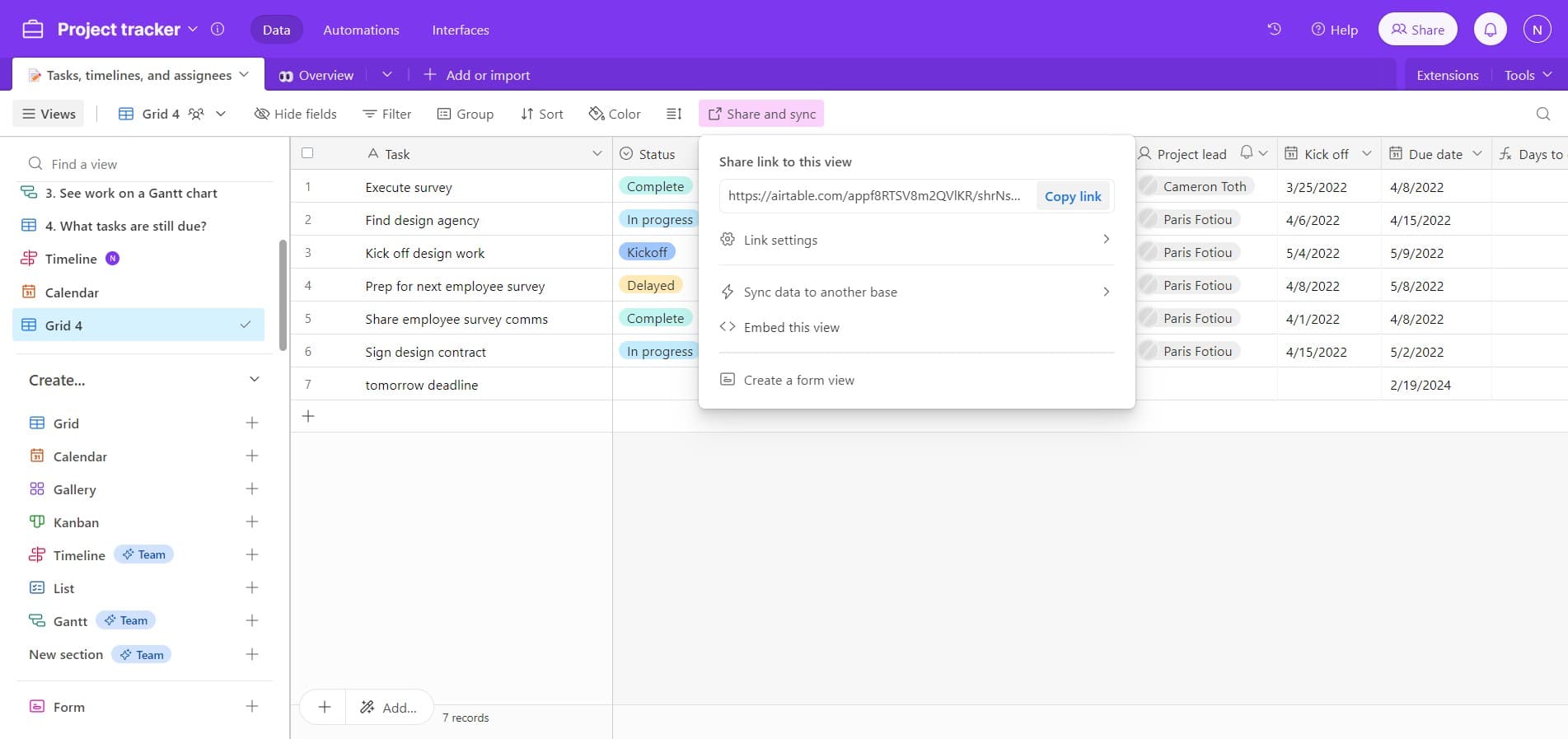
Click on the 'Share and sync' button to open the sharing interface. This menu contains all the tools you need to configure how your view is shared with others.
- 3
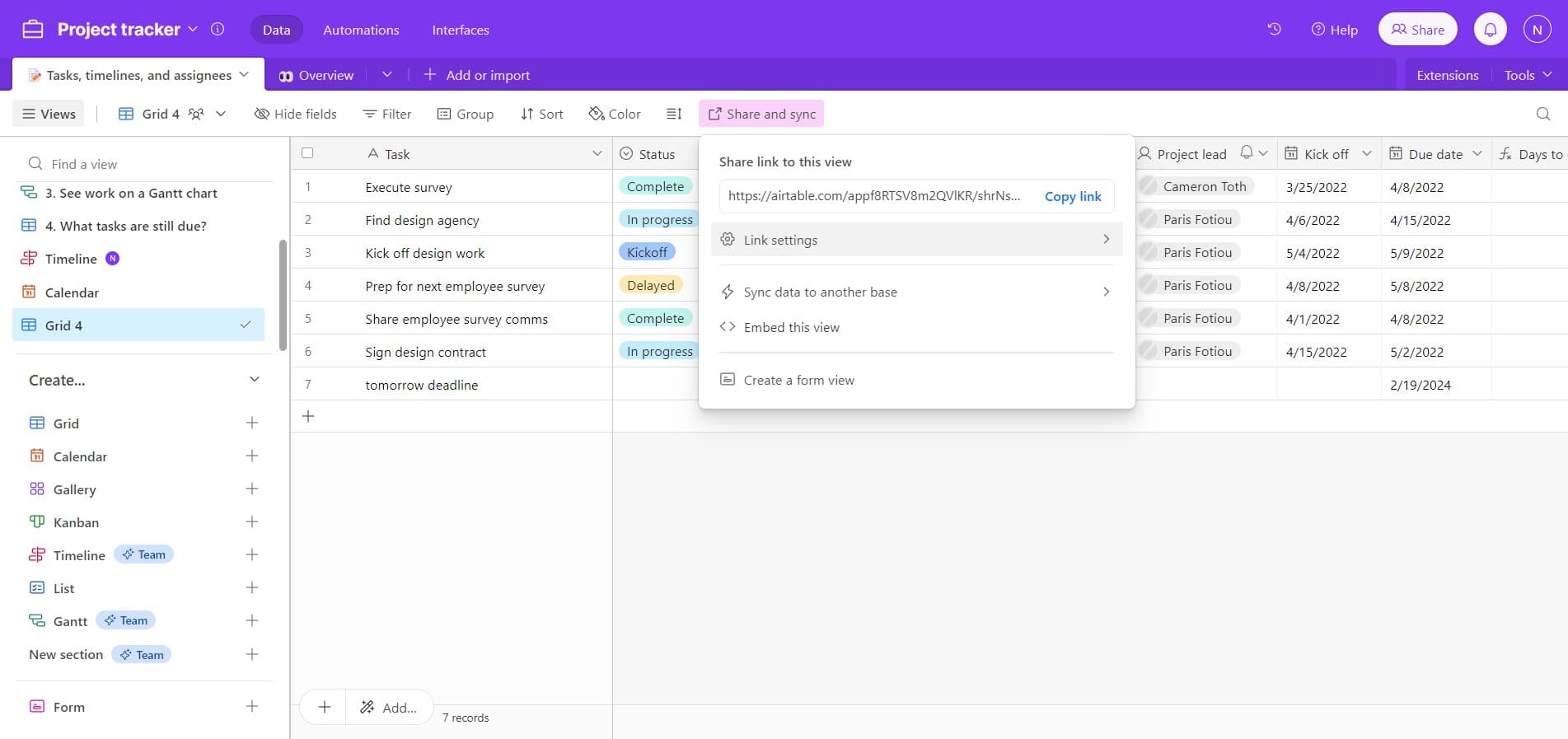
Open link settings
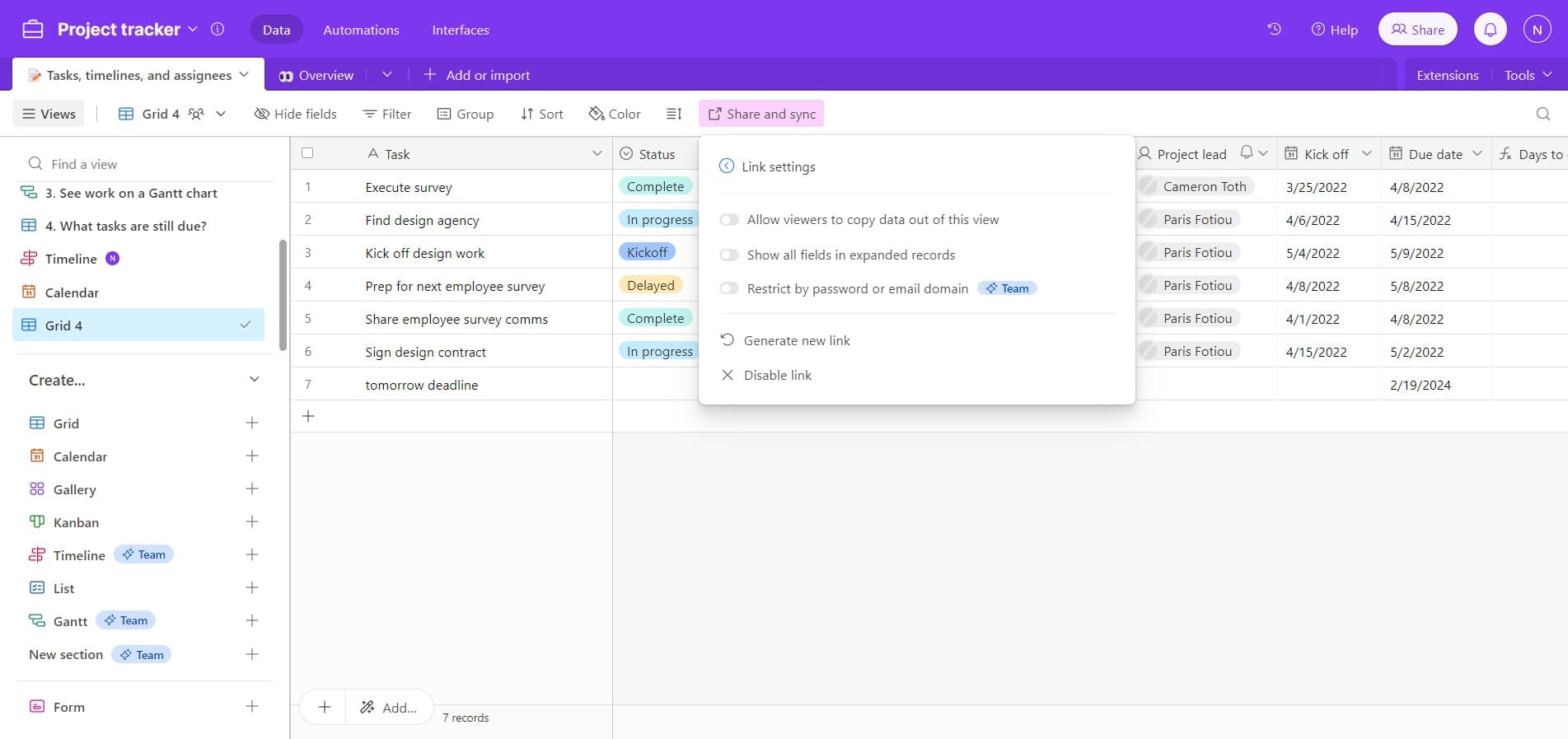
Click on 'Link settings' to access advanced sharing options. Here you can customize permissions and control what actions viewers are allowed to perform on the shared view.
- 4
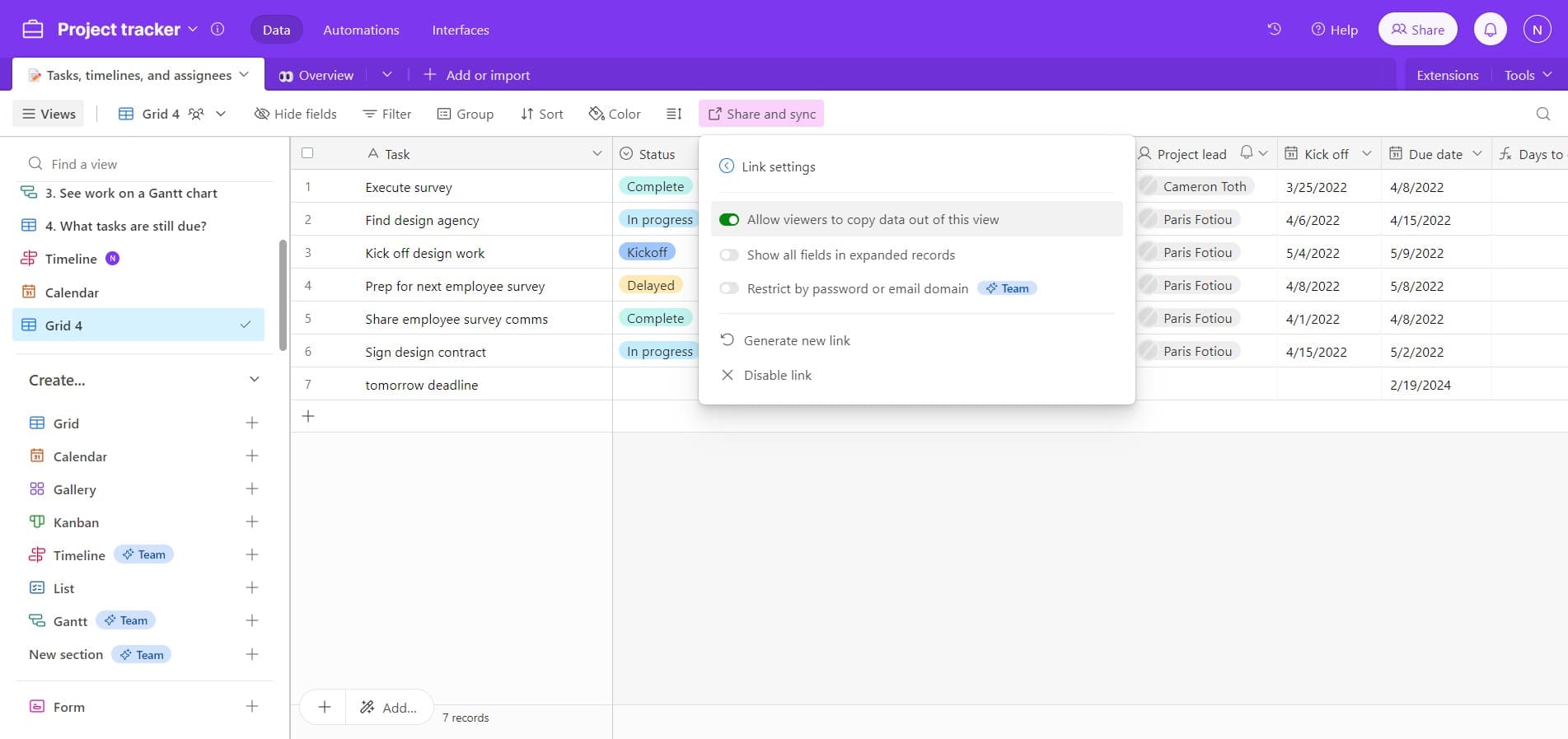
Enable viewer permissions
Click on 'Allow viewers t...' to expand the viewer permission options. This setting determines what interactions and capabilities viewers will have when accessing your shared view.
- 5
Confirm permission settings
Click the confirmation button to apply your selected viewer permissions. This finalizes the access level that will be available to anyone using the shared link.
- 6
Copy the shareable link
Click on 'Copy link' to add the shared view URL to your clipboard. You can now paste and distribute this link to team members, clients, or collaborators who need access to the view.
Frequently asked questions
Common questions about how to share a airtable view.
Yes, Airtable's link settings allow you to customize viewer permissions. You can control whether viewers can edit records, create new records, filter data, or simply view the information. These permissions are configured in the 'Link settings' section before you generate the shareable link.
Yes, you can disable or change link settings at any time through the 'Share and sync' menu. Once you modify the link settings, previously shared links may no longer work depending on your access level changes. This gives you full control over who can access your view.
No, viewers do not require an Airtable account to access a shared view. Anyone with the link can view the data according to the permissions you've set. This makes it easy to share with external stakeholders, clients, or team members outside your organization.
Airtable does not impose a hard limit on the number of people who can access a shared view via link. However, be mindful of your plan's collaboration features and any organizational policies. Consider your Airtable plan to understand any bandwidth or usage limitations that may apply.
No, each shareable link is specific to a single view. If you want to share multiple views, you'll need to generate a separate link for each view using the same process. This allows you to maintain granular control over what data different stakeholders can access.