How to share your Airtable

Sharing your Airtable base is essential for collaborating with team members and stakeholders. This guide walks you through the process of granting access to your Airtable workspace, from initiating the share dialog to assigning specific permission levels.
Quick summary
In this tutorial, you'll learn how to share your Airtable base by accessing the share settings, selecting recipient permission levels, and sending invitations. By the end, you'll be able to control who can view, edit, or manage your Airtable data.
Why this matters
Sharing Airtable bases enables seamless team collaboration without requiring recipients to manually request access. Managing permission levels—such as Creator versus other roles—ensures your data remains secure while allowing the right people to contribute effectively.
Step-by-step guide
- 1
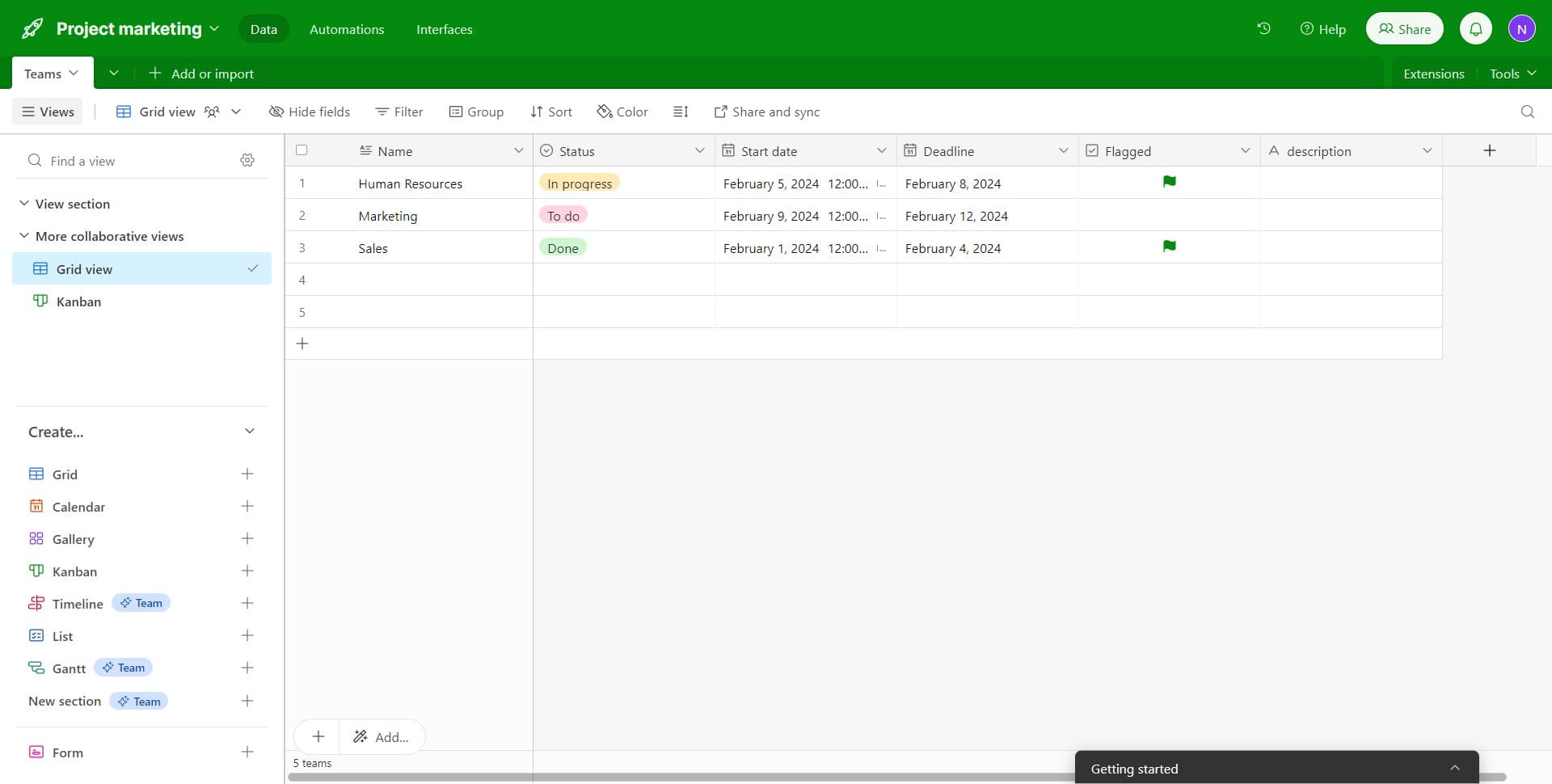
Open your Airtable base
Navigate to the Airtable base you want to share. Ensure you have the appropriate permissions to manage sharing settings for this base.
- 2
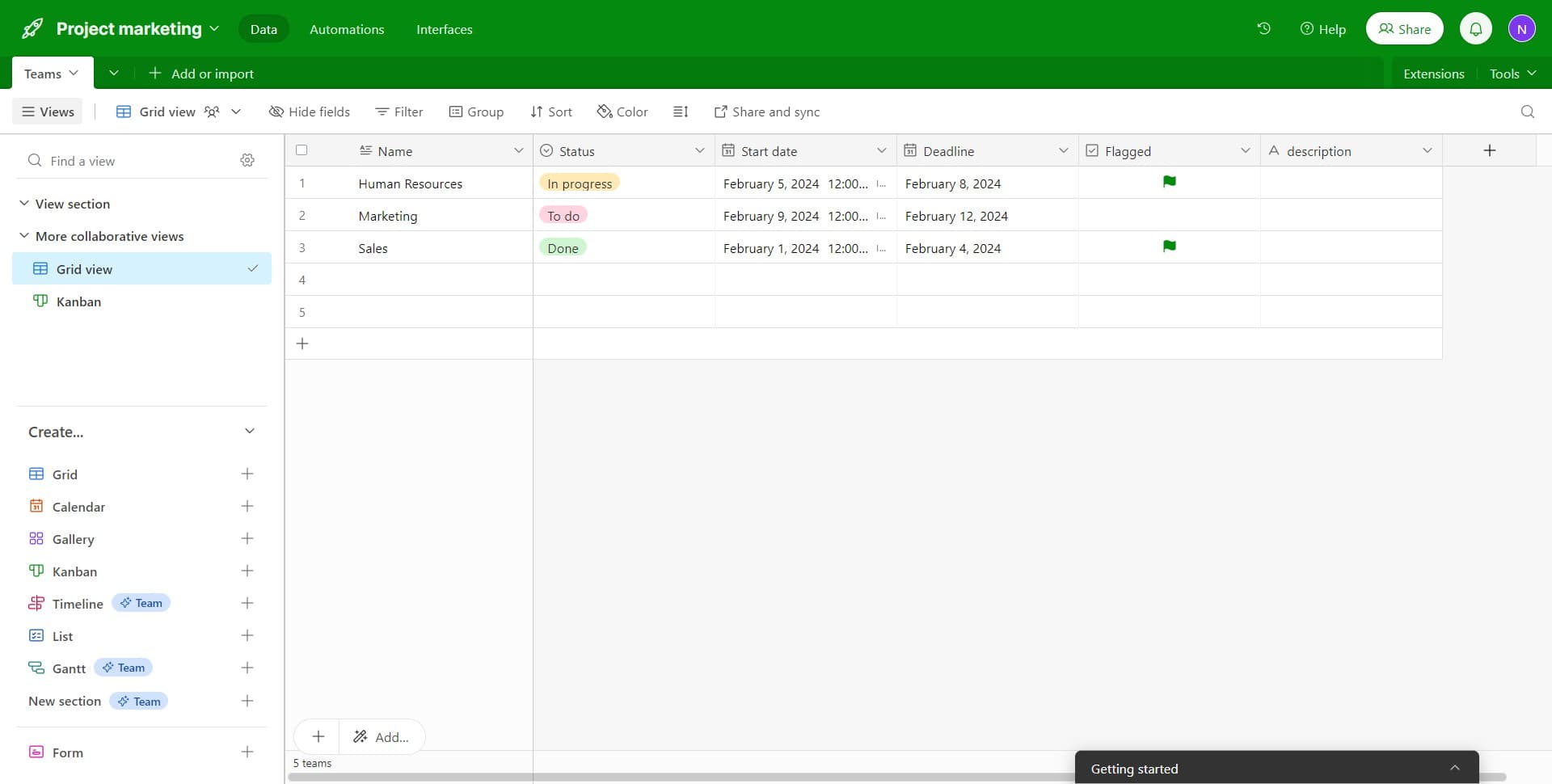
Click on Share
Locate and click the Share button in the top navigation or toolbar. This will open the sharing dialog where you can manage access and permissions.
- 3
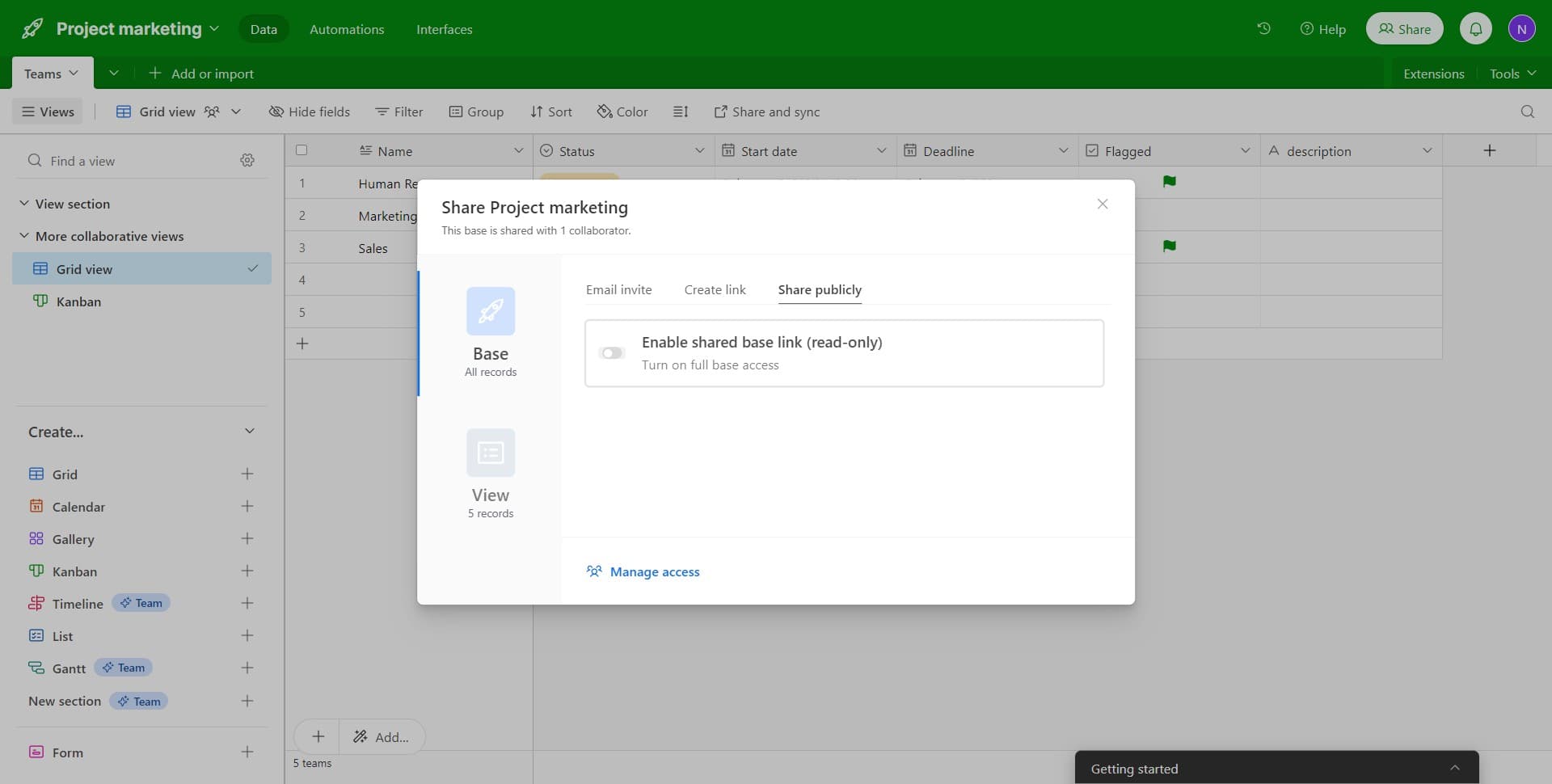
Access sharing options
The Share panel will expand, displaying various options for controlling who can access your base. Review the available sharing settings before proceeding.
- 4
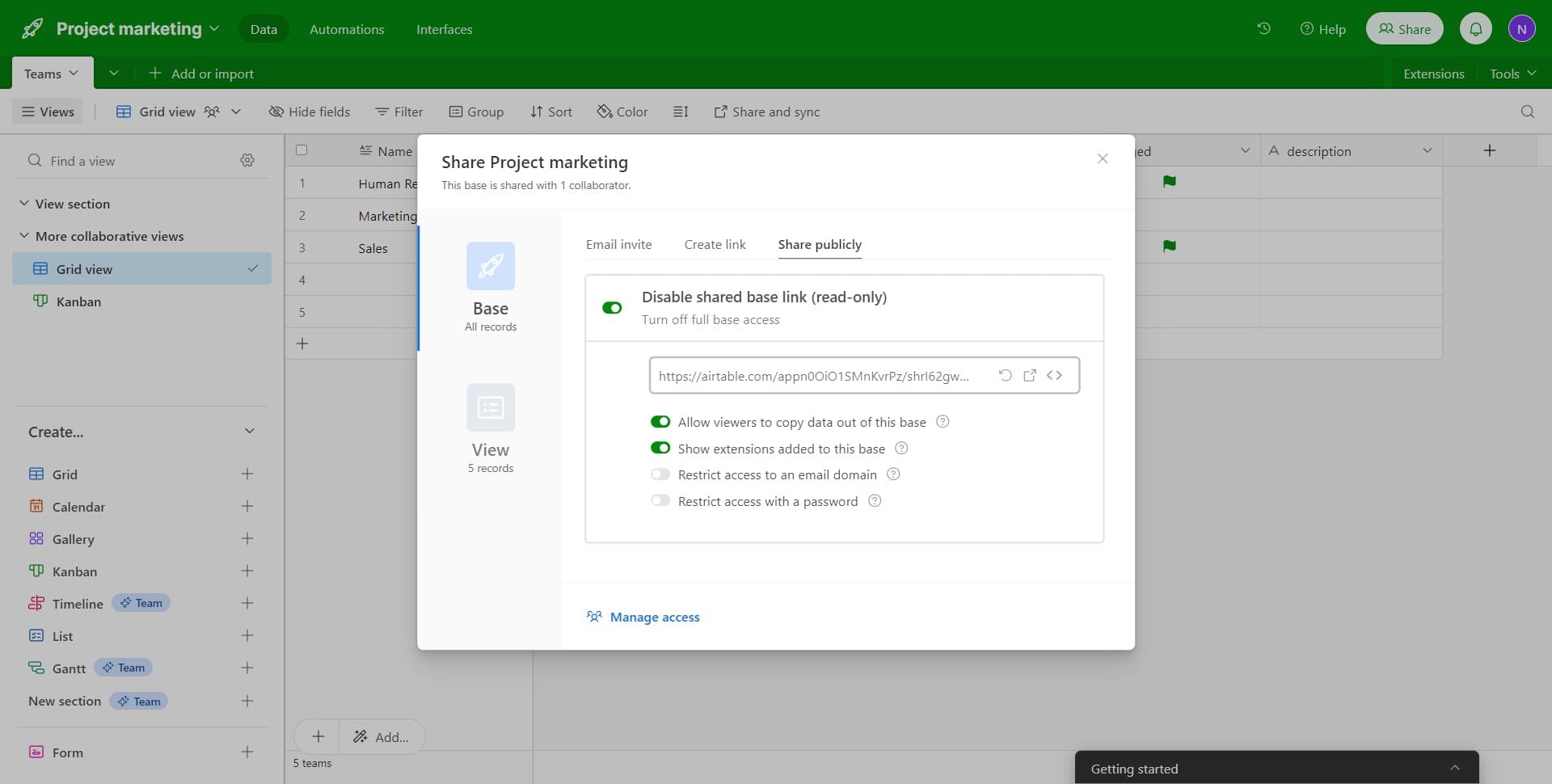
Configure access settings
Navigate through the access configuration options to set up how your base will be shared. These settings determine the visibility and default permissions for invited collaborators.
- 5
Select sharing scope
Choose the appropriate sharing scope or visibility level for your base. This determines whether the base is shared with specific users, a team, or a broader group.
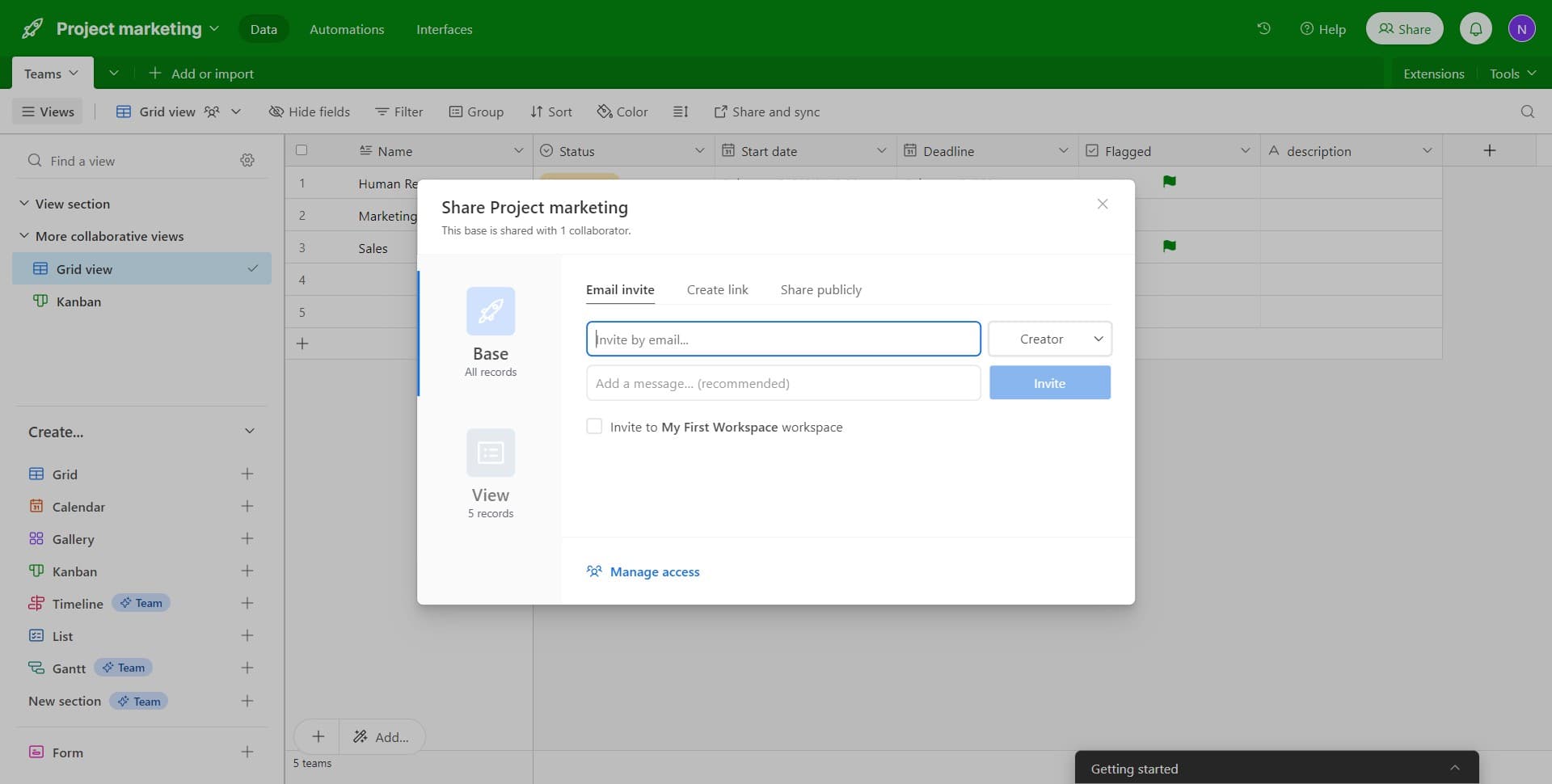
- 6
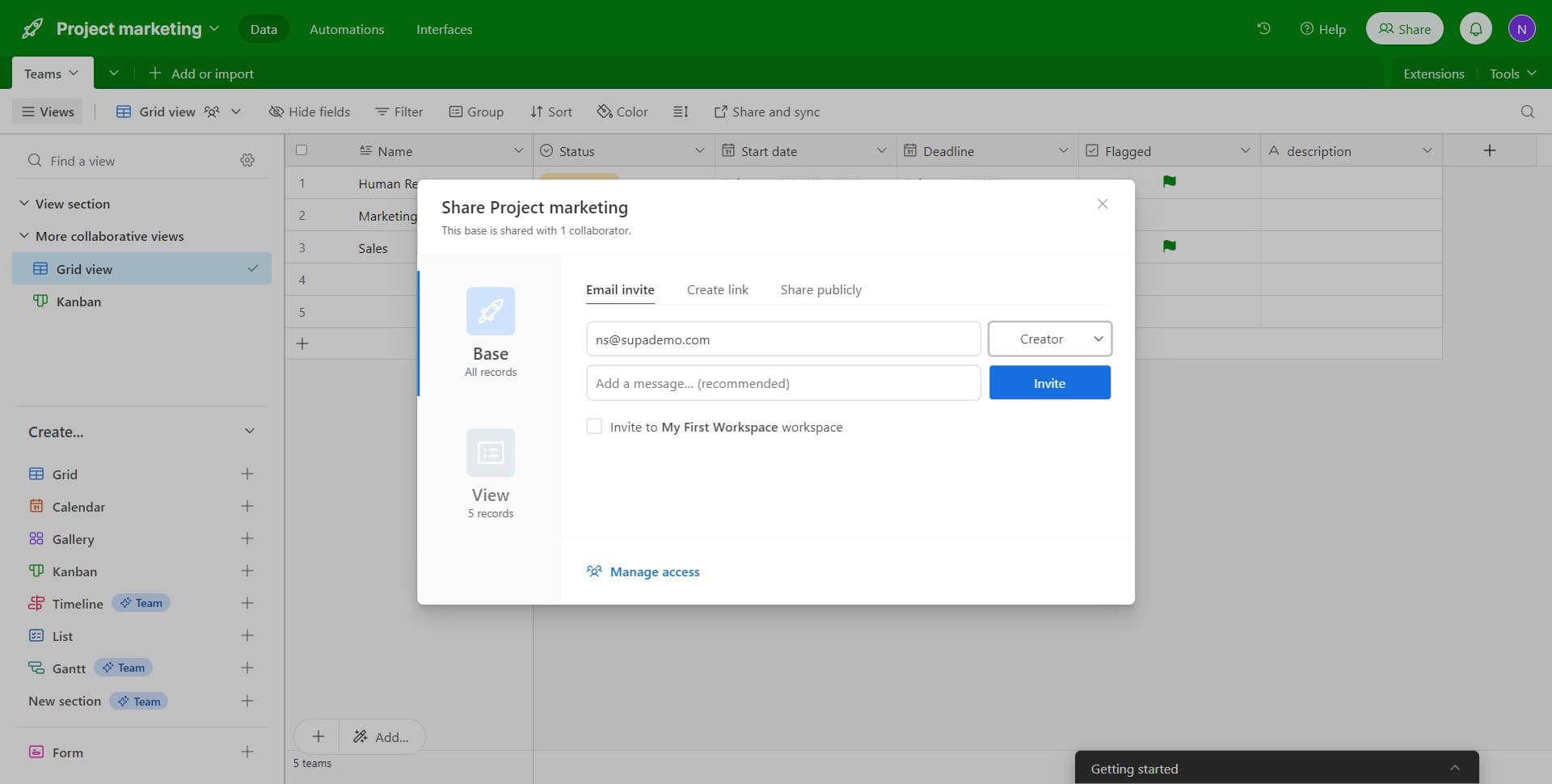
Set permission to Creator
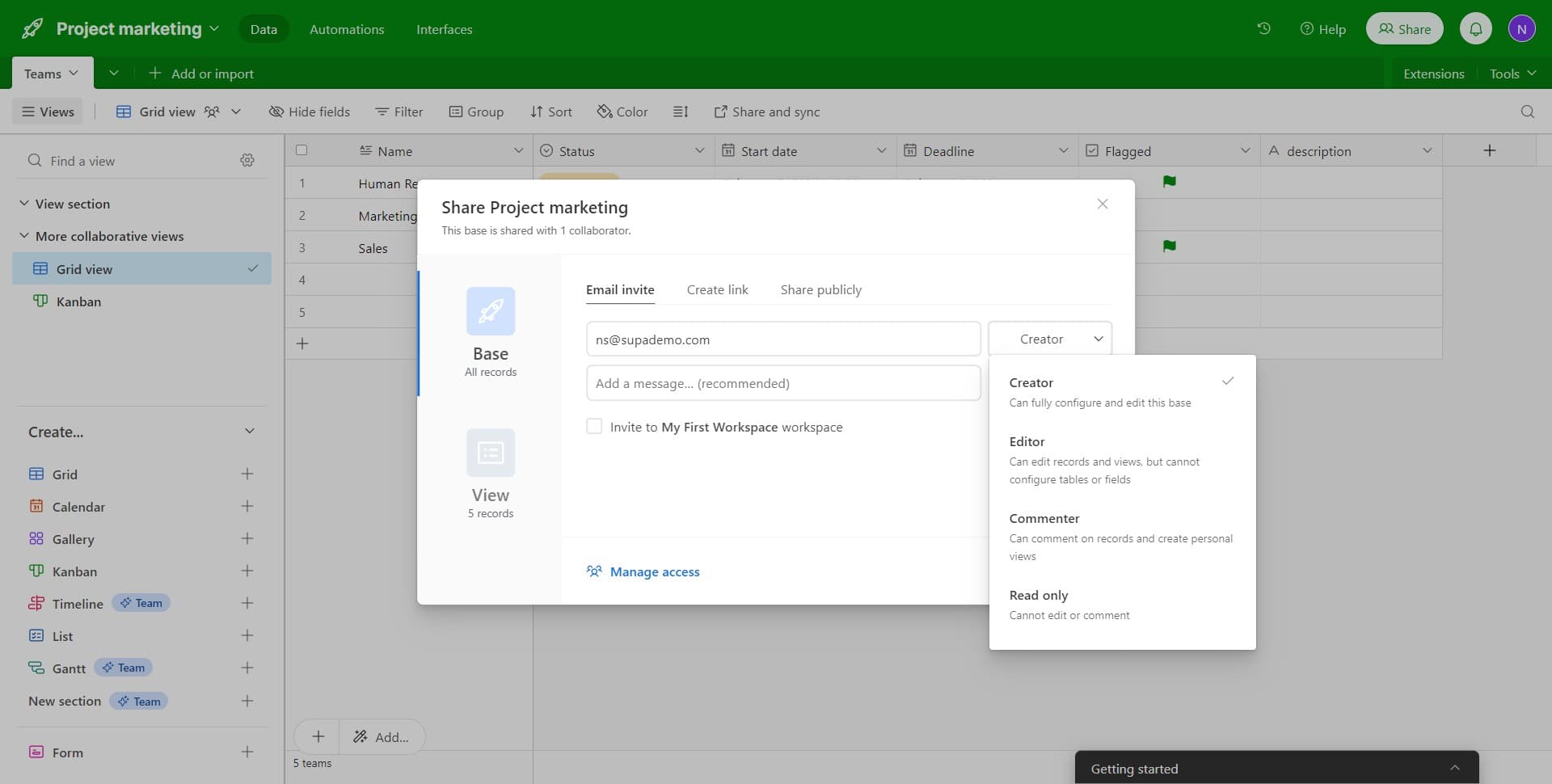
Select Creator from the permission level dropdown to grant full editing and administrative capabilities to the invited user. Creator-level access allows recipients to modify the base structure, fields, and content.
- 7
Enter recipient details
Input the email address or user information for the person you want to invite. Double-check the email address to ensure the invitation reaches the correct recipient.
- 8
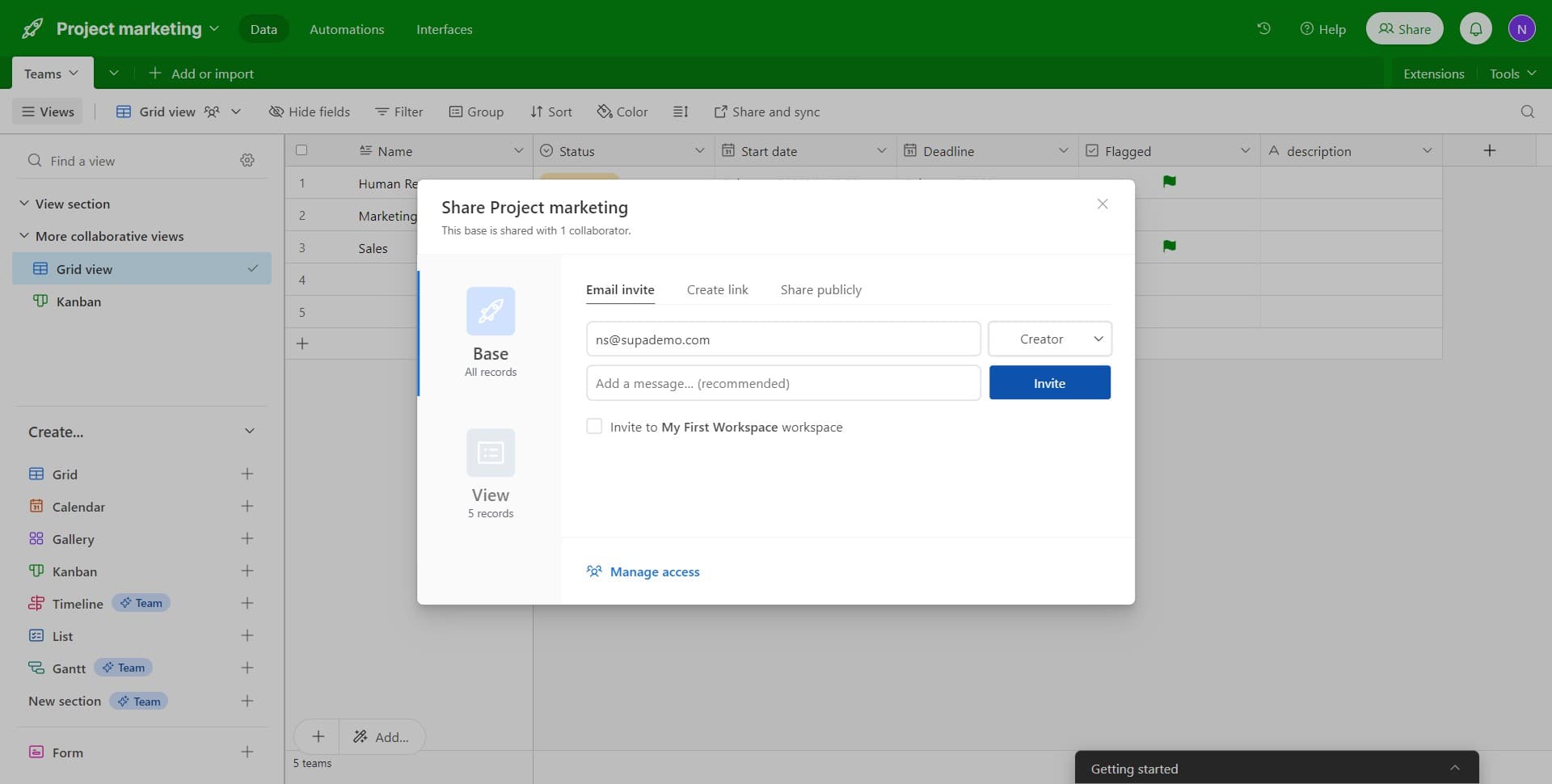
Click Invite
Click the Invite button to send the sharing invitation. The recipient will receive a notification and can begin collaborating on your Airtable base with the permissions you've assigned.
Frequently asked questions
Common questions about how to share your airtable.
Airtable offers several permission levels including Owner, Creator, Editor, and Commenter. Owner has full control over the base, Creator can modify structure and content, Editor can edit existing records, and Commenter can only add comments. The level you assign determines what actions a user can perform.
Yes, you can modify a collaborator's permission level at any time by returning to the Share settings and adjusting their role. Simply click on their name or the permission dropdown and select the new level you want to assign.
Creator-level access gives users the ability to create and modify fields, change the base structure, and manage records. This is a high level of access suitable for team members who need full control over the base organization and content.
Yes, you can remove a collaborator's access at any time from the Share settings. Click on their name and select Remove or Delete to revoke their access immediately.
Collaborators will see the data according to their permission level and any view-specific access restrictions you've set. You can also use grid views or filters to control which records specific team members can access.