How to Create Automations in Attio

Automations in Attio allow you to streamline repetitive tasks and keep your CRM data synchronized without manual intervention. This guide walks you through the complete process of setting up automations to enhance your workflow efficiency.
Quick summary
In this tutorial, you'll learn how to create, configure, and deploy automations in Attio. You'll discover how to set triggers, define actions, and manage automation rules to automate key business processes.
Why this matters
Automations save your team significant time by eliminating manual data entry and task management. They ensure consistency across your CRM, reduce human error, and allow your team to focus on higher-value activities like relationship building and strategy.
Step-by-step guide
- 1
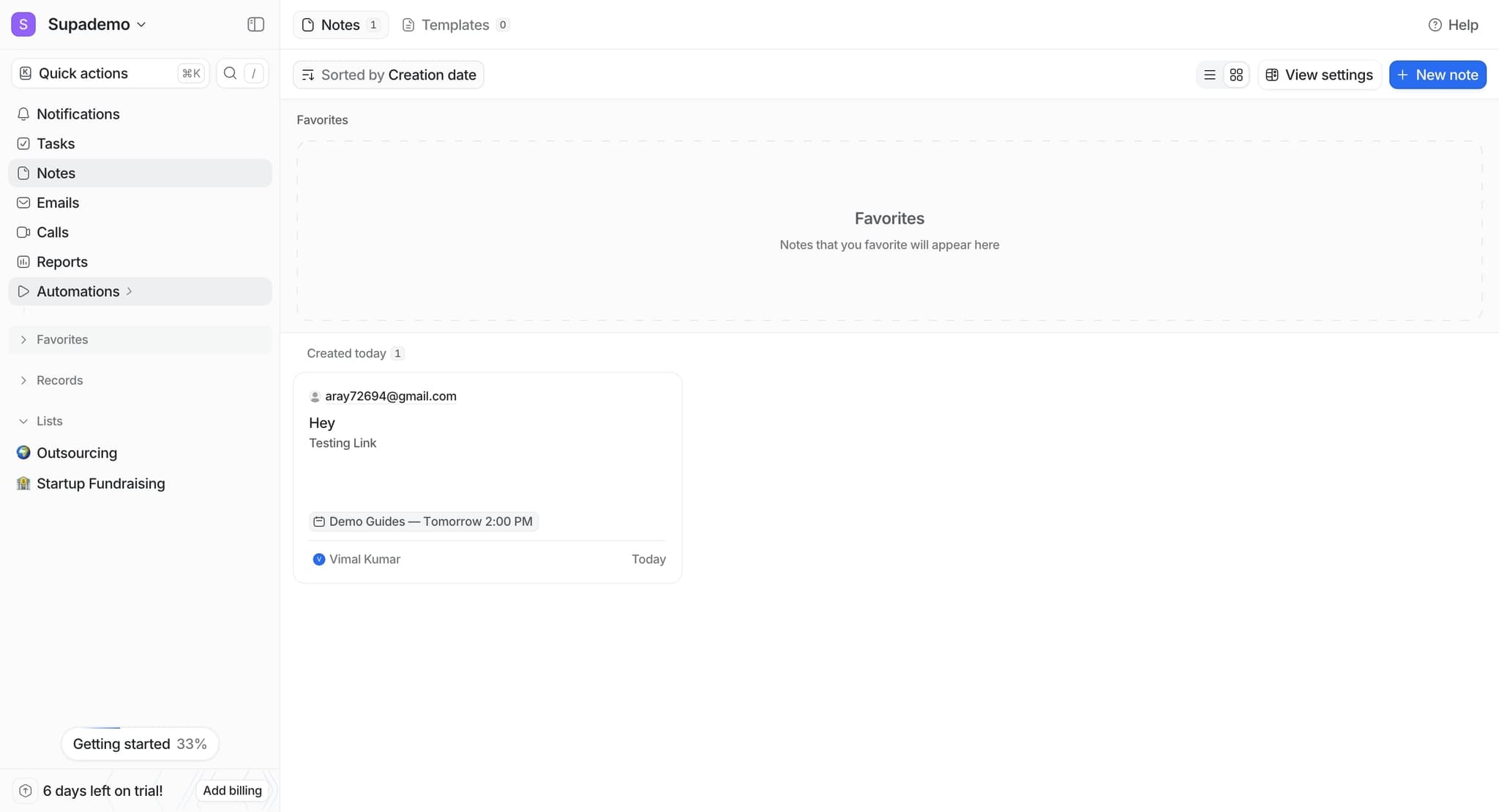
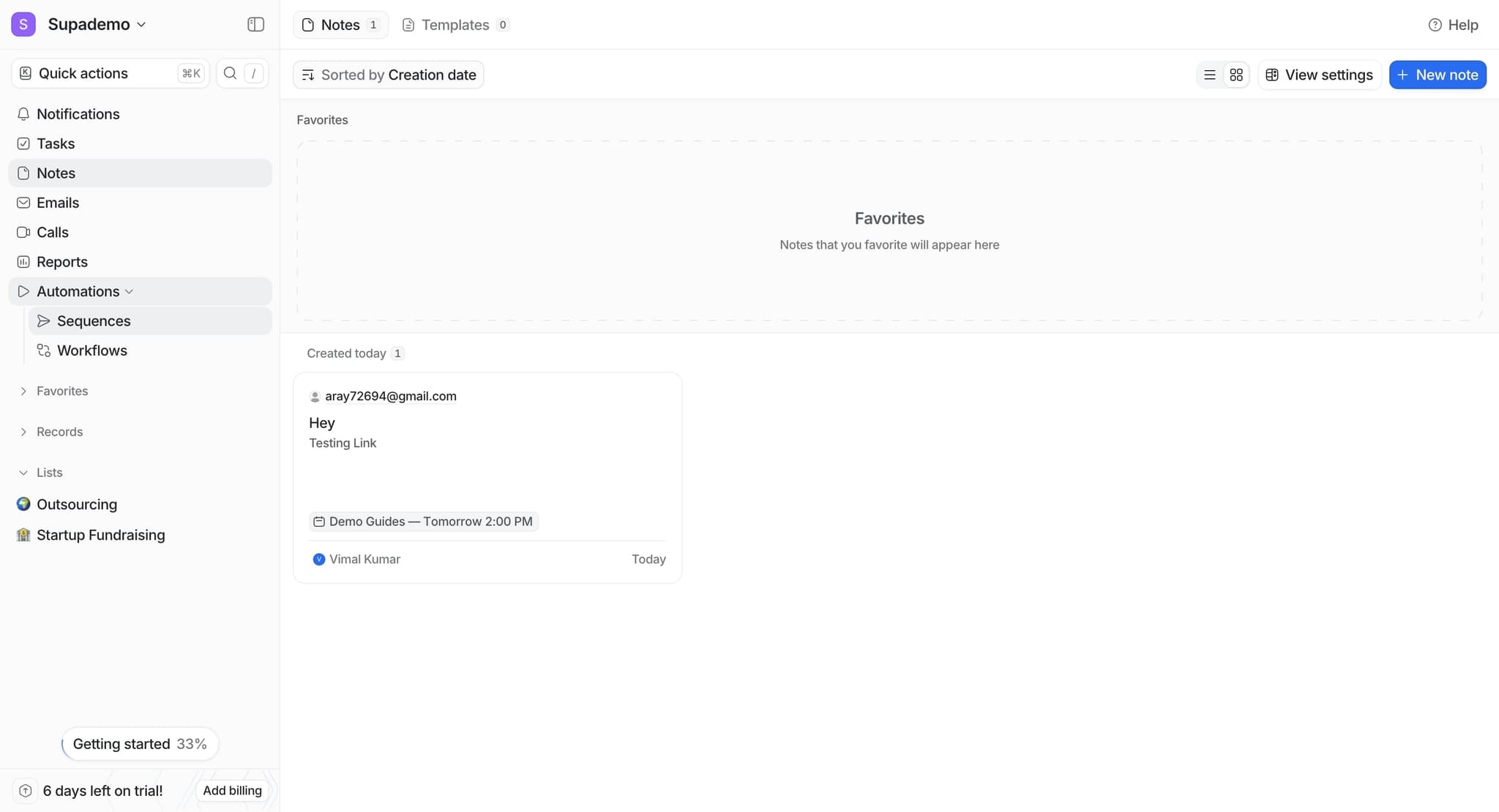
Navigate to the Automations section
Log into your Attio workspace and locate the Automations feature from the main navigation menu. This is where you'll manage all your automation workflows and rules.
- 2
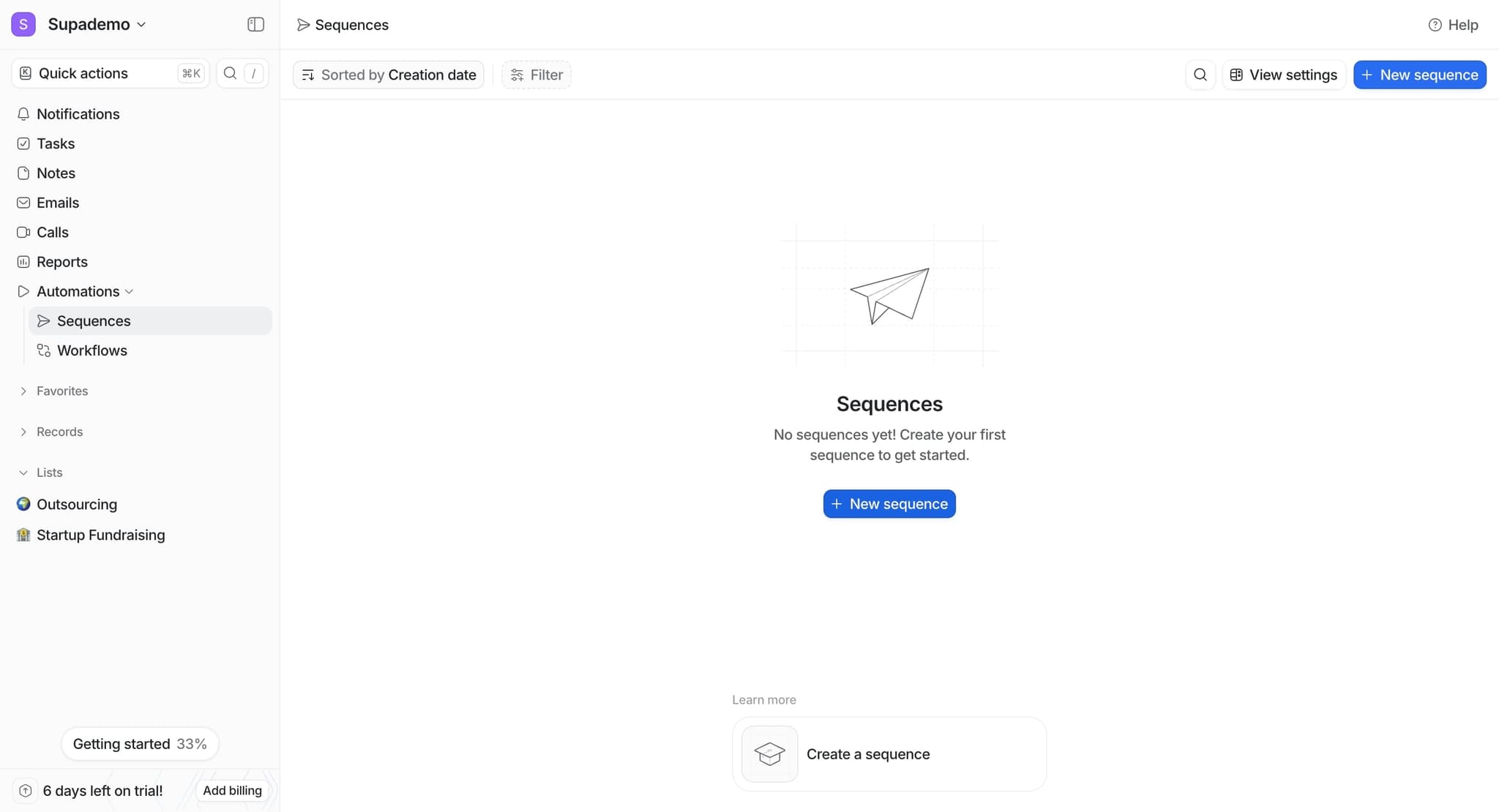
Click Create New Automation
Select the button to create a new automation workflow. Attio will prompt you to choose the type of automation you want to set up.
- 3
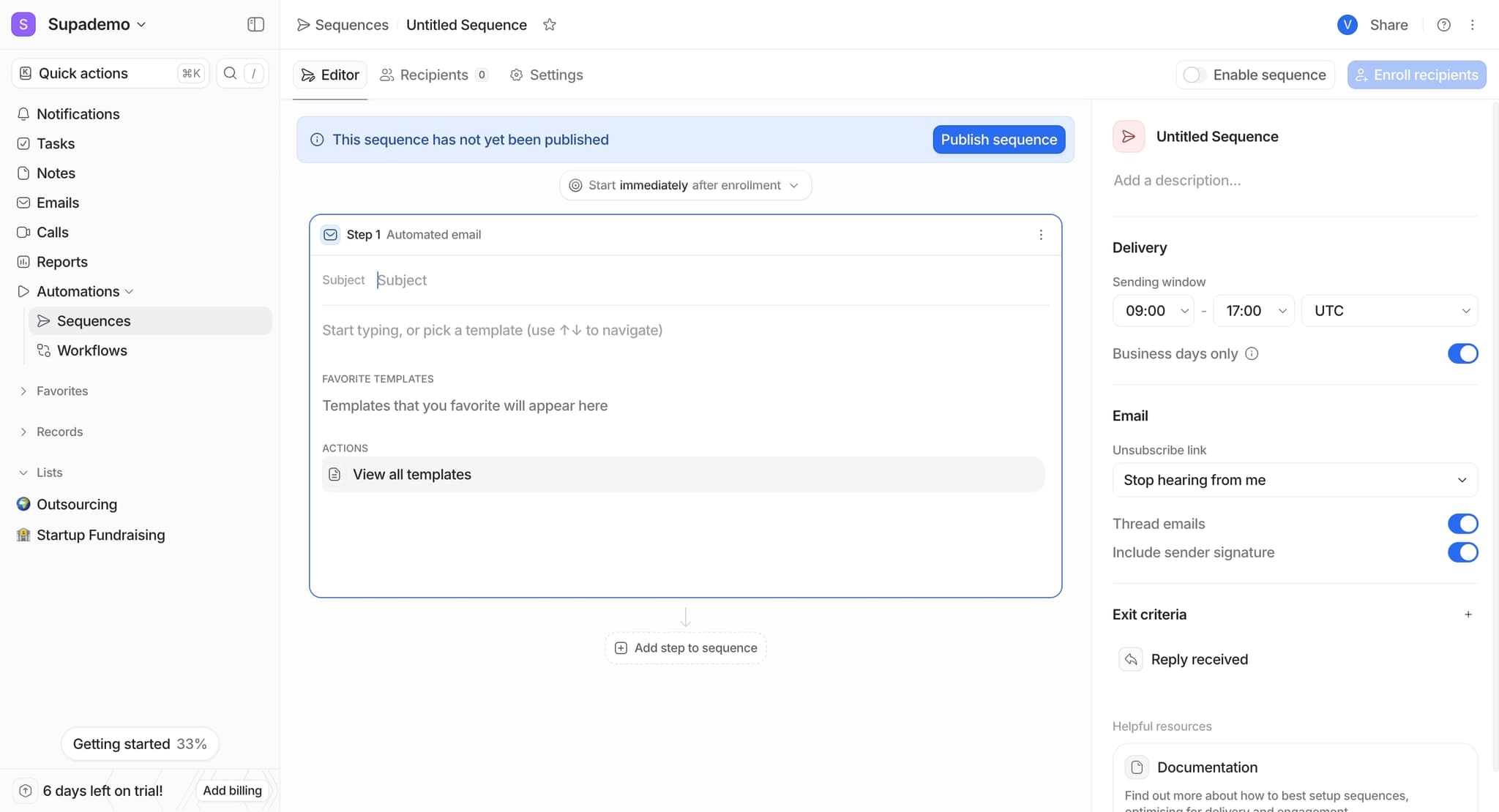
Choose your automation trigger
Select the event that will initiate your automation, such as a contact being added, a status change, or a field update. The trigger determines when your automation will execute.
- 4
Define the trigger conditions
Specify the exact conditions that must be met for the trigger to fire. For example, you might set it to trigger only when a record meets specific criteria like a certain pipeline stage or custom field value.
- 5
Select your automation action
Choose what Attio should do when the trigger fires. Common actions include creating records, updating fields, sending notifications, or updating related records.
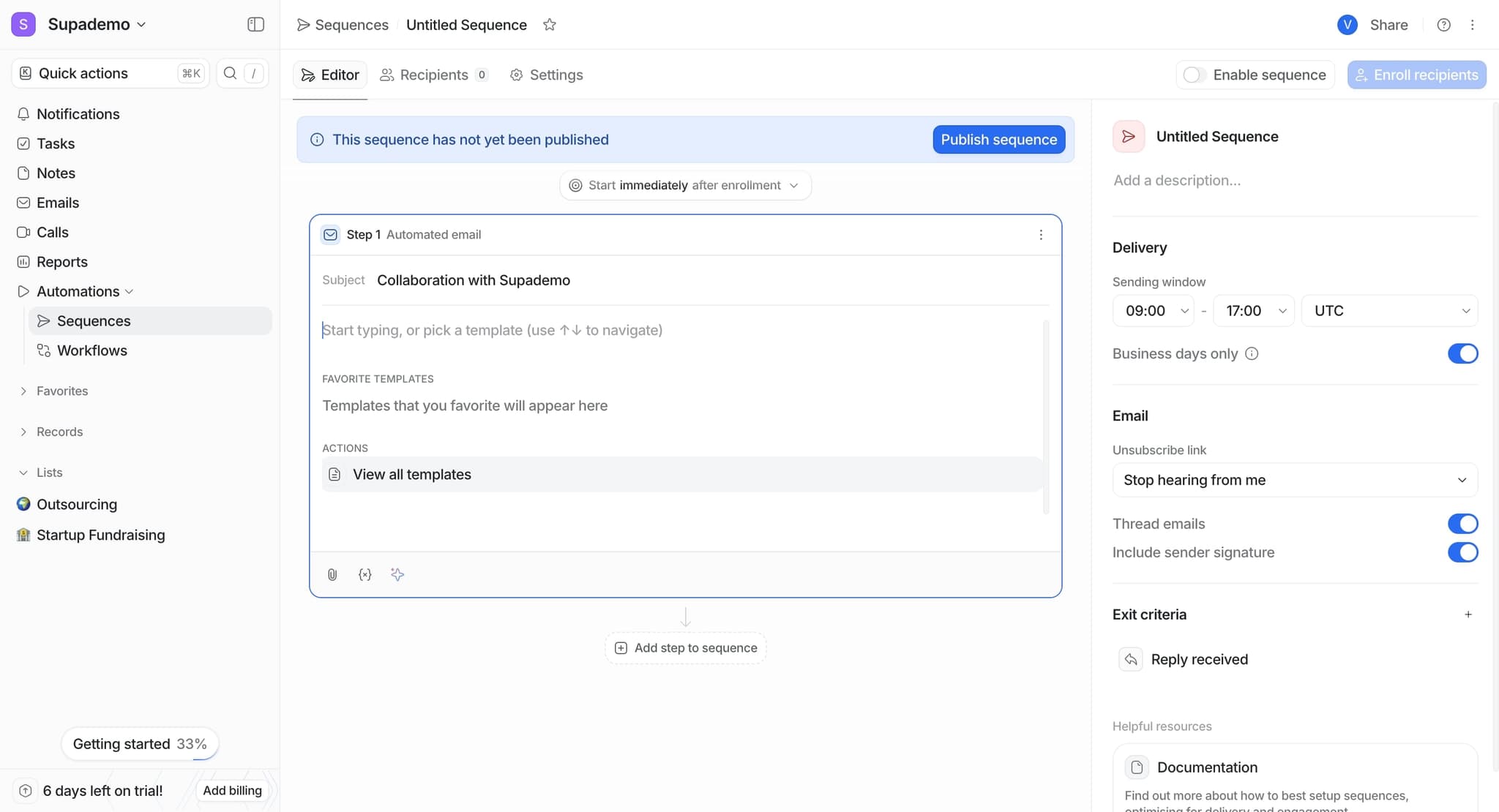
- 6
Configure the action details
Set up the specifics of your chosen action, such as which fields to update, what values to assign, or who should receive notifications. You can map fields dynamically using data from the triggering record.
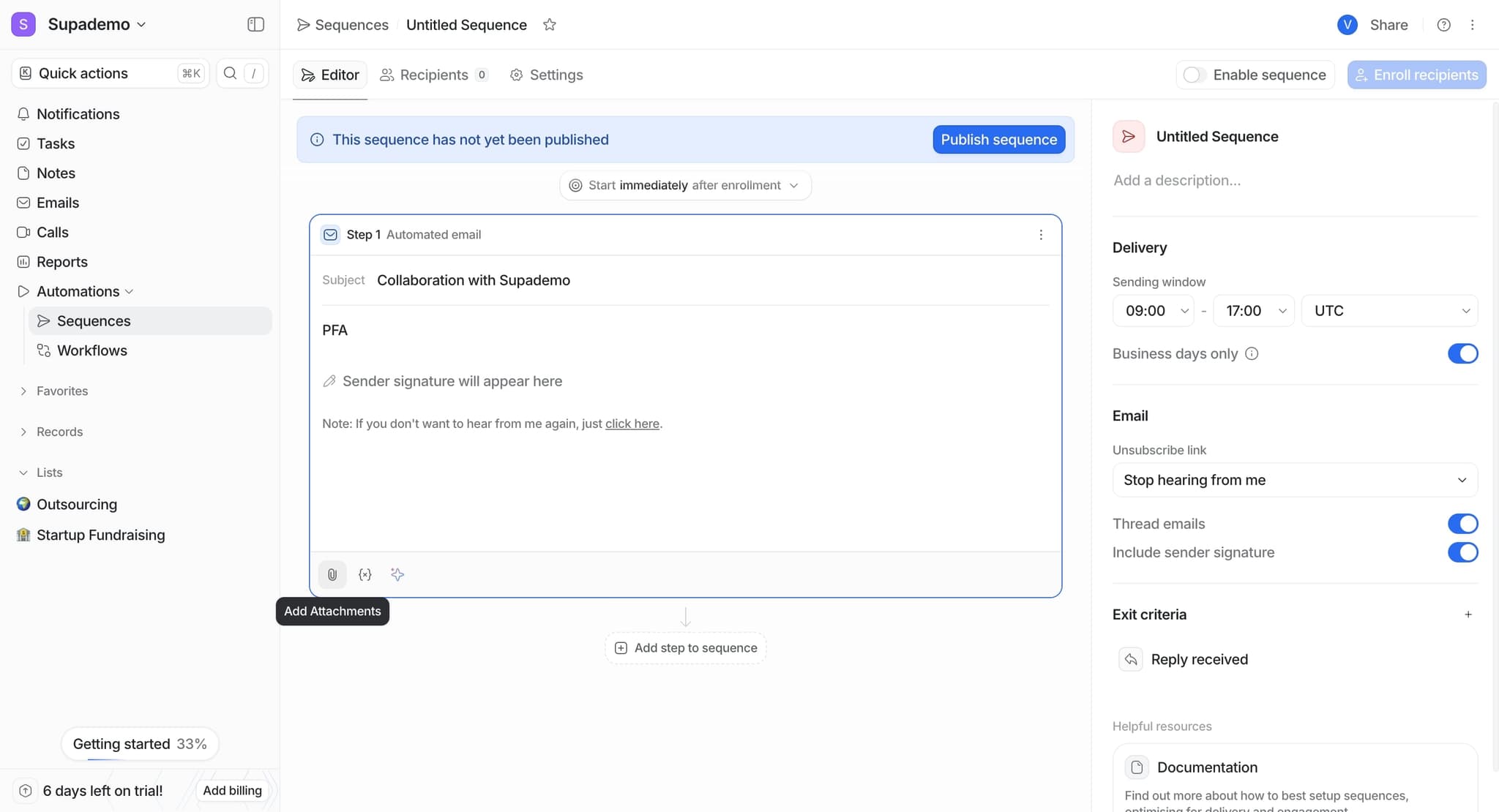
- 7
Set up additional conditions if needed
Add conditional logic to refine your automation further. You can create multiple branches within a single automation to handle different scenarios.
- 8
Review your automation settings
Double-check all triggers, conditions, and actions to ensure the automation will behave as intended. Look for any potential conflicts or unintended consequences.
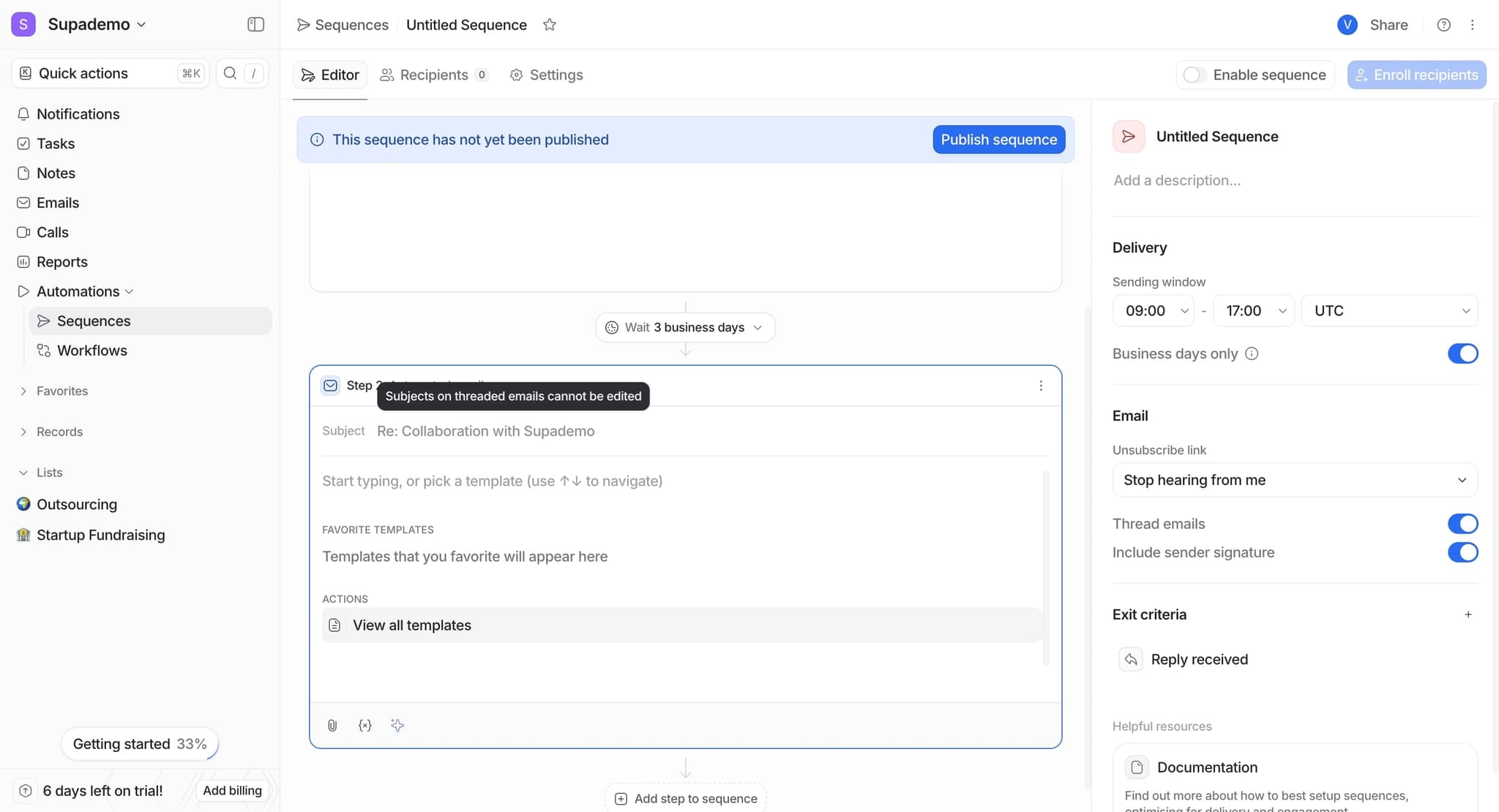
- 9
Enable and test your automation
Turn on your automation and monitor it for a few cycles to verify it's working correctly. Attio provides logs showing automation executions so you can track performance and troubleshoot if needed.
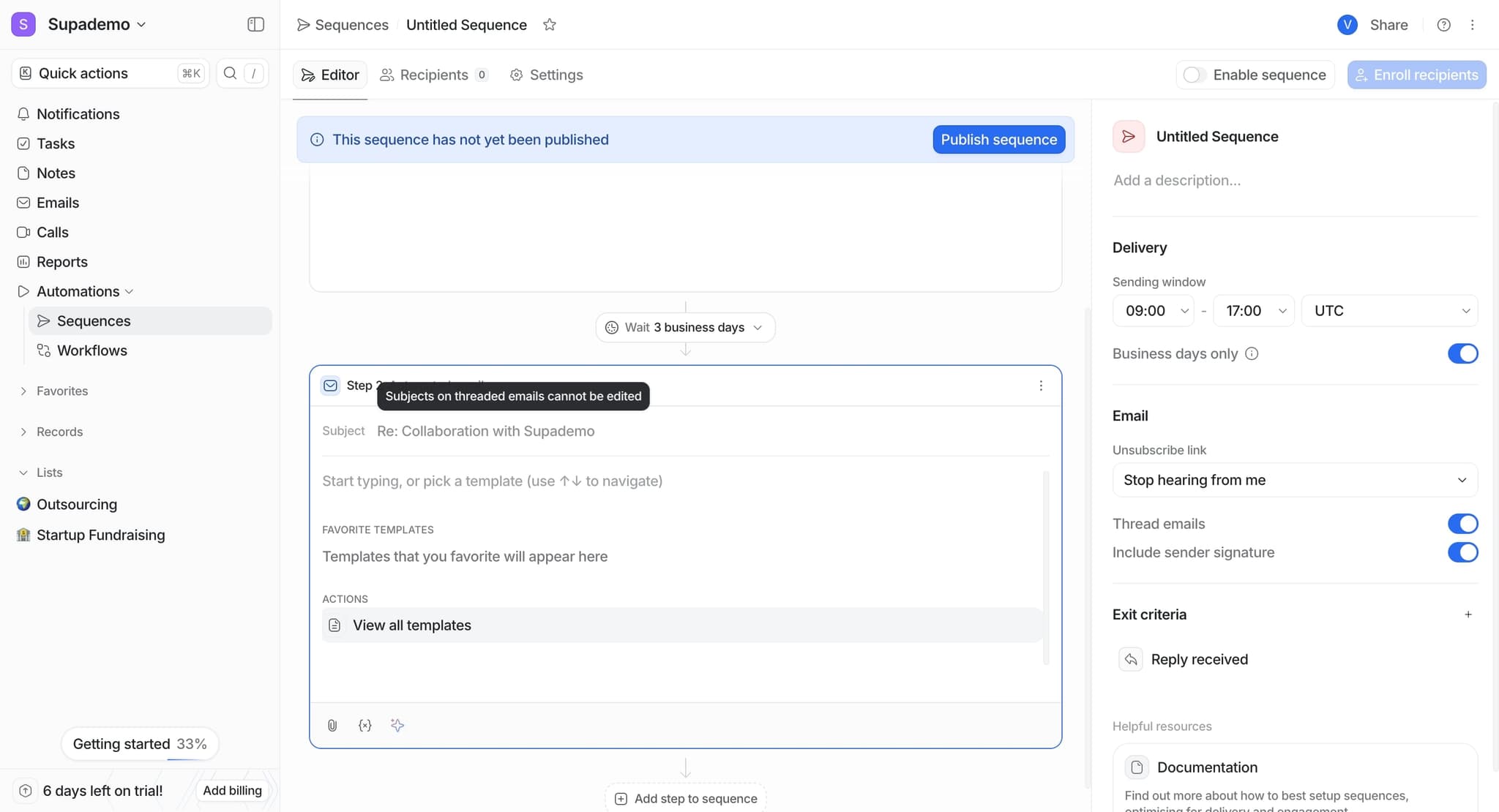
Frequently asked questions
Common questions about how to create automations in attio.
Yes, Attio's automation builder uses a no-code interface with visual triggers and actions. You can set up complex workflows by selecting from pre-built options without writing any code.
Attio includes safeguards to prevent infinite loops. The platform limits consecutive automation executions on the same record and provides warnings during setup if it detects potential loop scenarios.
Most automations in Attio run immediately when triggered by an event. For time-based automations, you can use delay actions within your workflow or set up scheduled batch operations through specific automation types.
You can toggle automations on and off from the Automations section without deleting them. This allows you to pause automations during testing or maintenance and re-enable them later.
Automation limits depend on your Attio plan. Contact your account manager or check your workspace settings to understand the specific limits for your subscription tier.