How to Add a Dropdown List in Excel

Dropdown lists in Excel allow you to restrict cell entries to predefined options, improving data consistency and reducing errors. This feature is essential for creating organized spreadsheets where users need to select from a curated set of values.
Quick summary
In this tutorial, you'll learn how to create a dropdown list in Excel using the Data Validation feature. You'll configure a list of allowed values and apply it to your selected cells in just a few clicks.
Why this matters
Dropdown lists enforce data standardization across your spreadsheet, making it easier to maintain clean databases and prevent typos or invalid entries. This is particularly valuable in team environments where multiple people input data into shared workbooks.
Step-by-step guide
- 1
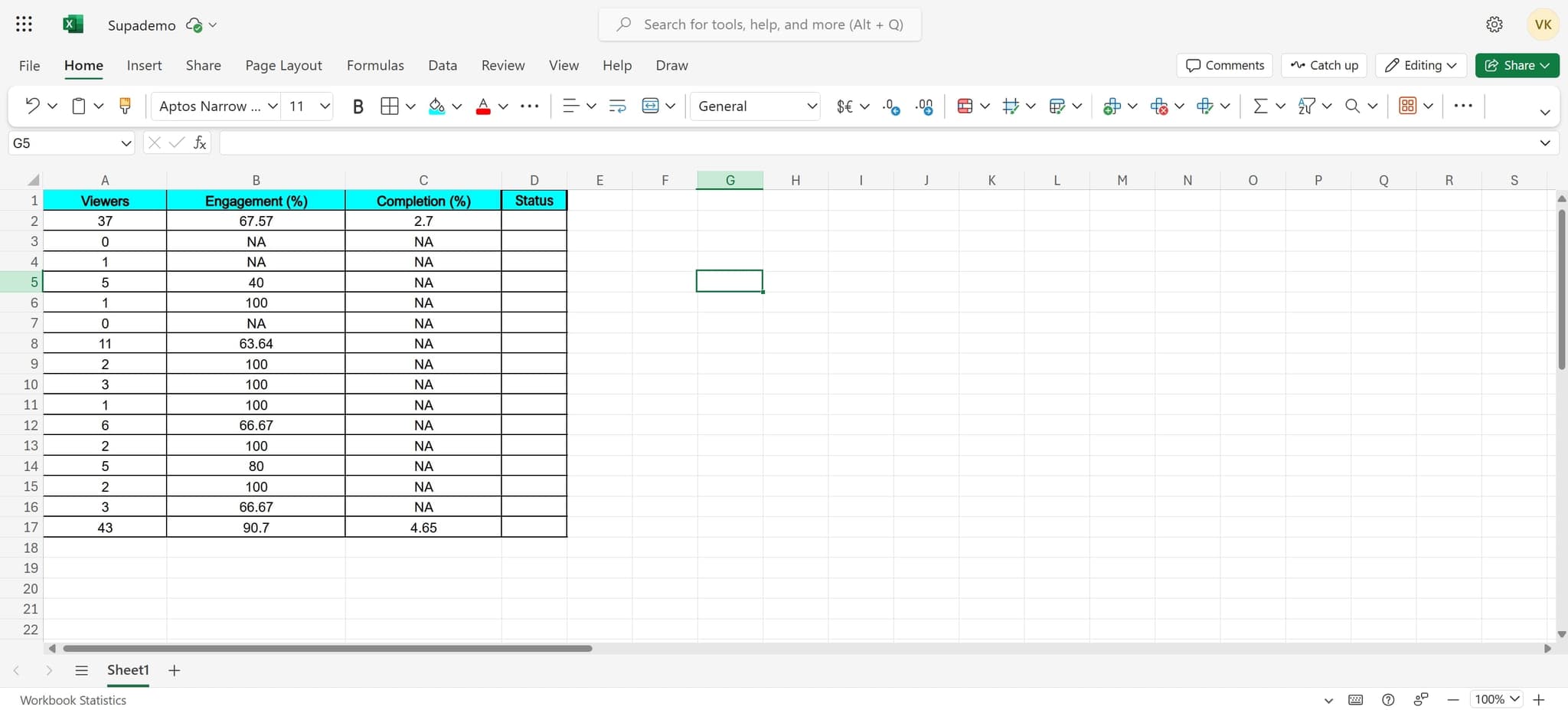
Select your target cell
Begin by clicking on the cell where you want to add the dropdown list. This cell will be the location where users select from your predefined options.
- 2
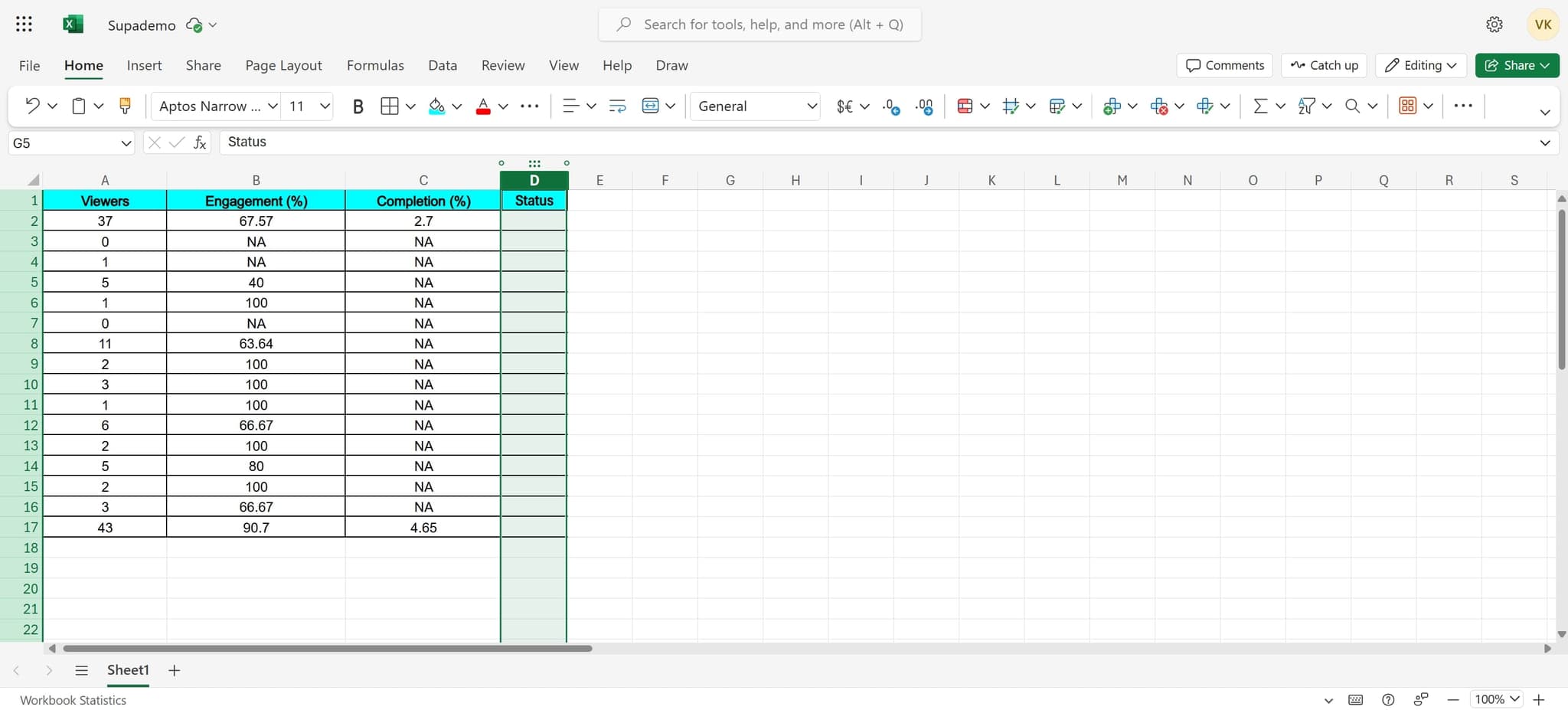
Access the validation menu
Navigate to the appropriate menu to begin setting up data validation for your selected cell.
- 3
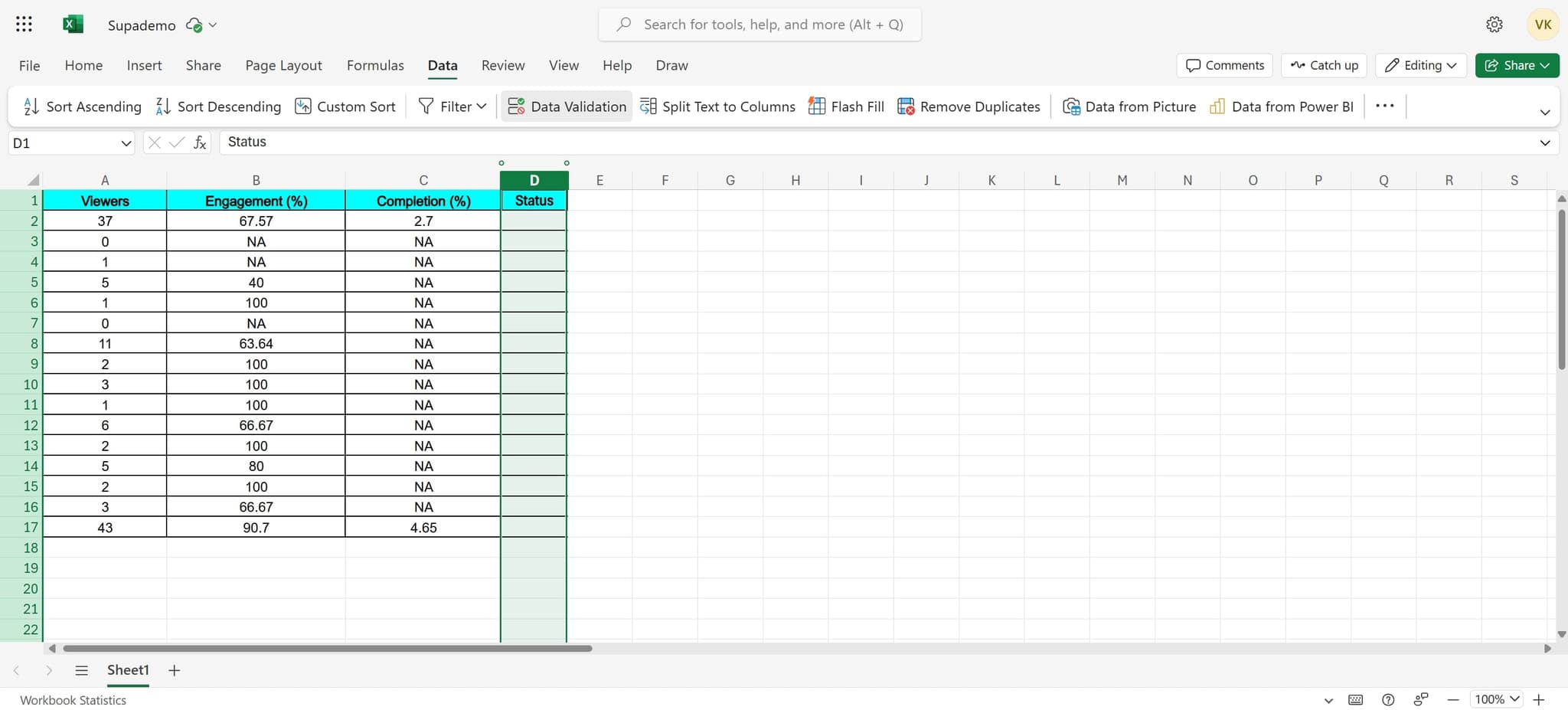
Open Data Validation
Click on 'Data Validation' to open the dialog box where you'll configure your dropdown list settings and rules.
- 4
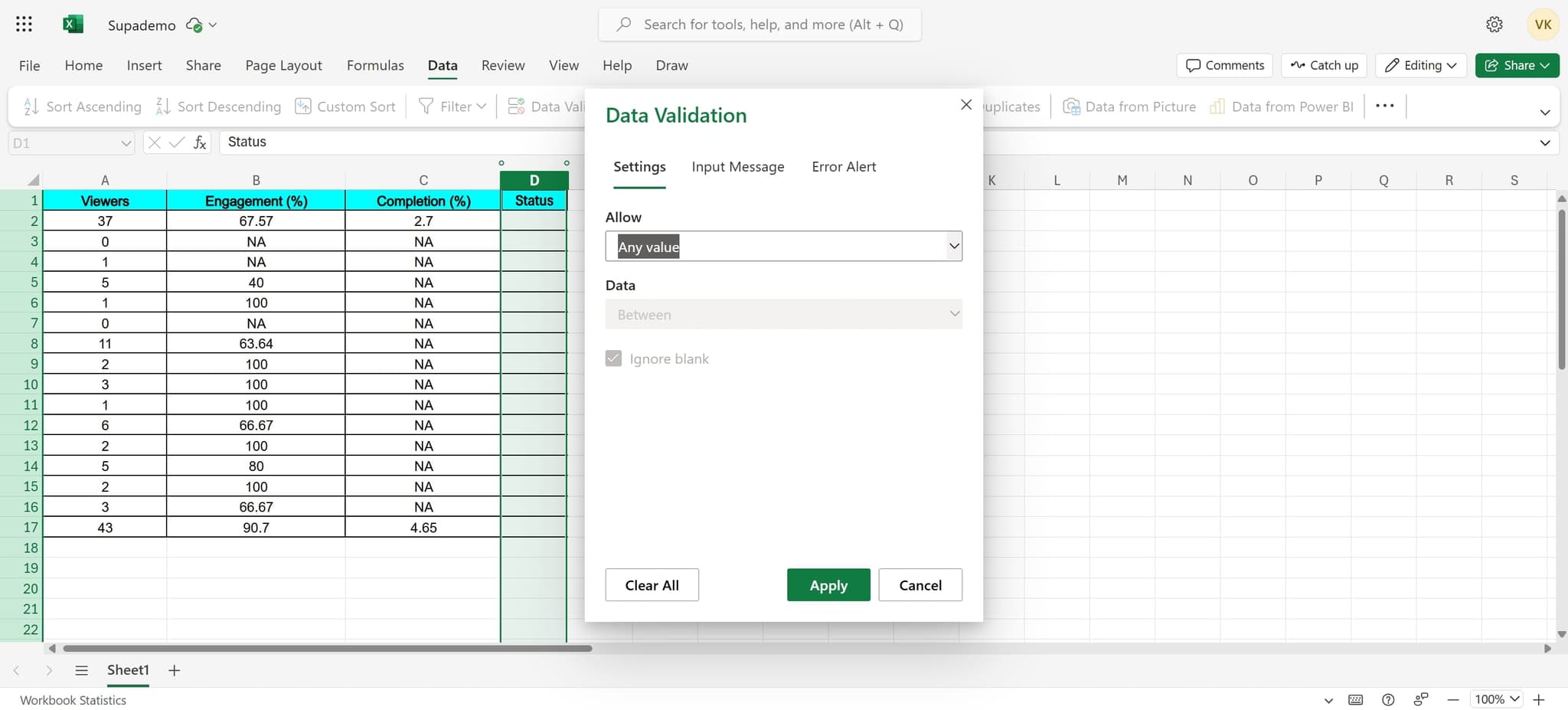
Configure the validation element
Click on the validation element to prepare it for list configuration. This step sets up the framework for your dropdown options.
- 5
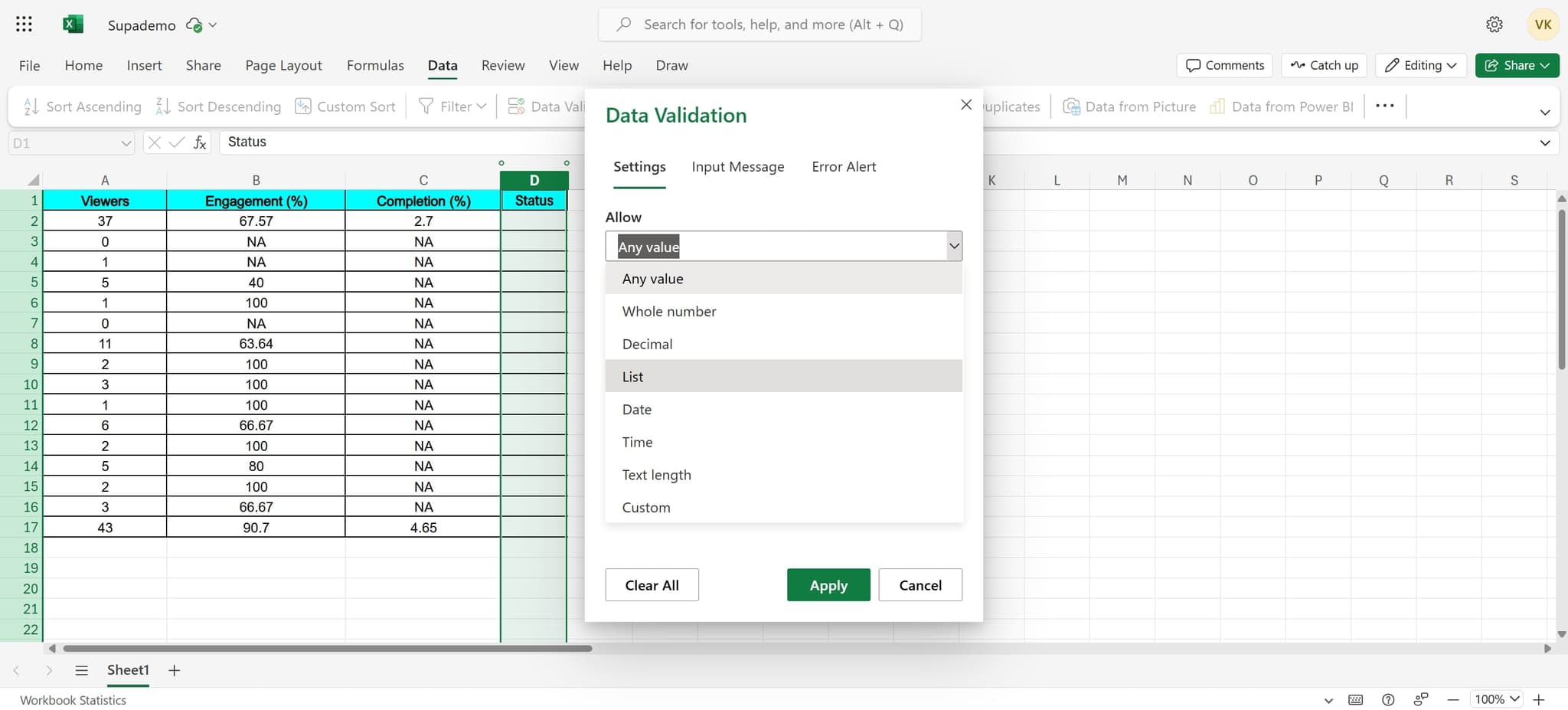
Select List as validation type
Click on 'List' to specify that you want to create a dropdown with predefined values rather than other validation types like numbers or dates.
- 6
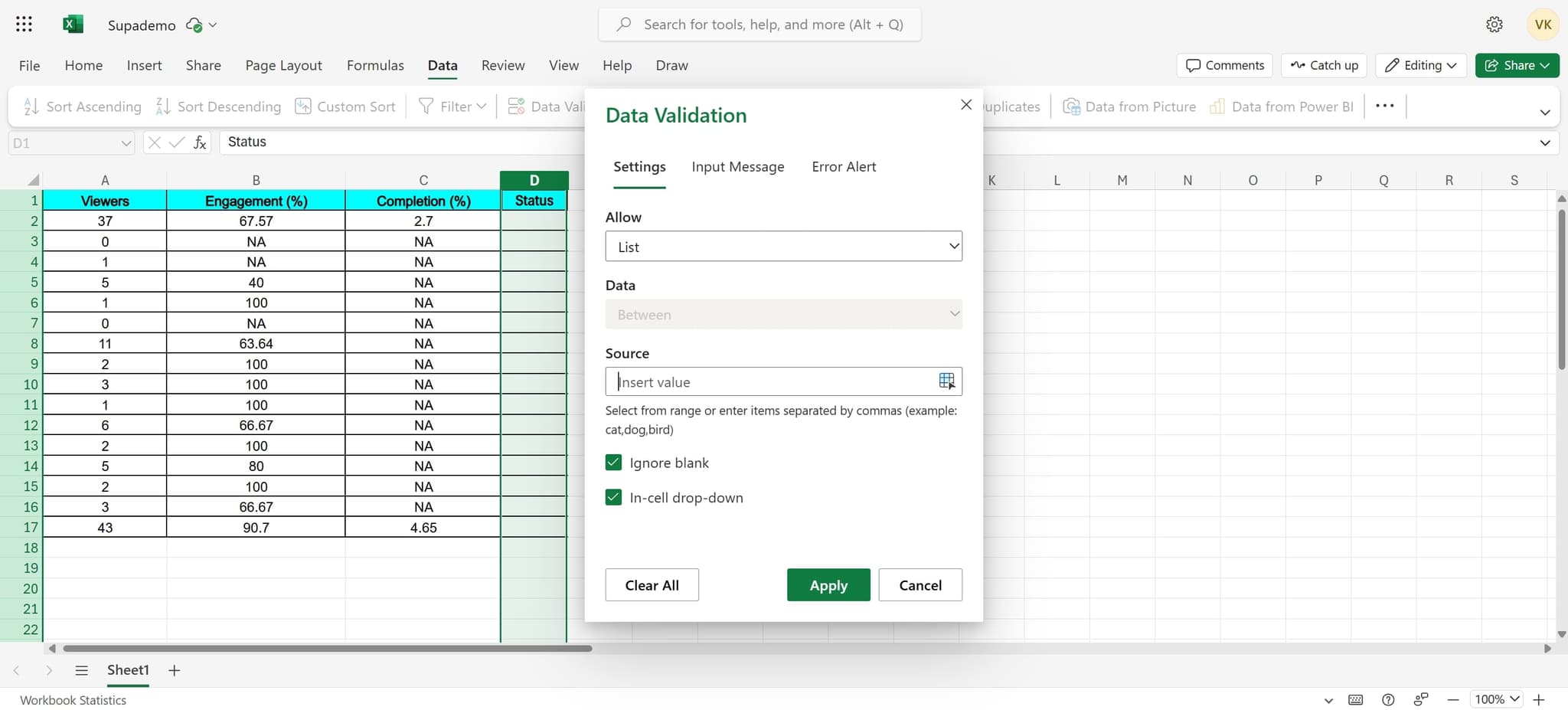
Enter your list values
Input the specific values or range that should appear in your dropdown list. You can type values directly or reference a range of cells.
- 7
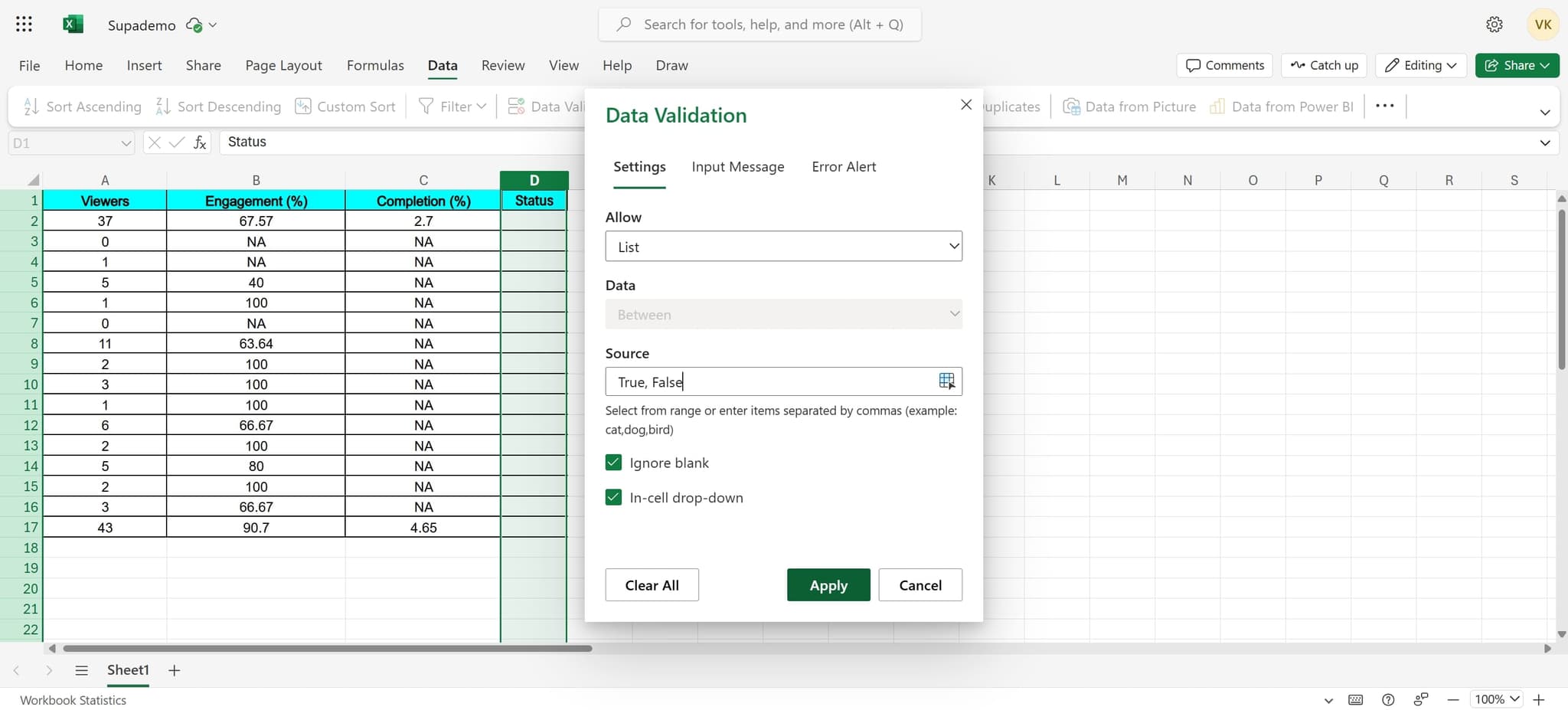
Apply the validation settings
Click 'Apply' to confirm and save your data validation configuration to the selected cell.
- 8
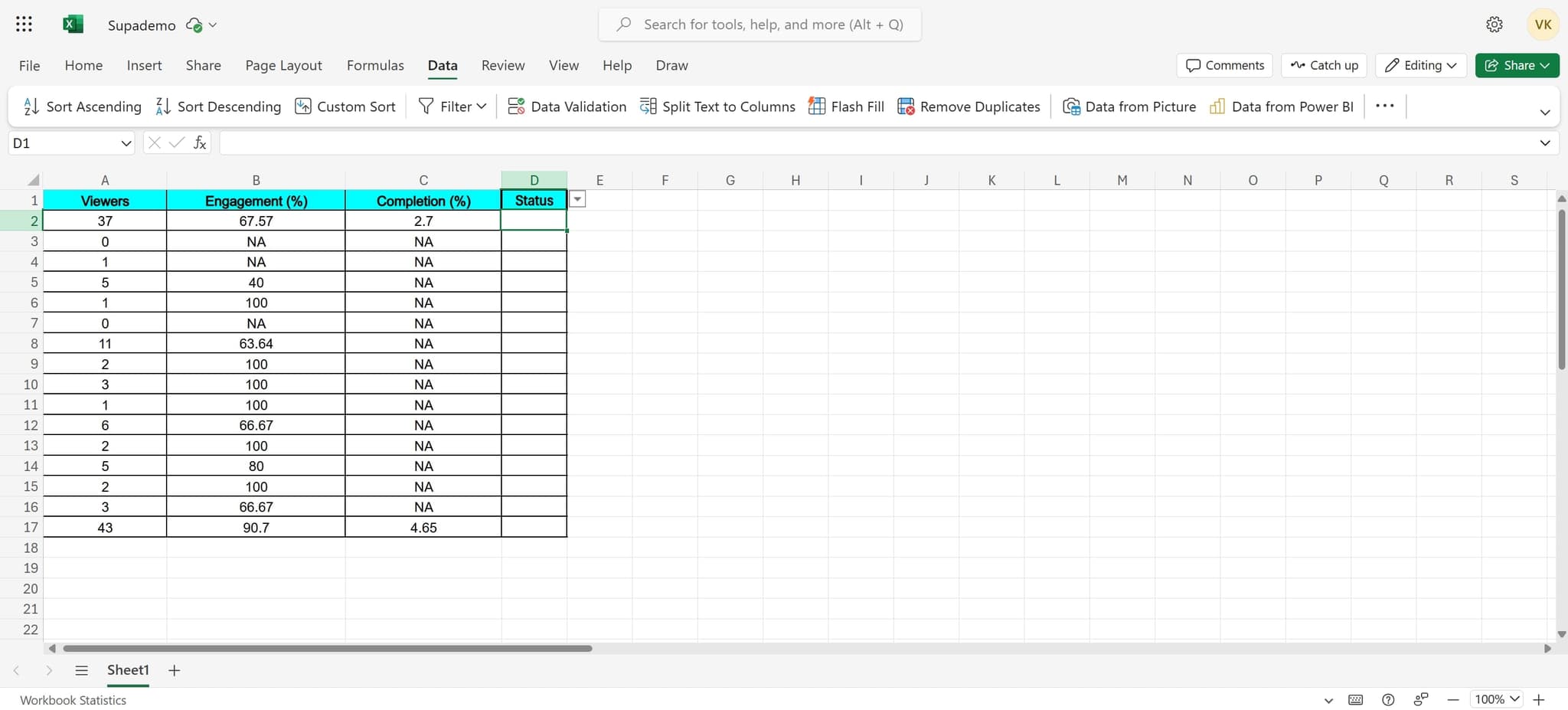
Finalize the dropdown setup
Complete the final step by clicking the appropriate button to close the dialog and activate your dropdown list.
- 9
Confirm the dropdown is active
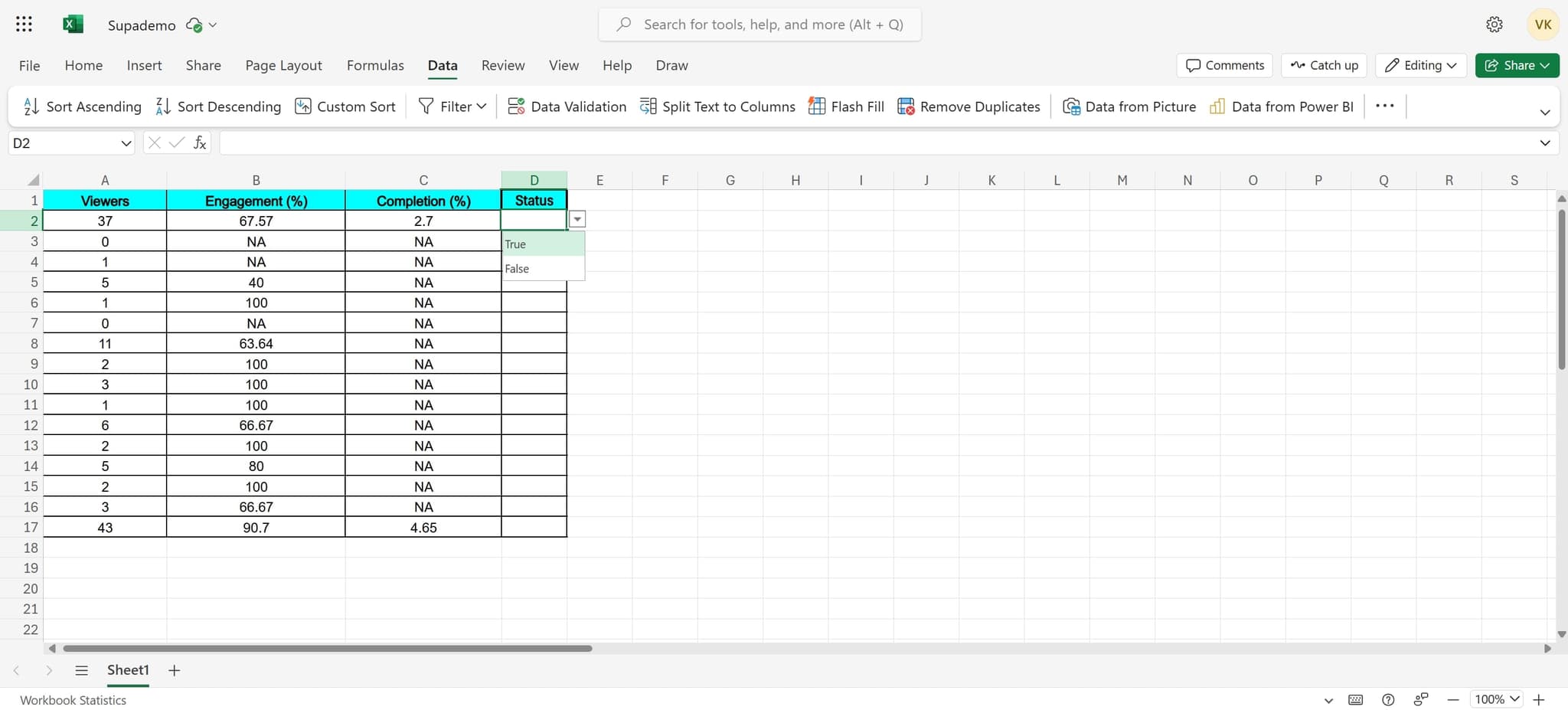
Click 'True' to verify that your dropdown list has been successfully created and is ready for use. Your cell will now display a dropdown arrow when selected.
Frequently asked questions
Common questions about how to add a dropdown list in excel.
Yes, you can select multiple cells before opening Data Validation, and the dropdown list will be applied to all selected cells simultaneously. This is much faster than configuring each cell individually.
Right-click on the cell with the dropdown, select 'Edit Data Validation', and modify the list values. If your list references a cell range, simply update those cells and the dropdown will automatically reflect the changes.
Excel will display an error message and prevent the invalid entry, ensuring data integrity. You can customize the error message and warning type in the Data Validation dialog settings.
Yes, you can use nested named ranges or INDIRECT functions to create dependent dropdowns. This requires more advanced Excel knowledge but allows for dynamic list management based on other selections.
You can have up to 32,767 characters in a dropdown list, which allows for hundreds of options depending on their length. For very long lists, consider using a range reference instead of typing values directly.