How to Alphabetize in Excel

Alphabetizing data in Excel is a fundamental skill that helps you organize information quickly and efficiently. Whether you're managing a contact list, product inventory, or any dataset, sorting alphabetically makes data easier to find and analyze. This tutorial walks you through the straightforward process of sorting your Excel data in alphabetical order.
Quick summary
In this tutorial, you'll learn how to alphabetize data in Microsoft Excel using the built-in sort function. You'll select your data range and apply ascending sort to arrange entries alphabetically from A to Z. By the end, you'll be able to organize any column of text data with just a few clicks.
Why this matters
Keeping data alphabetized improves readability and makes it faster to locate specific entries in large spreadsheets. Organized data is essential for professional reporting, maintaining customer databases, and ensuring consistency across your work. Mastering this basic sorting skill saves time and reduces errors in data management.
Step-by-step guide
- 1
Select your data range
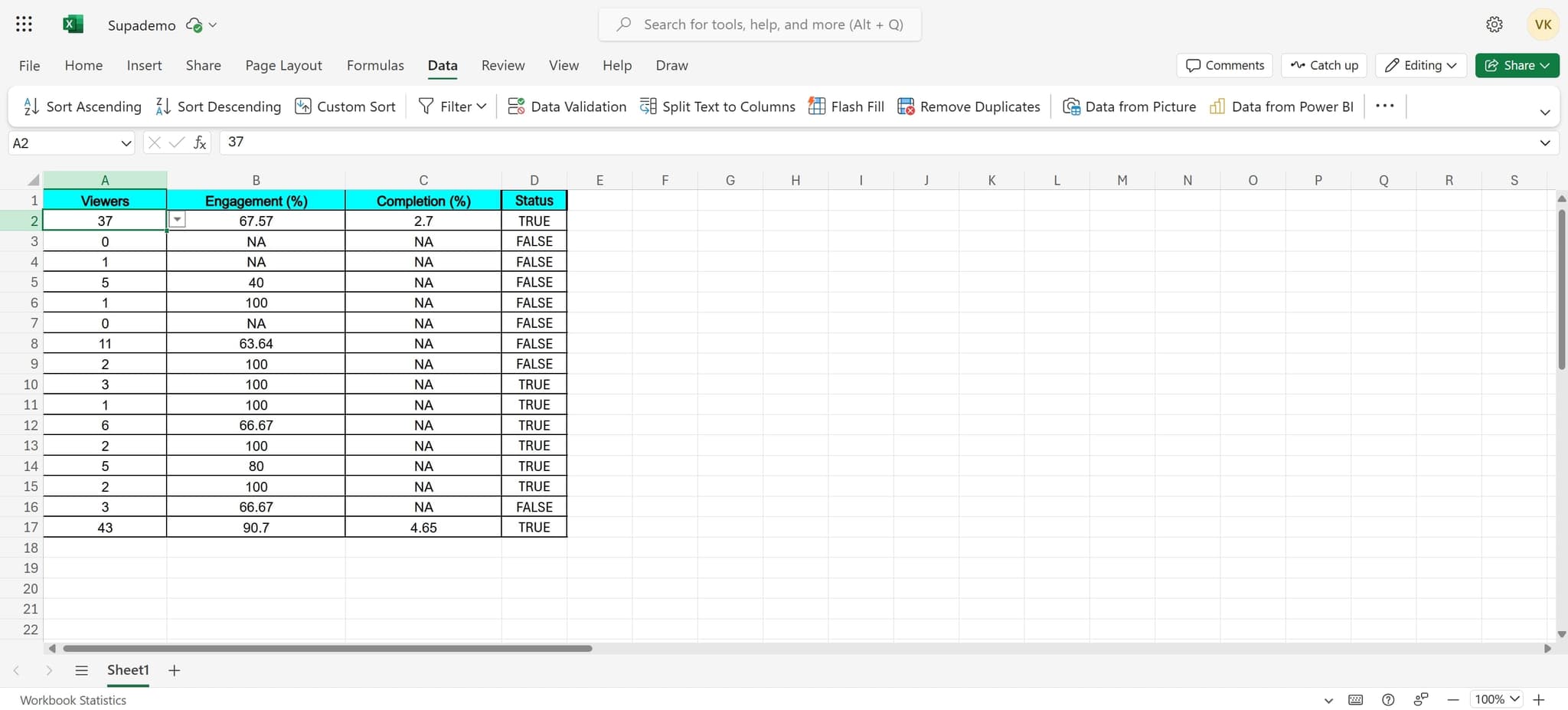
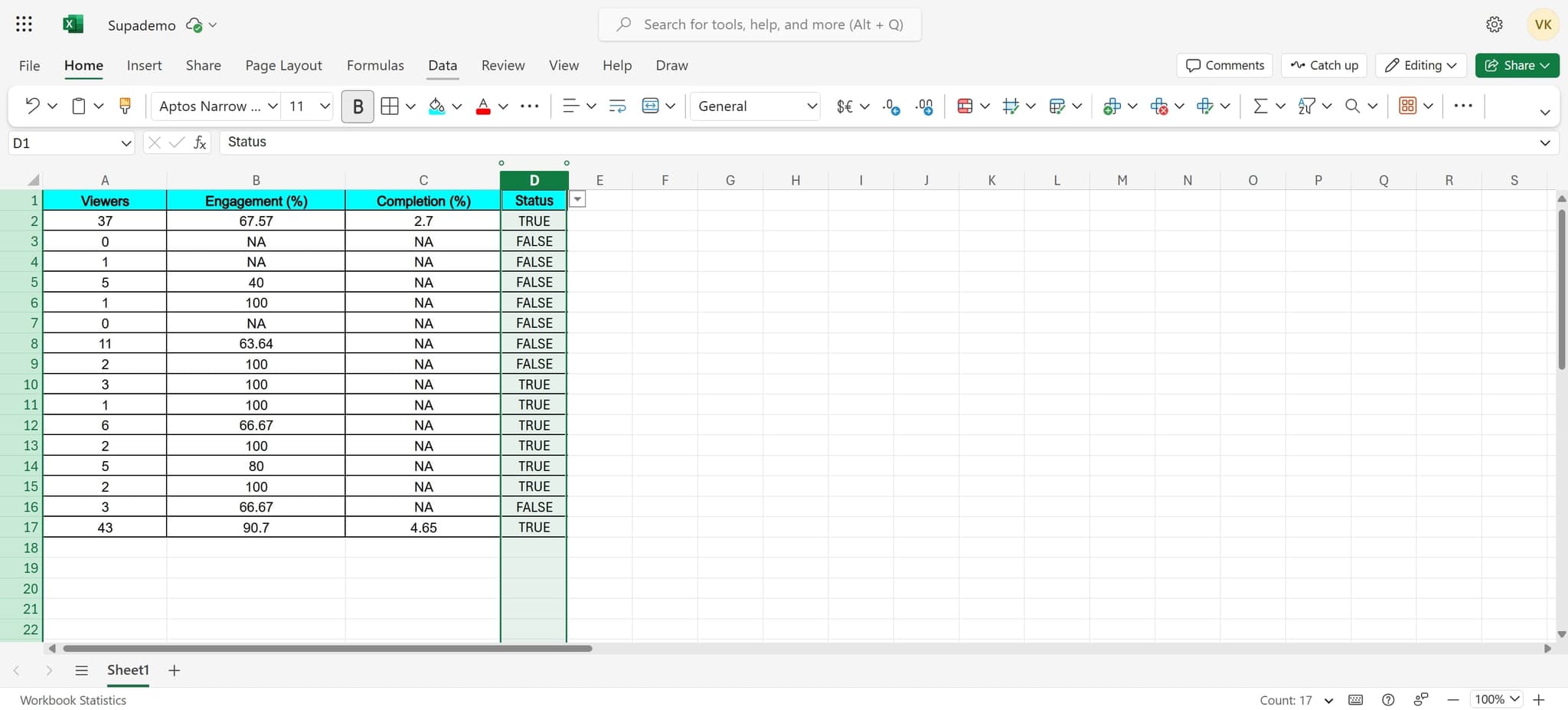
Click on the first cell of the data you want to sort, then drag to select all the cells in that column or range that need to be alphabetized. Make sure to include all relevant data you want sorted together.
- 2
Open the Data menu
Click on the 'Data' tab in the Excel ribbon at the top of your screen. This opens the data manipulation tools available in Excel.
- 3
Apply ascending sort
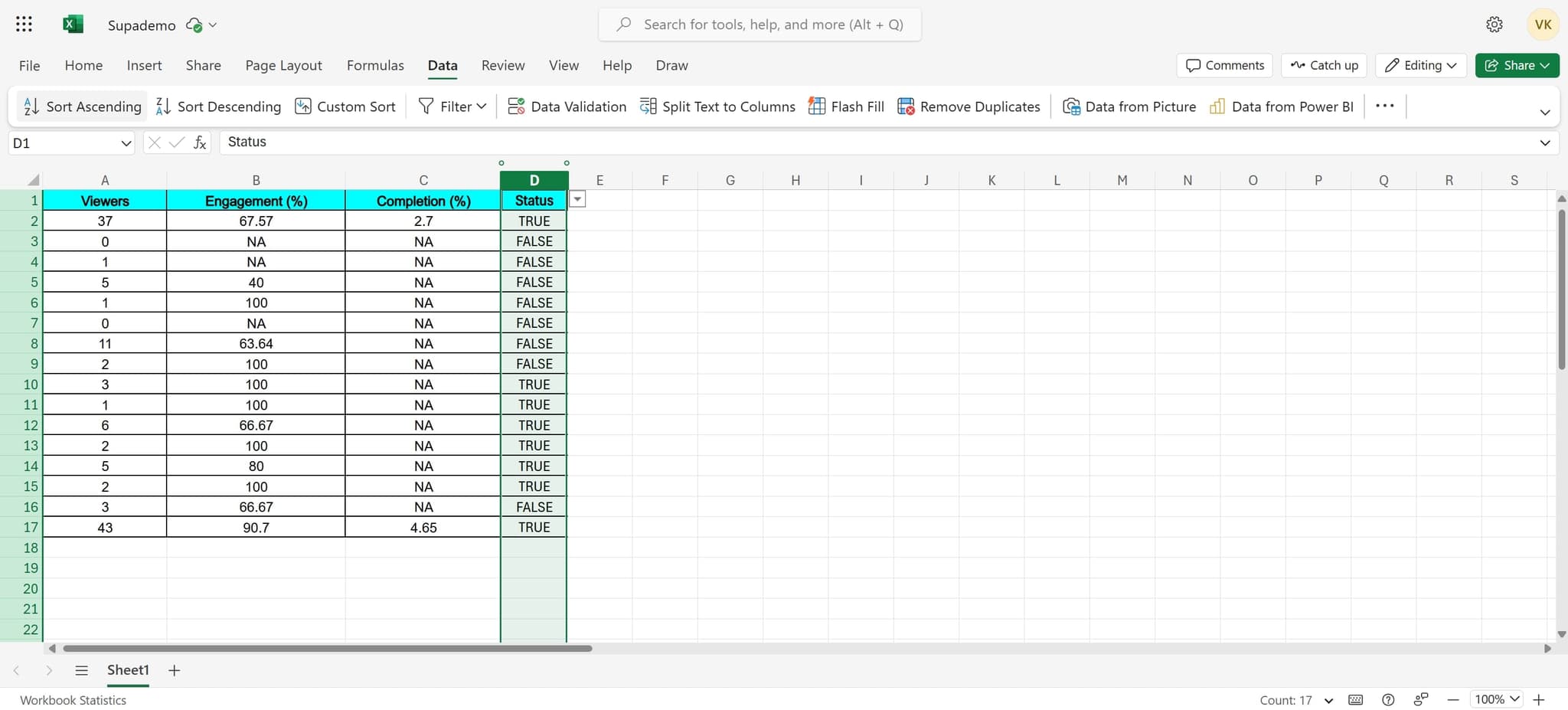
Click on 'Sort Ascending' from the Data menu options. Excel will immediately rearrange your selected data in alphabetical order from A to Z.
- 4
Confirm the sort completion
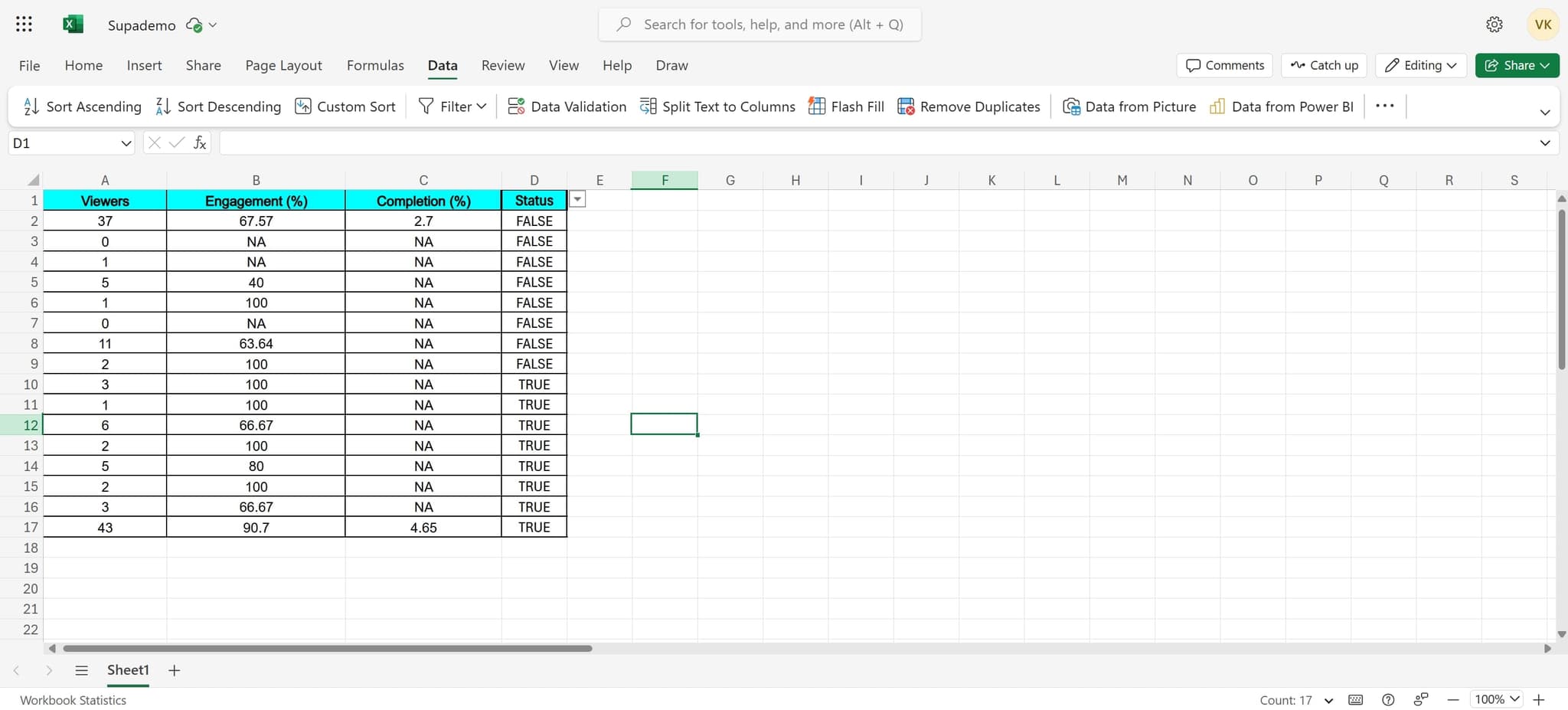
Review your data to ensure it's been properly alphabetized. The sort operation is complete, and your data is now arranged alphabetically.
Frequently asked questions
Common questions about how to alphabetize in excel.
Ascending sort arranges data from A to Z, while descending sort arranges it from Z to A. Use ascending for alphabetical order and descending when you want reverse alphabetical order. Both options are available in the Data menu.
If you select multiple columns before sorting, Excel will keep related data together by sorting all selected columns as a group. However, if you select only one column, only that column will be rearranged. Always select all relevant columns to avoid separating related data.
Yes, you can undo any sort operation by pressing Ctrl+Z or clicking the Undo button in the toolbar. This will restore your data to its previous arrangement before the sort was applied.
Before sorting, make sure your header row is not included in your selection if you don't want it moved. Alternatively, you can select your entire data range including headers, and Excel will usually recognize and exclude the header row automatically.
Numbers will sort before letters when using standard sort functions. If you need true alphabetical sorting of mixed text and numbers, ensure your column is formatted as text first, then apply the sort ascending option.