How to Unhide All Rows in Excel

Hidden rows in Excel can clutter your view and make data management confusing. This guide walks you through the process of unhiding all rows at once, restoring full visibility to your spreadsheet. Whether rows were hidden accidentally or intentionally, you'll learn the quickest way to reveal them.
Quick summary
In this tutorial, you'll discover how to unhide all rows in Excel using straightforward steps. You'll select the appropriate option from the menu and execute the unhide command to restore complete visibility across your worksheet.
Why this matters
Hidden rows can cause you to miss important data or create confusion when sharing spreadsheets with colleagues. Knowing how to quickly unhide rows ensures you maintain full transparency and control over your data visibility, which is critical for accurate reporting and collaboration.
Step-by-step guide
- 1
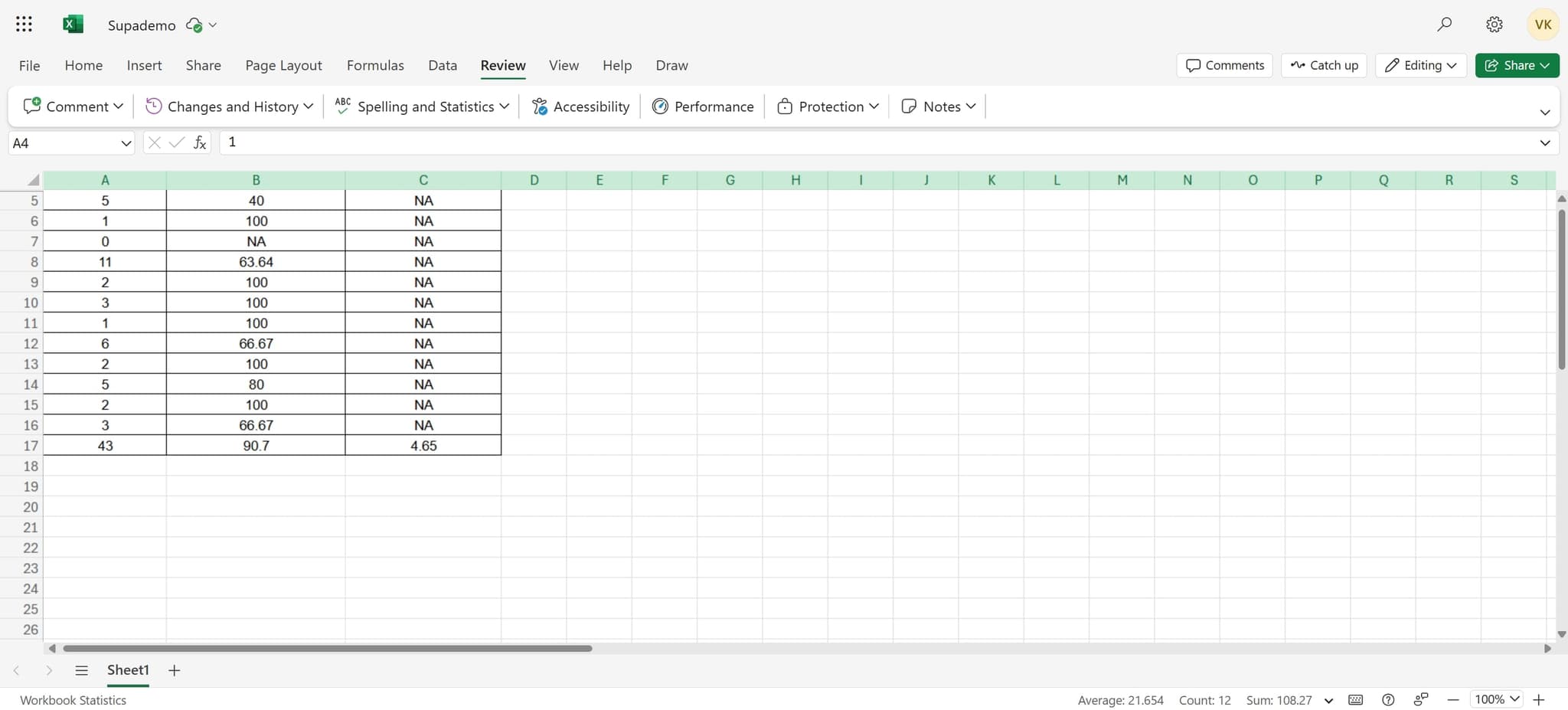
Select All Cells in Your Worksheet
Begin by clicking on the select-all button, typically located at the intersection of row and column headers. This action highlights your entire worksheet, preparing it for the unhide operation.
- 2
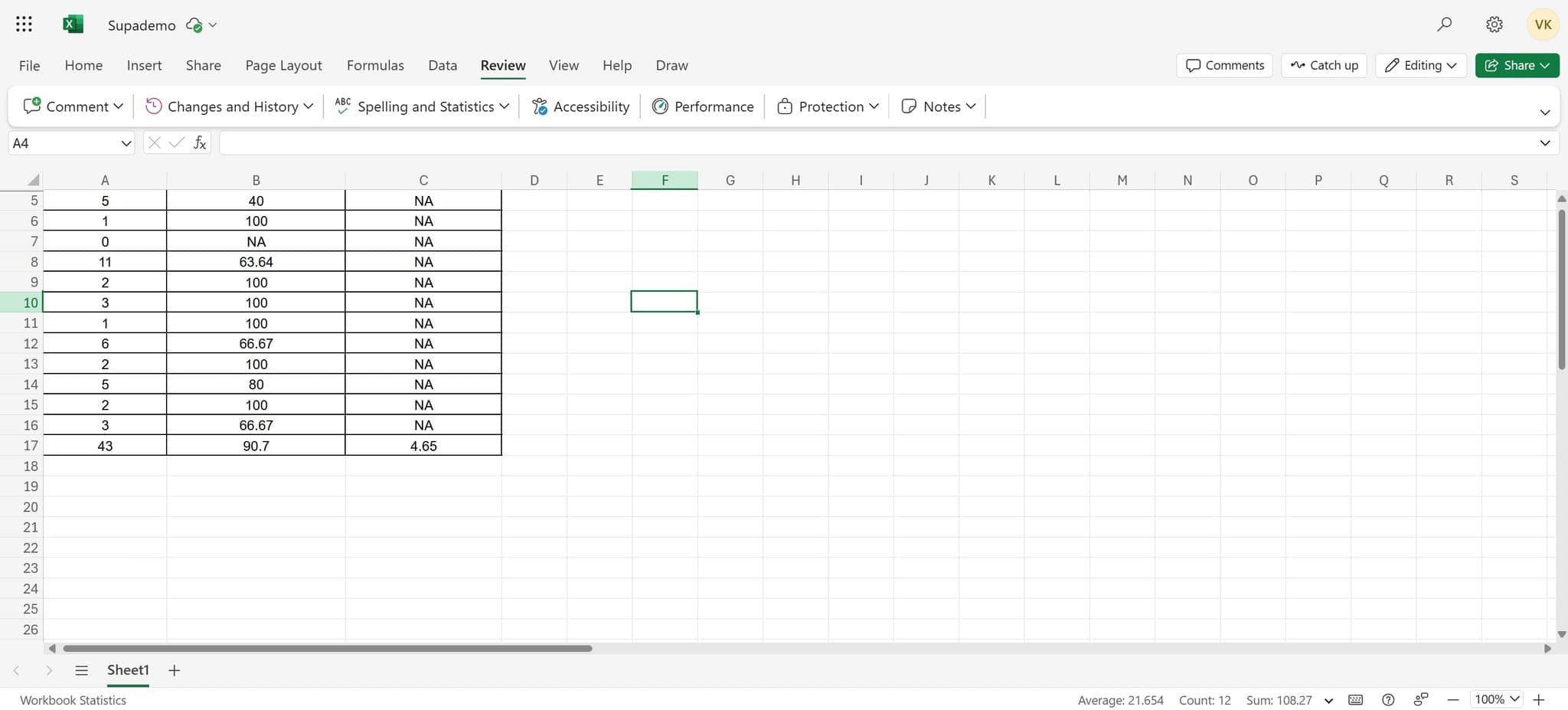
Access the Format Menu
Click on the Format menu in the ribbon to open a dropdown menu with formatting options. You'll see various commands related to rows, columns, and cell formatting.
- 3
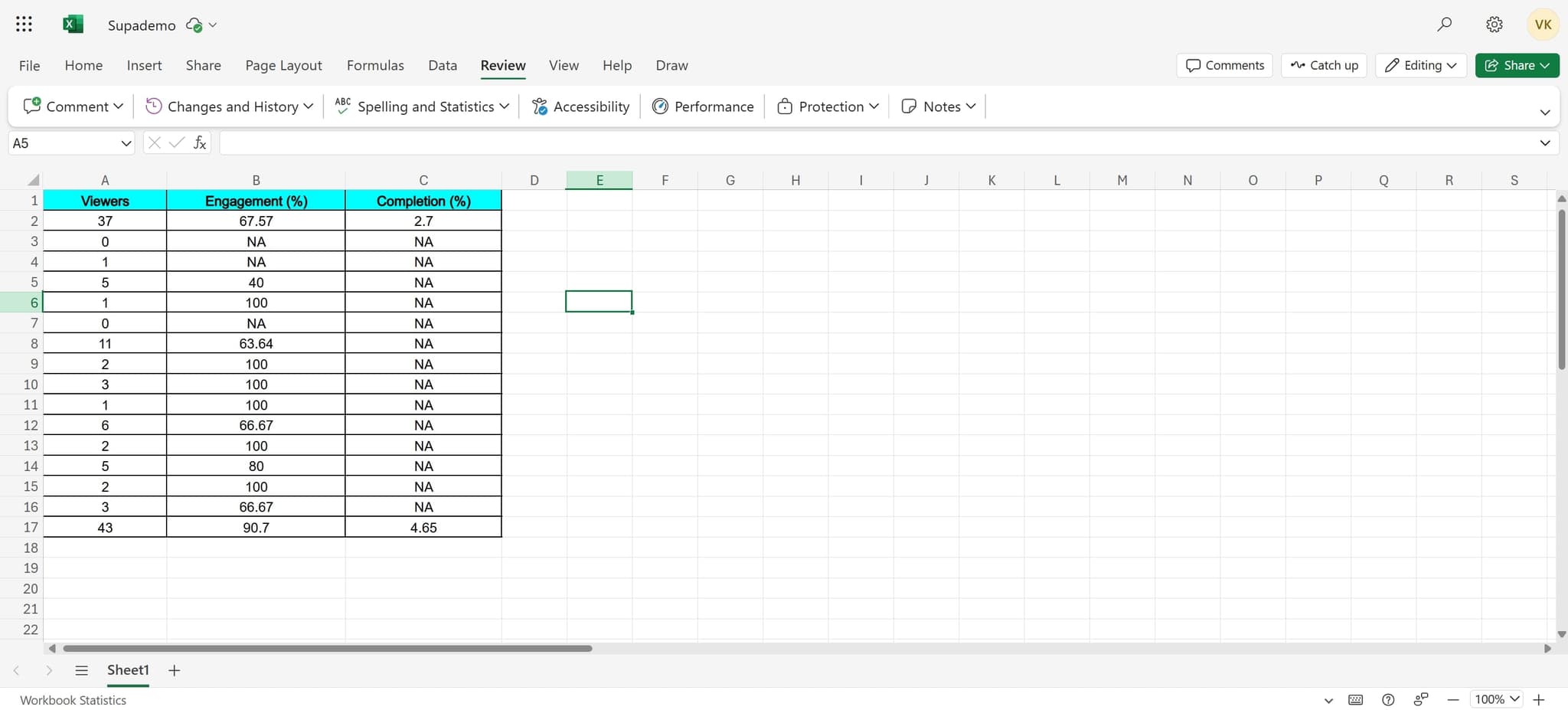
Choose Unhide Rows Option
From the Format menu, select the option to unhide rows. Excel will immediately reveal all hidden rows in your worksheet, restoring complete visibility to your data.
Frequently asked questions
Common questions about how to unhide all rows in excel.
Yes, you can unhide individual or groups of rows by selecting the rows adjacent to the hidden ones, right-clicking, and choosing unhide. However, unhiding all rows at once is faster if you want complete visibility across your entire worksheet.
No, unhiding rows does not modify any formulas, values, or data in your spreadsheet. It only changes the visibility of rows that were previously hidden, allowing you to see all content without altering it.
While there isn't a single keyboard shortcut to unhide all rows directly, you can select all cells with Ctrl+A, then use the Format menu to unhide rows. Some users prefer using the right-click context menu on selected rows for faster access.
Look at the row numbers on the left side of your spreadsheet. If you see gaps in the numbering (for example, jumping from row 5 directly to row 8), you have hidden rows. The row numbers won't be sequential when rows are hidden.
Yes, you can undo the unhide operation by pressing Ctrl+Z immediately after unhiding, or by clicking the Undo button in the toolbar. This will restore the rows to their hidden state.