How to Change Language in Google Chrome

Google Chrome allows you to use the browser in your preferred language, making web browsing more comfortable regardless of your native tongue. Whether you're traveling, working in a multilingual environment, or simply prefer to use Chrome in a different language, changing your browser language is a straightforward process.
Quick summary
In this tutorial, you'll learn how to navigate Chrome's settings and change your browser's display language to your preference. We'll walk you through accessing the language settings, selecting a new language, and applying the changes across your browser interface.
Why this matters
Changing your Chrome language is essential for accessibility and user comfort, especially for international teams or multilingual users. When your browser matches your preferred language, you'll navigate menus and settings more efficiently and reduce cognitive load when using the application daily.
Step-by-step guide
- 1
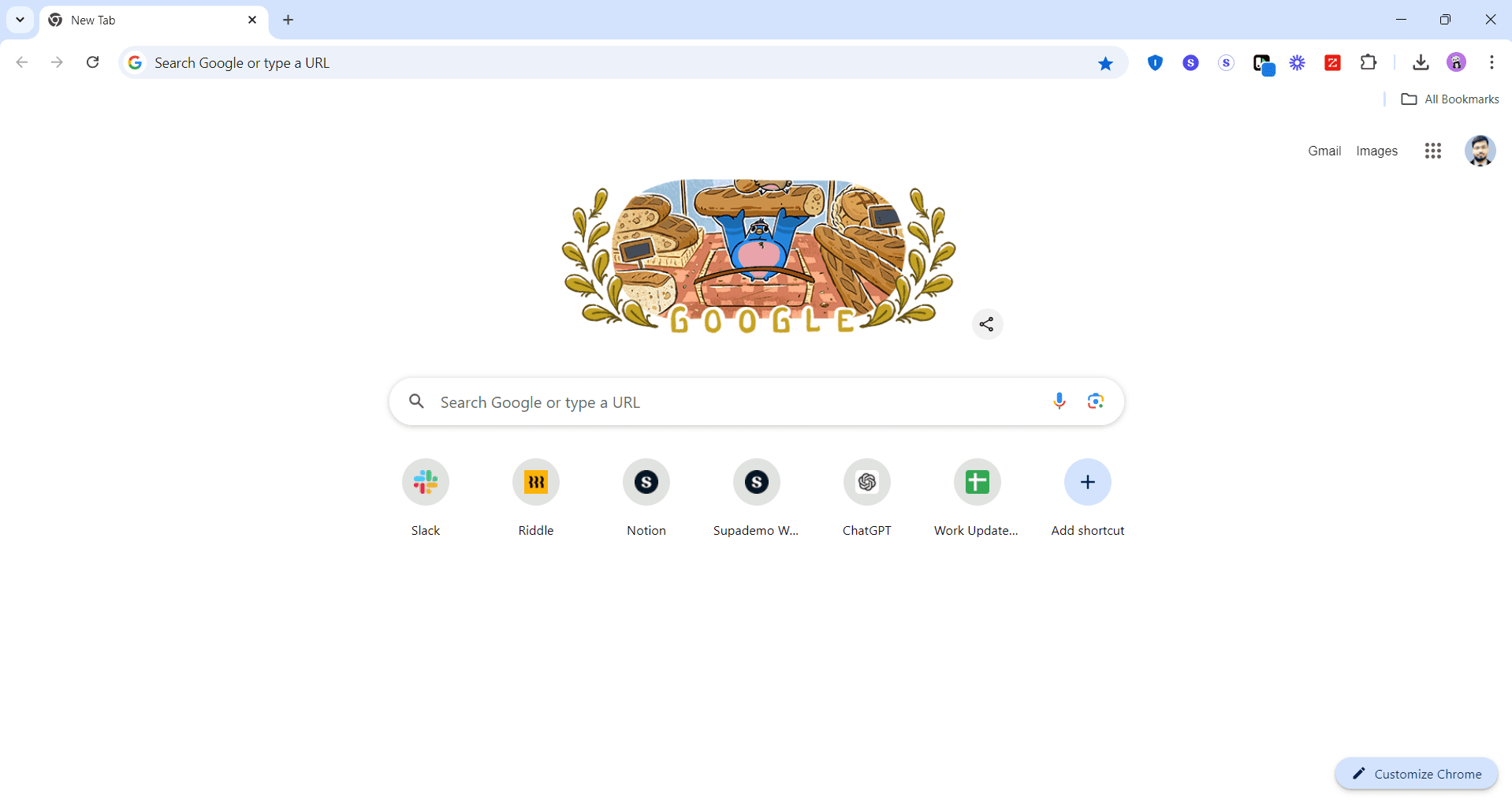
Open Google Chrome browser
Launch Google Chrome on your computer. You can do this by clicking the Chrome icon on your desktop or taskbar, or by searching for 'Google Chrome' in your system's application menu.
- 2
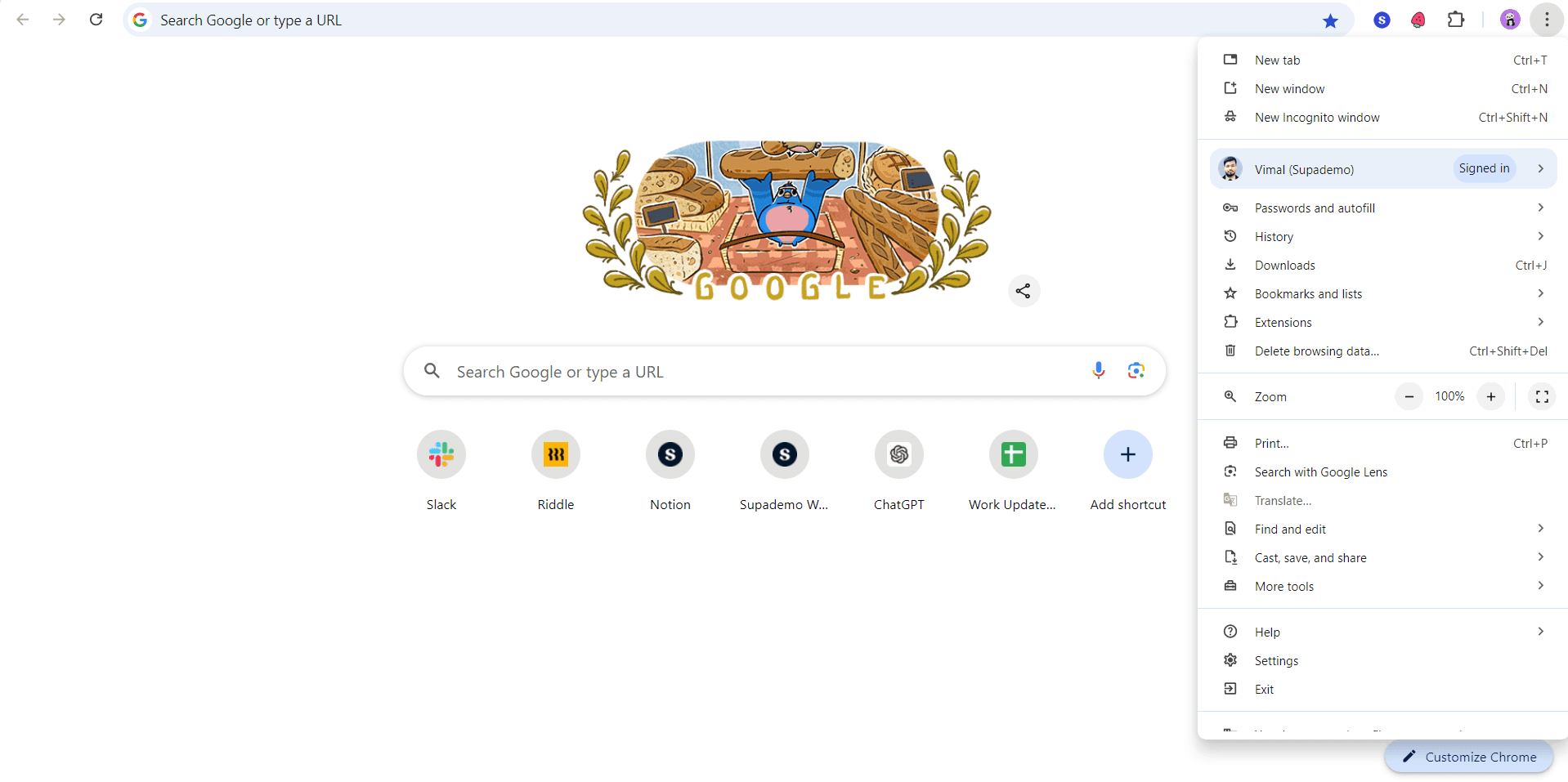
Click the menu button
Look for the three vertical dots (menu icon) in the top-right corner of your Chrome window. Click on it to open the main menu.
- 3
Select Settings option
From the dropdown menu, find and click on 'Settings'. This will open Chrome's settings page in a new tab.
- 4
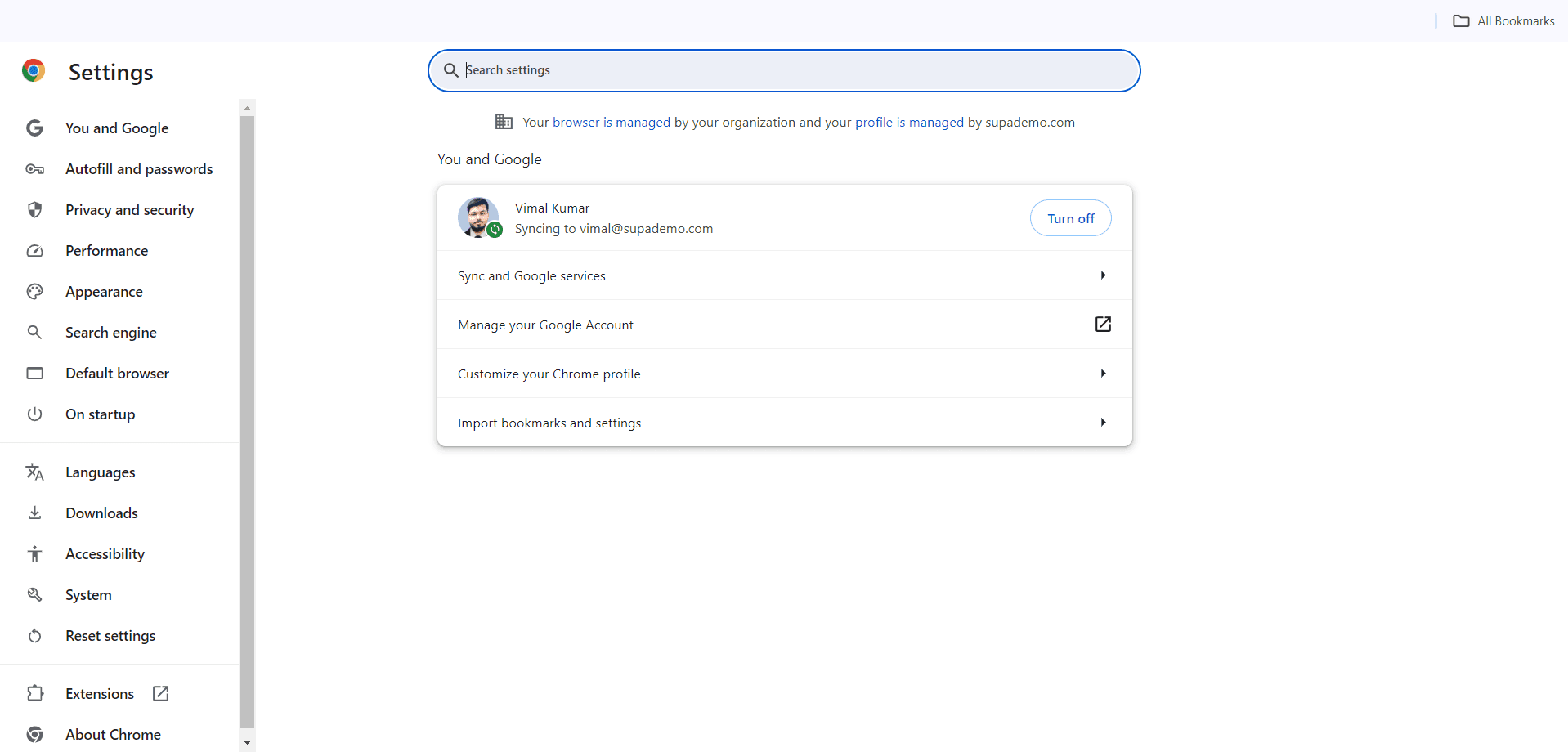
Navigate to Languages section
On the left sidebar of the Settings page, scroll down and click on 'Languages' to access language-related options.
- 5
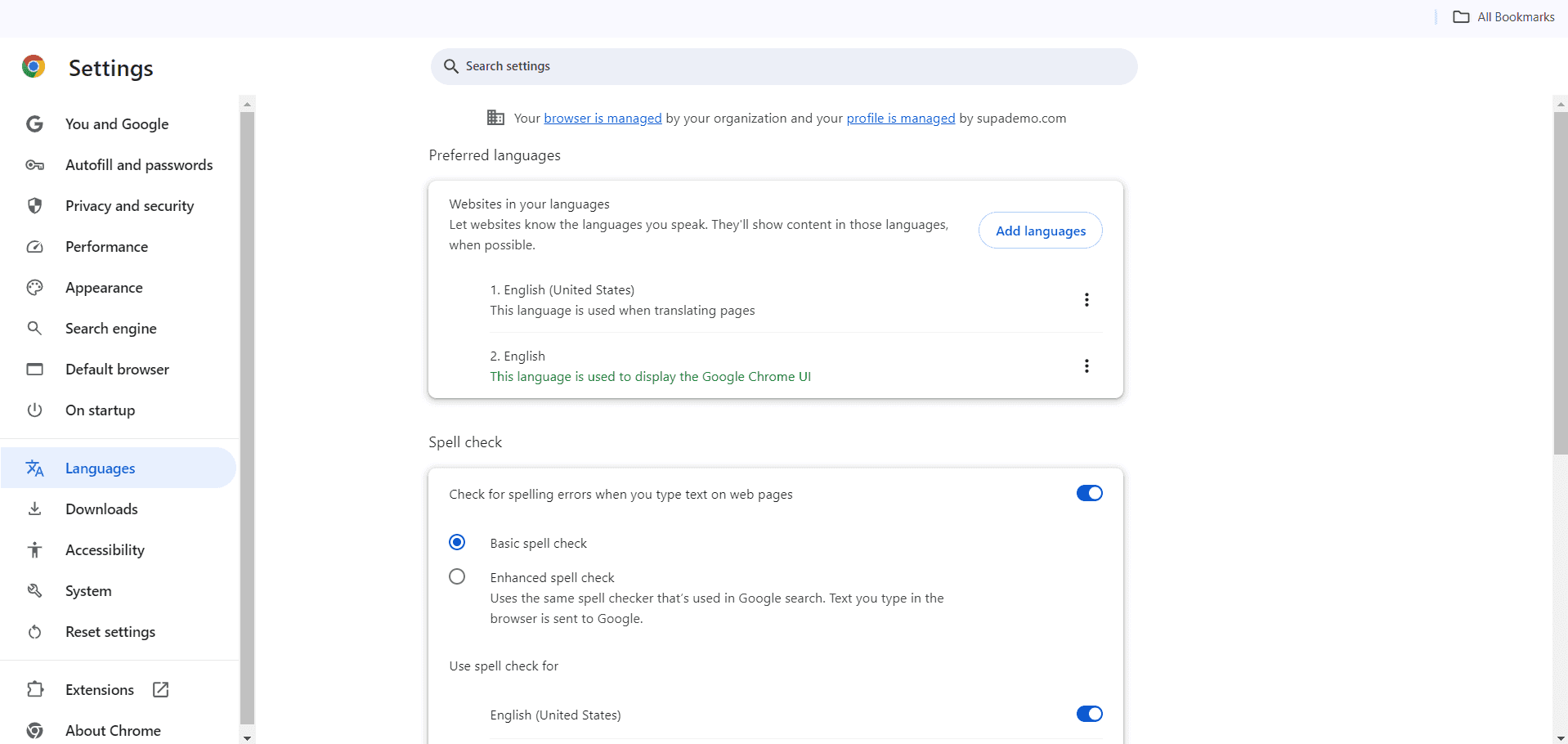
Click Languages and input methods
Expand the Languages section by clicking on 'Languages and input methods' to view your current language settings and options.
- 6
Select Preferred languages
Click on 'Preferred languages' or the language dropdown to see all available languages that Chrome supports.
- 7
Add a new language
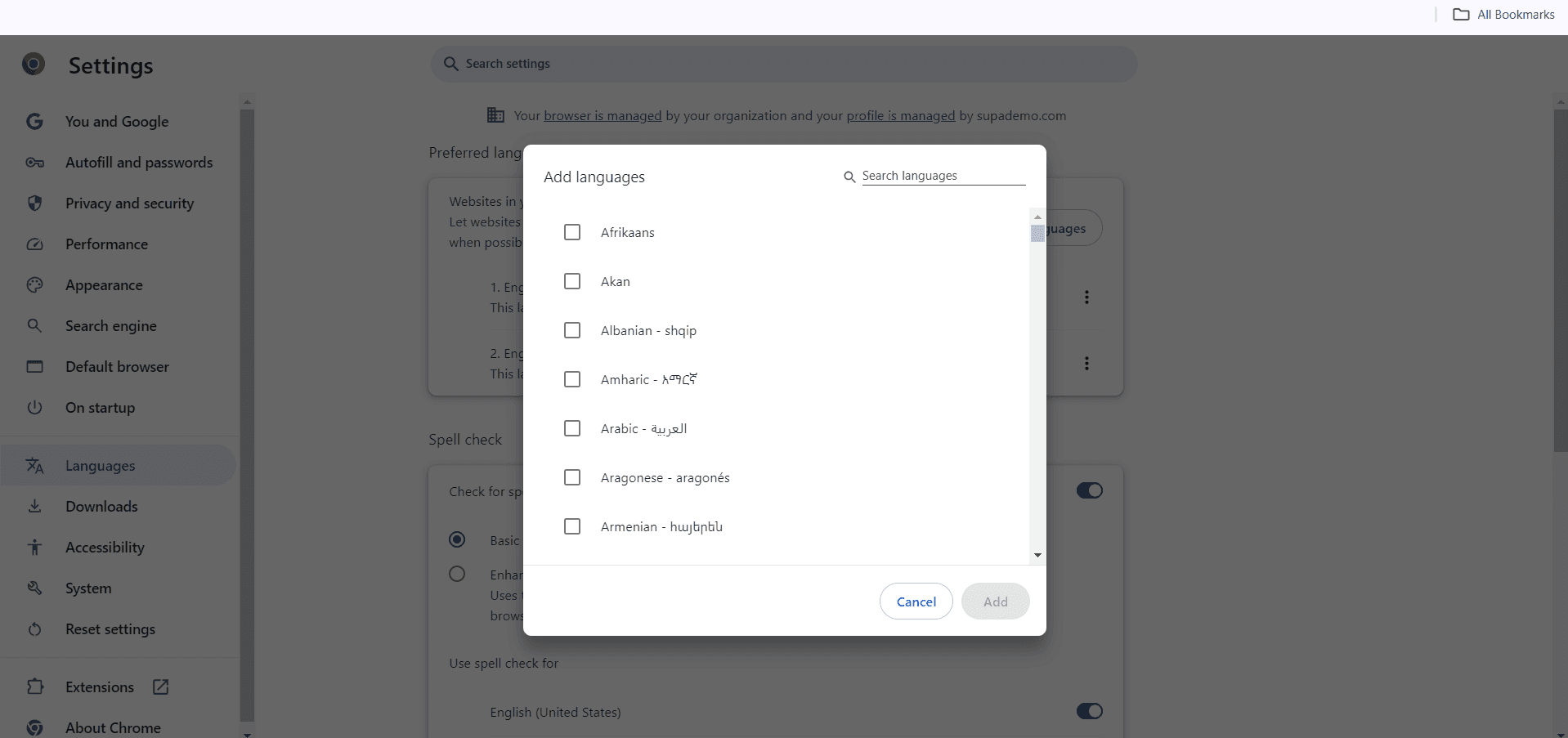
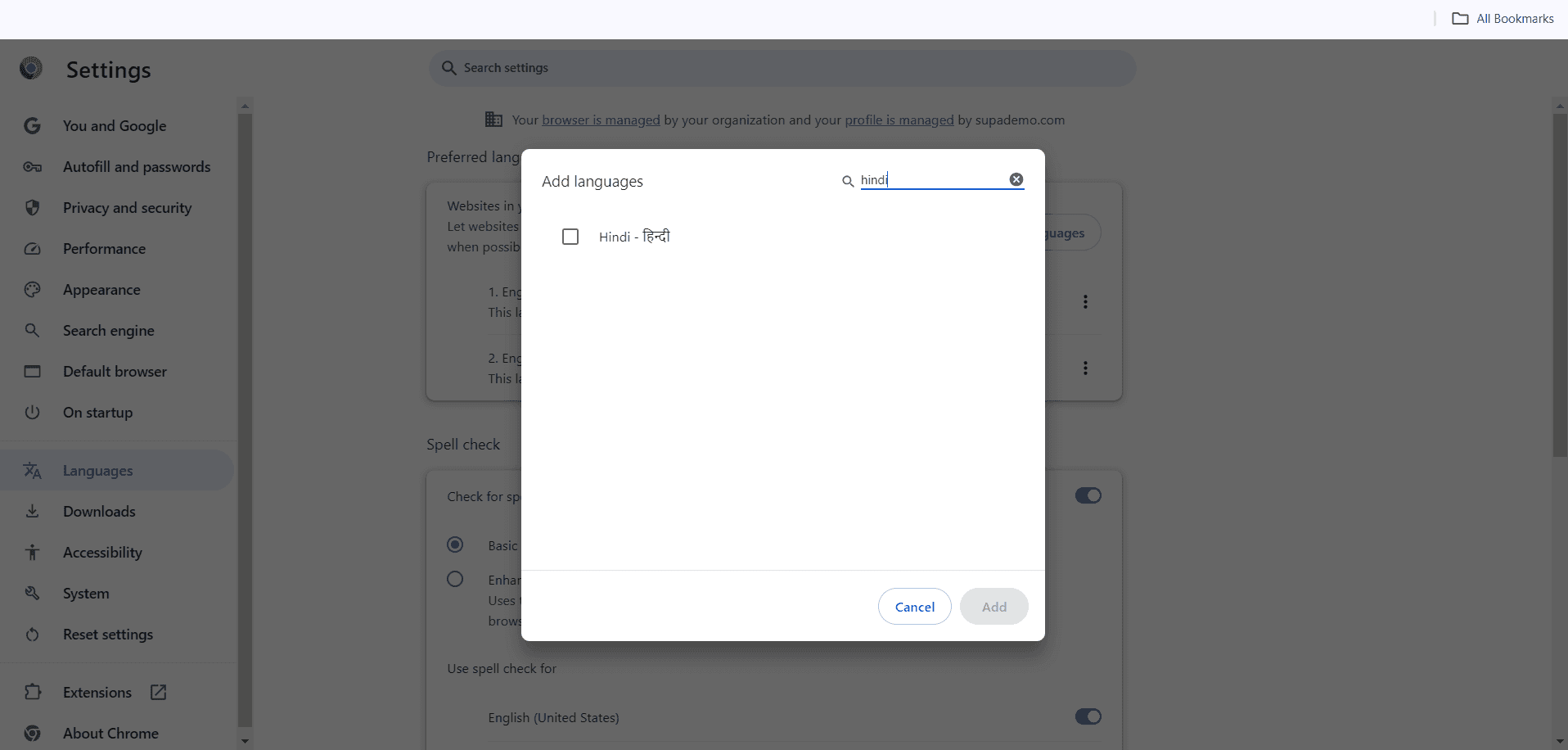
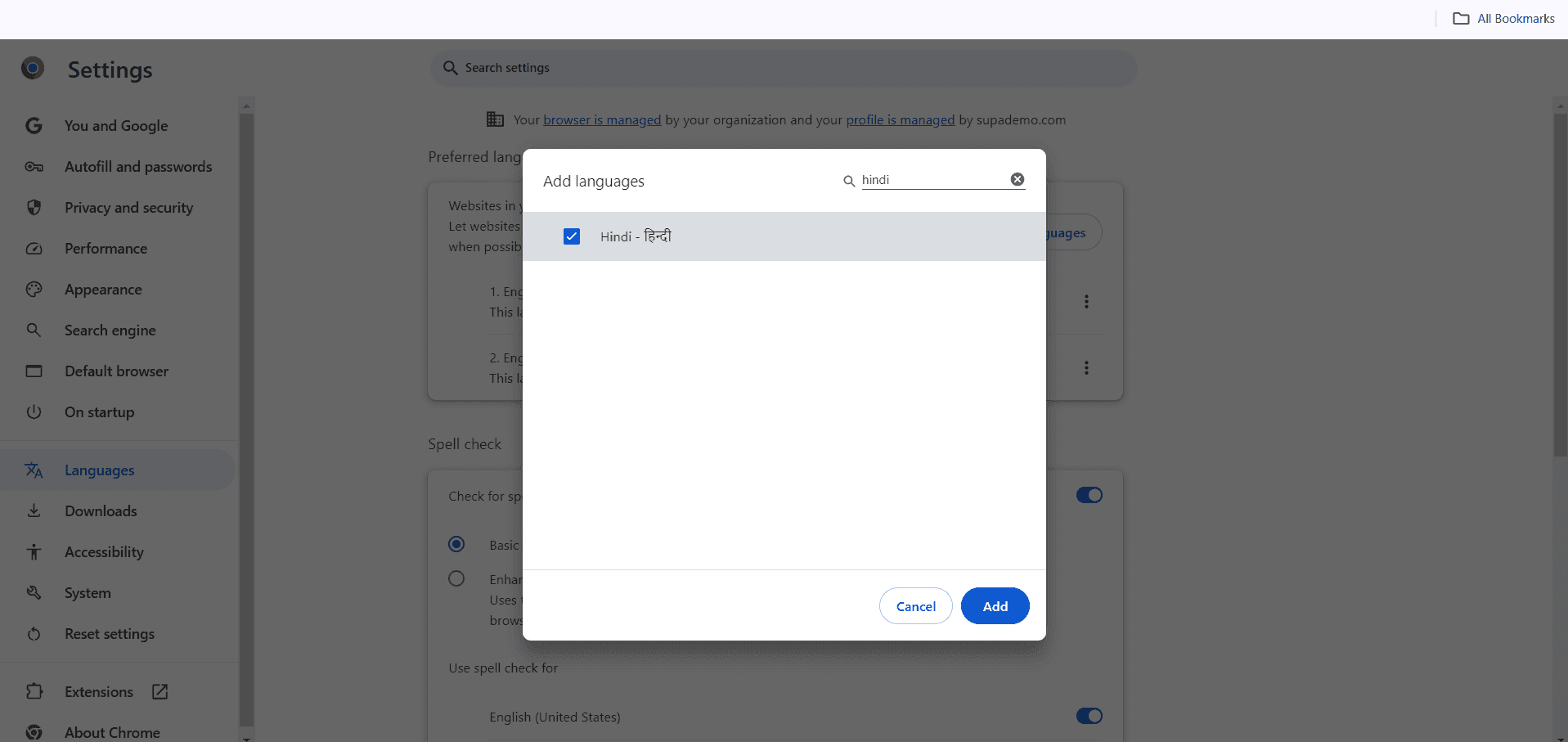
Click the 'Add languages' button and search for your desired language from the list. Click on the language you want to add.
- 8
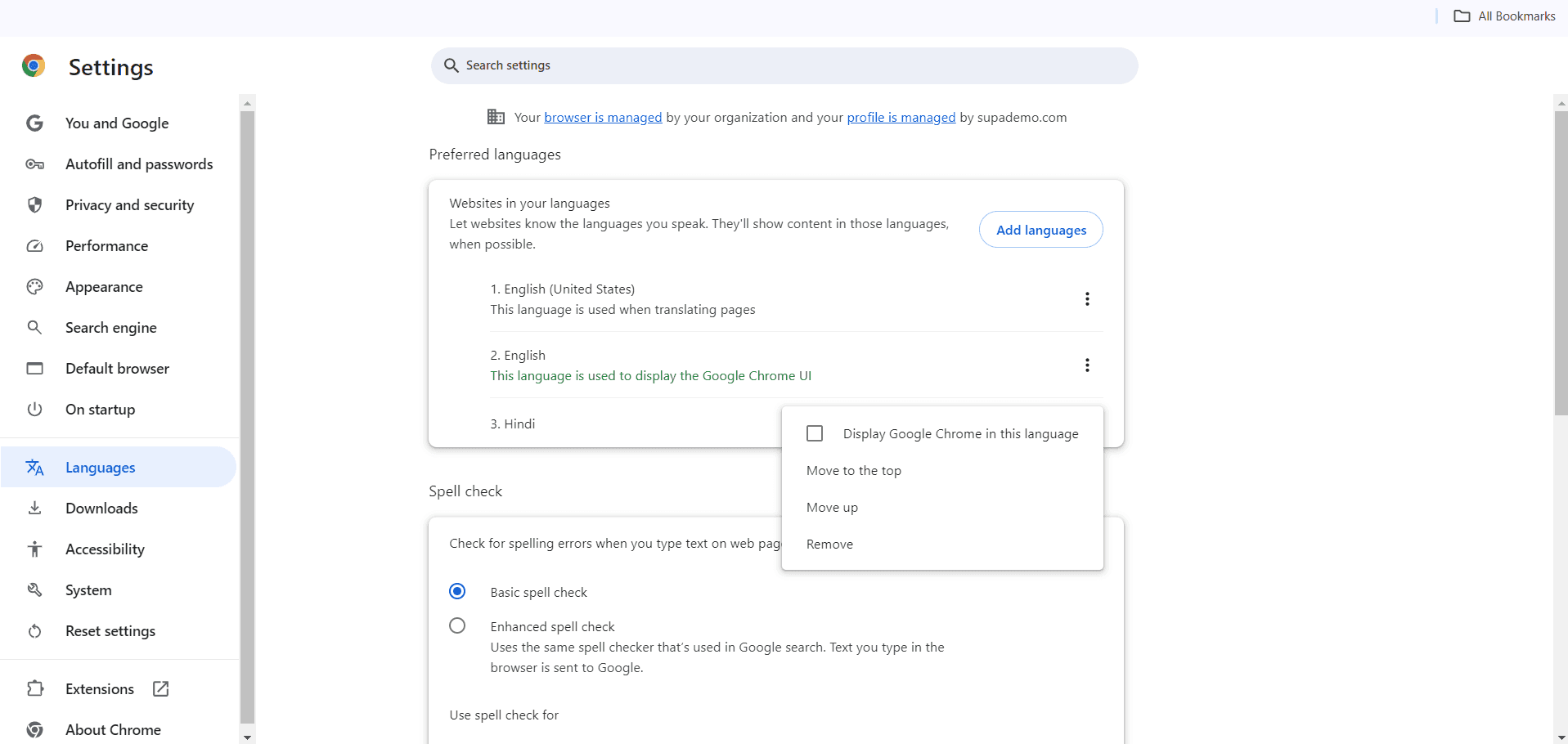
Set language as default
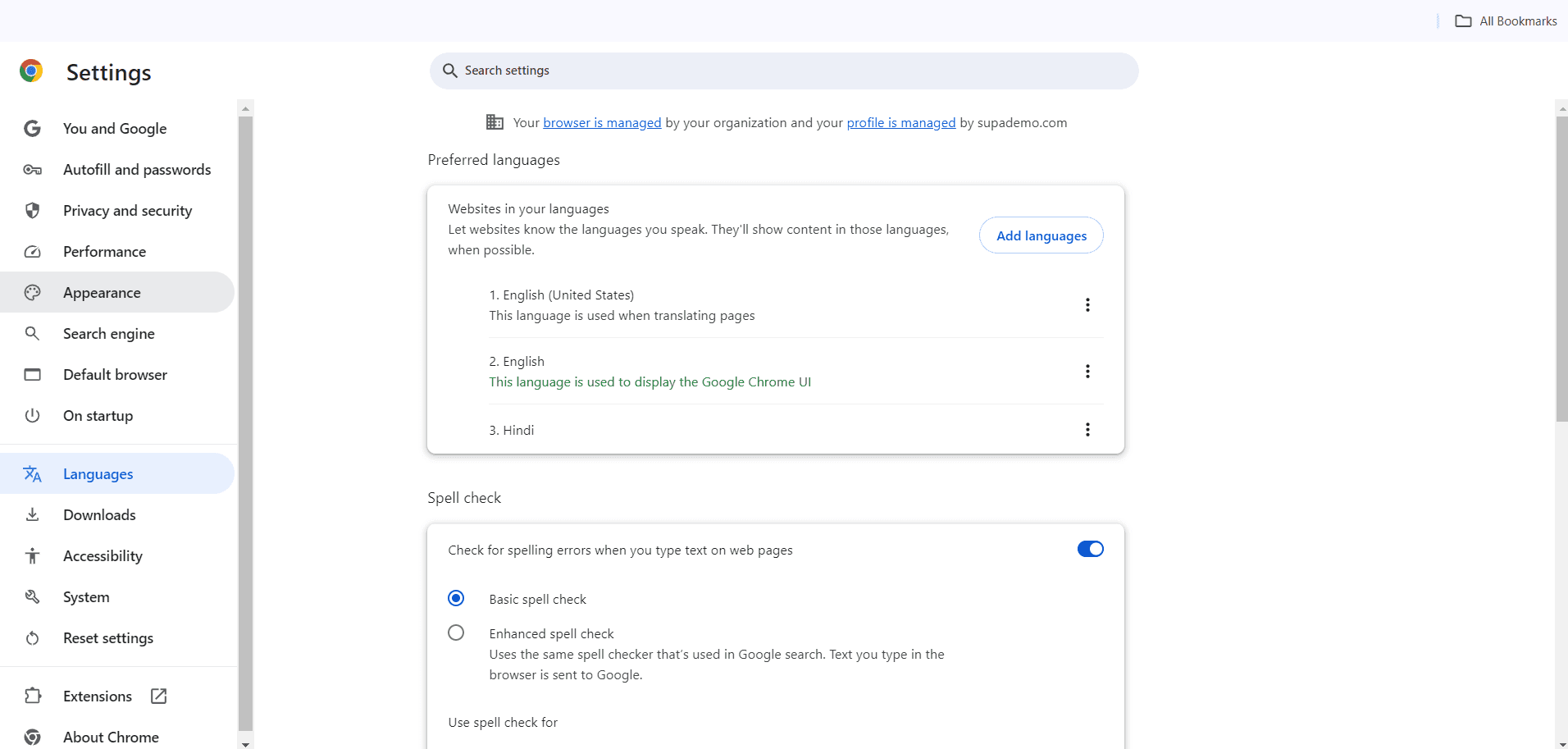
Once added, locate your new language in the list and click the three-dot menu next to it, then select 'Display Chrome in this language'.
- 9
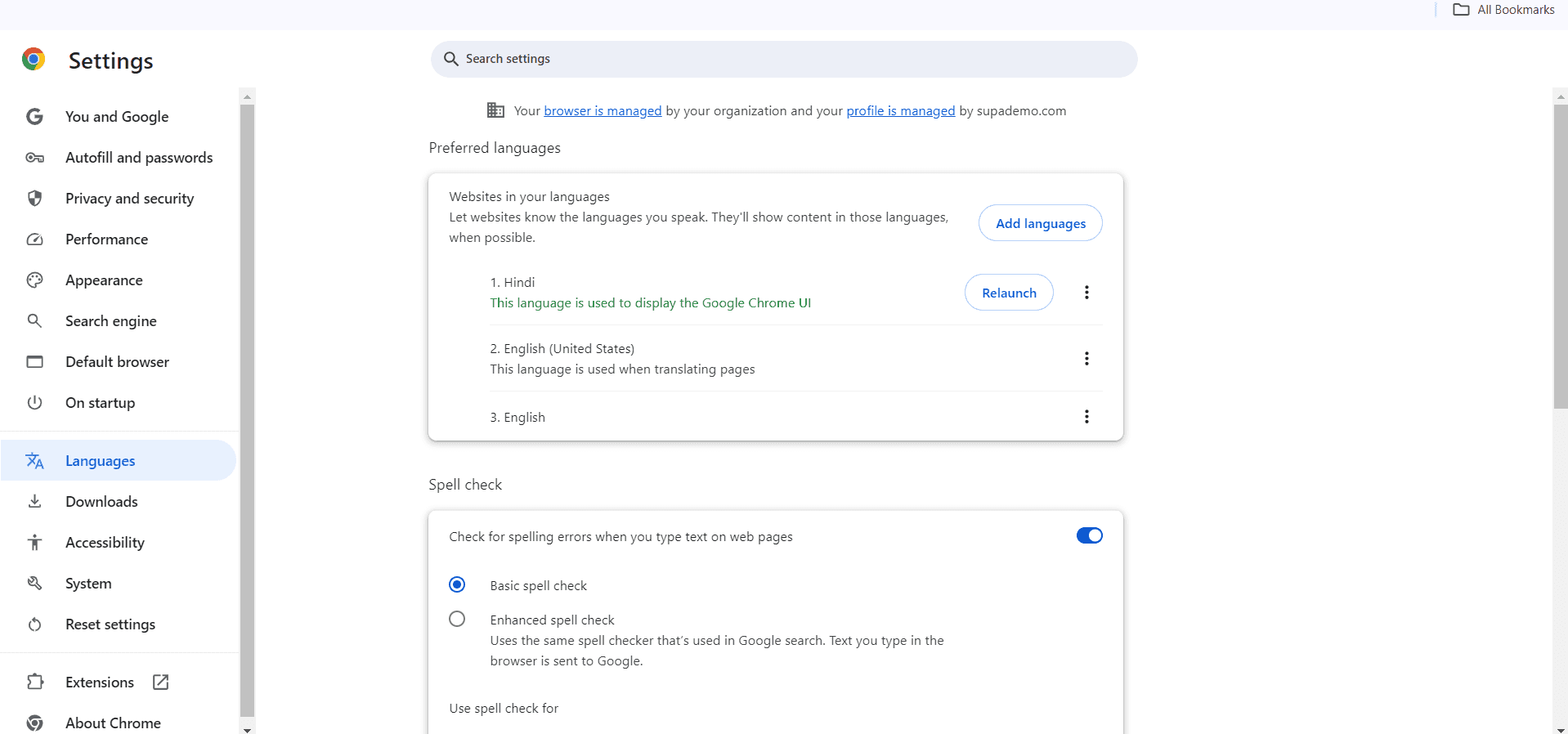
Confirm the language change
A confirmation prompt will appear asking if you want to restart Chrome to apply the language change. Click 'Relaunch' to apply the changes immediately.
- 10
Wait for Chrome to restart
Chrome will close and reopen automatically. Allow a few seconds for the browser to fully restart with your new language settings.
- 11
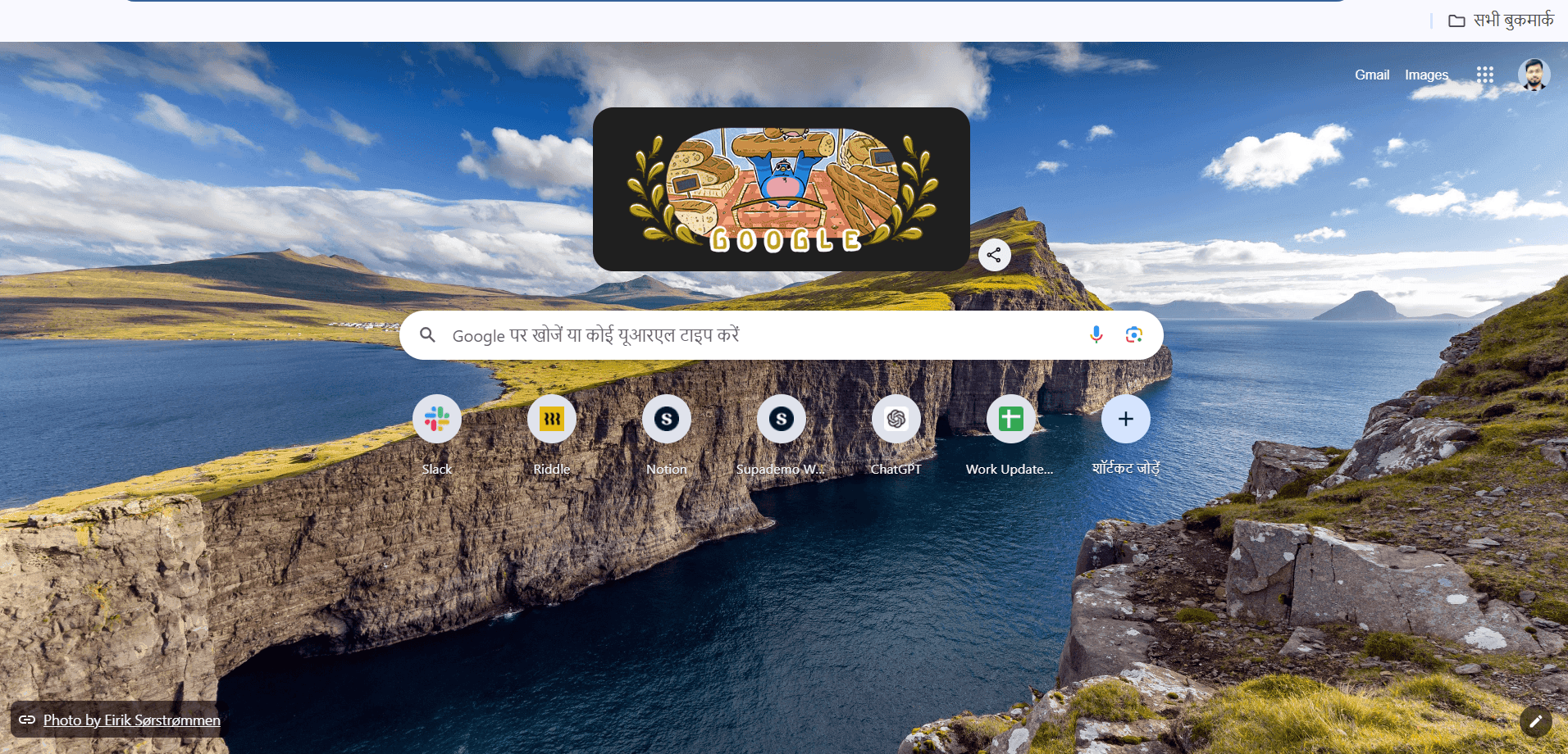
Verify the new language
Once Chrome reopens, check that all menus, buttons, and interface elements now appear in your selected language.
- 12
Adjust additional language settings
Return to Settings if needed to manage spell-check language, input methods, or add additional languages for future use.
Frequently asked questions
Common questions about how to change language in google chrome.
Yes, you can add multiple languages to Chrome and switch between them. Go to Settings > Languages, add the languages you want, and set your preferred default language. You can always return to this section to change which language displays your interface.
Changing your Chrome language setting primarily affects the browser interface (menus, buttons, settings). Websites themselves may display in your new language if they support it, as Chrome sends language preference information to websites, but this depends on each website's language support.
Simply follow the same steps to access your Languages settings. Select your original language and click 'Display Chrome in this language', then restart the browser. Your interface will return to the previous language immediately.
No, changing Chrome's language only affects the Chrome browser itself. Your computer's system language, keyboard settings, and other applications remain unchanged. This allows you to use Chrome in a different language than your operating system.
Chrome supports most major languages, but if your language isn't available, you may need to check if there's a regional variant listed. If truly unavailable, ensure Chrome is updated to the latest version by checking Settings > About Chrome, which may add new language support.