How to Create a Google Form

Google Forms is a free, easy-to-use tool for creating surveys, quizzes, and questionnaires without any coding knowledge. Whether you're gathering feedback, conducting research, or building a quiz, Google Forms streamlines the entire process from creation to analysis.
Quick summary
In this tutorial, you'll learn how to set up a Google Form from scratch, add different question types, customize your form's appearance, and share it with respondents. By the end, you'll have a fully functional form ready to collect responses.
Why this matters
Creating forms manually or using complex tools can waste time and introduce errors. Google Forms eliminates these pain points by offering an intuitive interface, automatic response collection, and built-in analytics that help you gather and understand data efficiently.
Step-by-step guide
- 1
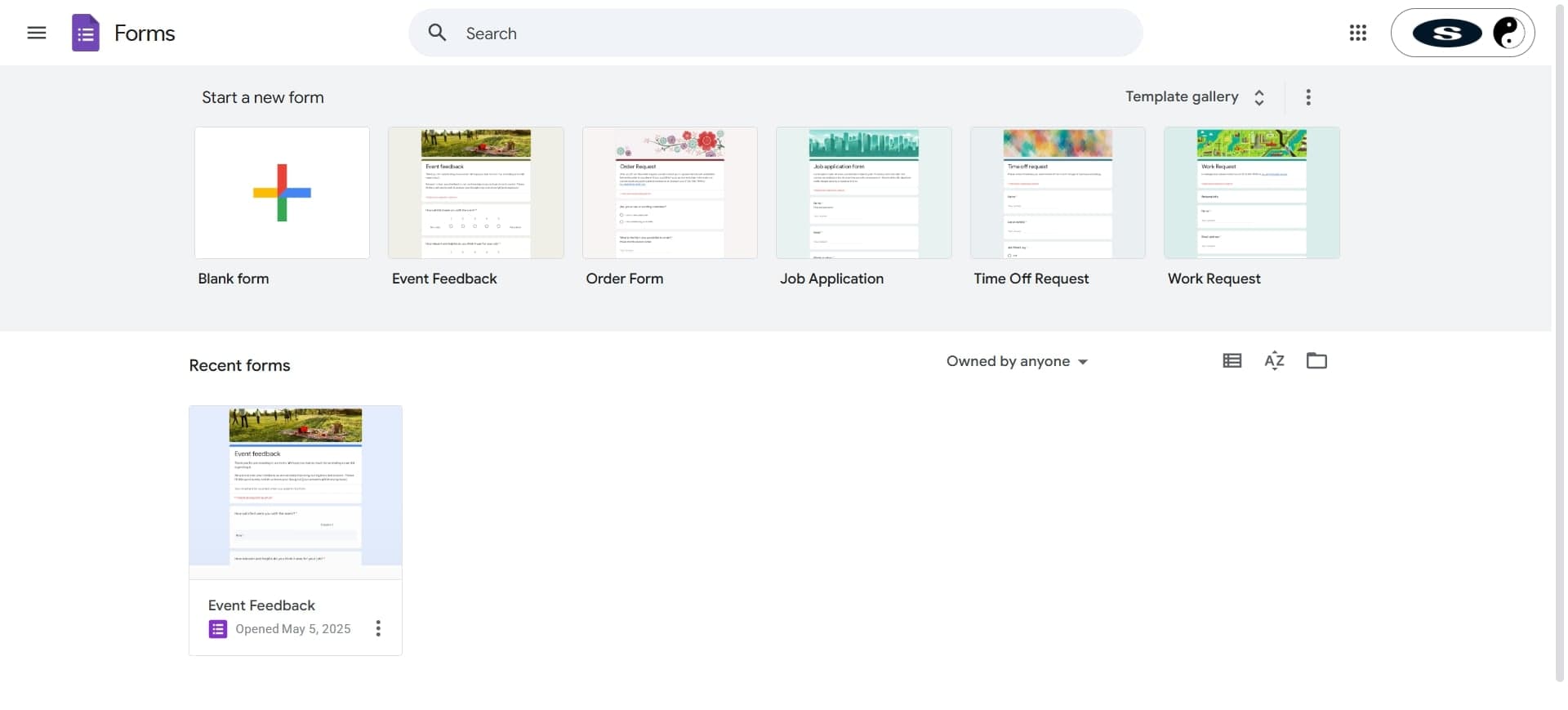
Access Google Forms
Navigate to forms.google.com and sign in with your Google account. You'll land on the main dashboard where you can create new forms or access previously created ones.
- 2
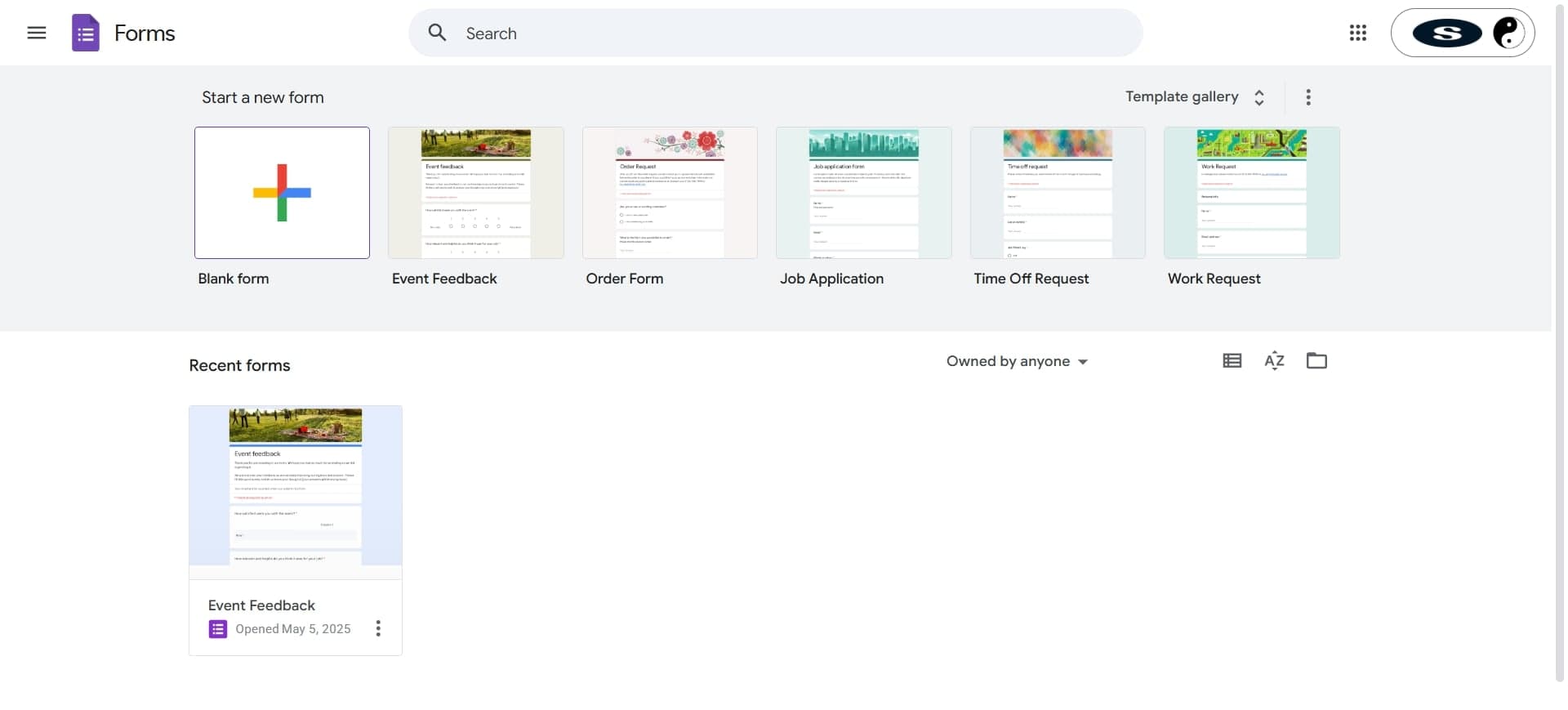
Click Create New Form
On the dashboard, click the plus icon or 'Create' button to start a new form. You'll be taken to a blank form editor with a default title and description field.
- 3
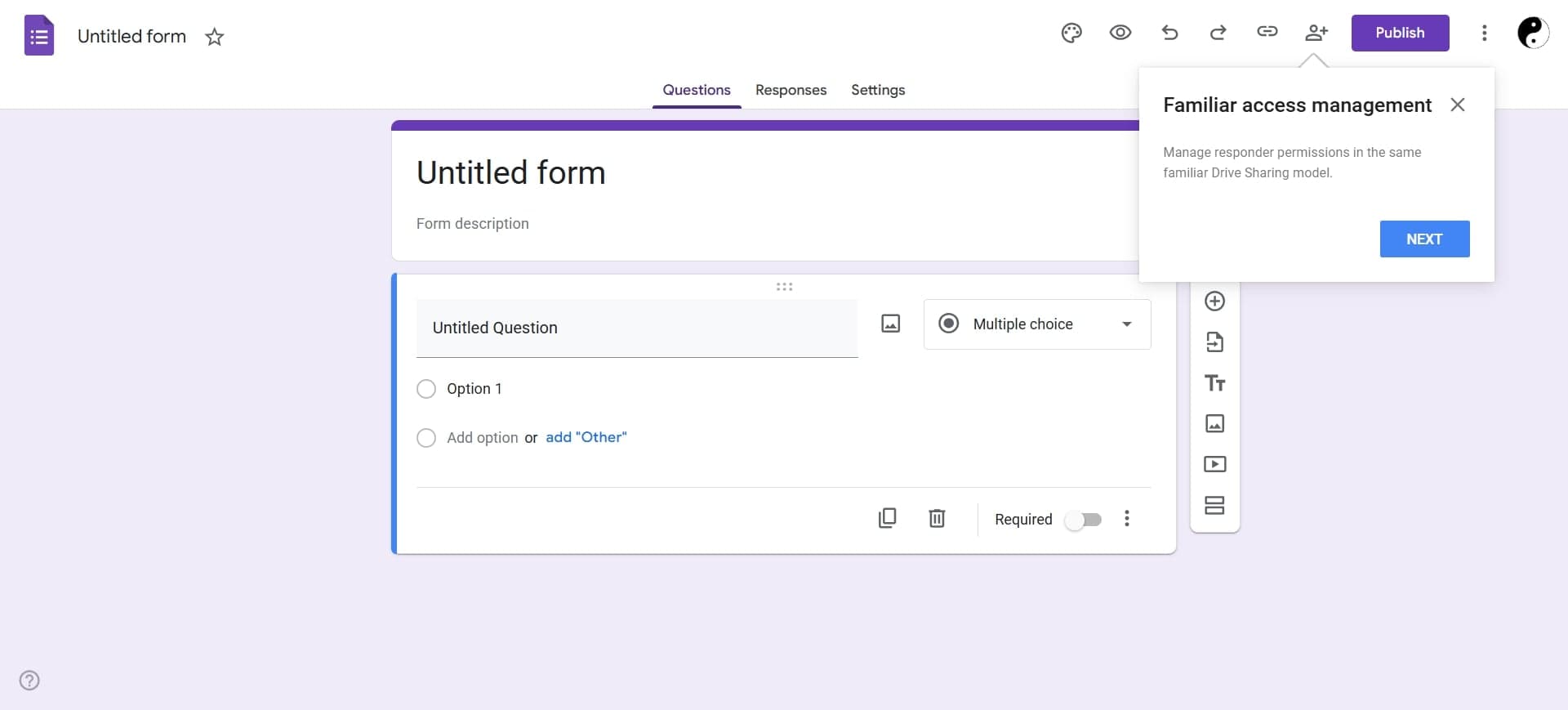
Name Your Form
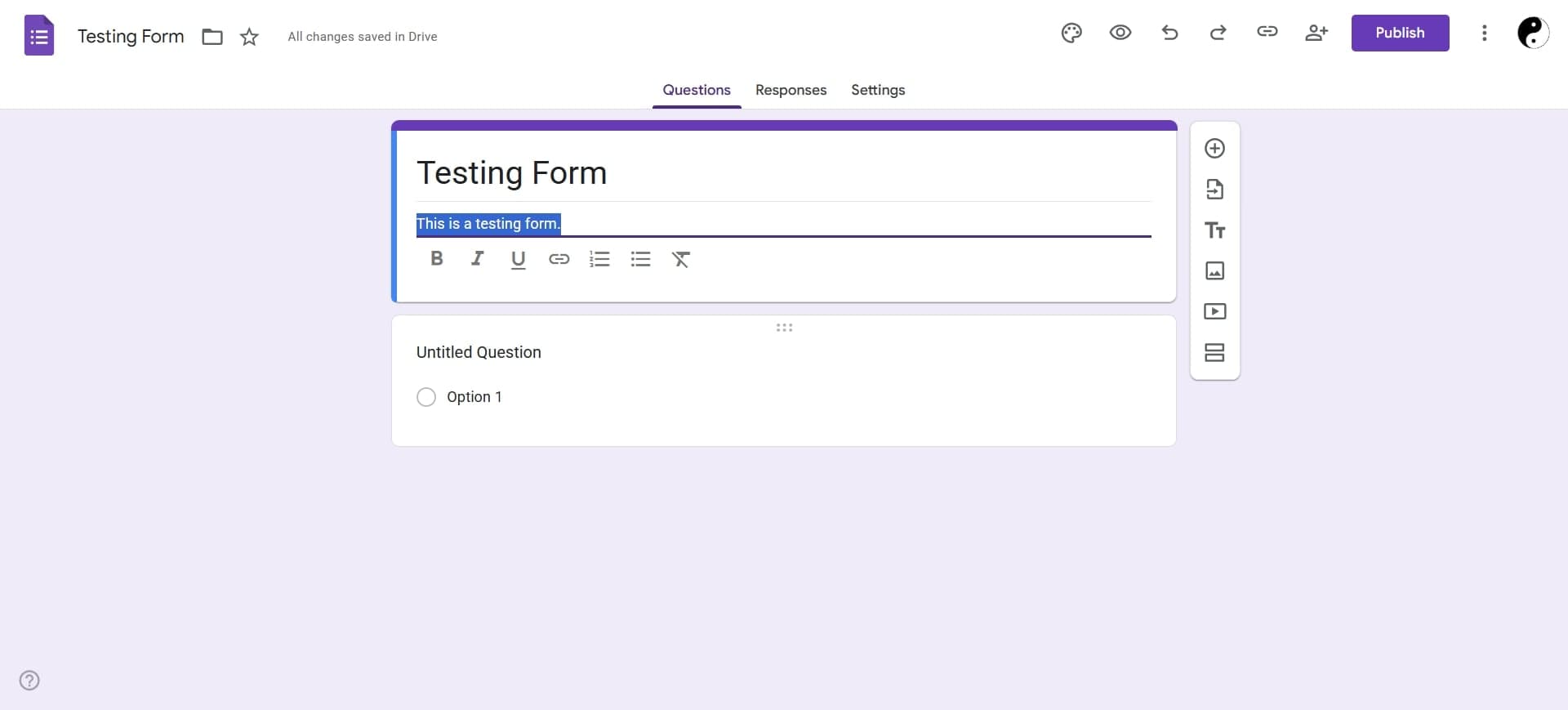
Click on the 'Untitled form' text at the top and enter a descriptive title for your form. This title will appear to respondents when they access your form.
- 4
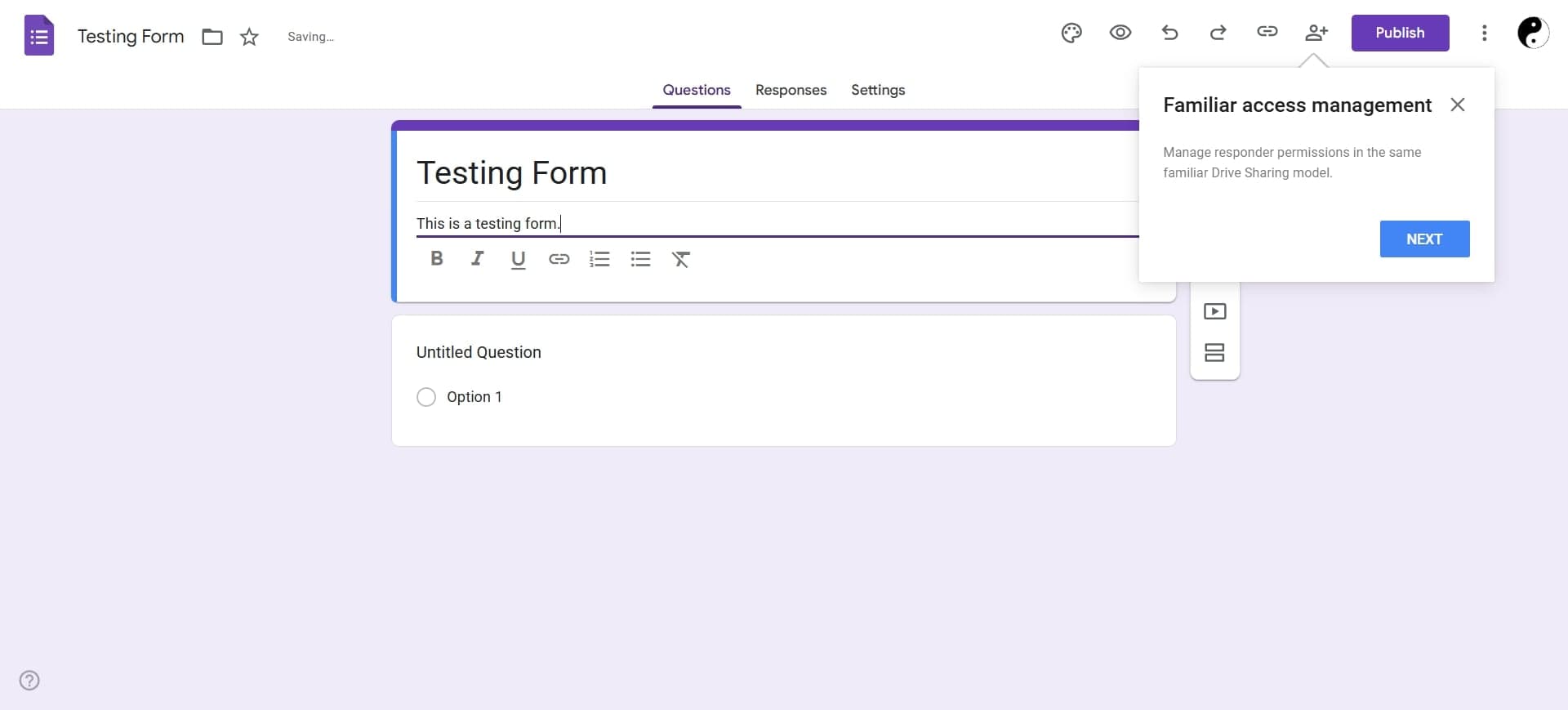
Add a Form Description
Click the description field below the title and add context or instructions for respondents. This helps people understand the purpose of your form before they start answering.
- 5
Add Your First Question
Click the plus icon on the right panel to add a new question. Enter your question text in the field that appears, and you're ready to select a question type.
- 6
Choose a Question Type
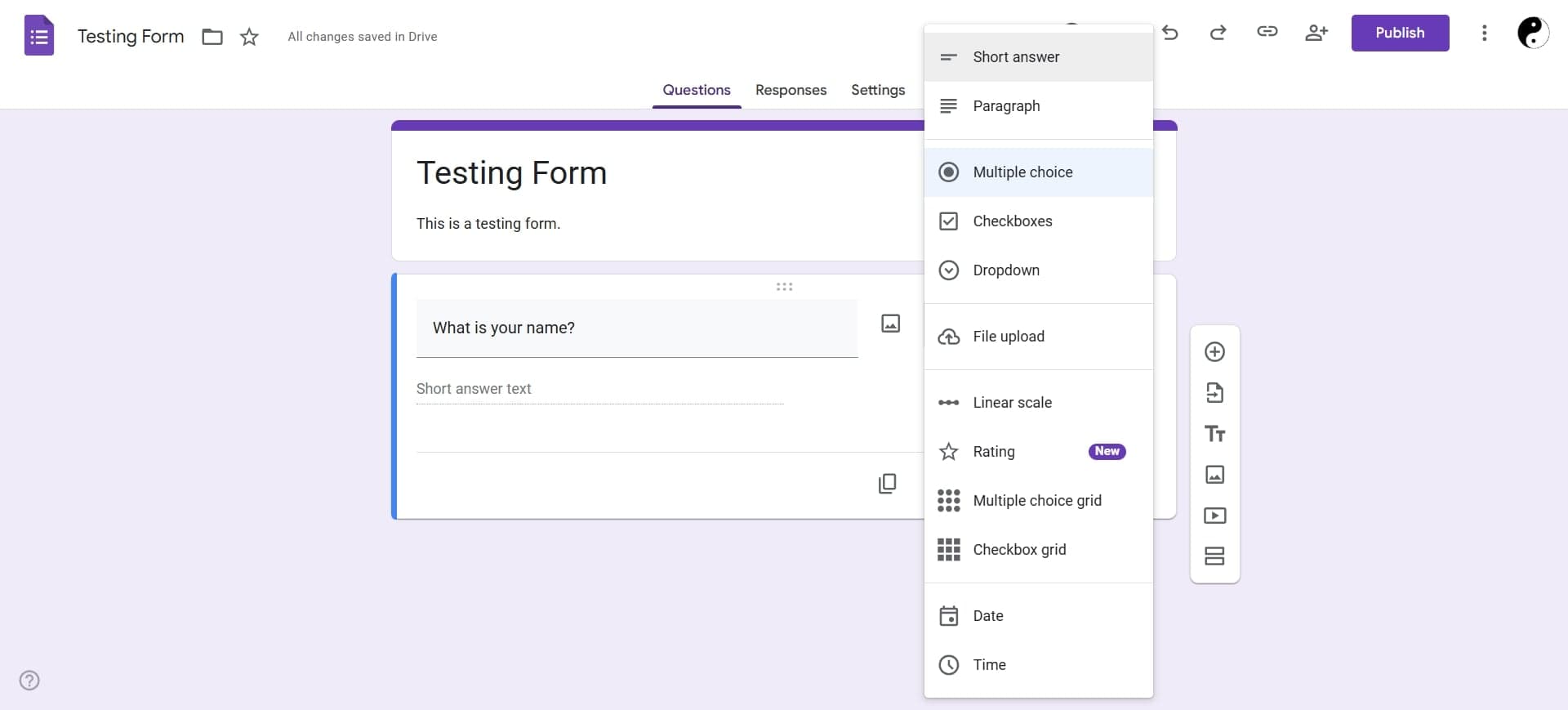
Click the dropdown menu for the question type (default is Short answer) and select from options like Multiple choice, Checkboxes, Linear scale, Dropdown, or Date. Each type serves different data collection needs.
- 7
Configure Question Settings
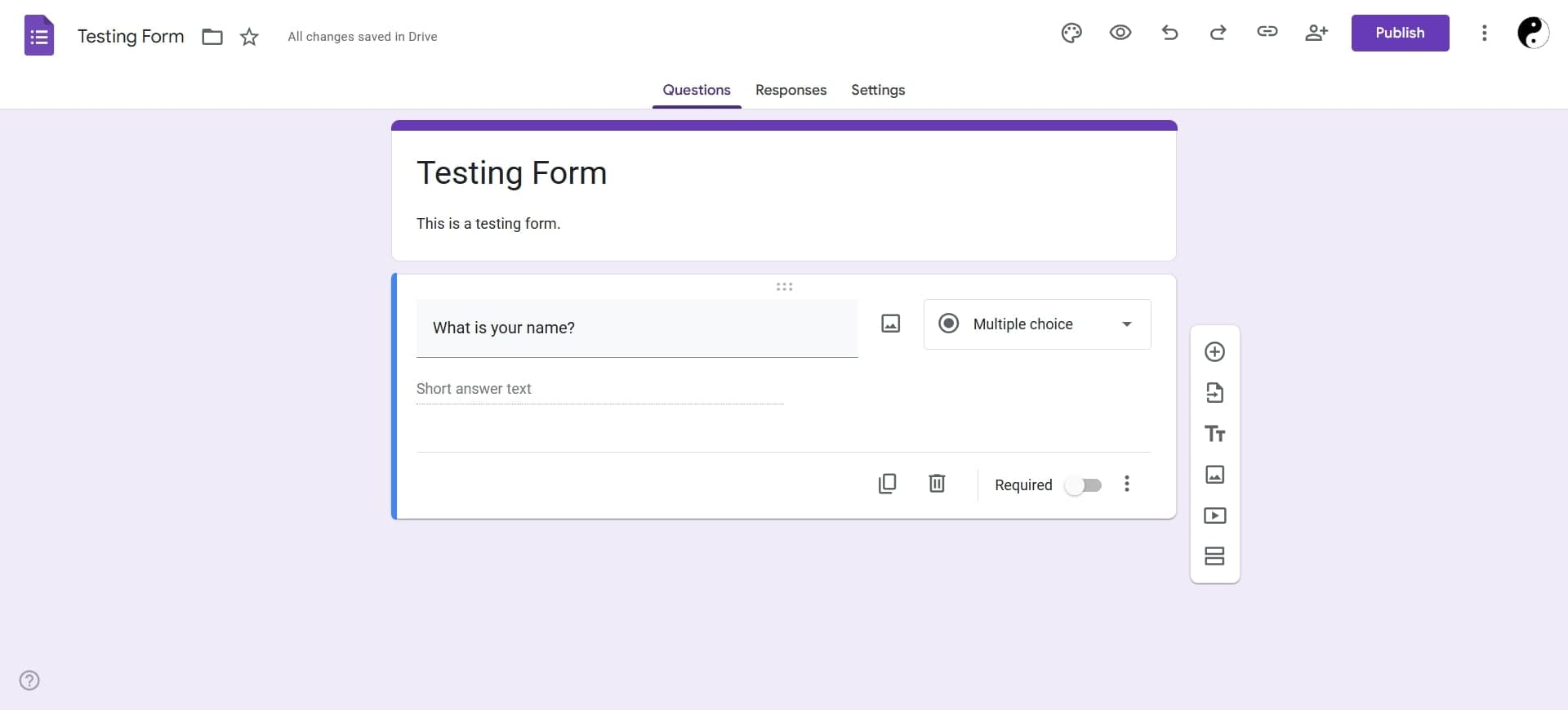
Depending on your question type, you can add options, set answer requirements, or adjust other settings using the icons below the question. Mark questions as required if you need every respondent to answer them.
- 8
Customize Form Design
Click the paintbrush icon at the top to access design options. Choose a theme, adjust colors, add a header image, and customize fonts to match your branding or preferences.
- 9
Add More Questions
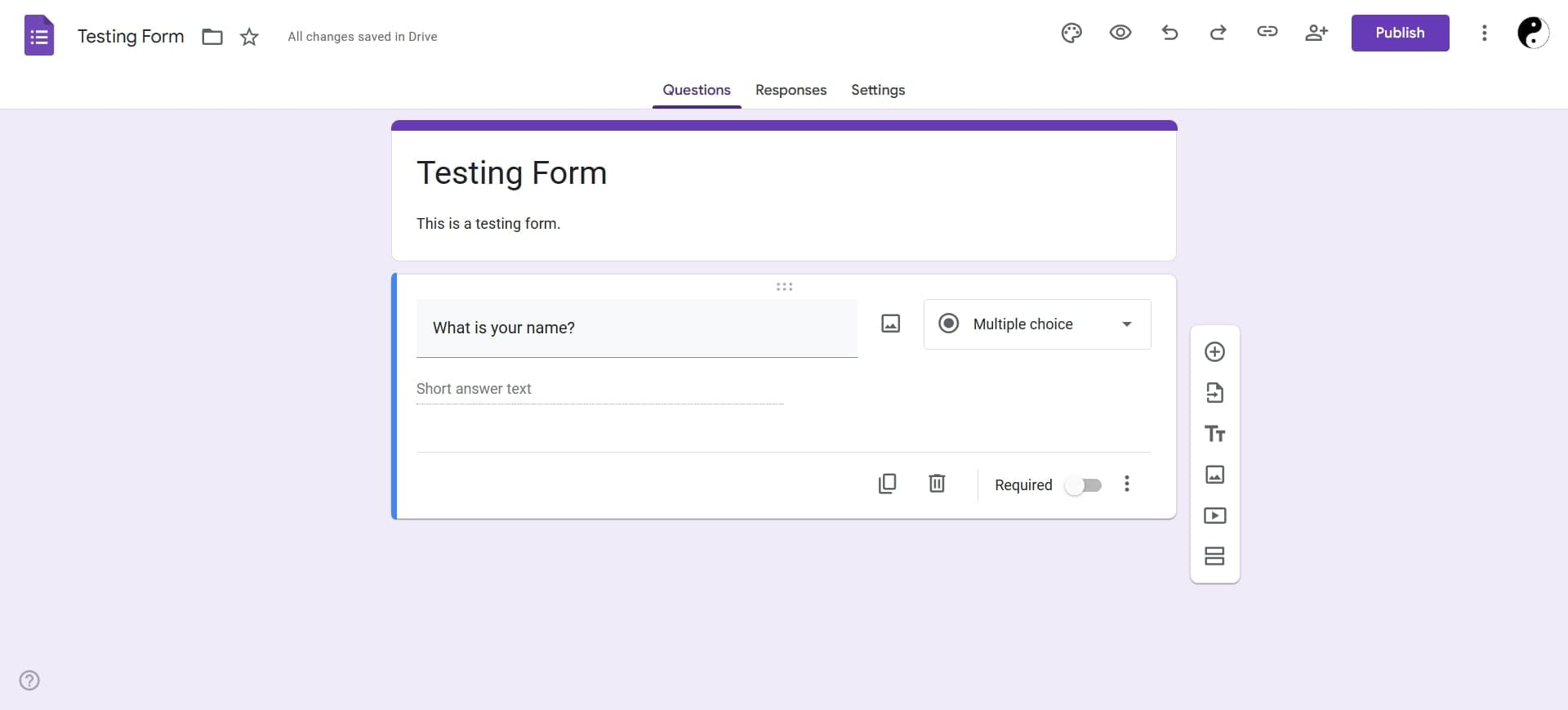
Repeat the process of adding questions by clicking the plus icon after each question. Organize your questions logically and consider using sections to group related questions together.
- 10
Share Your Form
Click the 'Send' button in the top right corner to access sharing options. You can share via link, email, or embed the form on a website, depending on your distribution method.
Frequently asked questions
Common questions about how to create a google form.
Yes. For each question, click the three-dot menu and toggle the 'Required' option. When enabled, respondents won't be able to submit the form without answering that question.
Click the 'Responses' tab at the top of the form editor. Google Forms provides a summary view with charts and statistics, or you can see individual responses listed in chronological order. You can also link responses to a Google Sheet for further analysis.
Yes. Use the image and video icons in the toolbar to insert media. You can add images to questions or as standalone elements to enhance your form's visual appeal and clarity.
Multiple choice allows respondents to select only one answer, while checkboxes let them select multiple answers. Use multiple choice for questions with one correct or preferred answer, and checkboxes when several answers can be valid.
Yes. You can edit your form at any time, and changes will be reflected immediately for new respondents. However, existing responses won't change if you modify questions or options after submission.