How to Make a Google Form Public

Making your Google Form public allows anyone with the link to access and respond to your survey, quiz, or questionnaire. This is essential for collecting feedback, conducting research, or distributing assessments to a wide audience. Learn how to adjust your form's sharing settings in just a few clicks.
Quick summary
In this tutorial, you'll discover how to change your Google Form's permissions from restricted access to public sharing. You'll learn where to find sharing settings and how to generate a shareable link that anyone can use to access your form.
Why this matters
Making a form public is critical when you need responses from people outside your organization or those without Google accounts. Whether you're running a survey, collecting event registrations, or gathering customer feedback, public sharing ensures your form reaches the broadest possible audience without requiring special permissions.
Step-by-step guide
- 1
Open your Google Form
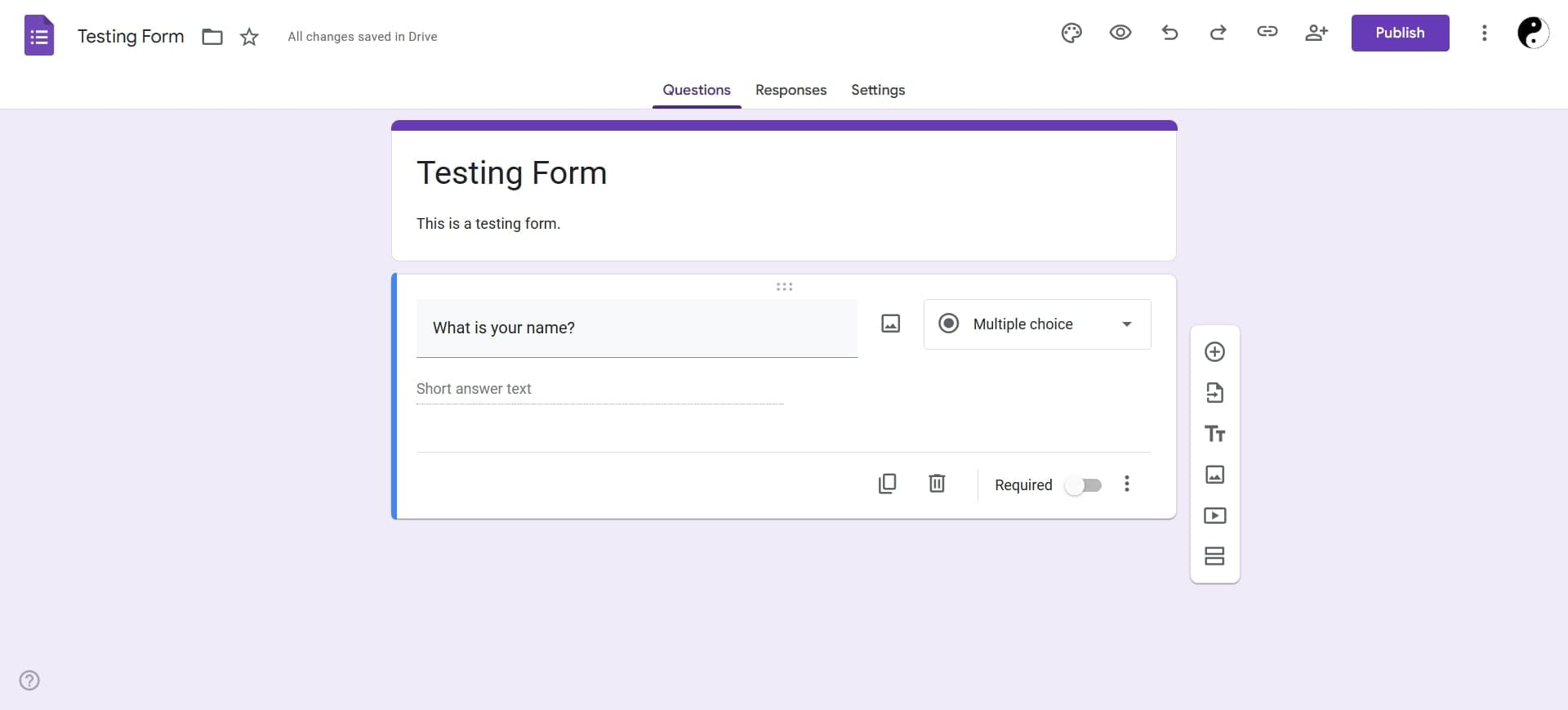
Navigate to Google Forms and select the form you want to make public from your list of forms. If you're already editing the form, you can proceed to the next step.
- 2
Locate the Share button
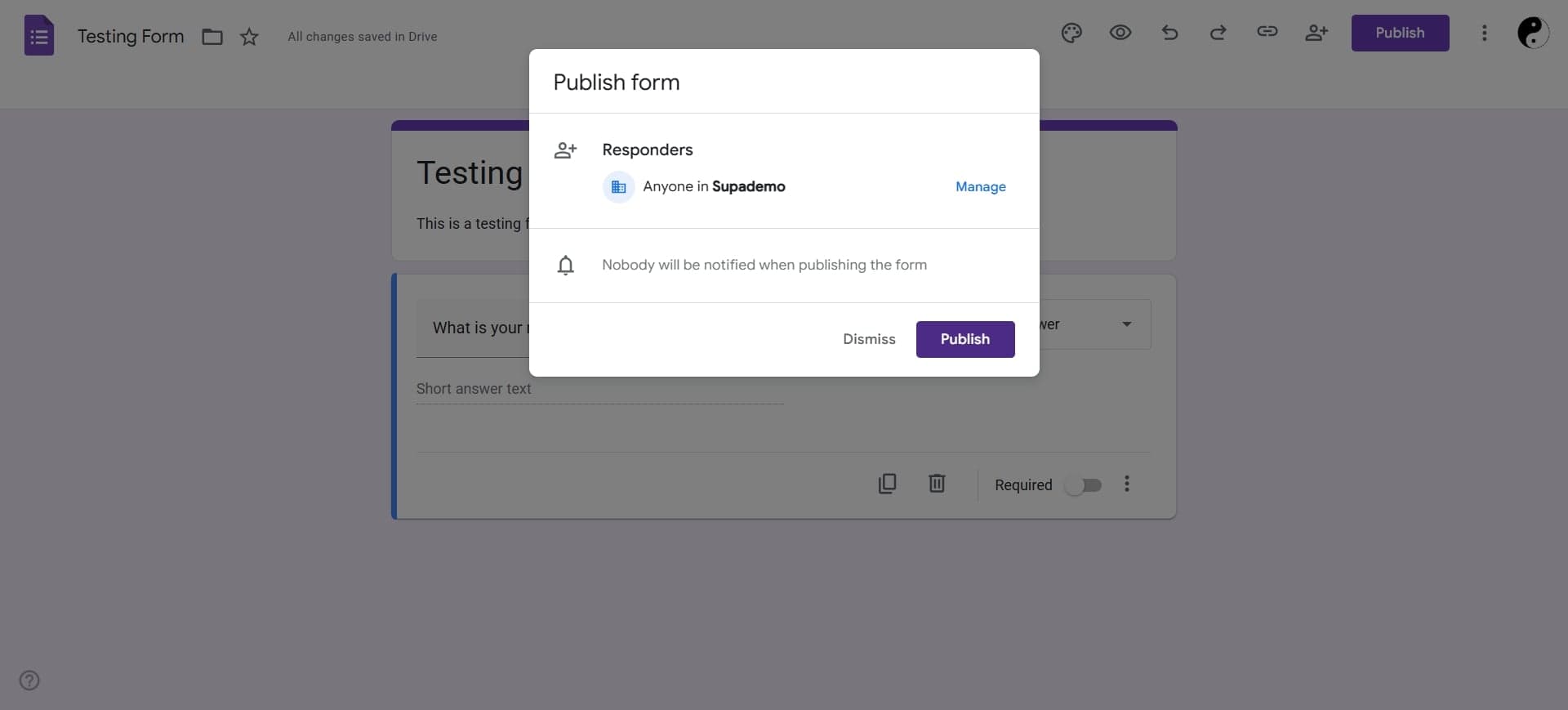
In the top-right corner of your form, click the blue Share button. This opens the sharing settings panel where you can control who has access to your form.
- 3
Access sharing permissions
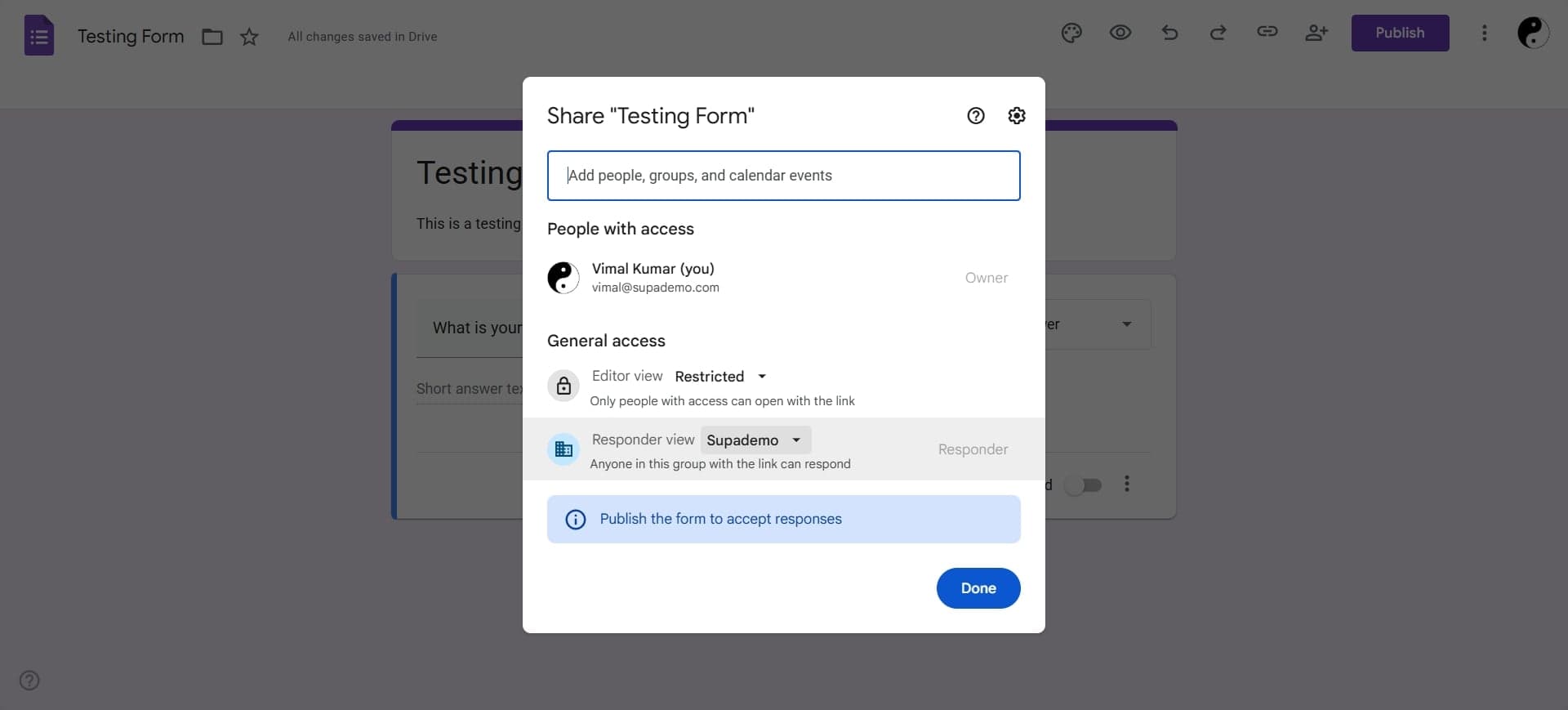
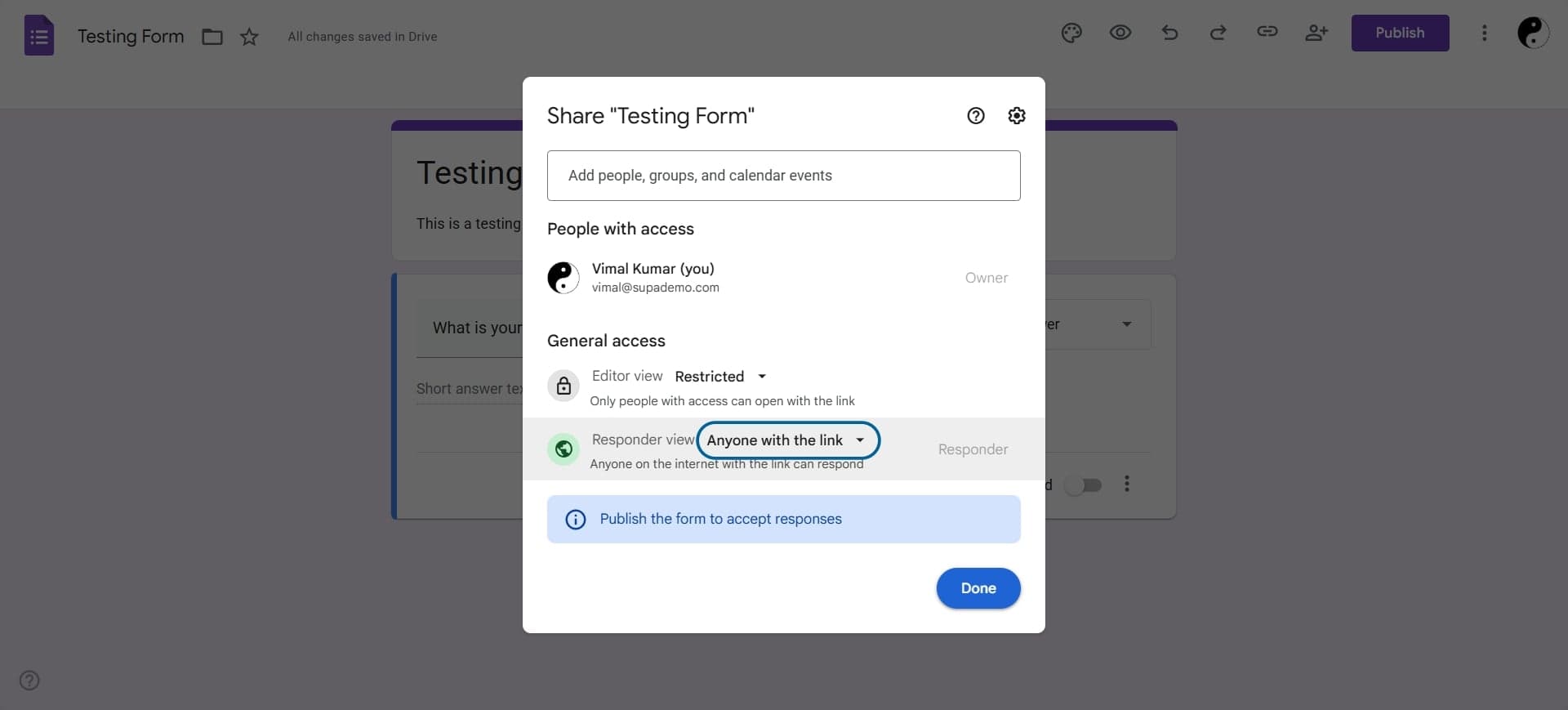
In the sharing panel, you'll see current access settings. Look for the dropdown menu or link that shows the current sharing status, typically labeled with who can access the form.
- 4
Change access to 'Anyone with the link'
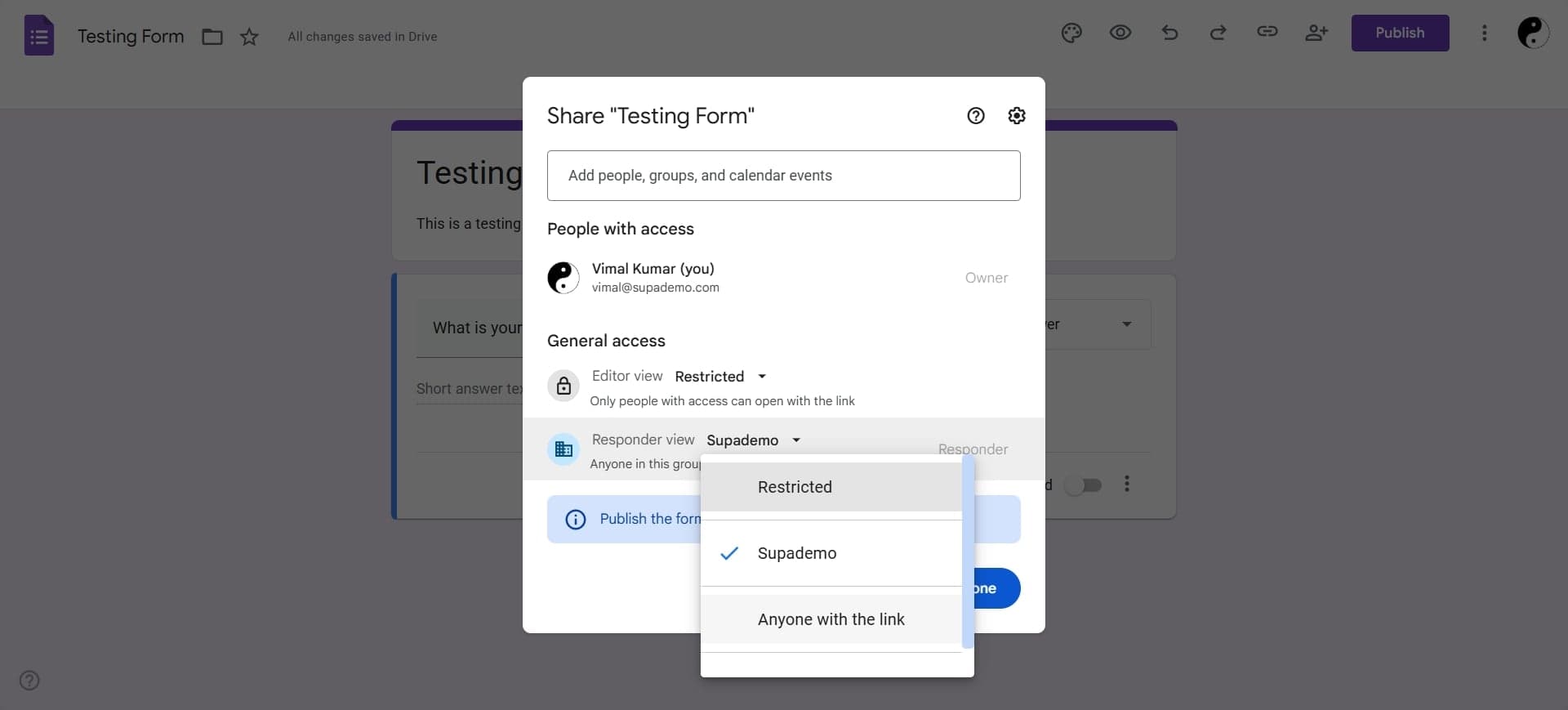
Click the dropdown menu and select 'Anyone with the link' as the sharing option. This allows anyone who has the link to open and respond to your form without needing special permissions.
- 5
Verify the sharing role is set to 'Viewer'
Ensure the role is set to Viewer so respondents can only fill out the form and cannot edit it. If you see an Editor option, keep it as Viewer to maintain form integrity.
- 6
Copy the shareable link
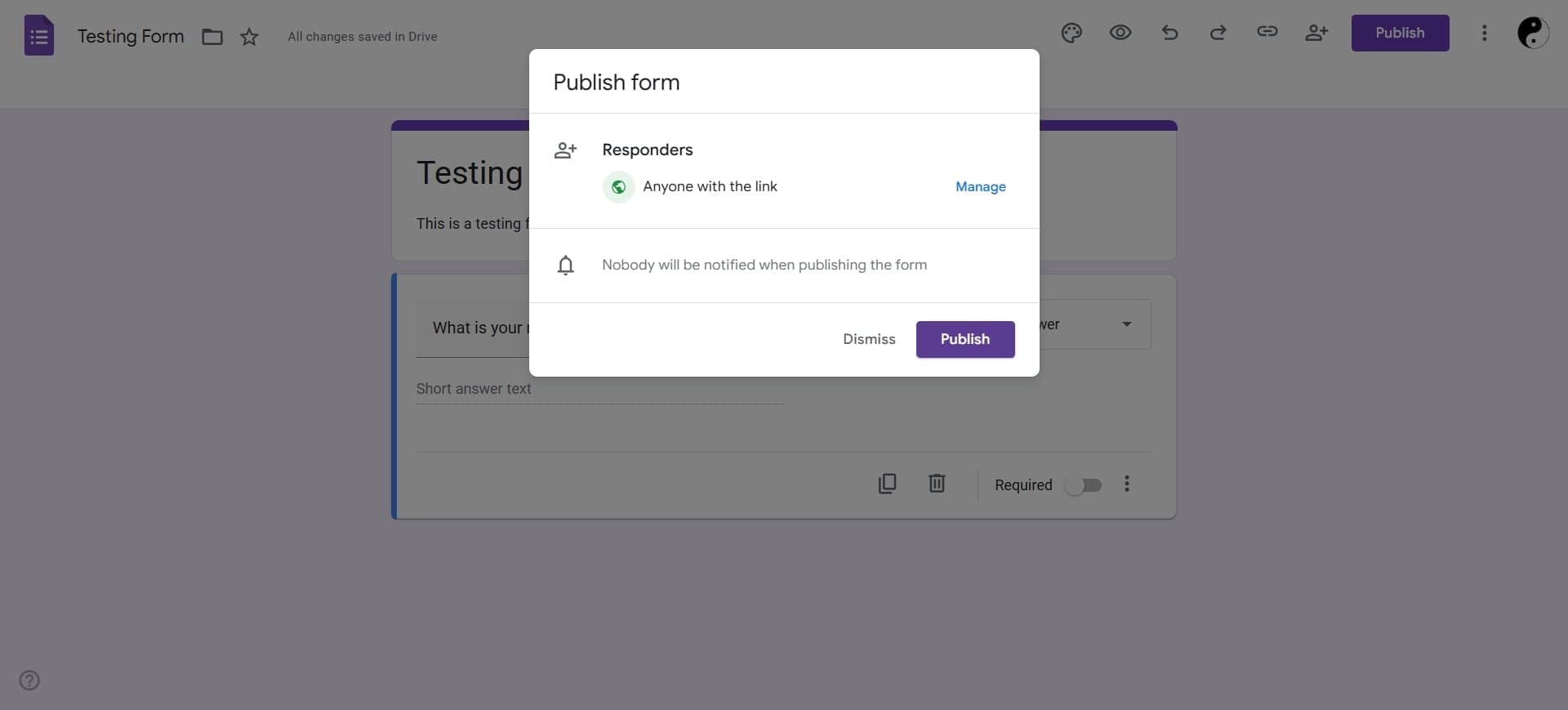
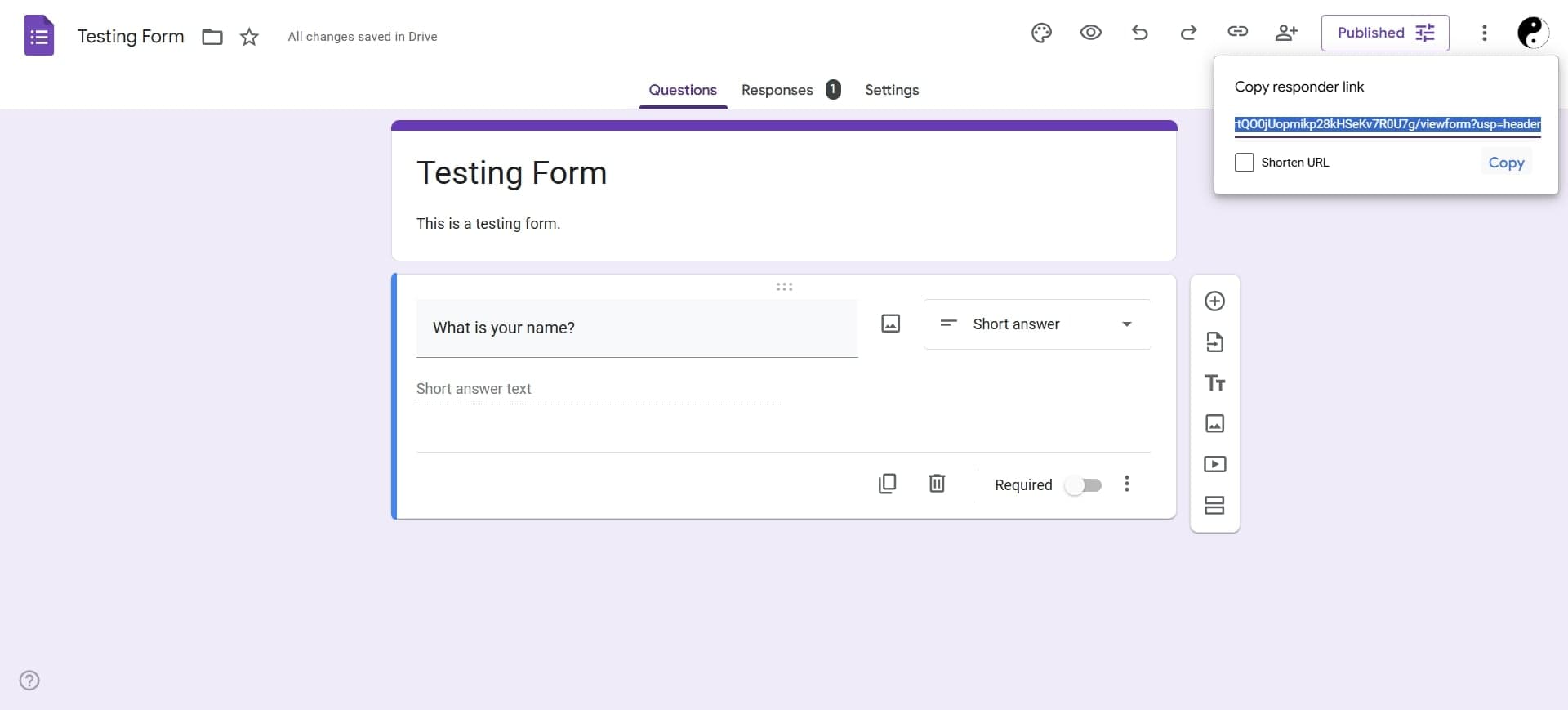
Click the Copy Link button to copy the form's URL to your clipboard. You can now paste this link in emails, on websites, social media, or anywhere you want to distribute your form.
- 7
Confirm form is public
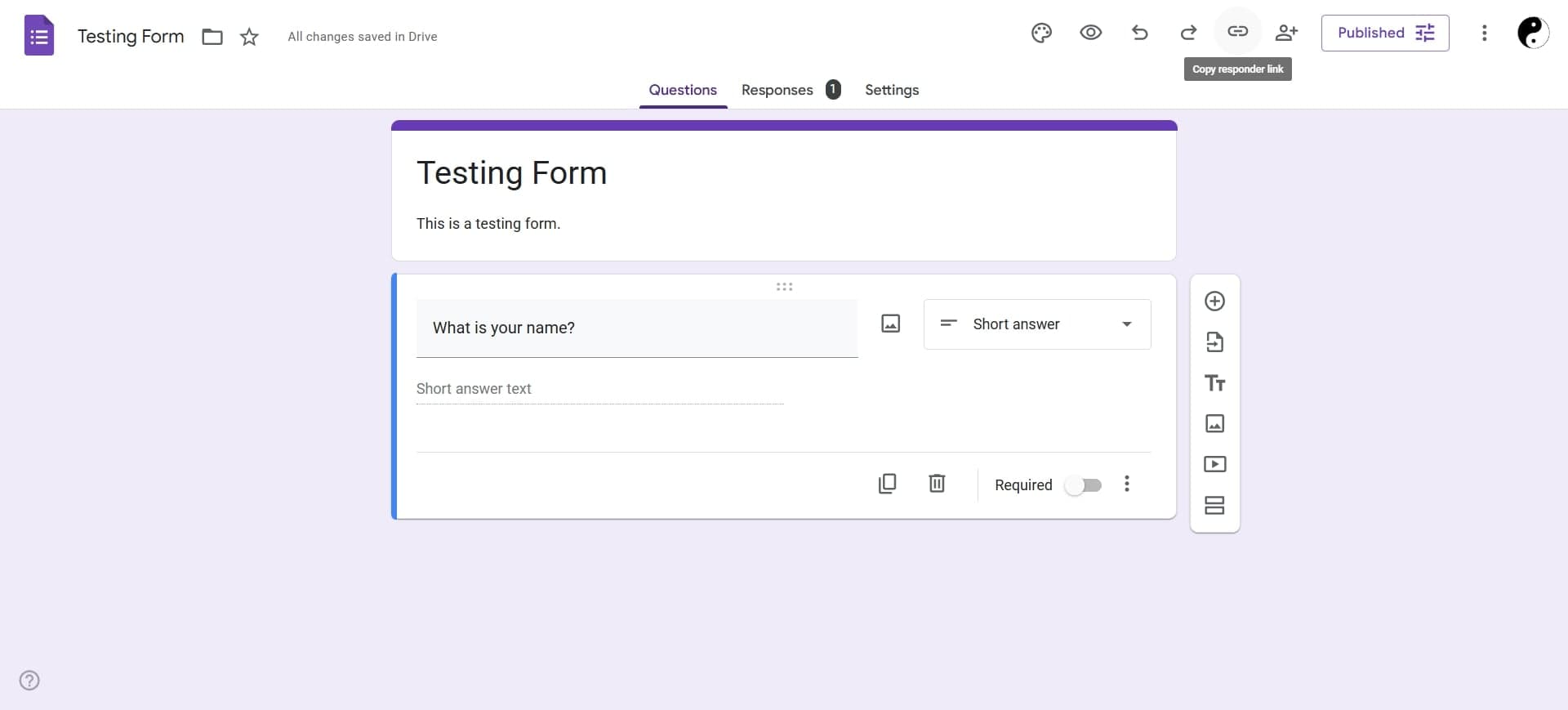
Return to your form to verify that the sharing status now indicates the form is publicly accessible. The Share button may show a link icon or confirmation that your form is shared.
- 8
Distribute your form link
Share the copied link with your intended audience through email, messaging, social media, or embedded on your website. Anyone who receives the link can now access and respond to your form.
Frequently asked questions
Common questions about how to make a google form public.
No. When you set sharing to 'Anyone with the link' with Viewer permissions, respondents can only fill out the form. They cannot edit, delete, or modify the form structure. Only people you explicitly grant Editor access can make changes to your form.
No. One of the main benefits of making a form public is that respondents don't need to sign in with a Google account. They can access and complete the form with just the link.
Yes. You can collect email addresses from respondents even when the form is public. In your form settings, you can enable the option to collect email addresses, and respondents will be prompted to provide their email when submitting the form.
Anyone with the link requires respondents to have the specific URL to access the form, providing more control over who receives it. Public on the web makes the form discoverable in search engines and doesn't require a link. For most use cases, Anyone with the link is the safer and more common choice.
Yes. You can change sharing settings at any time by clicking the Share button and selecting a more restrictive option, such as specific email addresses or removing public access entirely. Any previously distributed links will no longer work once you restrict access.