How to create charts and add axis in Google Sheets

Charts transform raw data into visual insights, making trends and patterns immediately obvious to anyone viewing your spreadsheet. This tutorial guides you through creating charts and configuring axes in Google Sheets, a fundamental skill for data analysis and reporting.
Quick summary
In this tutorial, you'll learn how to insert a chart into Google Sheets and add axis labels to make your data visualization clear and professional. By the end, you'll be able to create polished charts that effectively communicate your data story.
Why this matters
Well-labeled charts are essential for effective data communication—whether you're presenting to stakeholders, analyzing trends, or sharing insights with your team. Properly configured axes remove ambiguity and ensure viewers instantly understand what your data represents. This skill is critical for anyone working with data-driven decision making.
Step-by-step guide
- 1
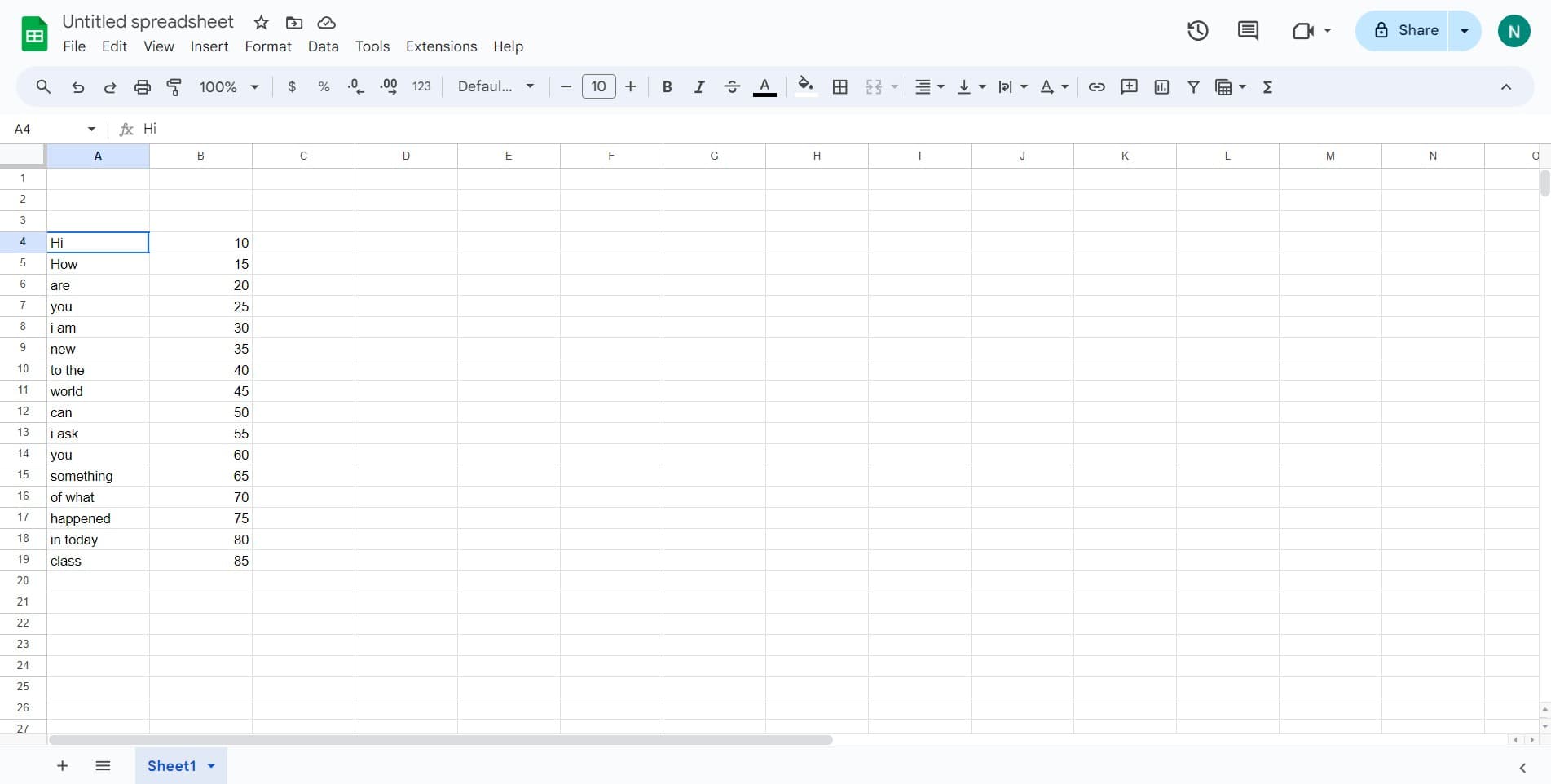
Select your data range
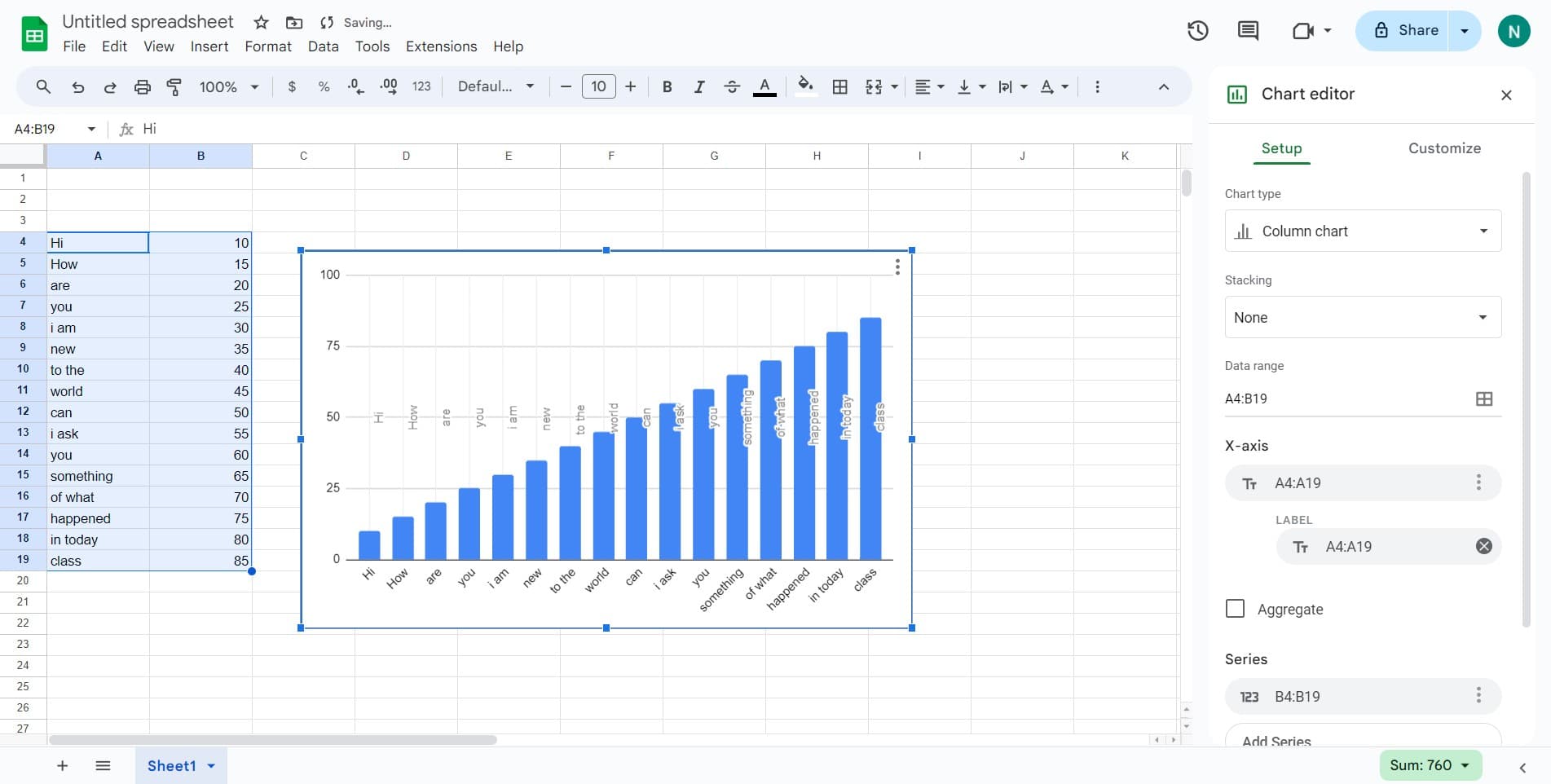
Click on the data cells you want to visualize. Google Sheets will use this selection to populate your chart with the correct values and labels.
- 2
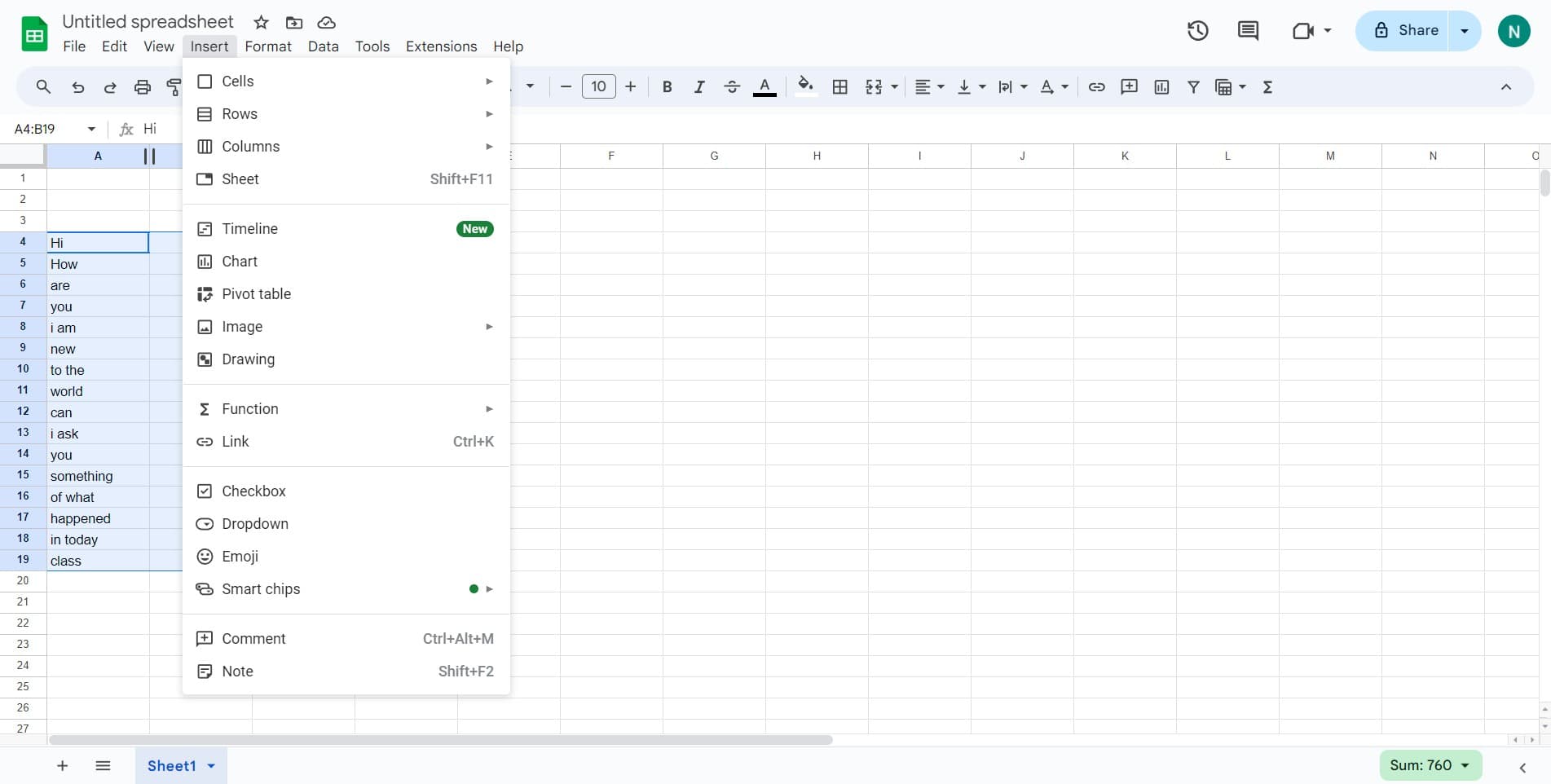
Click on Insert
Open the Insert menu from the top navigation bar. This menu contains all the options for adding elements like charts, images, and other objects to your spreadsheet.
- 3
Upload or select chart type
Choose your desired chart type from the available options. Google Sheets supports column charts, line charts, pie charts, and many other formats depending on your data visualization needs.
- 4
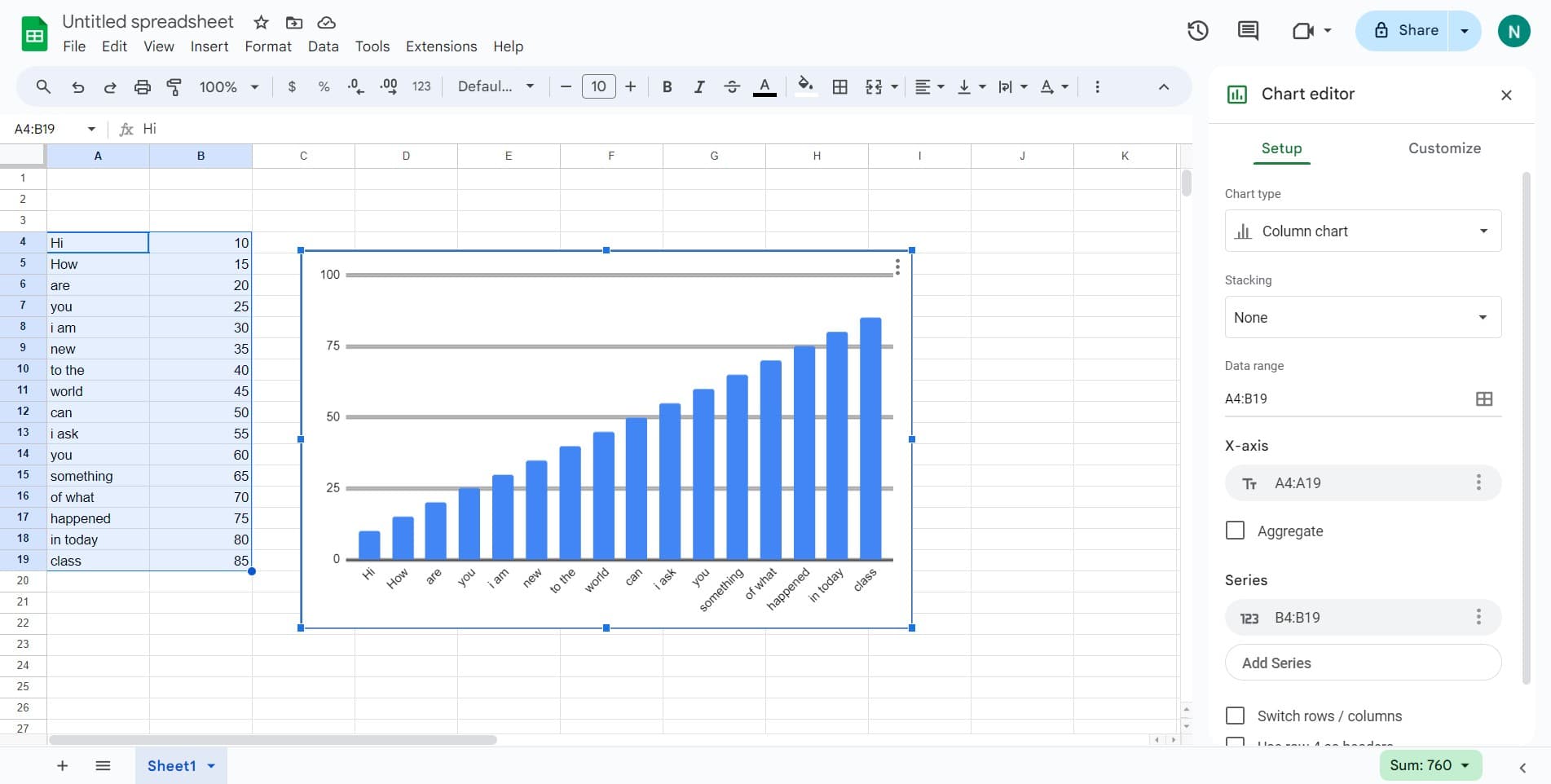
Configure chart settings
Access the chart editor to customize appearance and behavior. This is where you'll set data ranges, chart titles, and other foundational properties for your visualization.
- 5
Adjust axis properties
Fine-tune your axes by setting scales, ranges, and formatting. This step ensures your chart displays data at appropriate intervals and maintains readability.
- 6
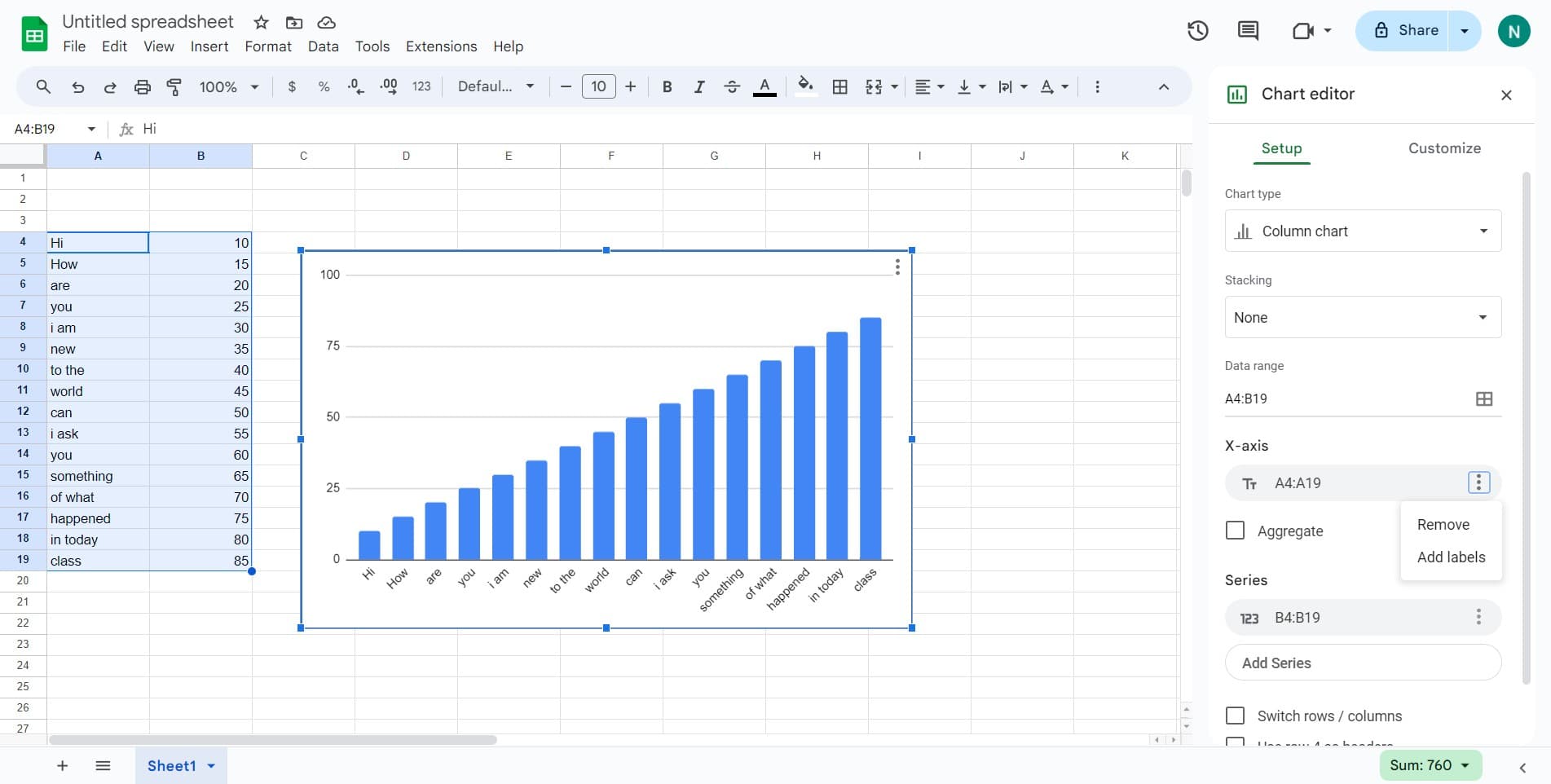
Click on Add labels
Enable axis labels to clearly identify what each axis represents. Adding descriptive labels ensures viewers understand the units and values displayed on both the horizontal and vertical axes.
Frequently asked questions
Common questions about how to create charts and add axis in google sheets.
Yes. Double-click the chart to open the chart editor, then click the chart type selector at the top to switch between different chart formats. Your data will automatically adjust to the new visualization style.
In the chart editor, navigate to the Horizontal Axis or Vertical Axis section under the Customize tab. You can edit titles, format numbers, and adjust label rotation to improve readability.
The horizontal axis (X-axis) typically displays categories or time periods, while the vertical axis (Y-axis) shows the measured values or quantities. In Google Sheets, labeling both clearly prevents confusion about what your data represents.
Yes. When setting up your chart, include all the data columns you want to visualize in your initial selection. Google Sheets will automatically create separate series and you can manage them in the Series section of the chart editor.
Open the chart editor and go to the Customize tab. Under the relevant axis section, toggle off the title or adjust the label frequency to show fewer labels and reduce visual clutter.