How to download a Google Sheet

Downloading a Google Sheet allows you to save your spreadsheet in various file formats for offline access, sharing, or archiving. Whether you need to convert your sheet to Excel, PDF, or CSV, Google Sheets makes this process straightforward. This guide walks you through the essential steps to download your spreadsheet in just moments.
Quick summary
In this tutorial, you'll learn how to download a Google Sheet using the File menu and format options. You'll discover how to access the download feature and select your preferred file format for export. By the end, you'll be able to save your spreadsheet locally on your device.
Why this matters
Downloading Google Sheets is essential for maintaining backups, sharing data with colleagues who use different tools, and ensuring access to your work offline. Many businesses require data in specific formats like Excel or PDF for reporting and compliance purposes. This workflow is fundamental for anyone working with spreadsheets across multiple platforms or teams.
Step-by-step guide
- 1
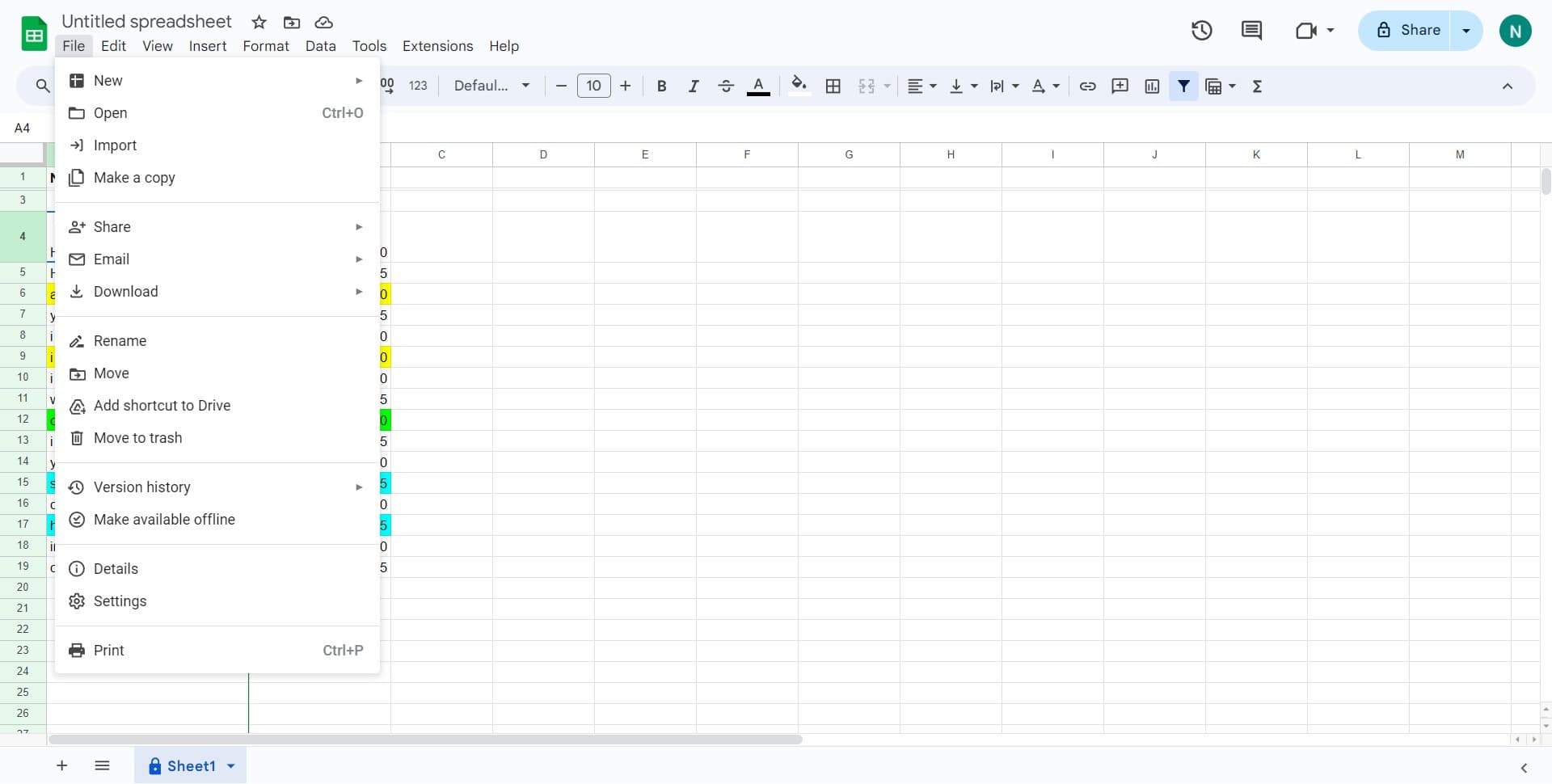
Click on File
Open your Google Sheet and locate the File menu in the top-left corner of the navigation bar. Click on it to reveal the dropdown menu with various options including download and export features.
- 2
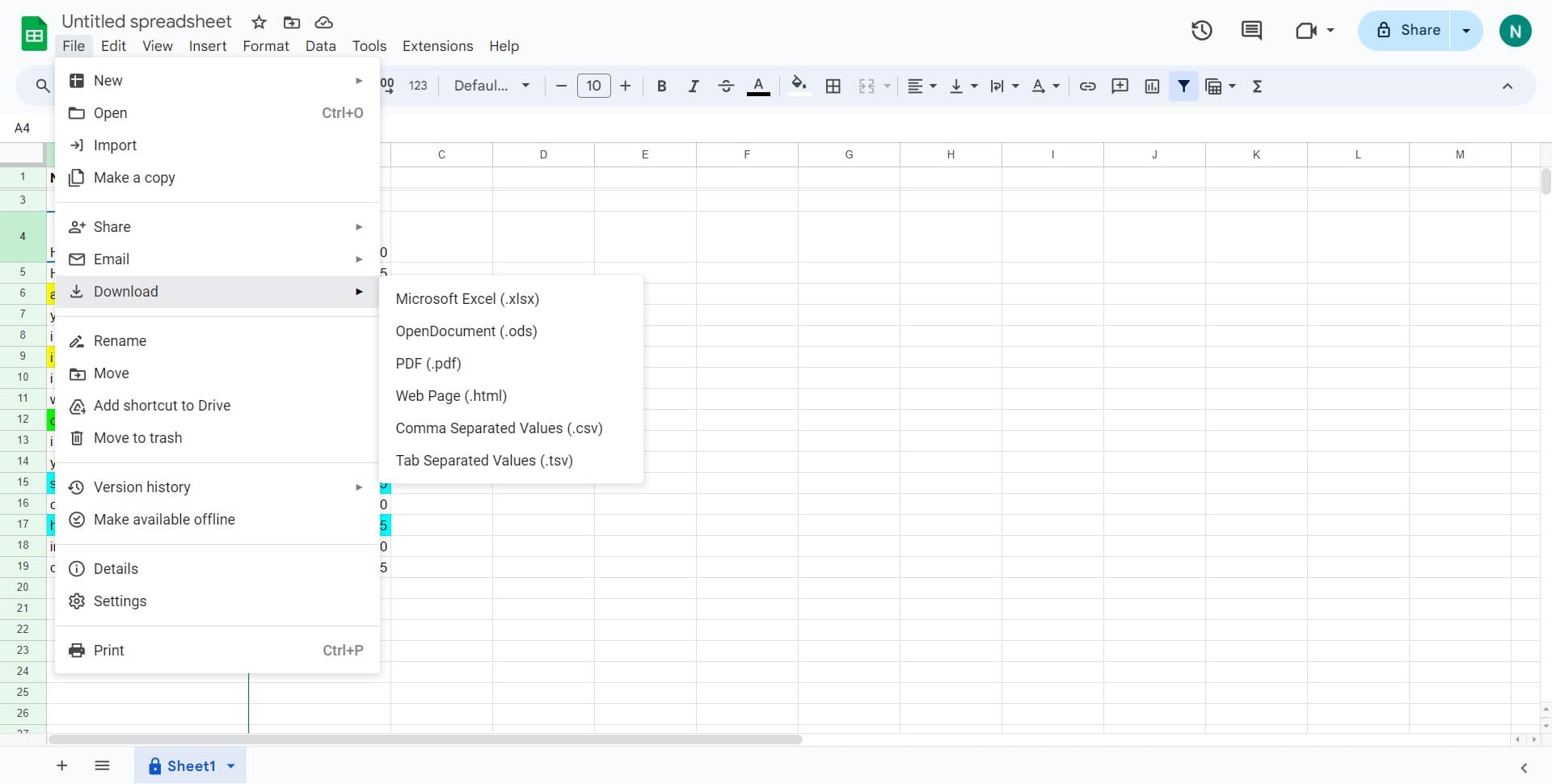
Click on Download arrow
In the File dropdown menu, find the Download option with an arrow indicating a submenu. Click on it to see the available file format options for downloading your spreadsheet.
- 3
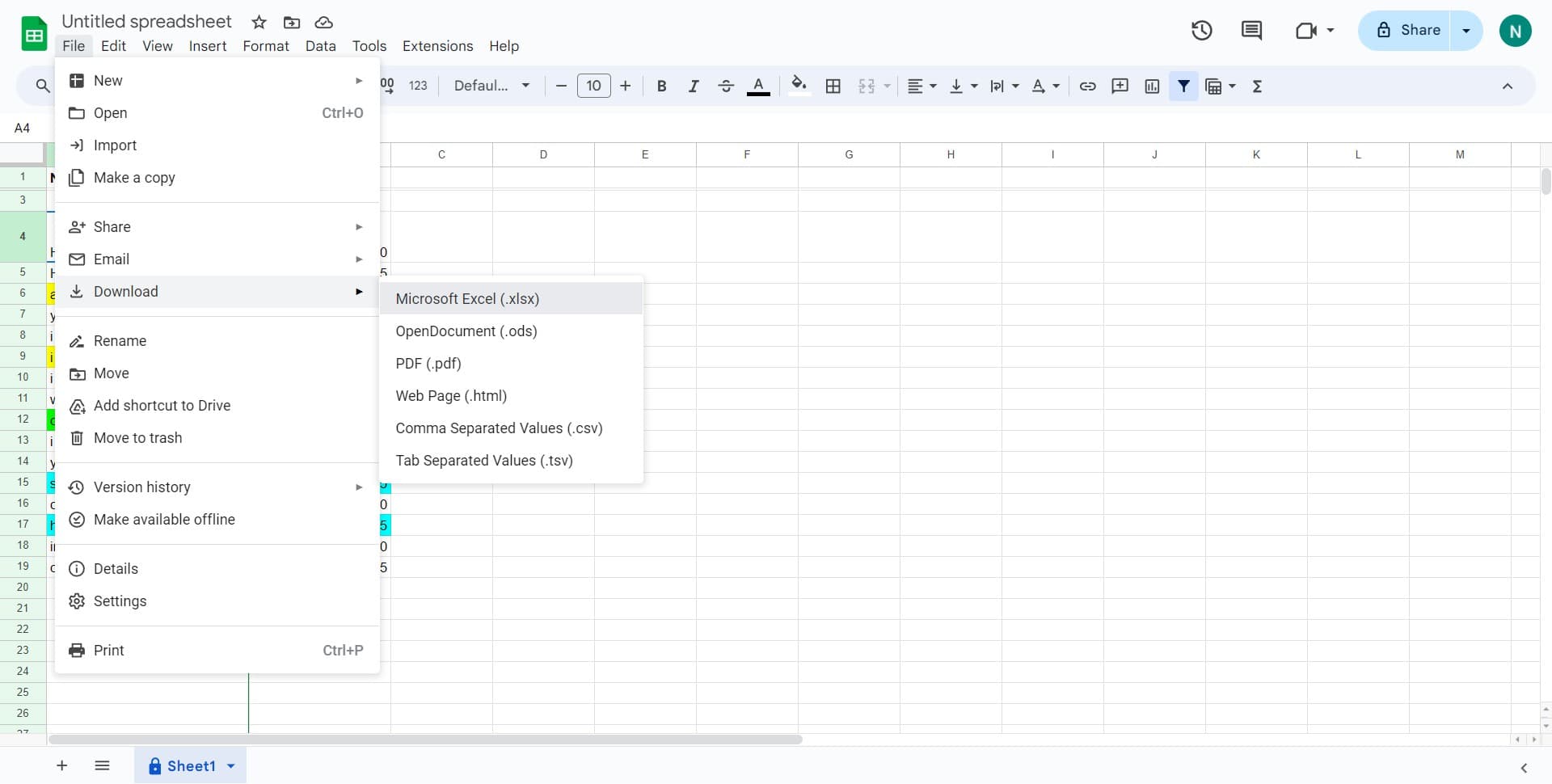
Select your desired format
Choose from the available download formats such as Microsoft Excel, PDF, CSV, or other options depending on your needs. Click on your preferred format to initiate the download to your device.
Frequently asked questions
Common questions about how to download a google sheet.
Google Sheets supports multiple download formats including Microsoft Excel (.xlsx), PDF, CSV, ODS (OpenDocument Spreadsheet), and TSV (Tab-Separated Values). The available formats may vary slightly depending on your spreadsheet content and structure. Choose the format that best suits your workflow or compatibility needs.
Most formatting and formulas are preserved when downloading to Excel or ODS formats, though some advanced Google Sheets features may not translate perfectly. PDF downloads maintain your visual formatting but convert the sheet to a static image format. CSV downloads only preserve raw data without formulas or complex formatting.
Yes, you can download individual sheets by first selecting the specific sheet tab, then following the File > Download process. This will download only the active sheet rather than the entire workbook. If you need all sheets, download the entire file and it will include all tabs as separate sheets.
Google Sheets can handle large datasets, but extremely large files may take longer to download or could encounter browser limitations. Most standard business spreadsheets download without issues. If you experience problems, consider splitting your data into smaller sheets or filtering the data before downloading.
Downloaded files typically go to your default Downloads folder, though this depends on your browser settings. You can usually configure this in your browser preferences to choose a different save location. Check your Downloads folder or the location you specified when the download completes.