How to edit row size in Google Sheets

Adjusting row height in Google Sheets allows you to better display your data and improve spreadsheet readability. Whether you need more space for longer text or want to make your sheet more compact, resizing rows is a quick and essential skill.
Quick summary
In this tutorial, you'll learn how to select rows and adjust their size to fit your content. By following these steps, you'll be able to customize row heights to match your spreadsheet's needs.
Why this matters
Properly sized rows make your spreadsheet easier to read and help prevent important information from being cut off or hidden. This is especially useful when working with wrapped text, multiple lines of data, or when presenting data to others.
Step-by-step guide
- 1
Open your Google Sheets document
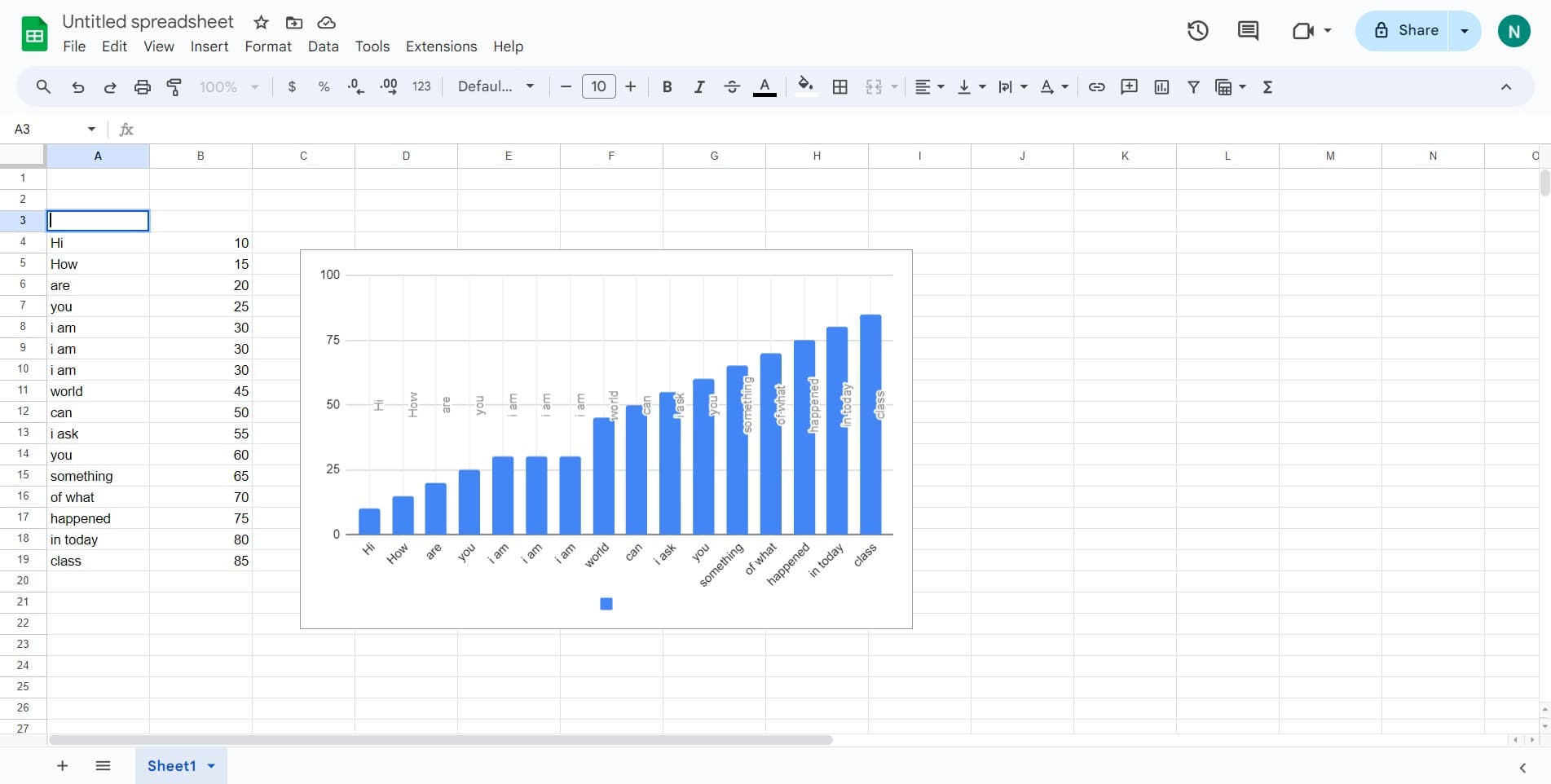
Navigate to Google Sheets and open the spreadsheet containing the rows you want to resize. Ensure you have edit access to the document.
- 2
Select the row to resize
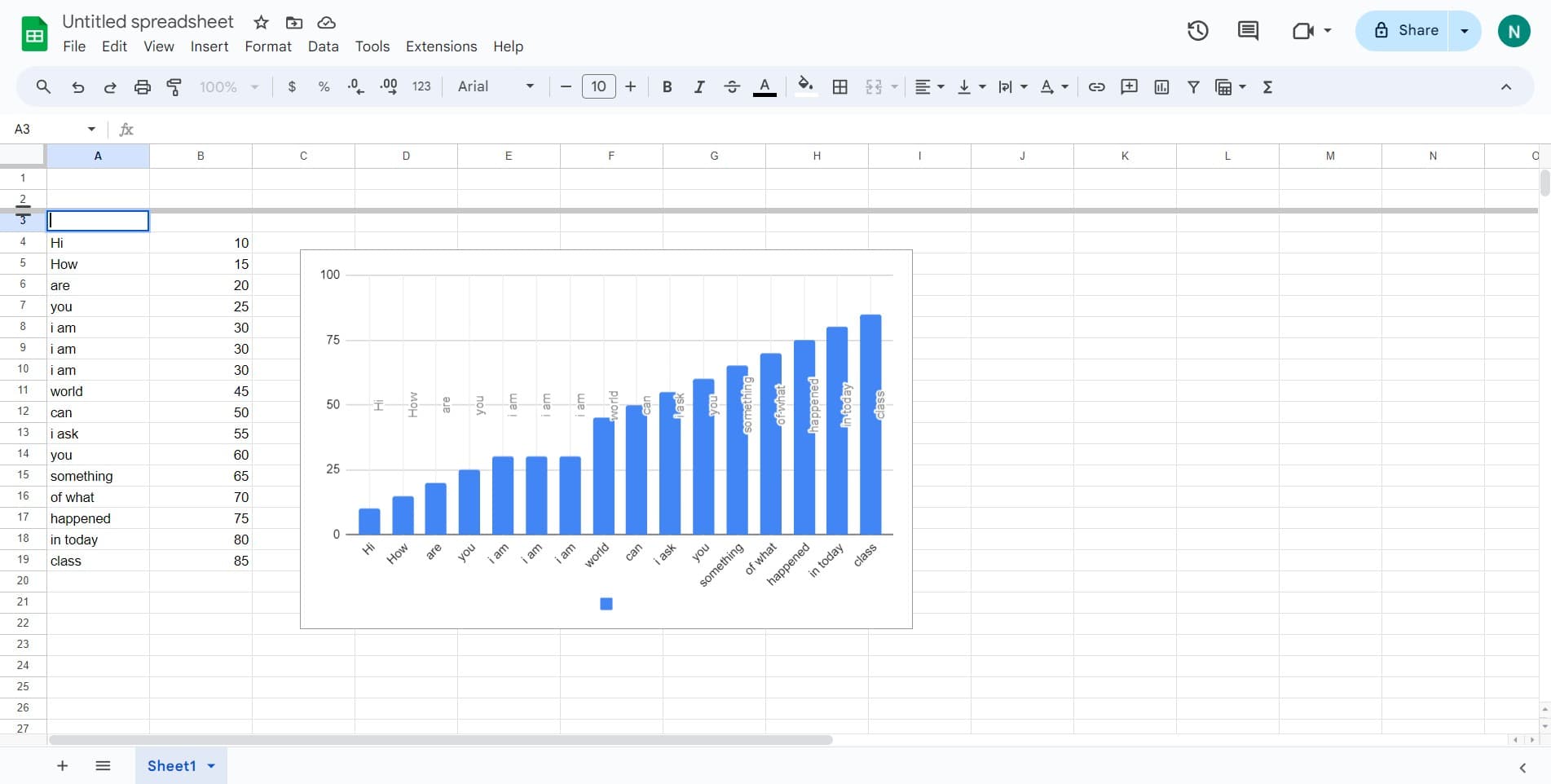
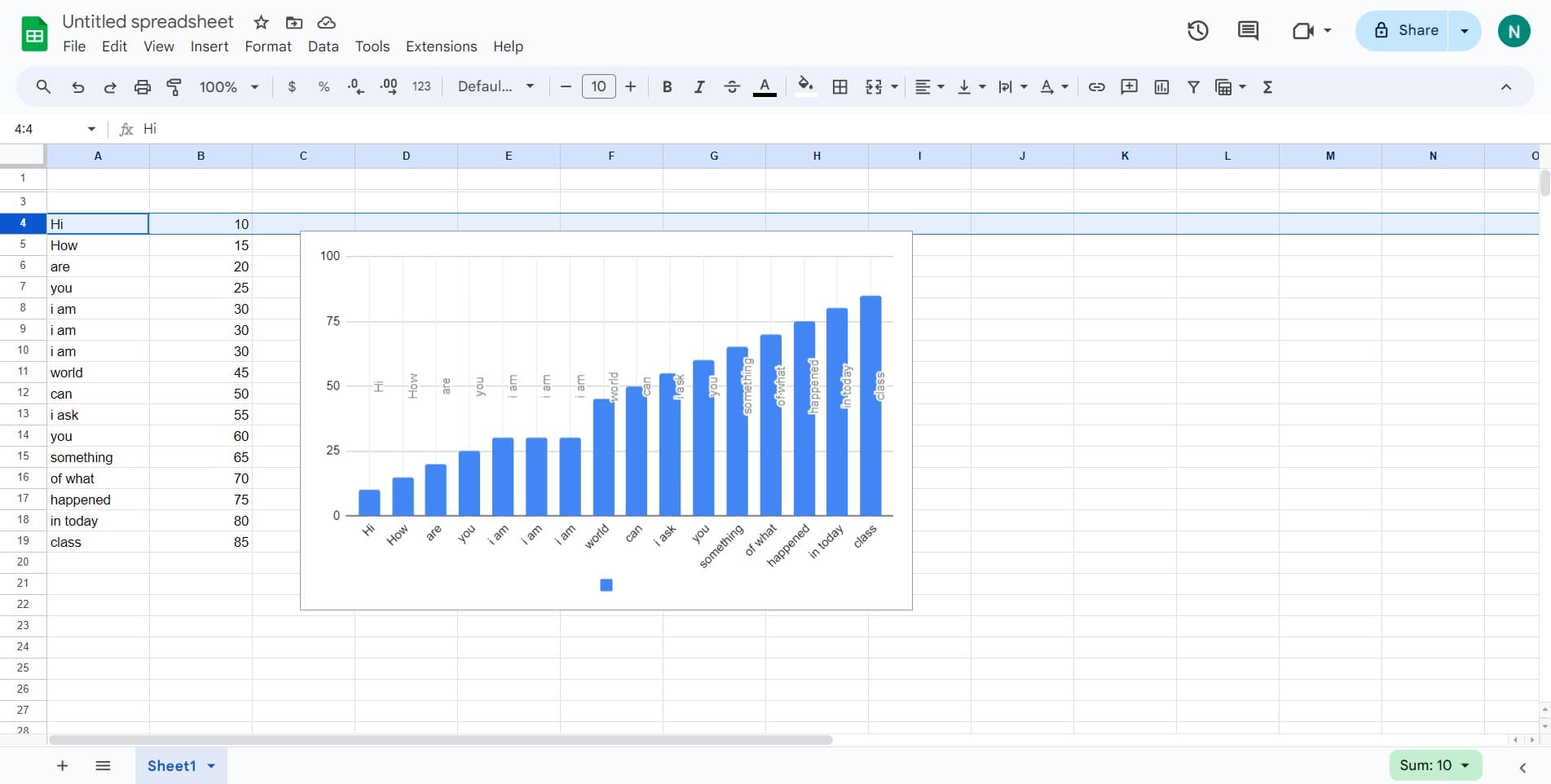
Click on the row number on the left side of the spreadsheet to select the entire row. The row will be highlighted in blue.
- 3
Access the row options menu
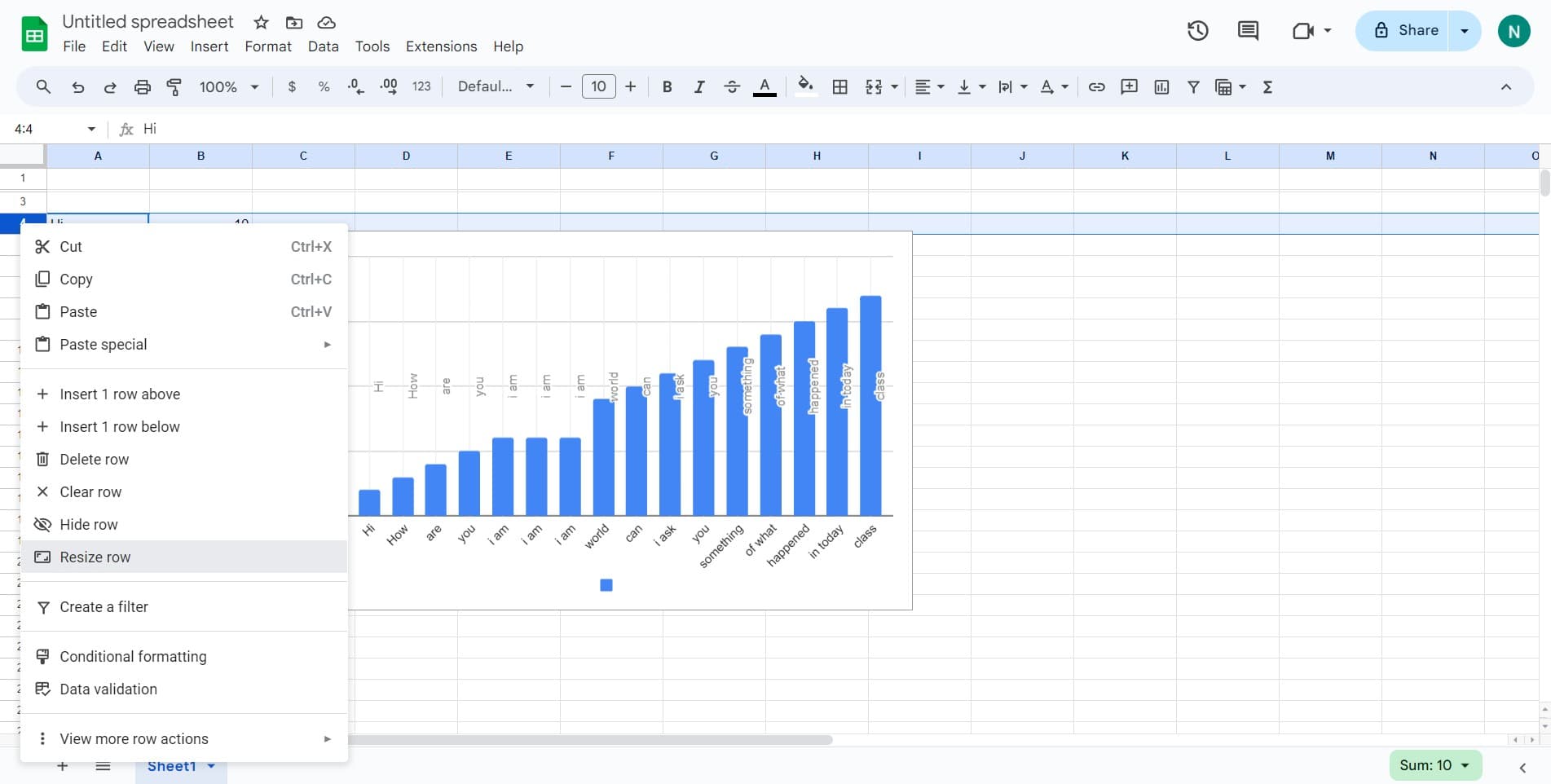
Right-click on the selected row number to open the context menu with available row actions.
- 4
Review available resize options
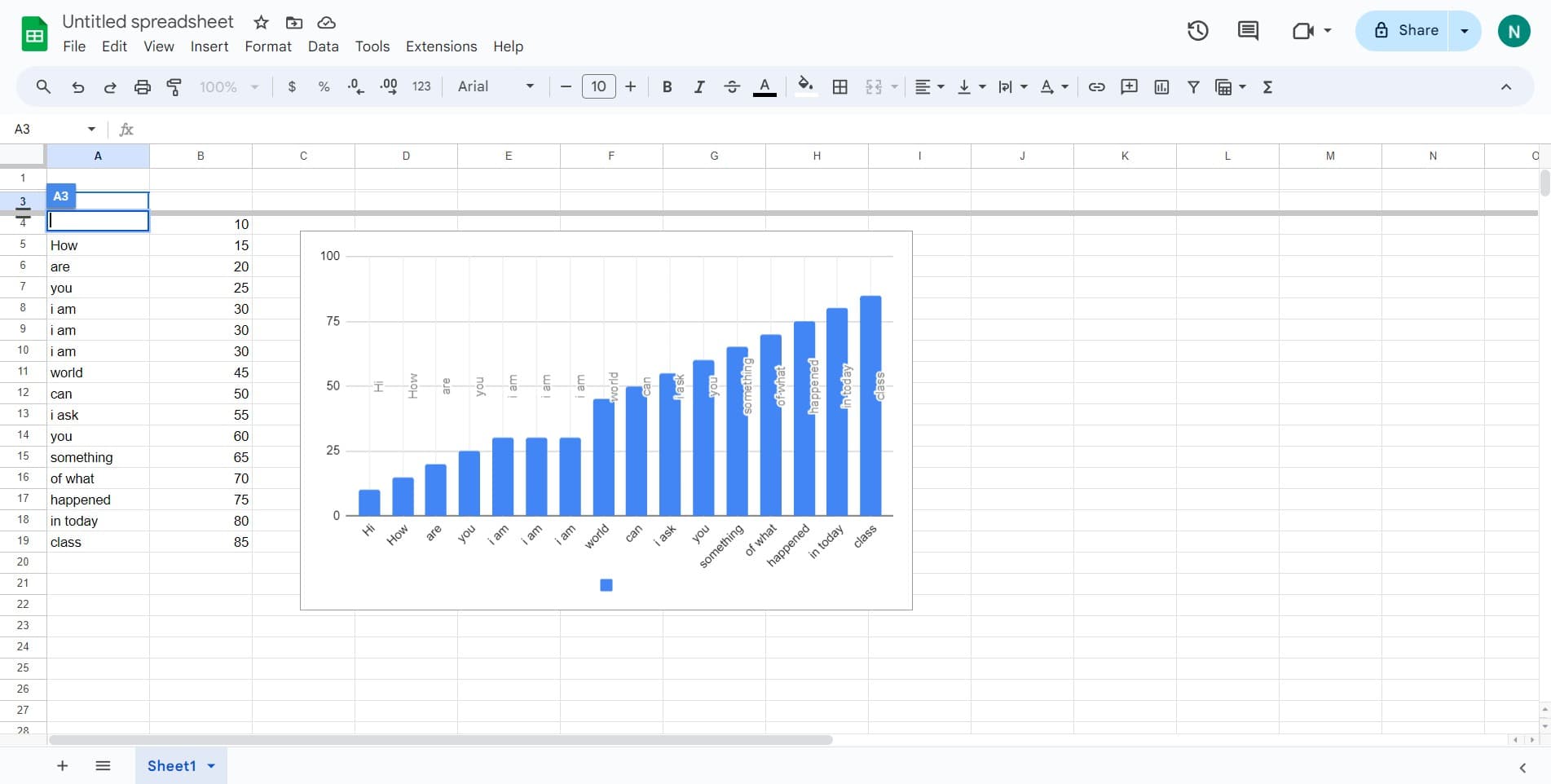
The context menu will display several options for adjusting row height. Look for the resize option in this menu.
- 5
Locate the resize option
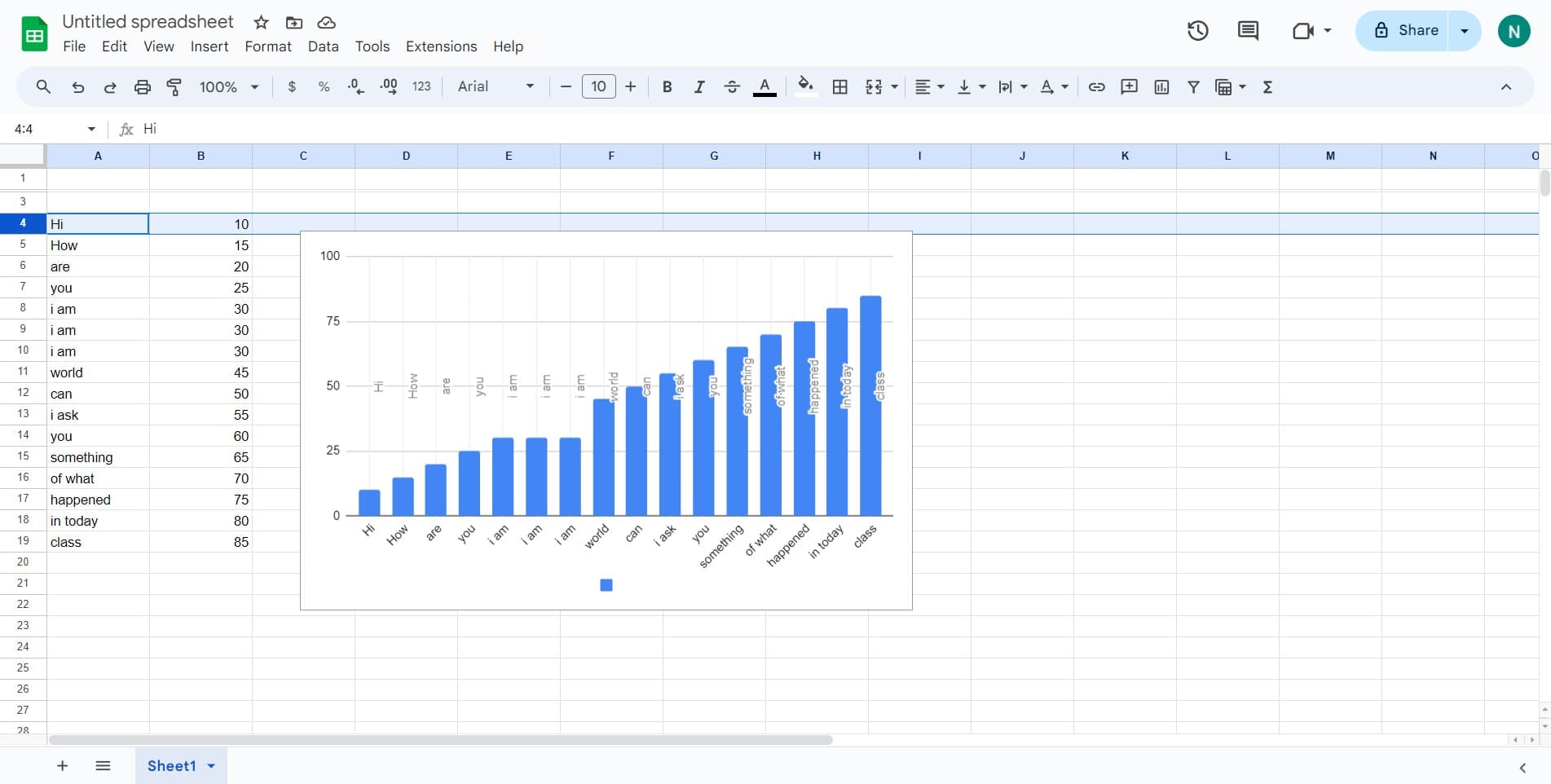
Scan the menu to find the specific row resize feature. This option allows you to manually set row dimensions.
- 6
Click on Resize row
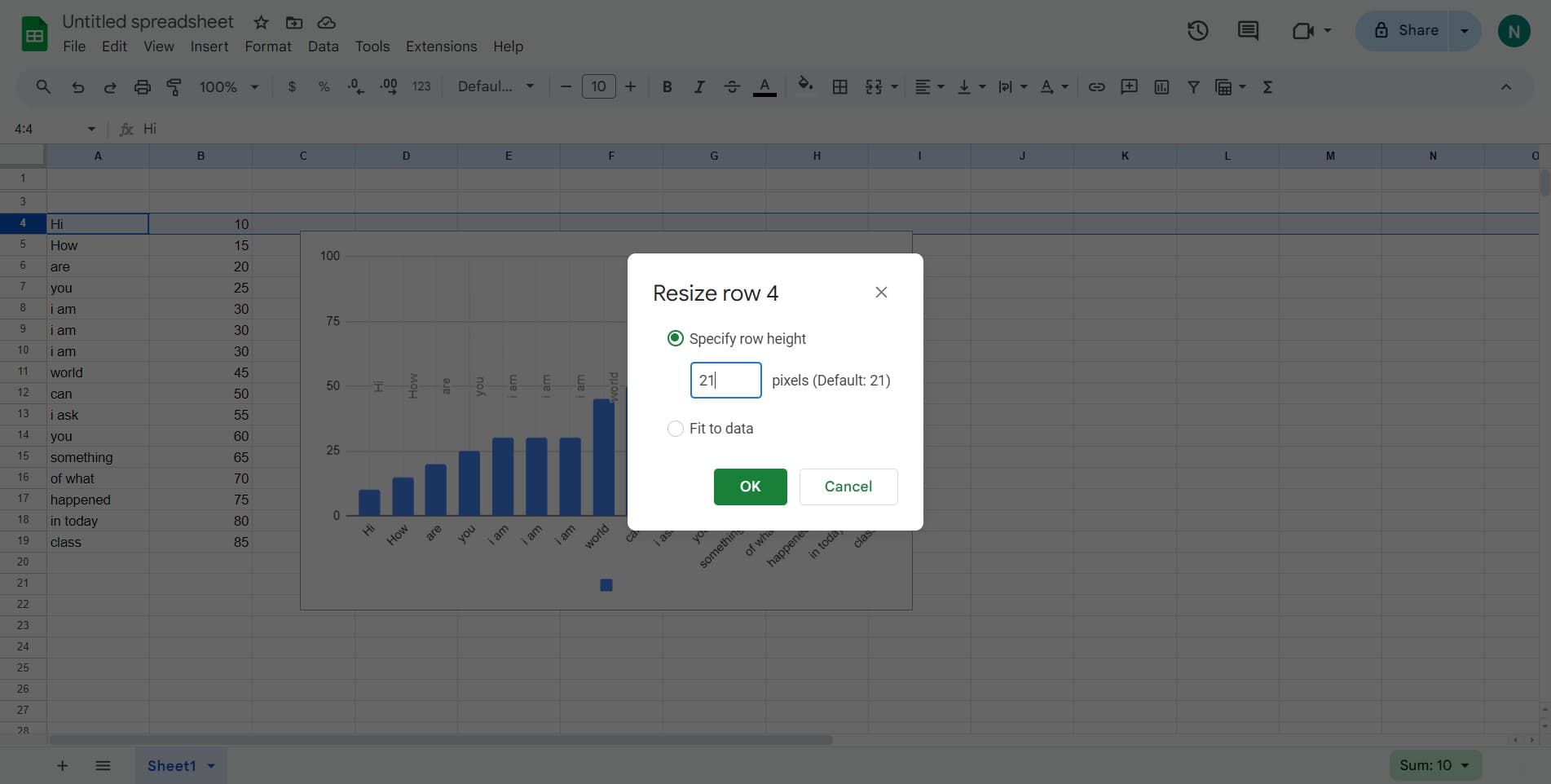
Select the 'Resize row' option from the menu. A dialog box will appear where you can specify the exact row height.
- 7
Enter the desired row height
Type the new row height value in pixels or use the input field to set your preferred dimension. The preview will update as you adjust the value.
- 8
Confirm the changes
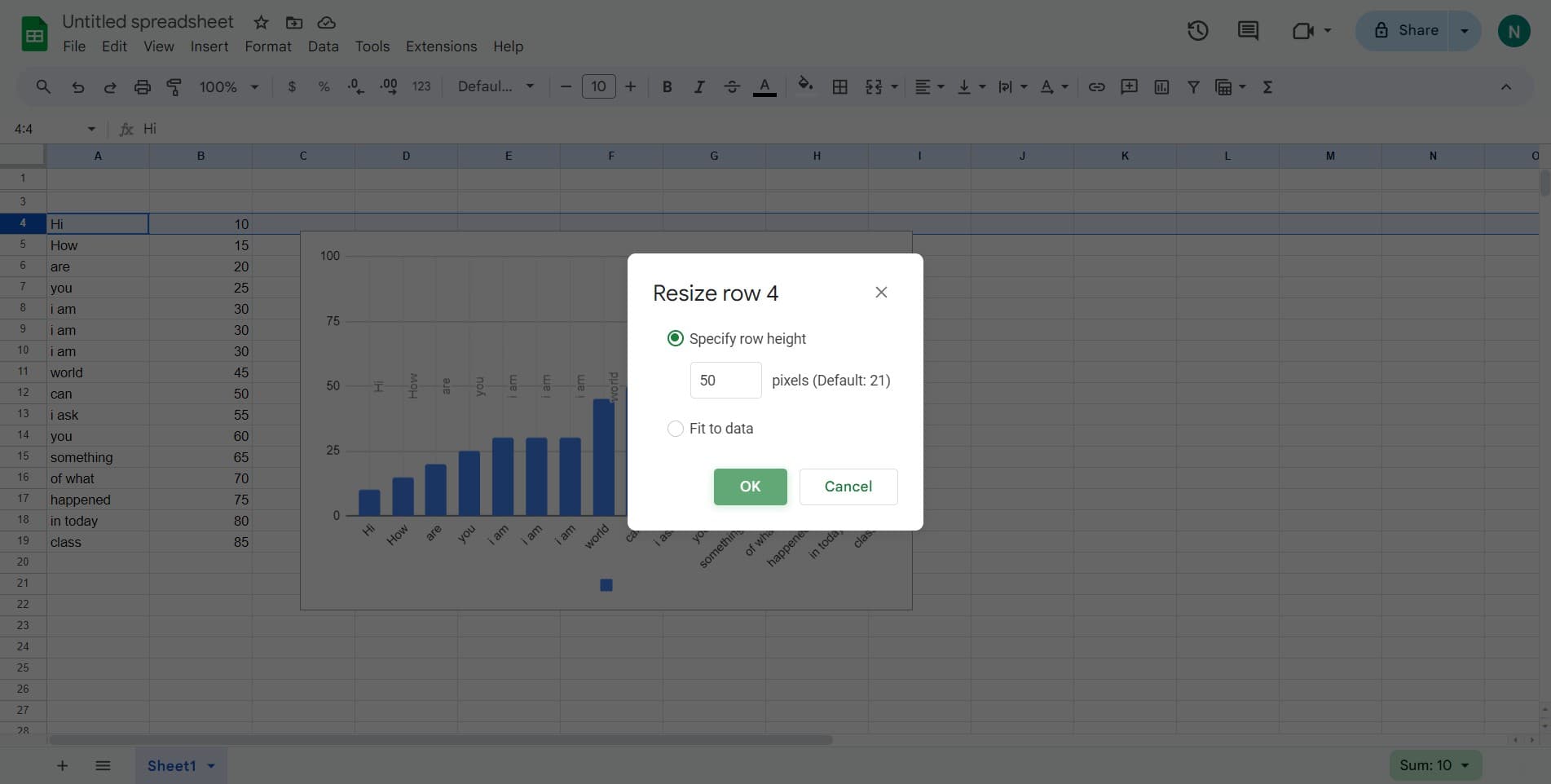
Click the 'OK' button to apply the new row height to your selected row. The change will be reflected immediately in your spreadsheet.
Frequently asked questions
Common questions about how to edit row size in google sheets.
Yes, you can select multiple rows by clicking the first row number, then holding Shift and clicking the last row you want to resize. All selected rows will resize to the same height when you apply the change.
Google Sheets offers an auto-resize option in the context menu that automatically adjusts row height based on the content inside. This is useful when you have varying amounts of text and want optimal spacing without manual calculation.
Yes, you can use Ctrl+Z (or Cmd+Z on Mac) to undo the row resize. Google Sheets maintains an undo history that allows you to revert recent changes.
Google Sheets allows row heights from 21 pixels to very large sizes. The practical limits depend on your spreadsheet's overall dimensions and display preferences.
No, resizing rows only changes the visual height of the row and does not affect any data, formulas, or calculations in your spreadsheet. All content remains intact.